Each Component Explained in Detail

Check below Video's to understand the Major features of the Gojek app Clone. The Video in centre is summary while each Video on Left and Right explains High Level Flow of all Base and Paid components. The Video's also have Subtitles so you can understand them in easy way.

XJekPlusBase 4 Components
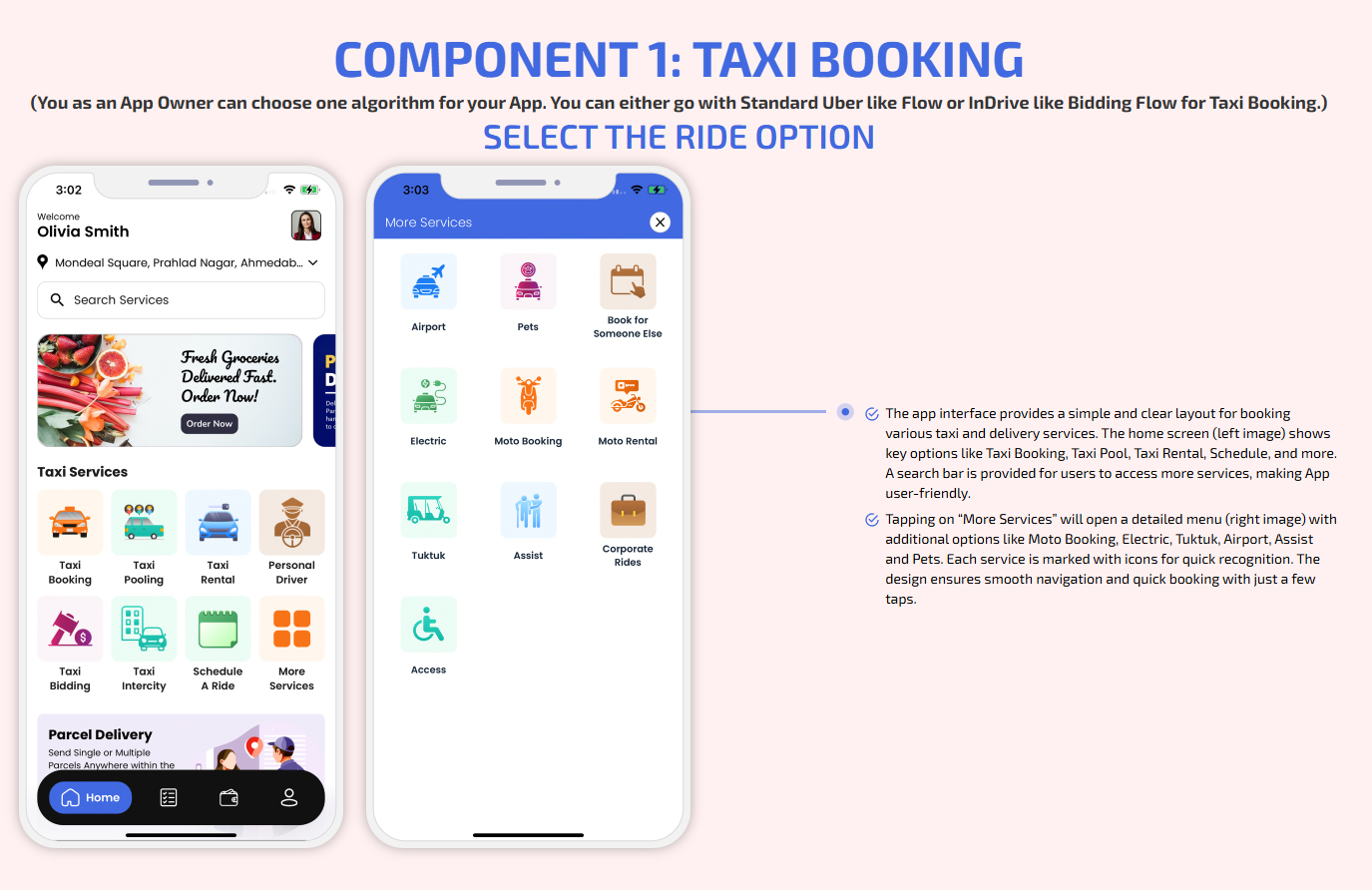
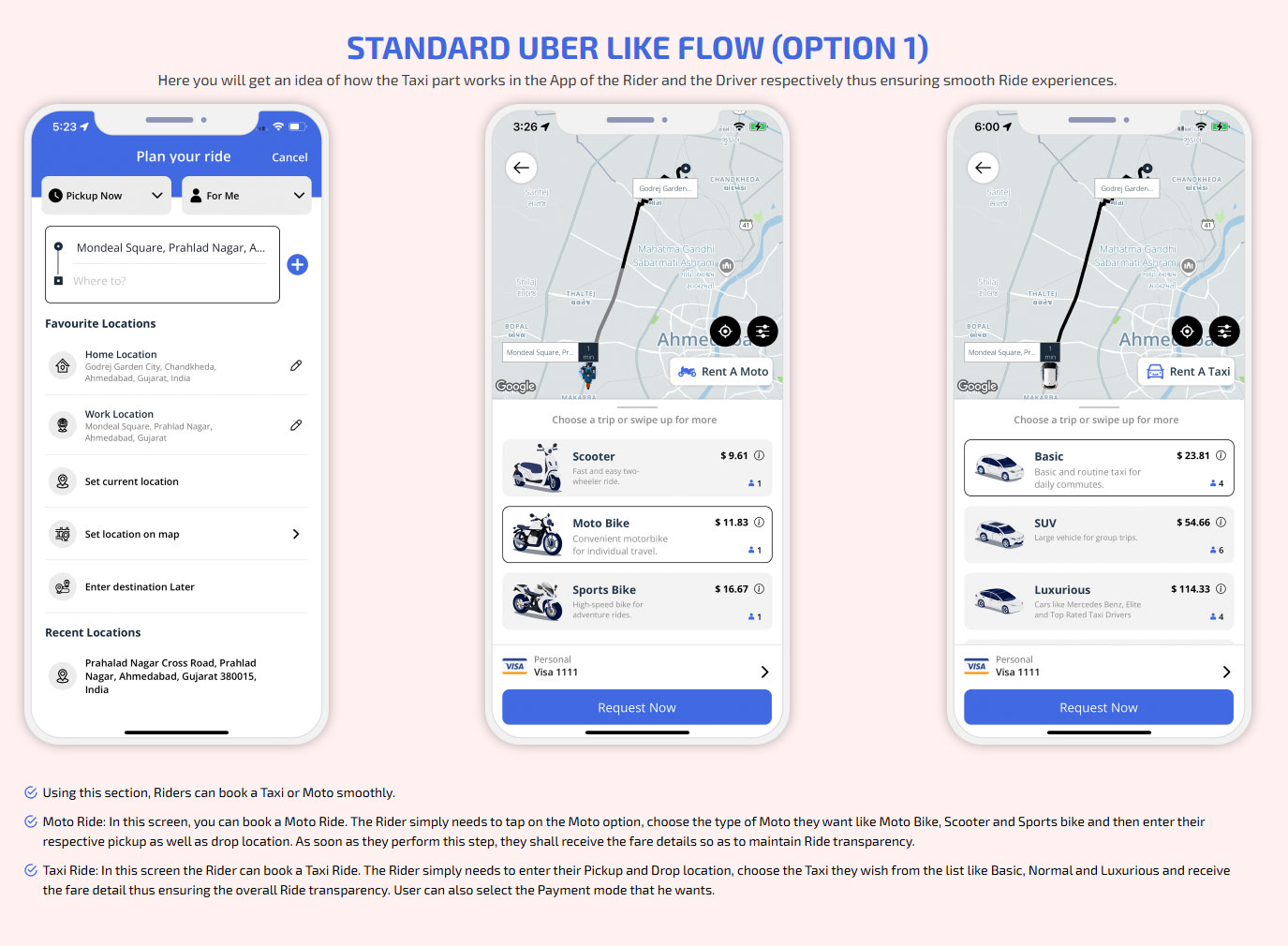
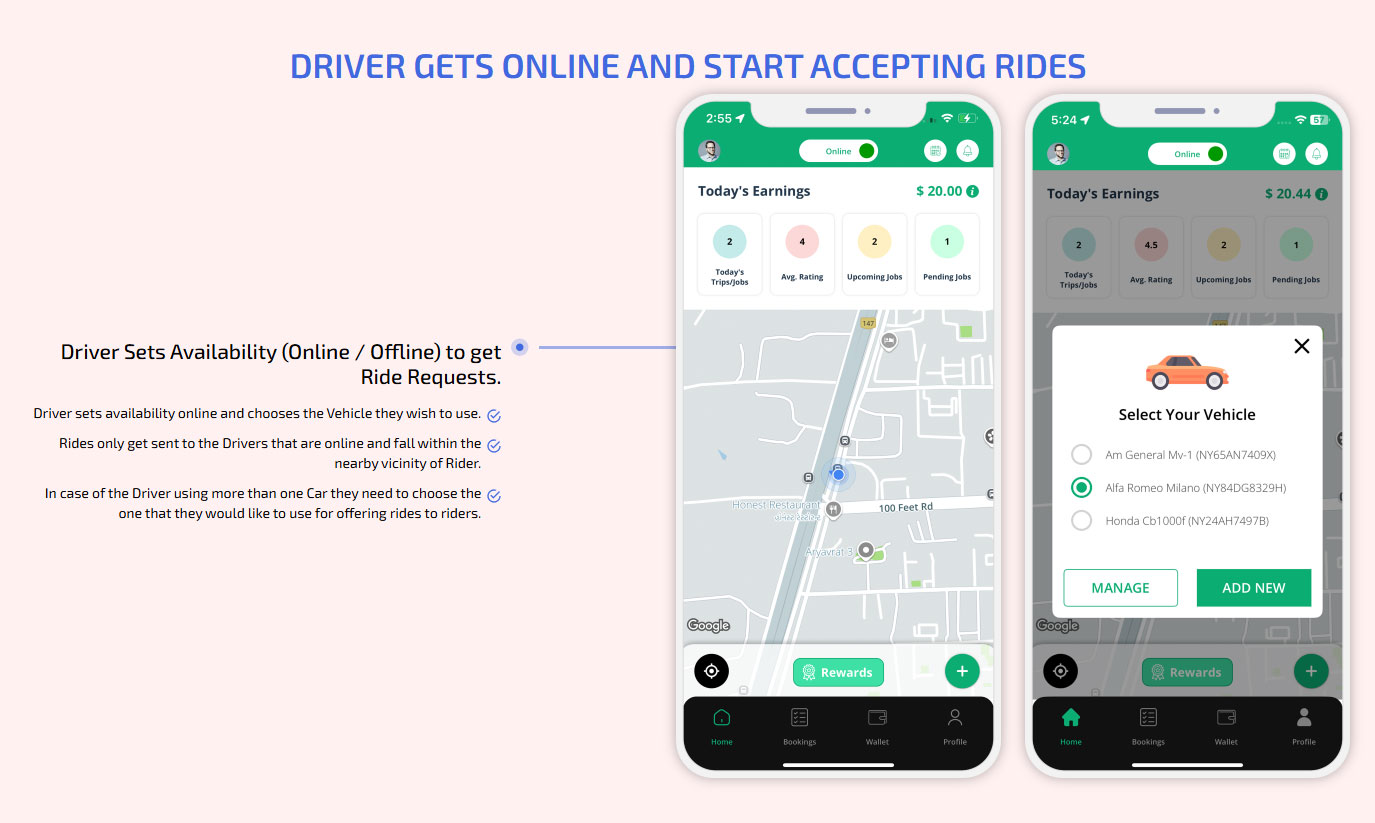
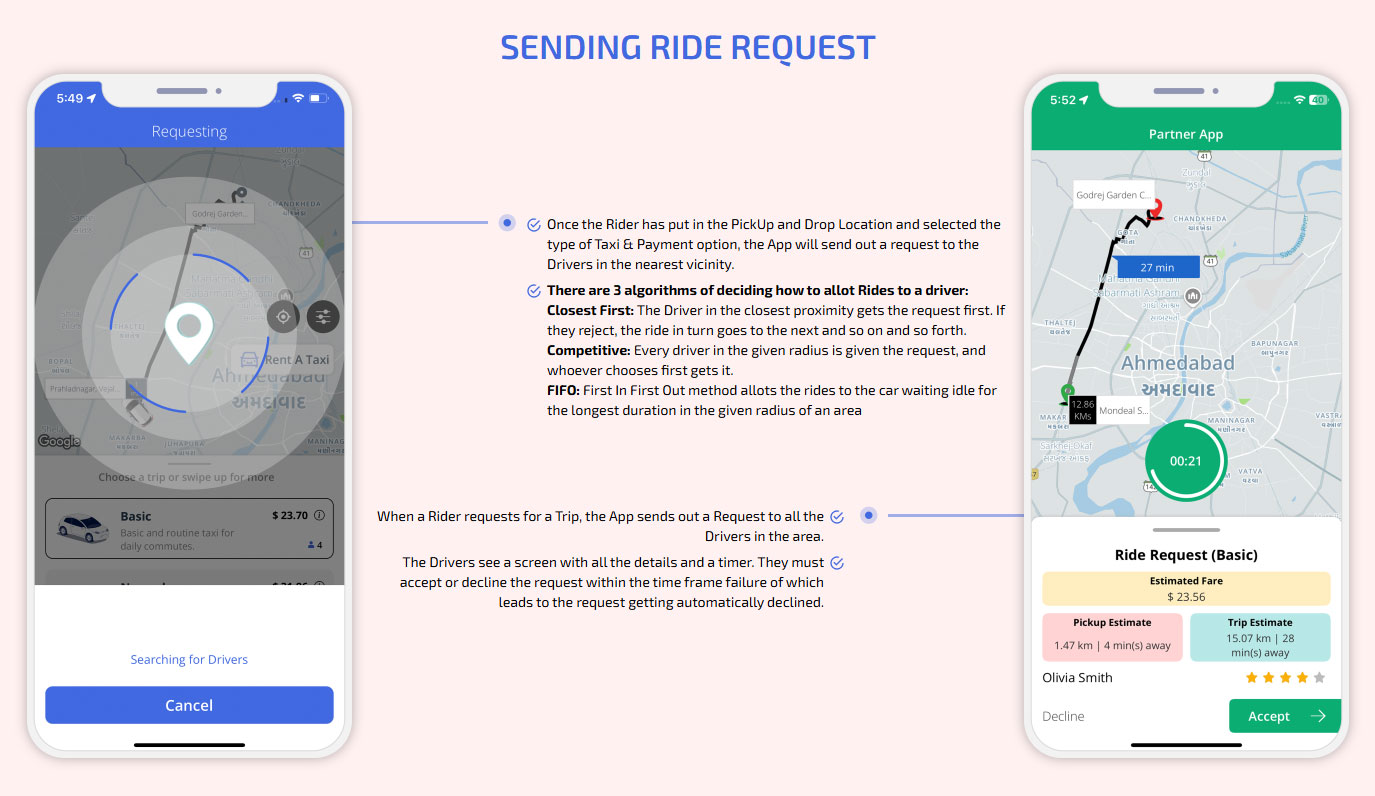
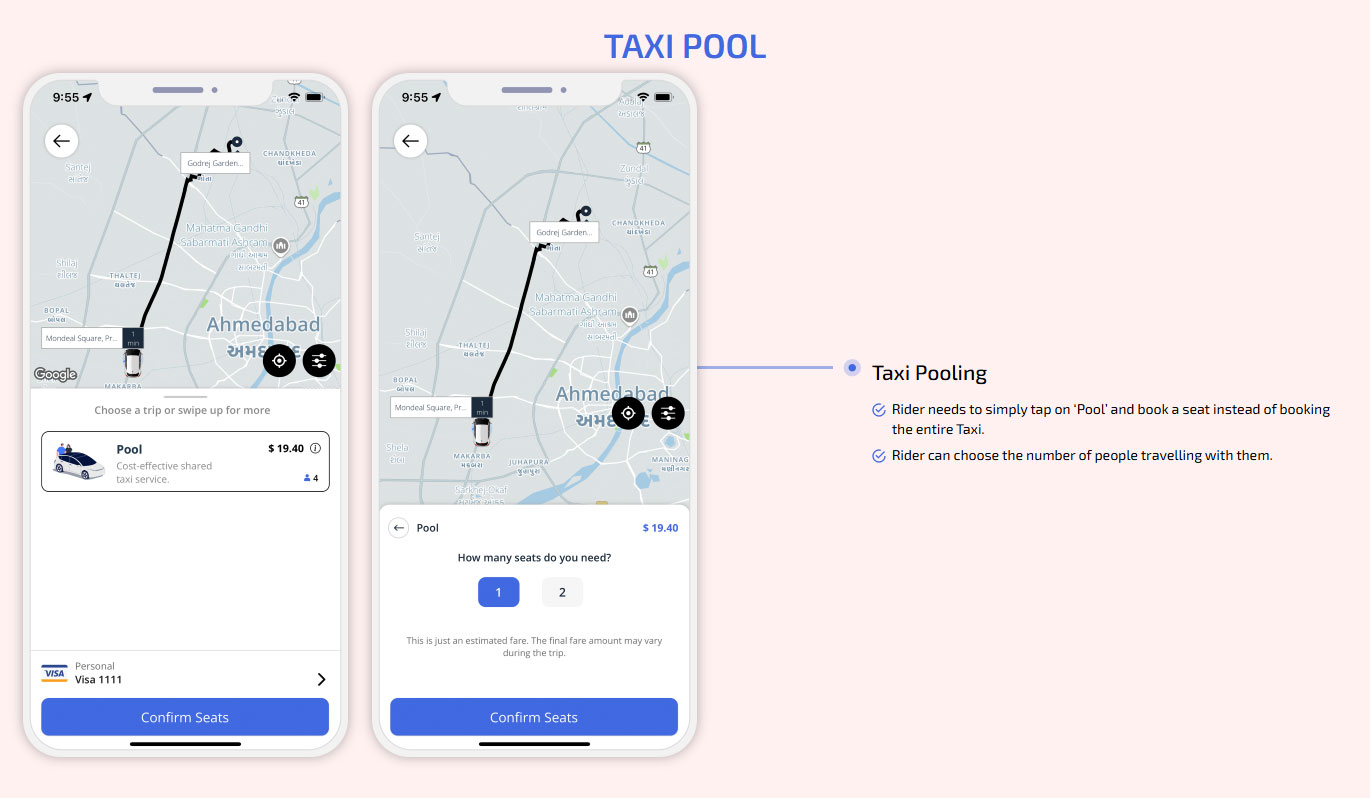
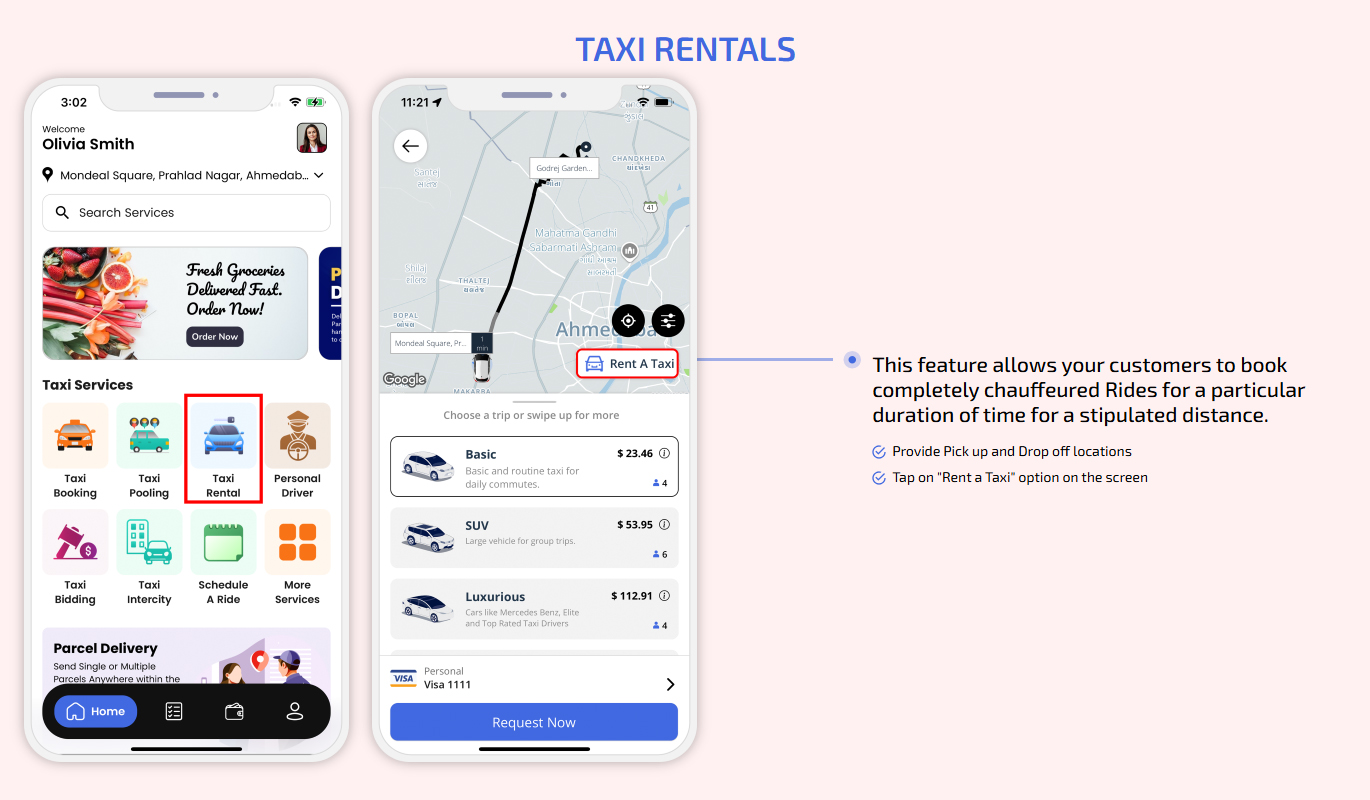
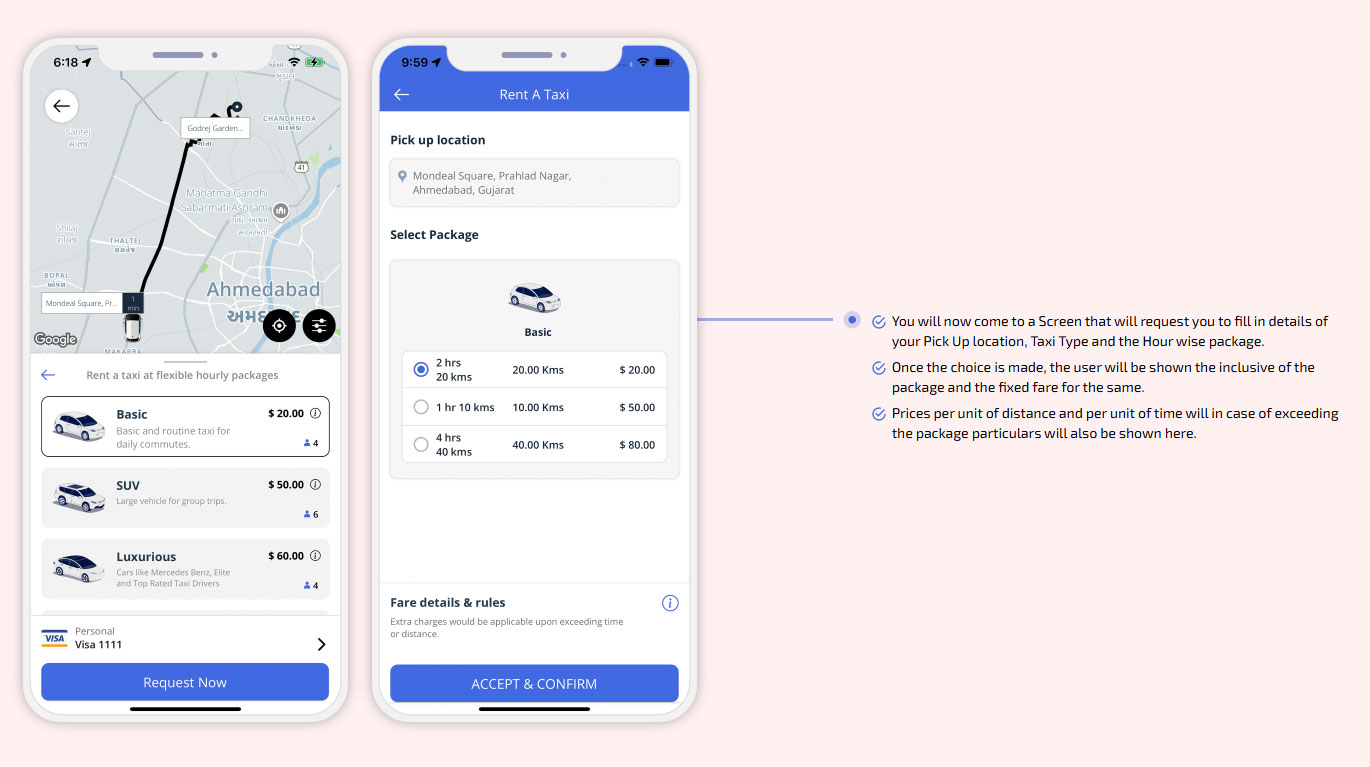
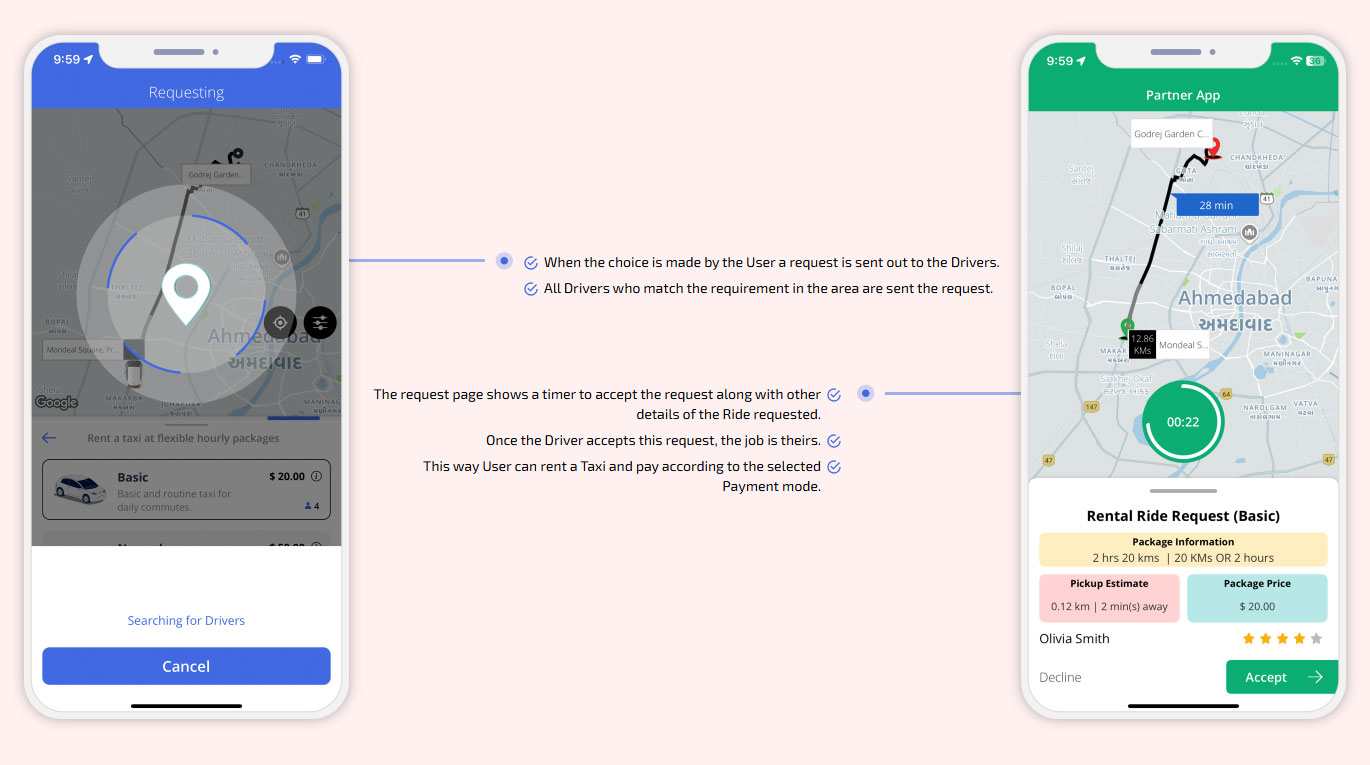
Taxi - Uber like Taxi, Rental & Taxi Pool
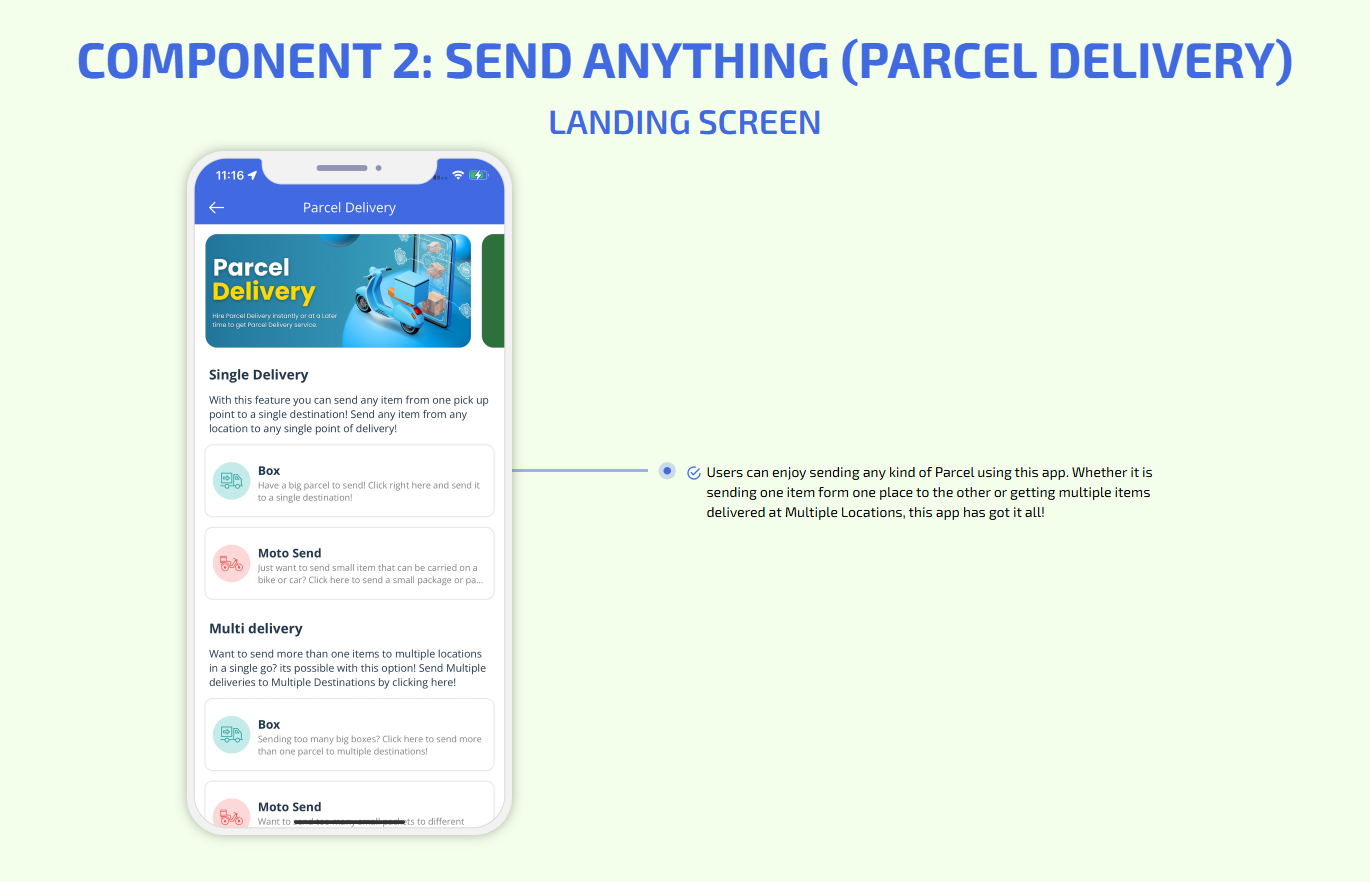
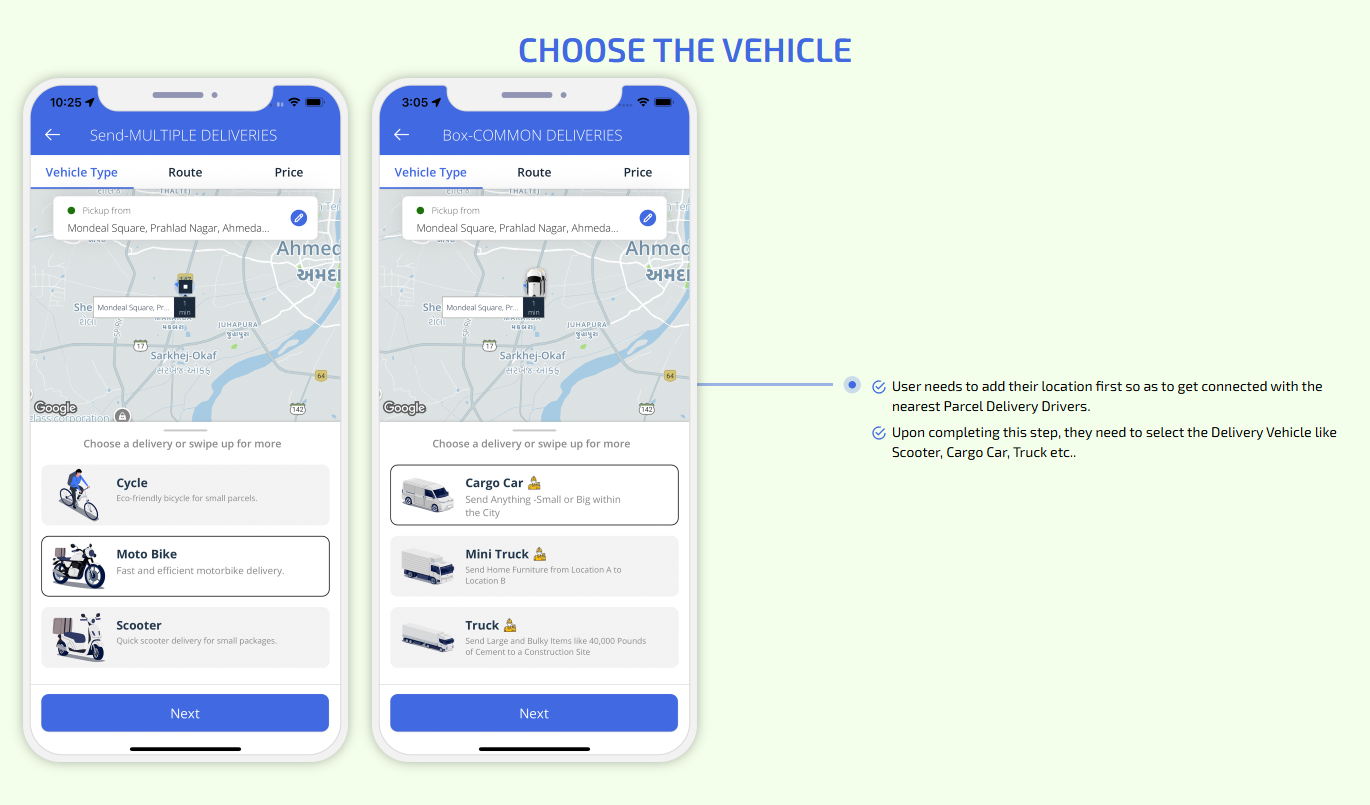
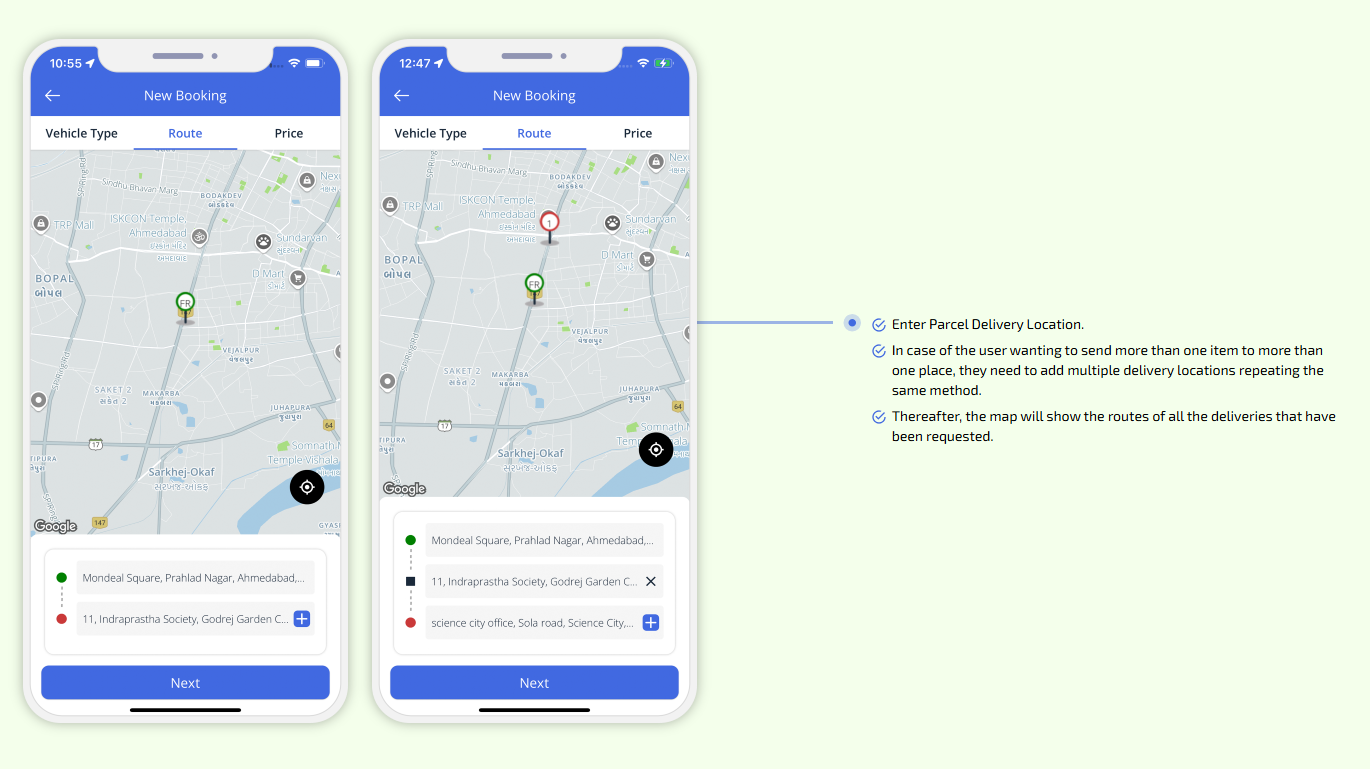
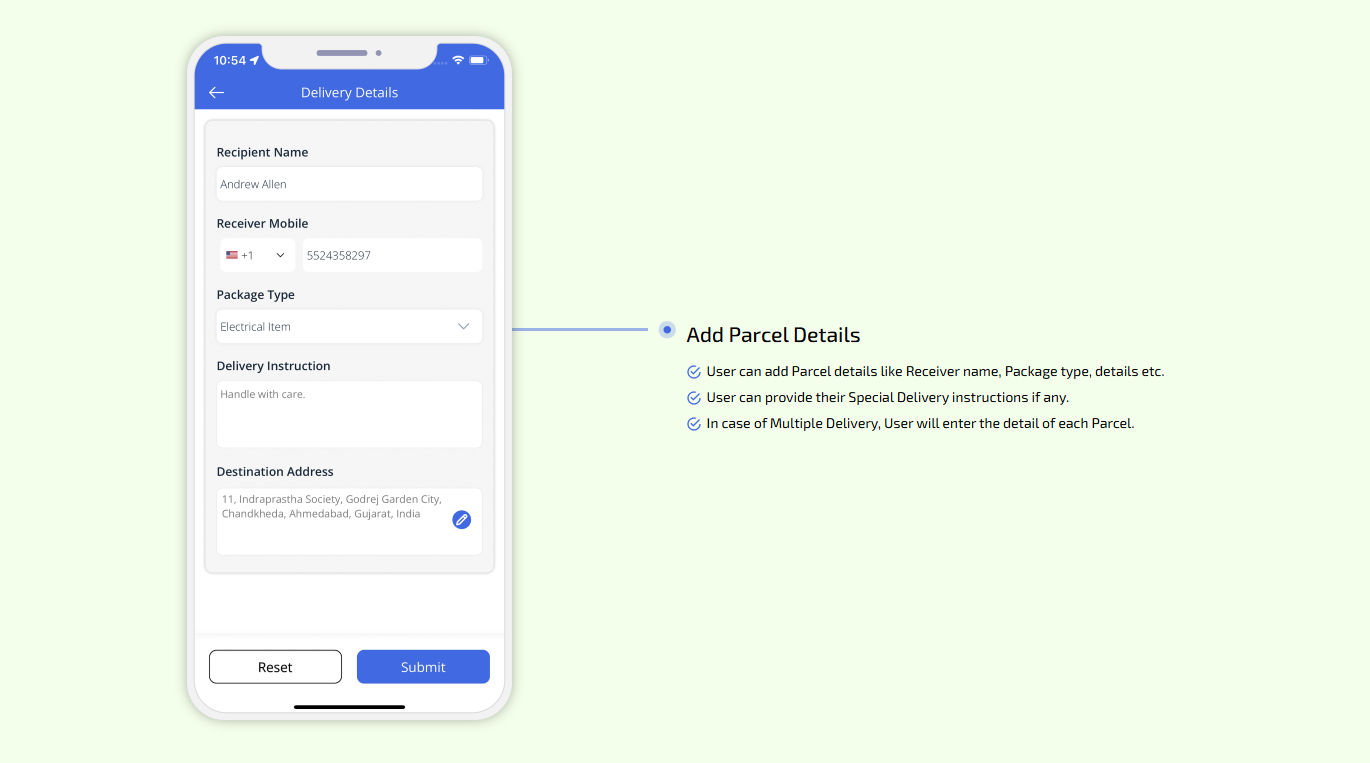
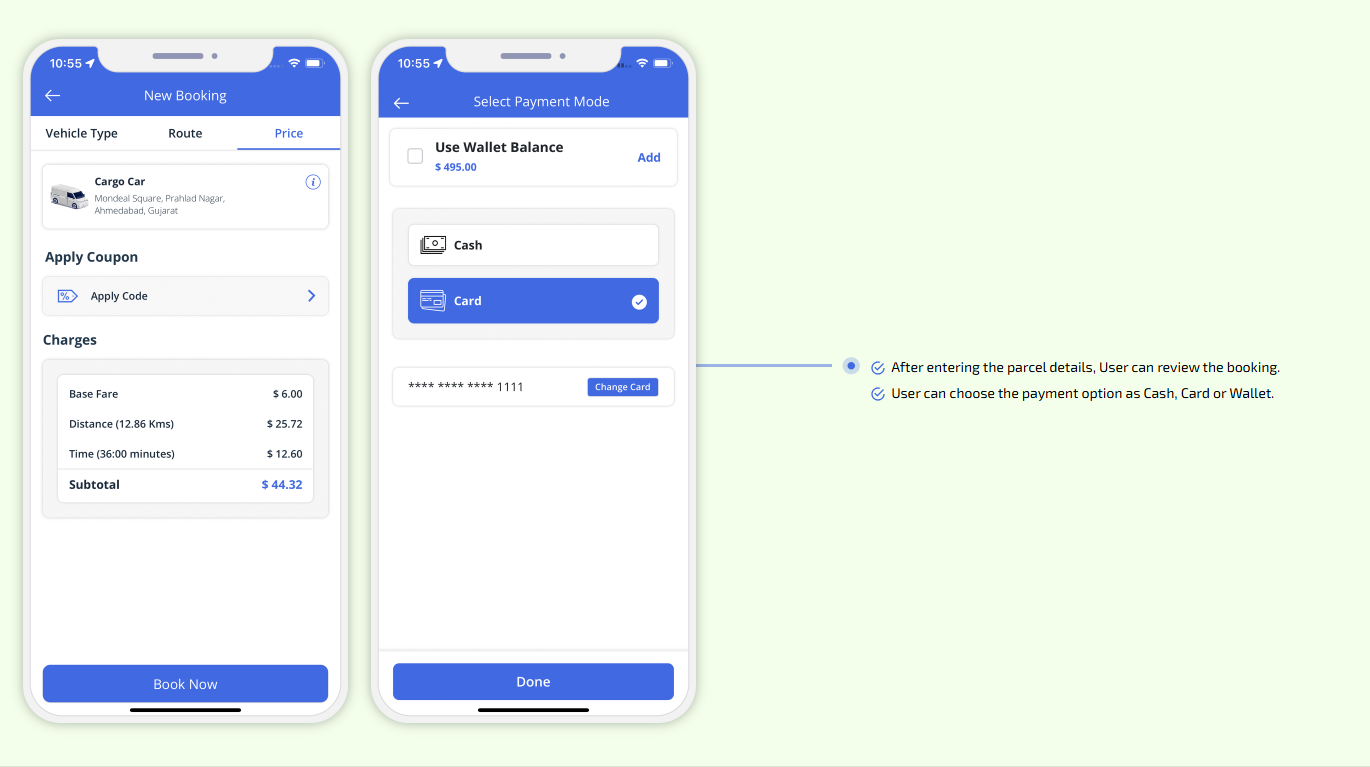
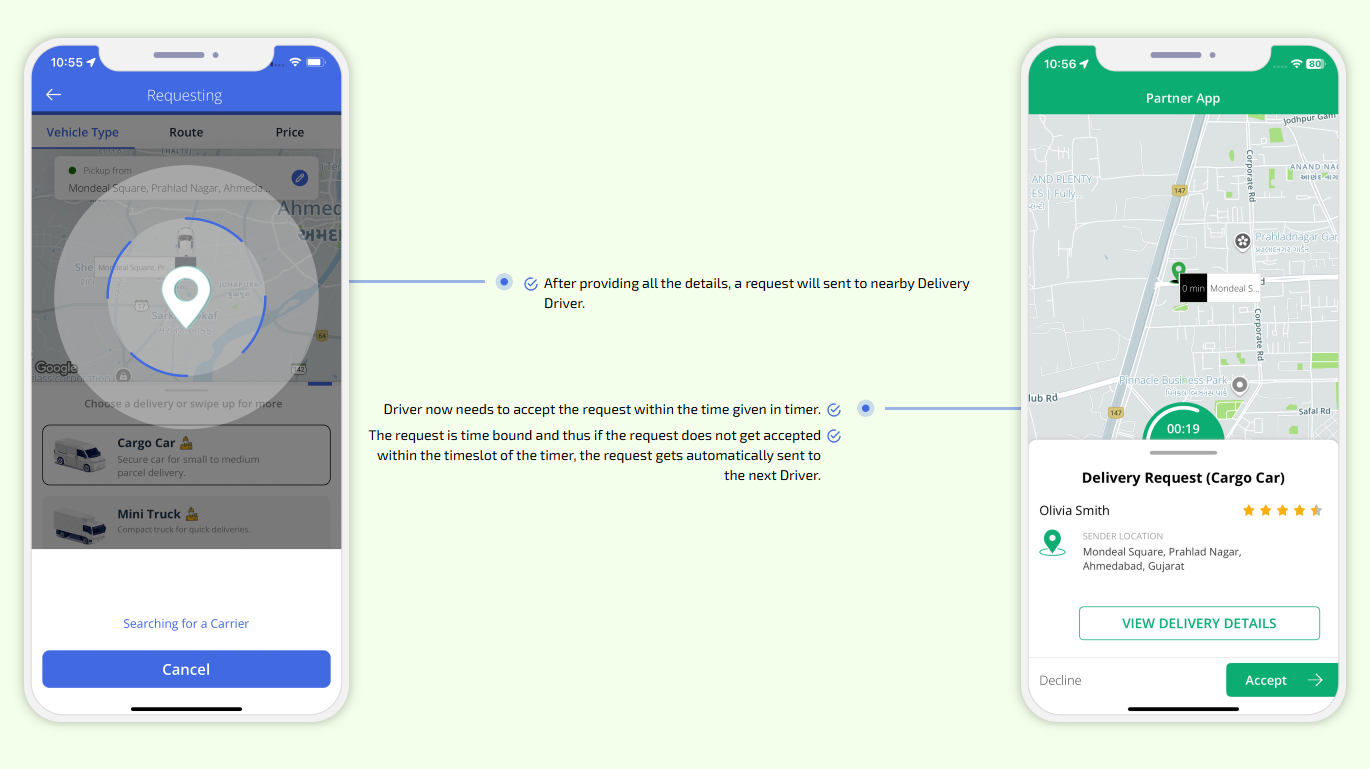
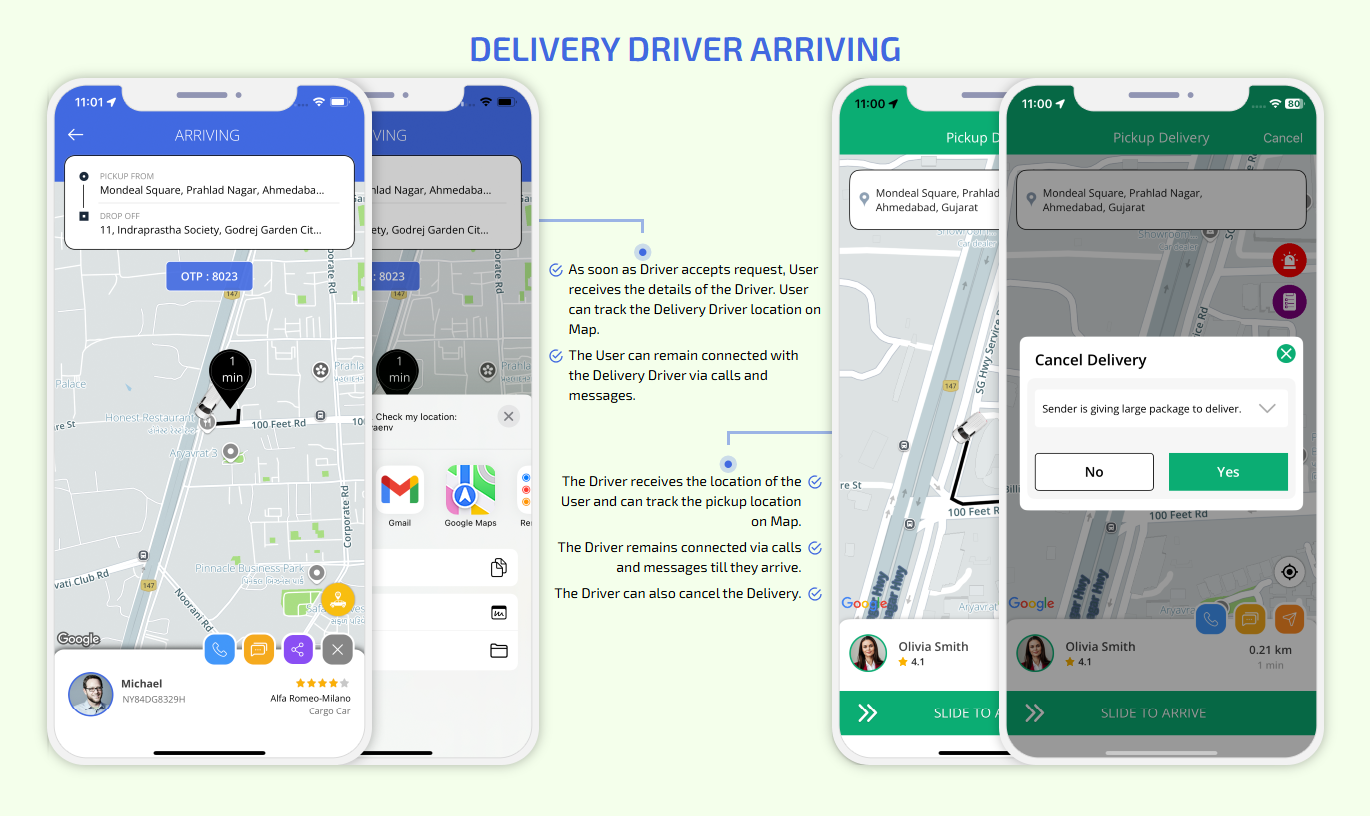
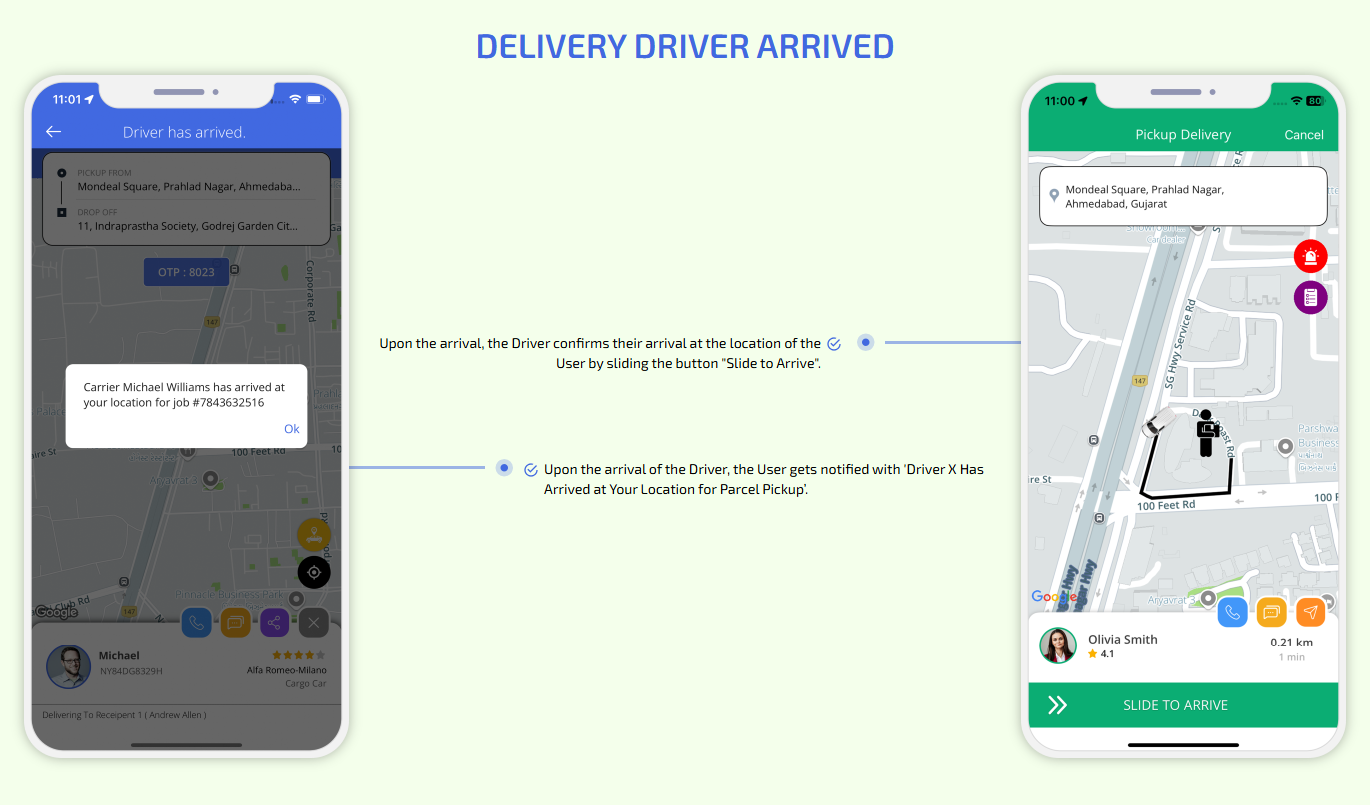
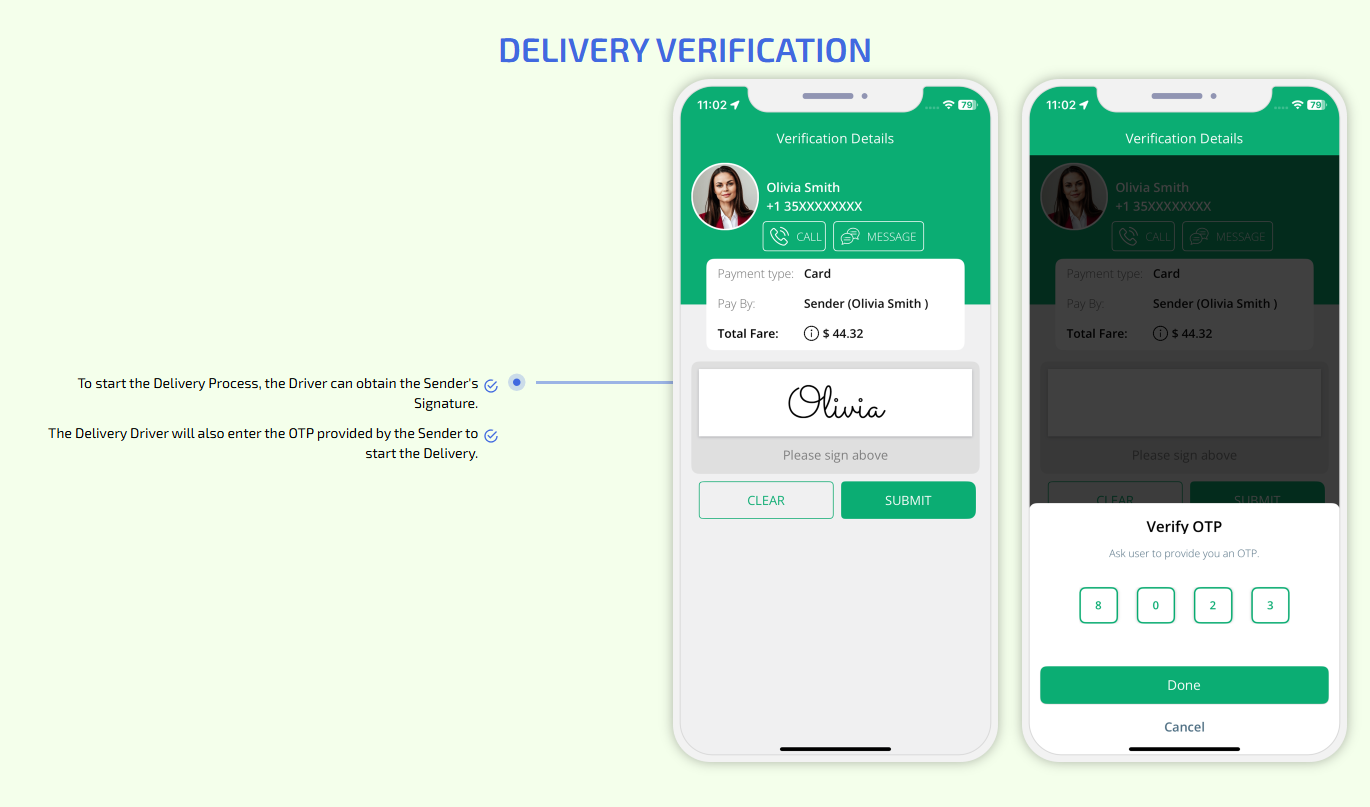
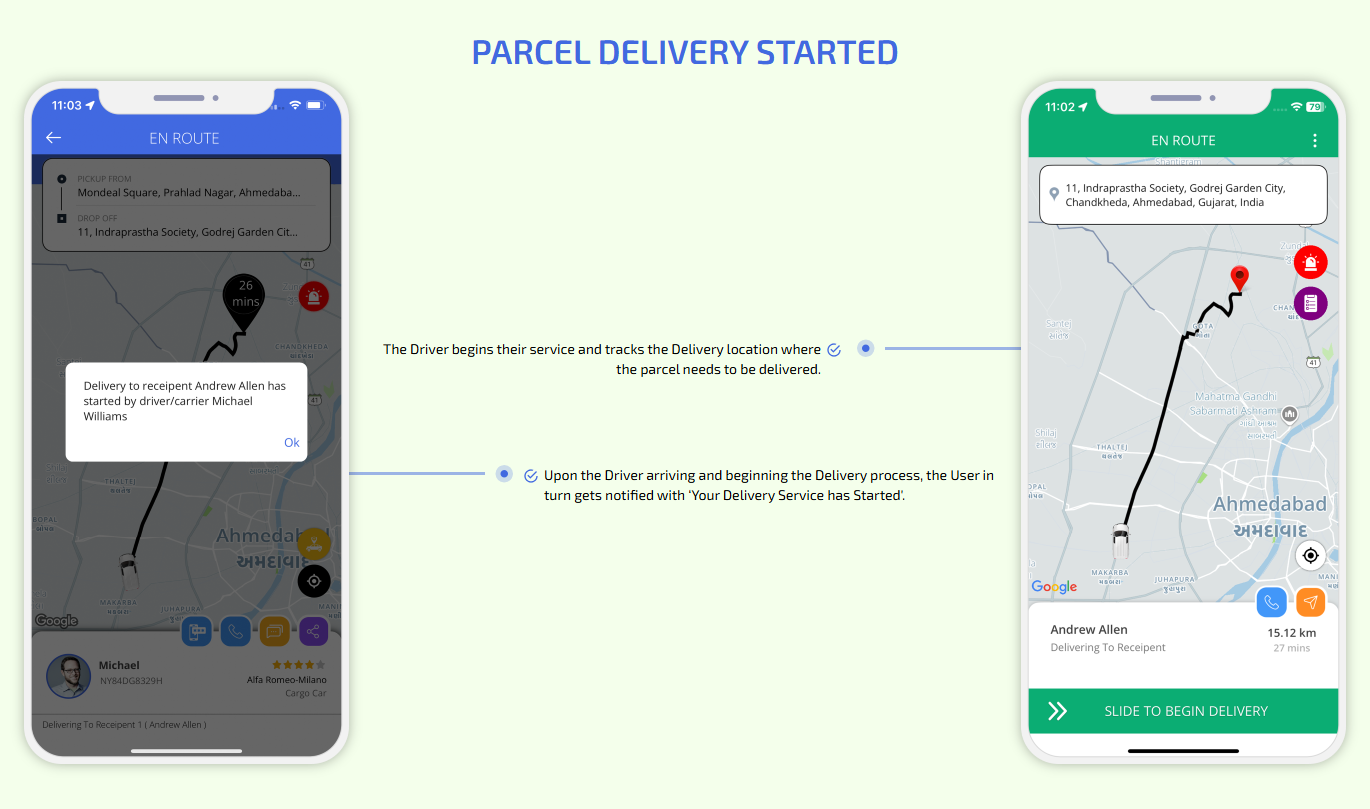
Parcel Delivery - Deliver Anything, Anywhere
Store Deliveries - Food, Grocery etc
On-Demand 50+ Services
XJekPlusNewly Available Paid 10 Components
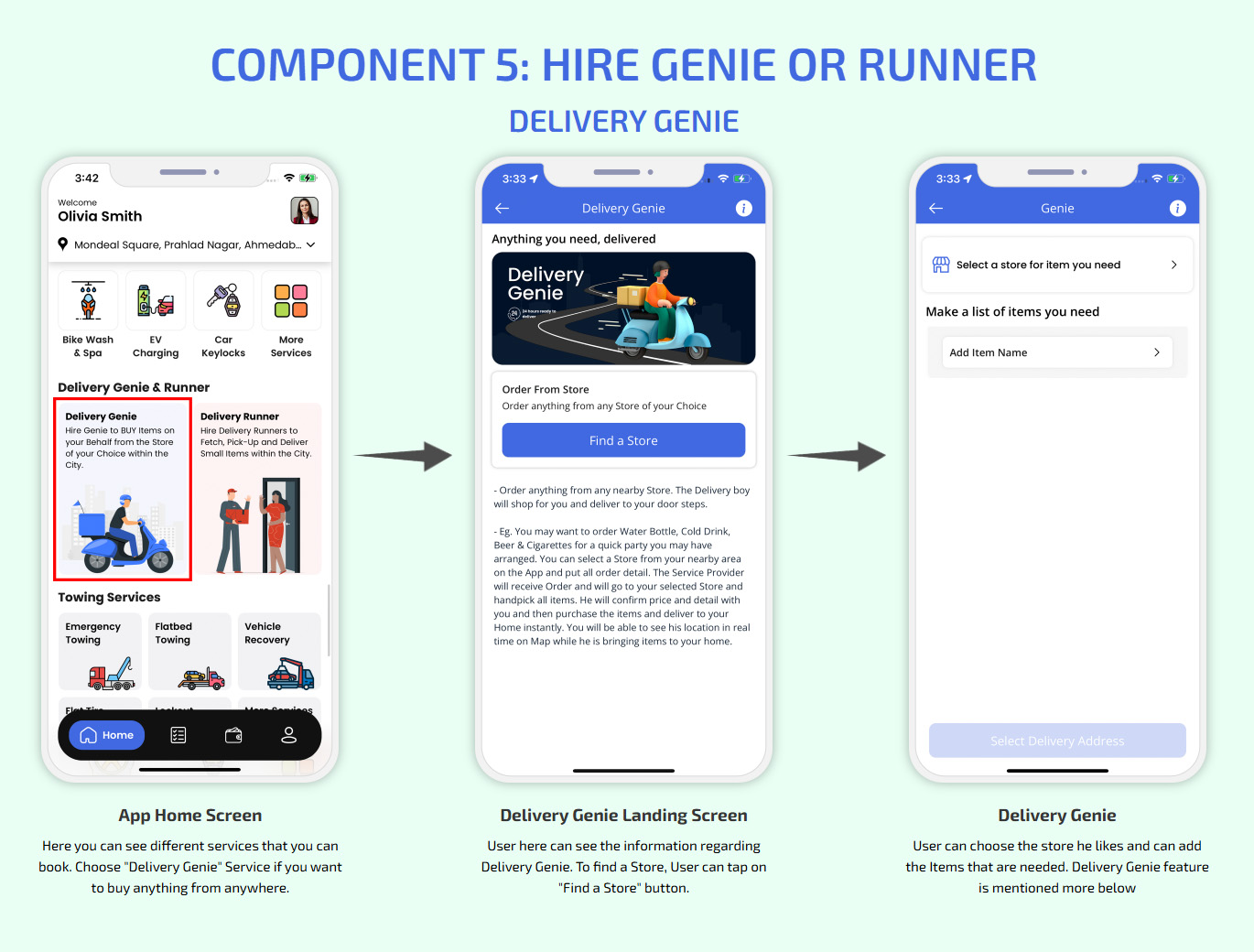
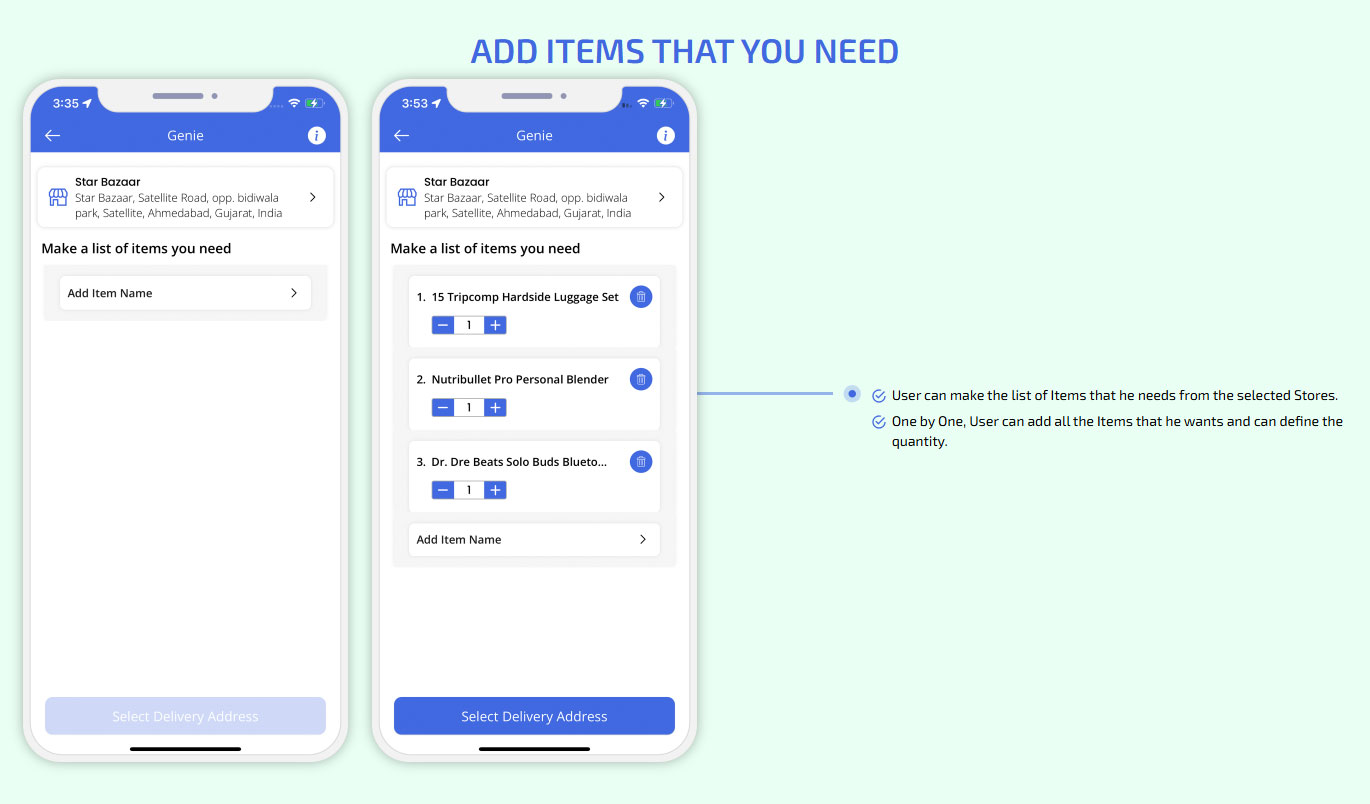
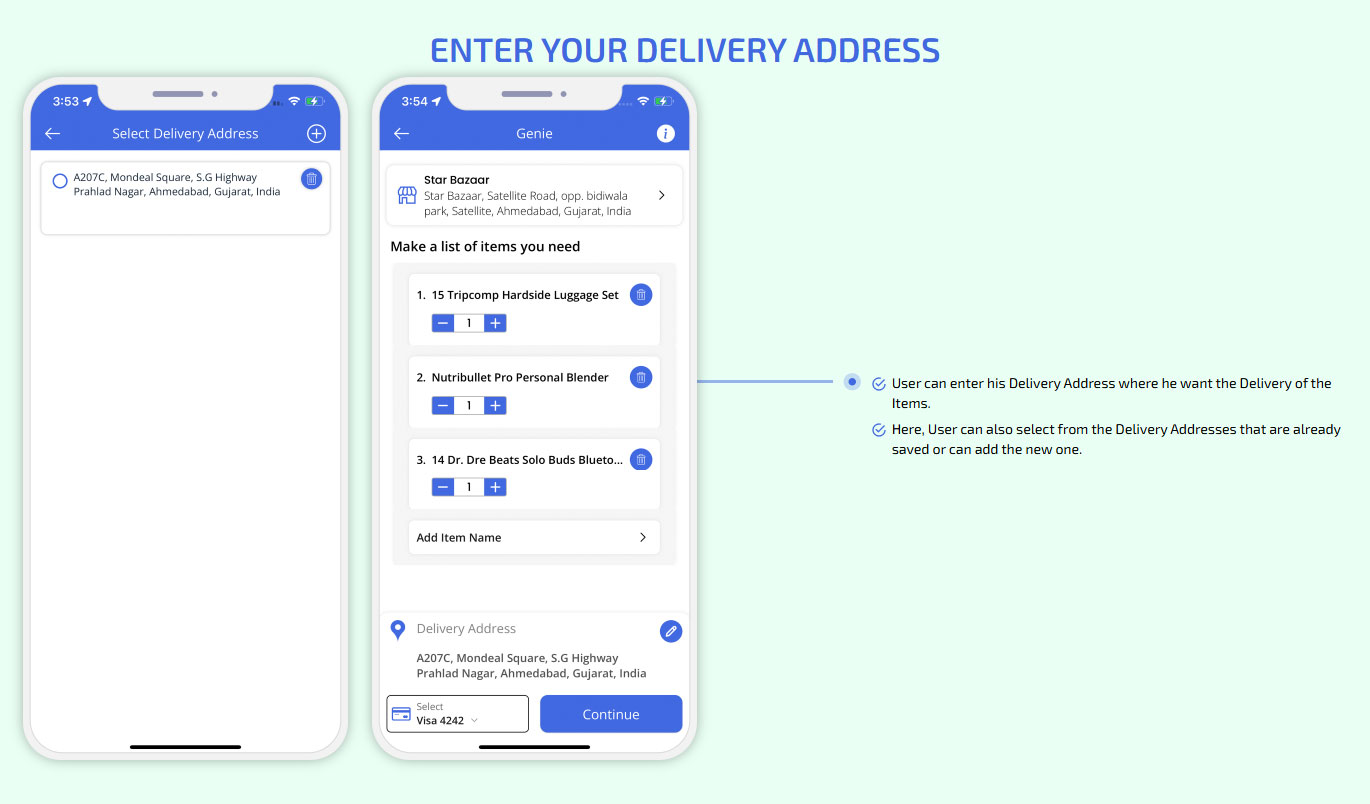
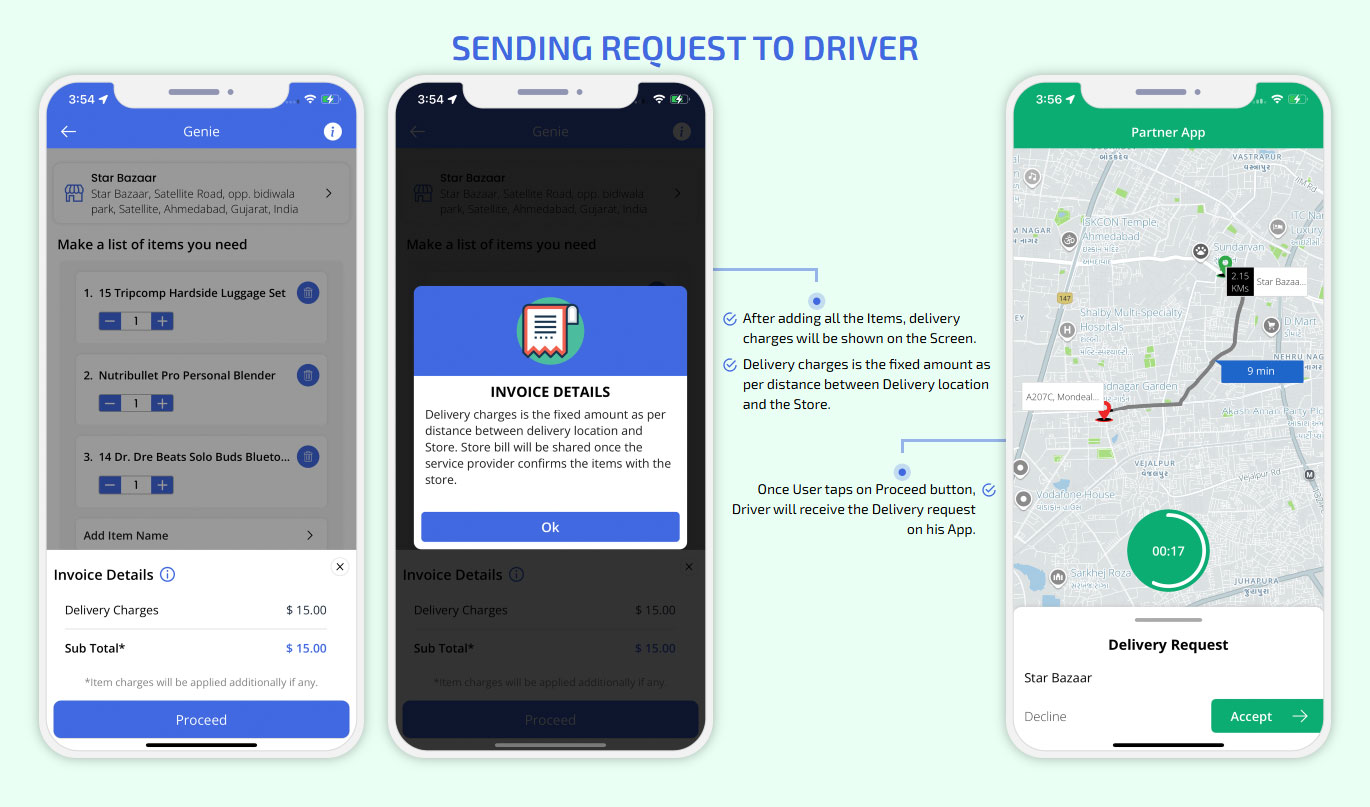
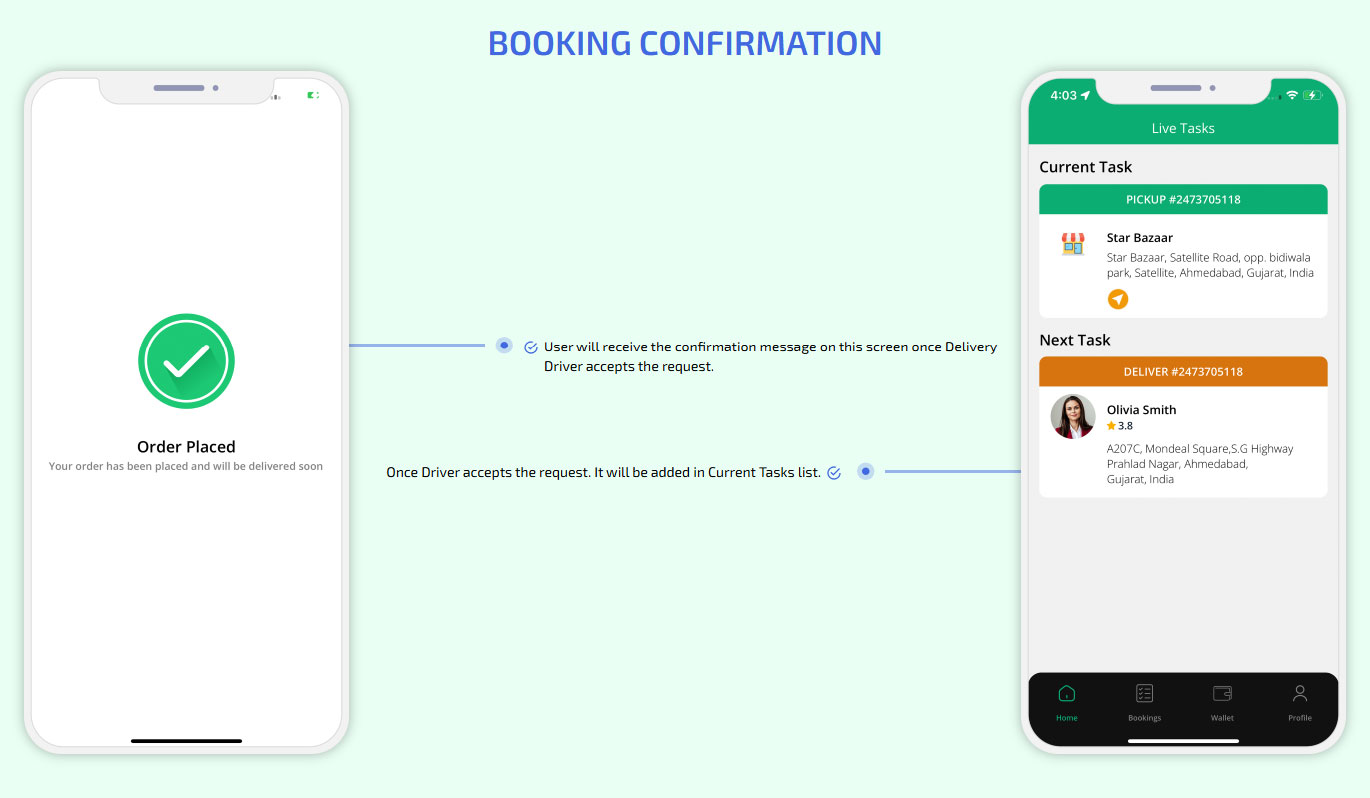
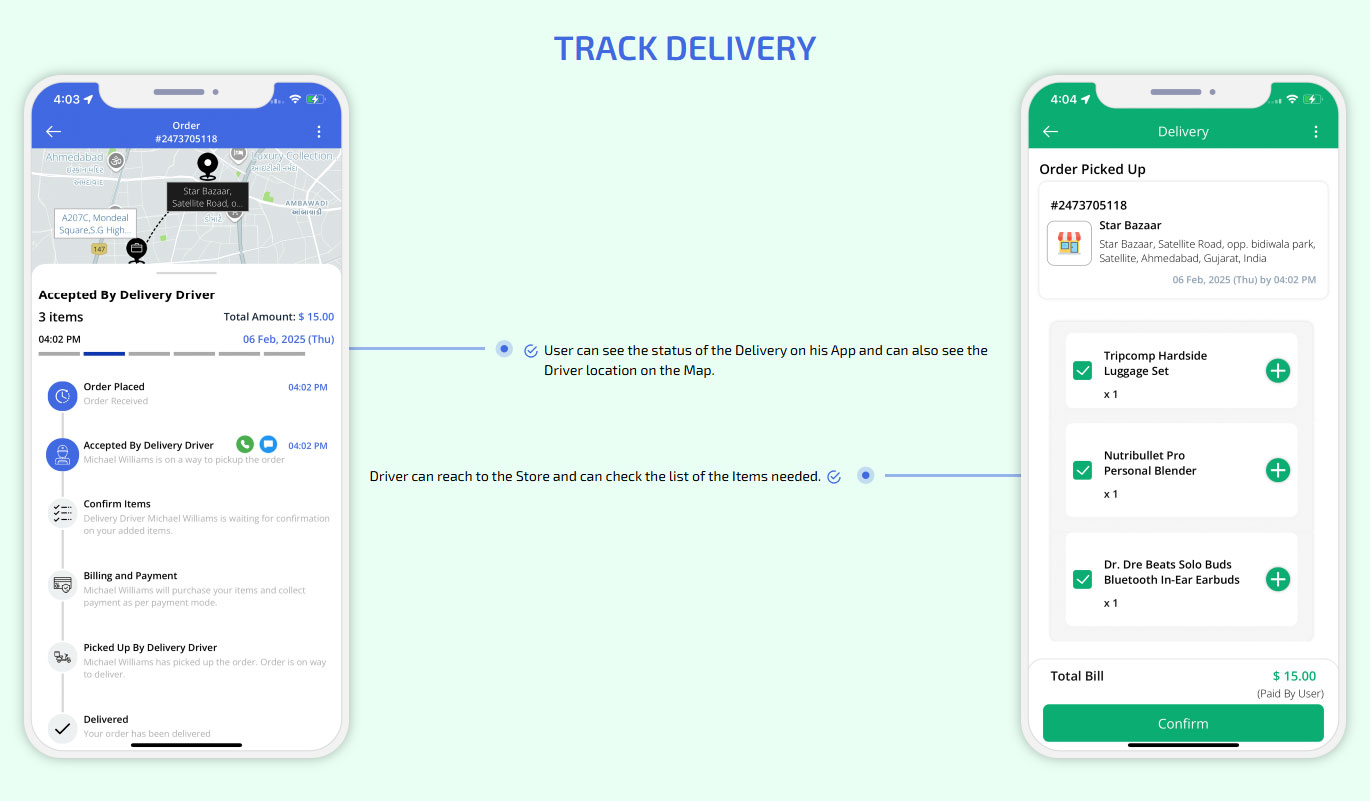
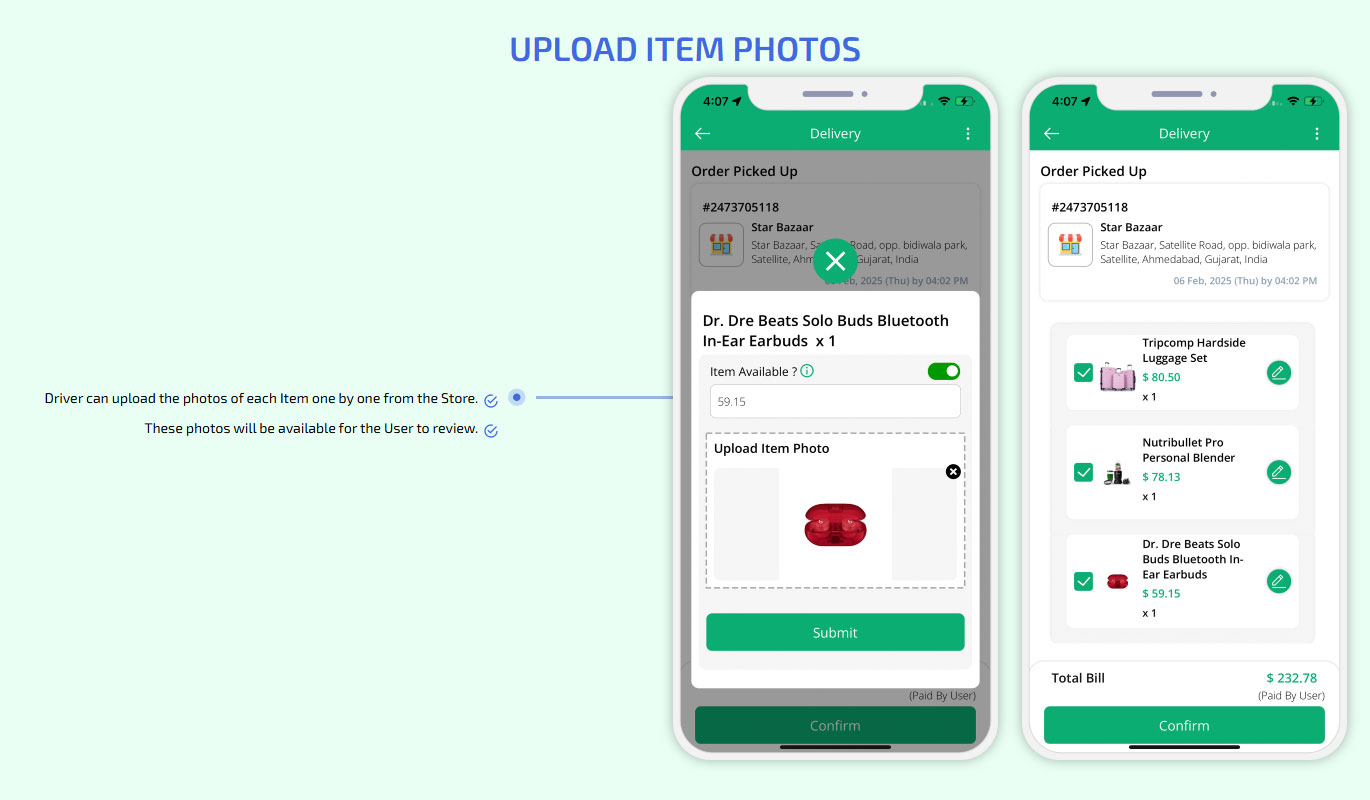
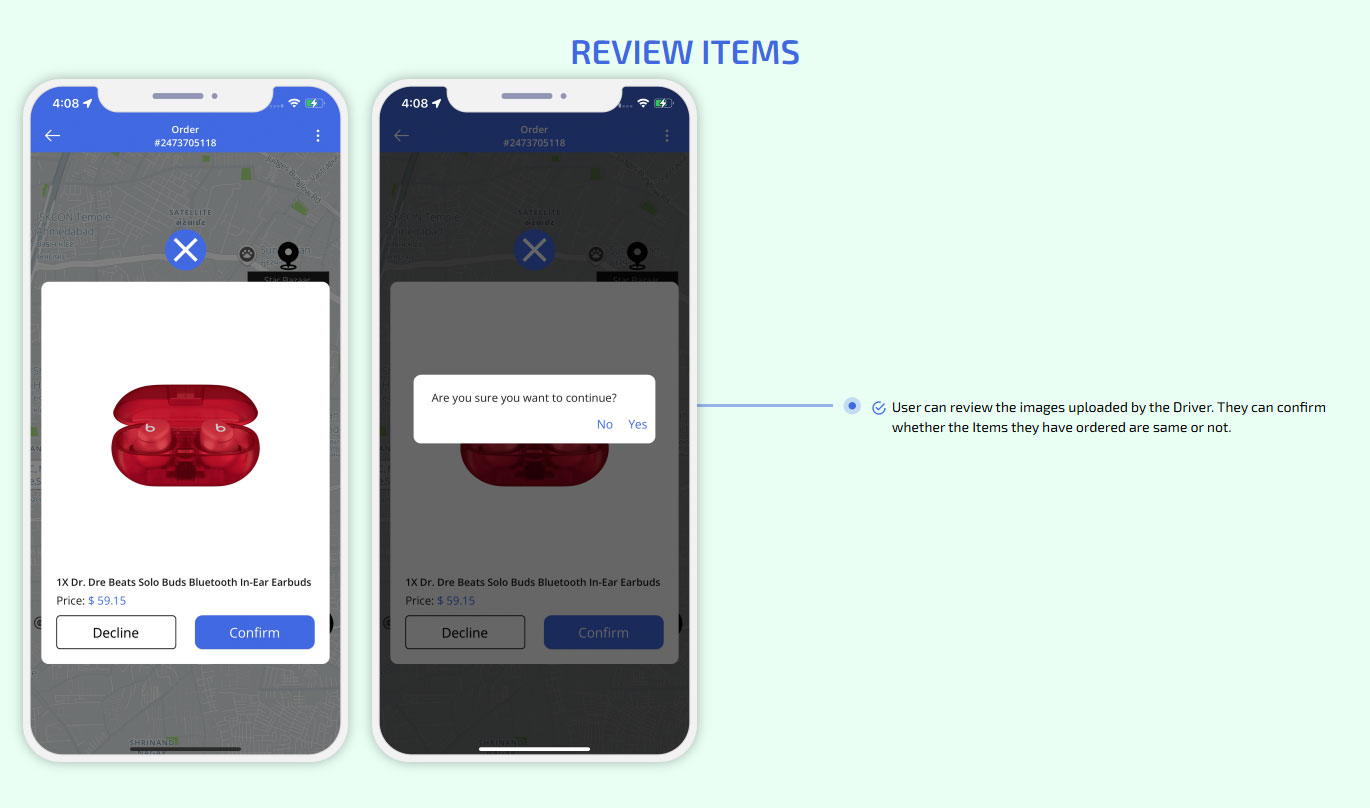
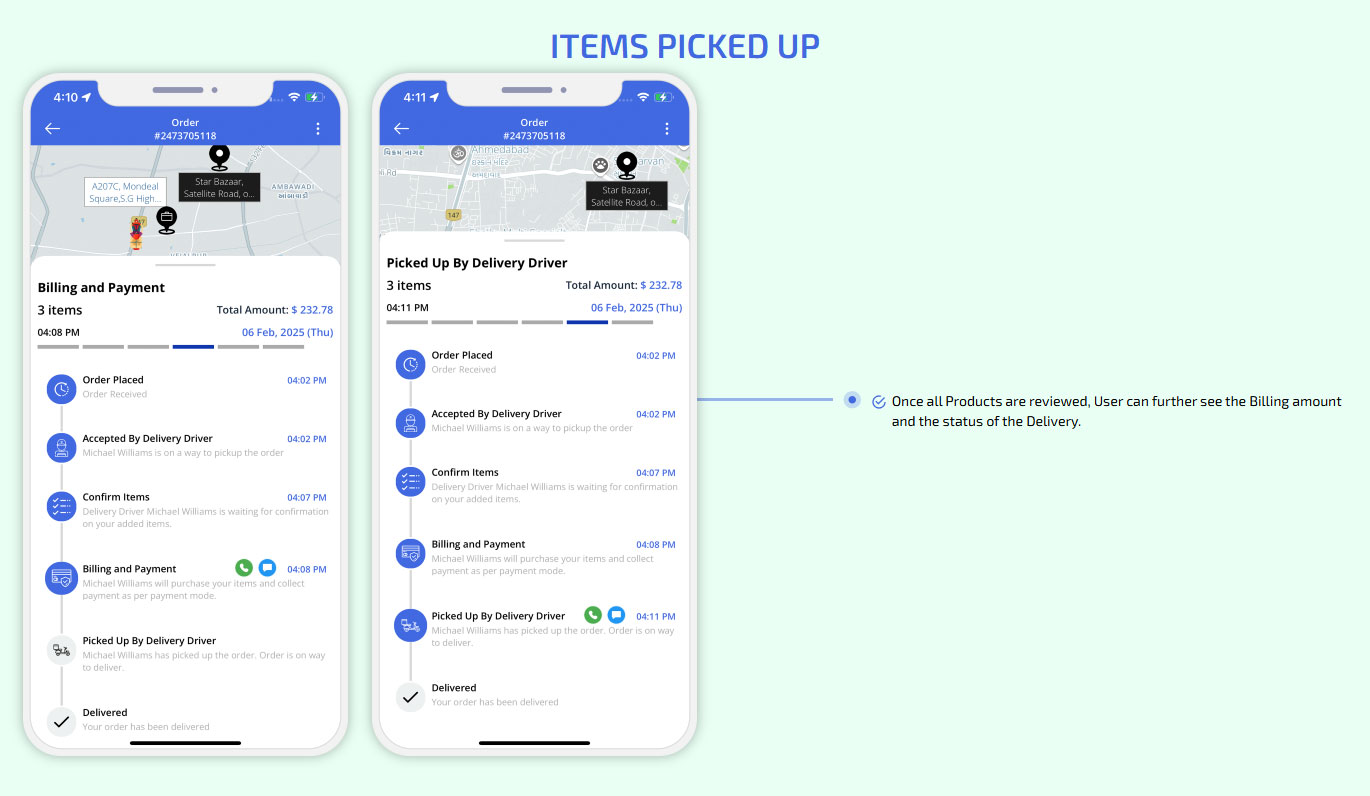
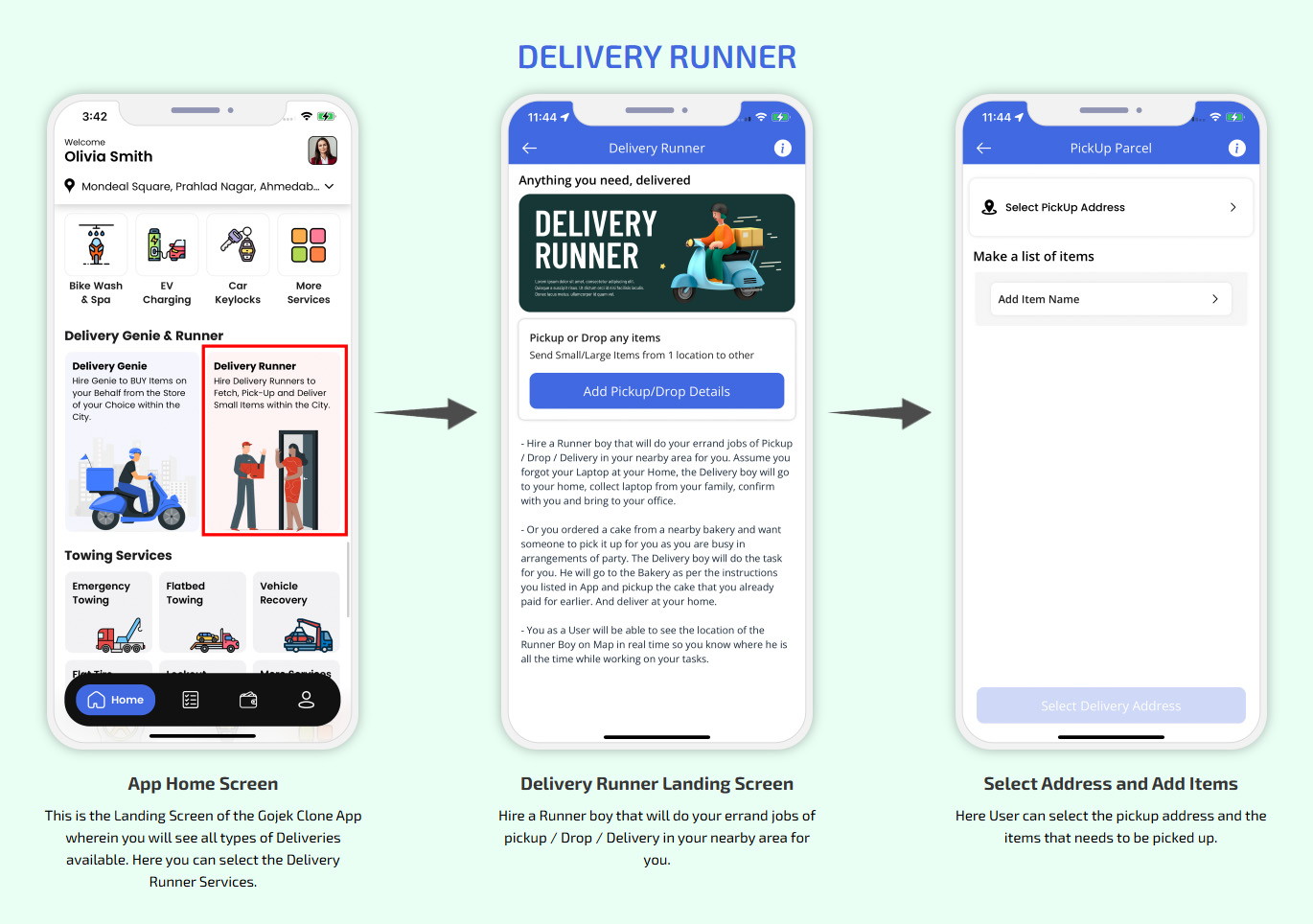
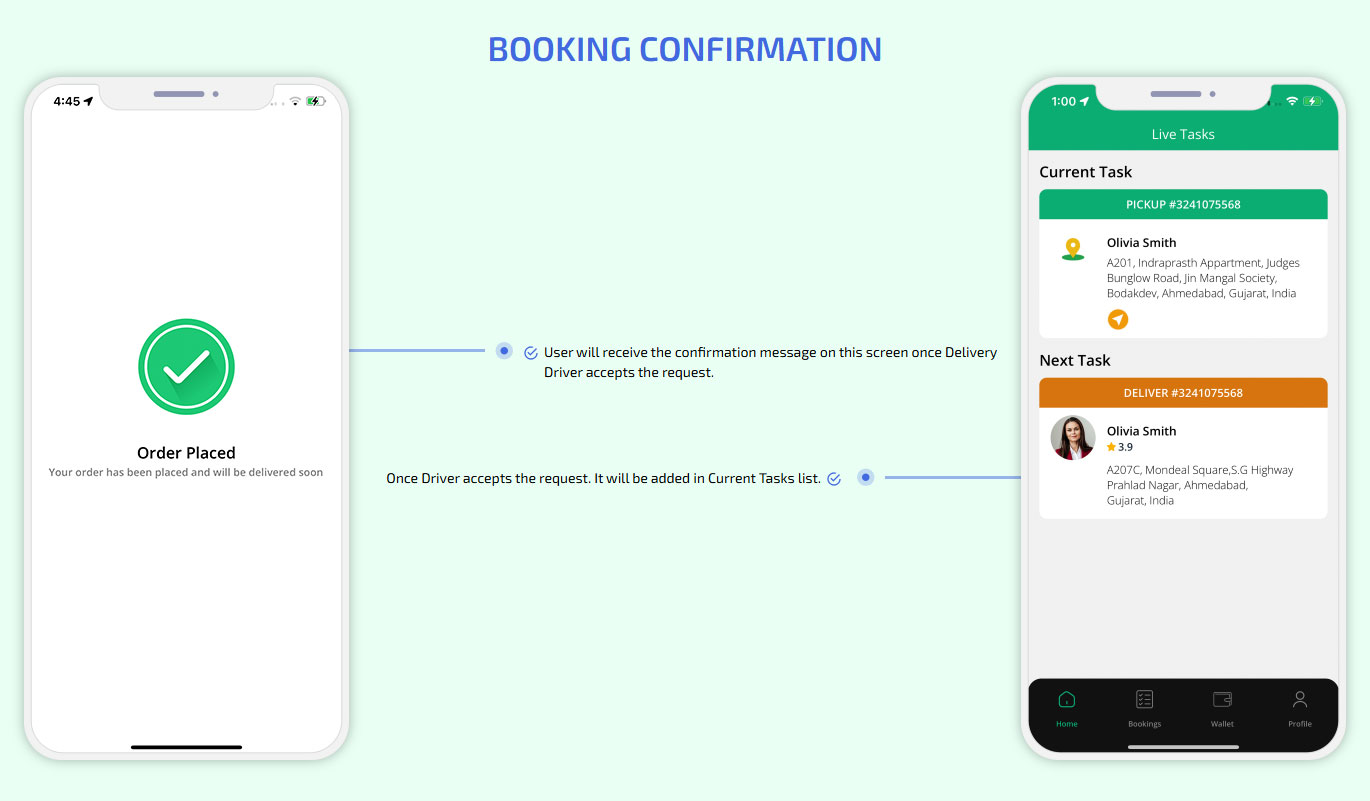
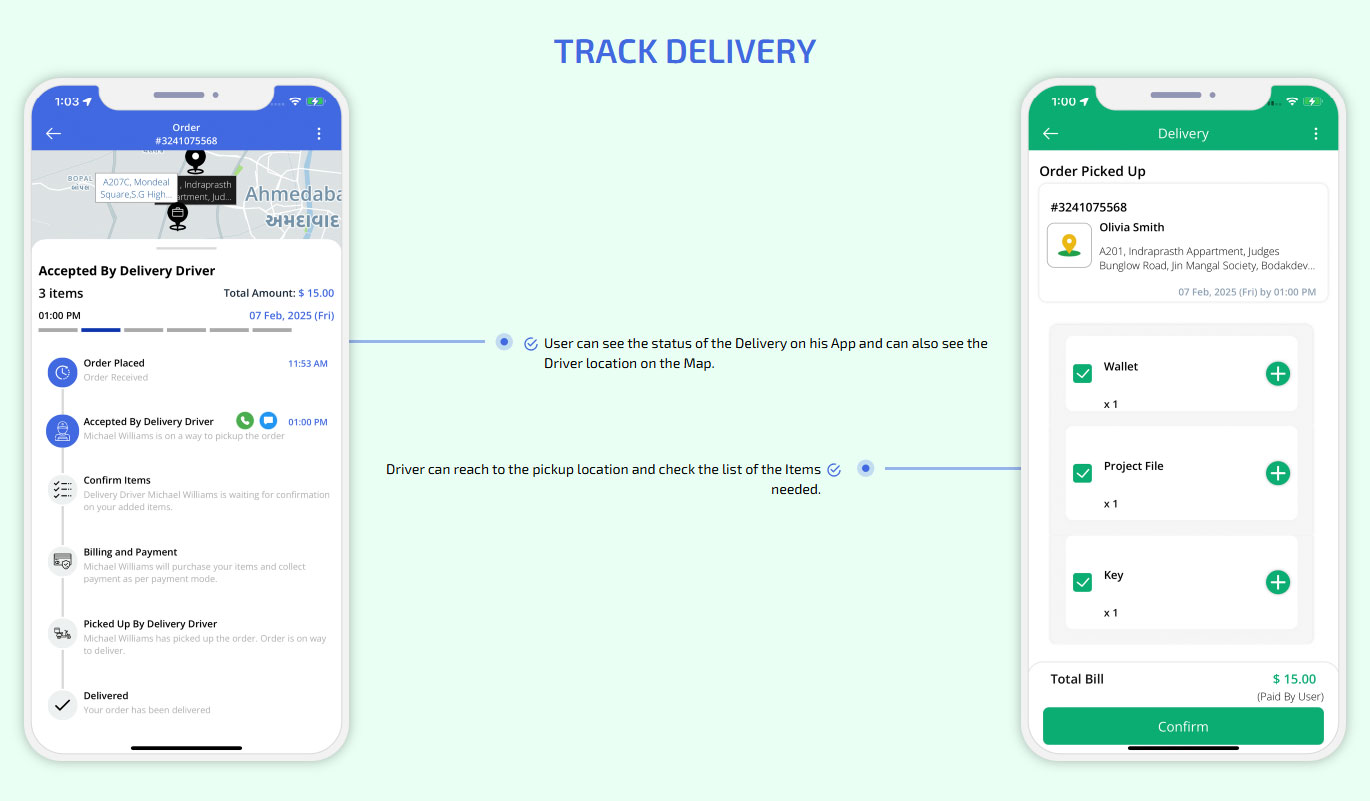
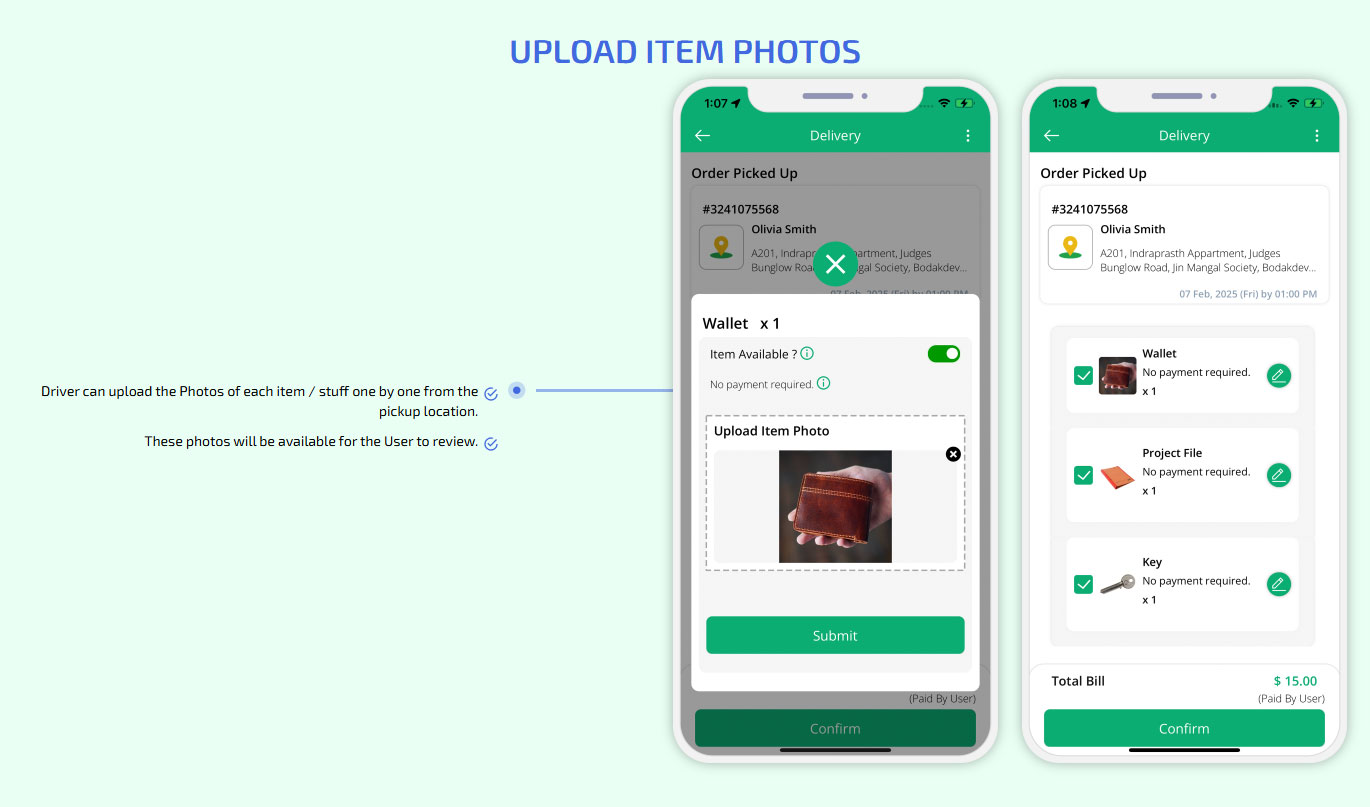
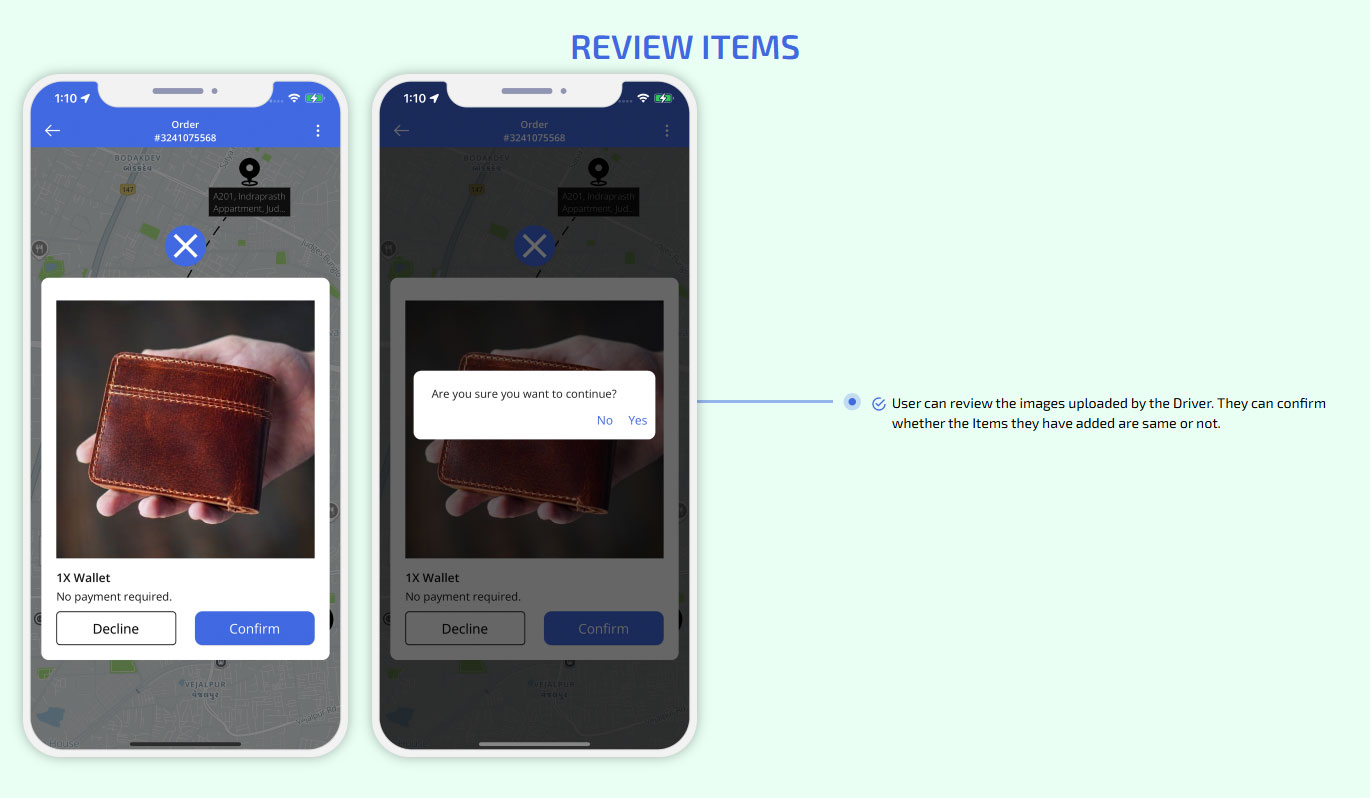
Delivery Genie & Runner - Personal Shopper
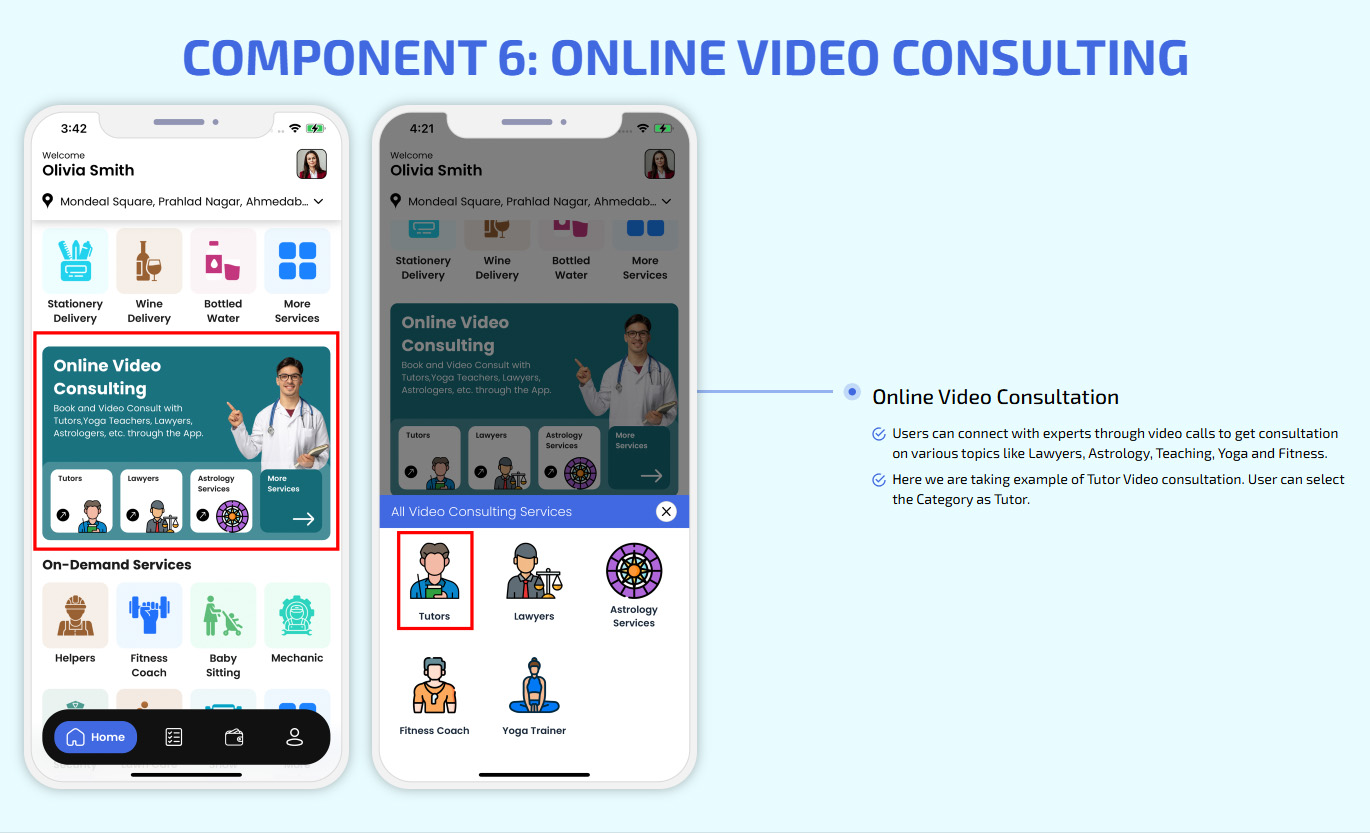
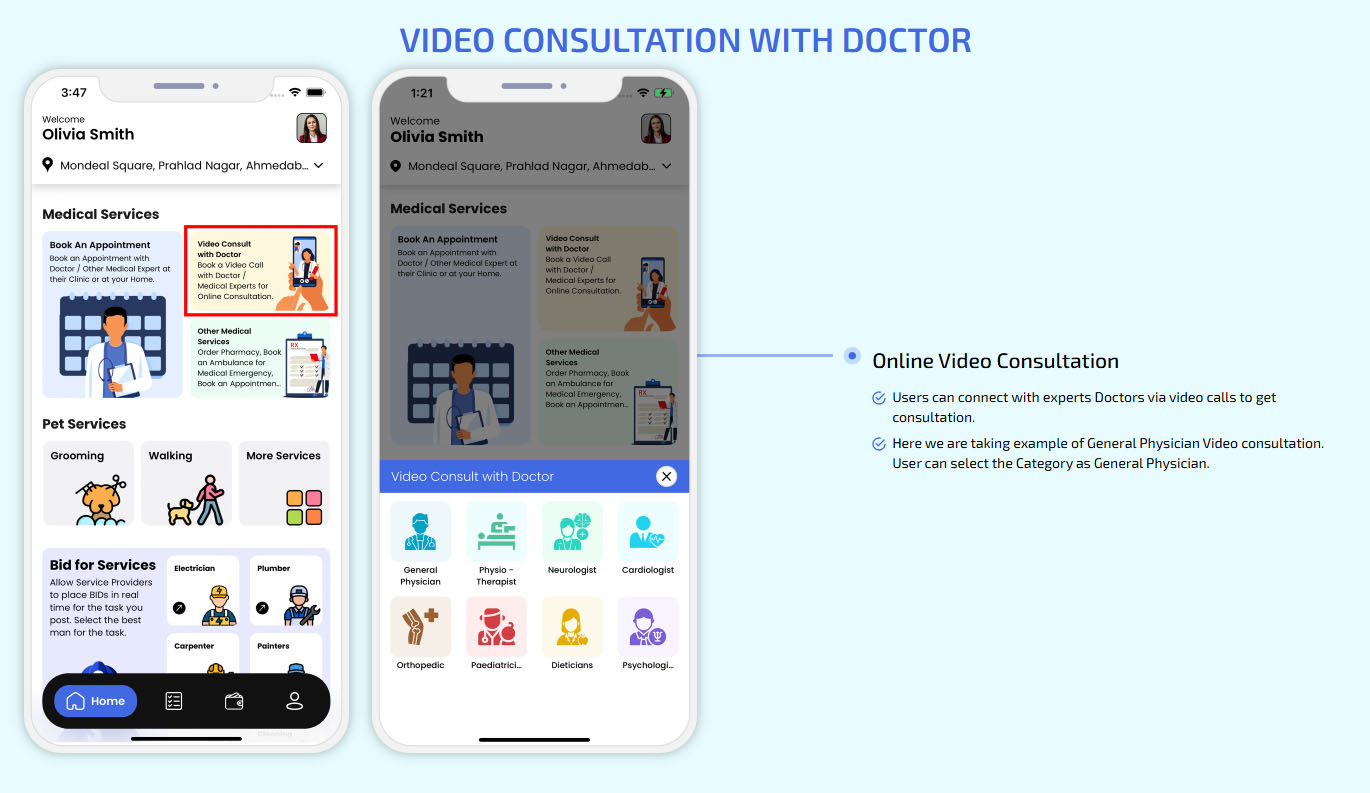
Online Video Consultation for 10+ Services
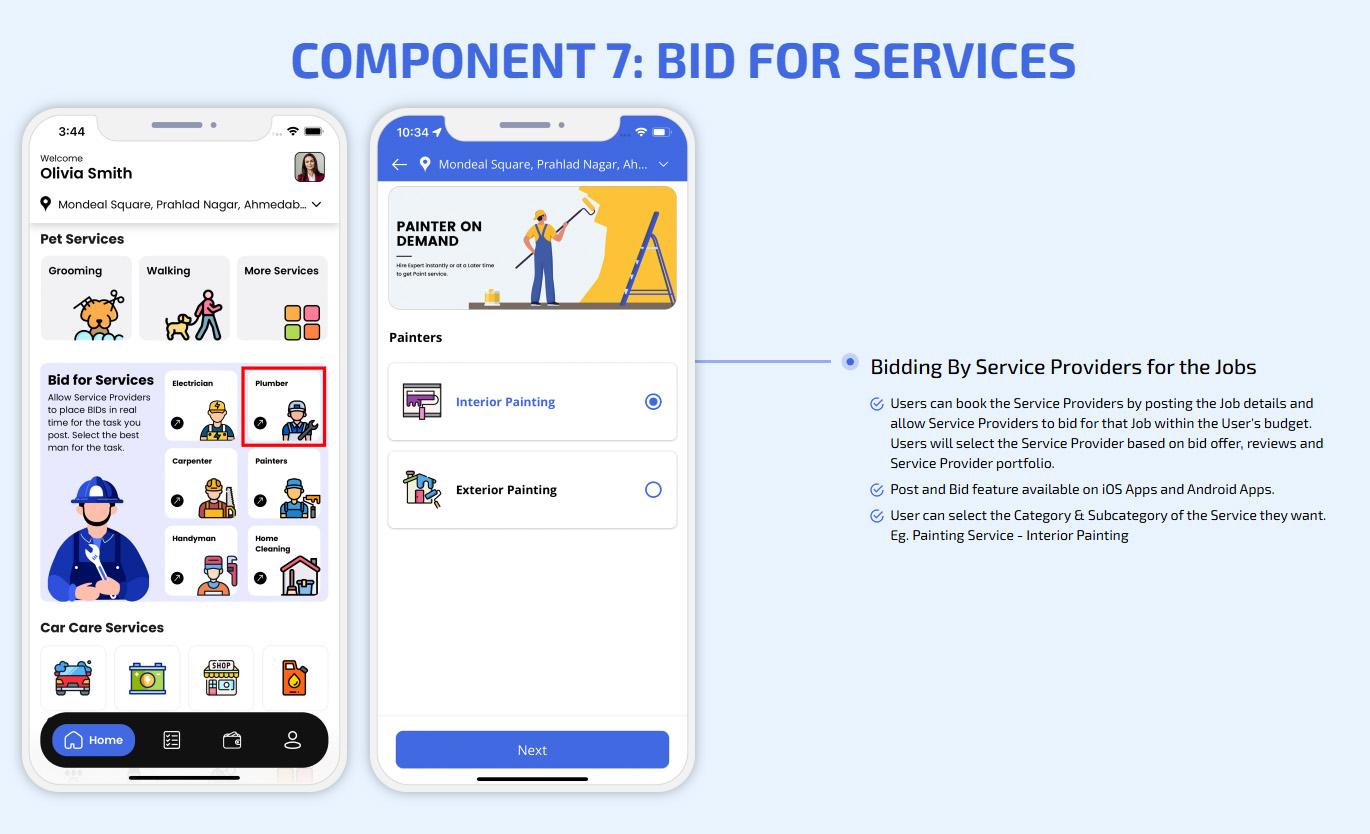
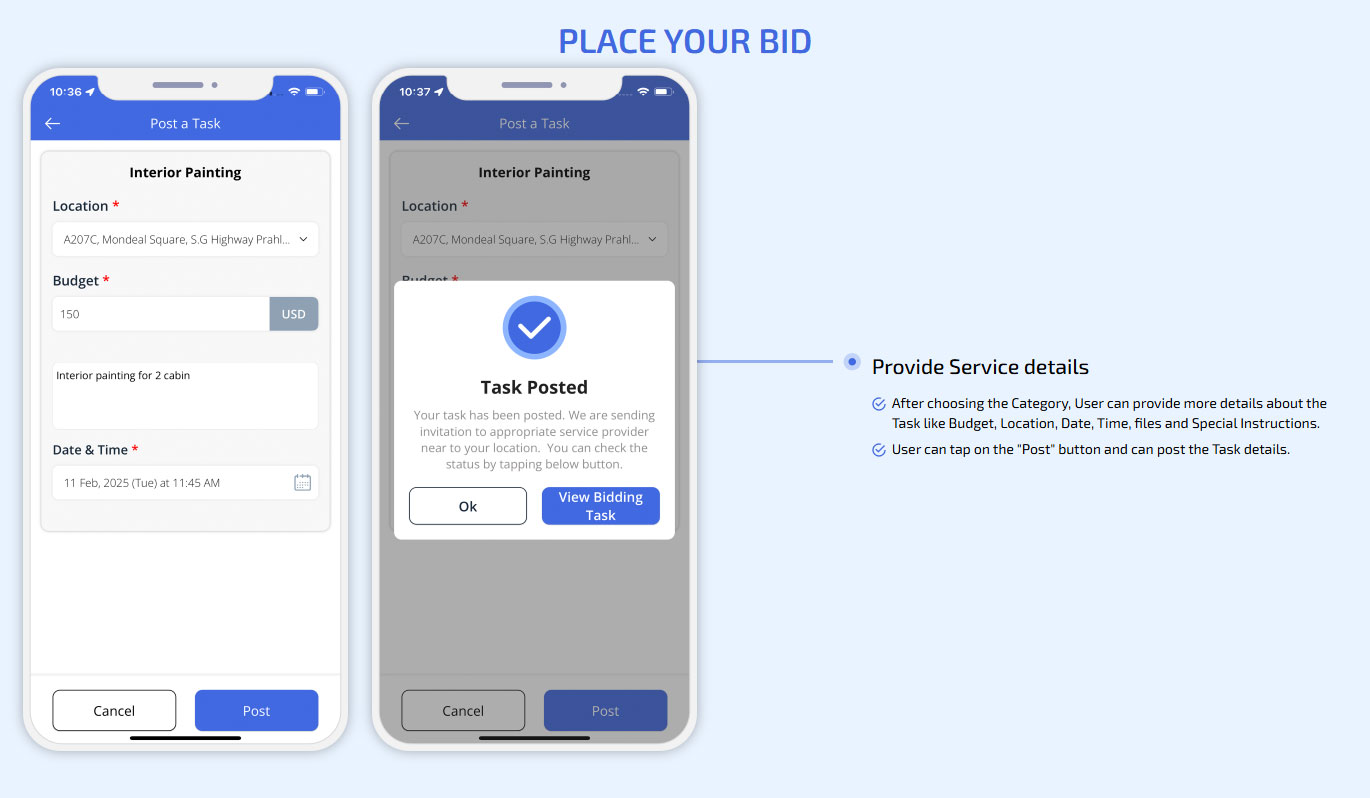
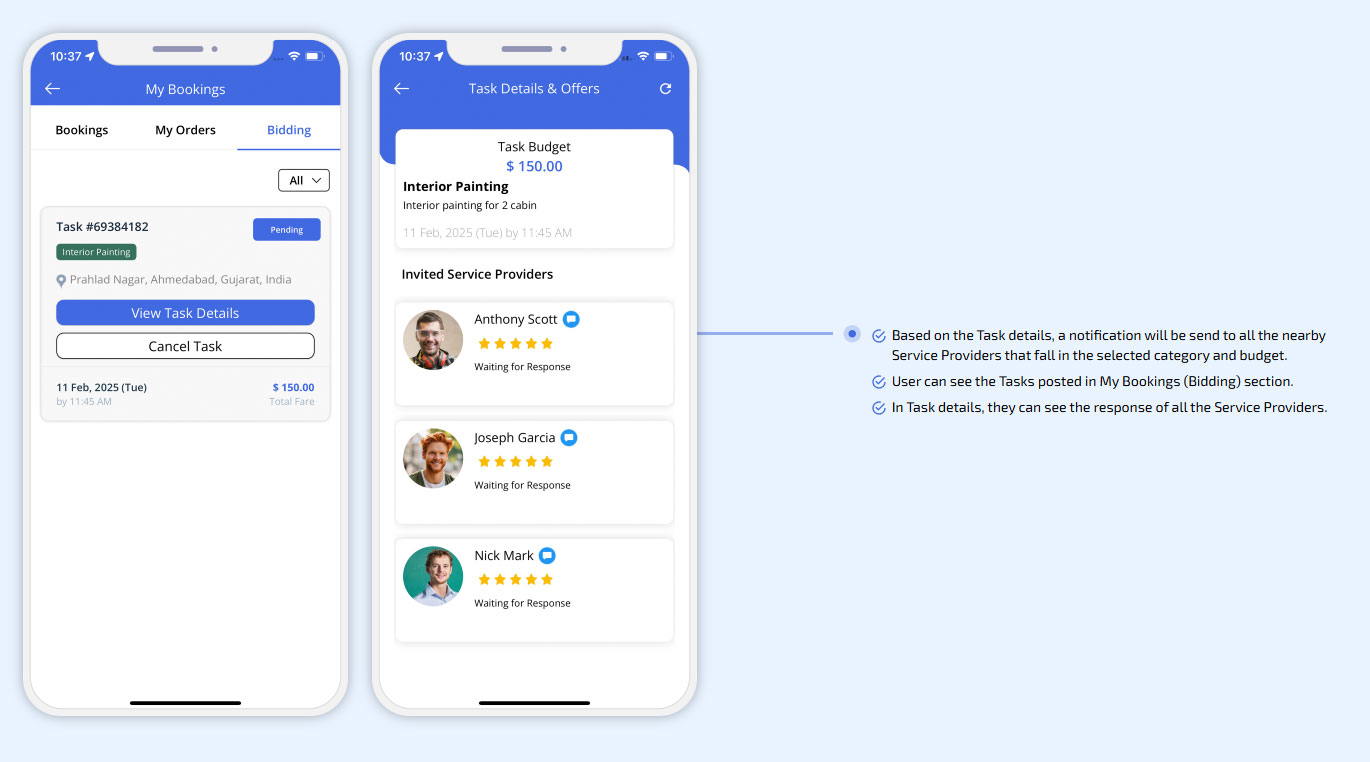
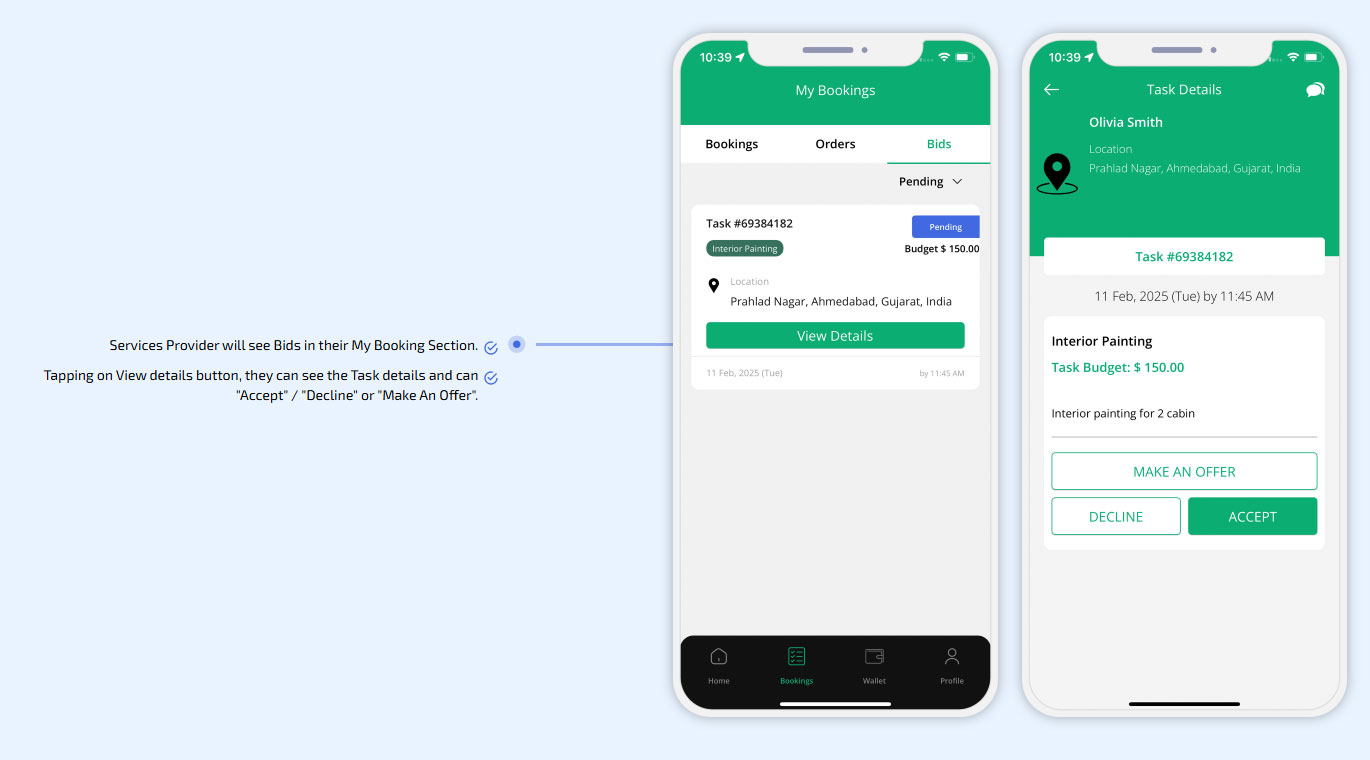
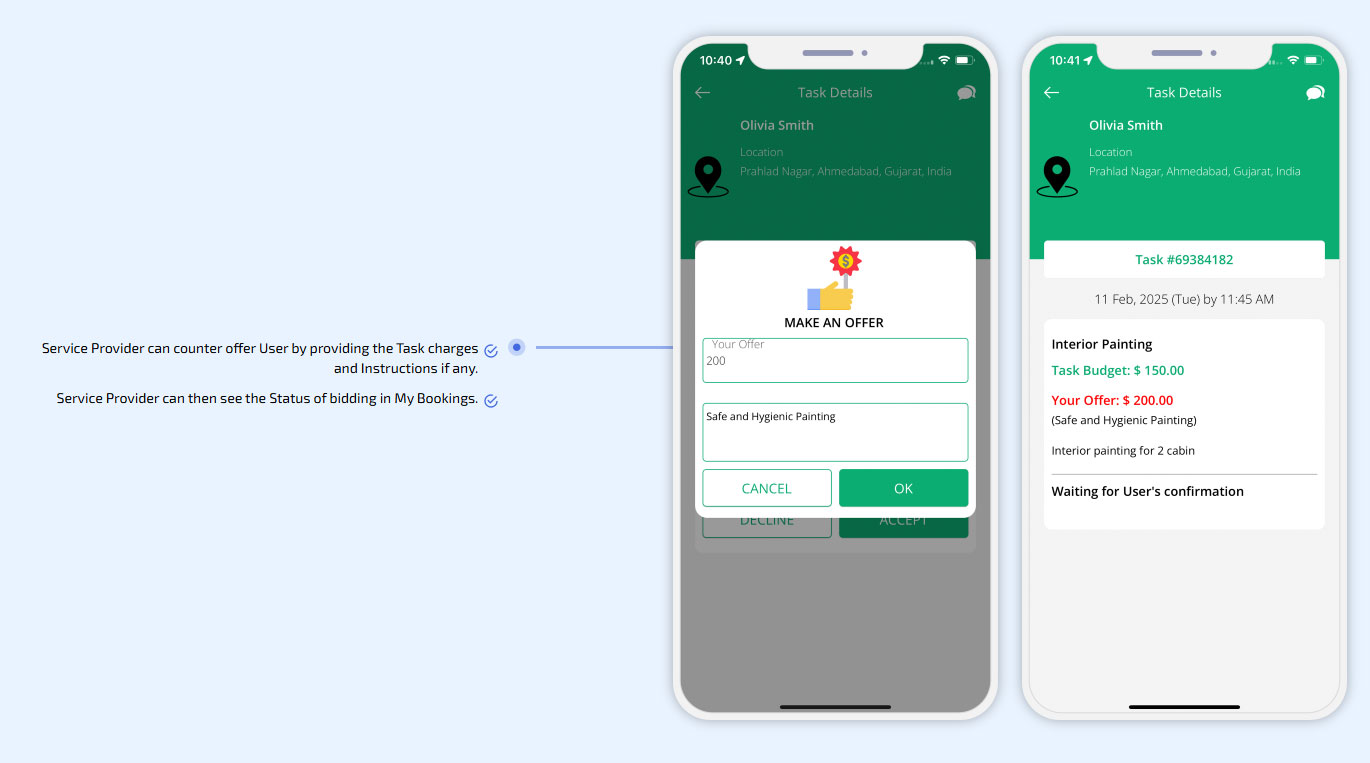
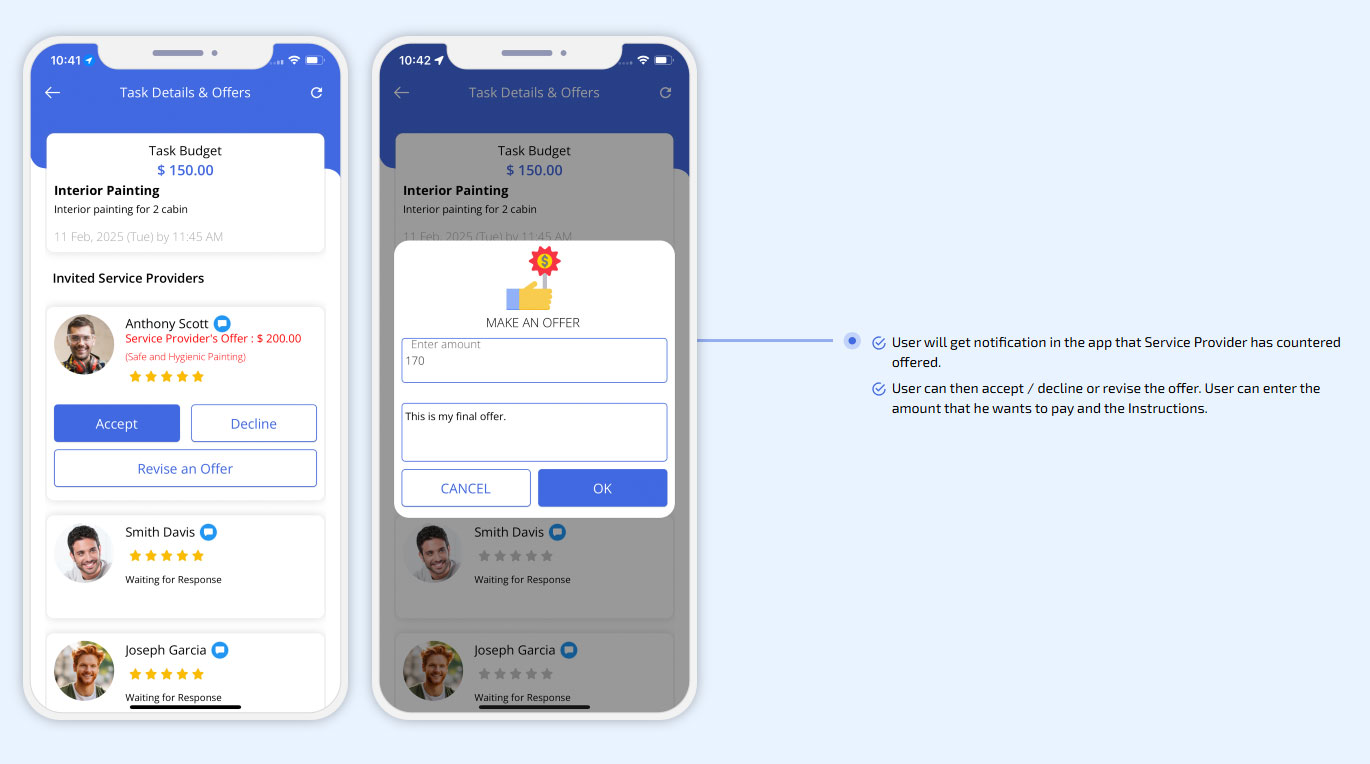
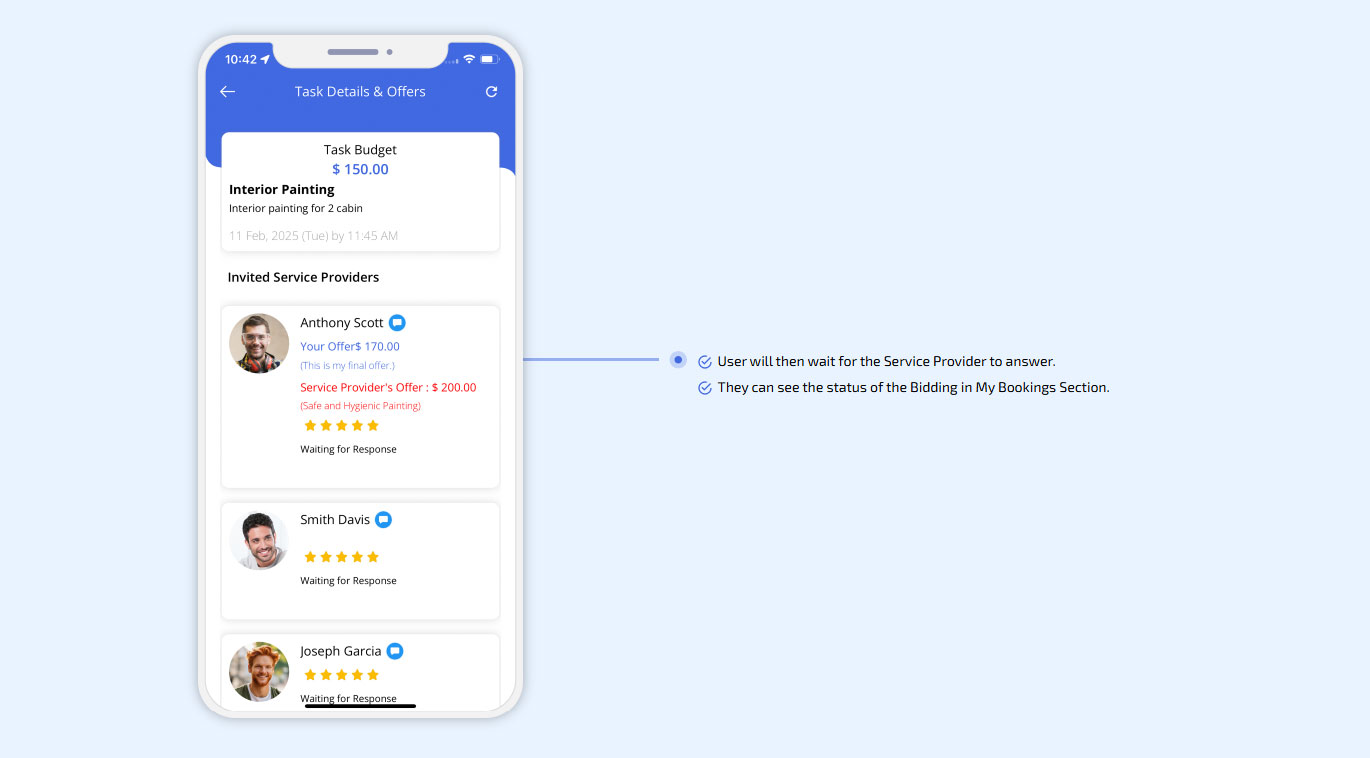
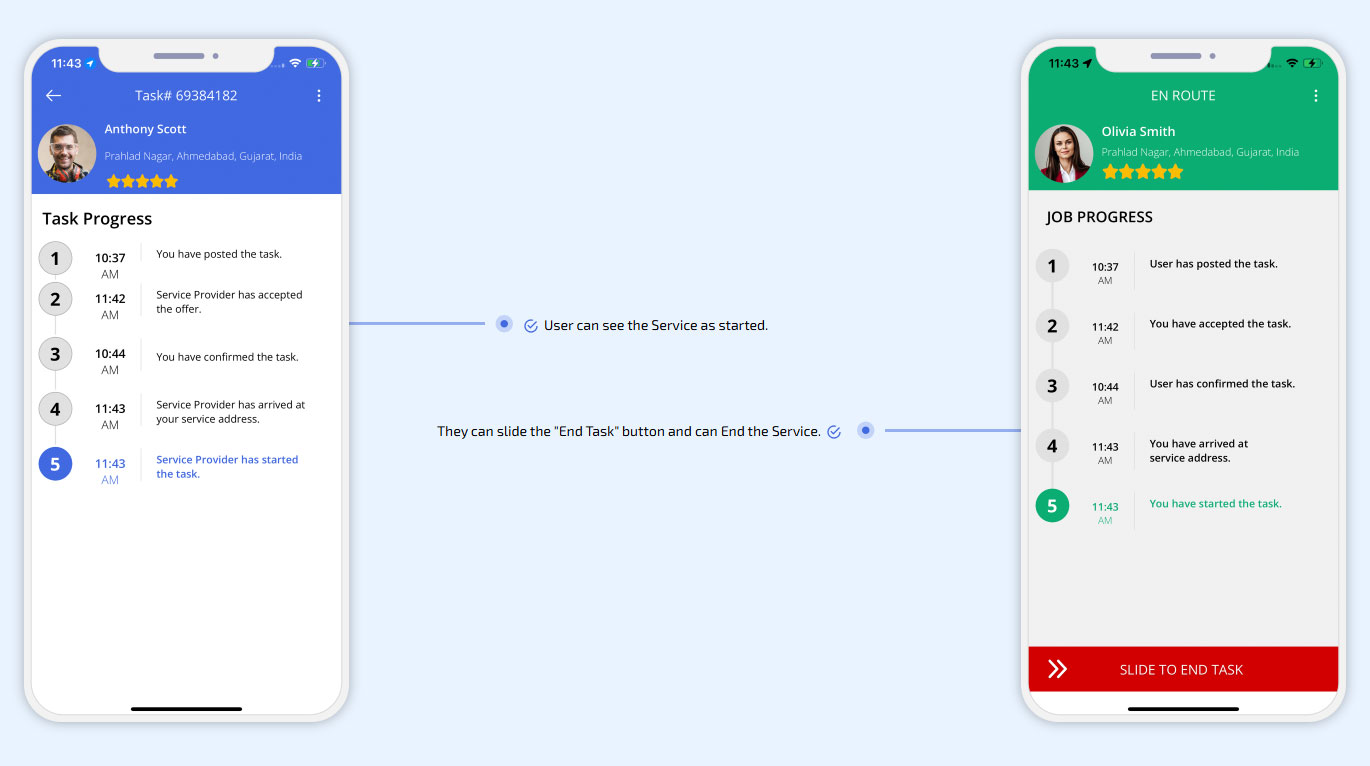
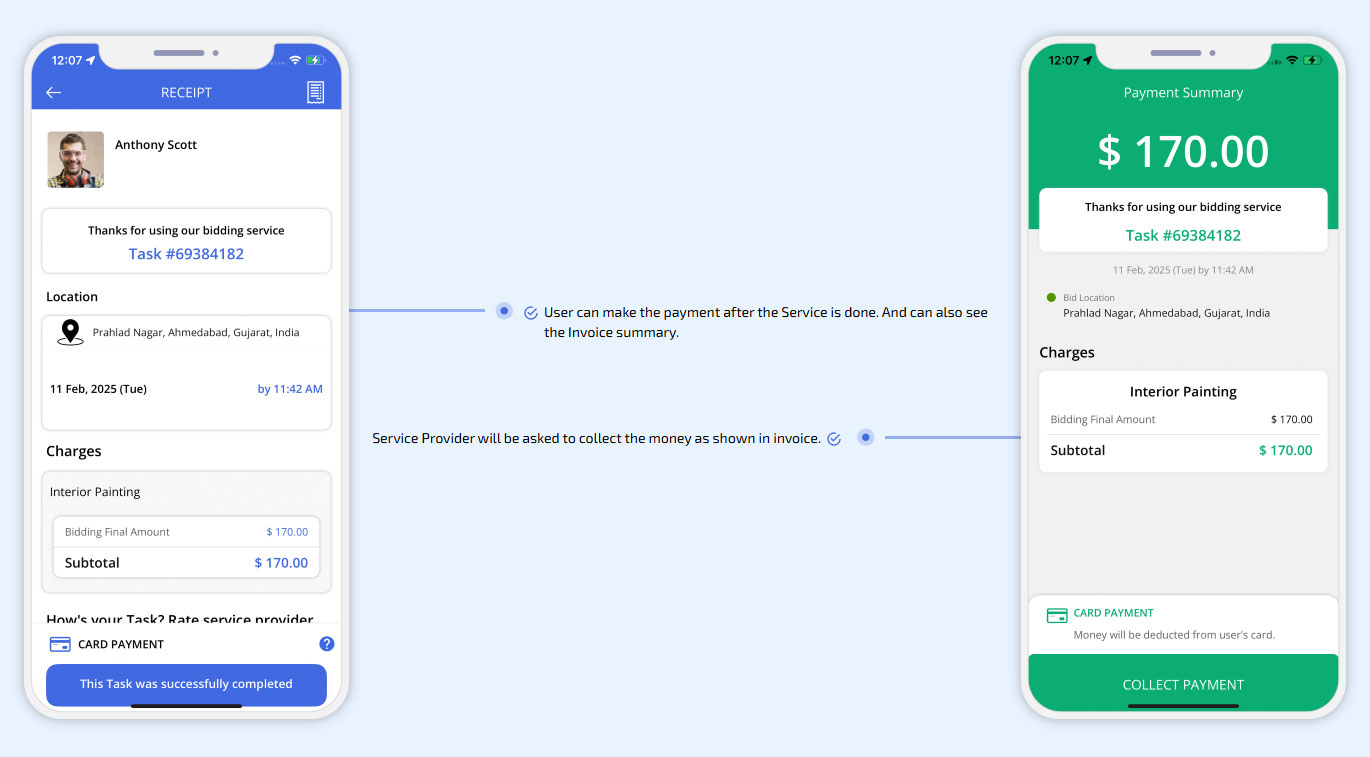
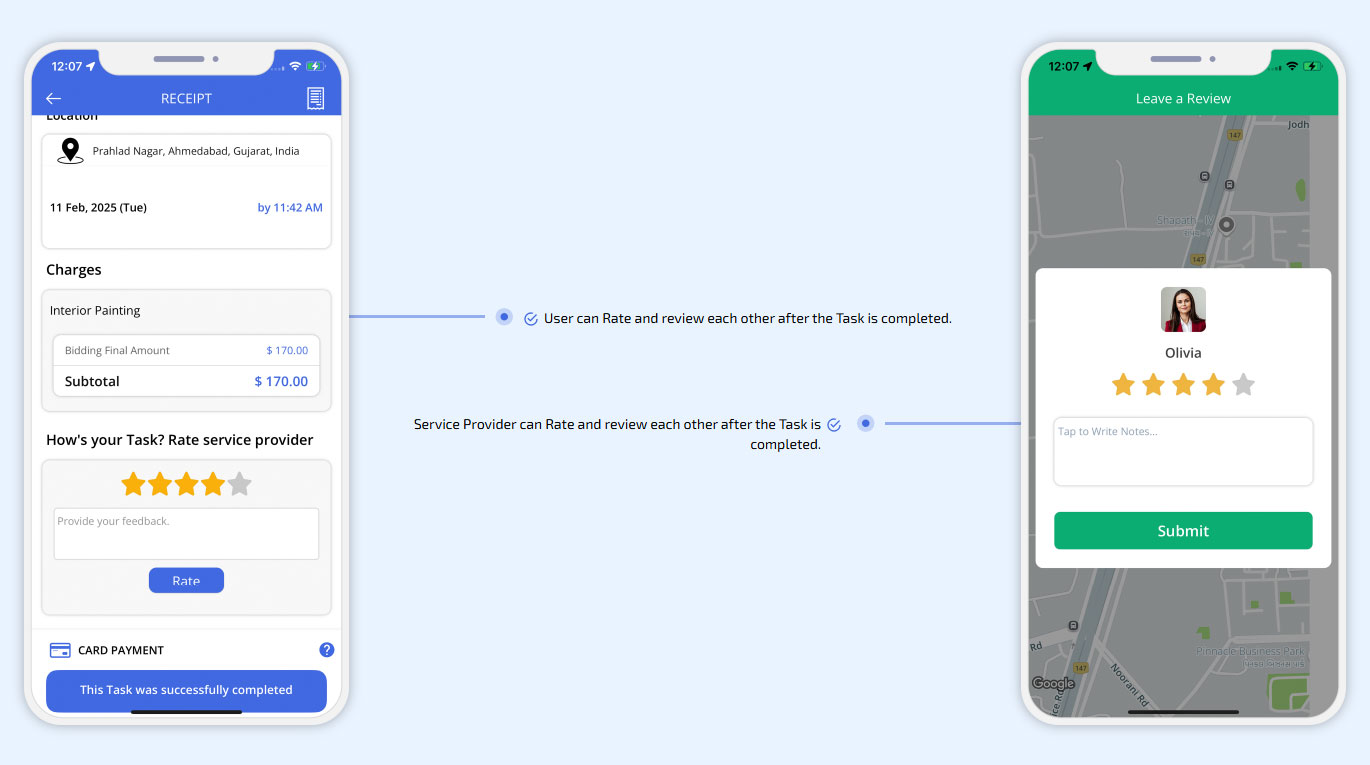
Bid for 10+ Services in Real Time
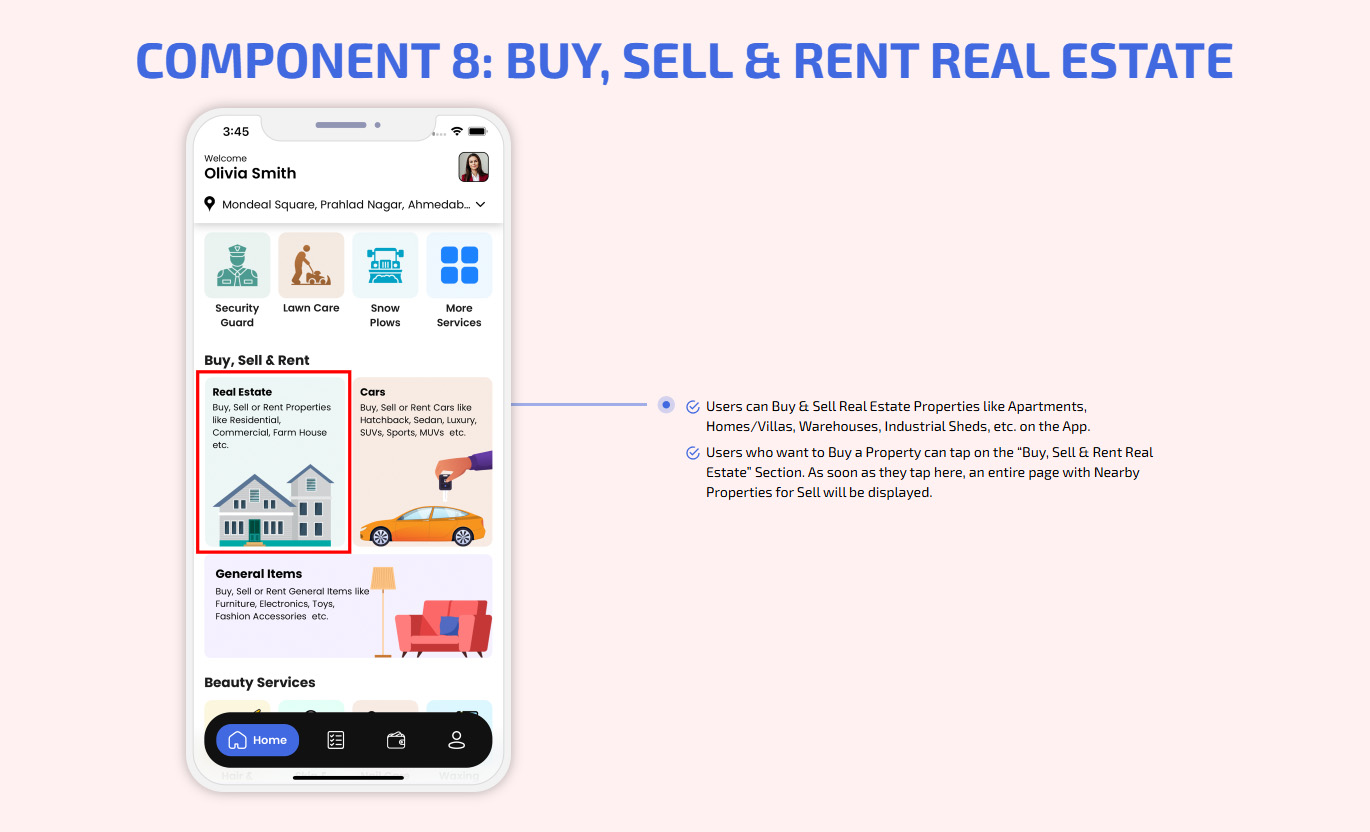
Buy, Sell and Rent Real Estate
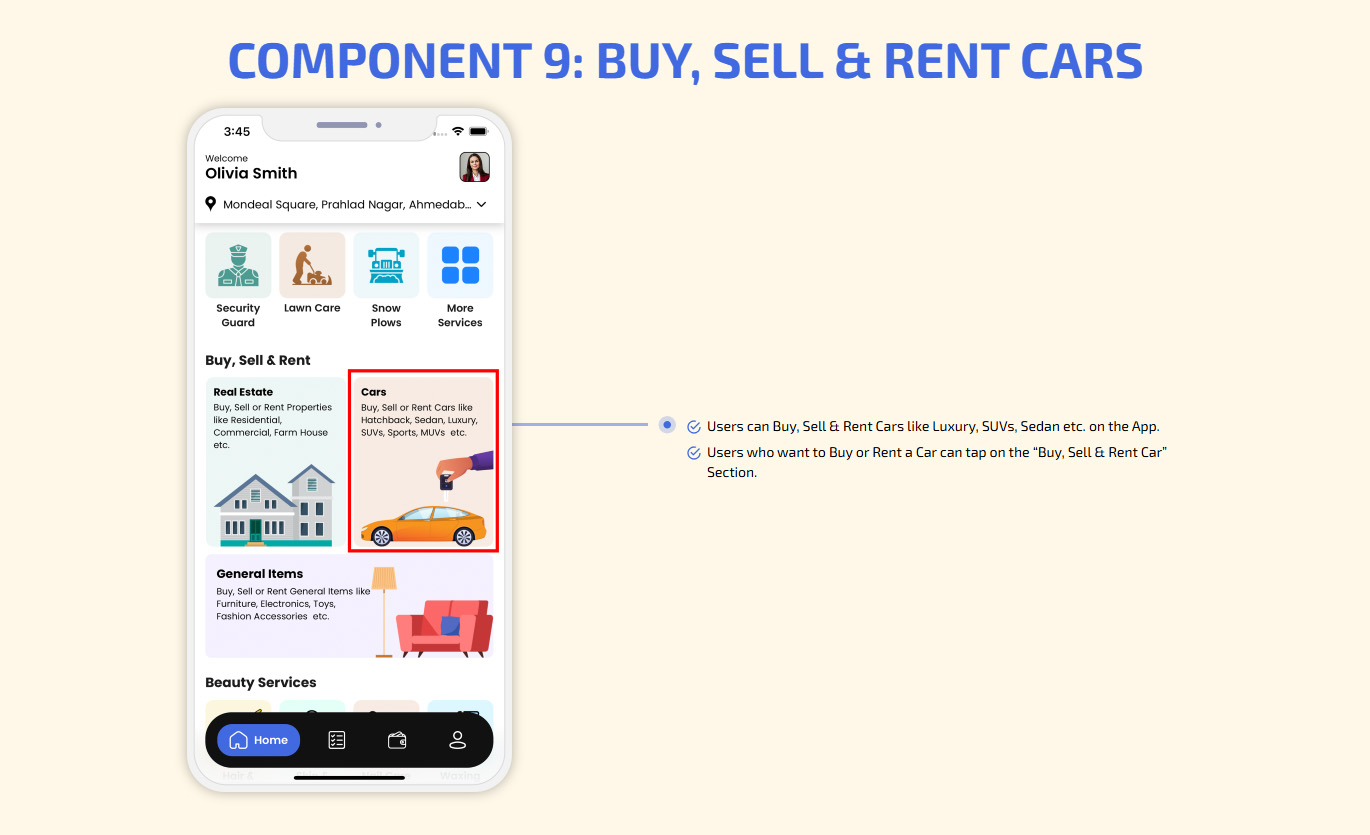
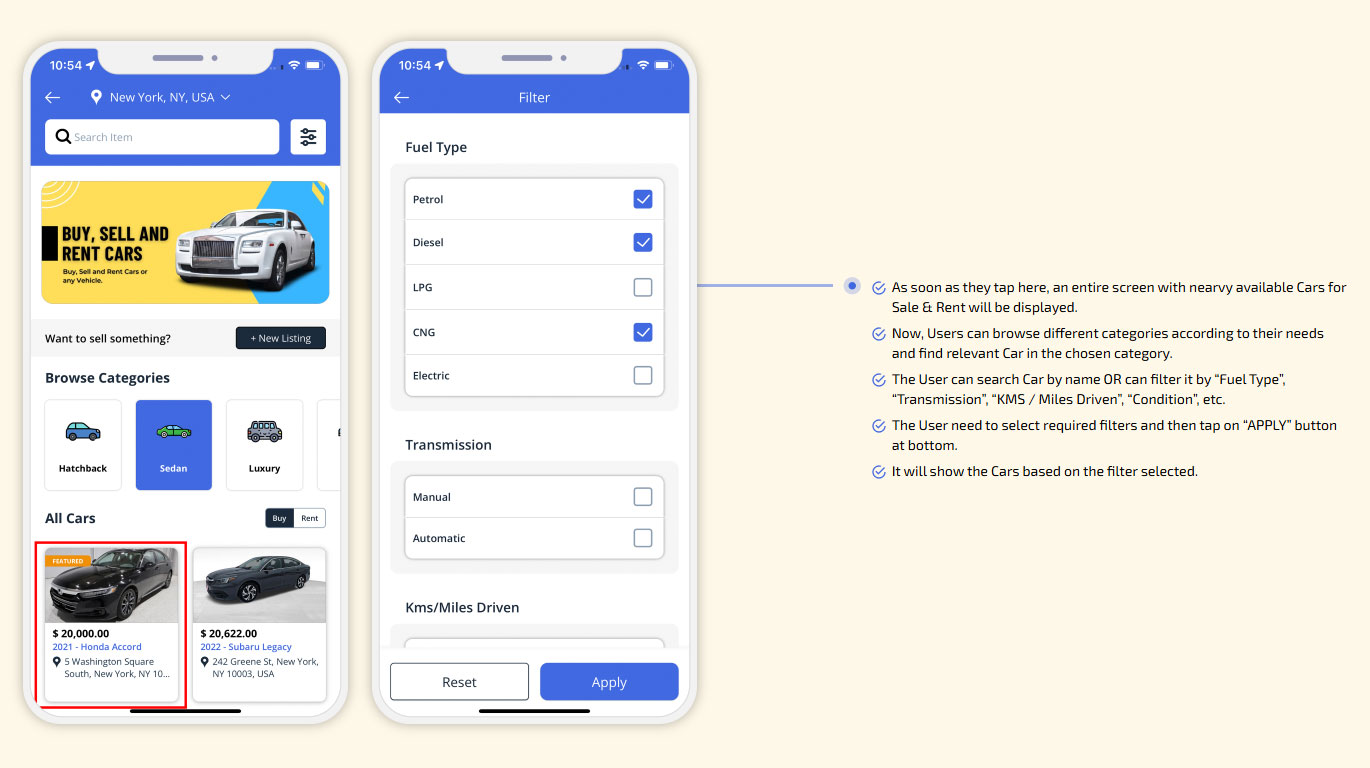
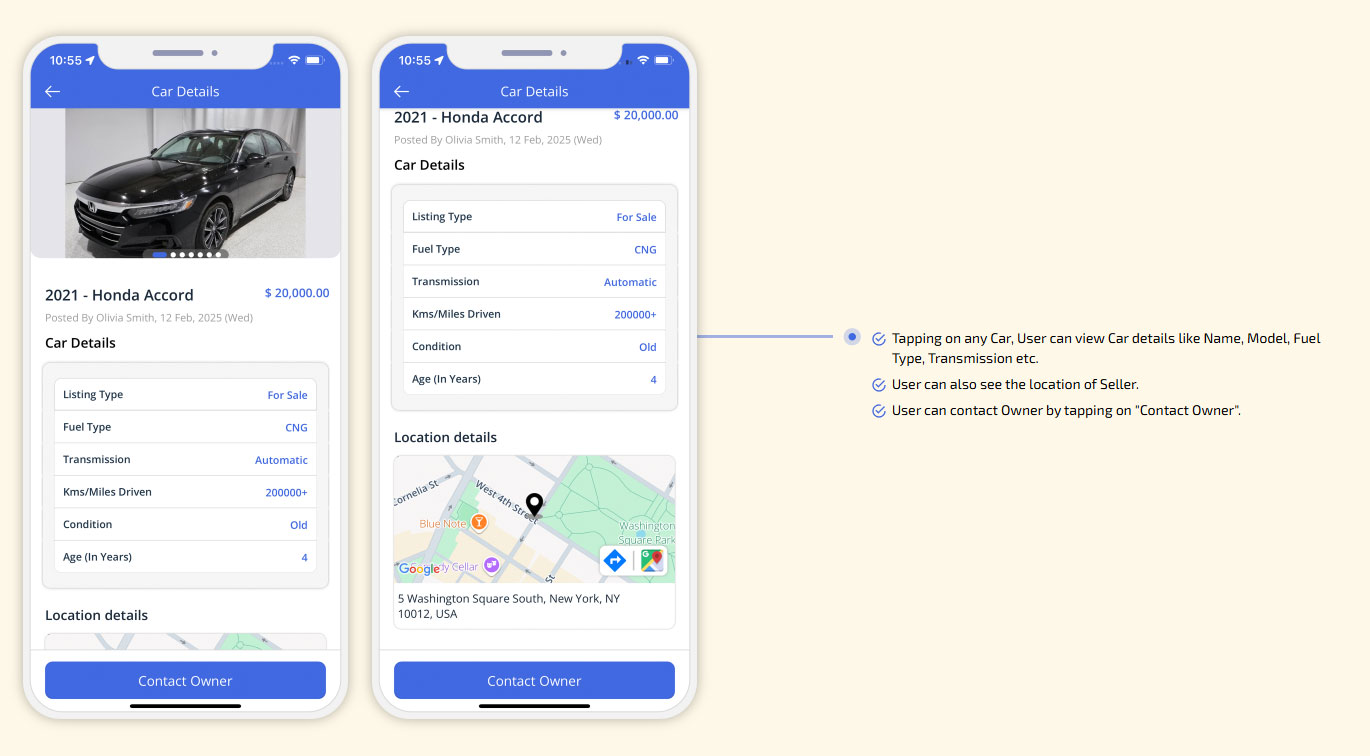
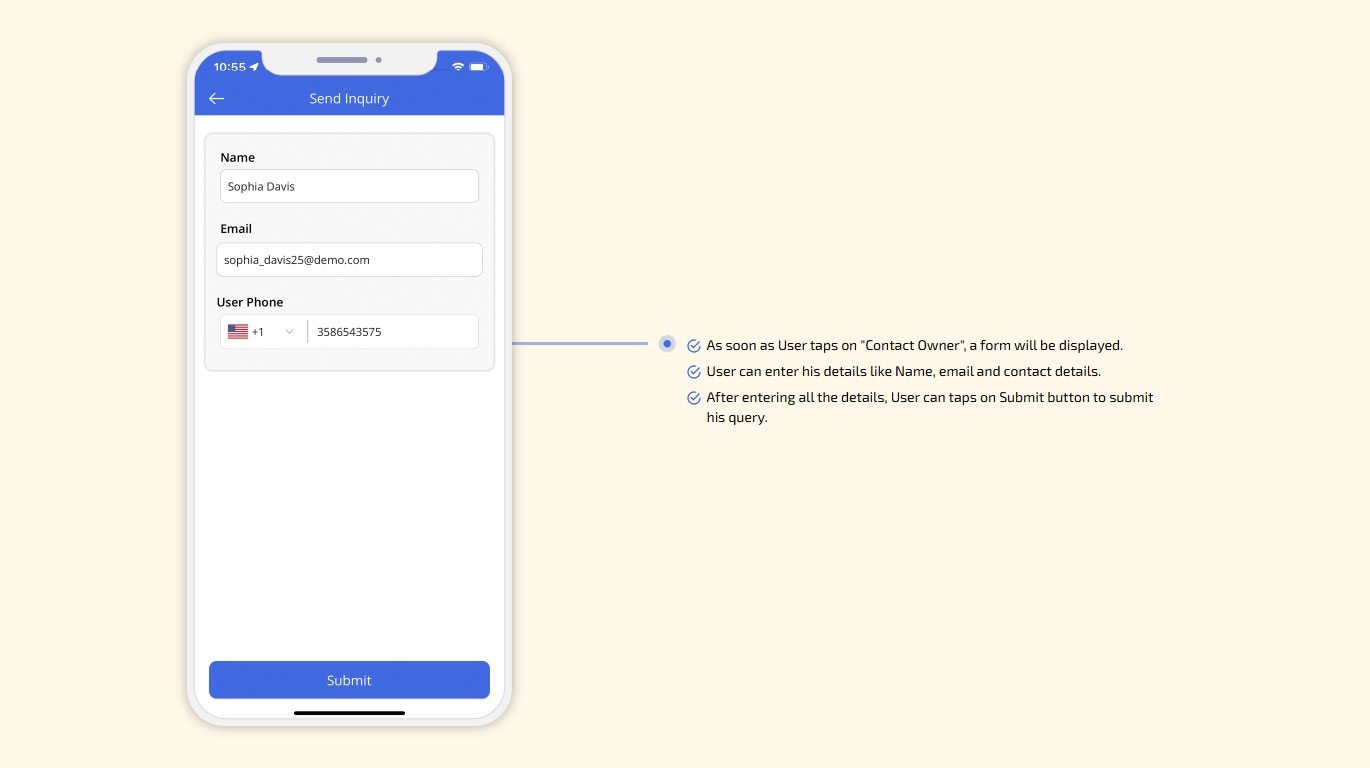
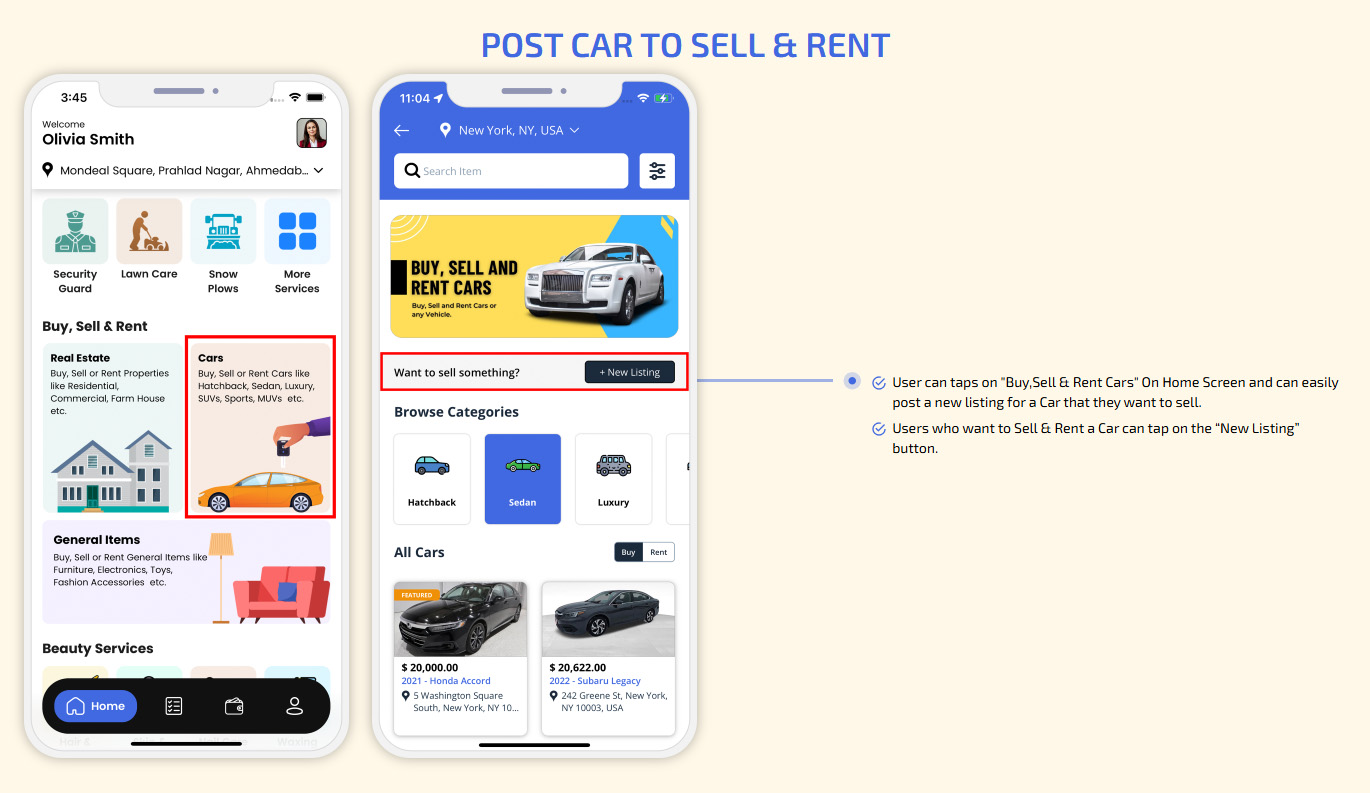
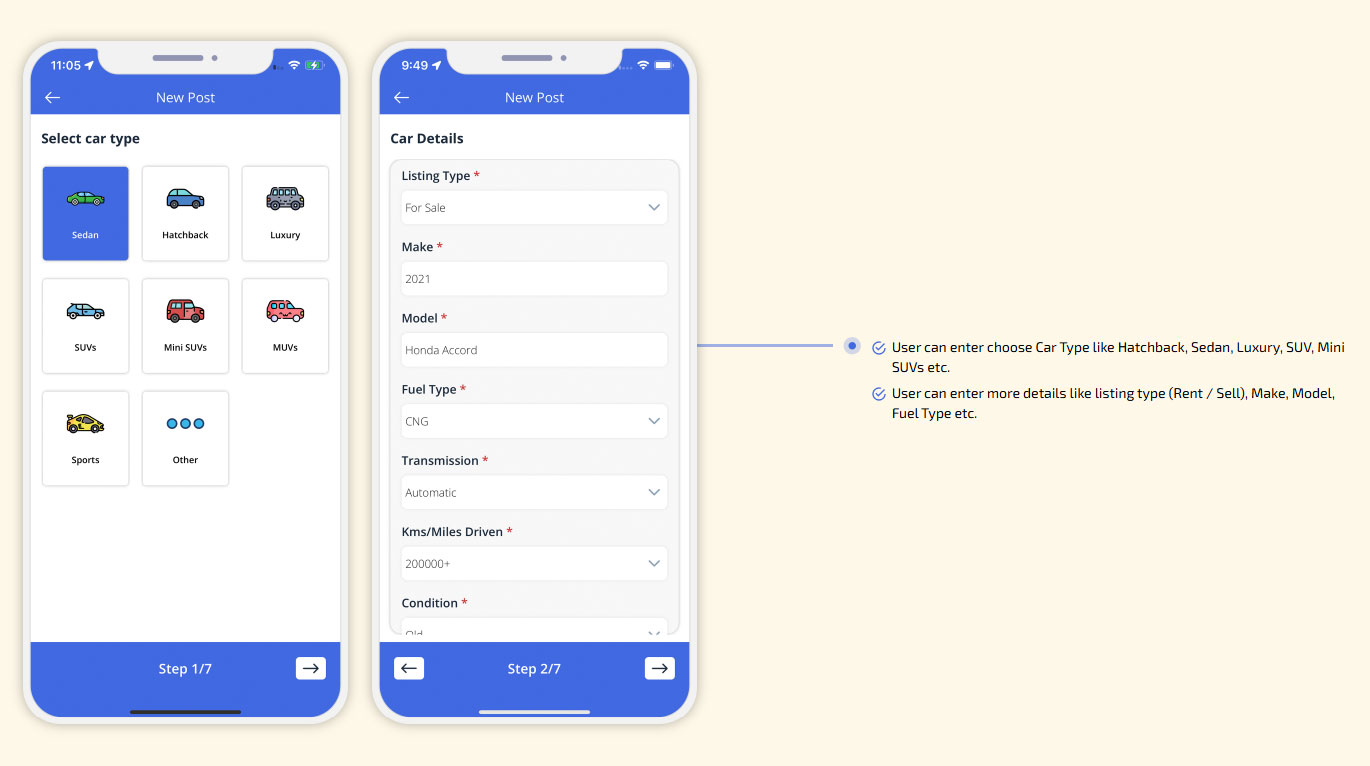
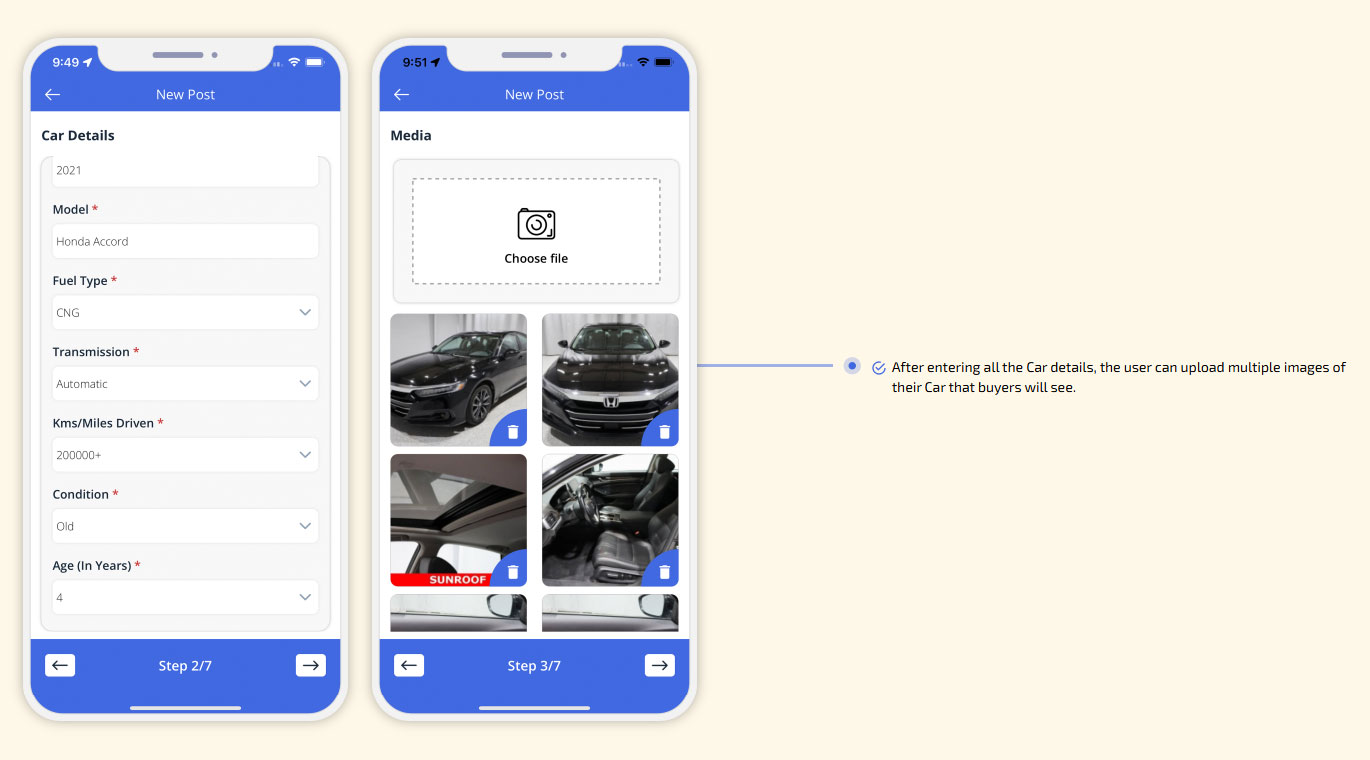
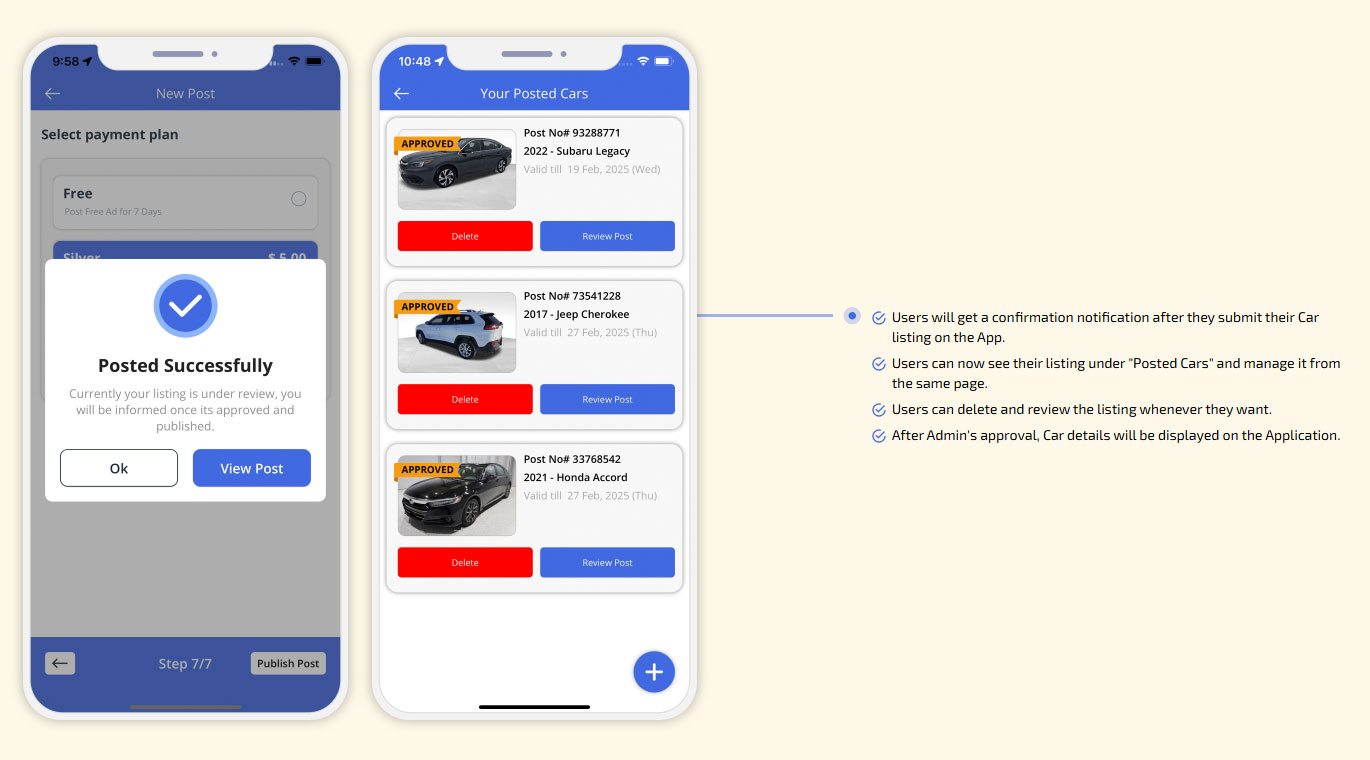
Buy, Sell and Rent Cars
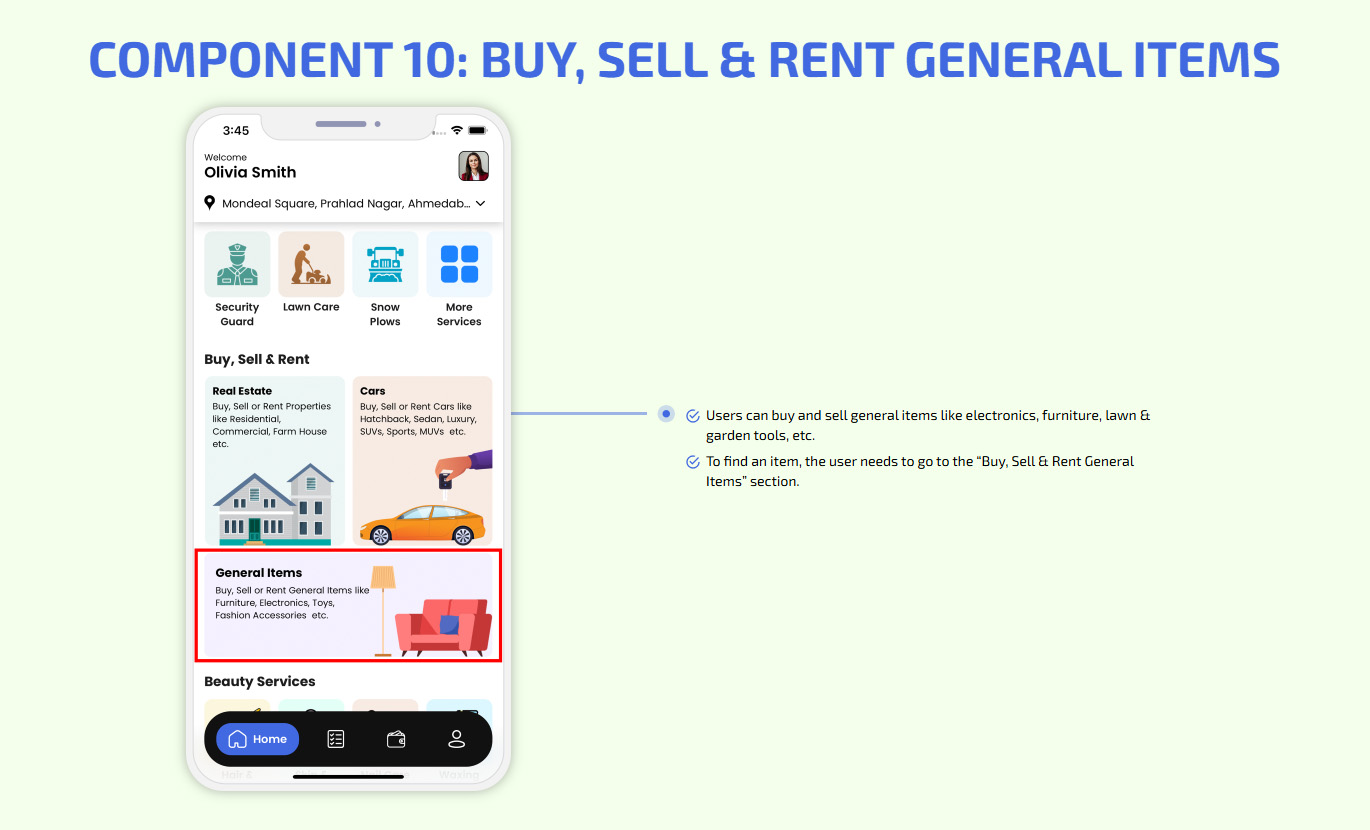
Buy, Sell and Rent General Items
Ride Share - Car Pool
Medical Services
Track your Family & Employees
Nearby Businesses
XJekPlus4 New Additional Component - 2026
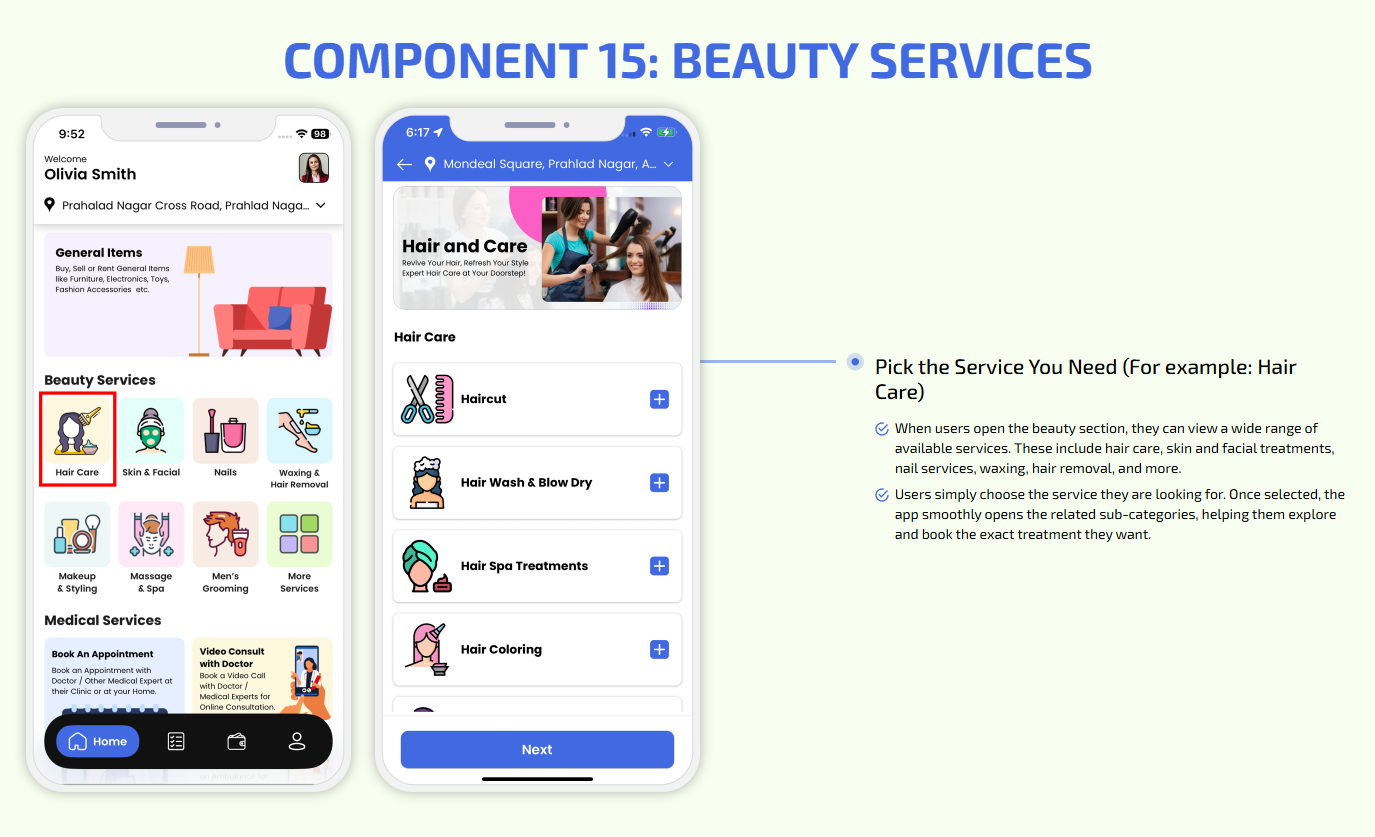
Beauty Services
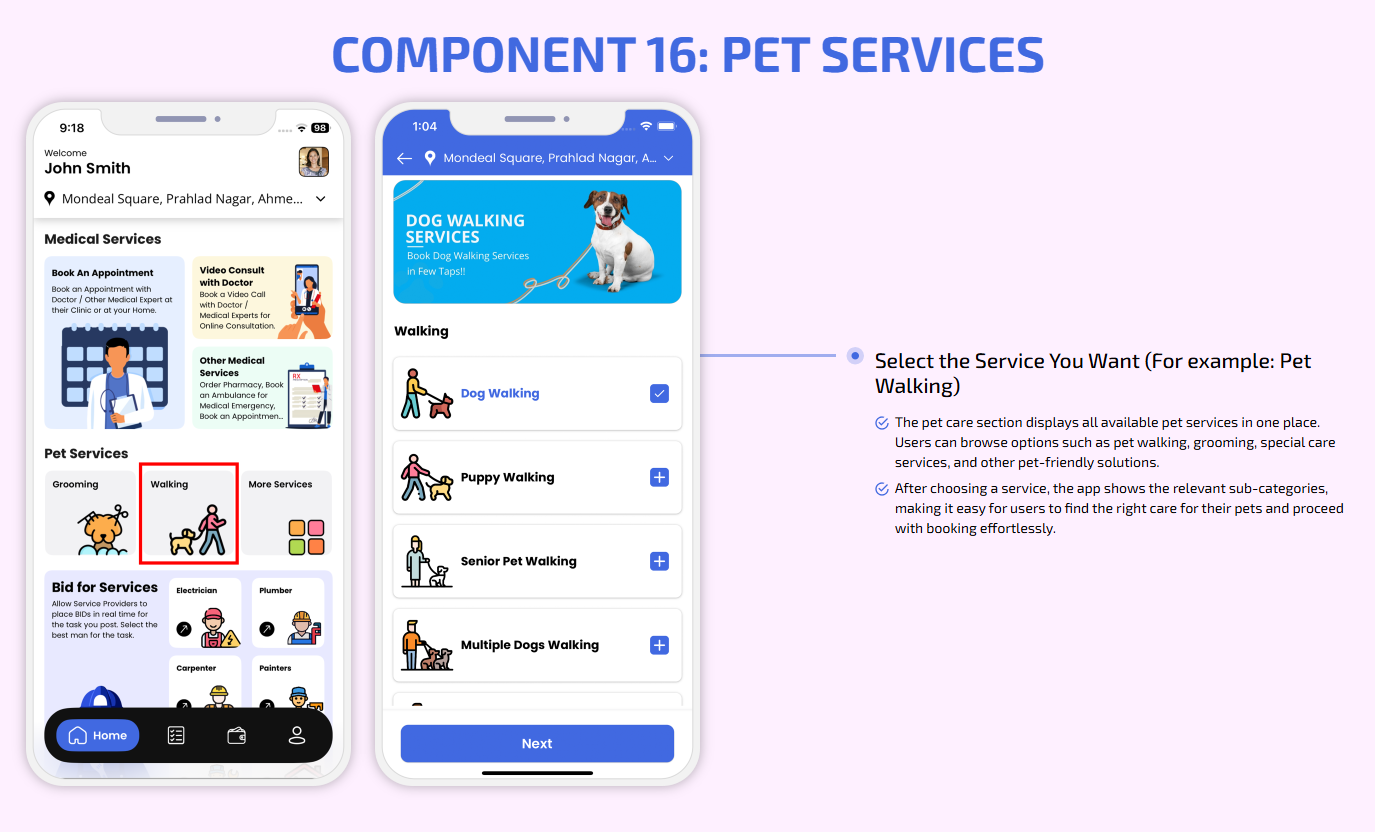
Pet Care Services
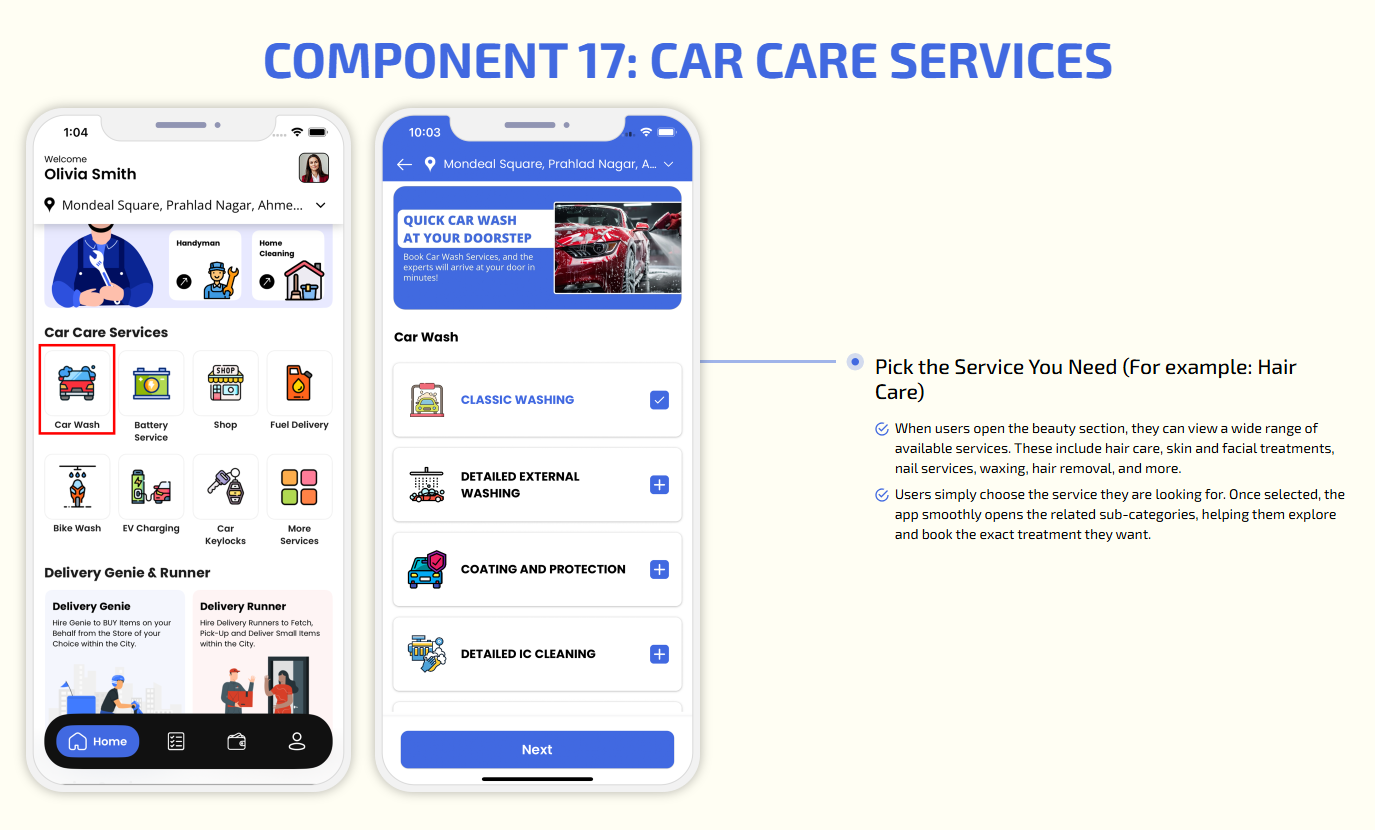
Car Wash & Care Services
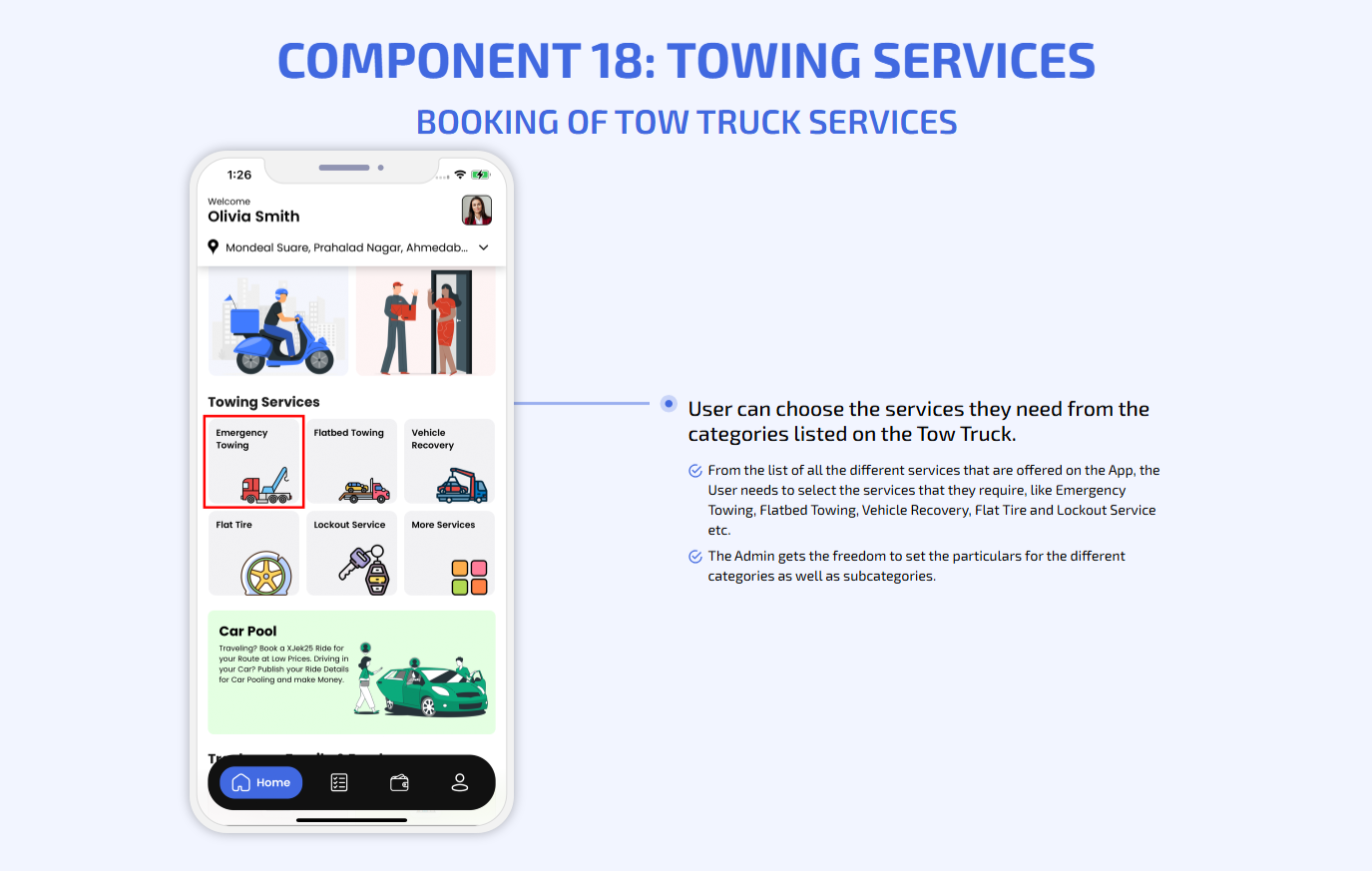
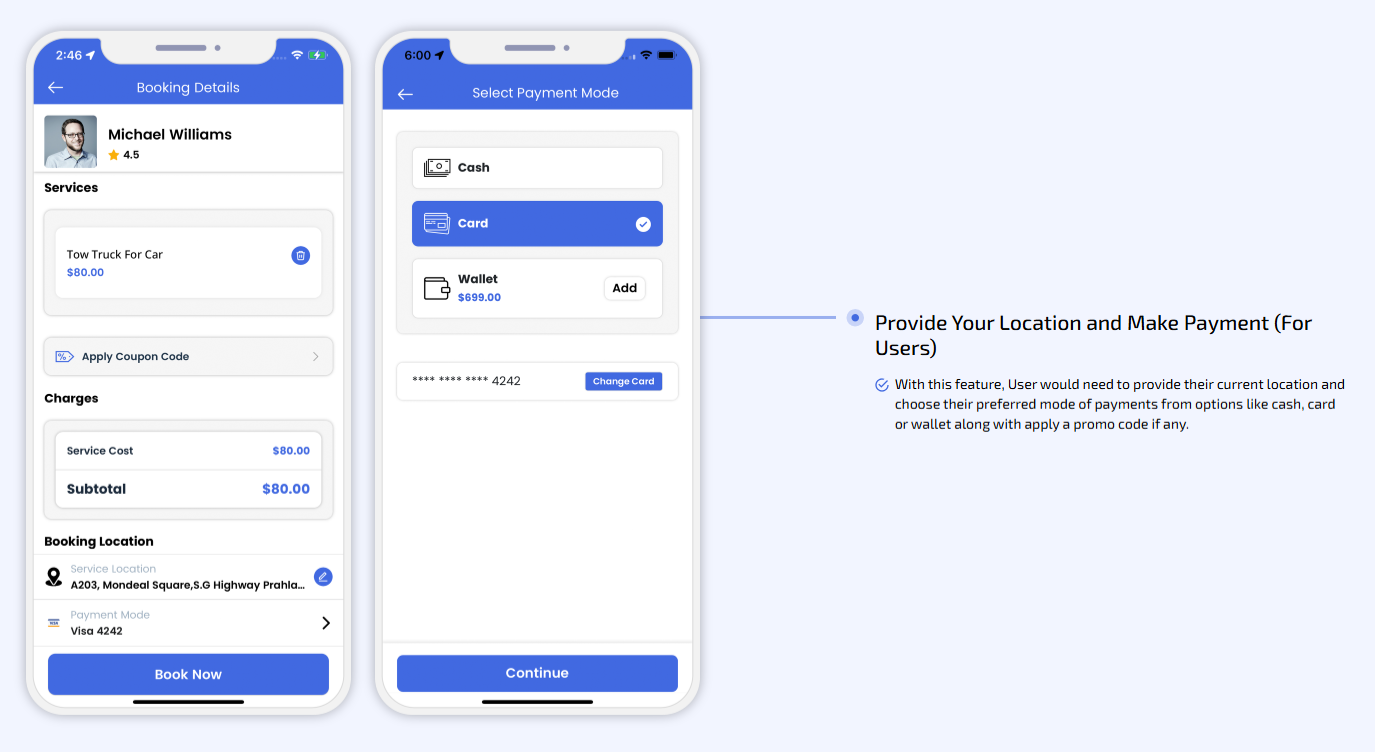
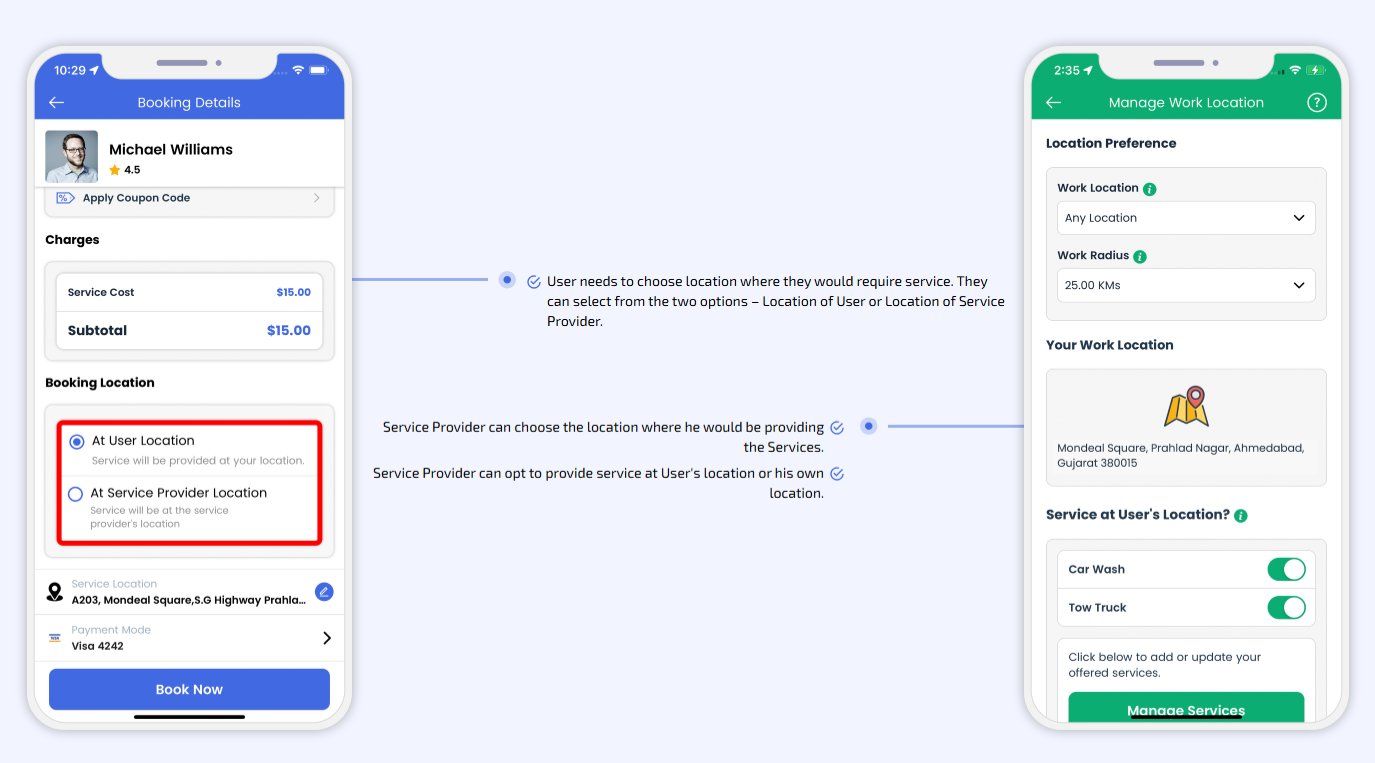
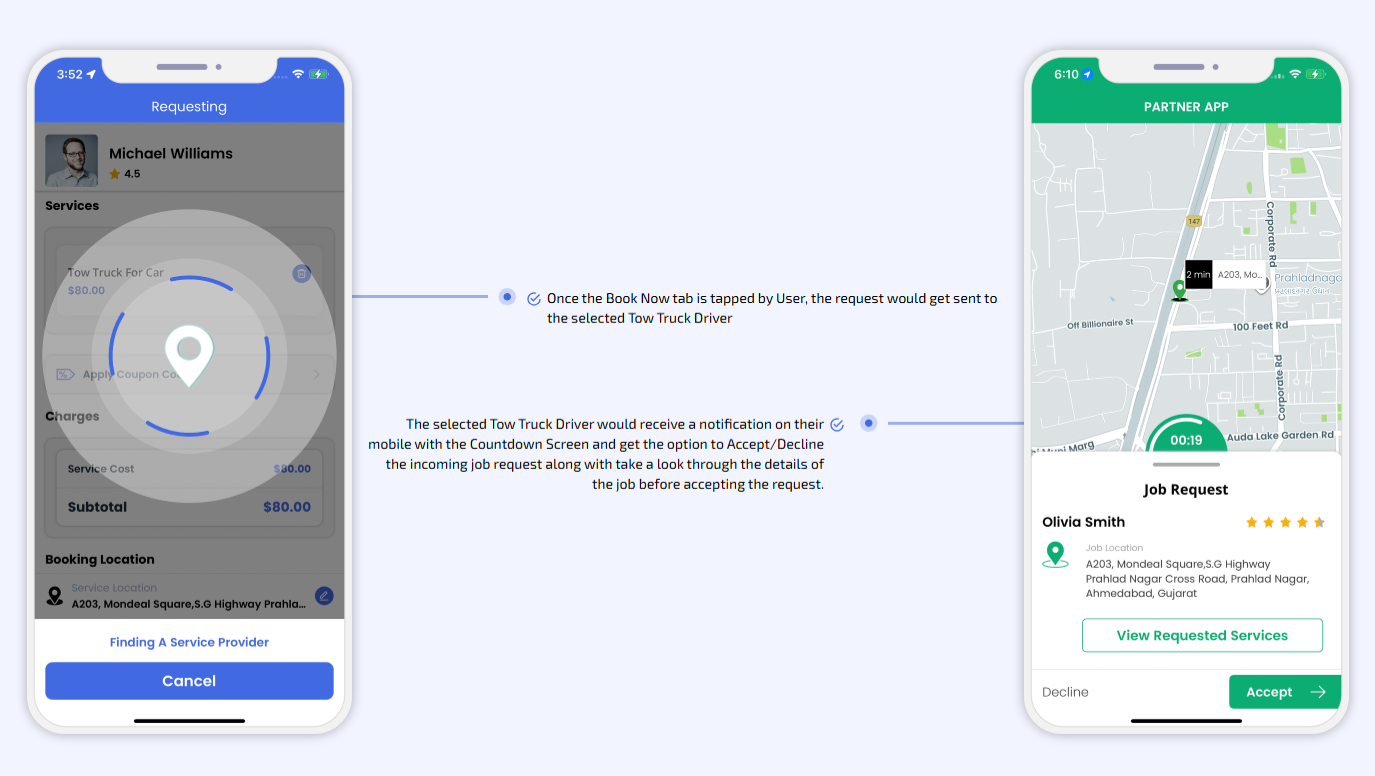
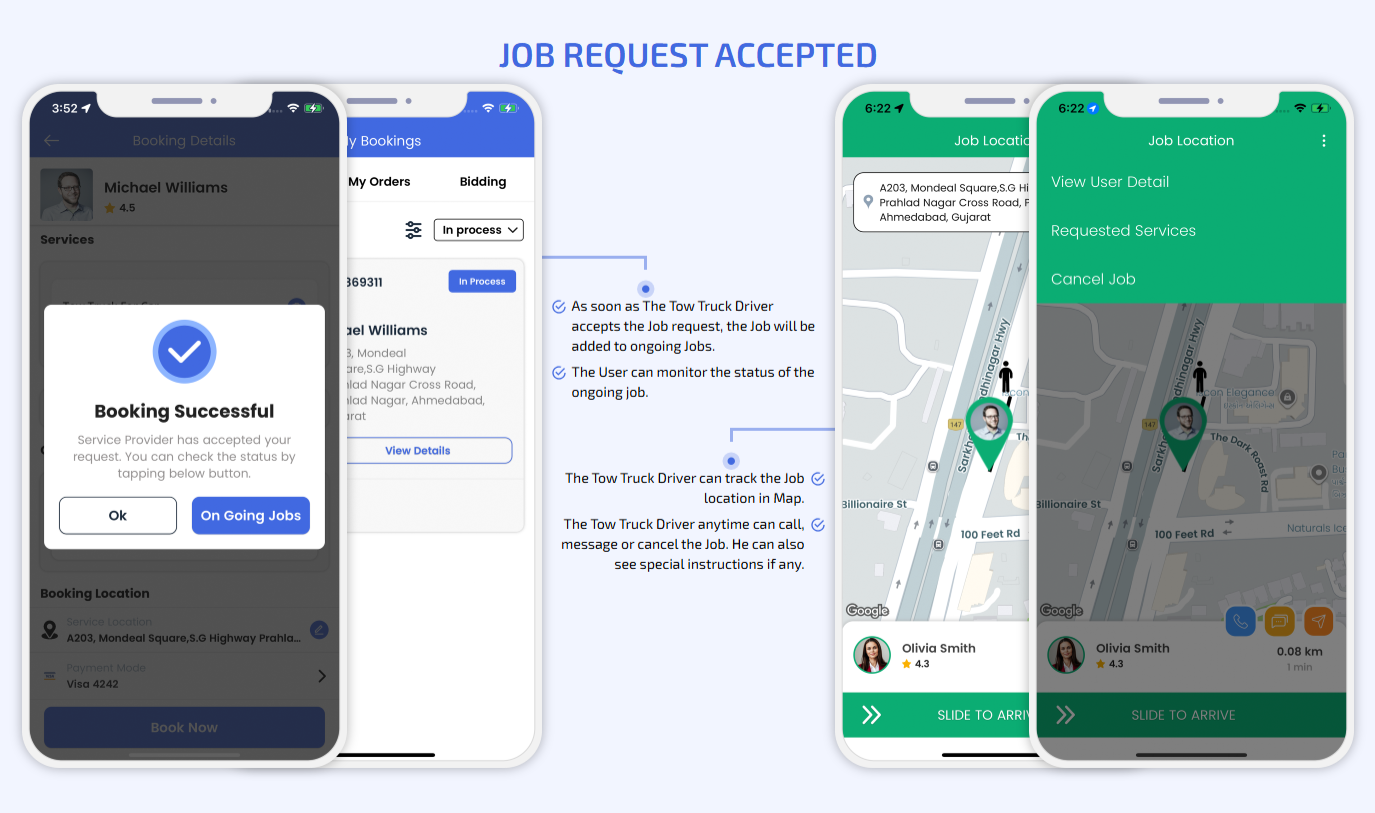
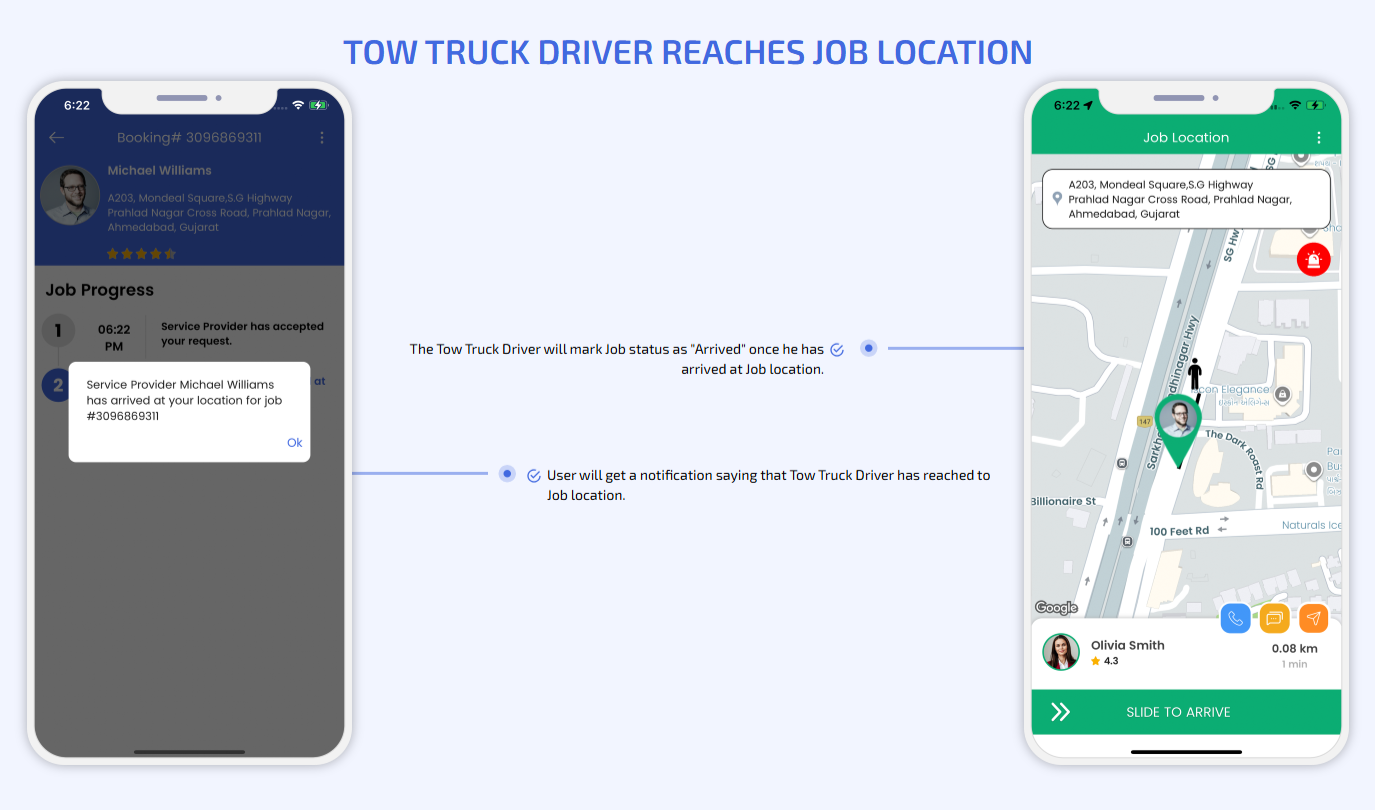
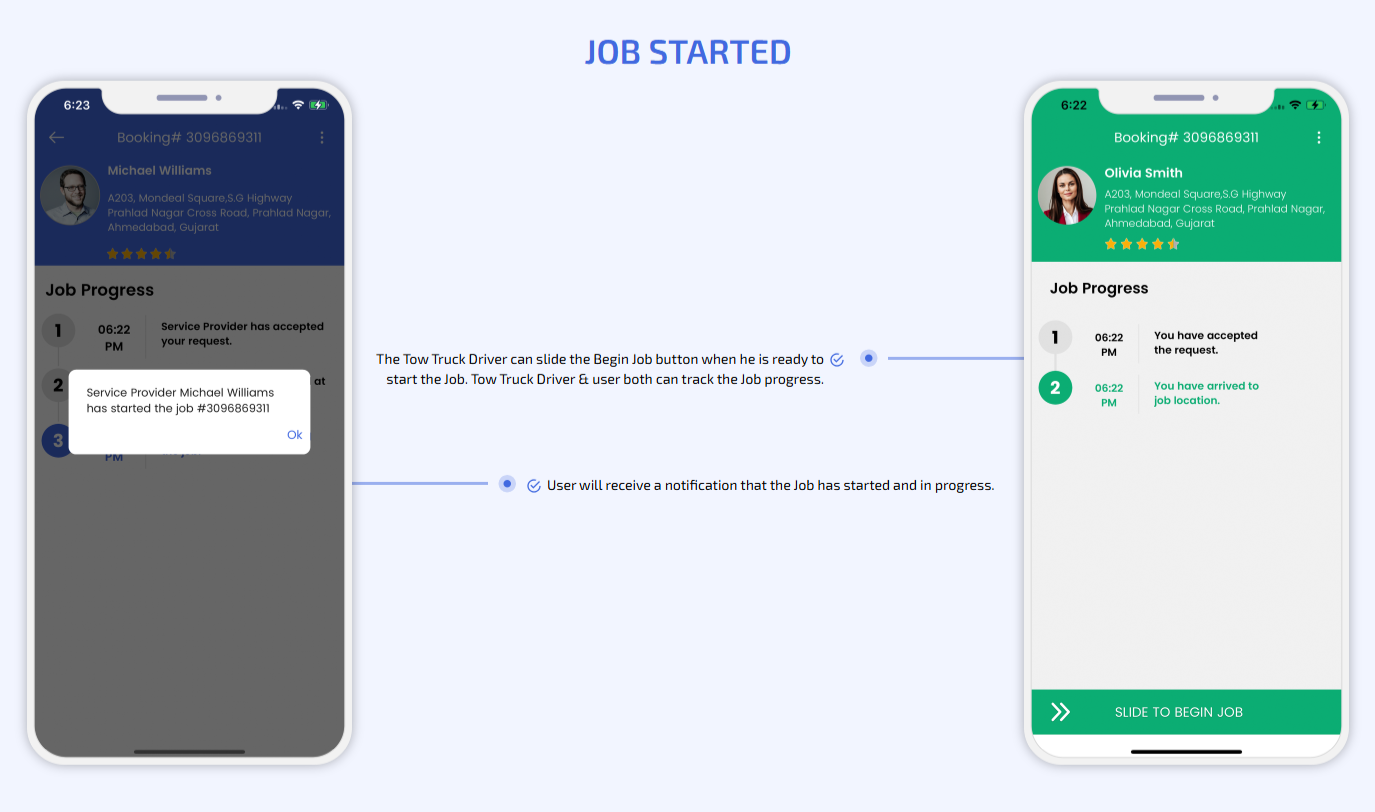
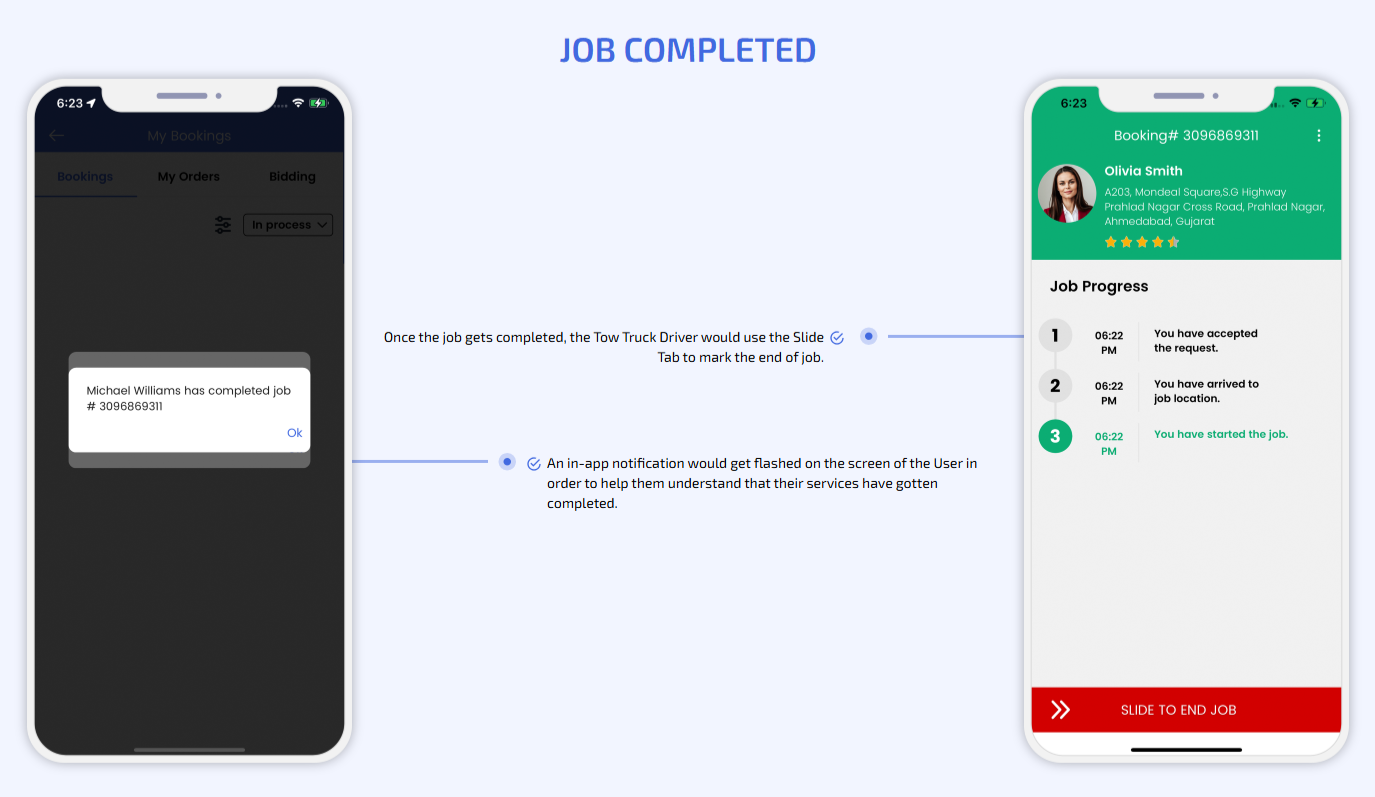
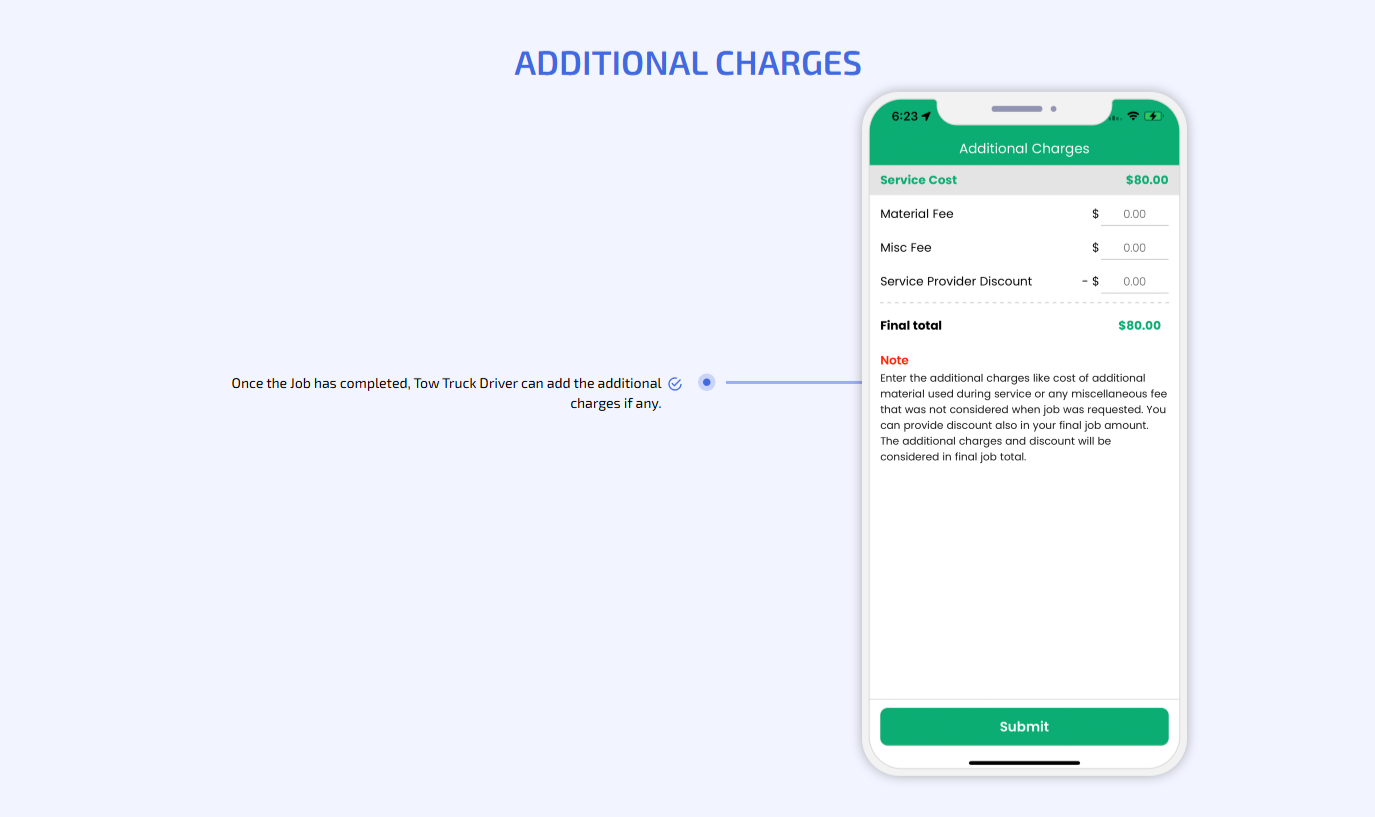
Roadside Assistance & Towing Services
arrow Detailing
Gojek Clone App

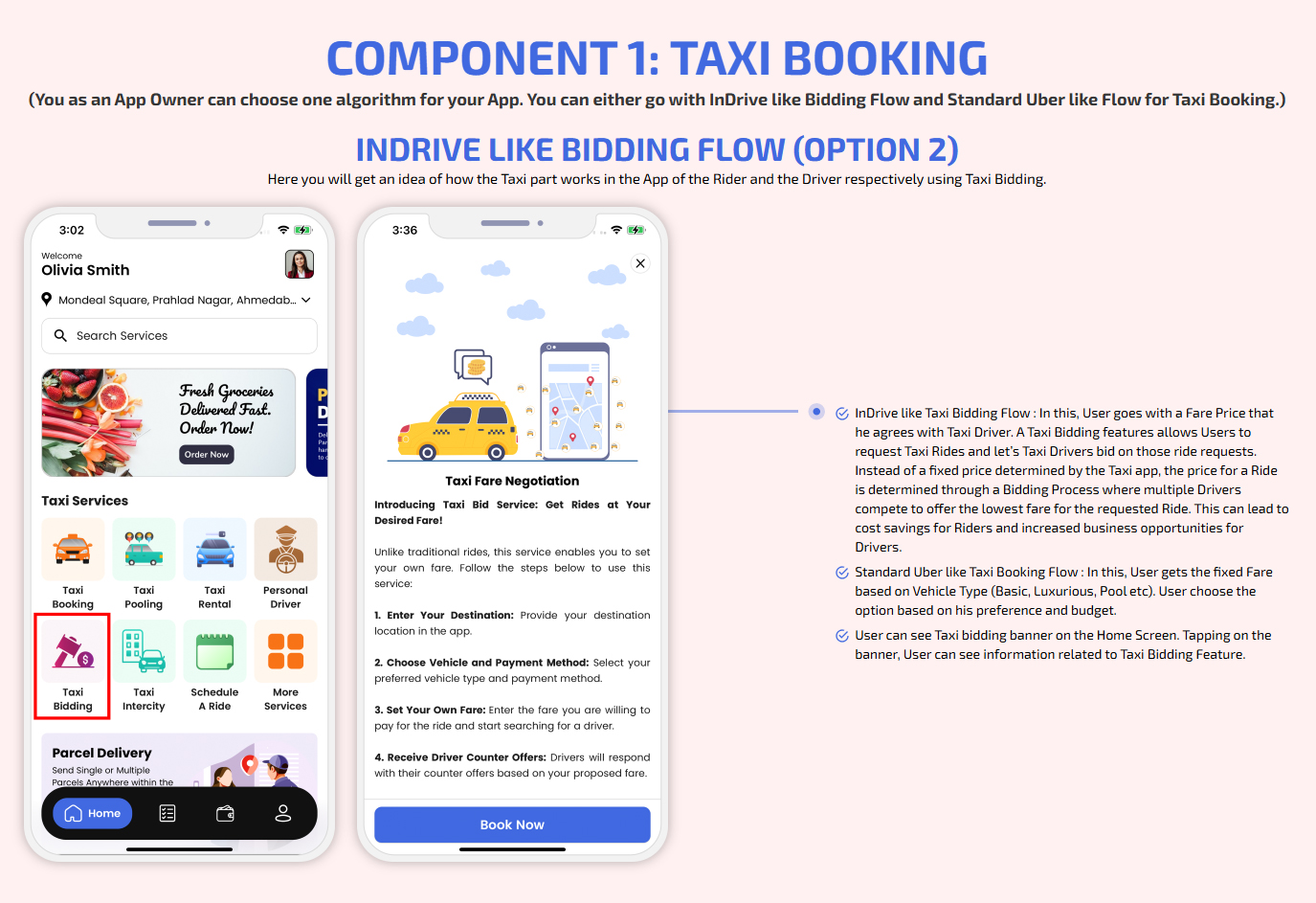
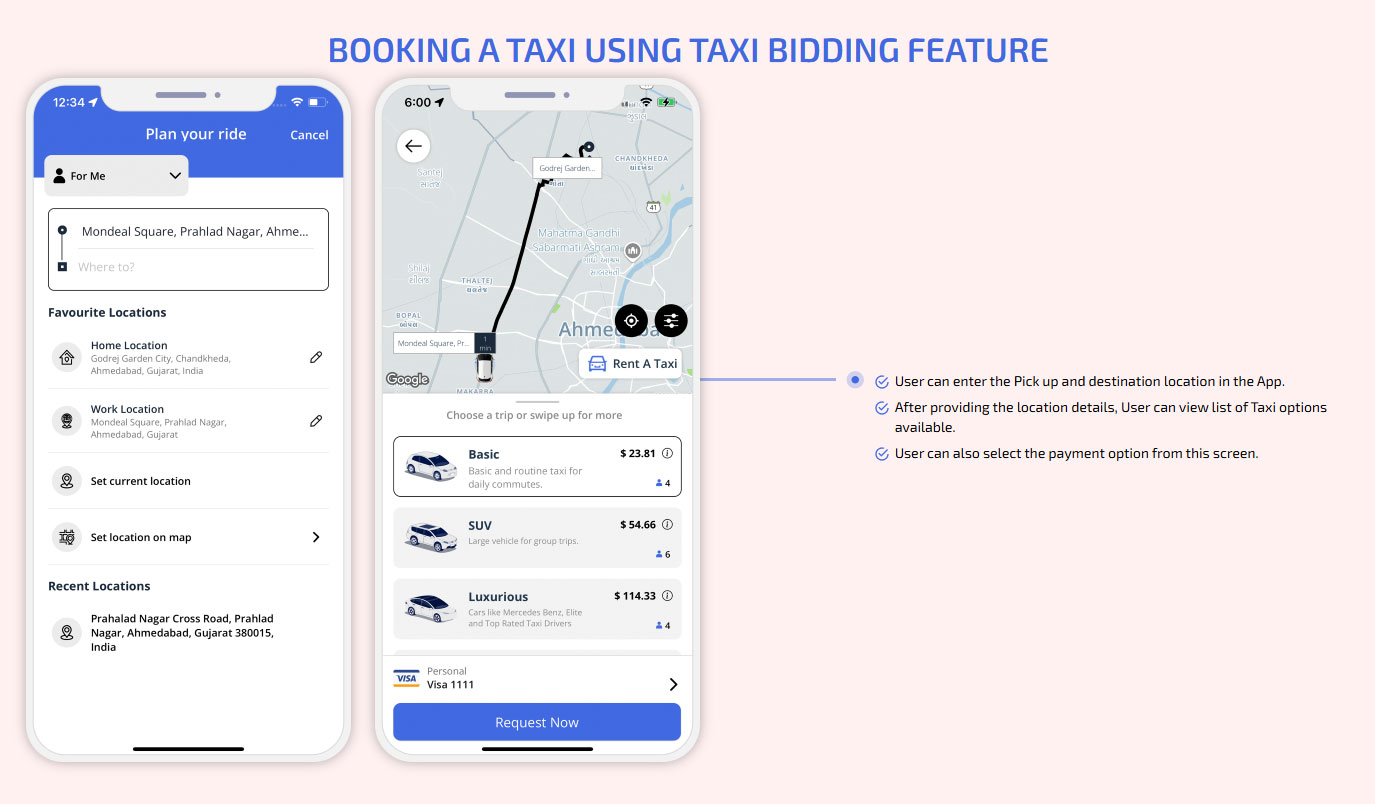
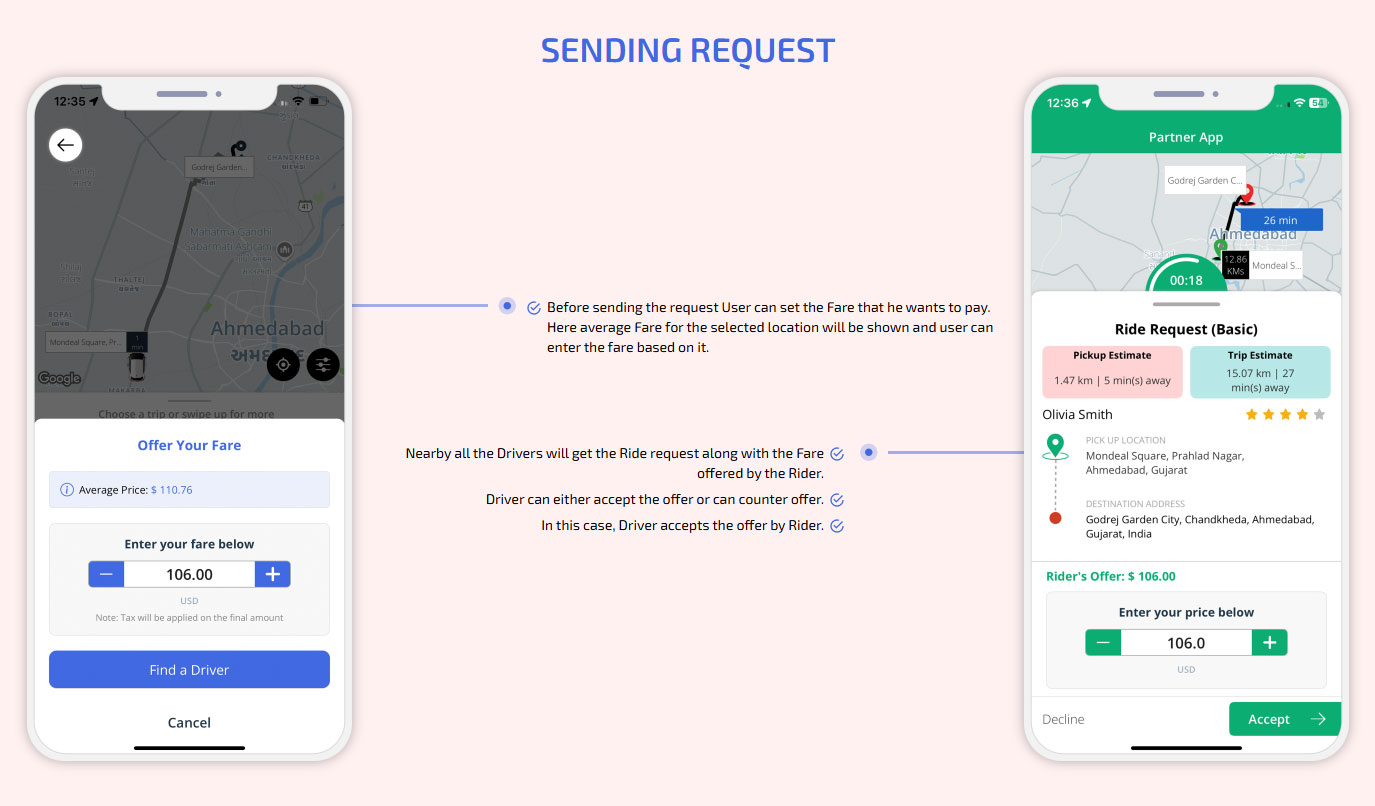
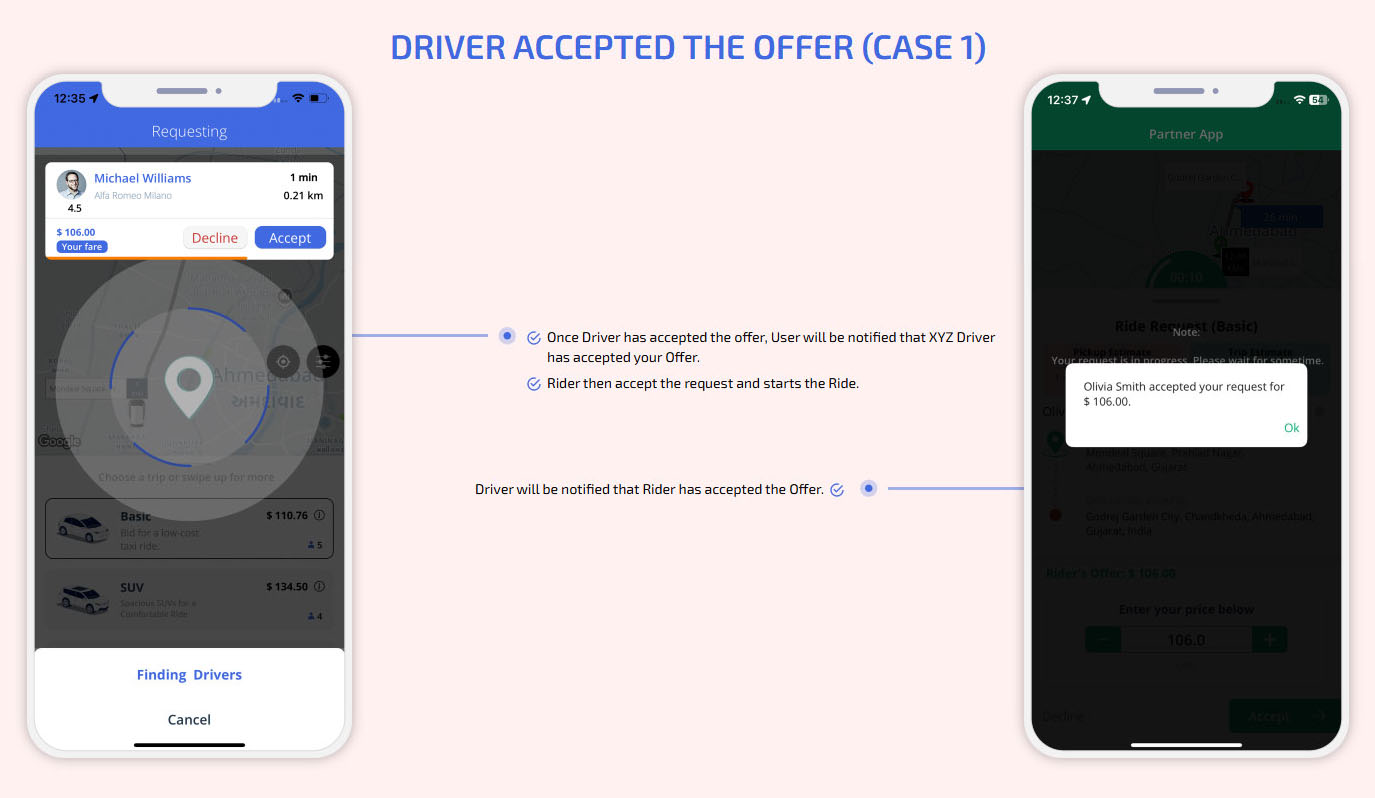
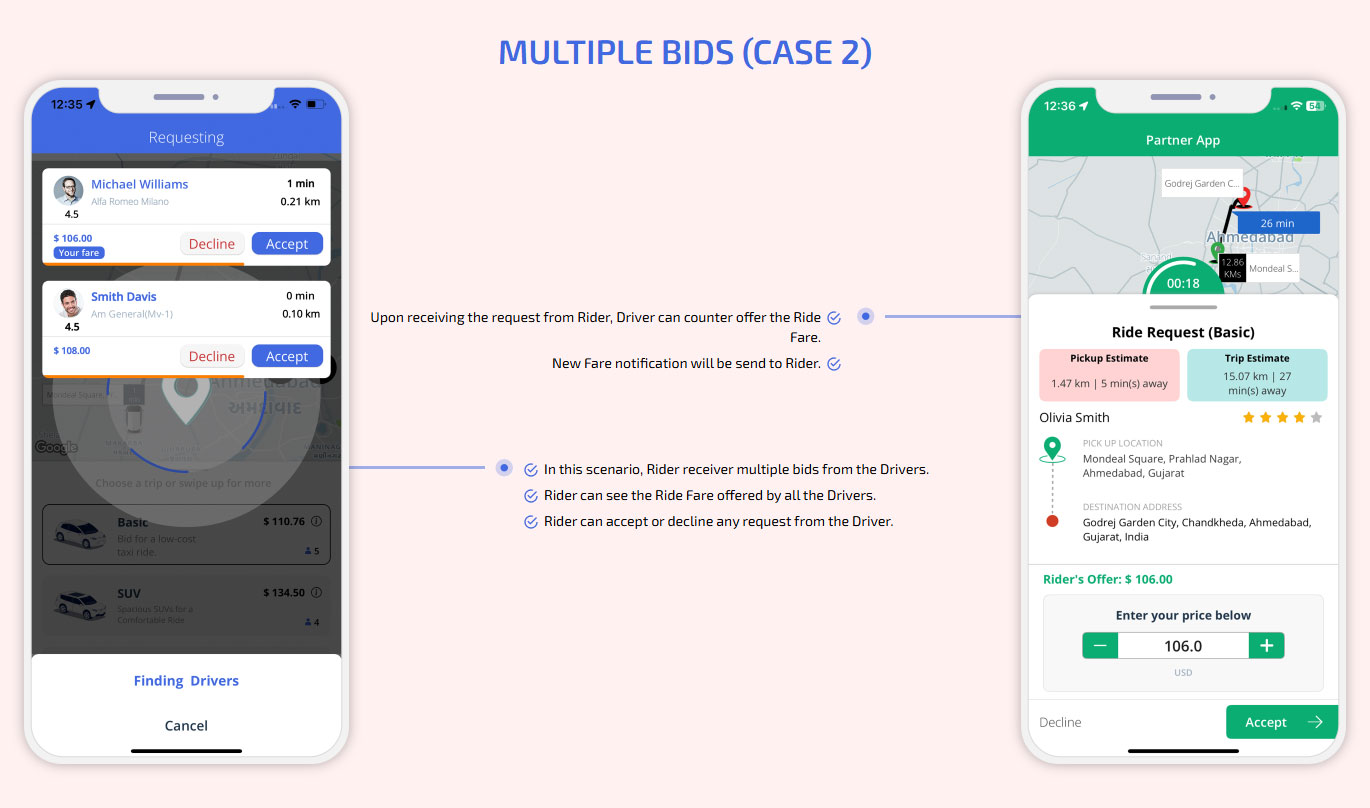
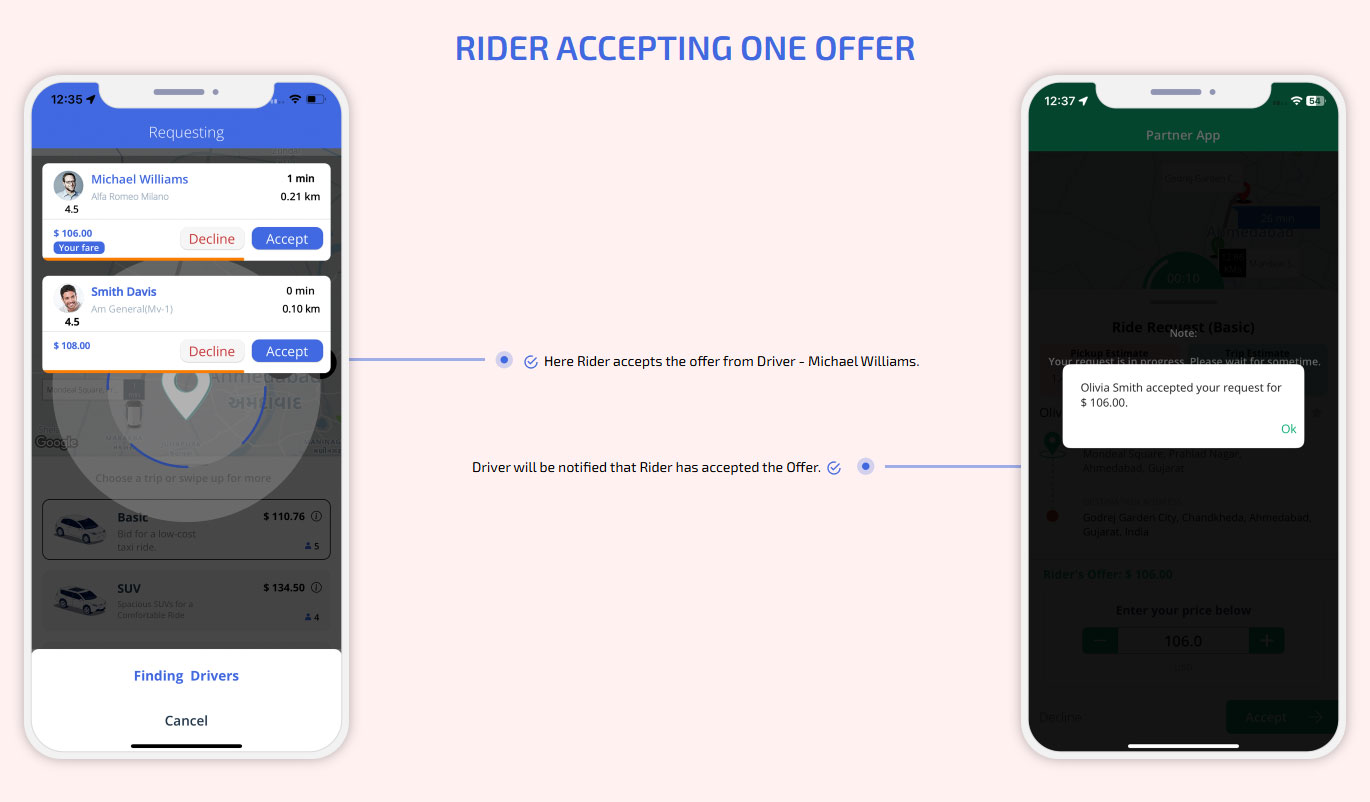
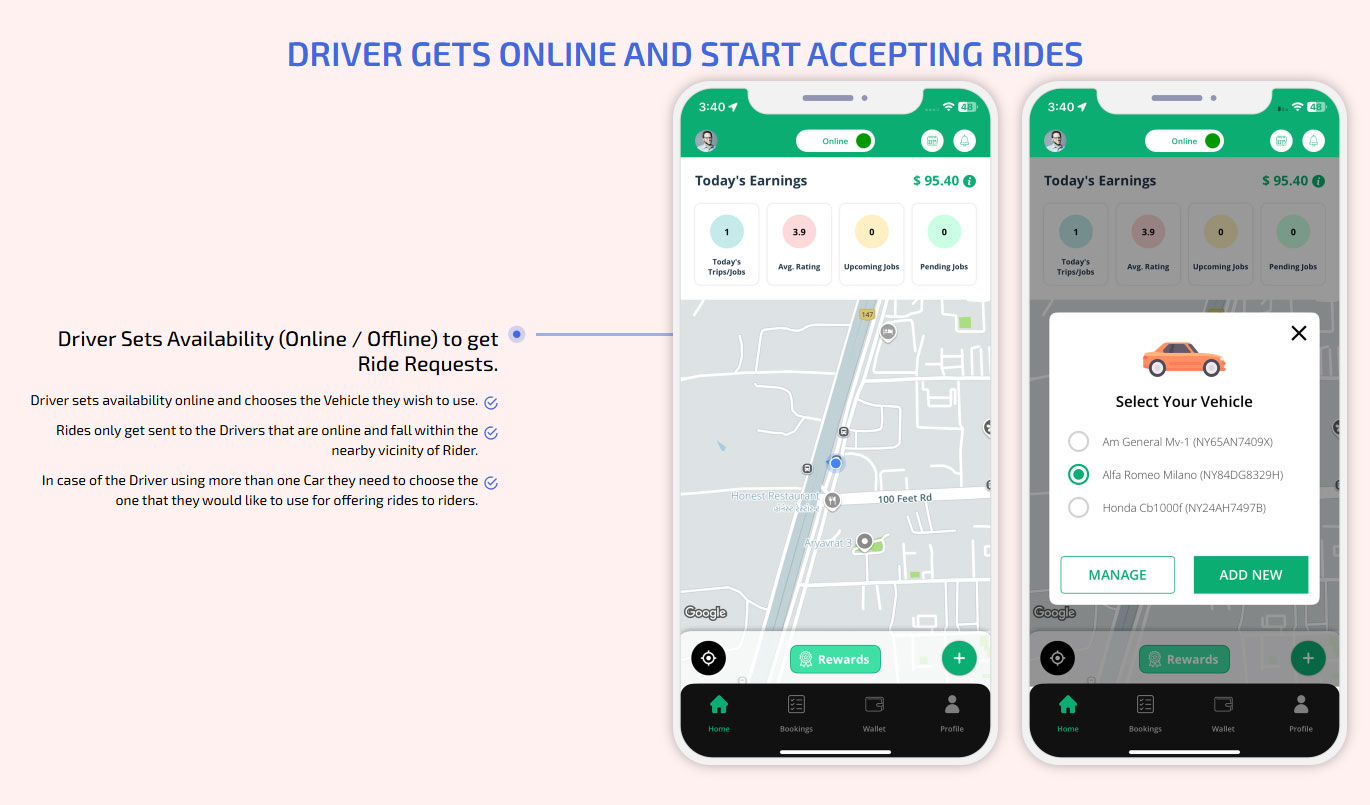
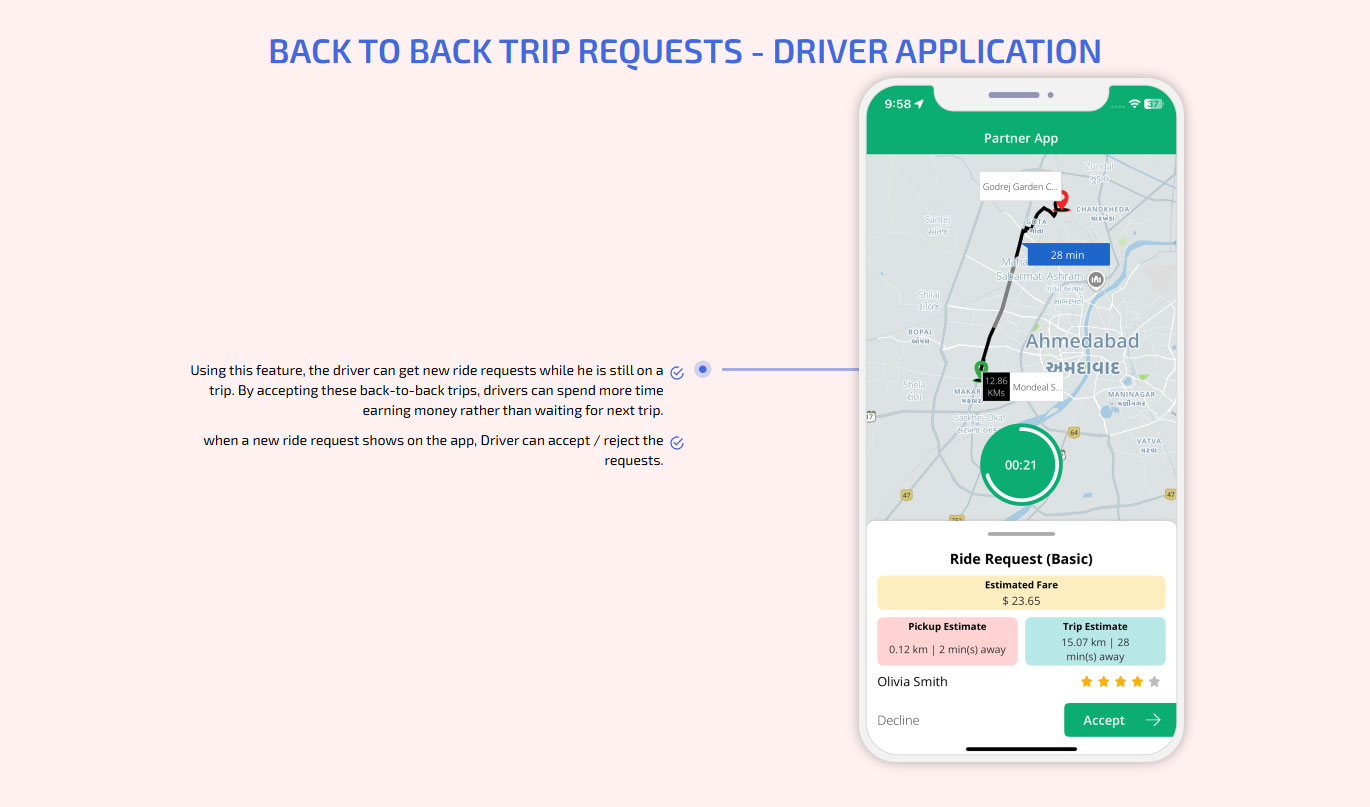
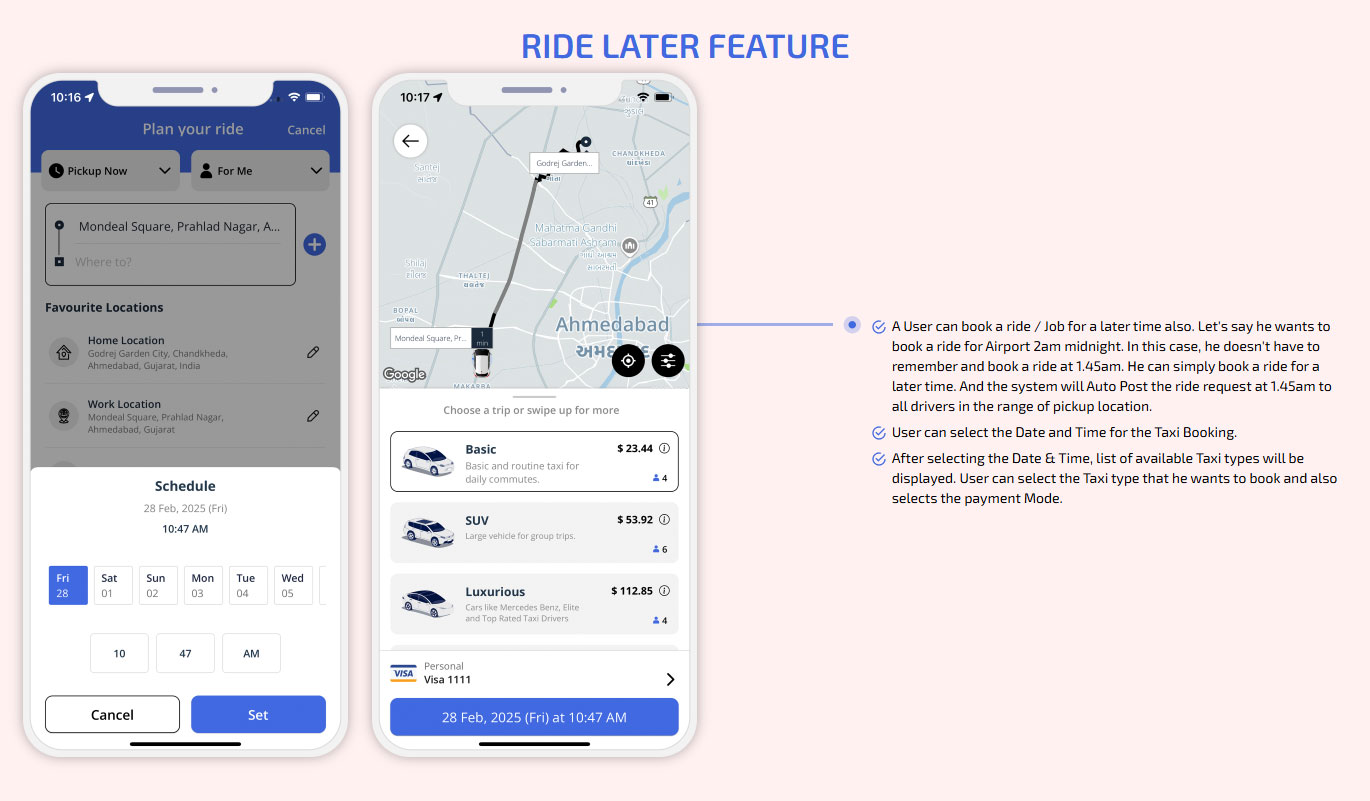
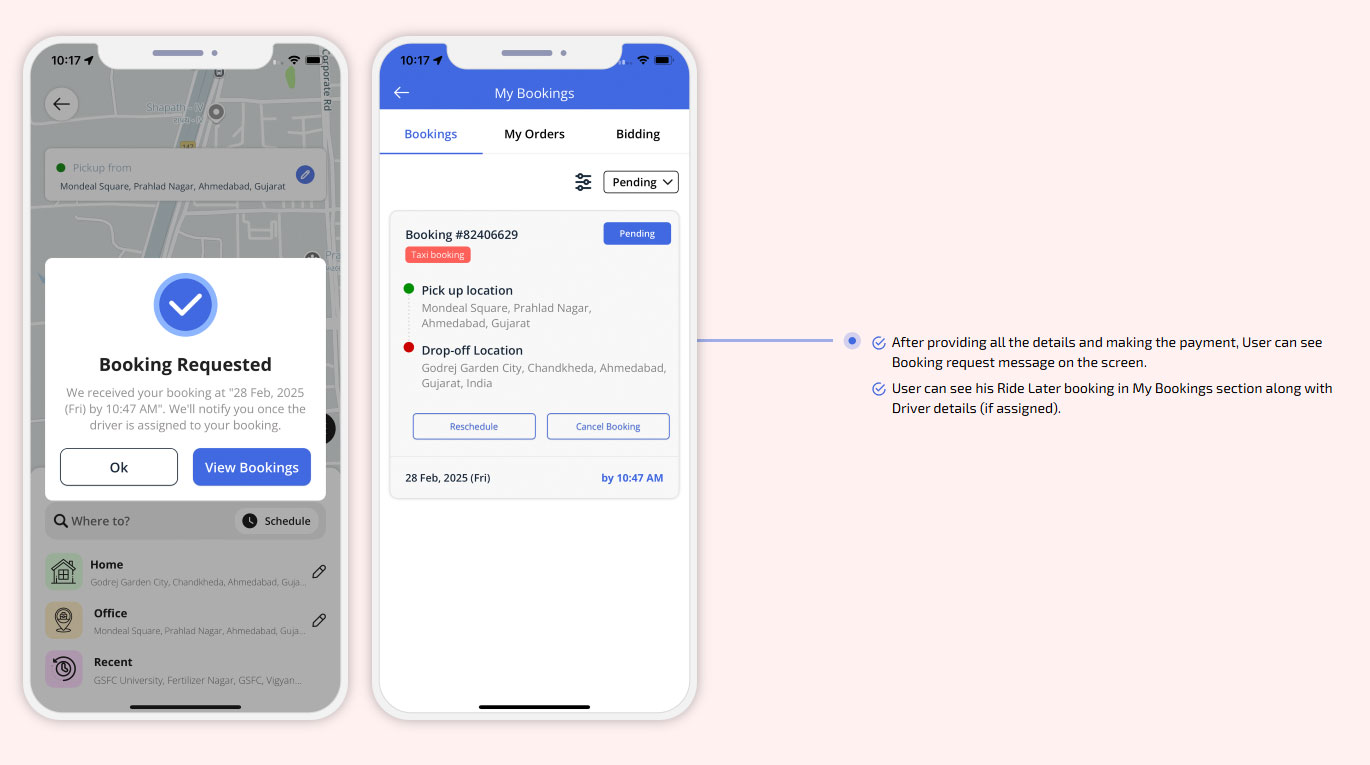
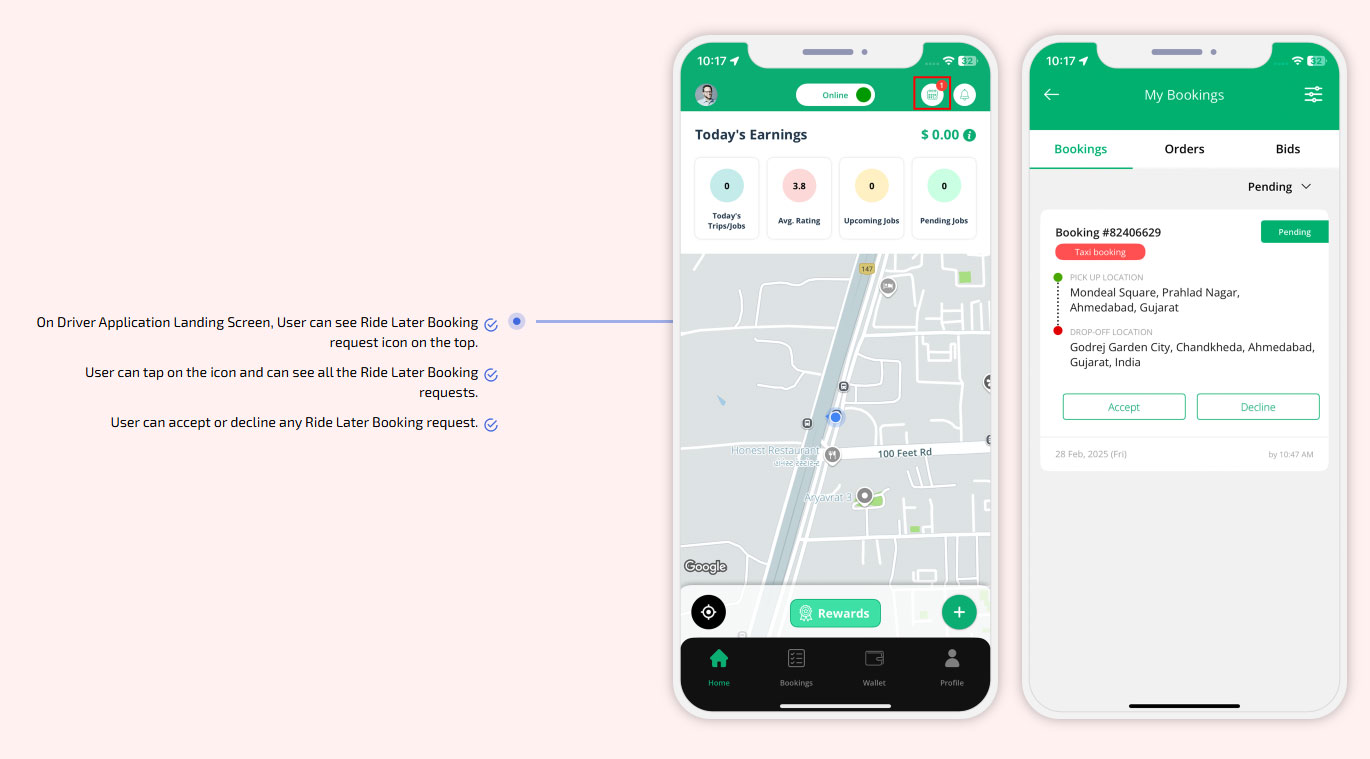
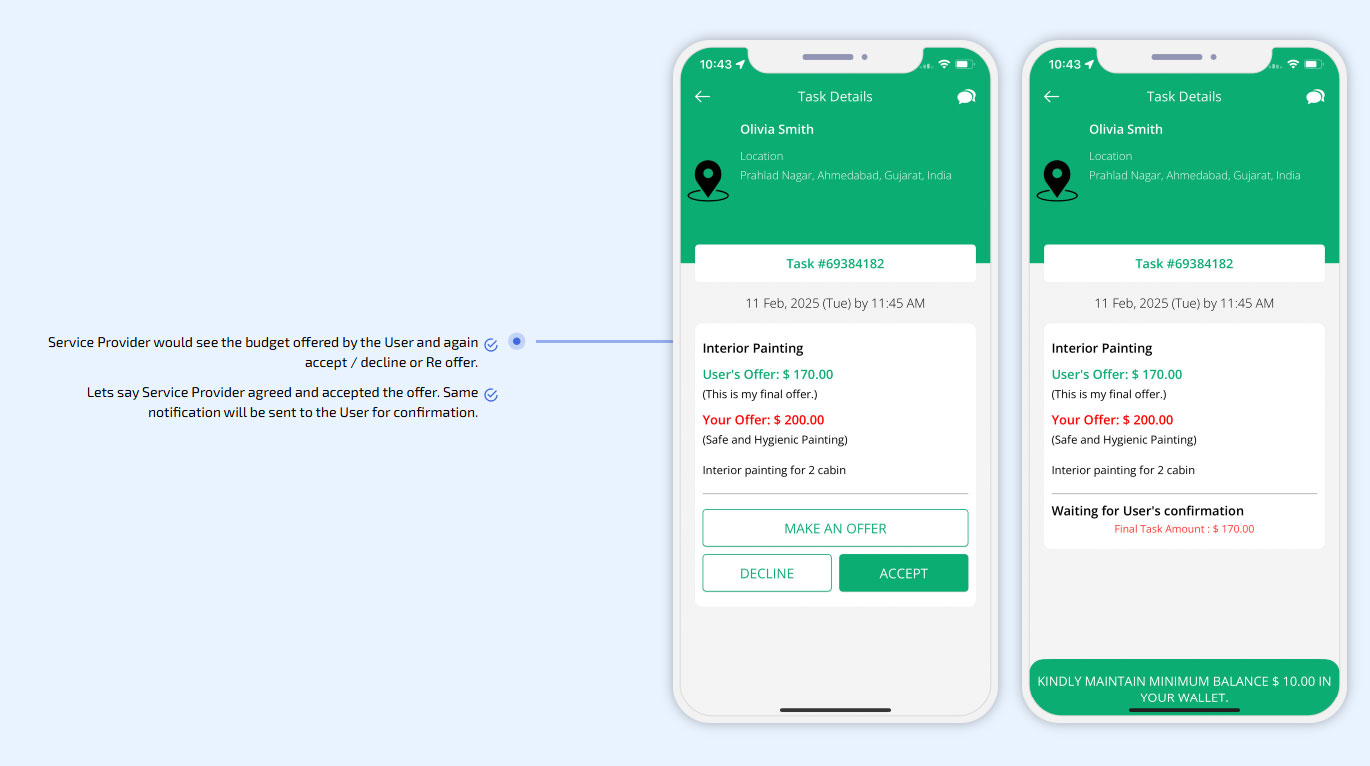
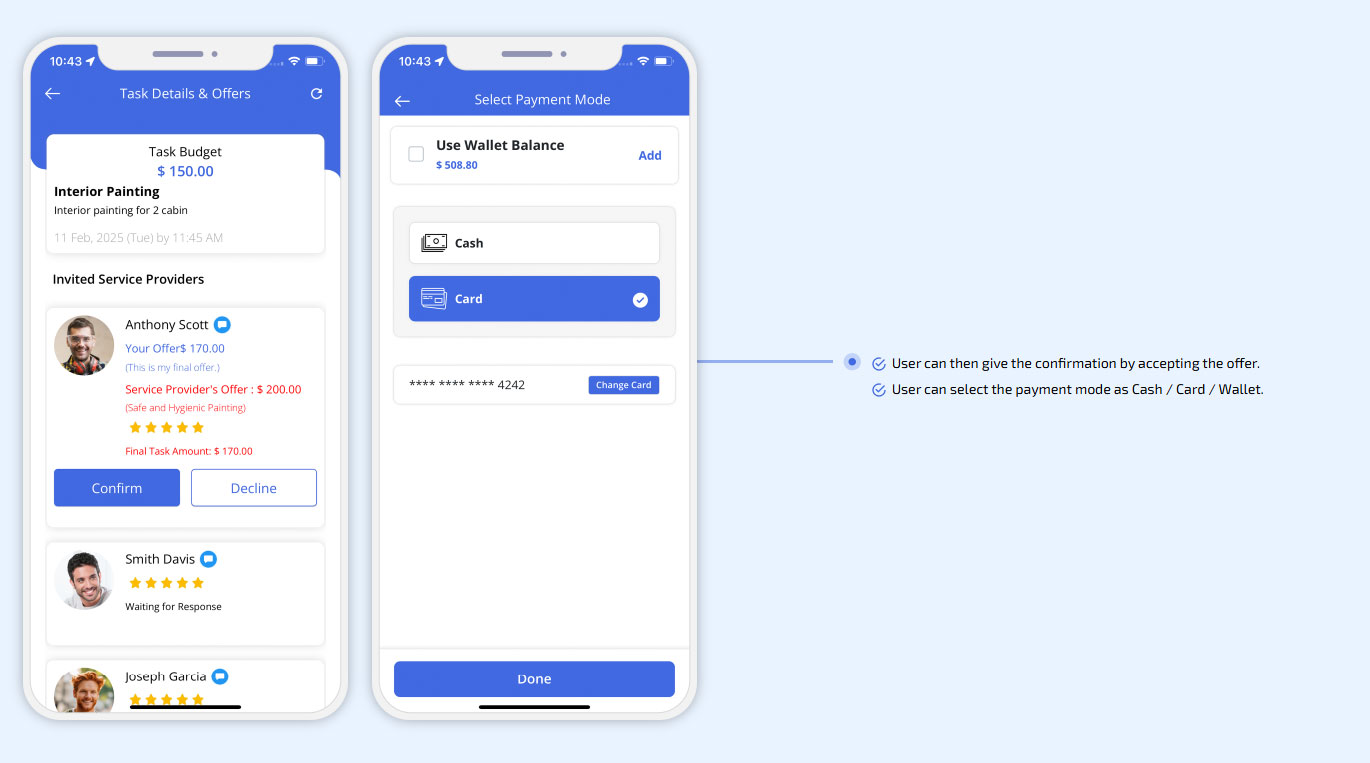
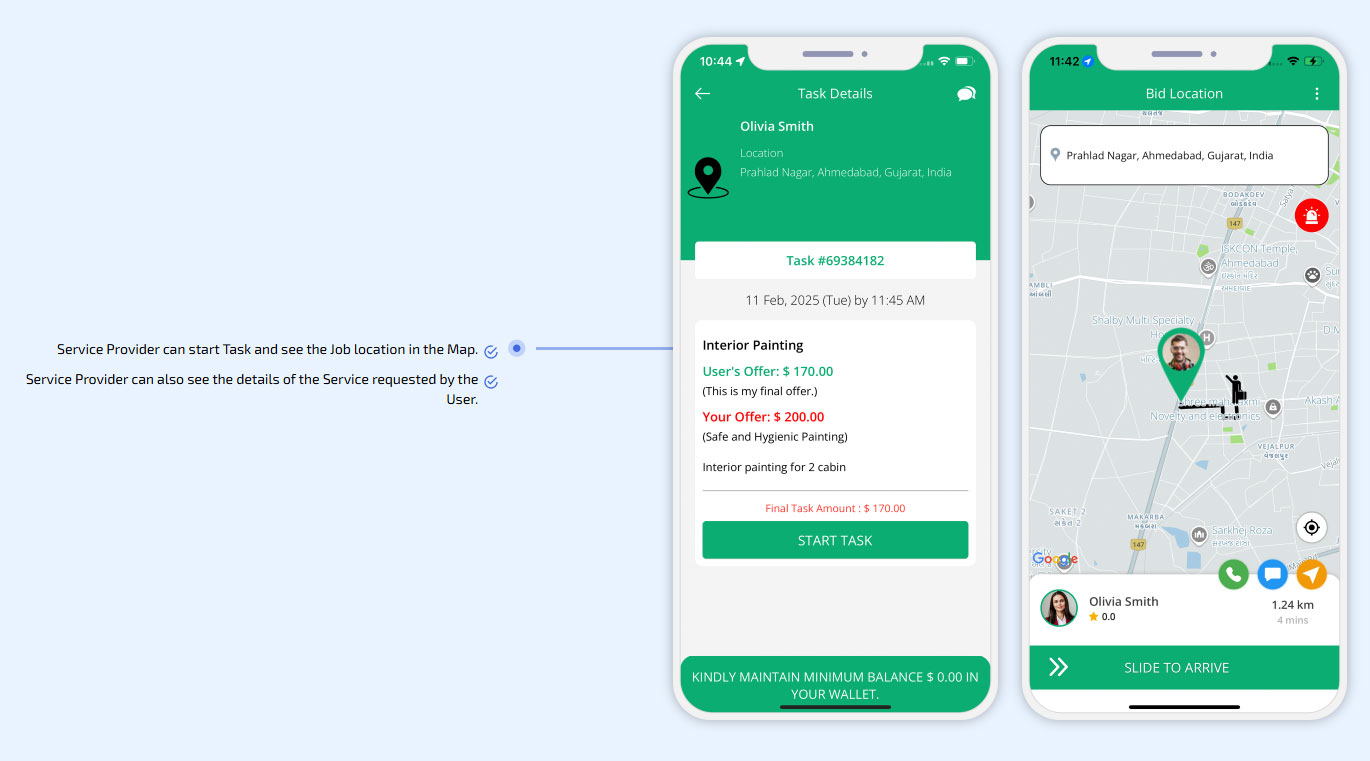
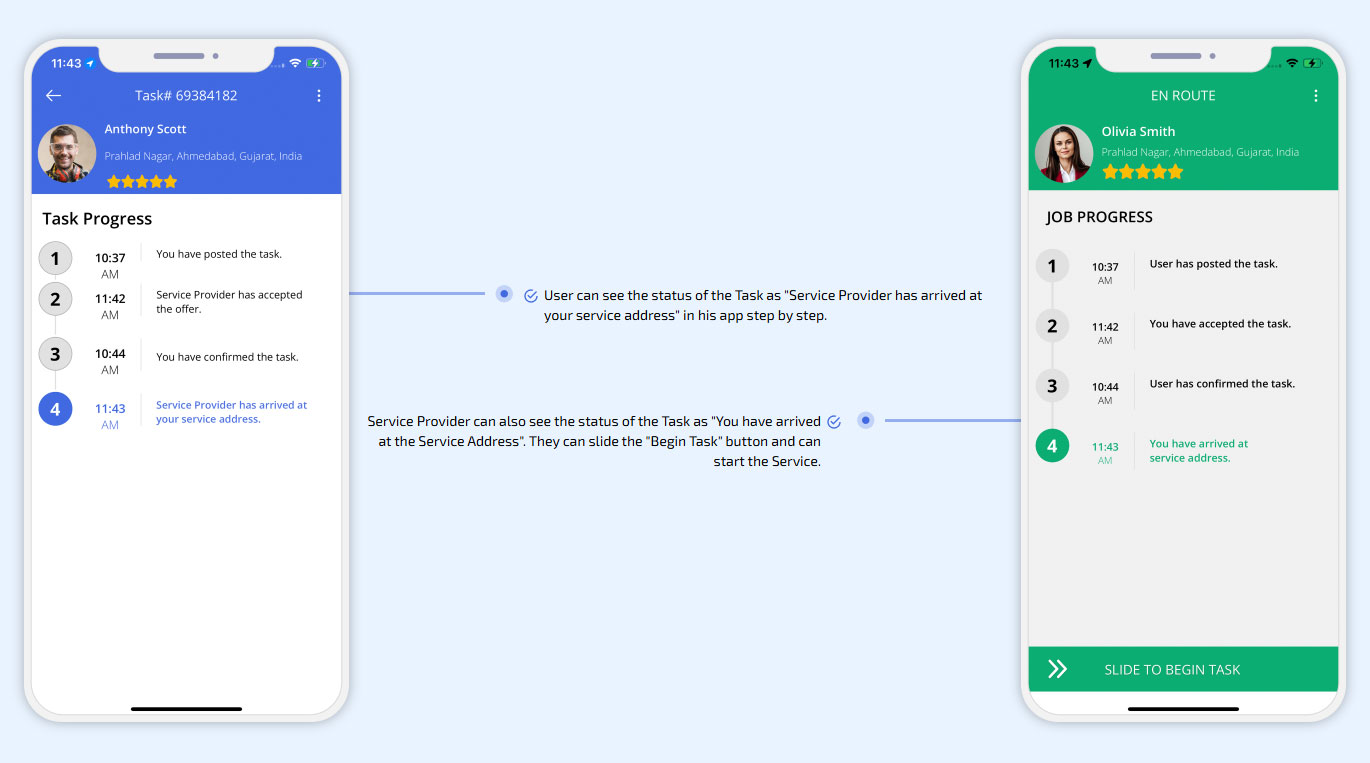
how taxi bidding app work?
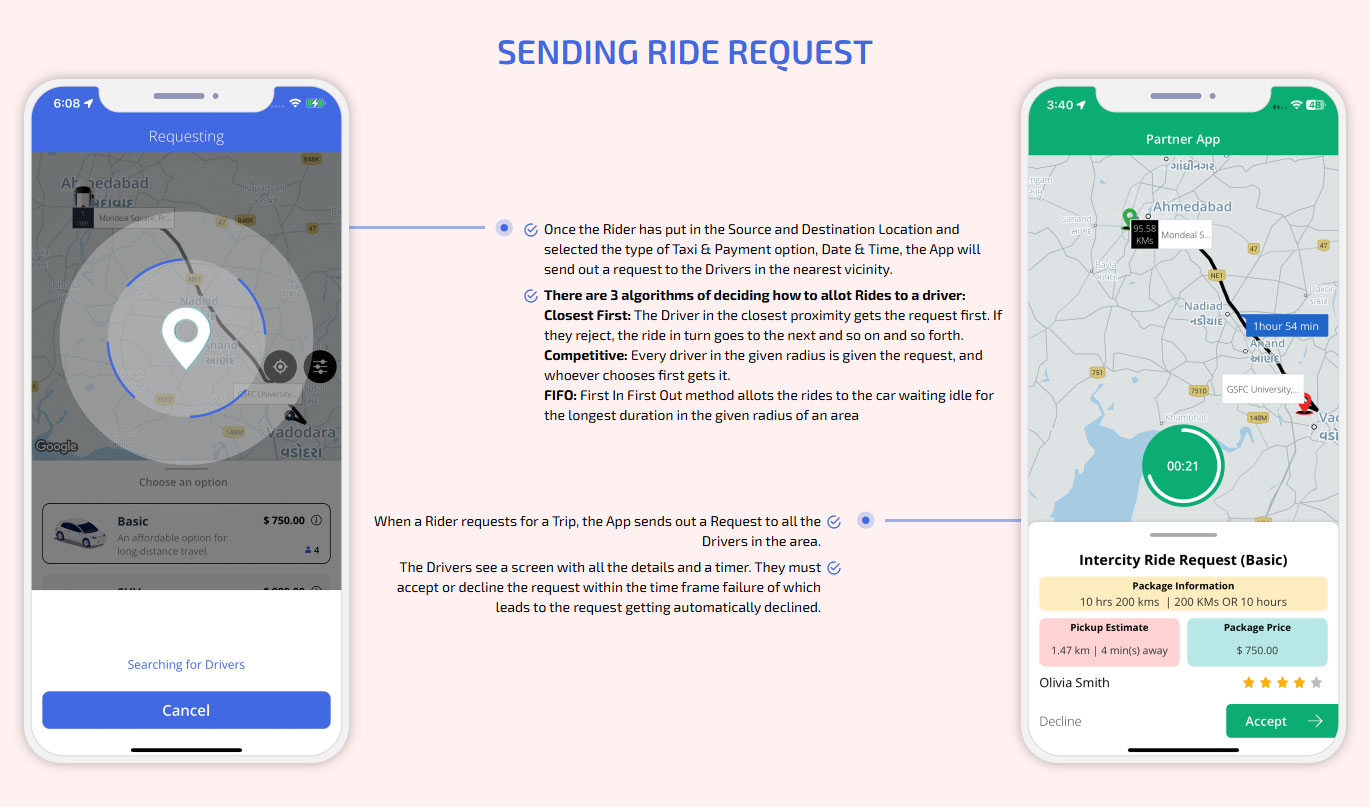
intercity trips
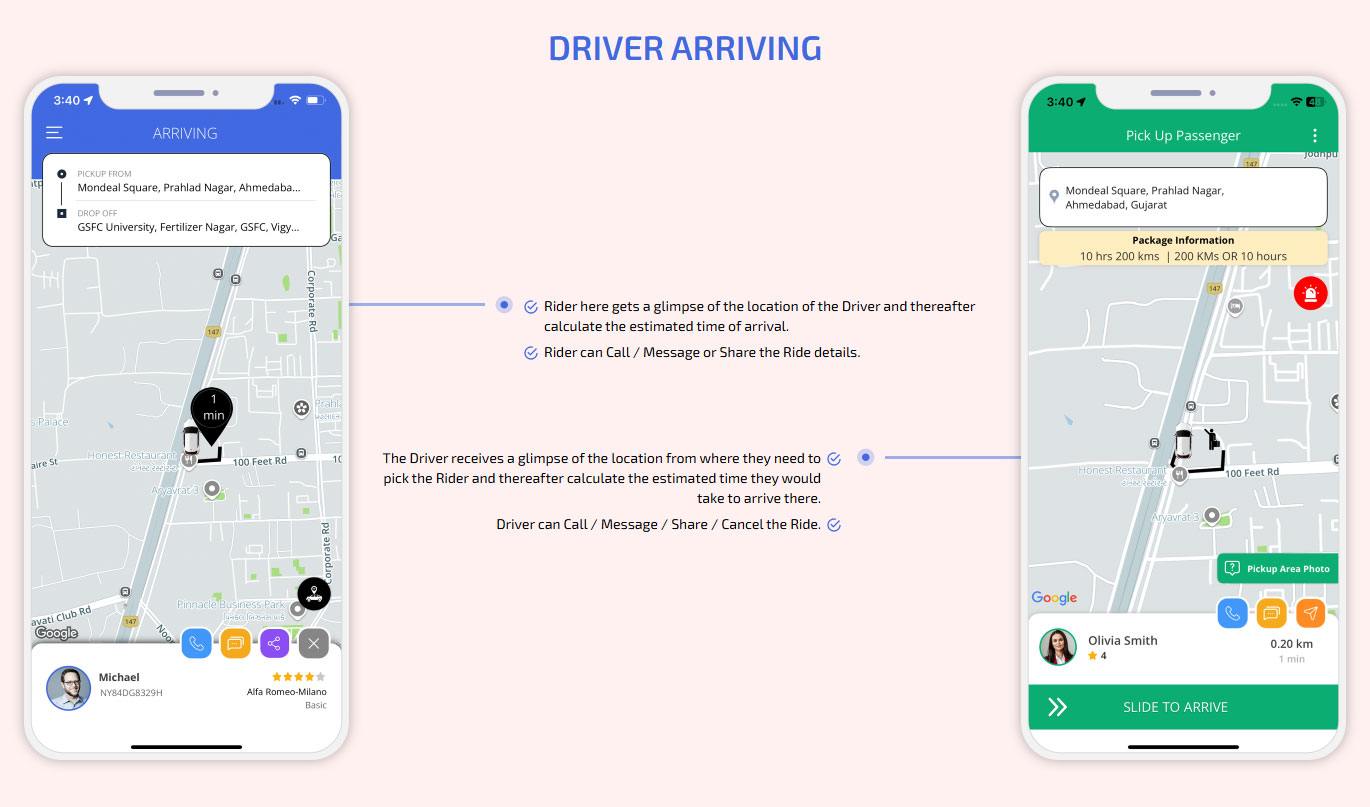
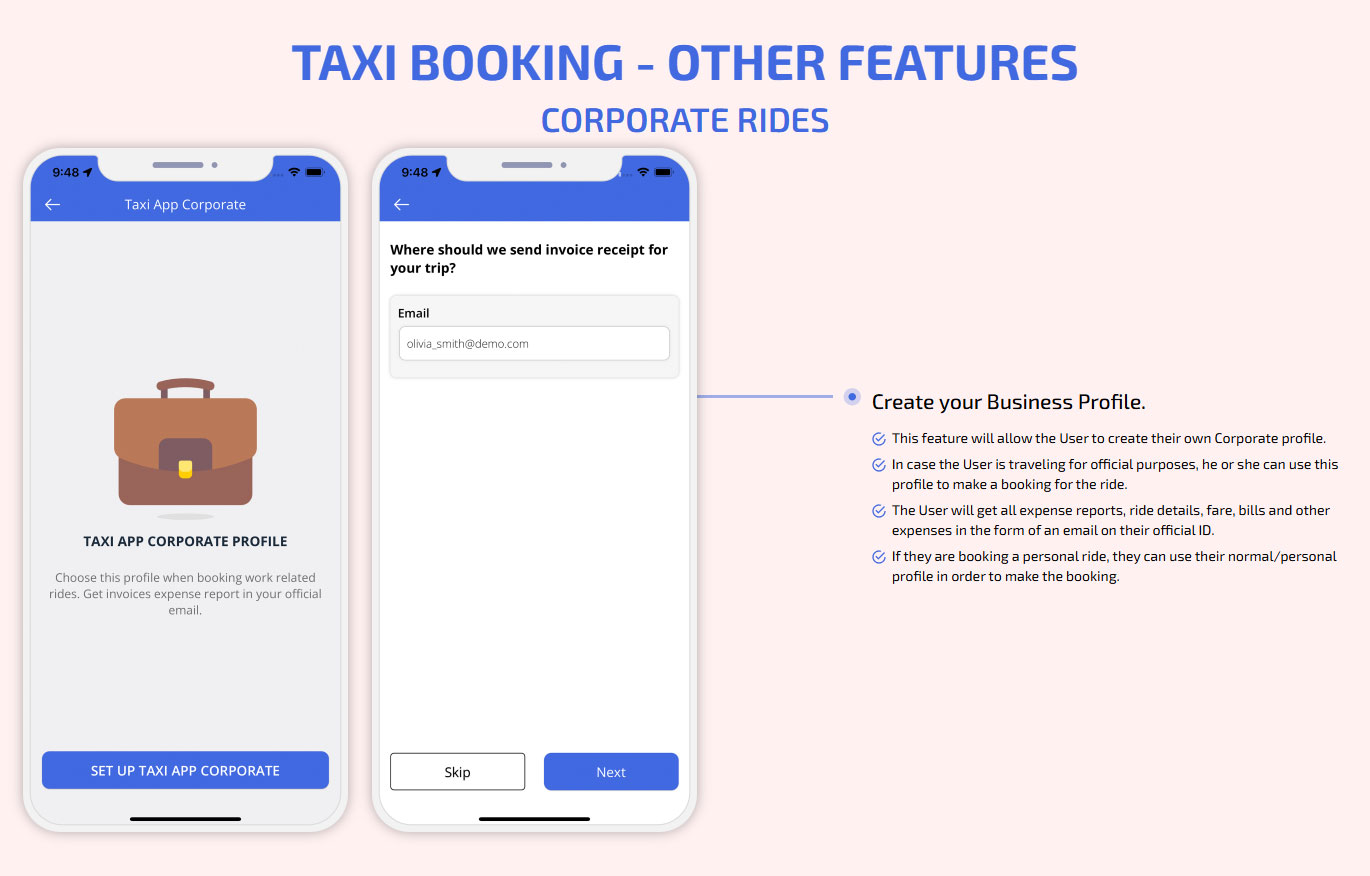
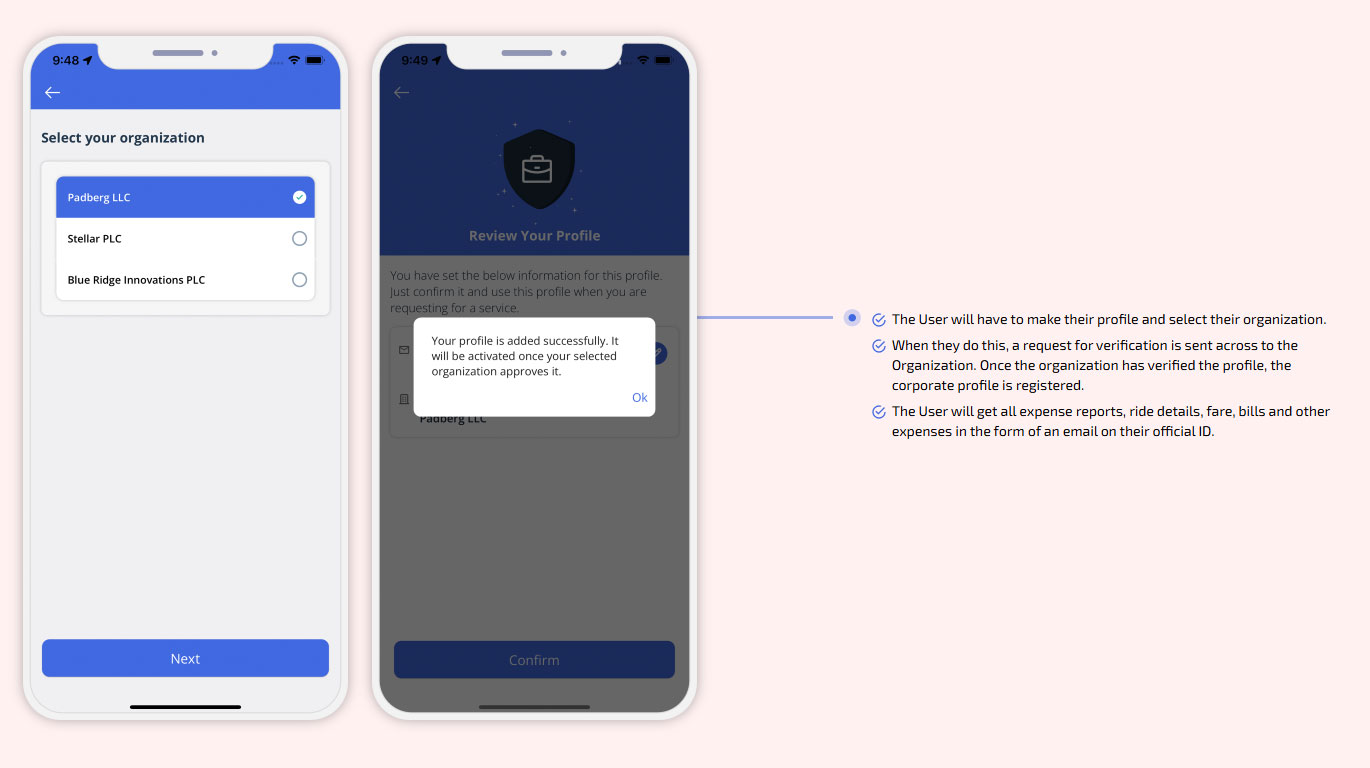
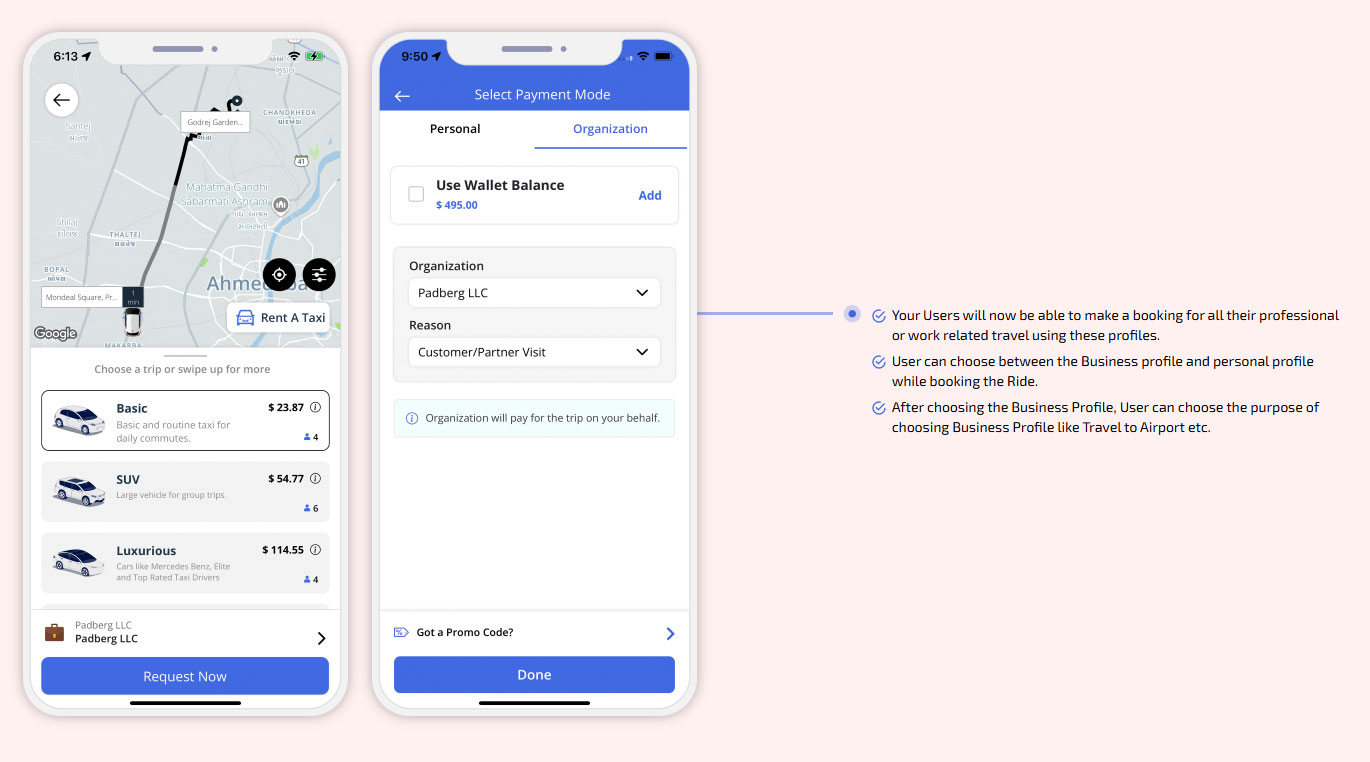
corporate rides
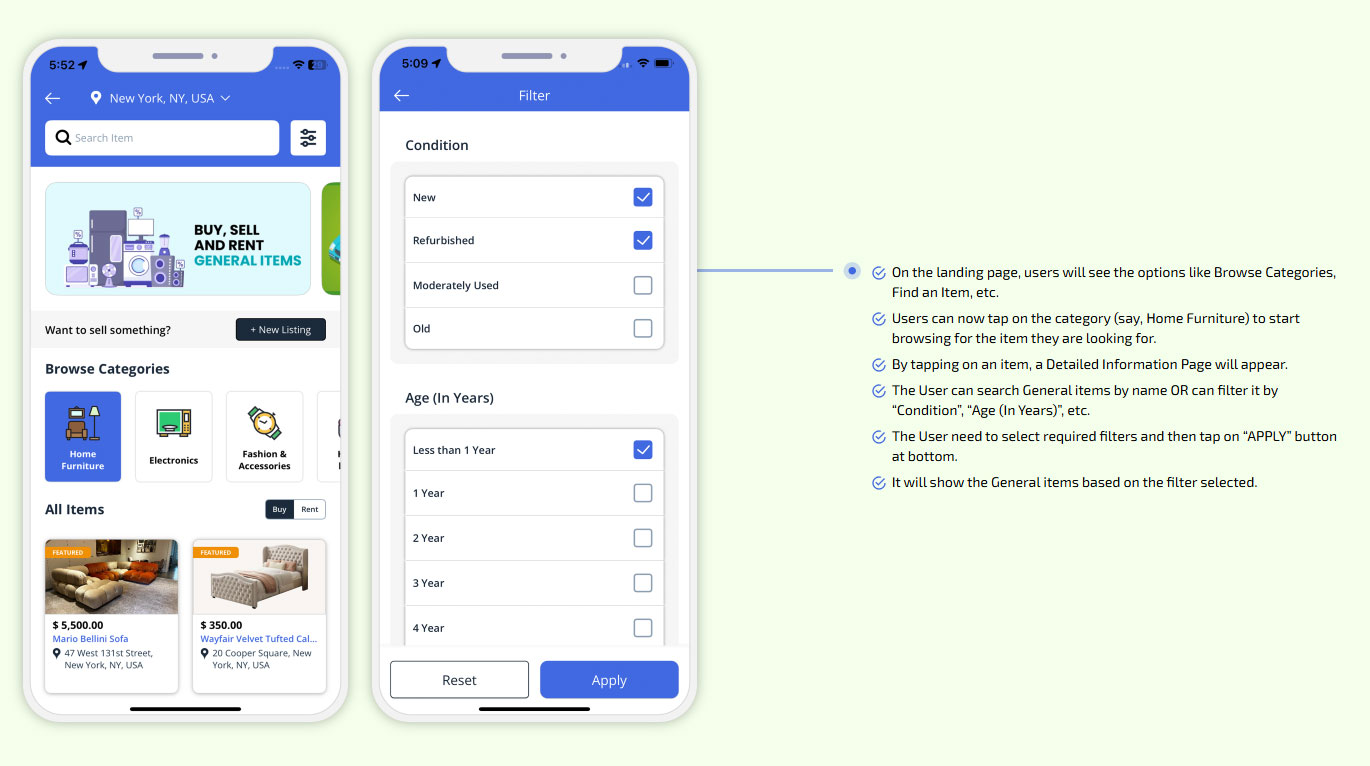
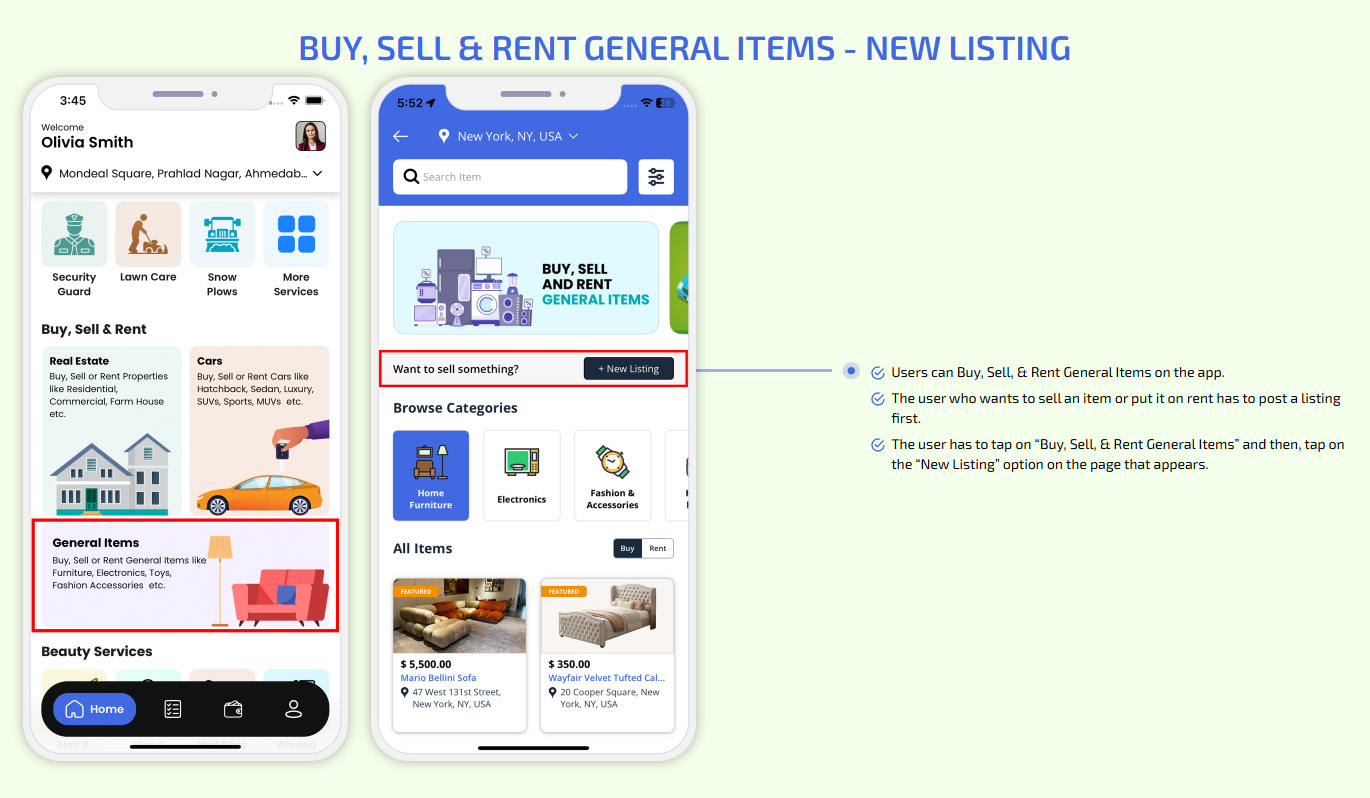
Buy, Sell & Rent General Items
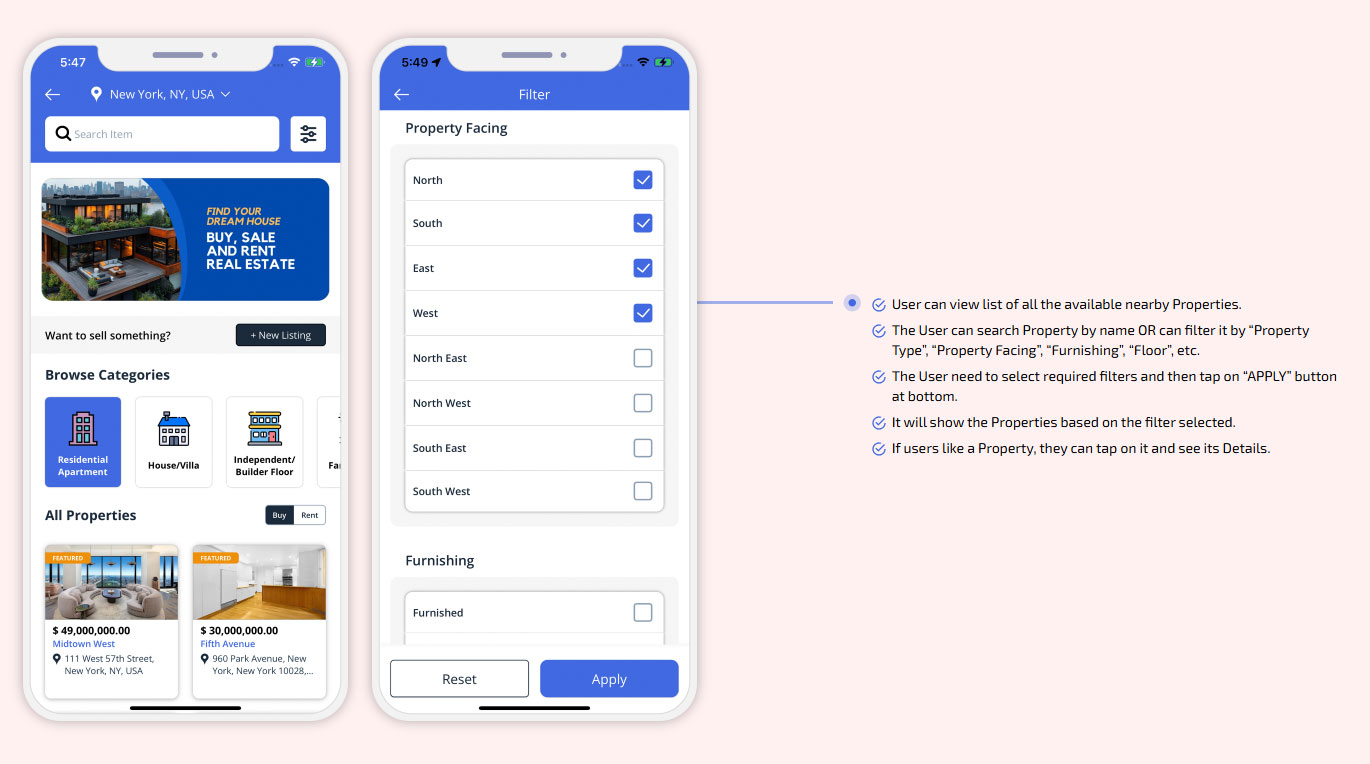
On the landing page, users will see the options like Browse Categories, Find an Item, etc.
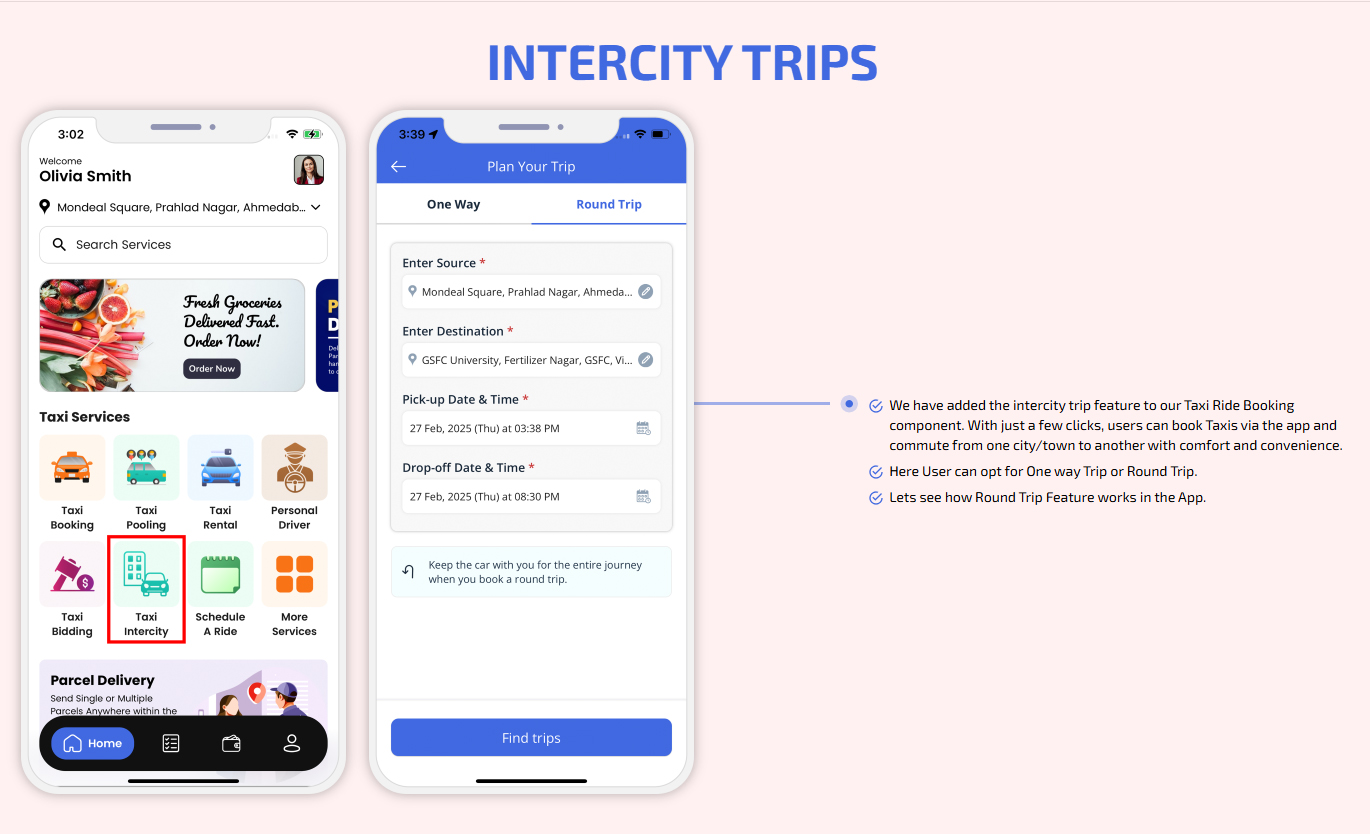
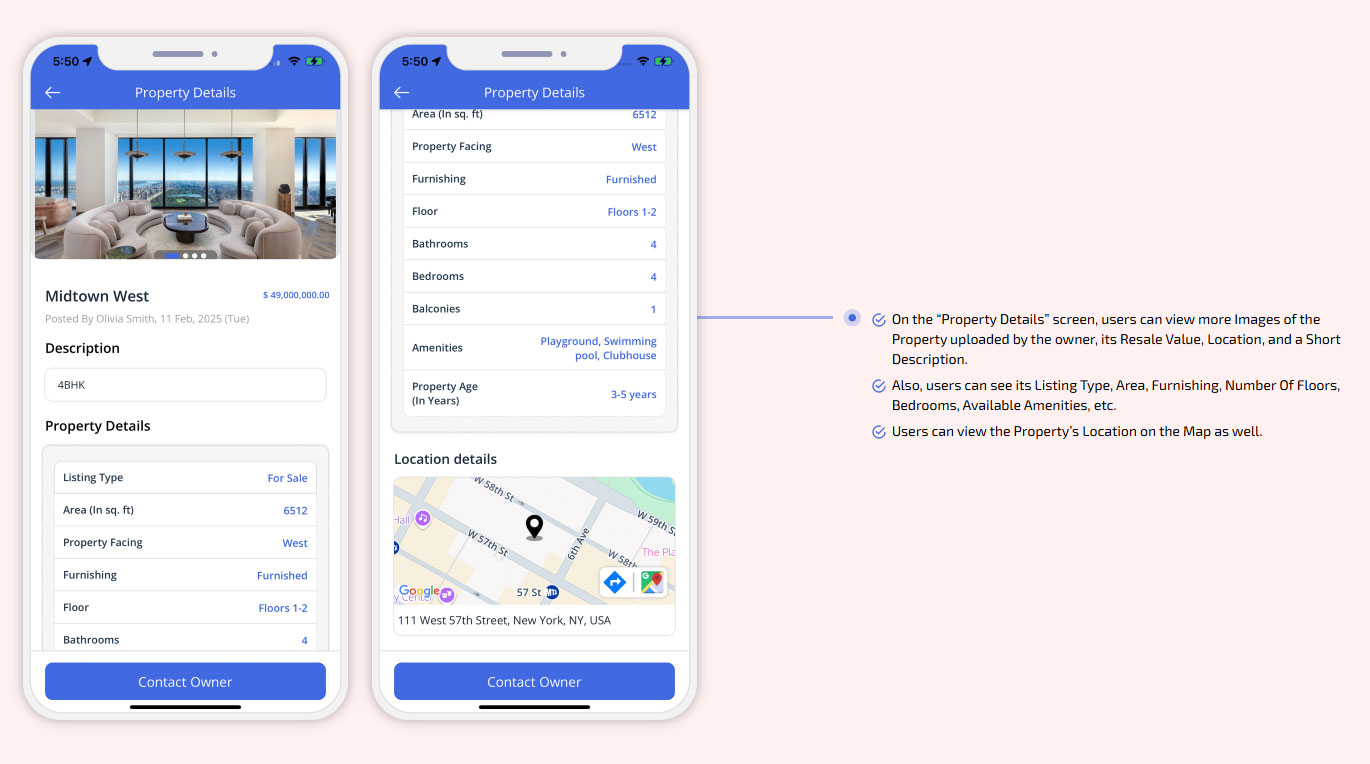
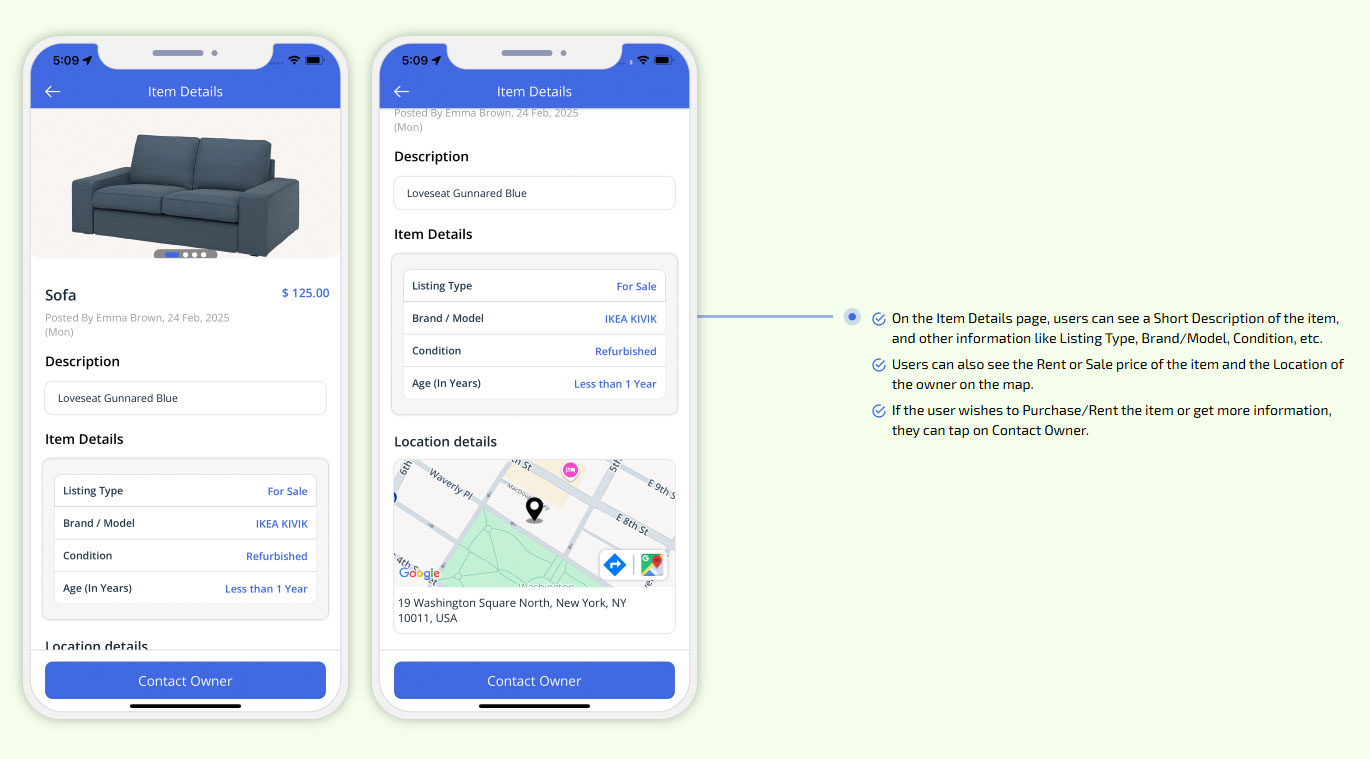
On the Item Details page, users can see a Short Description of the item, and other information
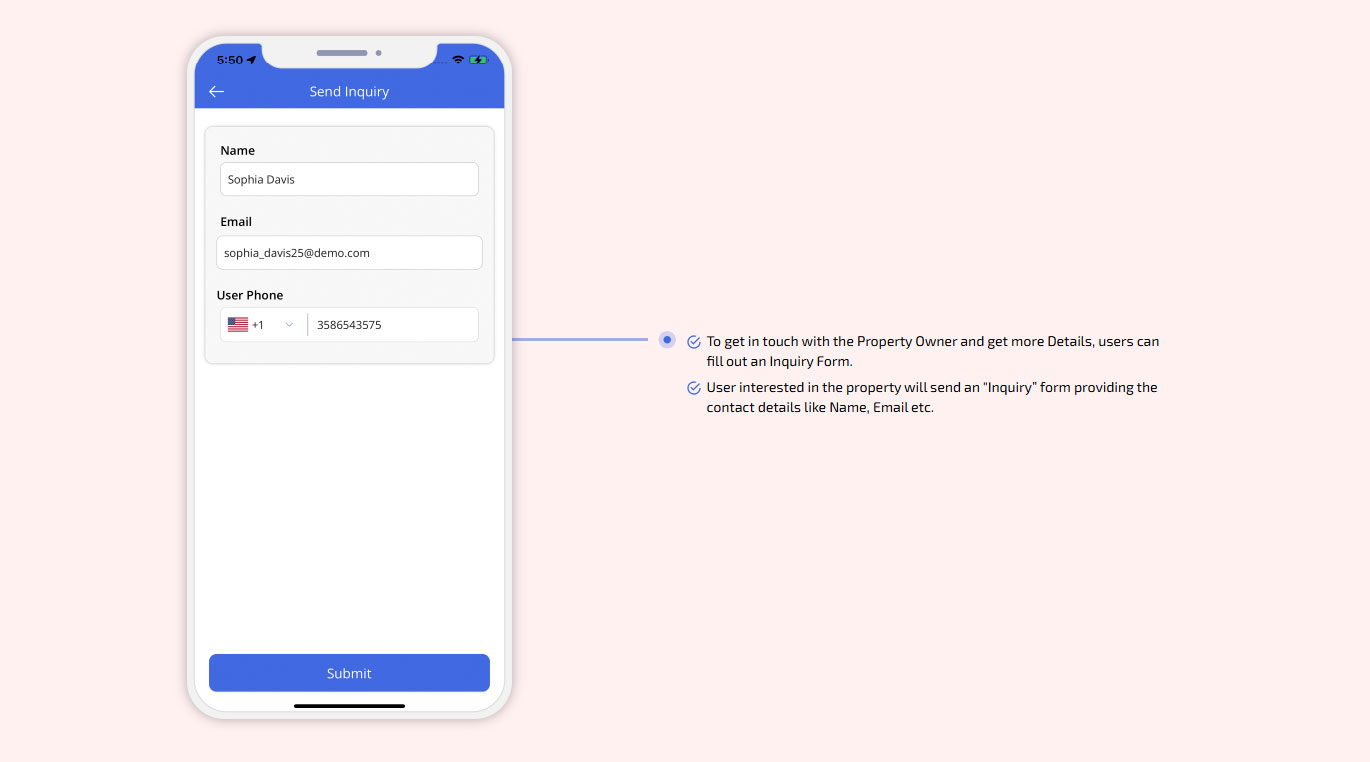
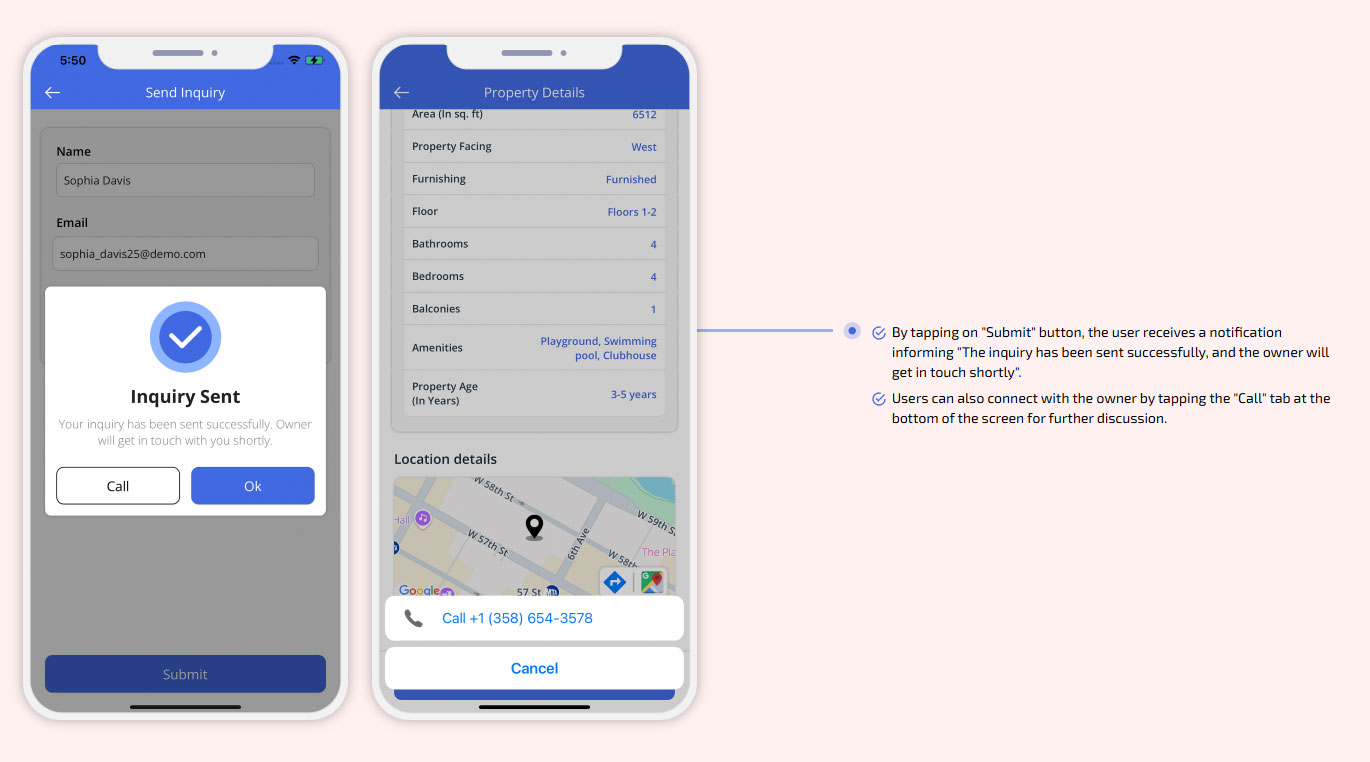
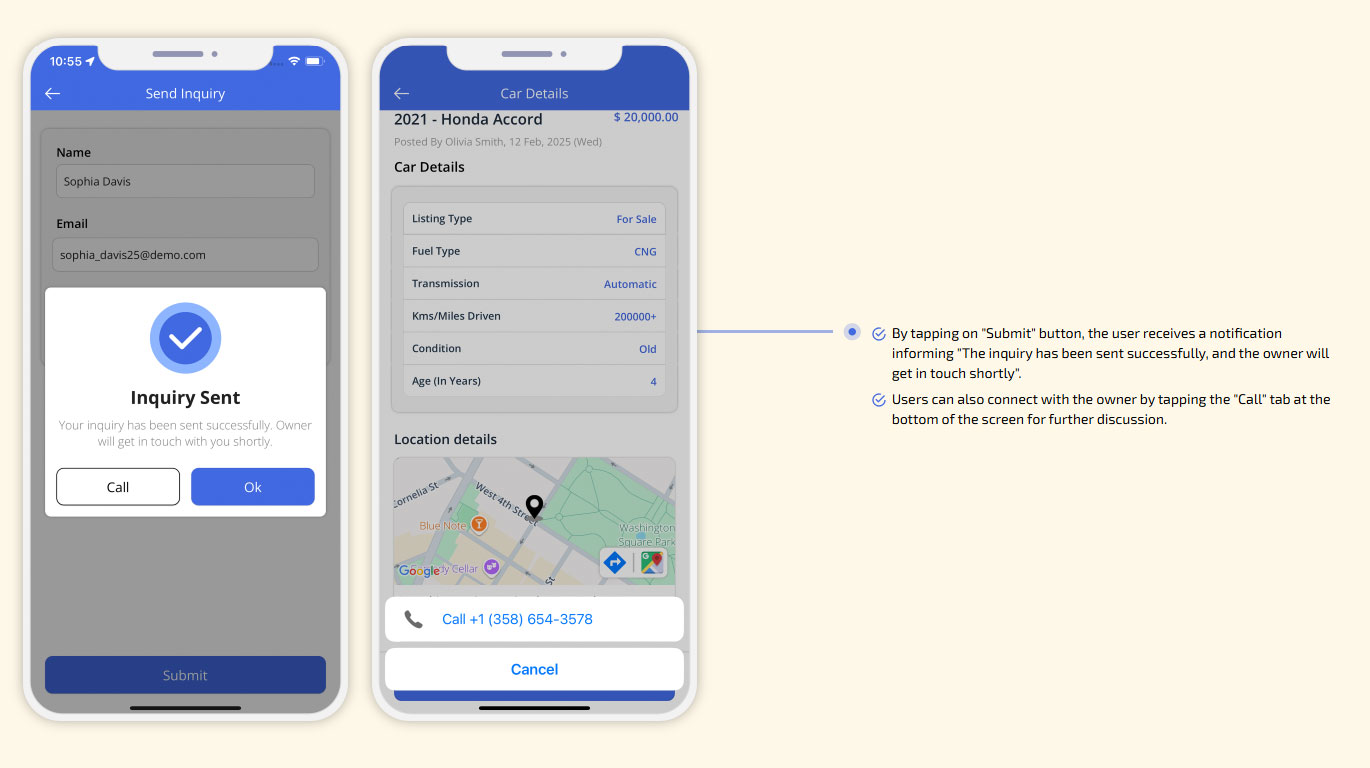
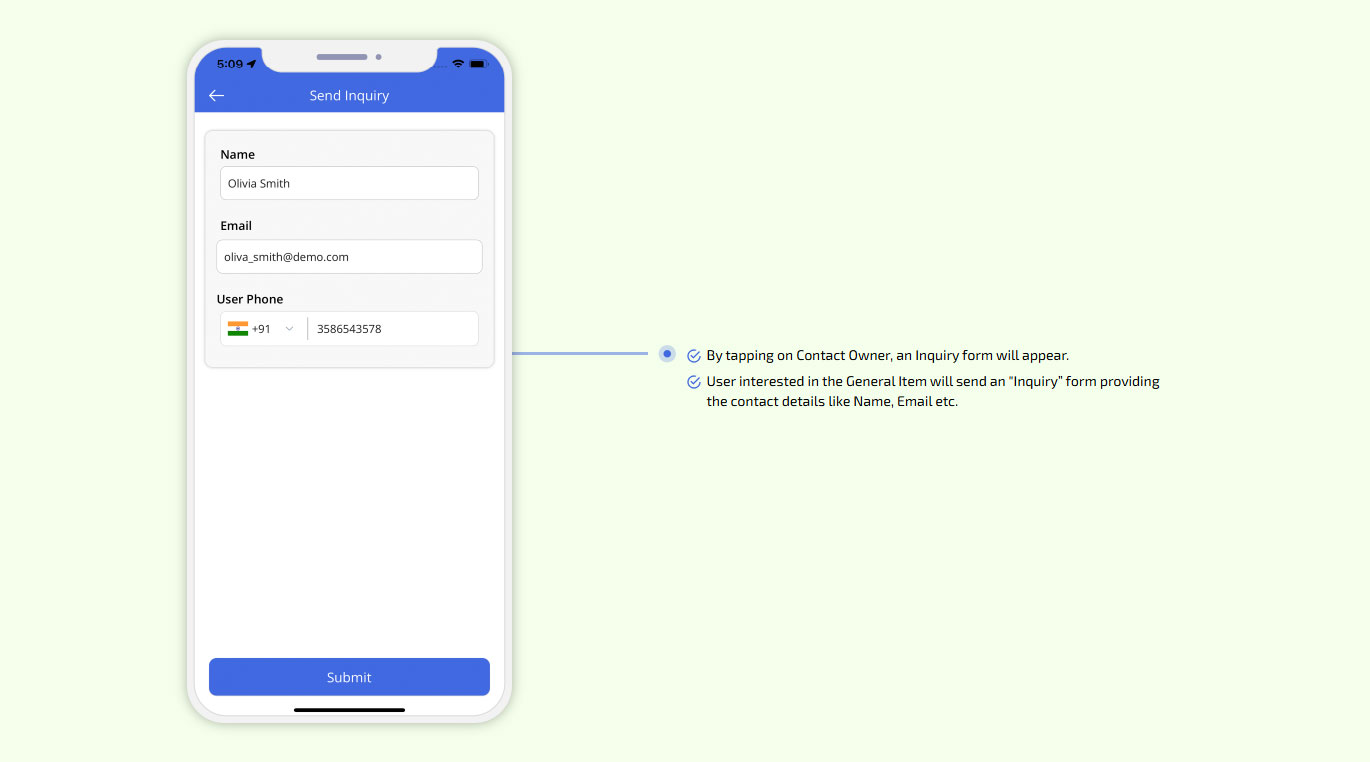
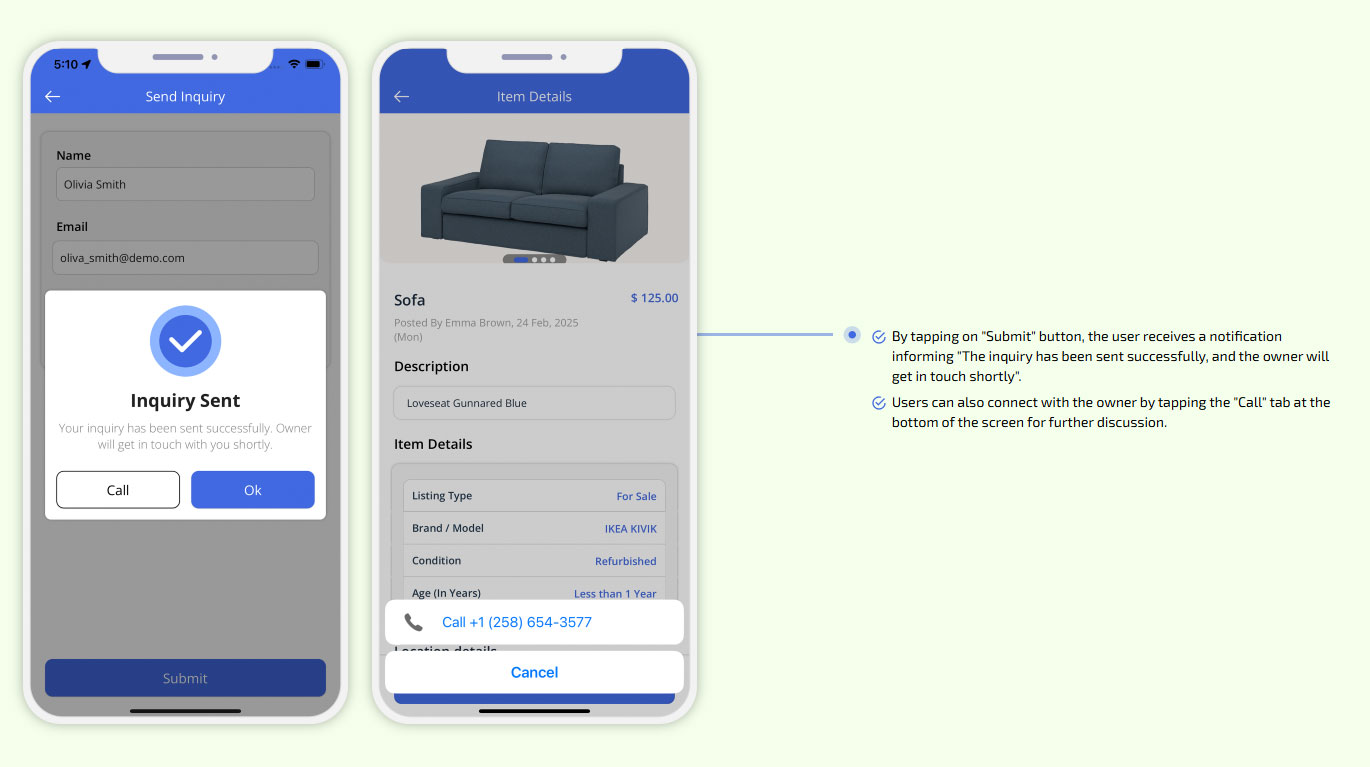
By tapping on Contact Owner, an Inquiry form will appear.
send inquiry
Buy, Sell & Rent General Items - New Listing
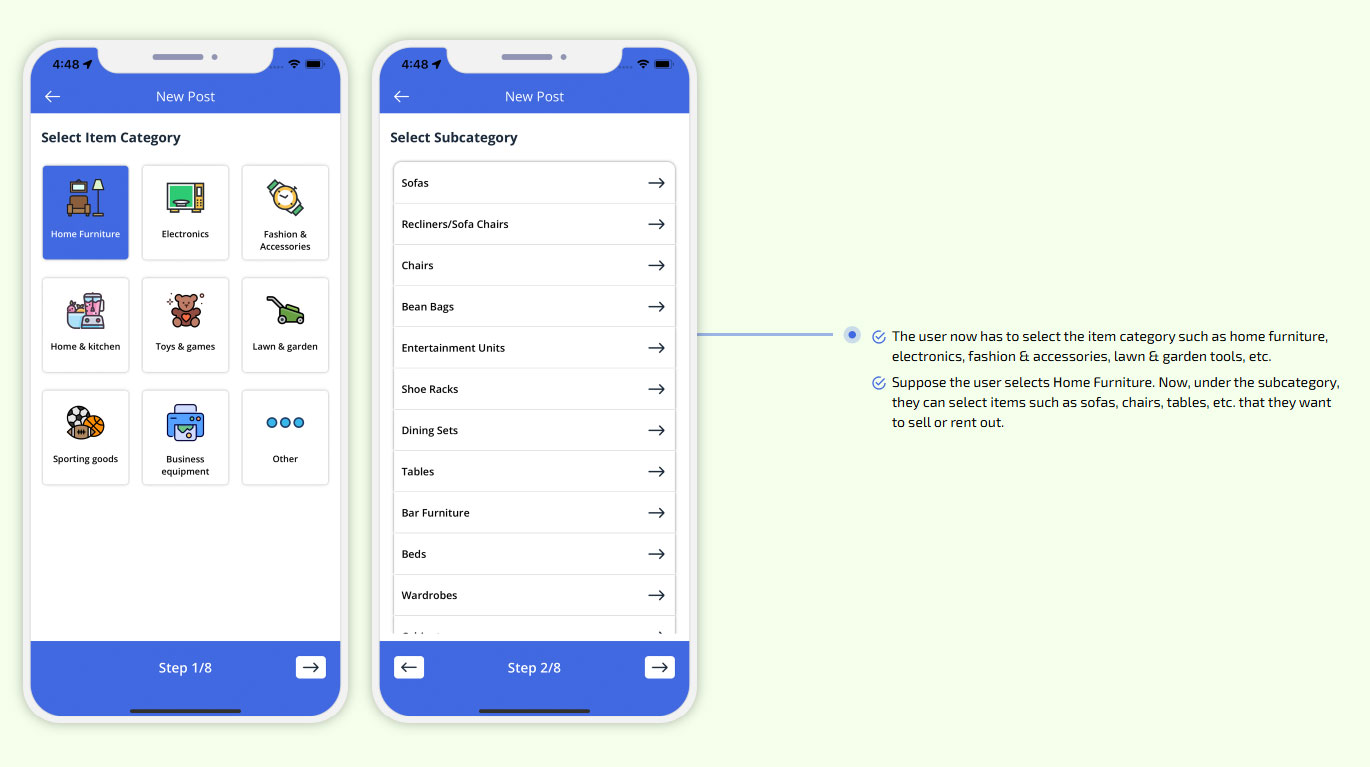
The user now has to select the item category such as home furniture, electronics, fashion & accessories etc.
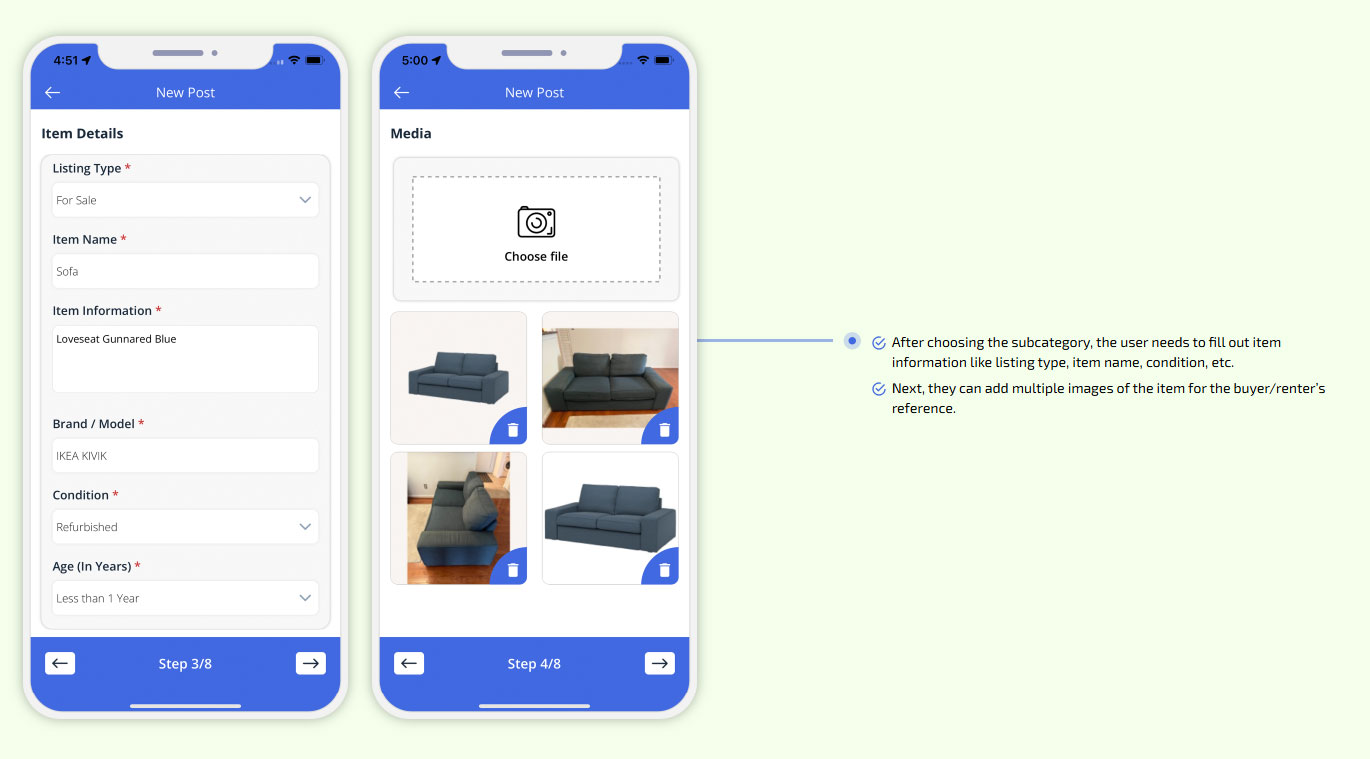
the user needs to fill out item information like listing type, item name, condition, etc.
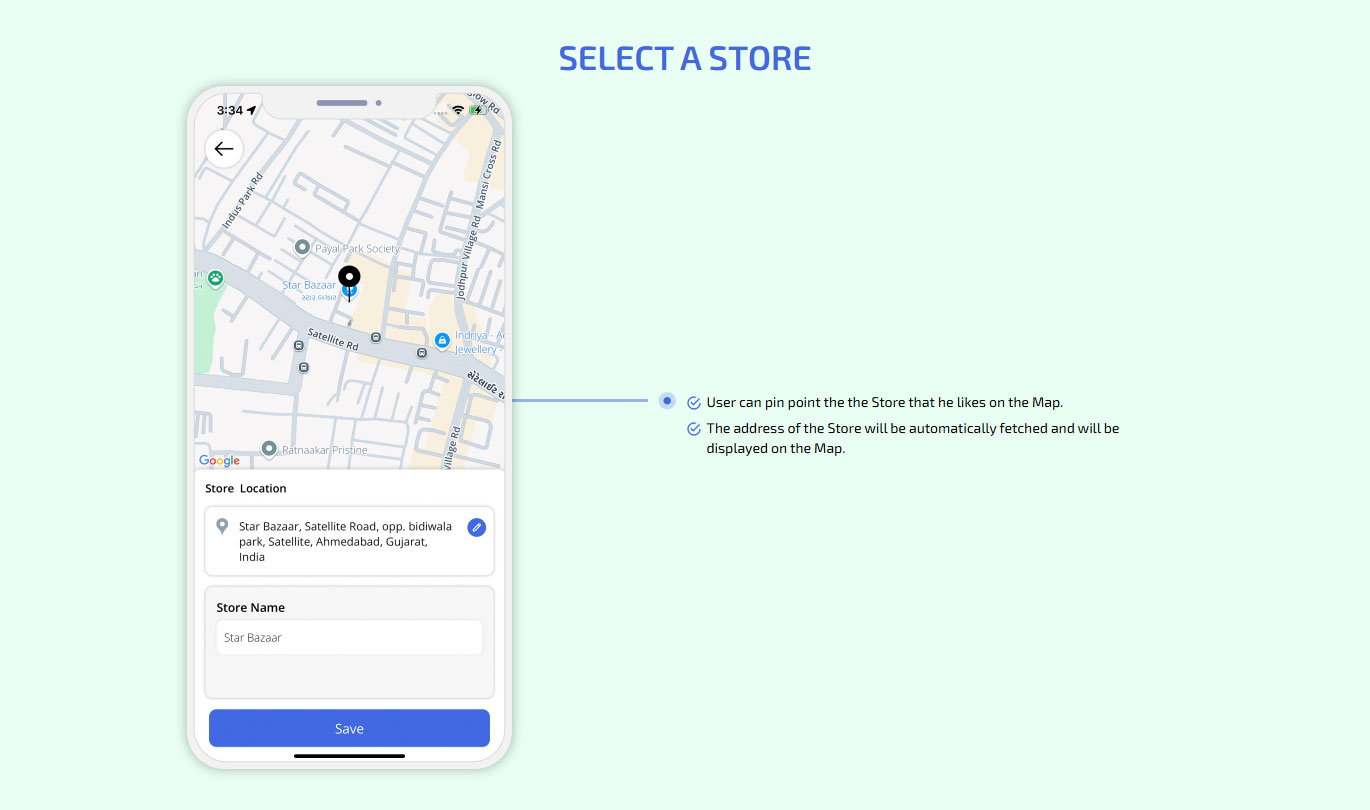
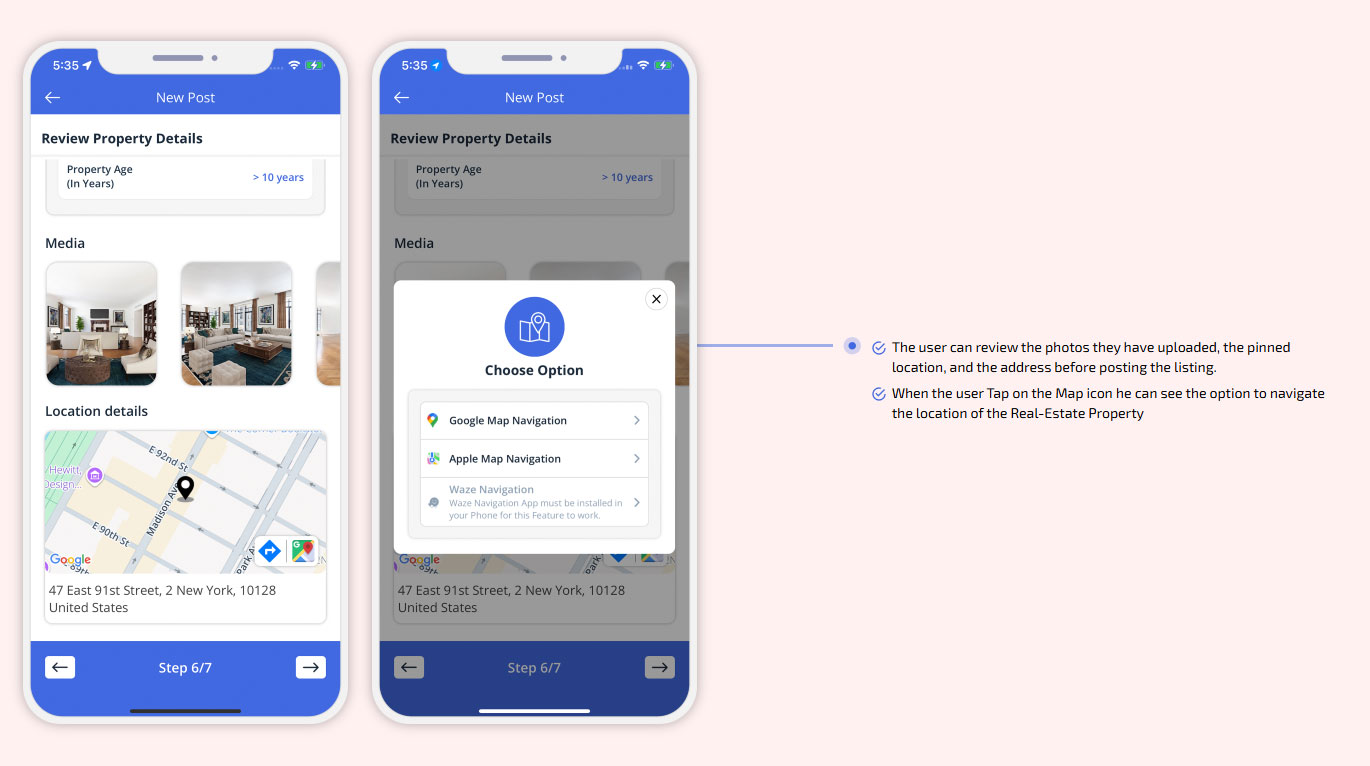
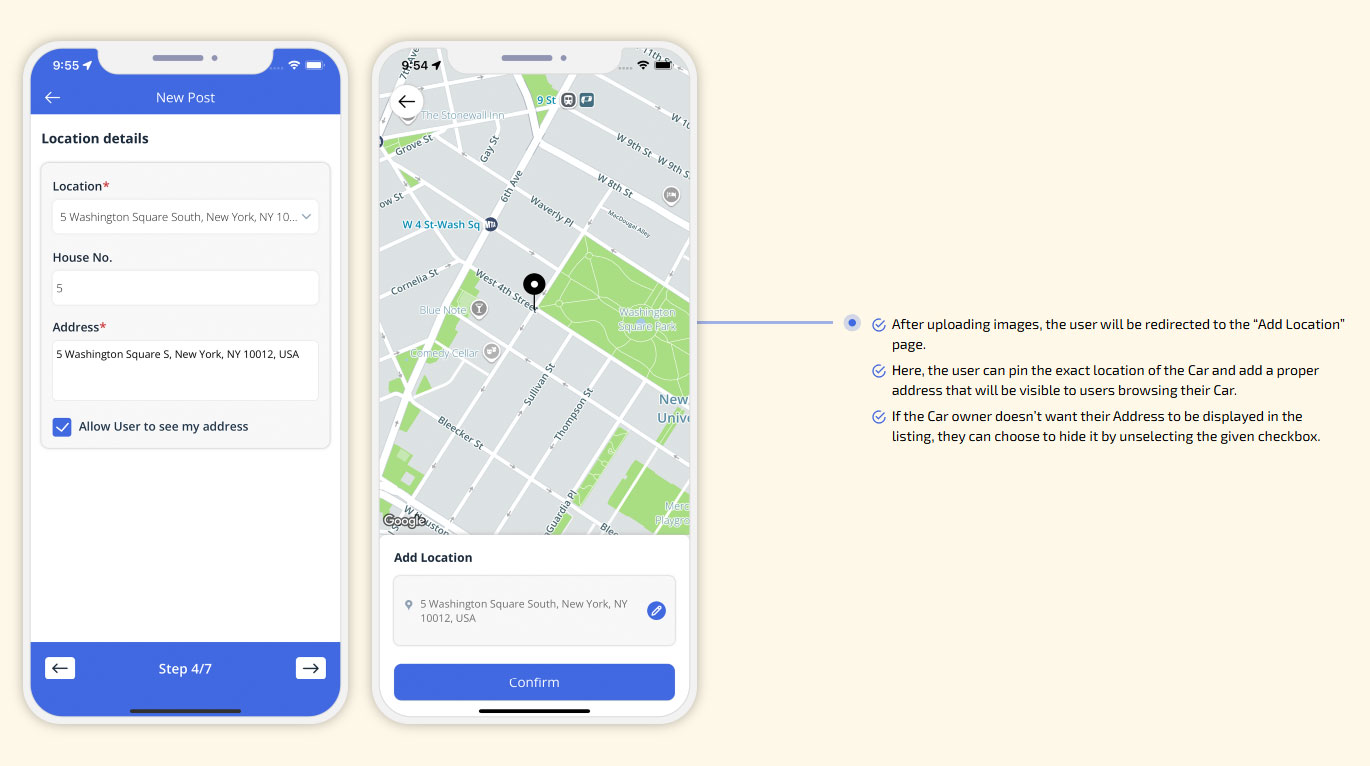
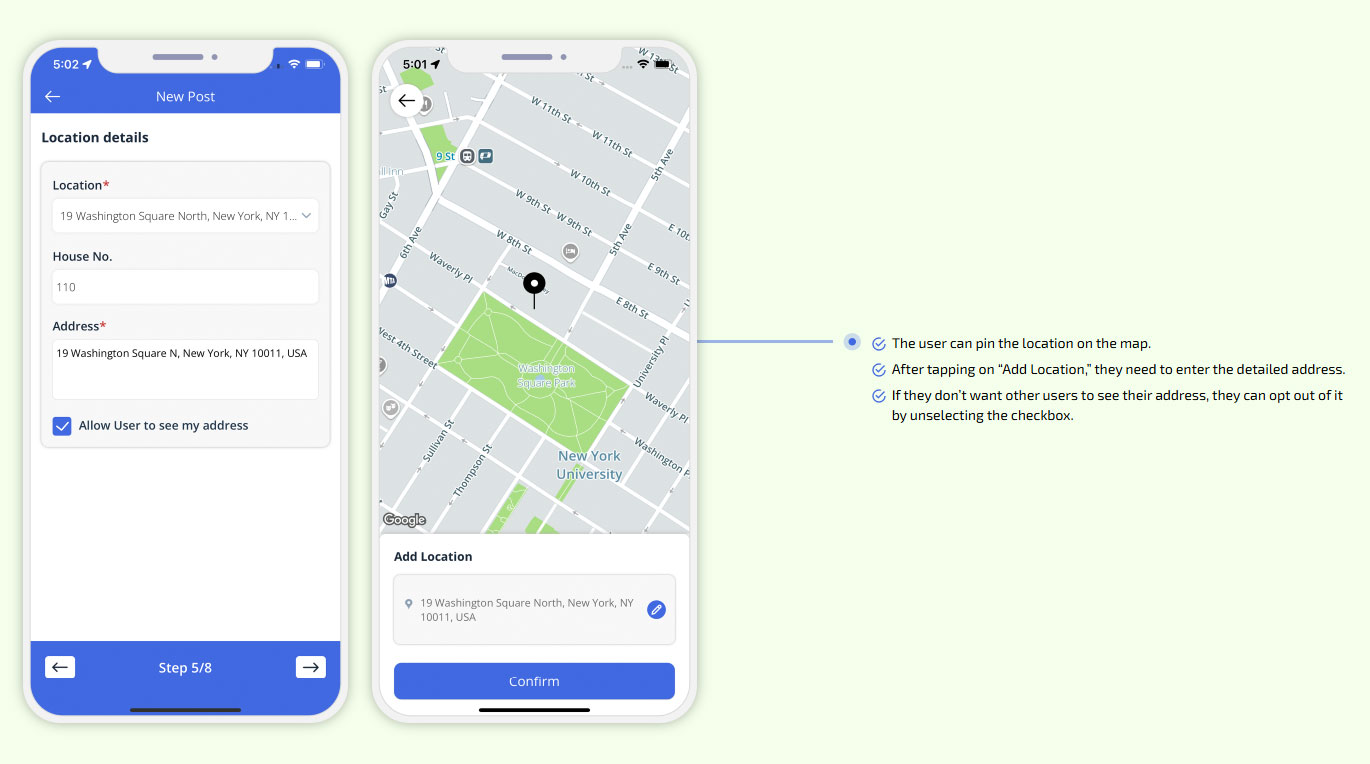
The user can pin the location on the map.
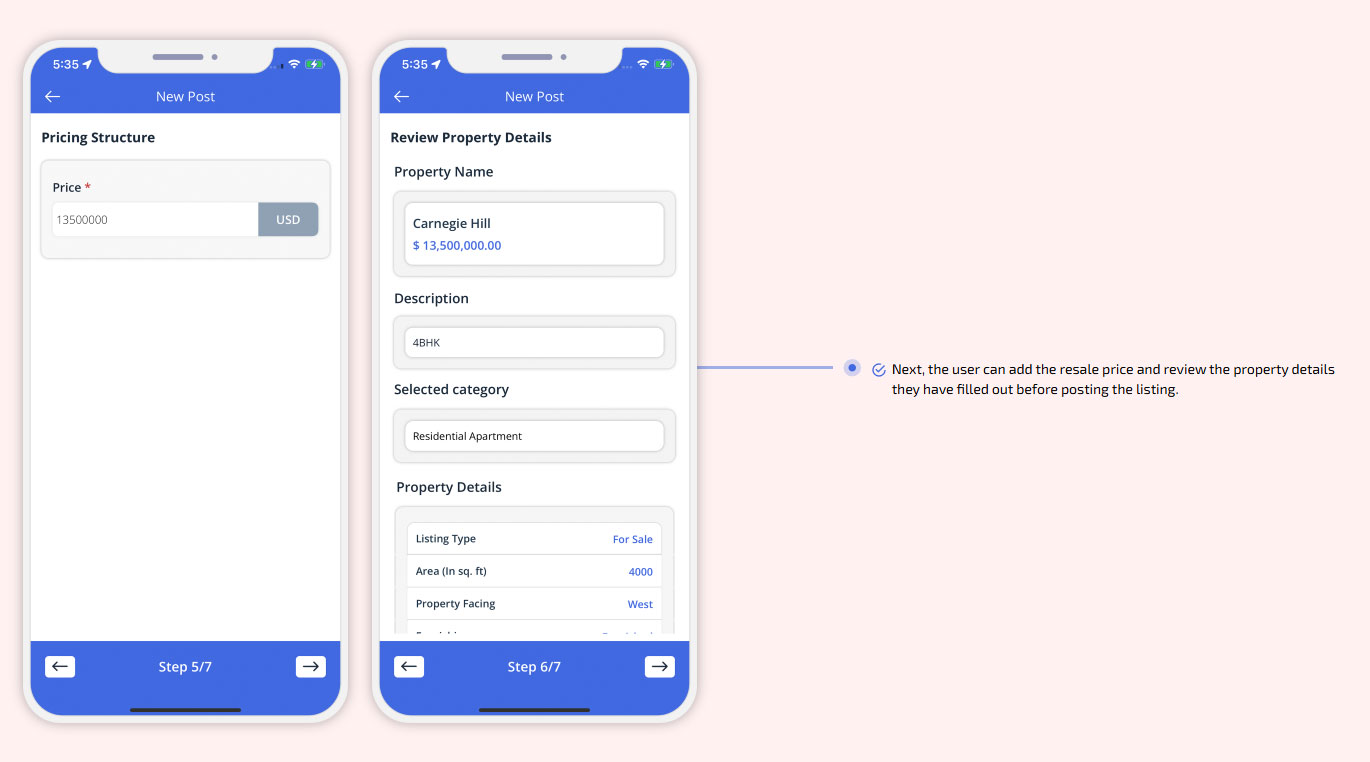
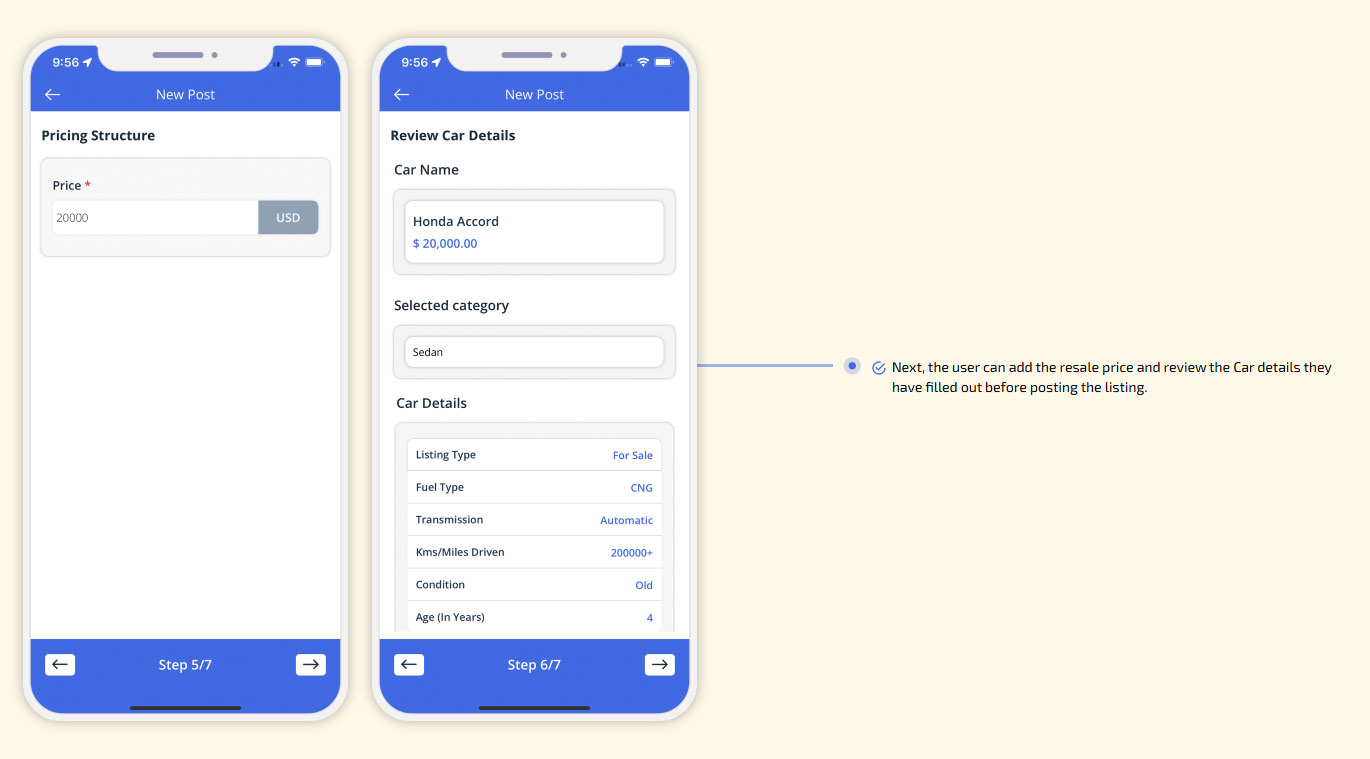
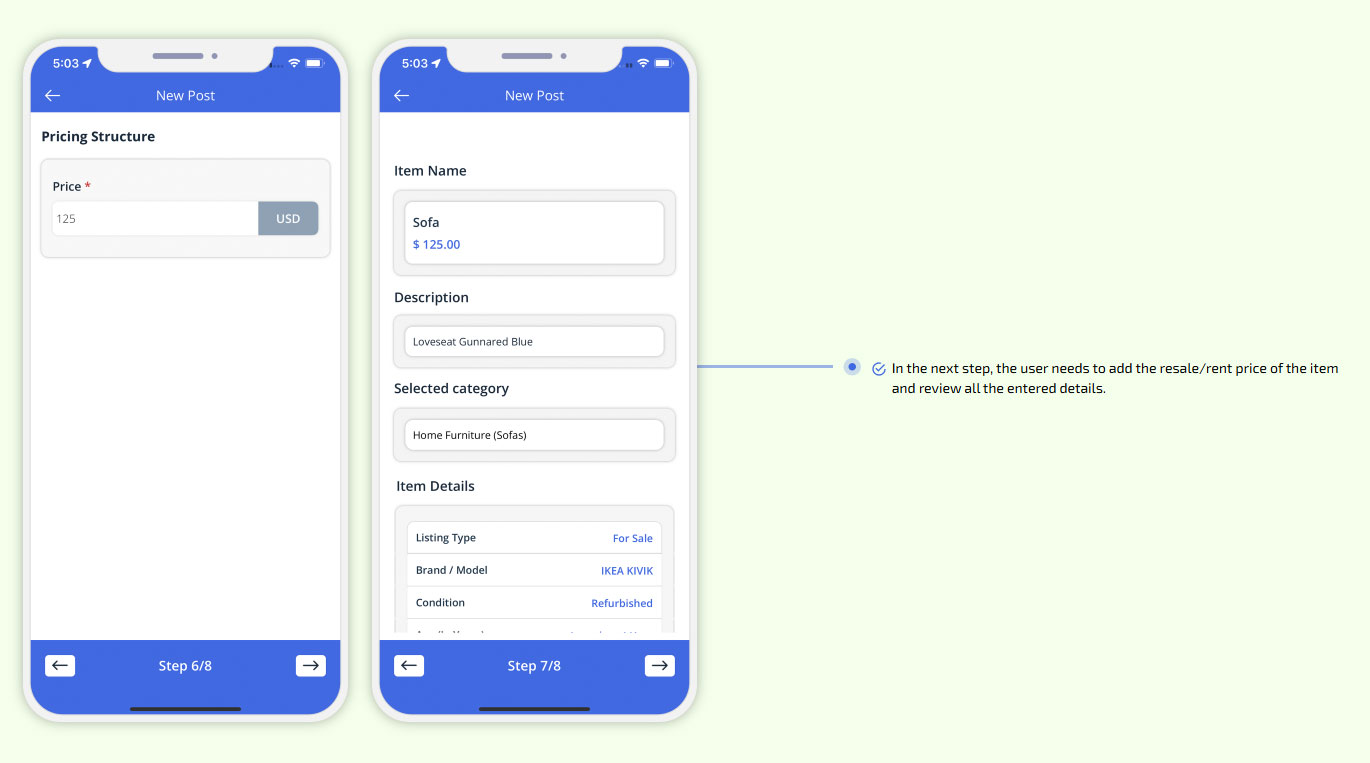
 the user needs to add the resale/rent price of the item and review all the entered details.
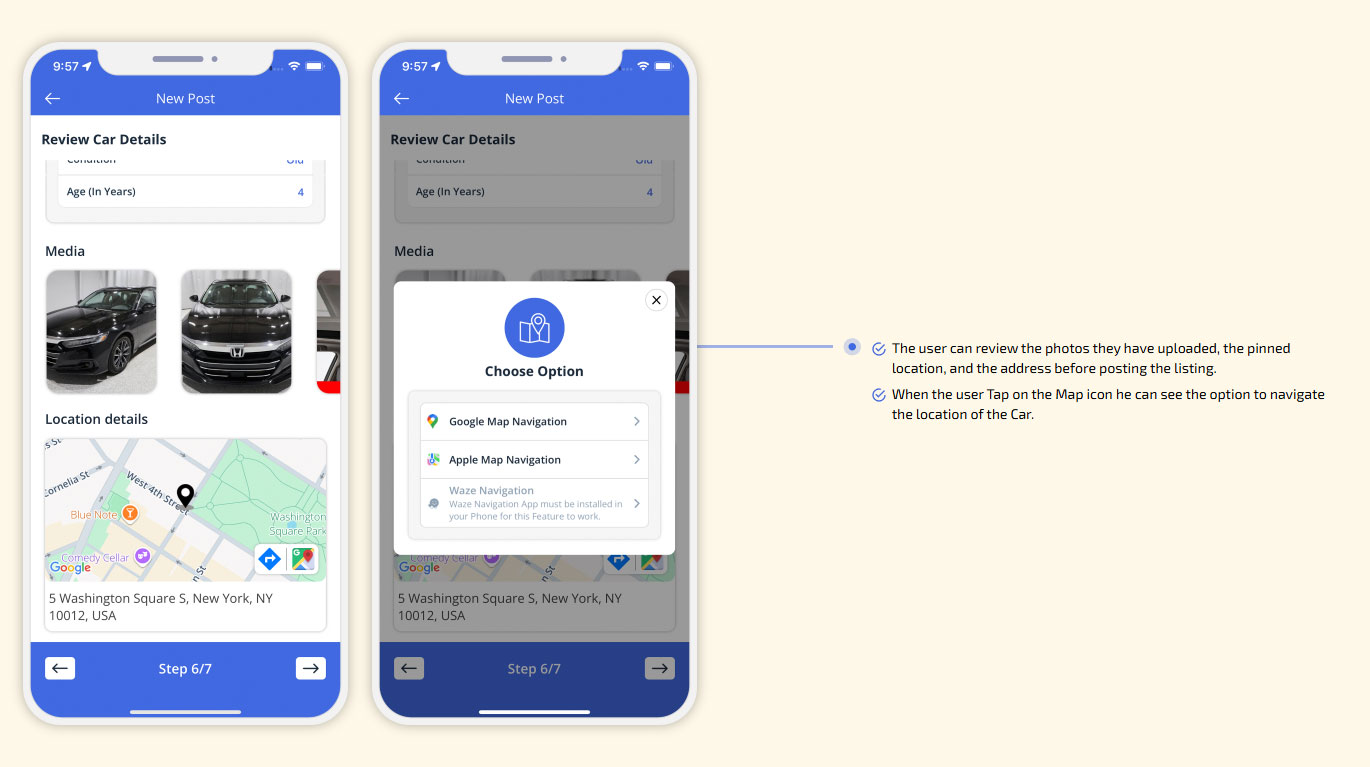
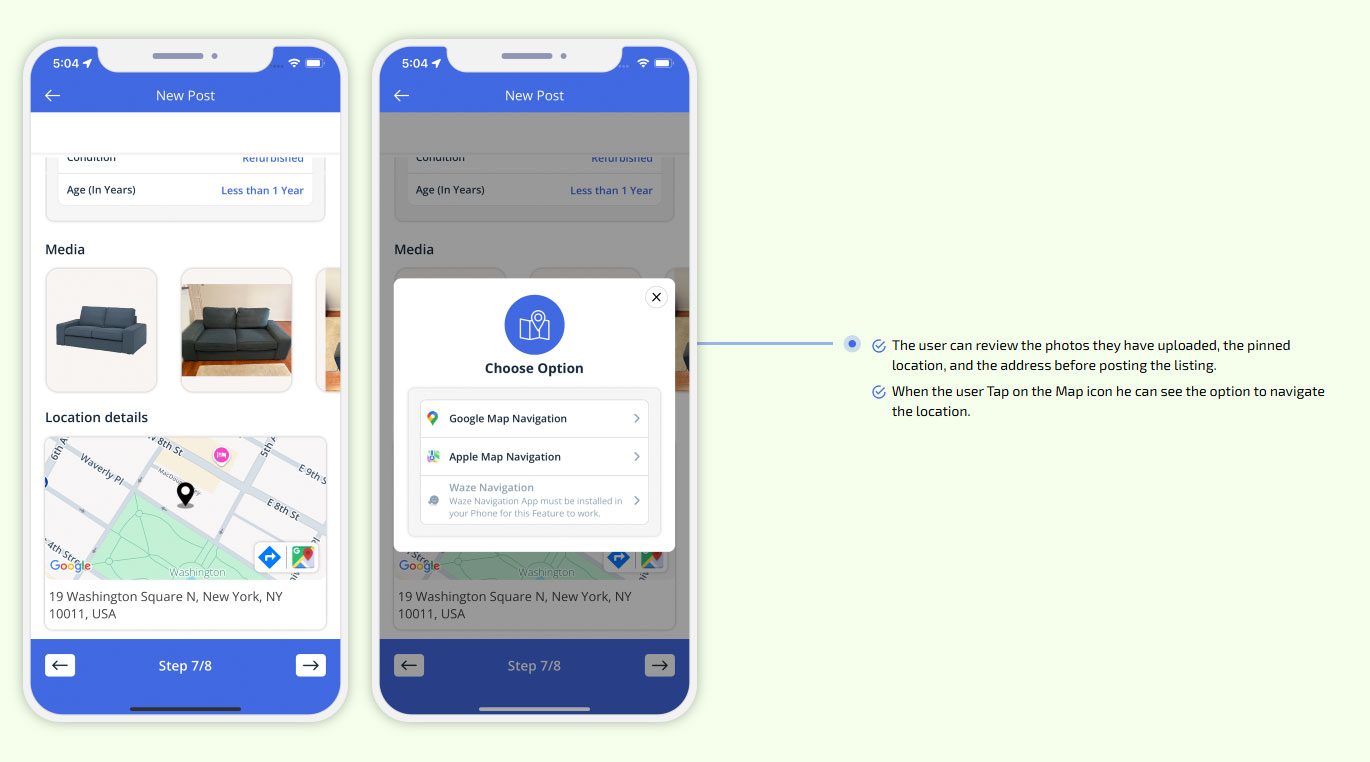
When the user Tap on the Map icon he can see the option to navigate the location.
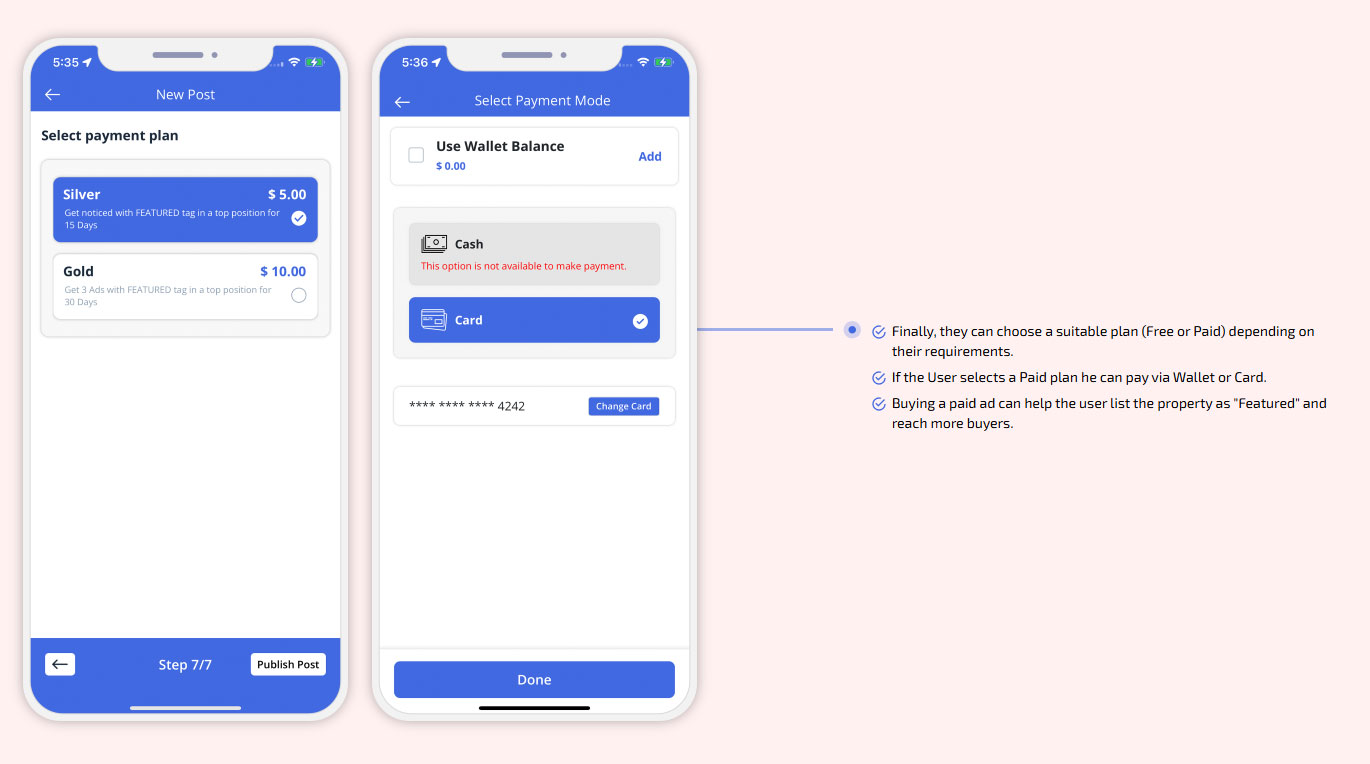
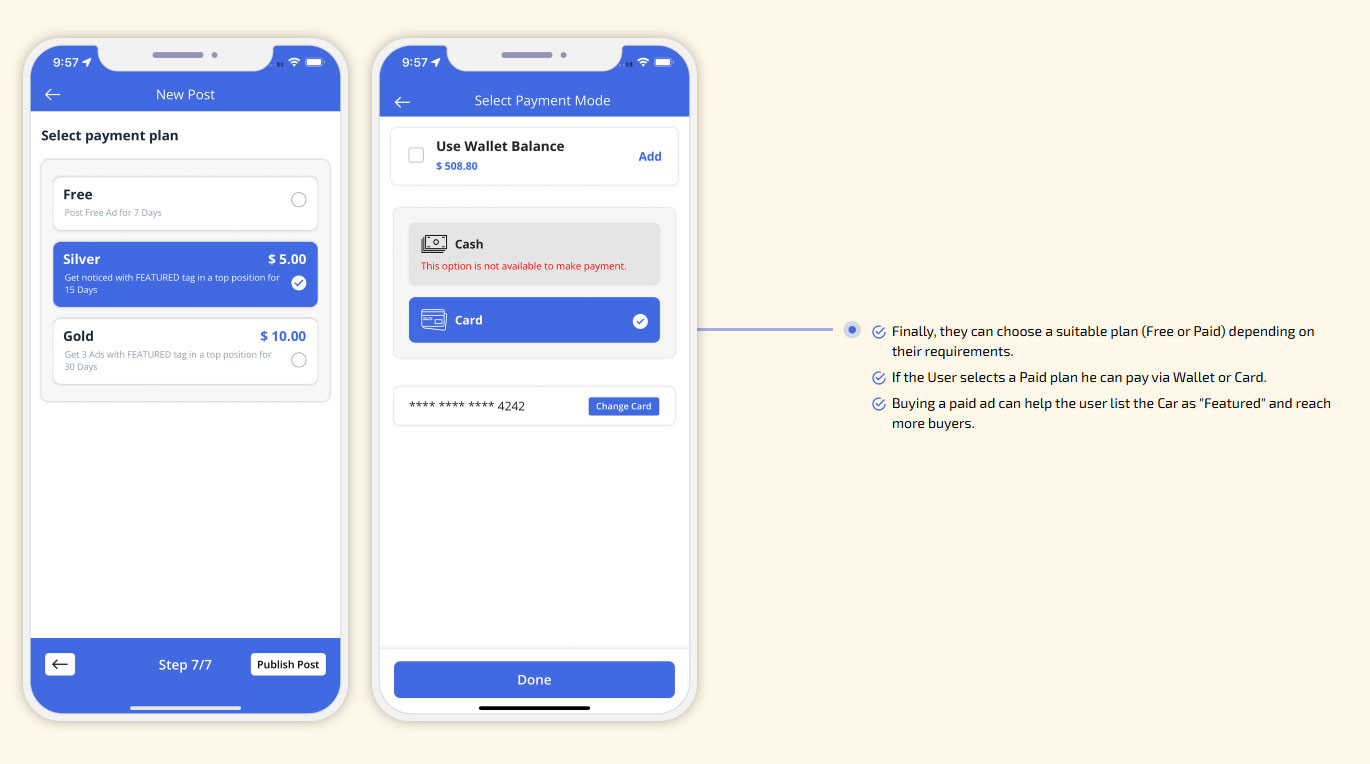
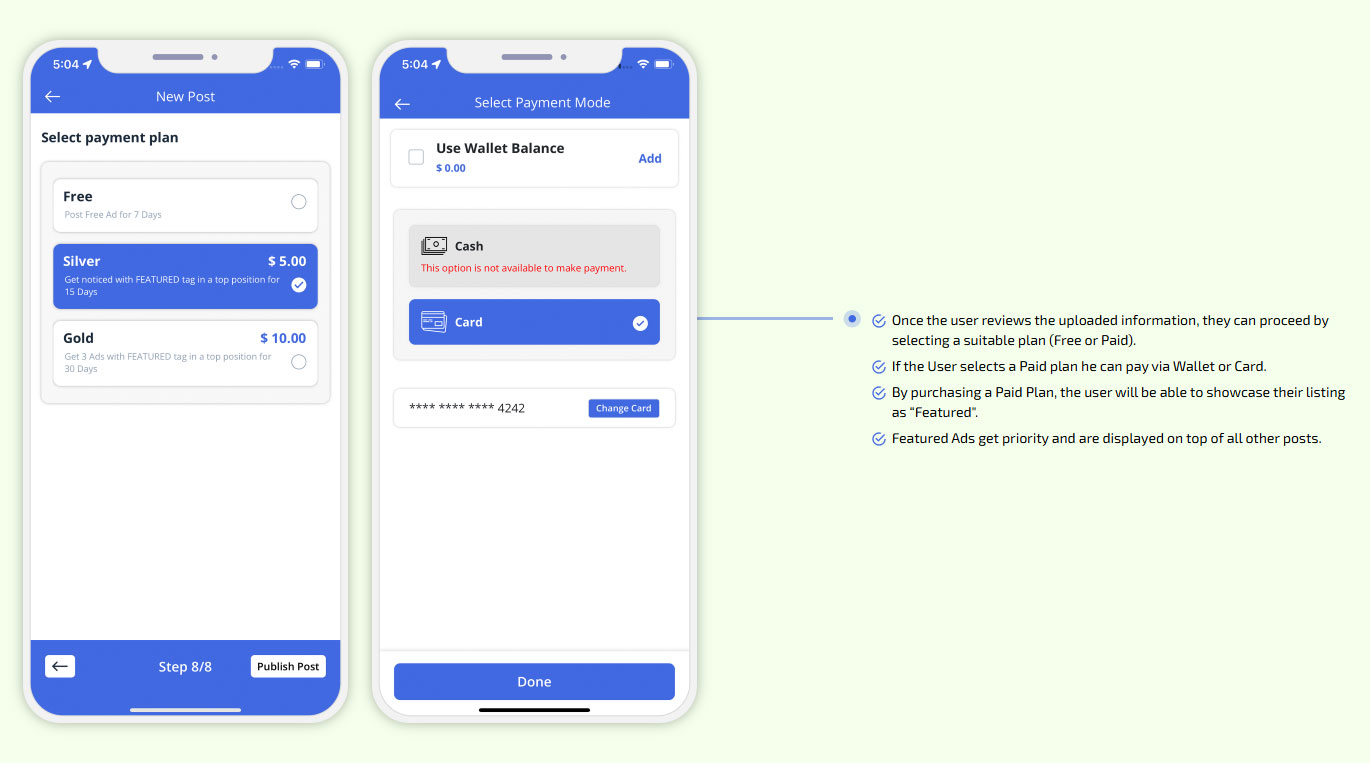
Once the user reviews the uploaded information, they can proceed by selecting a suitable plan
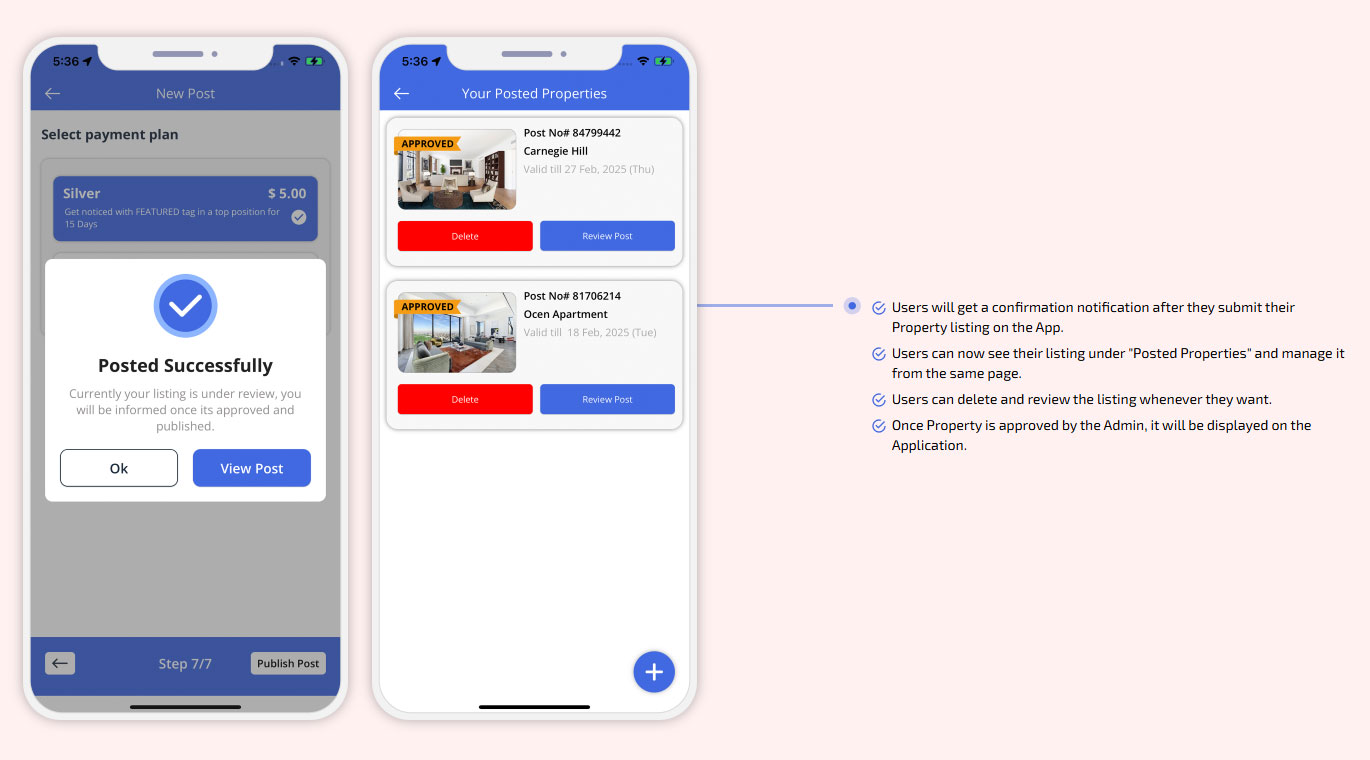
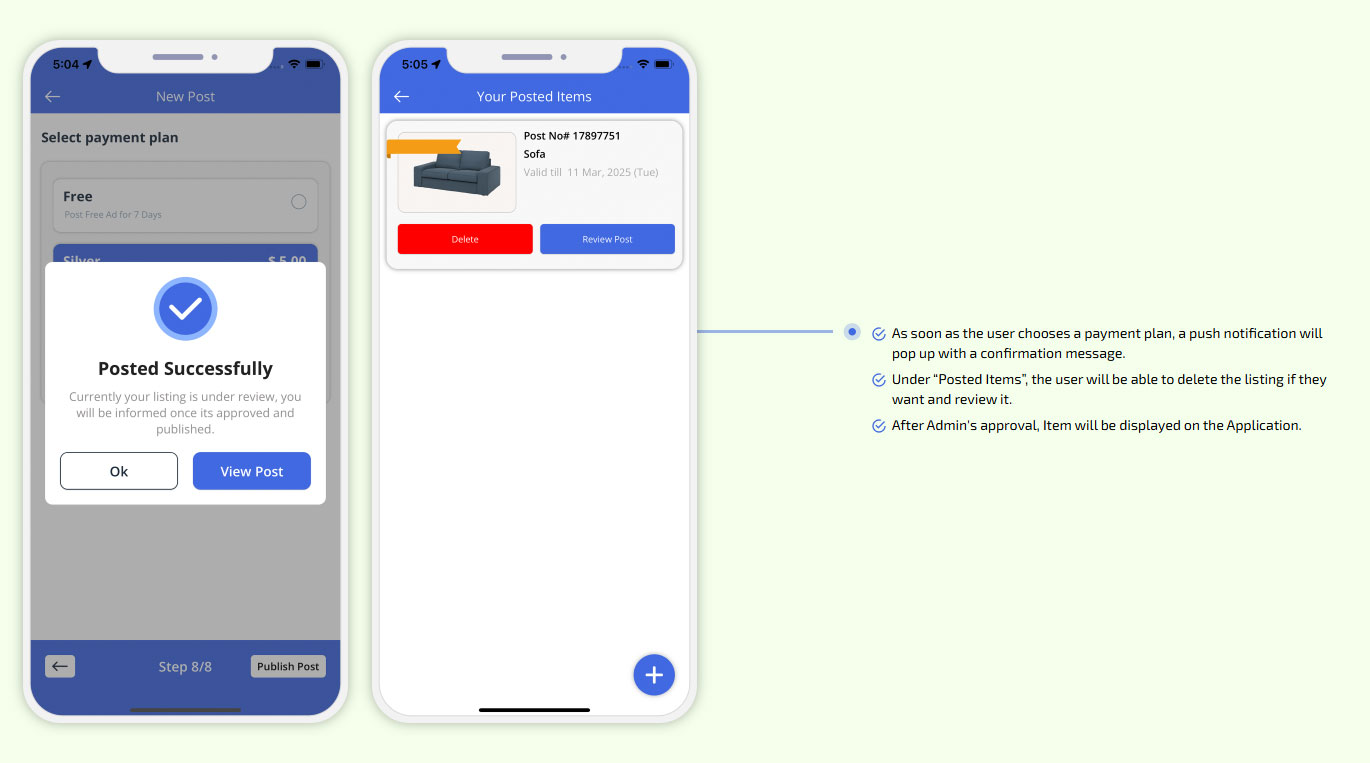
After Admin's approval, Item will be displayed on the Application.
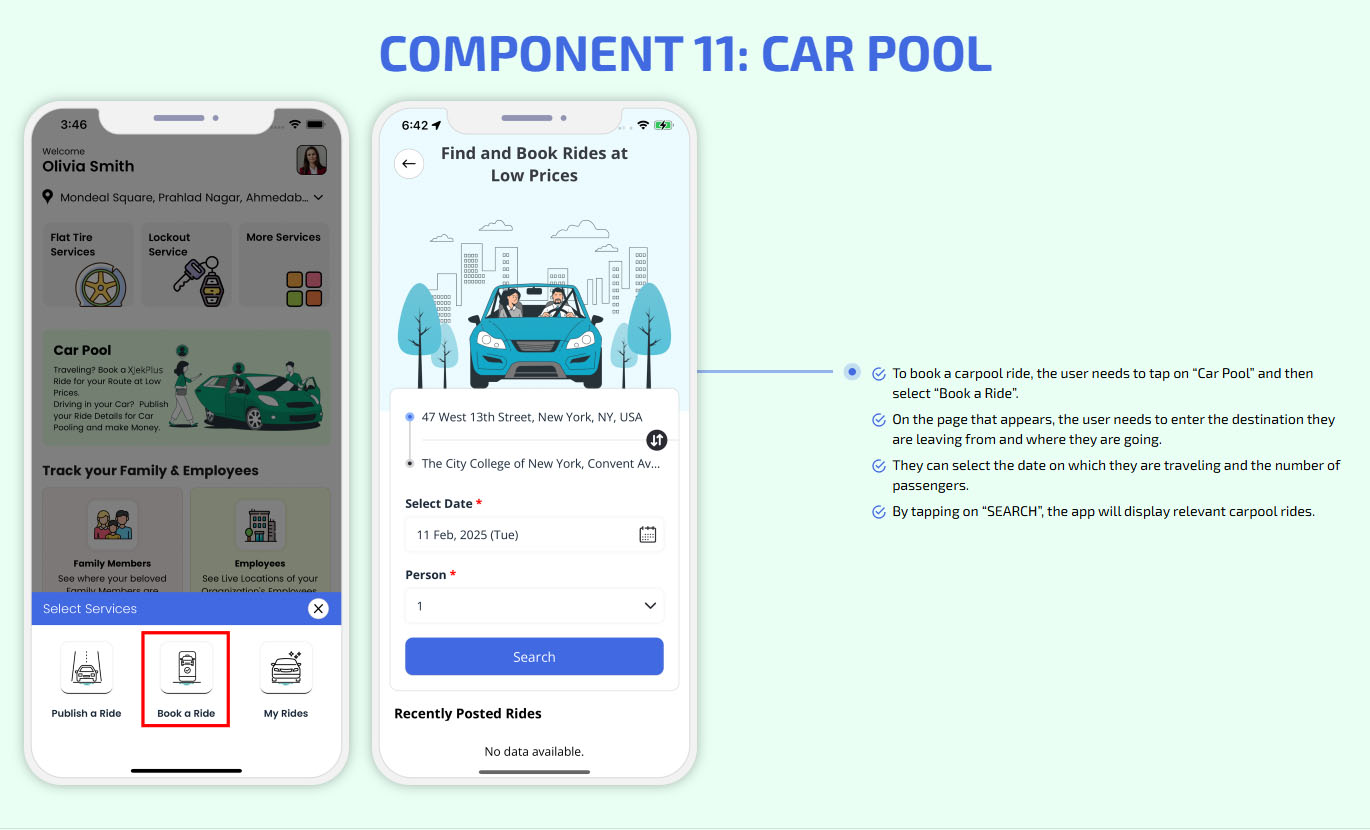
Car Pool
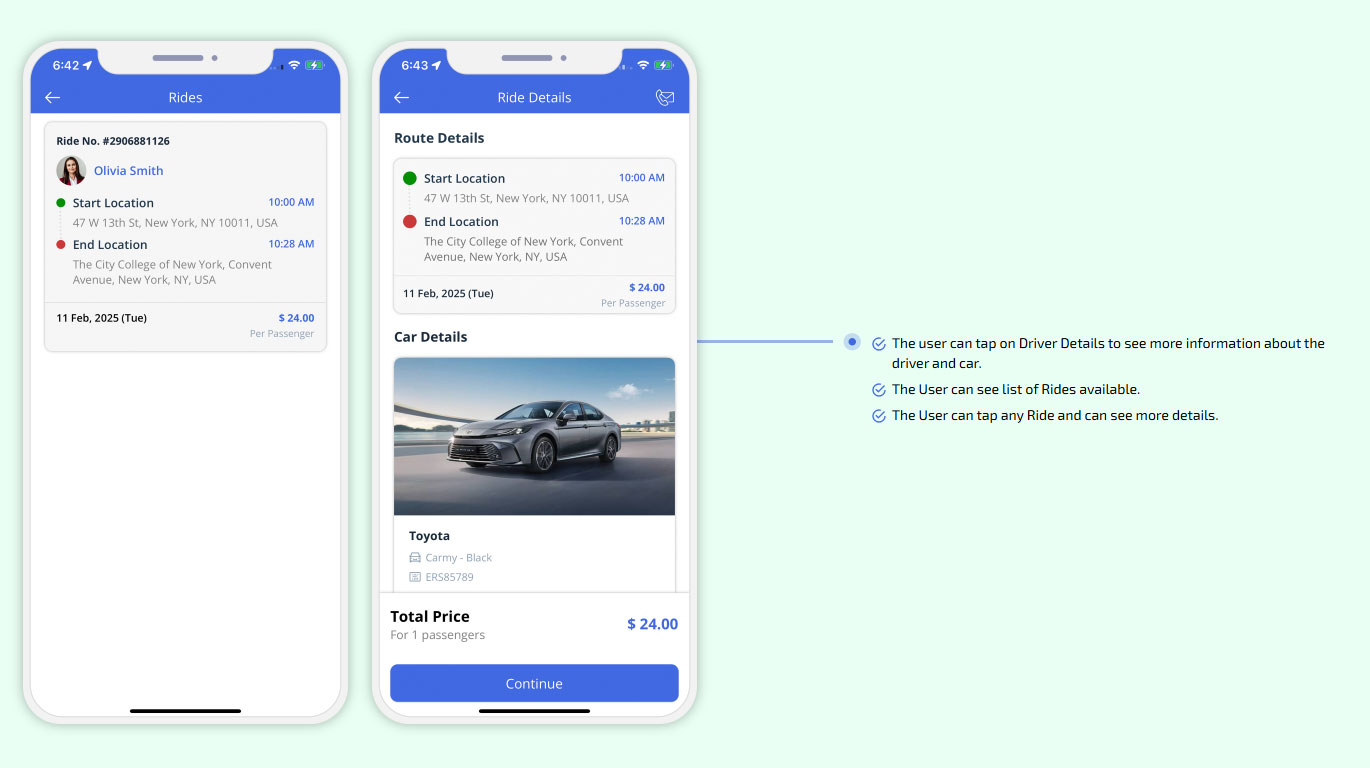
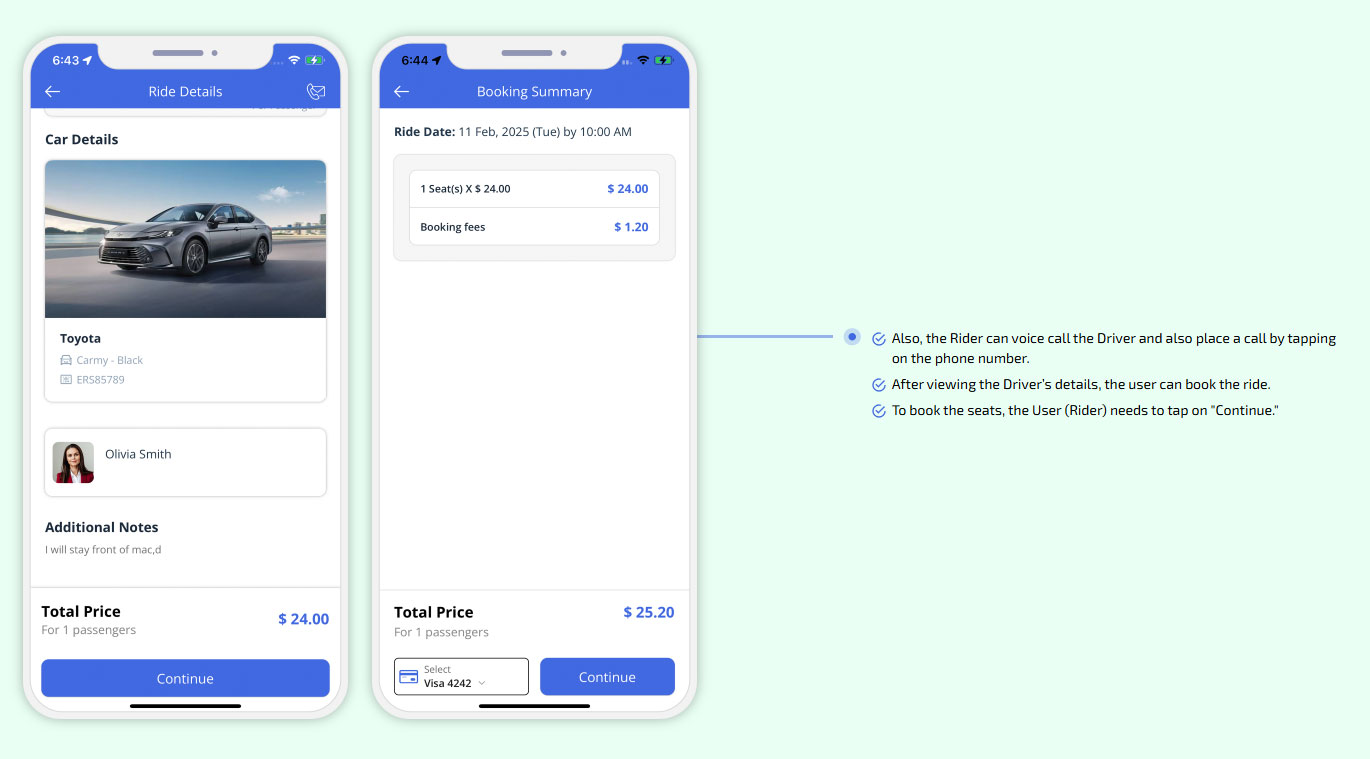
The user can tap on Driver Details to see more information about the driver and car.
To book the seats, the User (Rider) needs to tap on Continue.
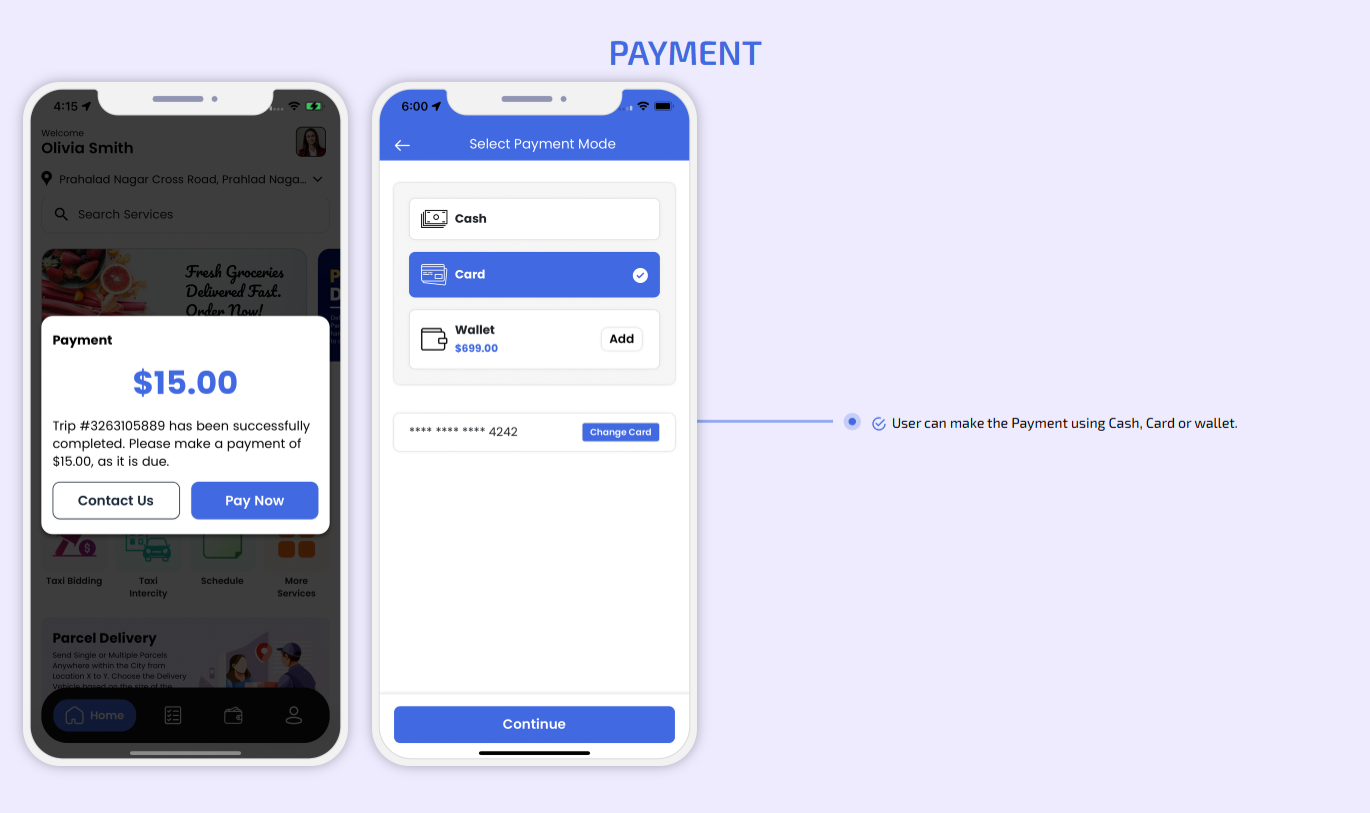
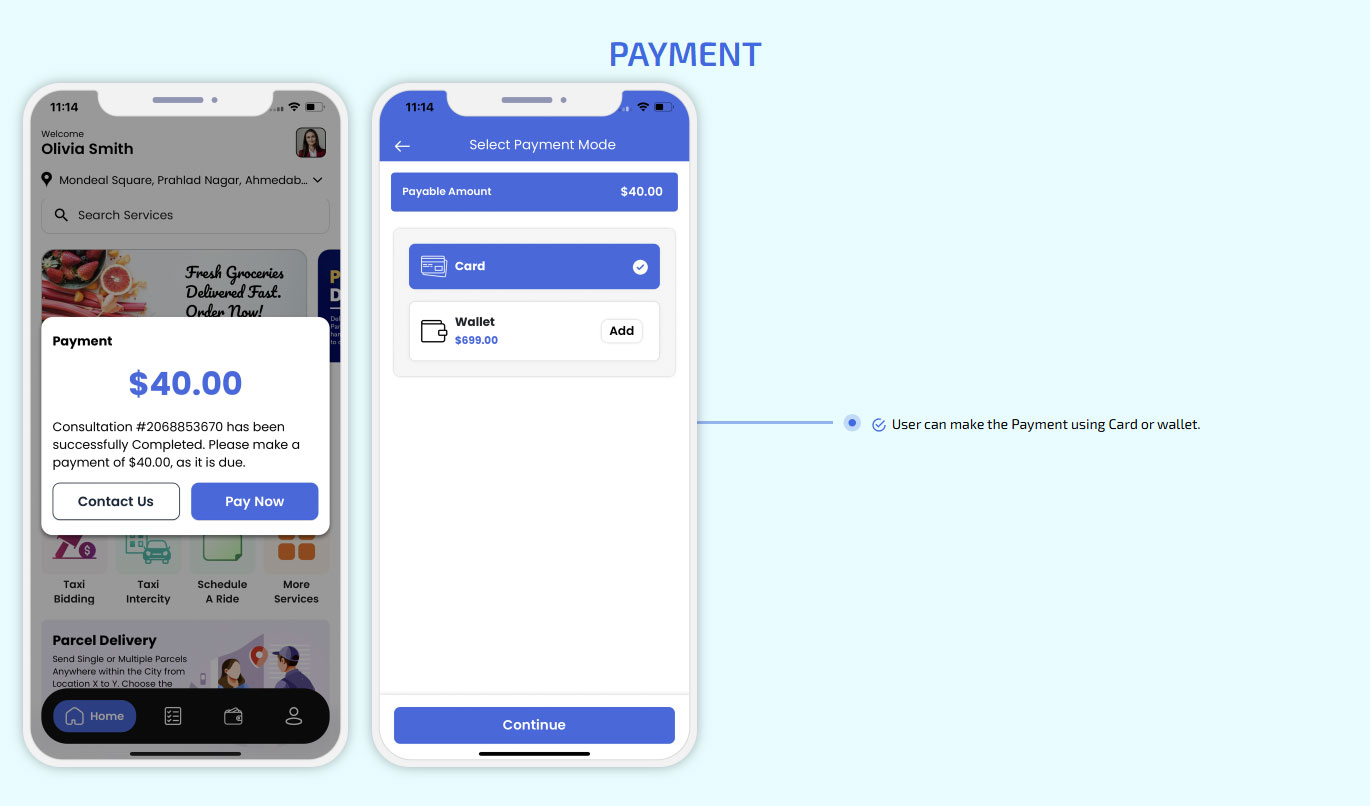
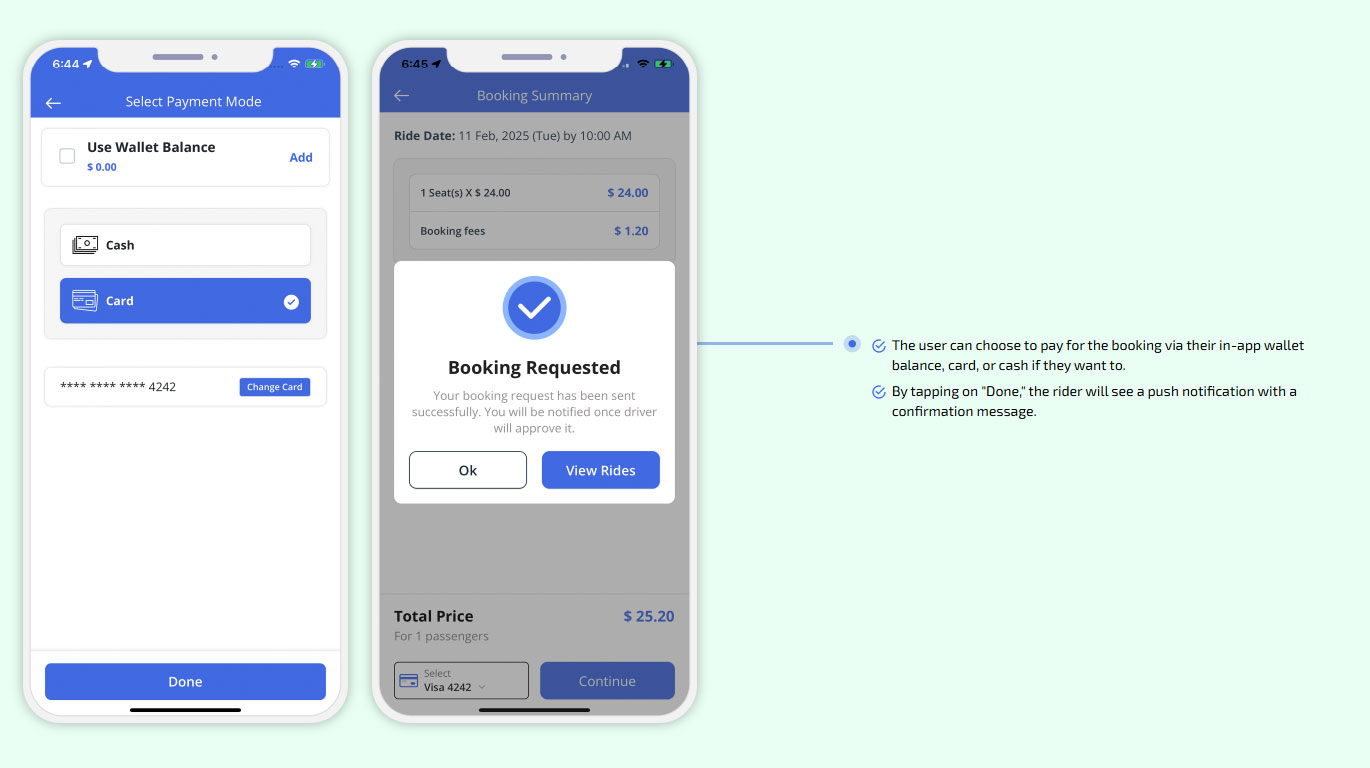
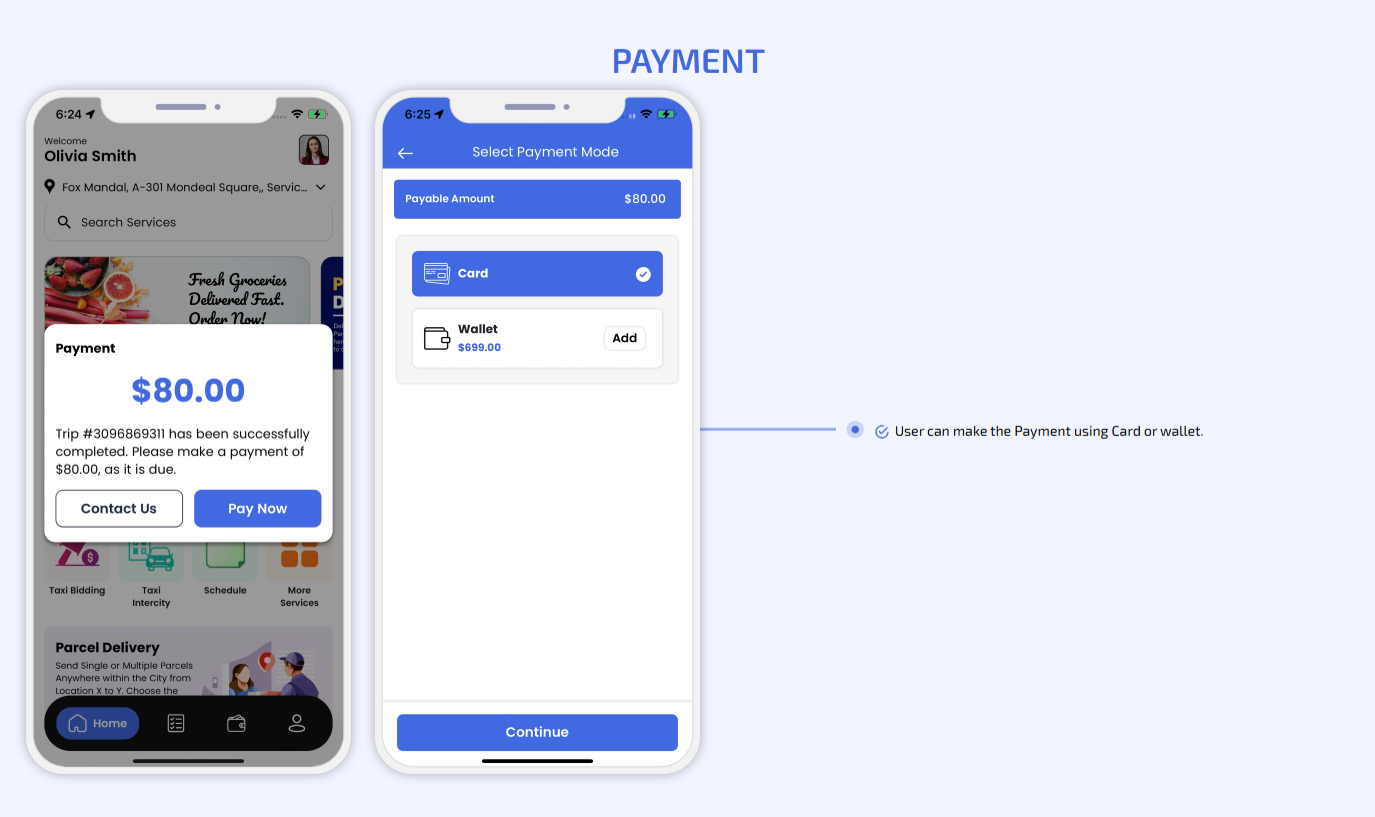
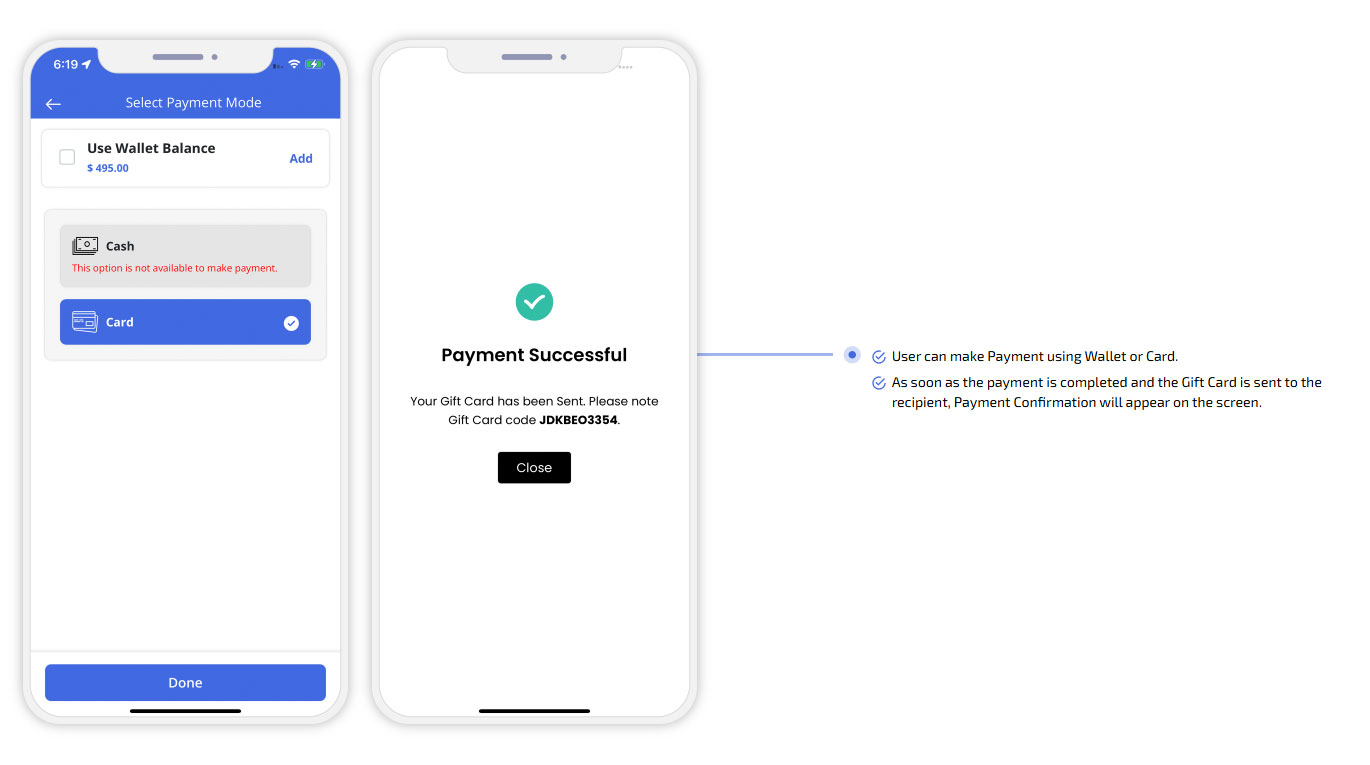
choose to pay for the booking via their in-app wallet balance, card, or cash if they want to.
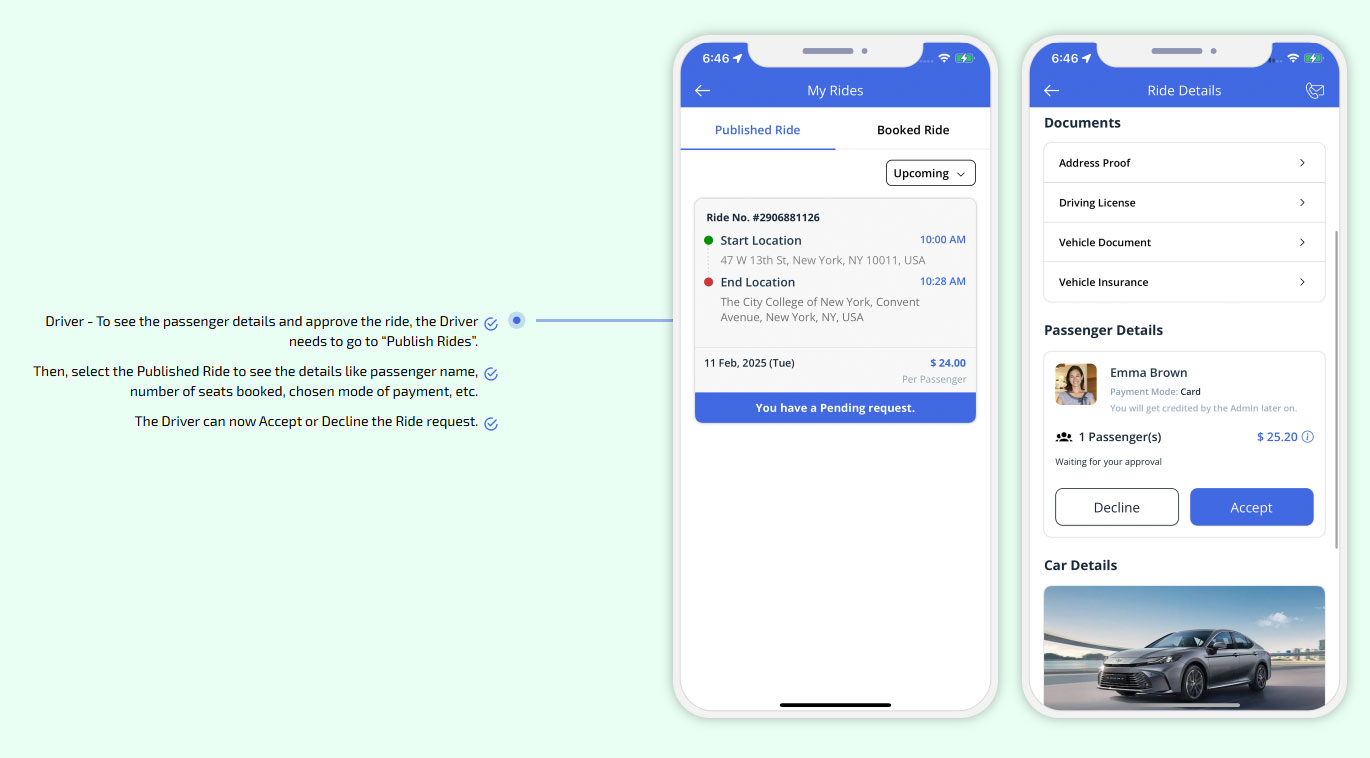
The Driver can now Accept or Decline the Ride request.
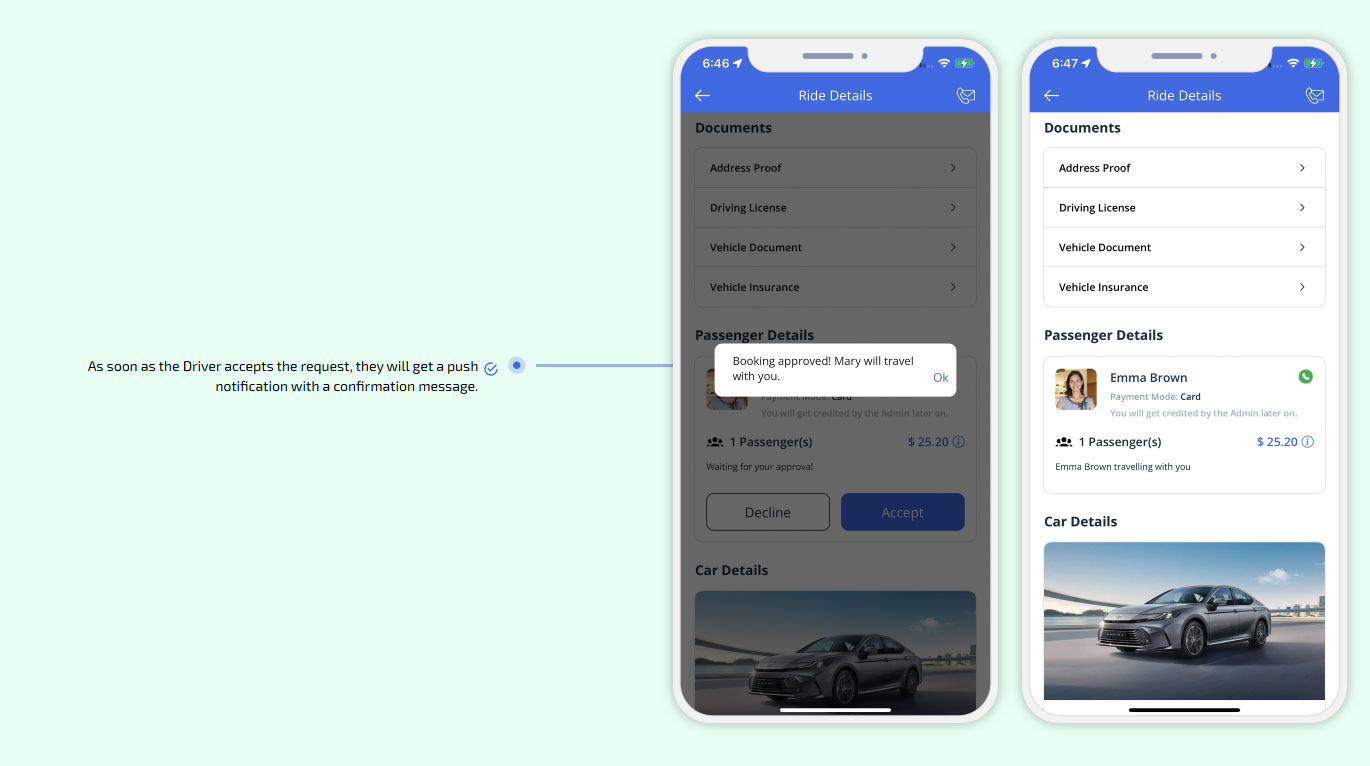
As soon as the Driver accepts the request, they will get a push notification with a confirmation message.
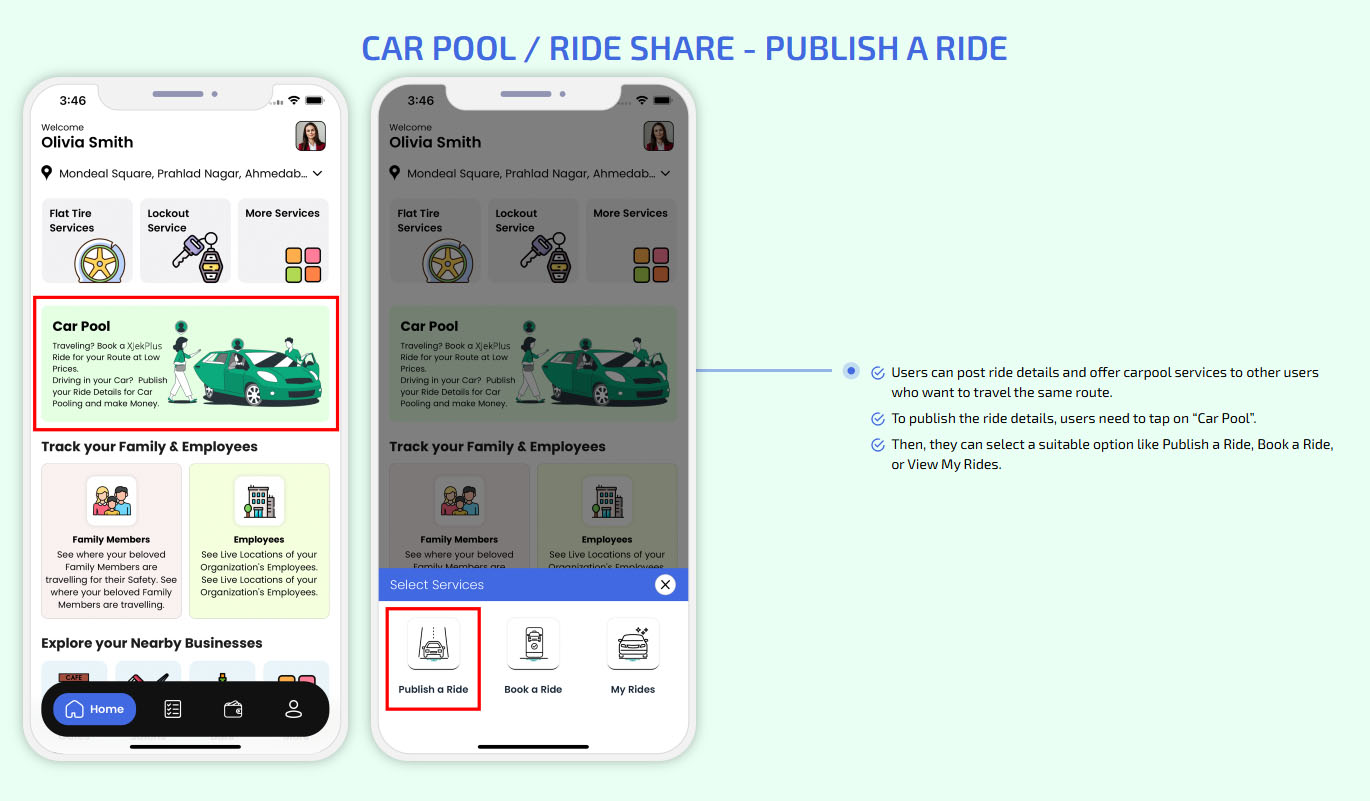
To publish the ride details, users need to tap on “Car Pool”.
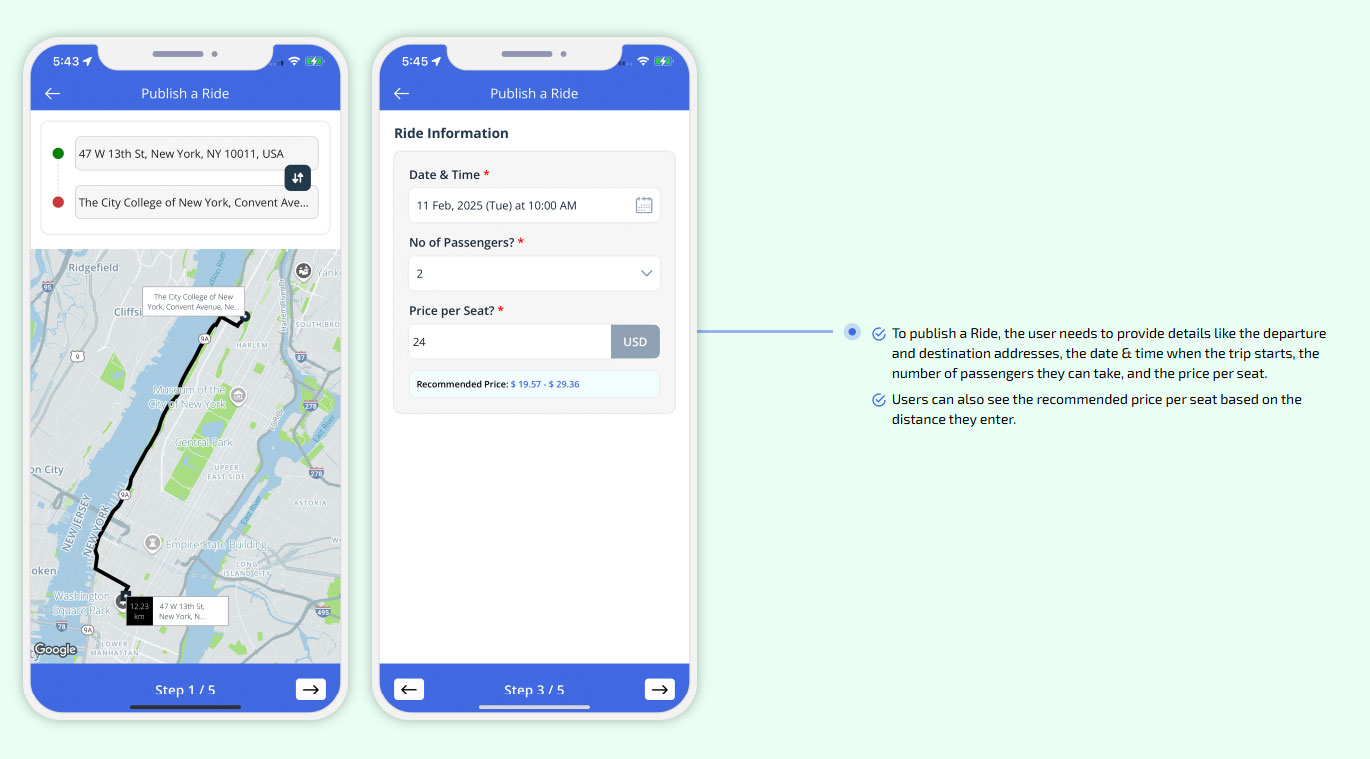
Users can also see the recommended price per seat based on the distance they enter.
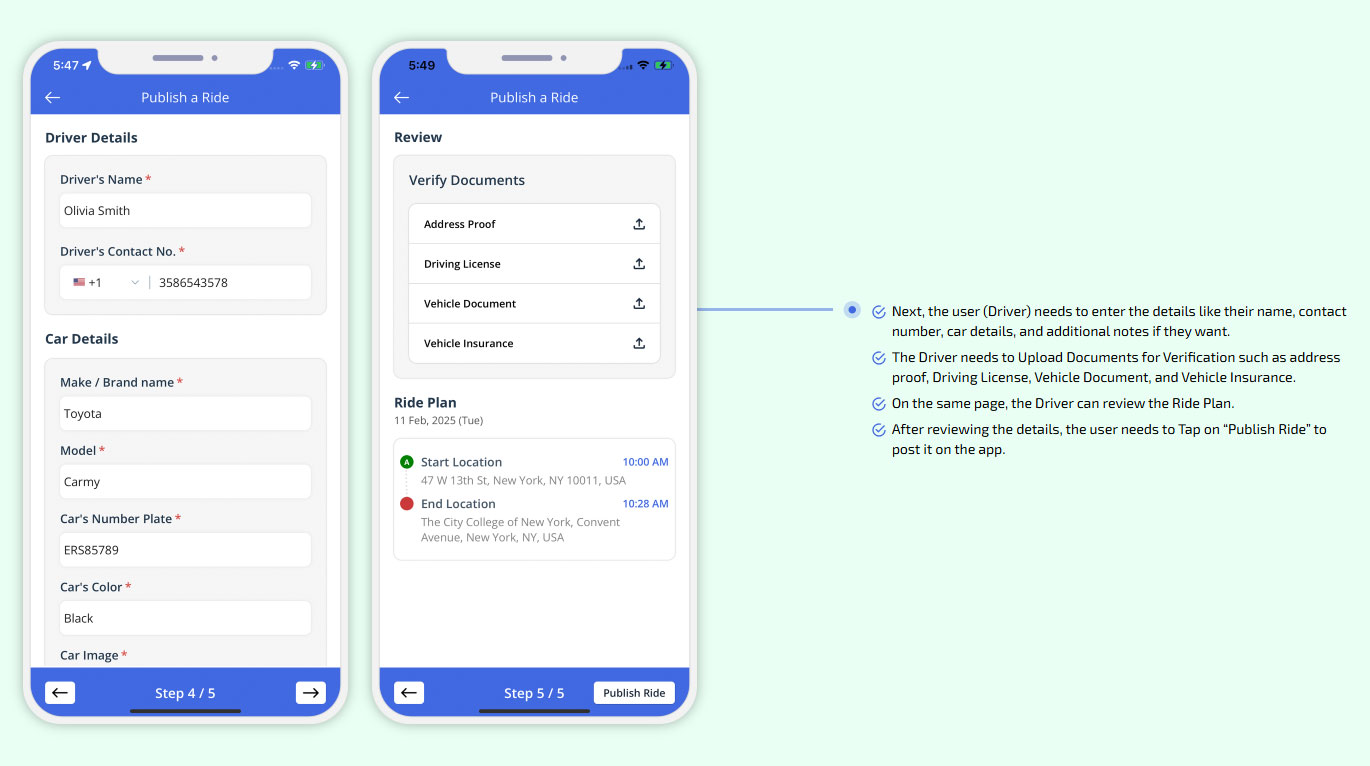
On the same page, the Driver can review the Ride Plan.
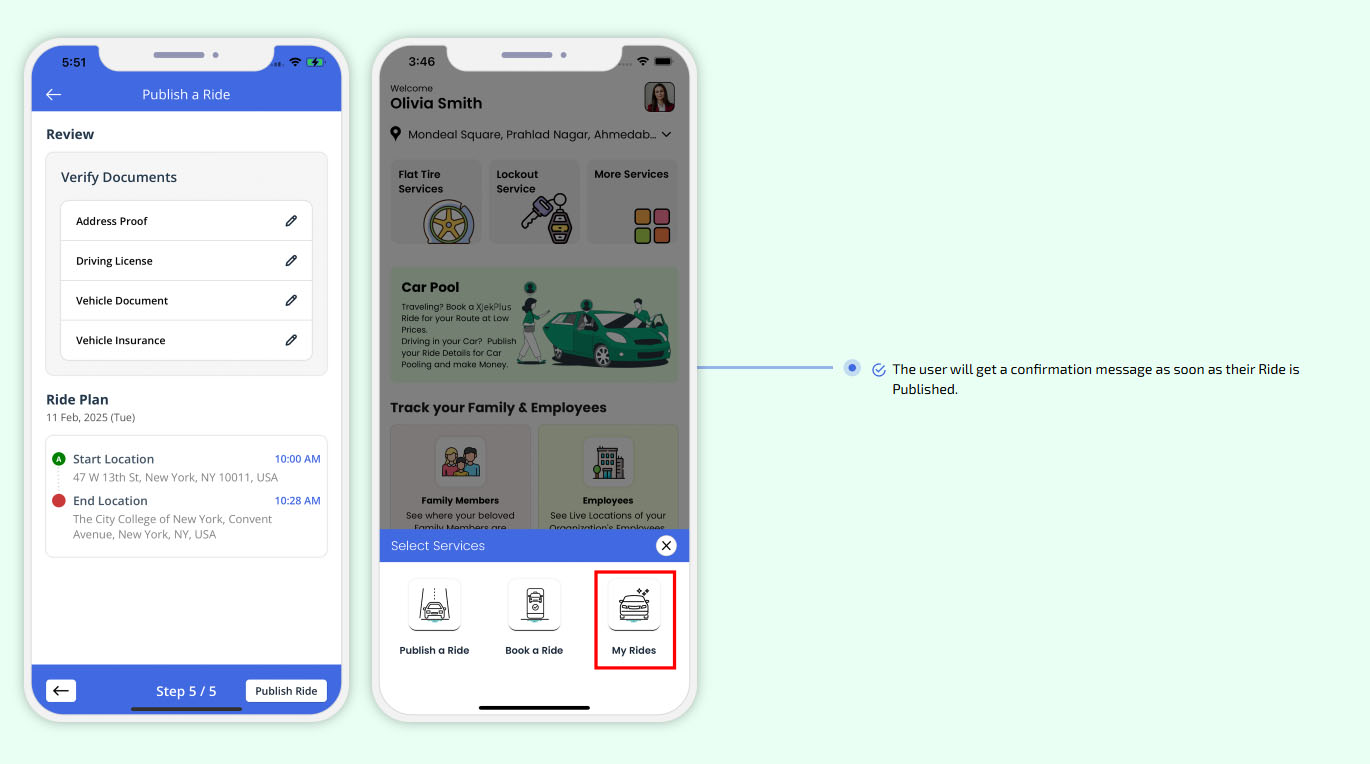
The user will get a confirmation message as soon as their Ride is Published.
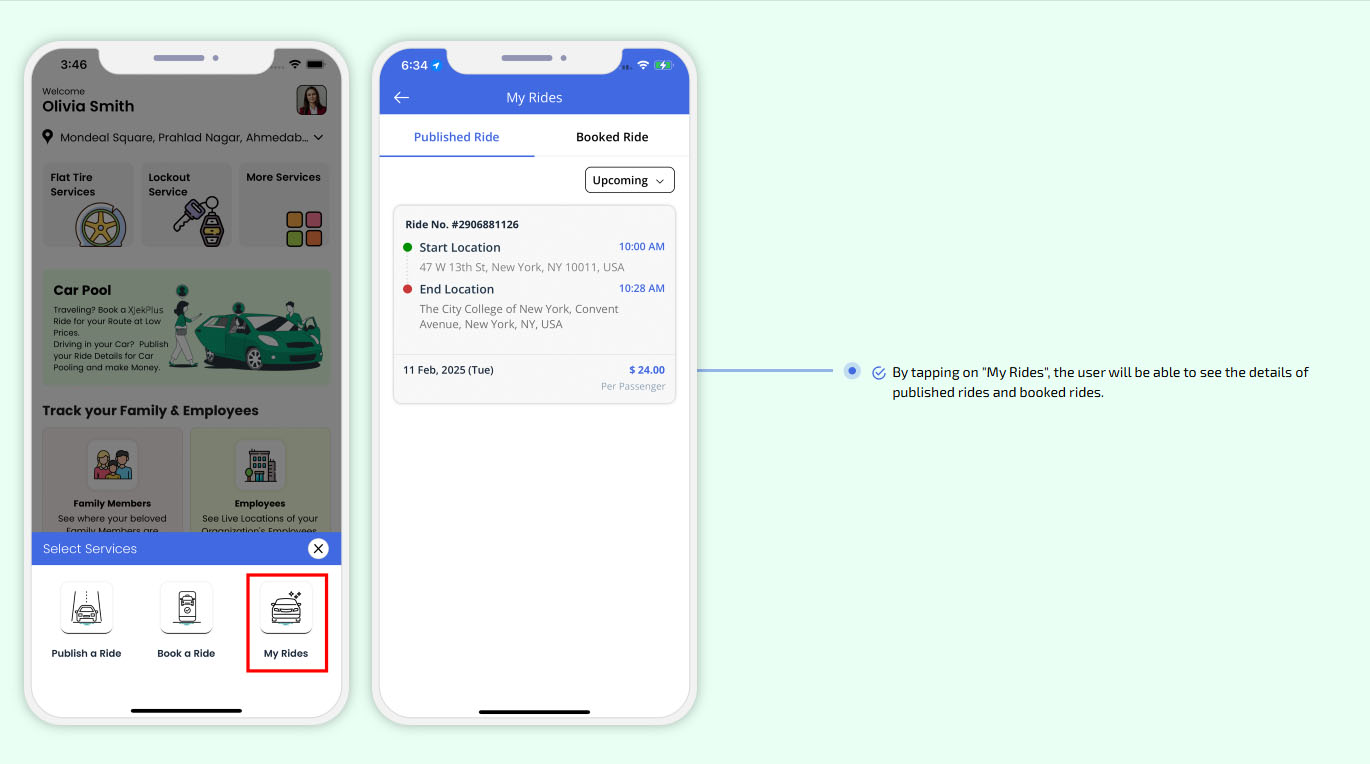
By tapping on "My Rides", the user will be able to see the details of published rides and booked rides."
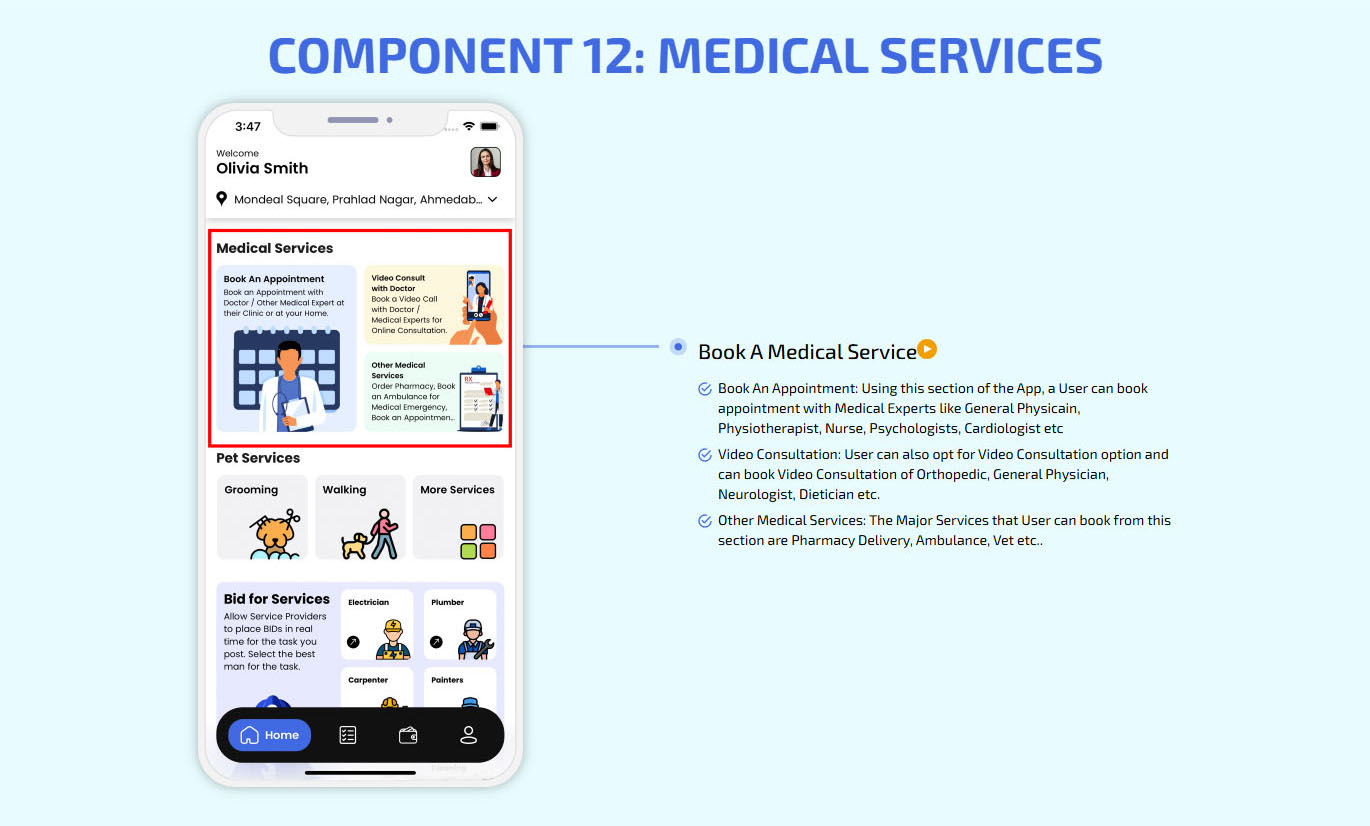
Book a Medical Services
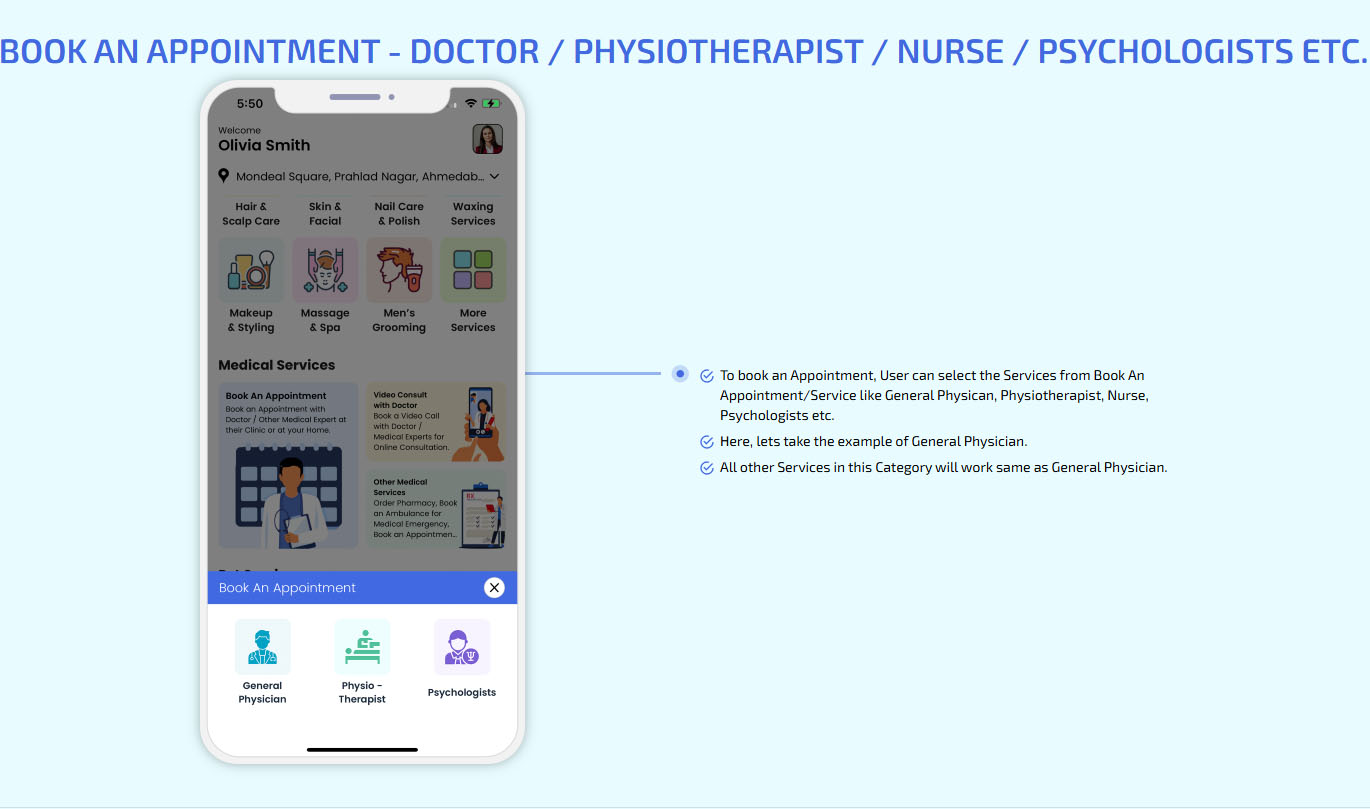
Book An Appointment - Doctor / Physiotherapist etc
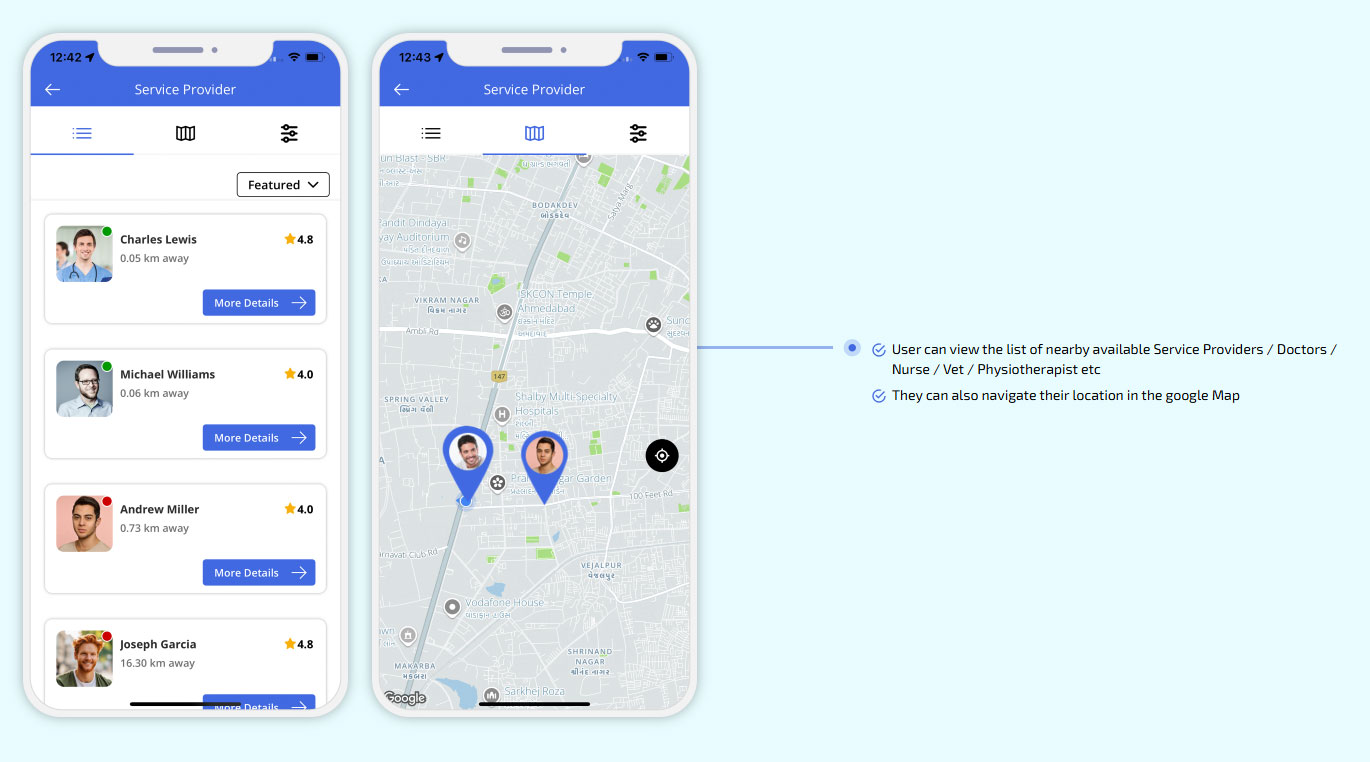
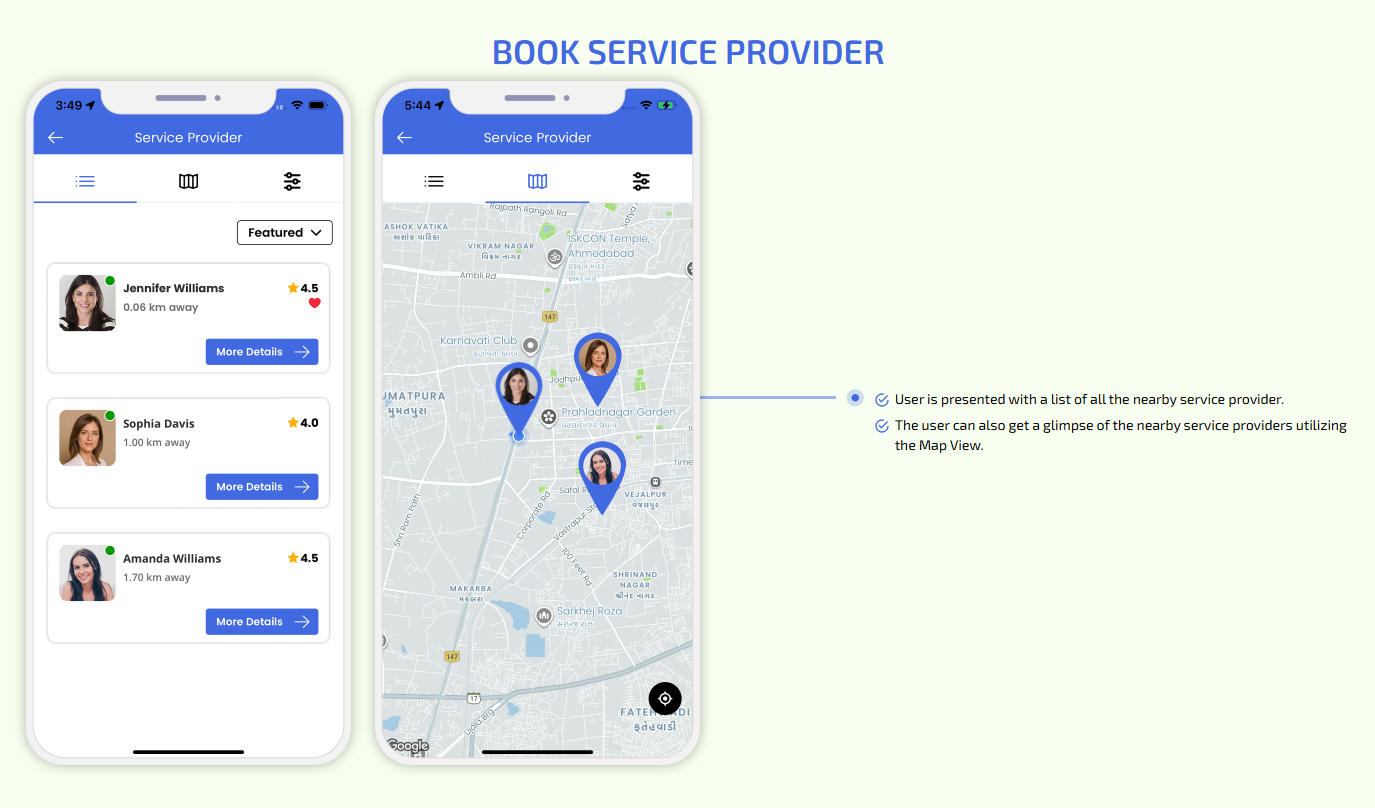
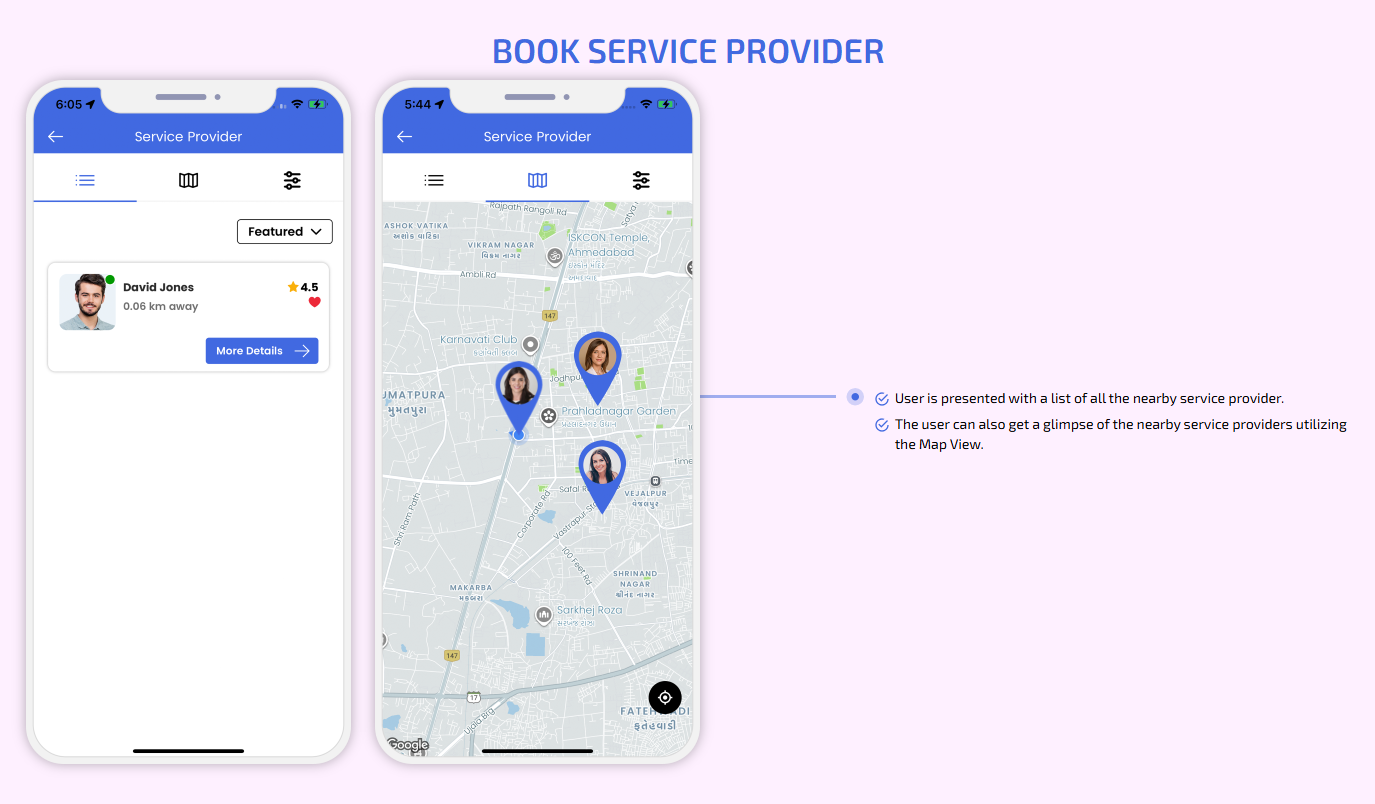
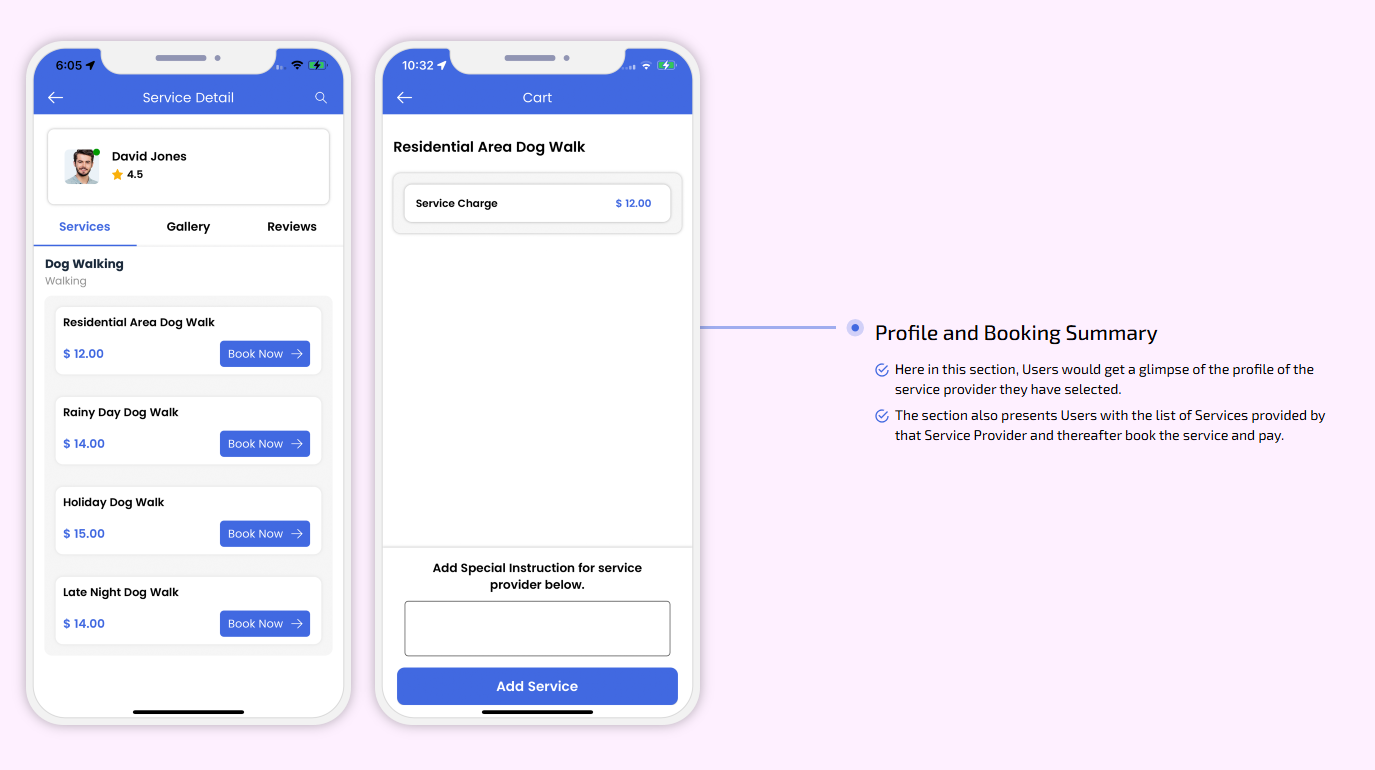
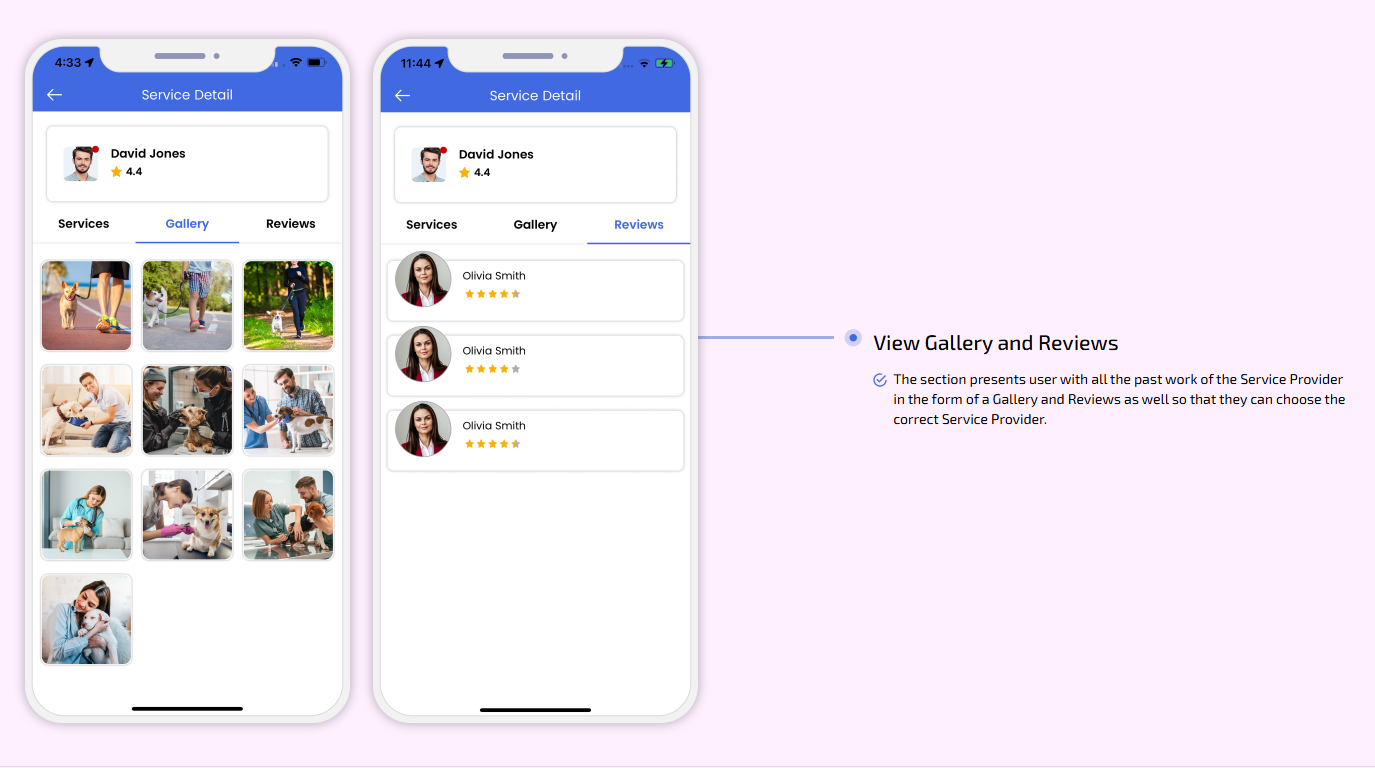
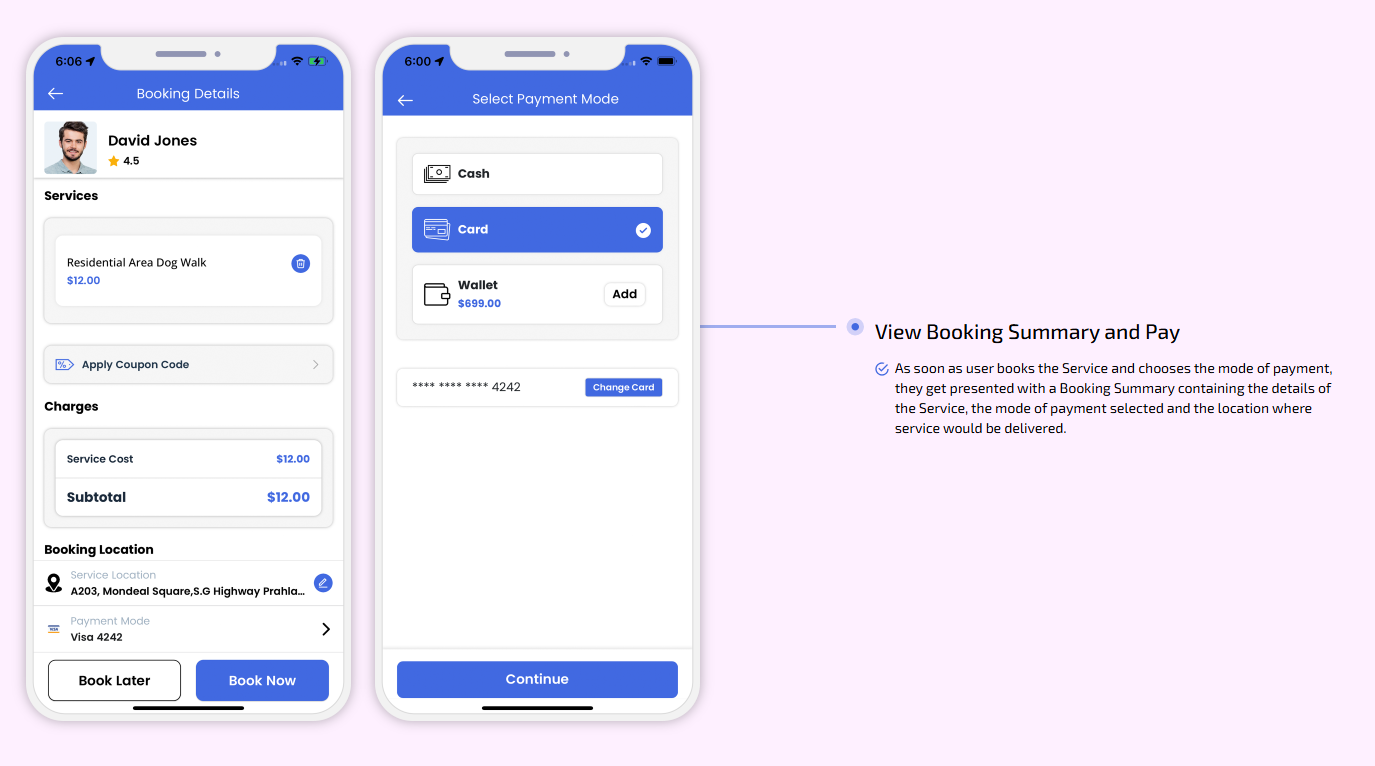
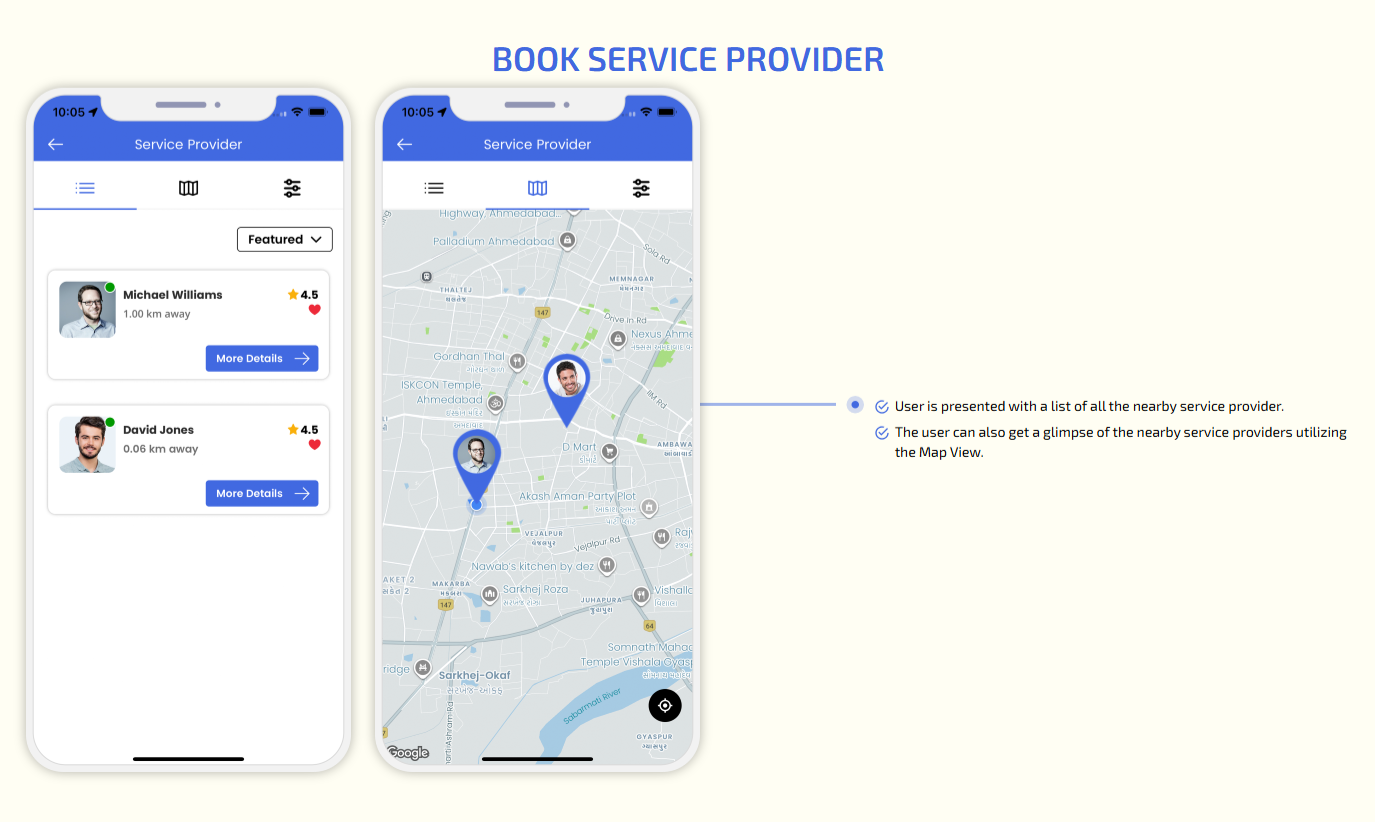
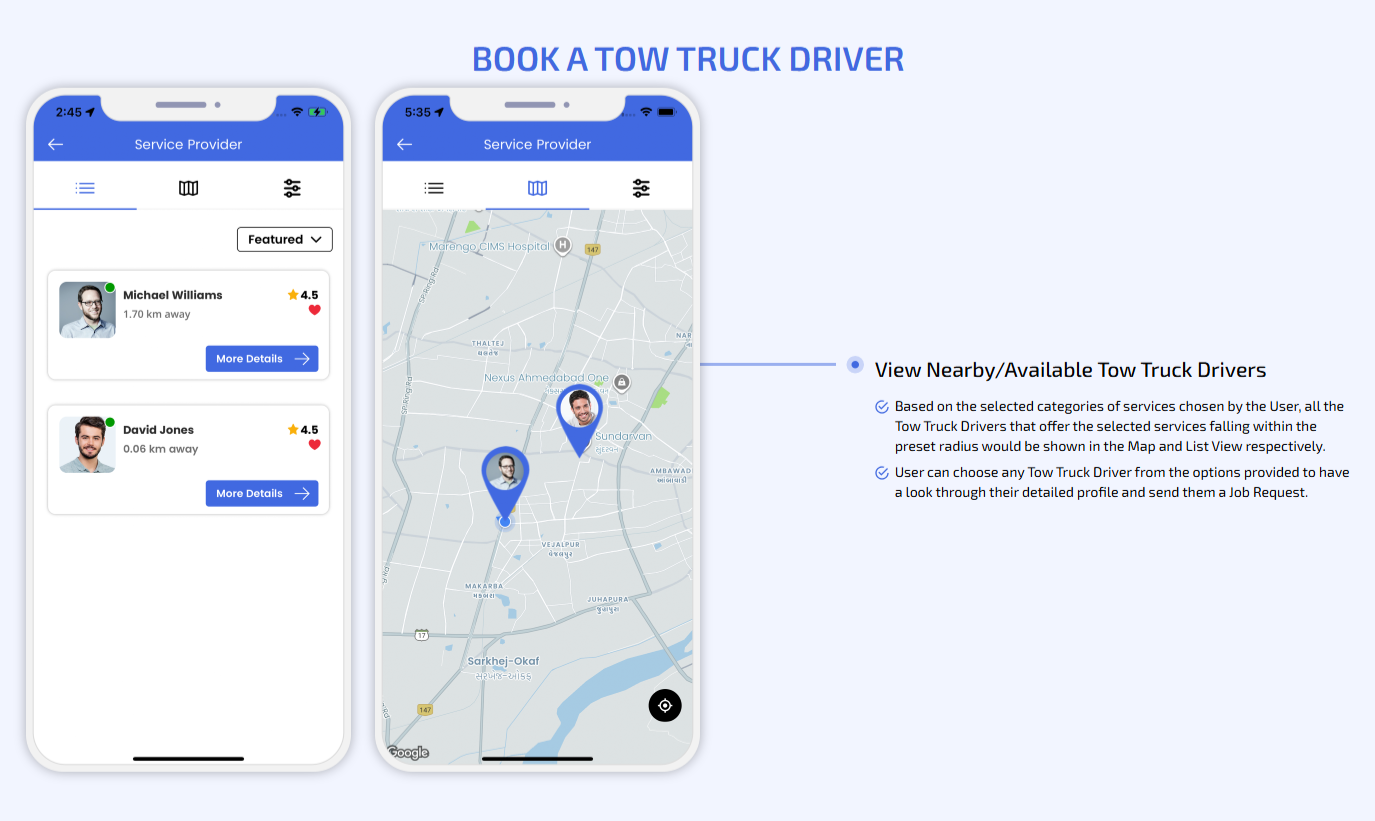
User can view the list of nearby available Service Providers / Doctors / Nurse / Vet / Physiotherapist etc
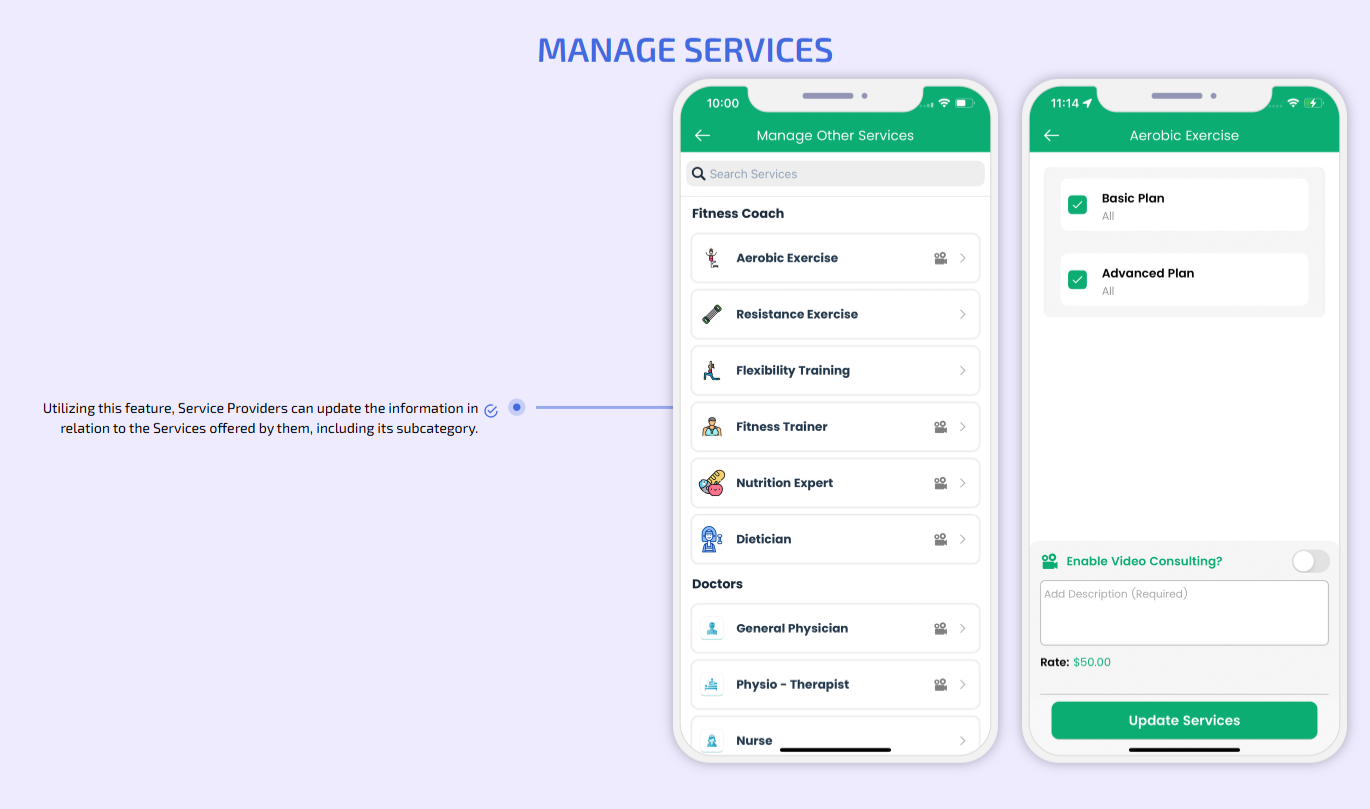
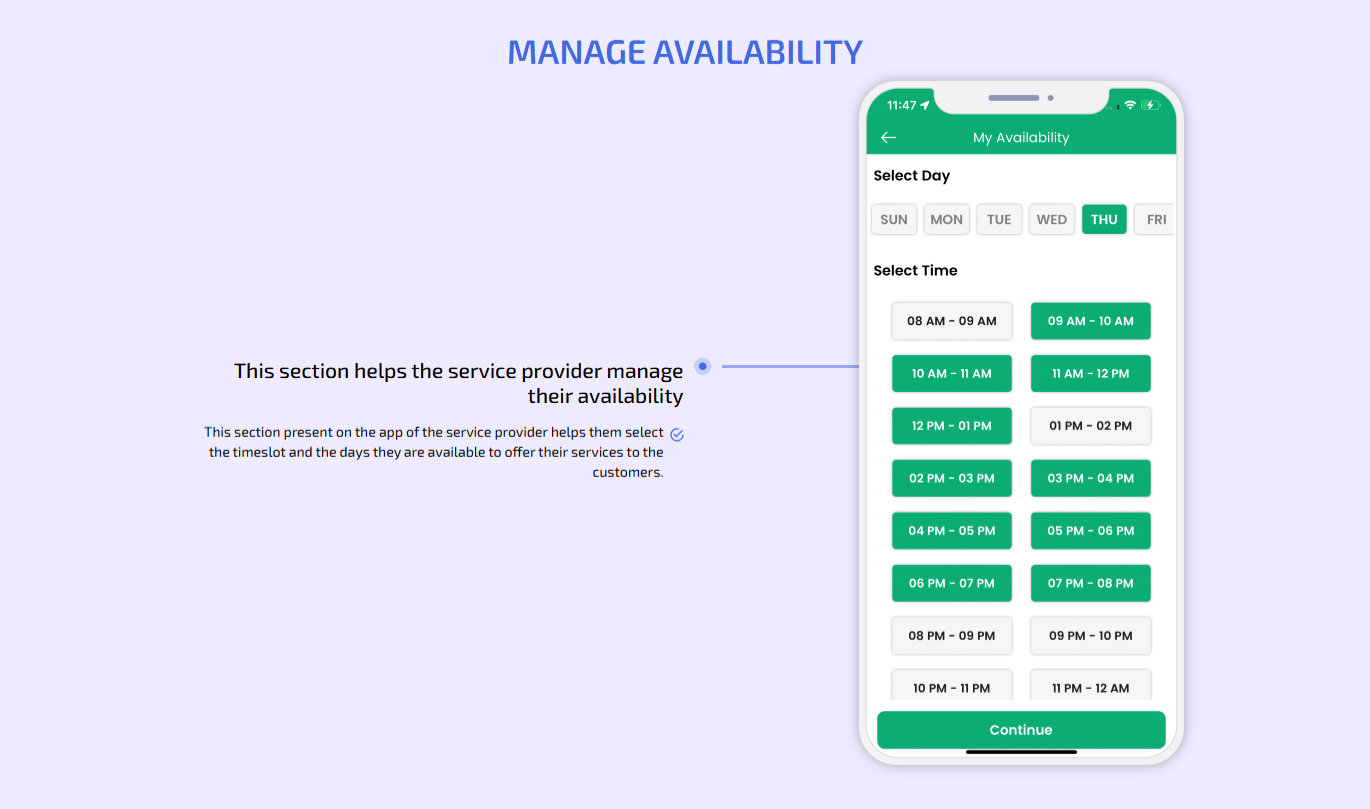
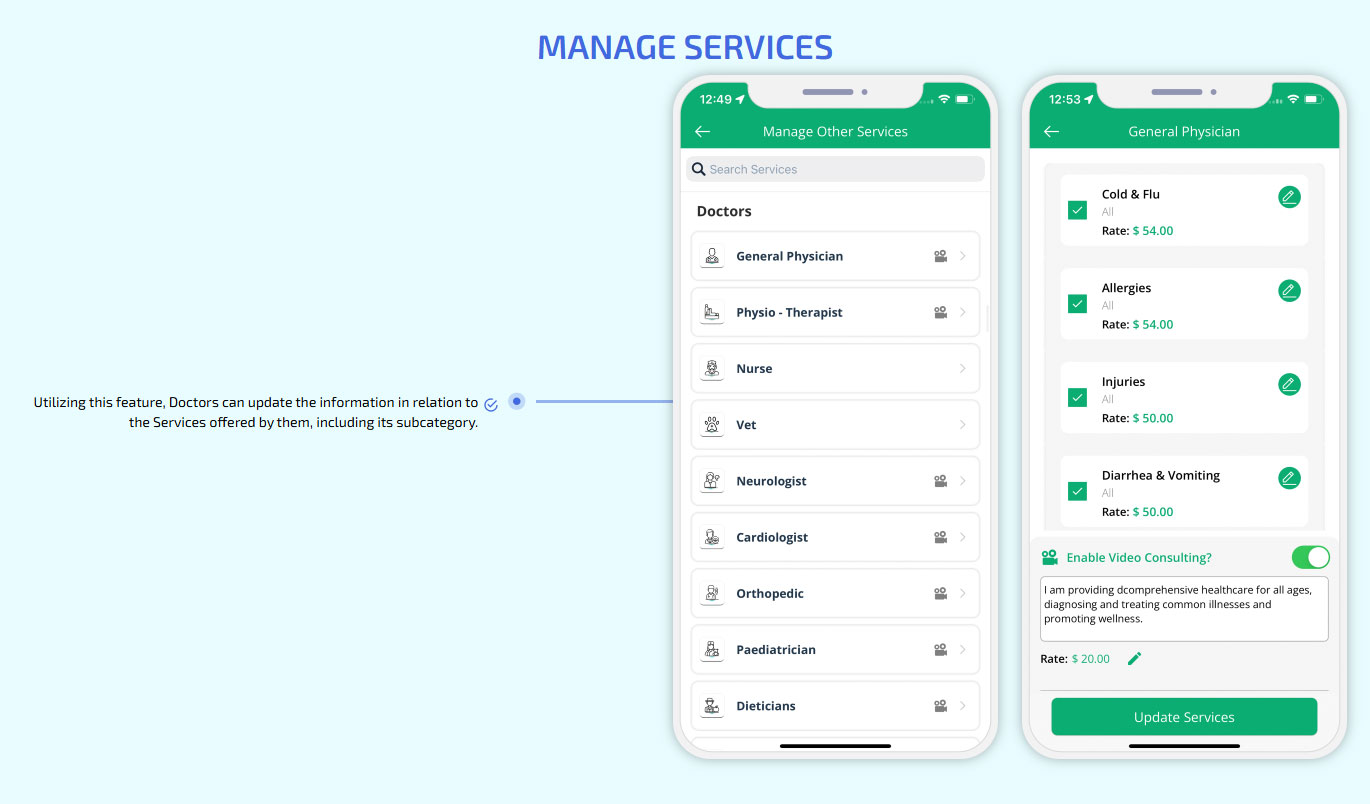
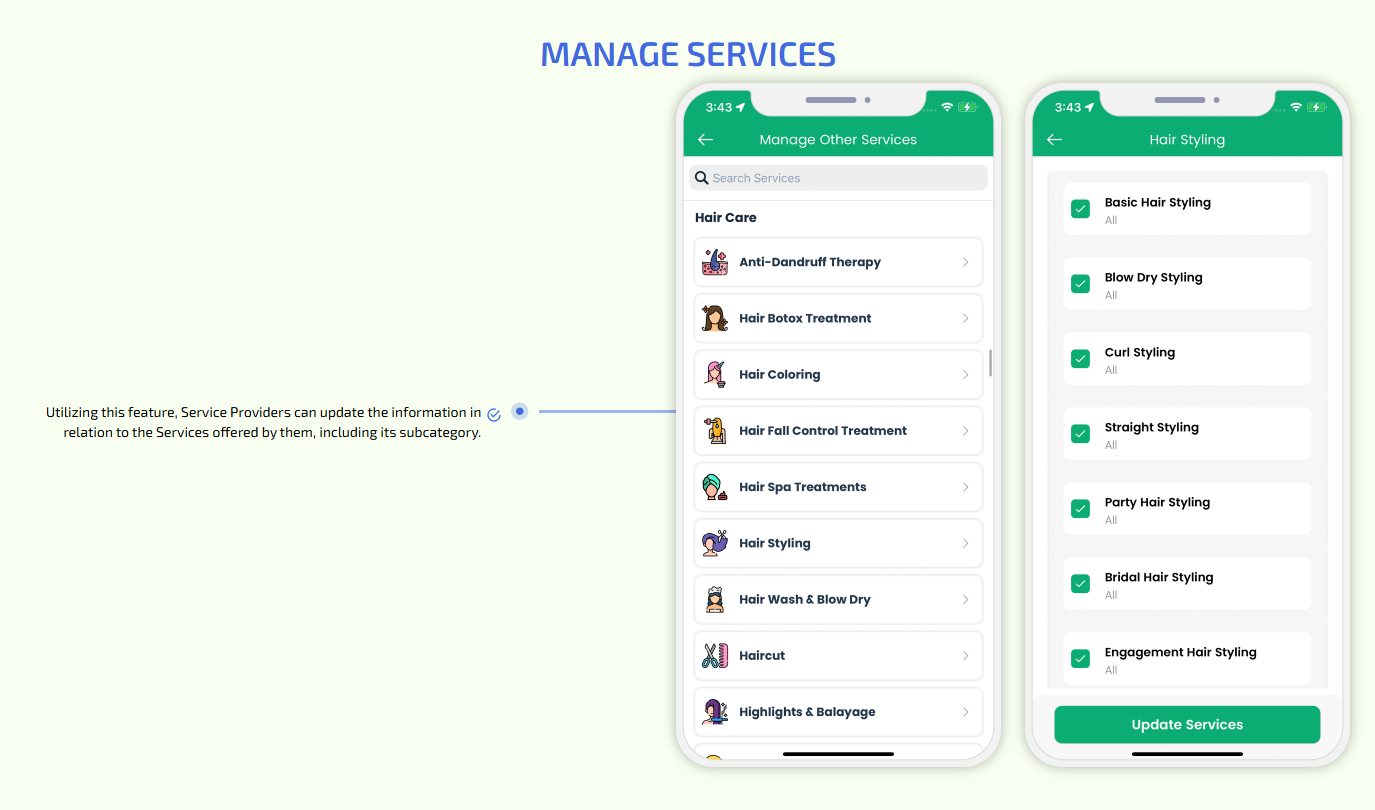
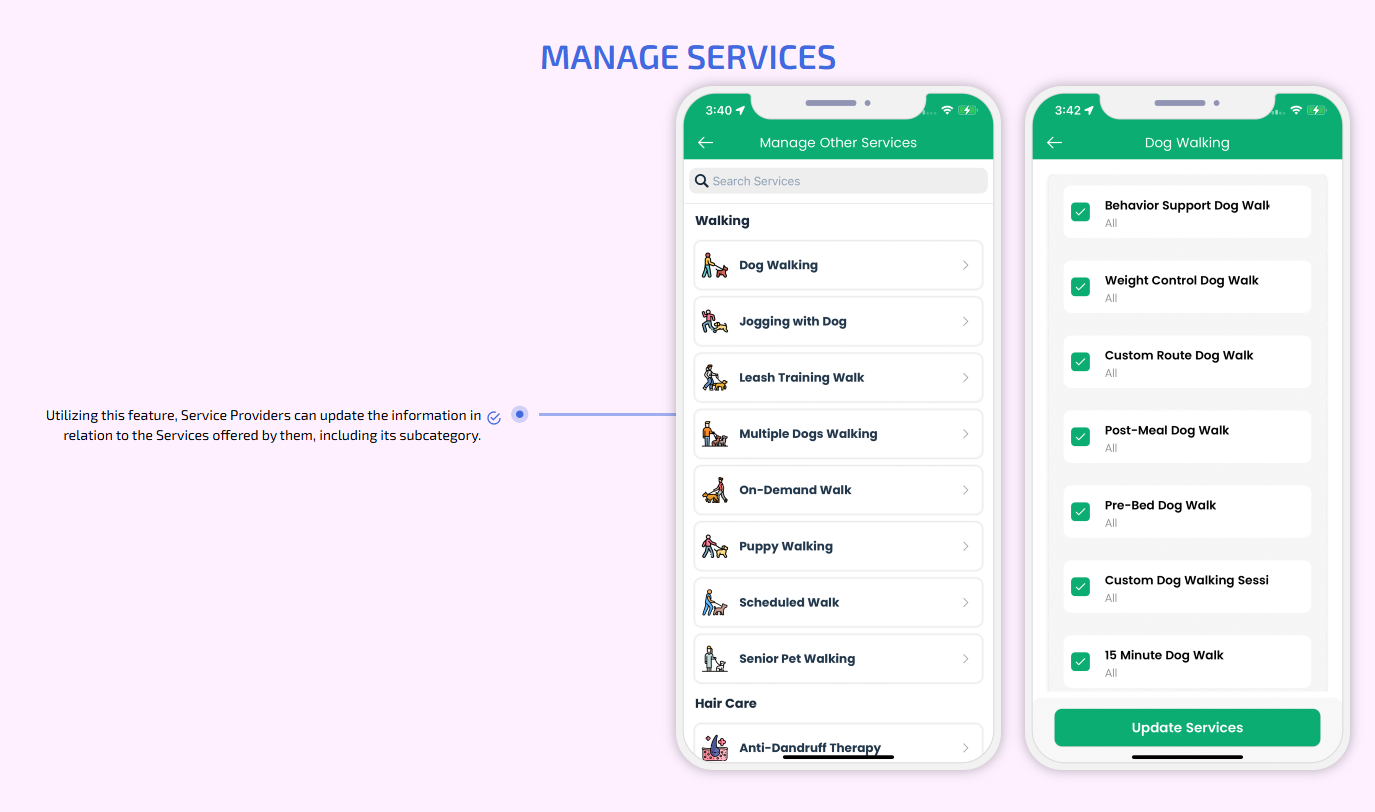
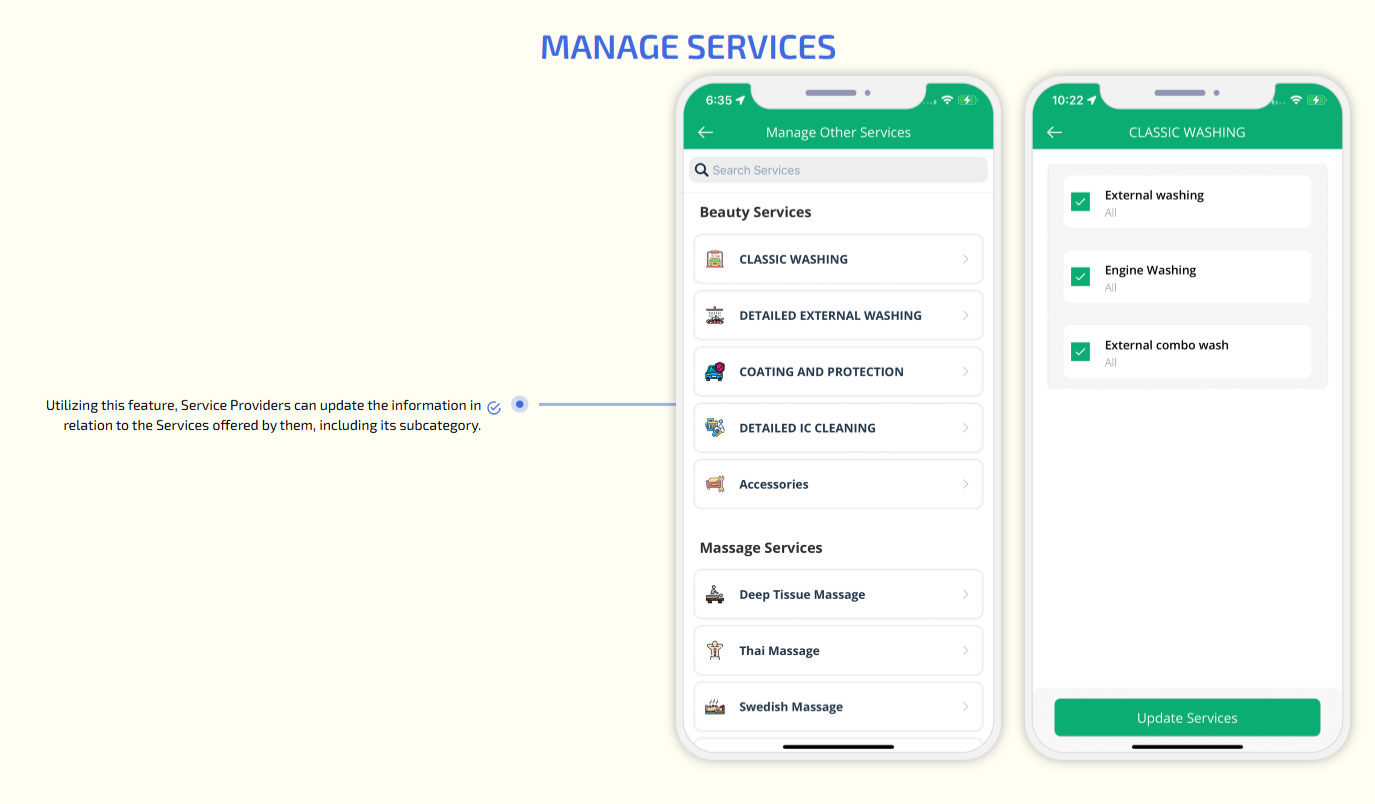
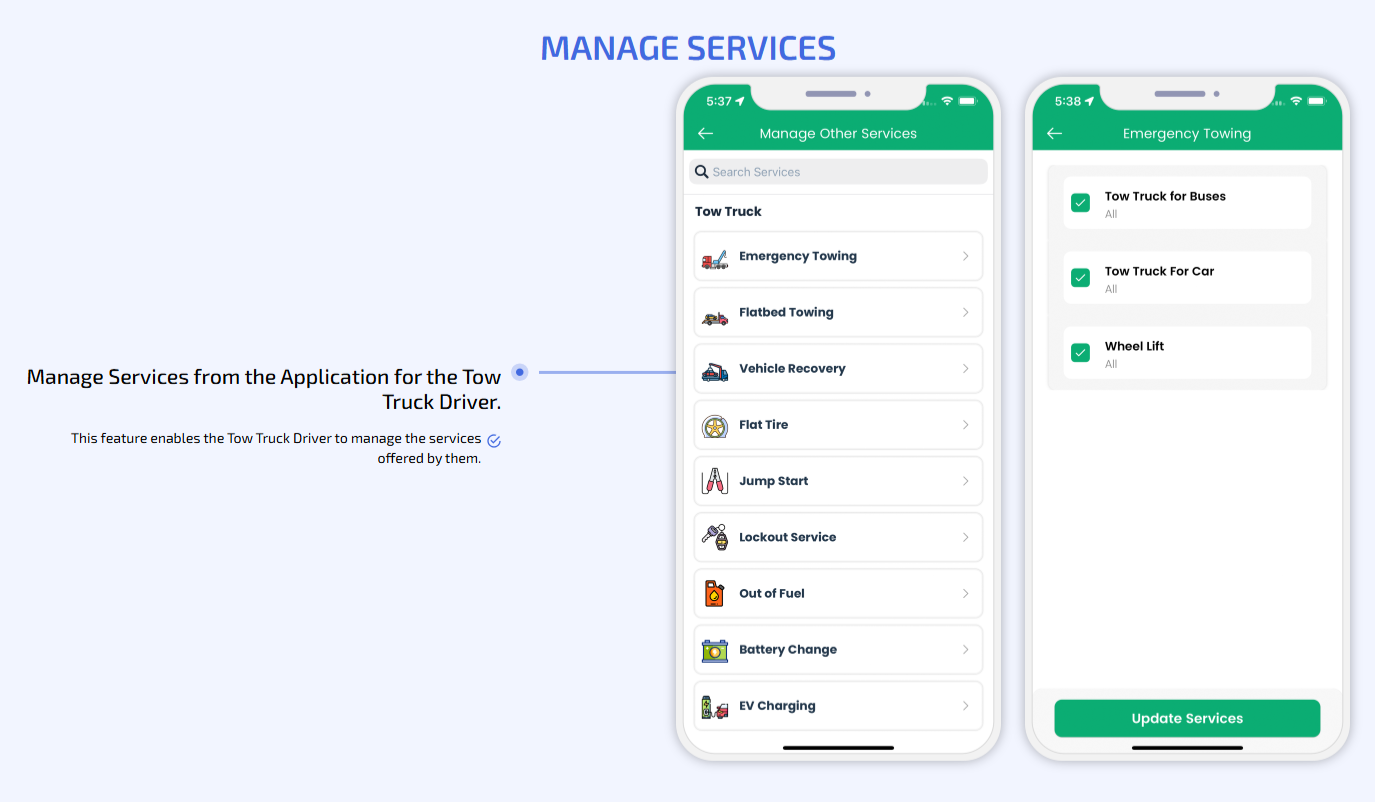
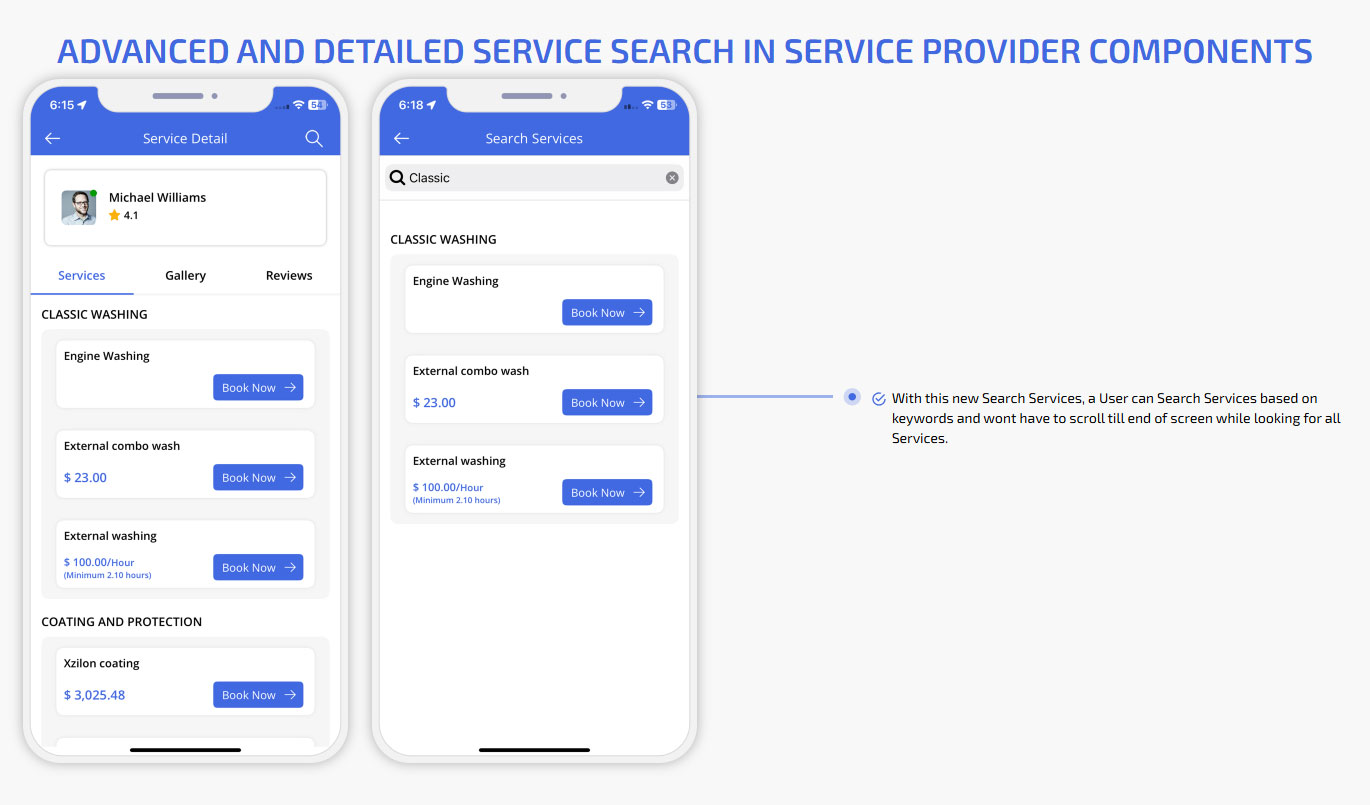
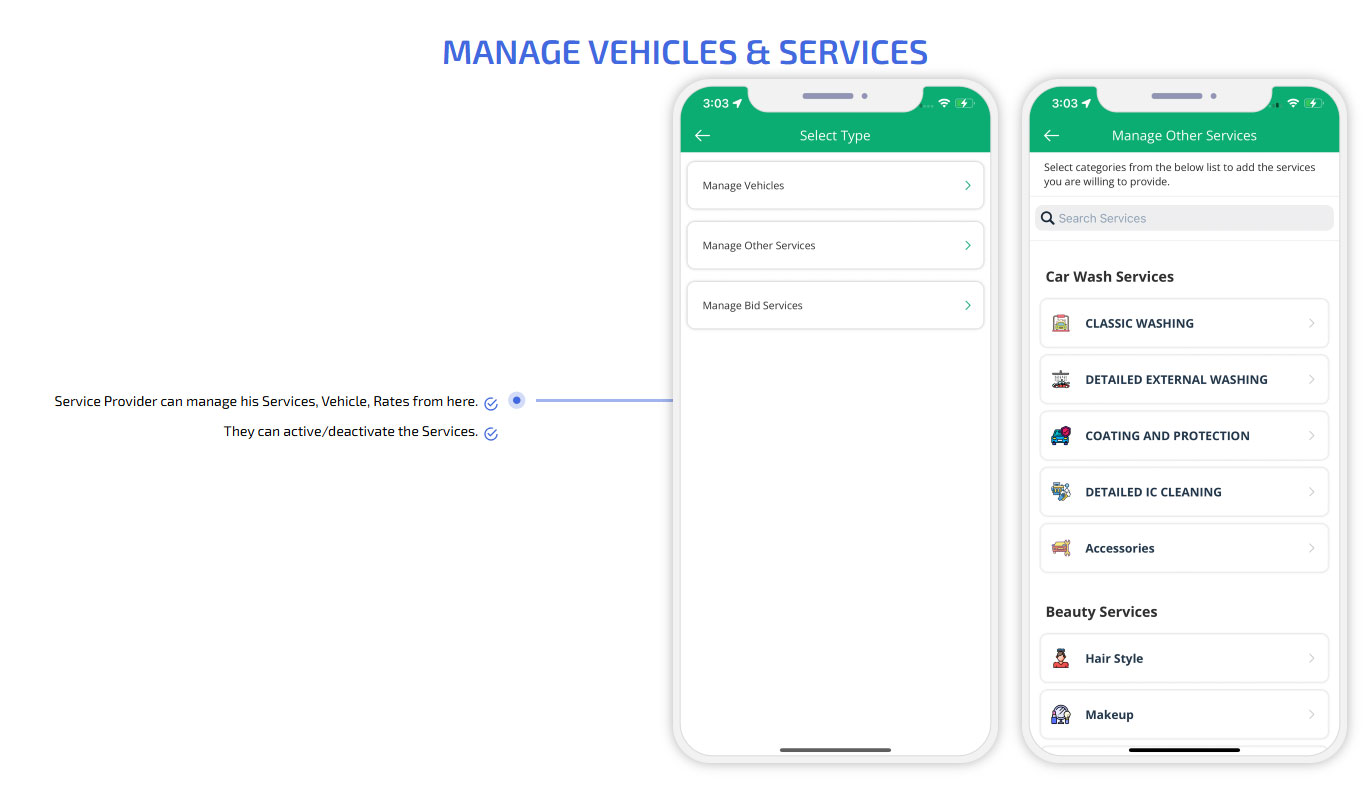
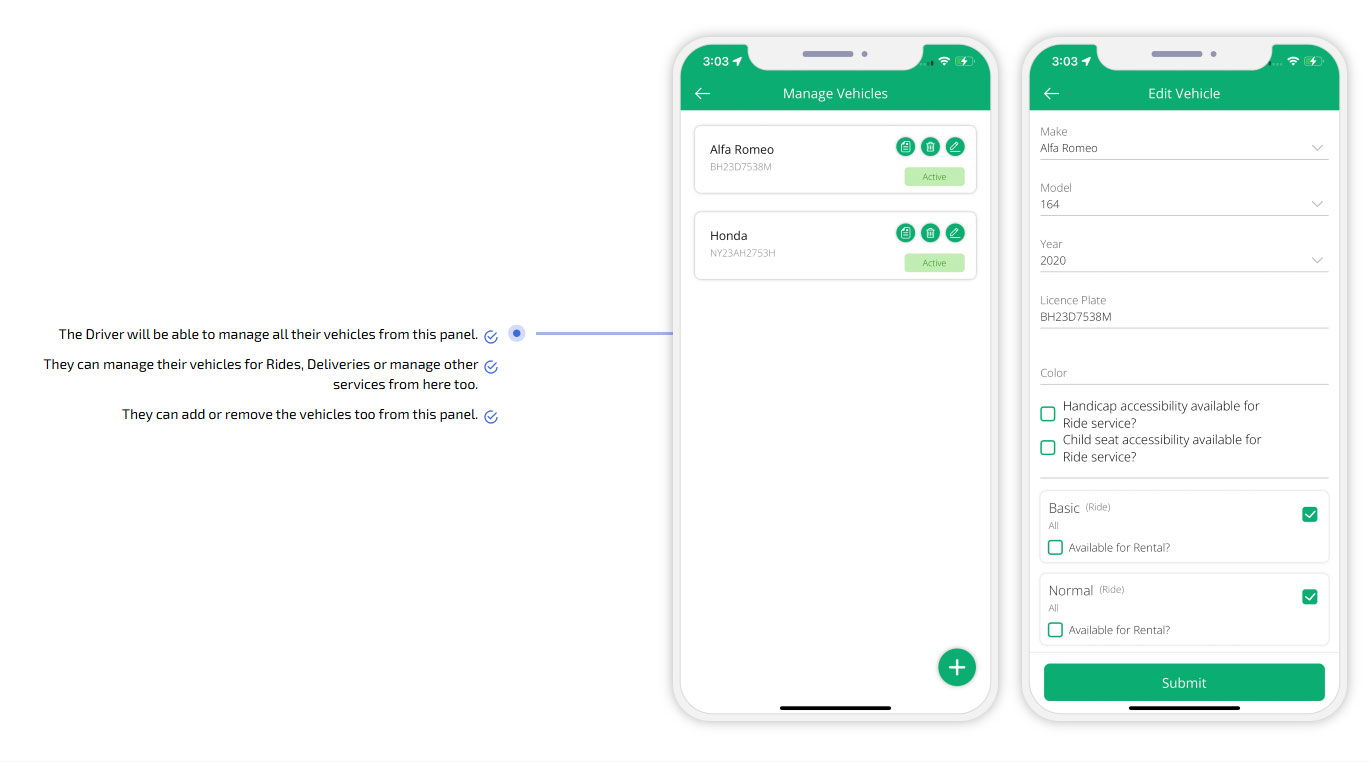
Manage Services
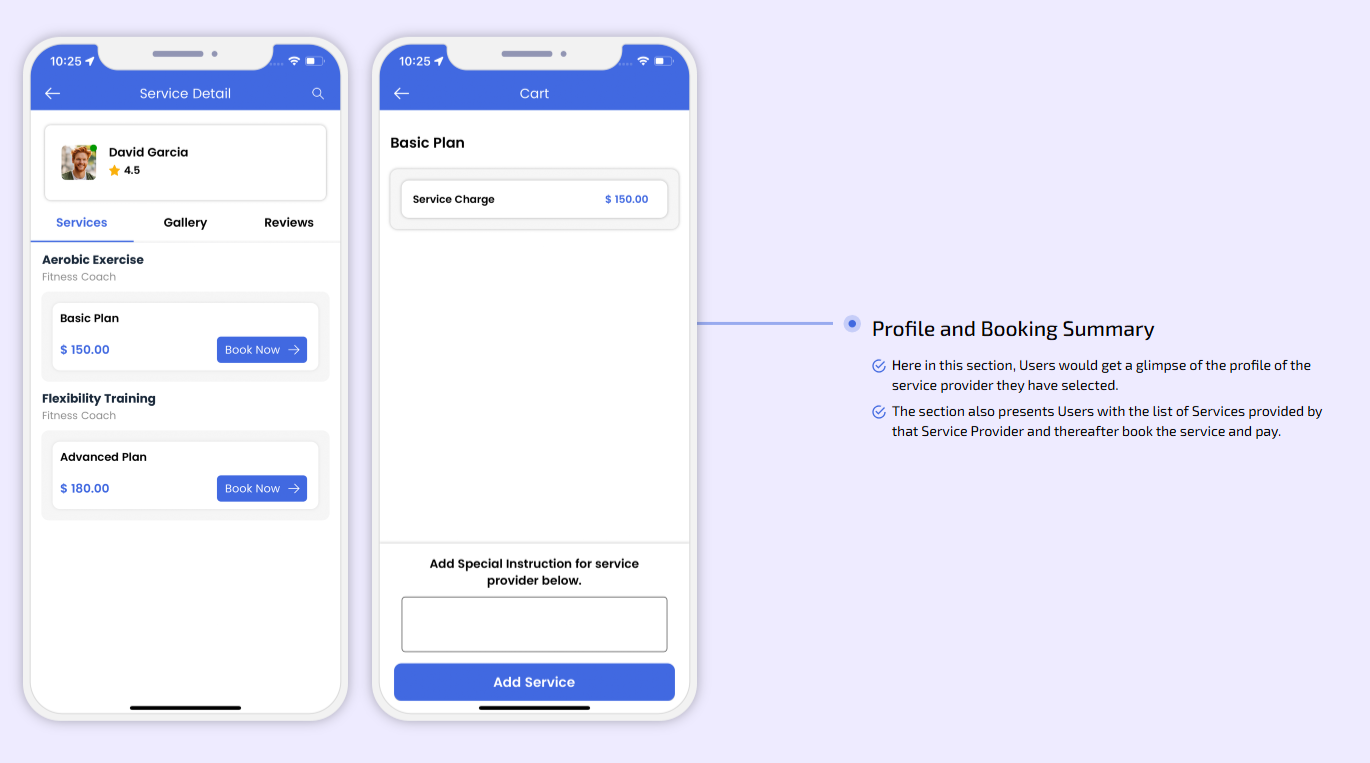
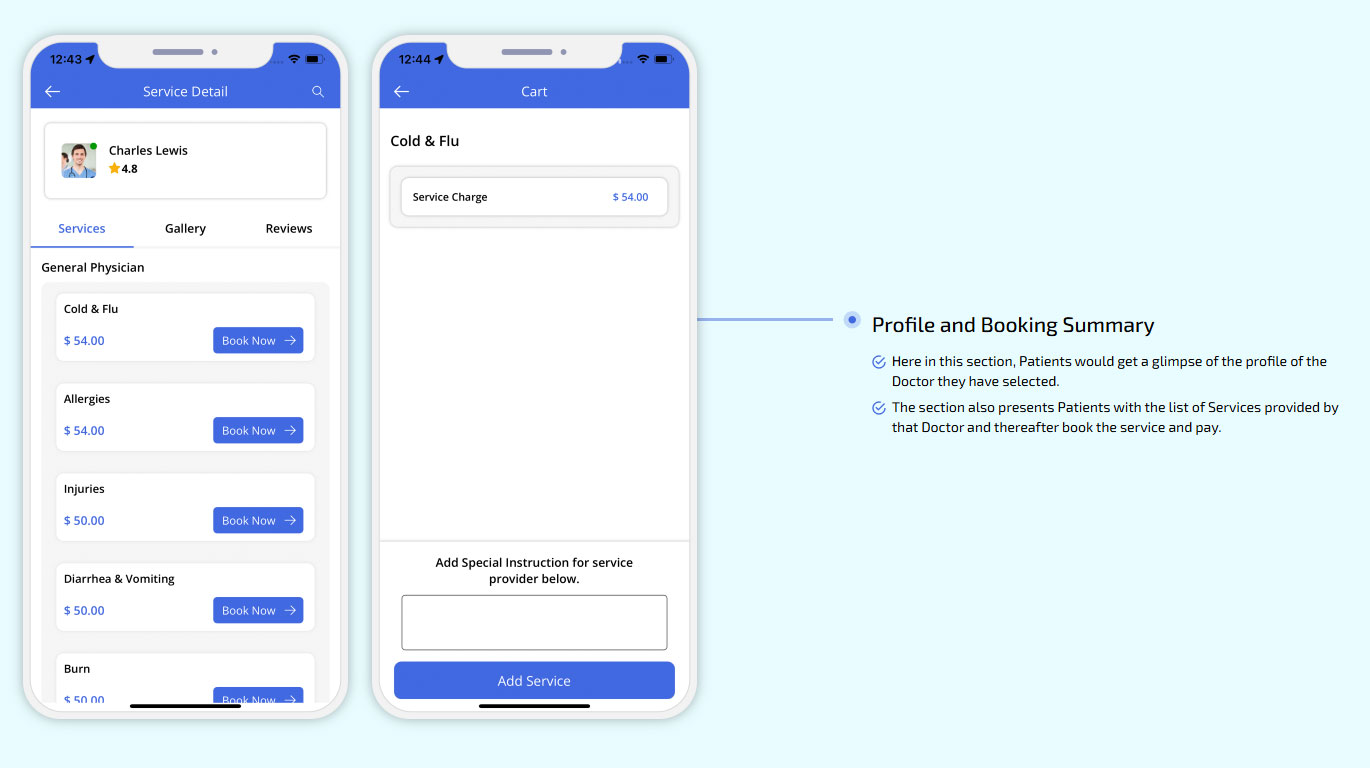
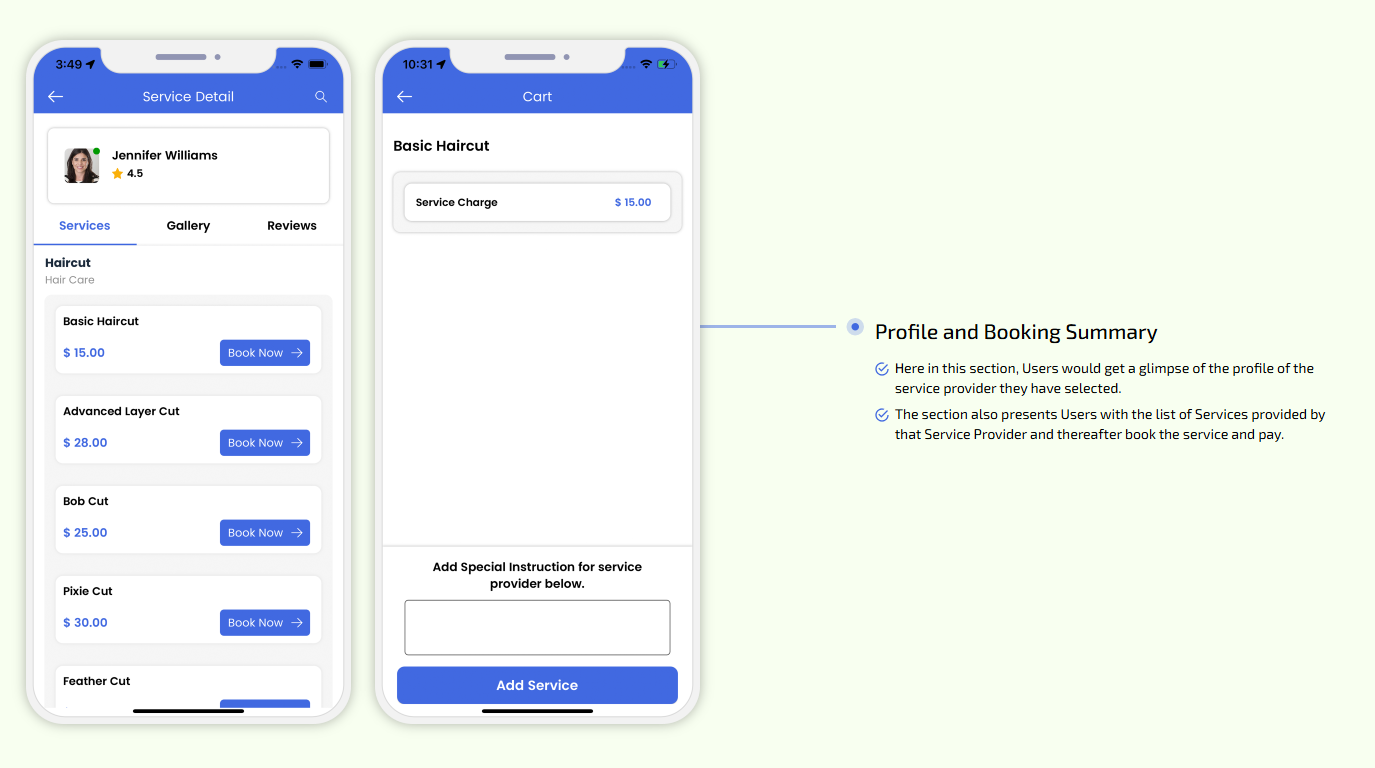
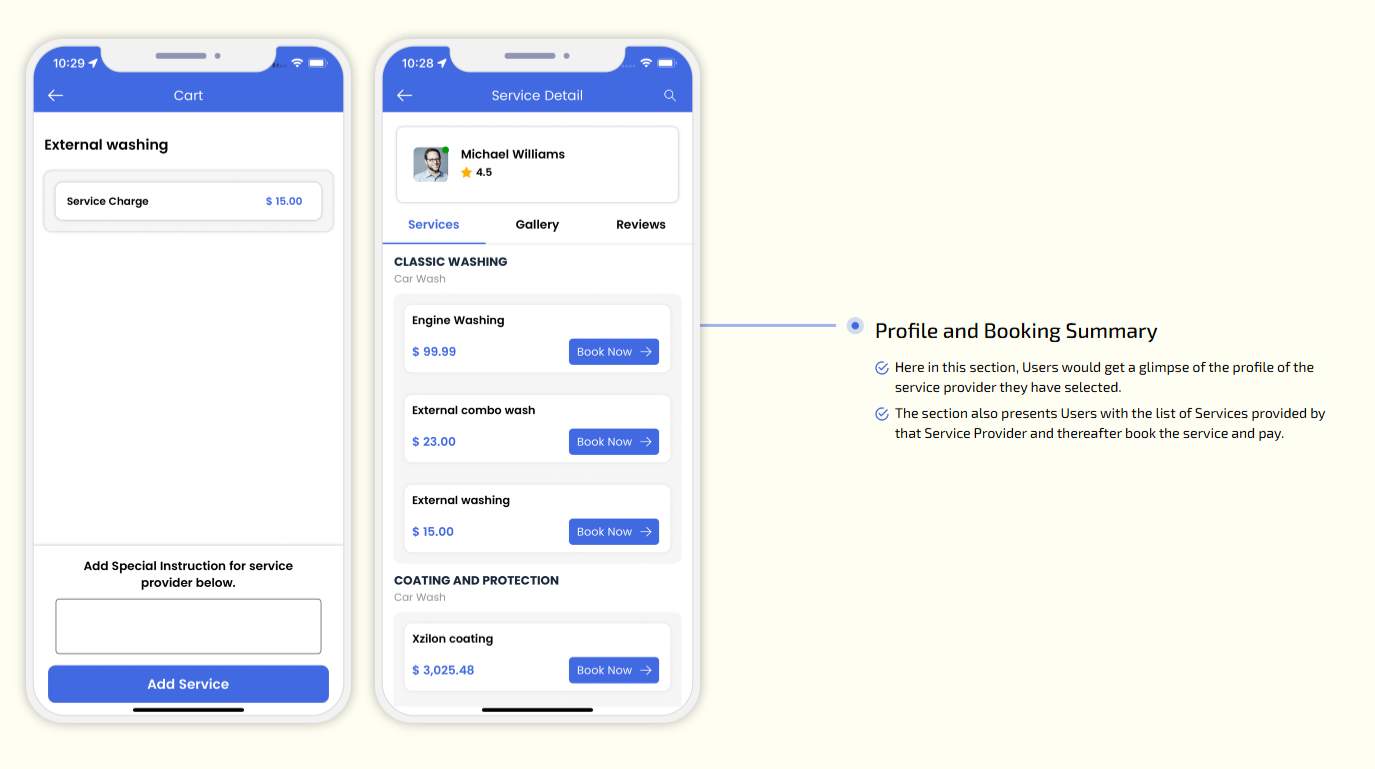
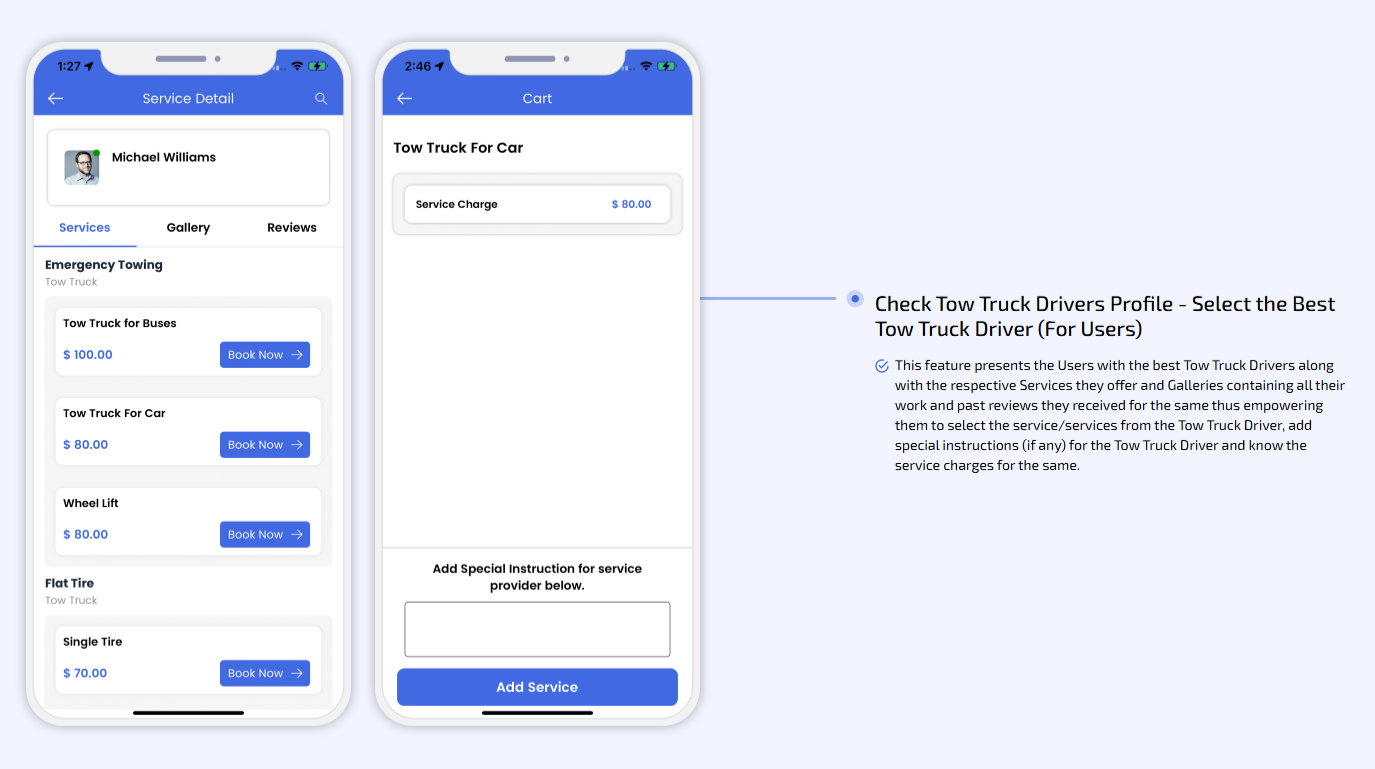
Profile and Booking Summary
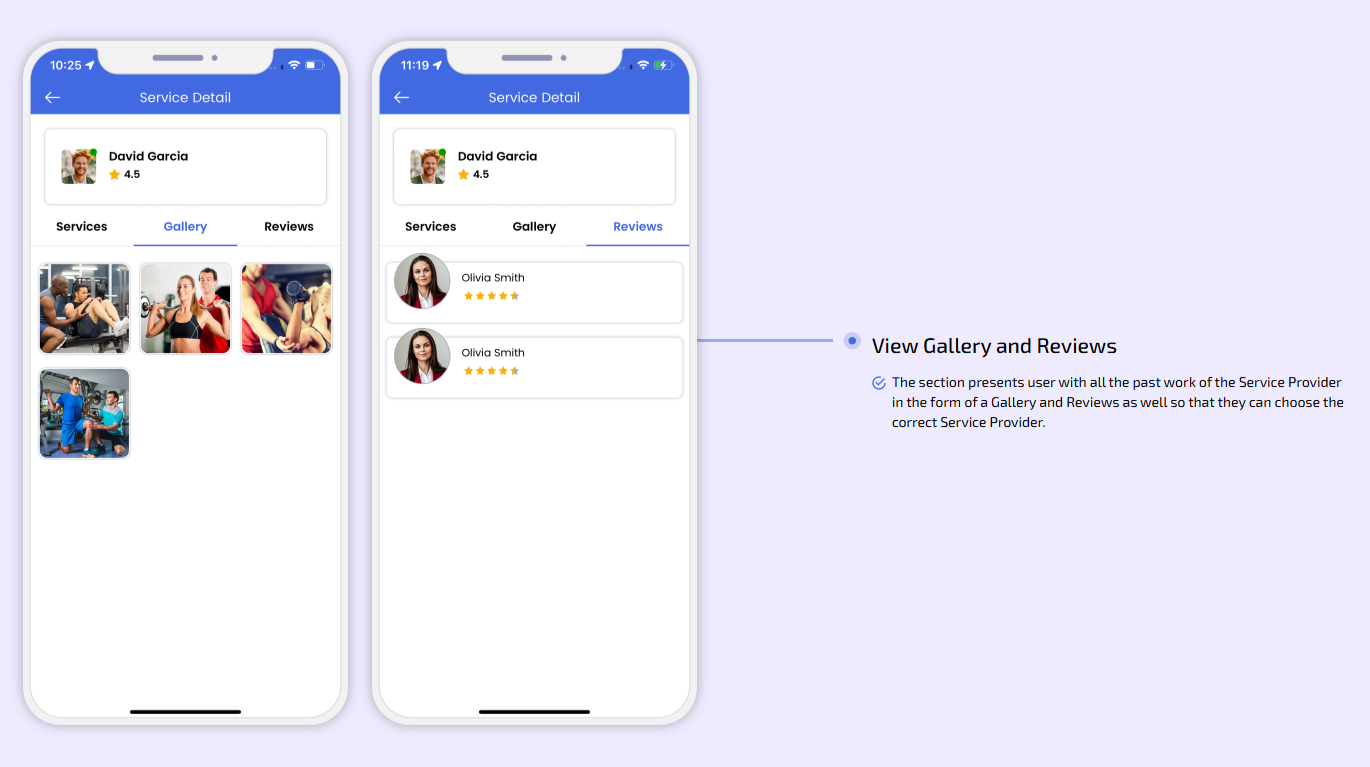
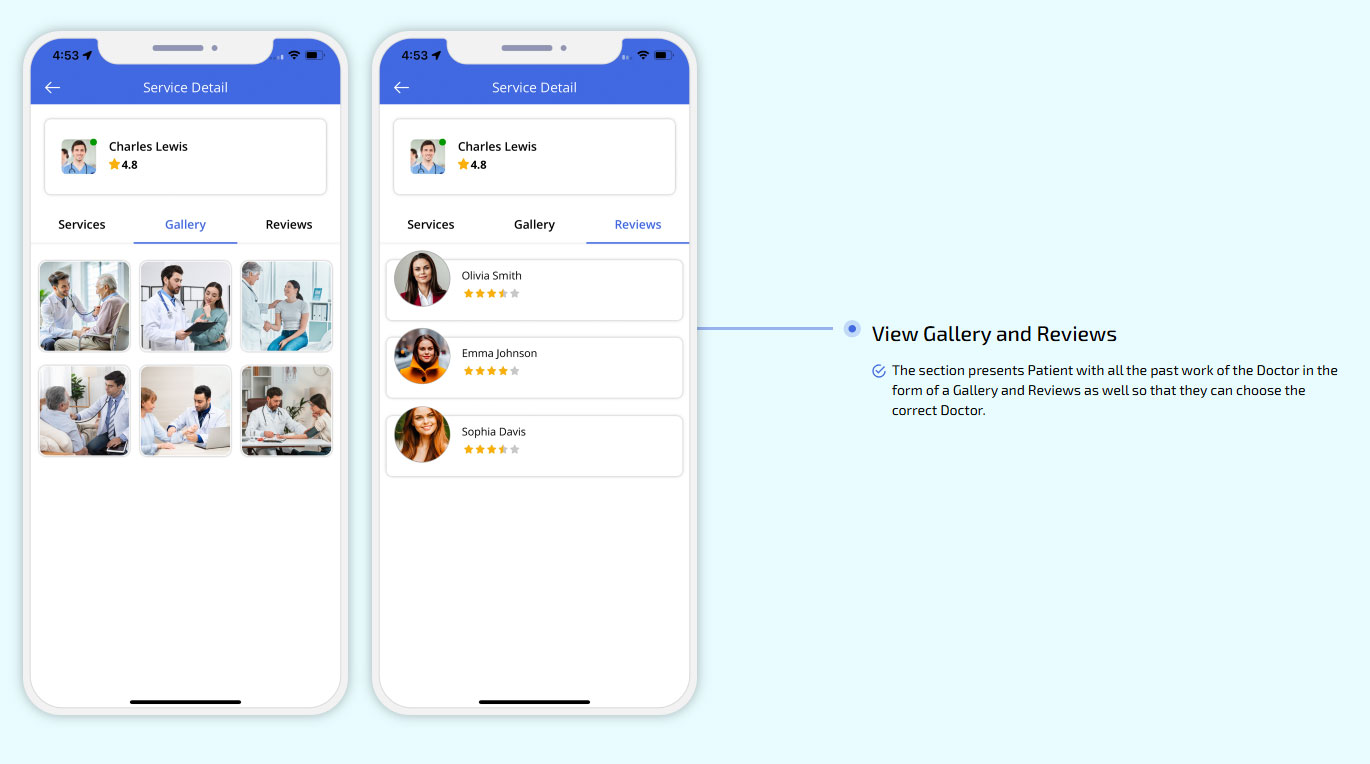
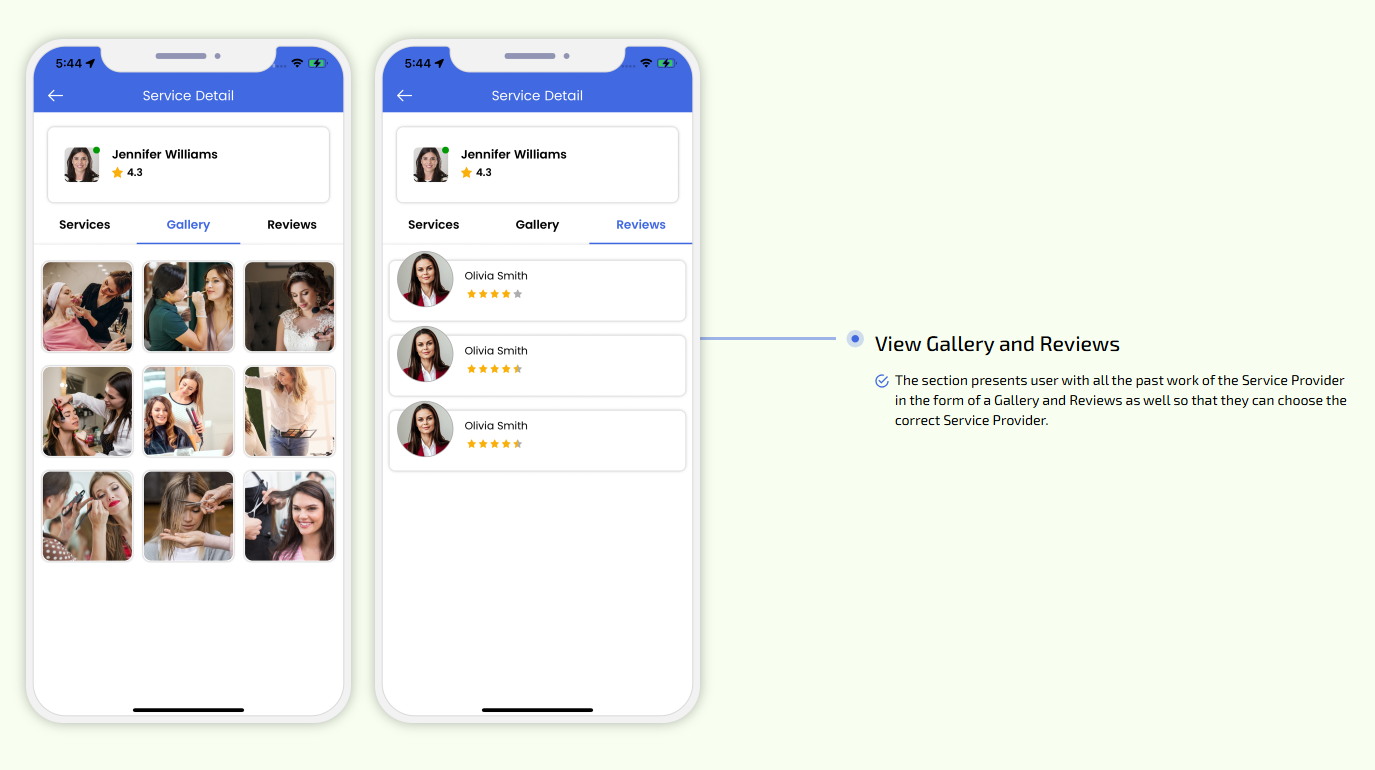
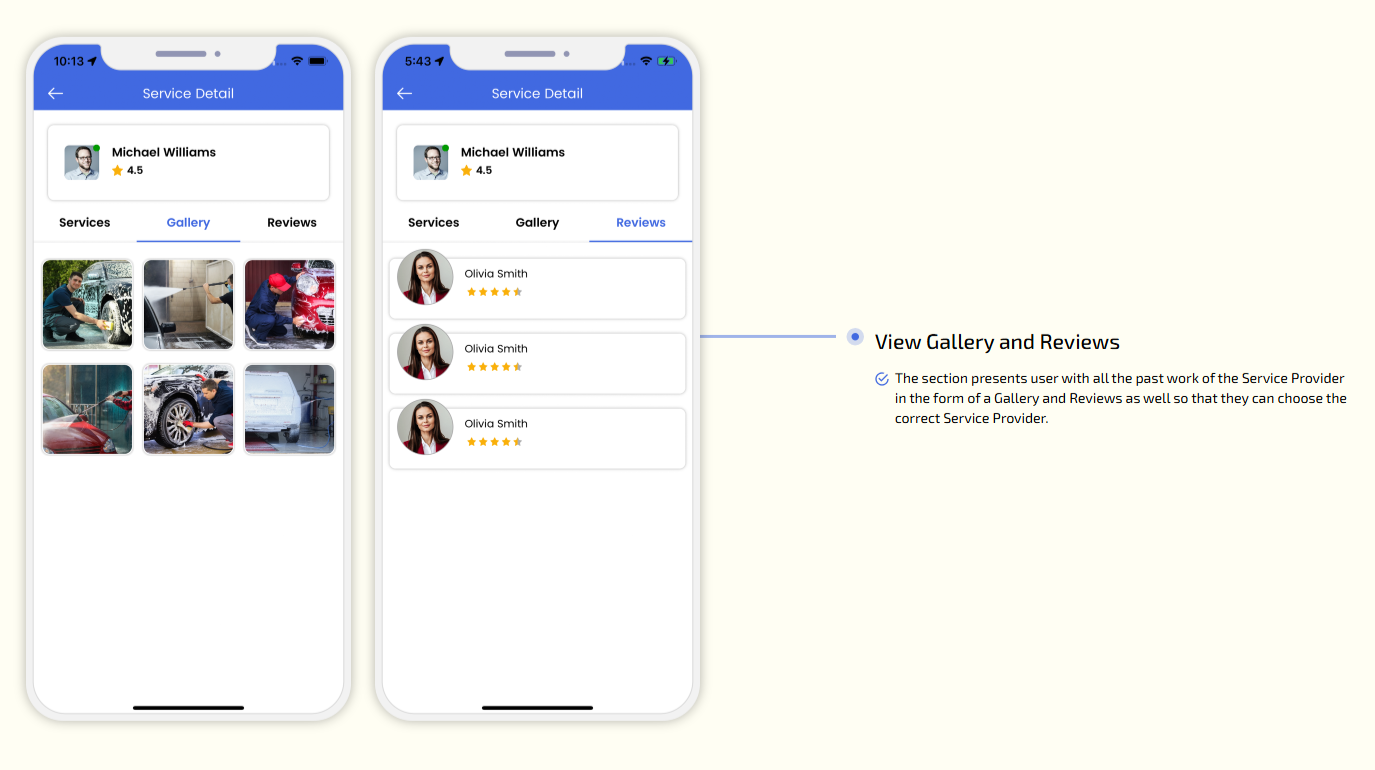
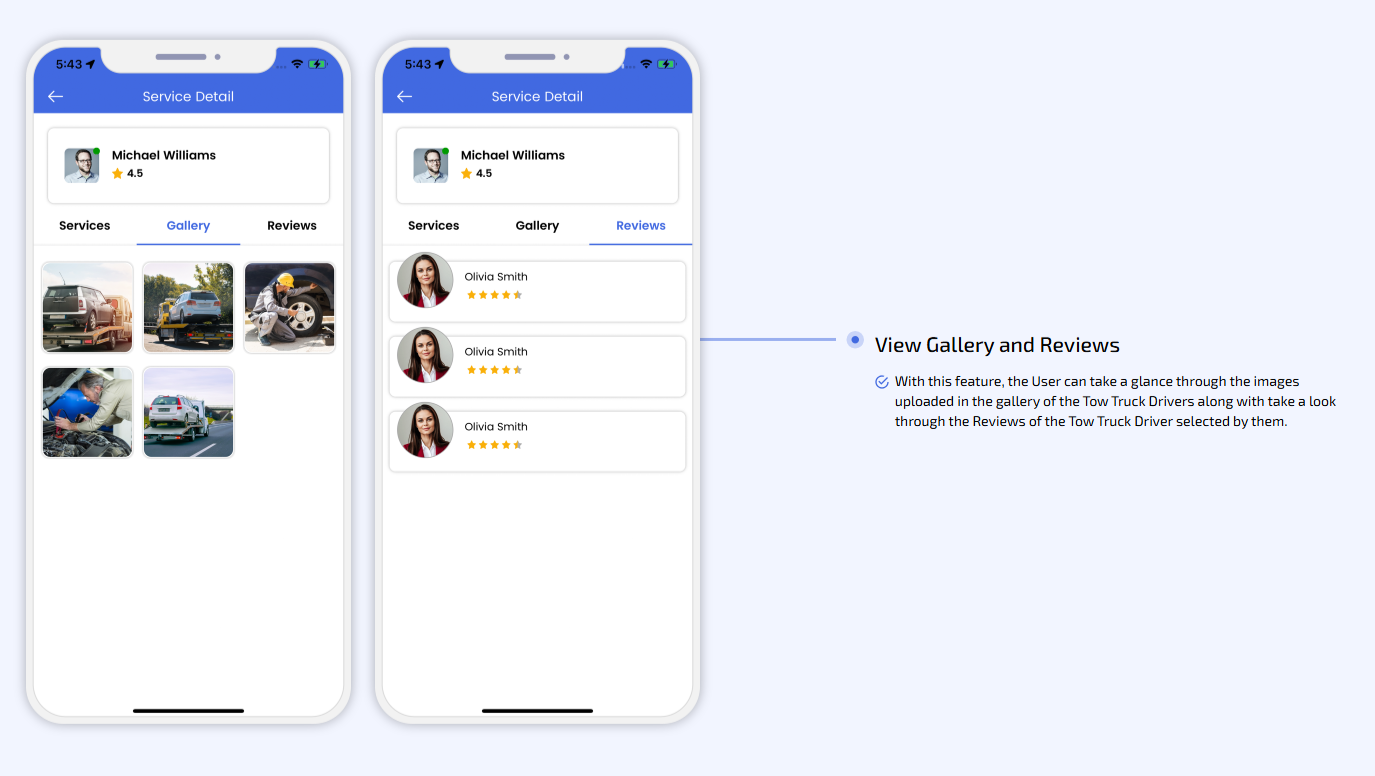
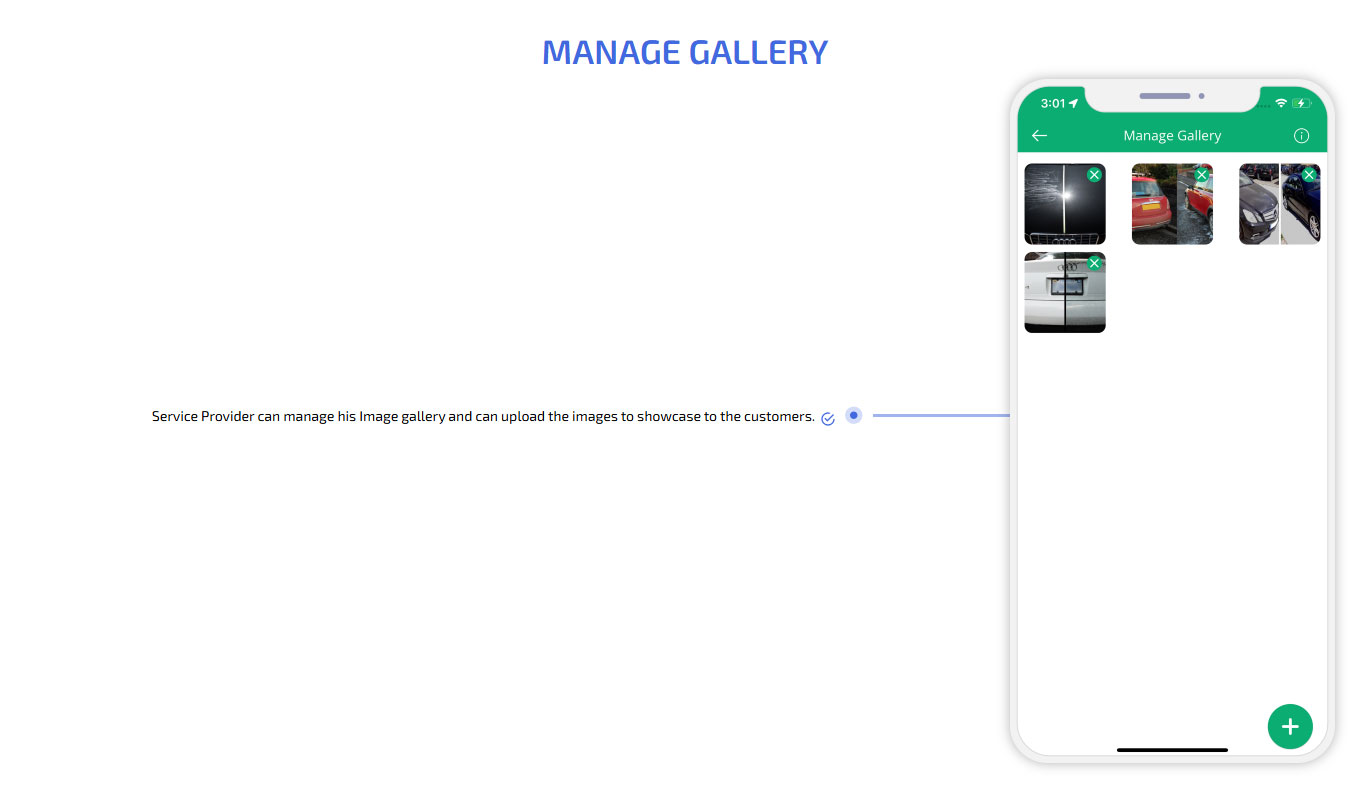
View Gallery and Reviews
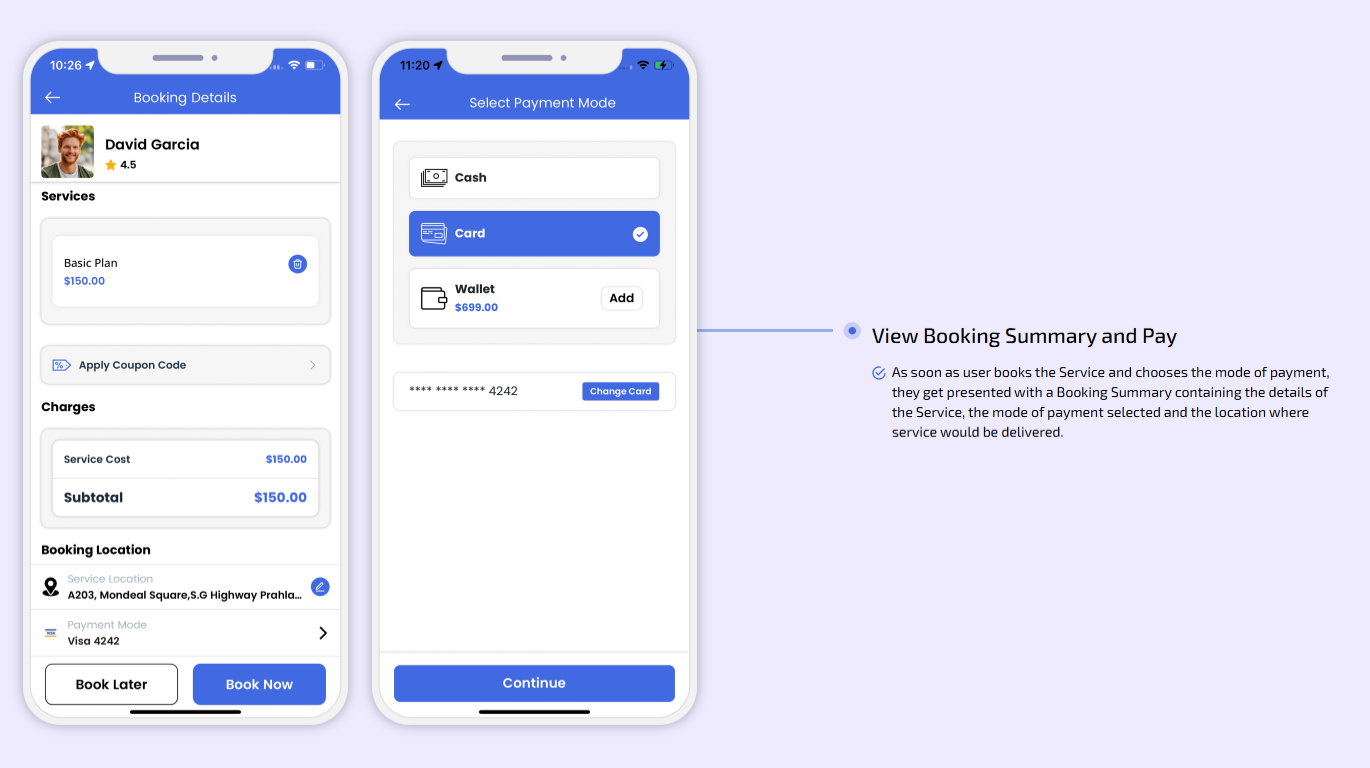
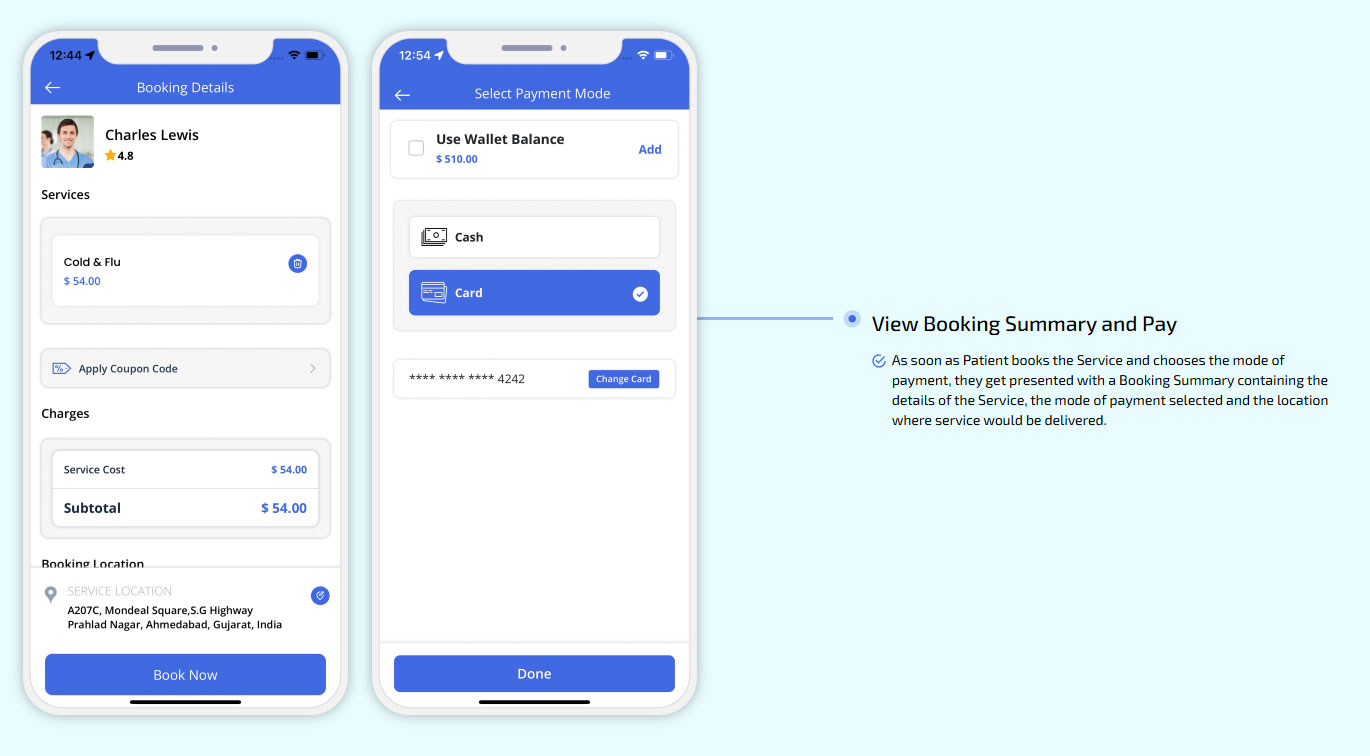
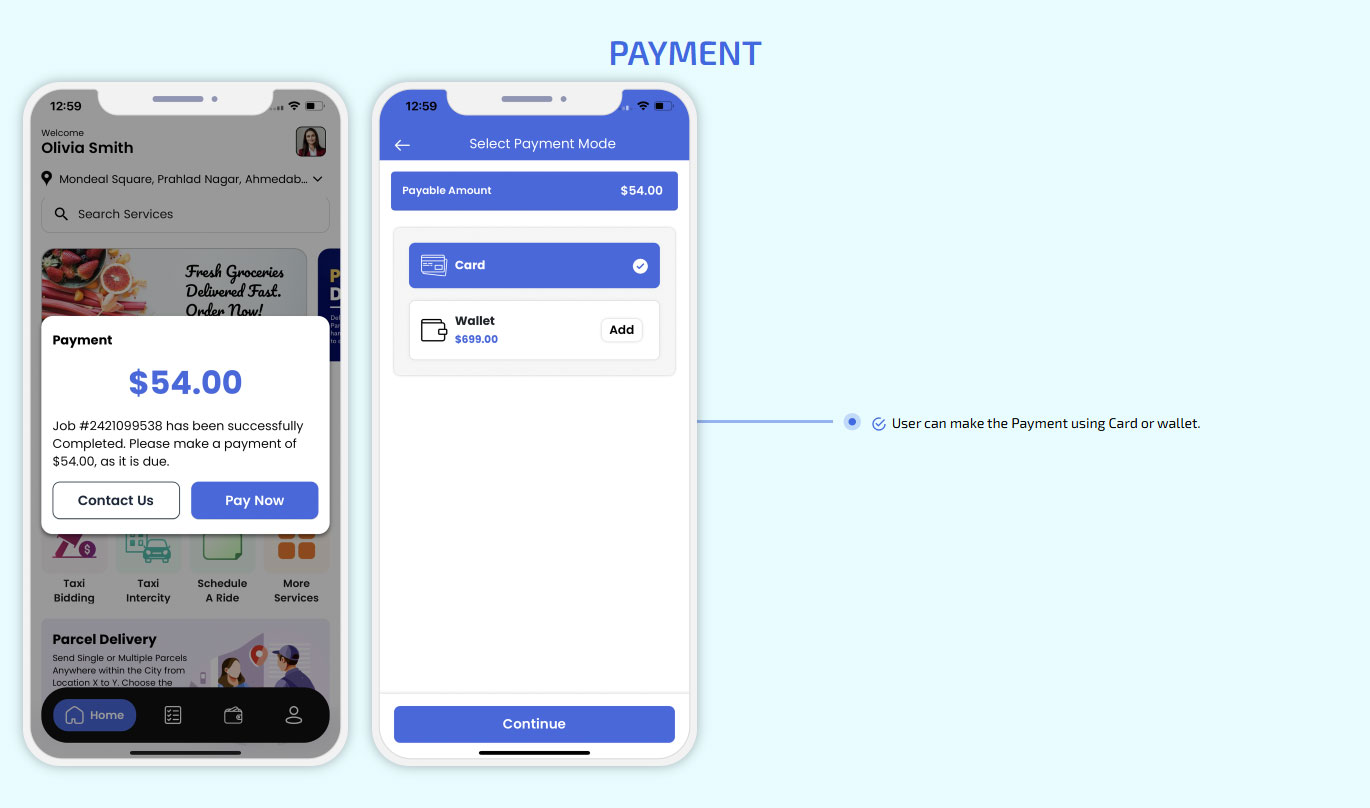
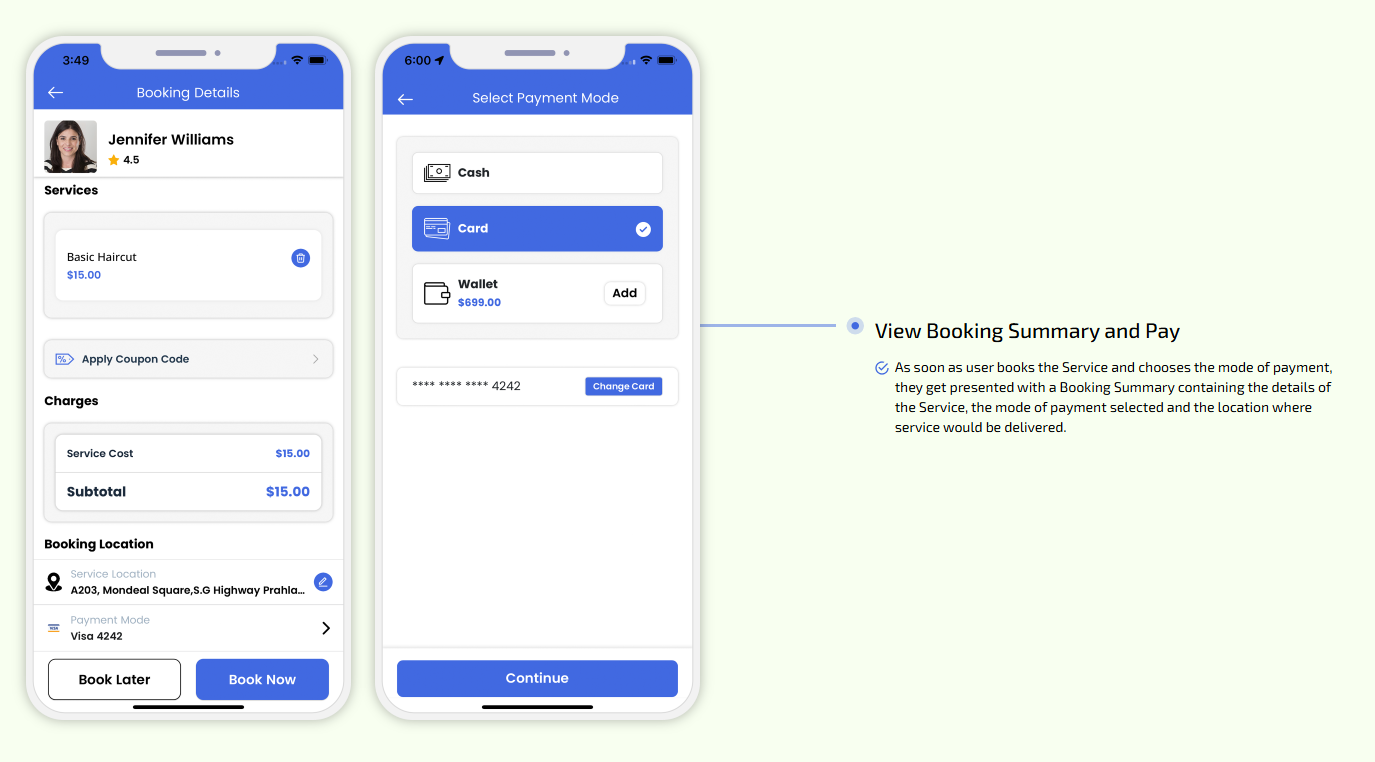
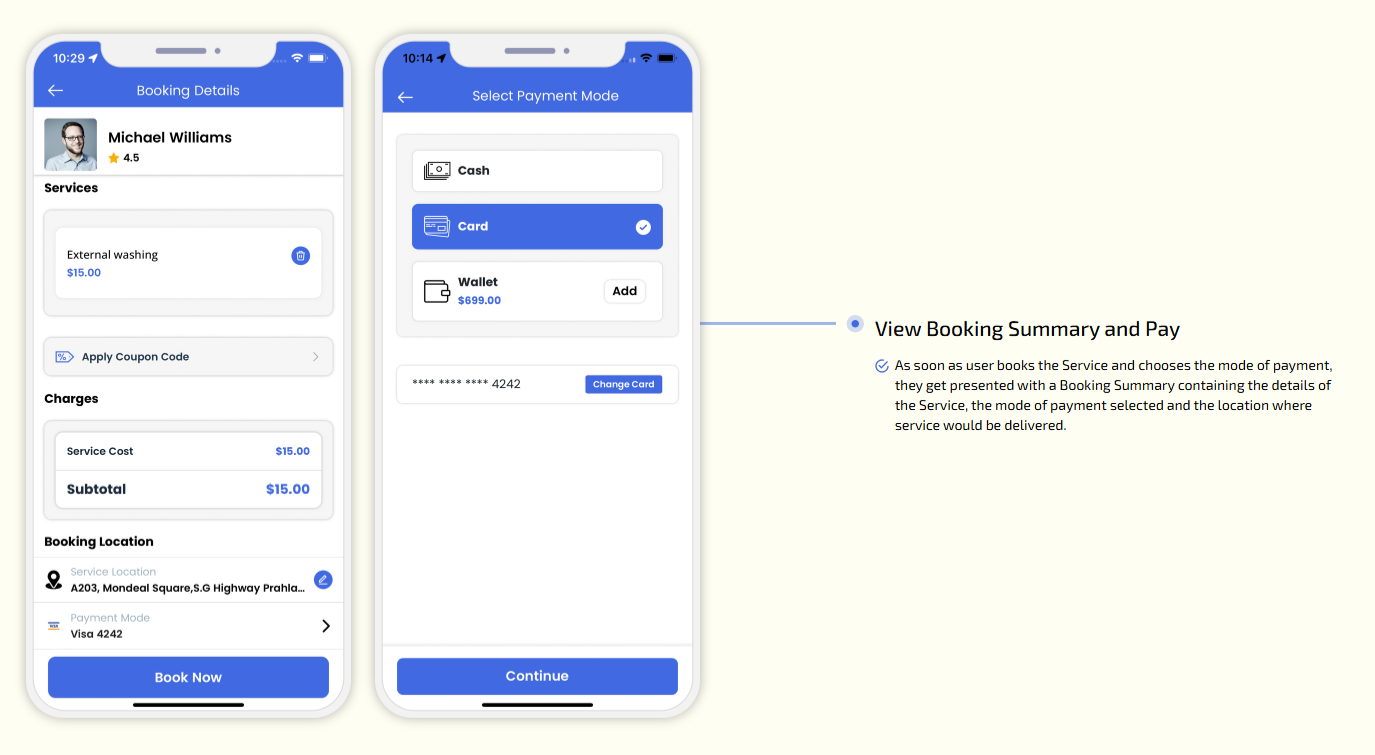
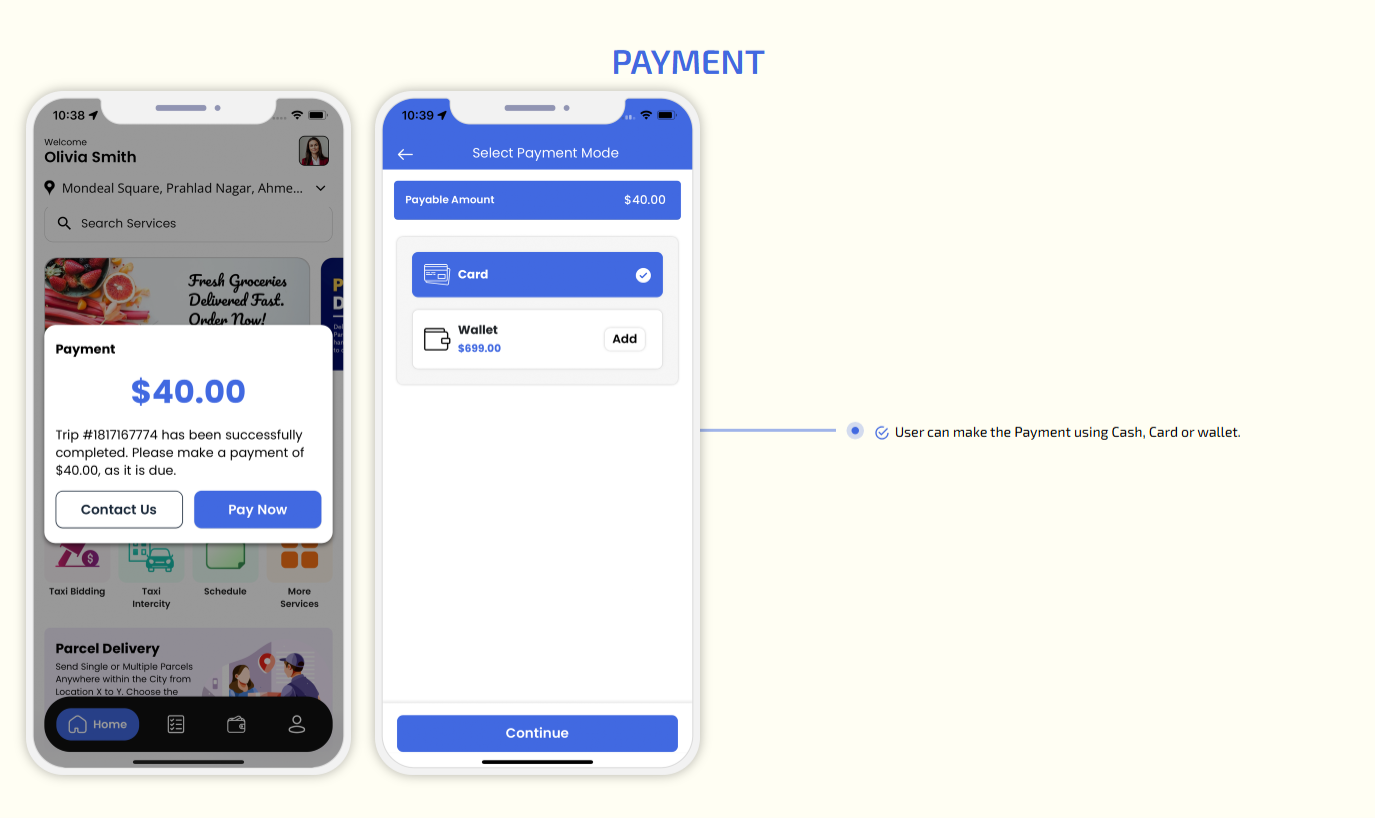
View Booking Summary and Pay
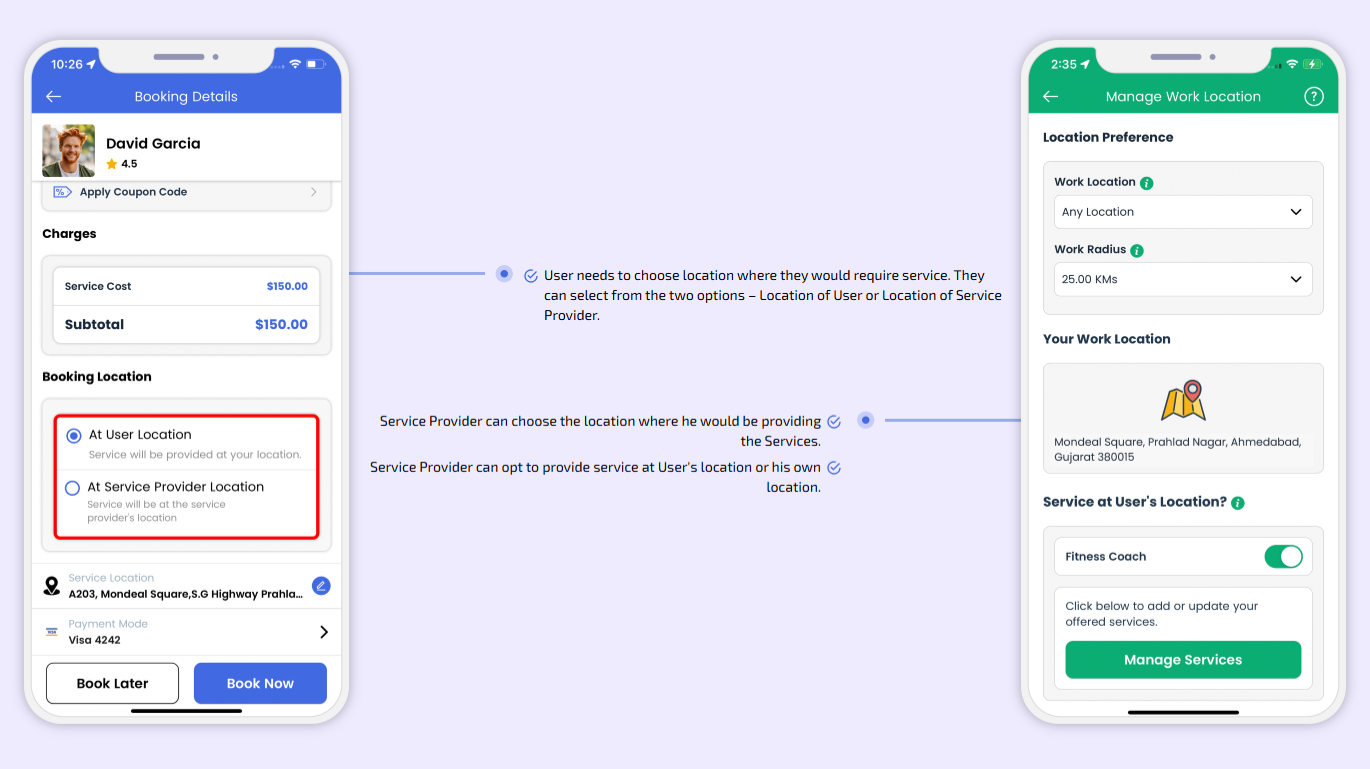
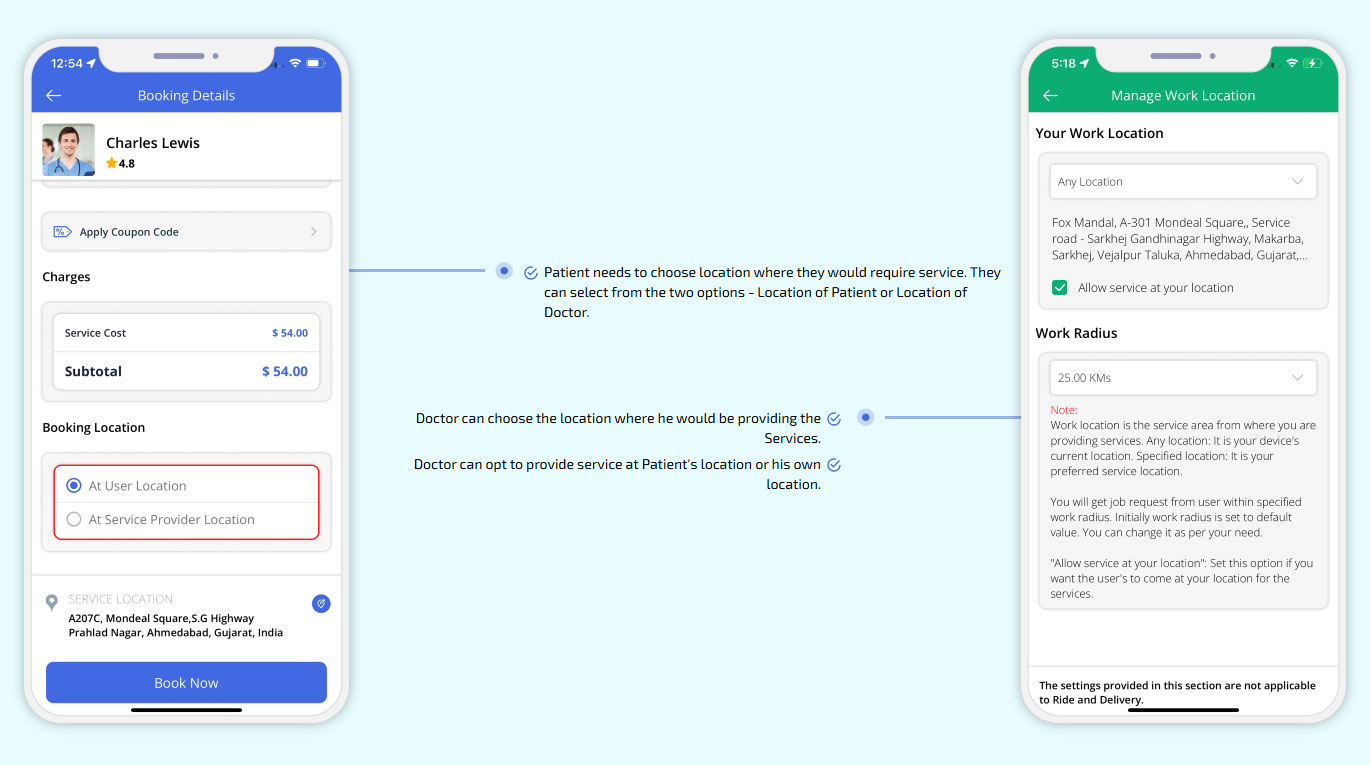
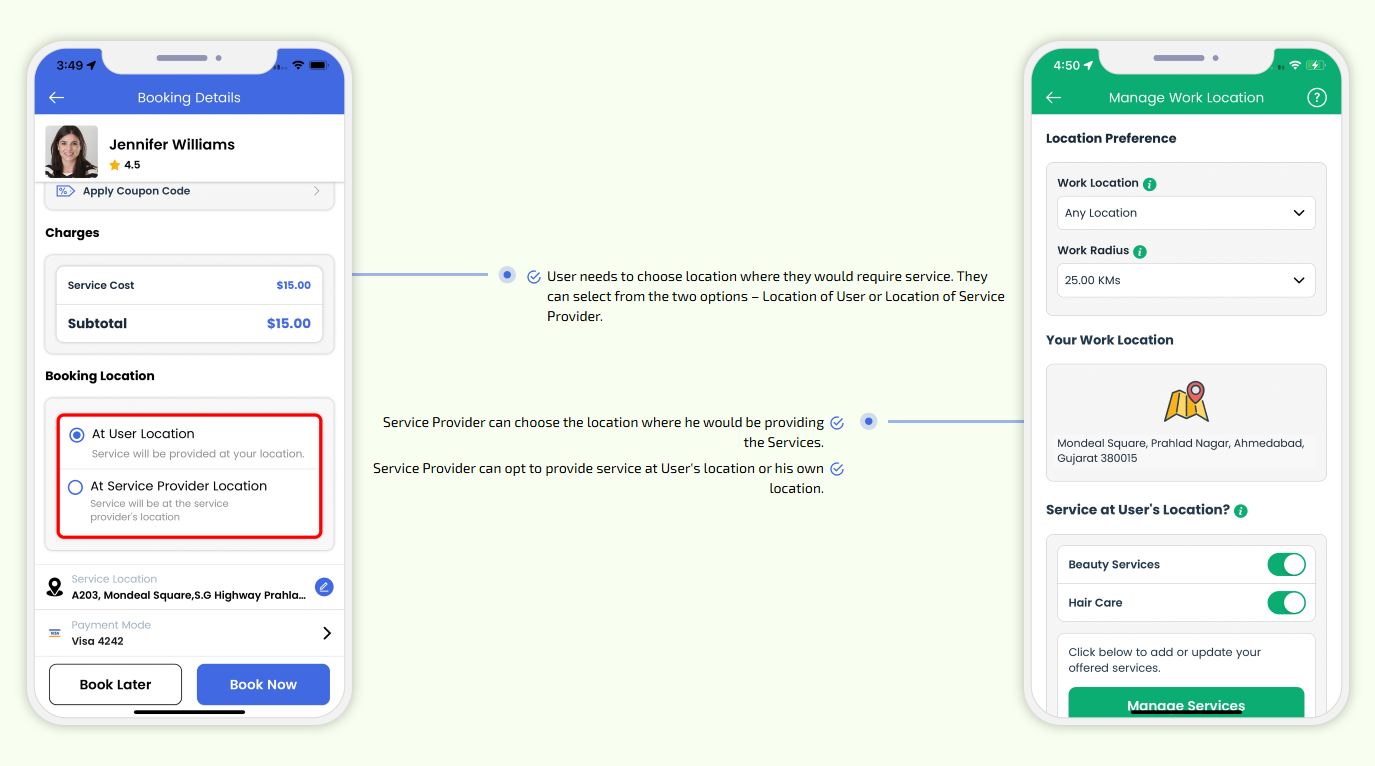
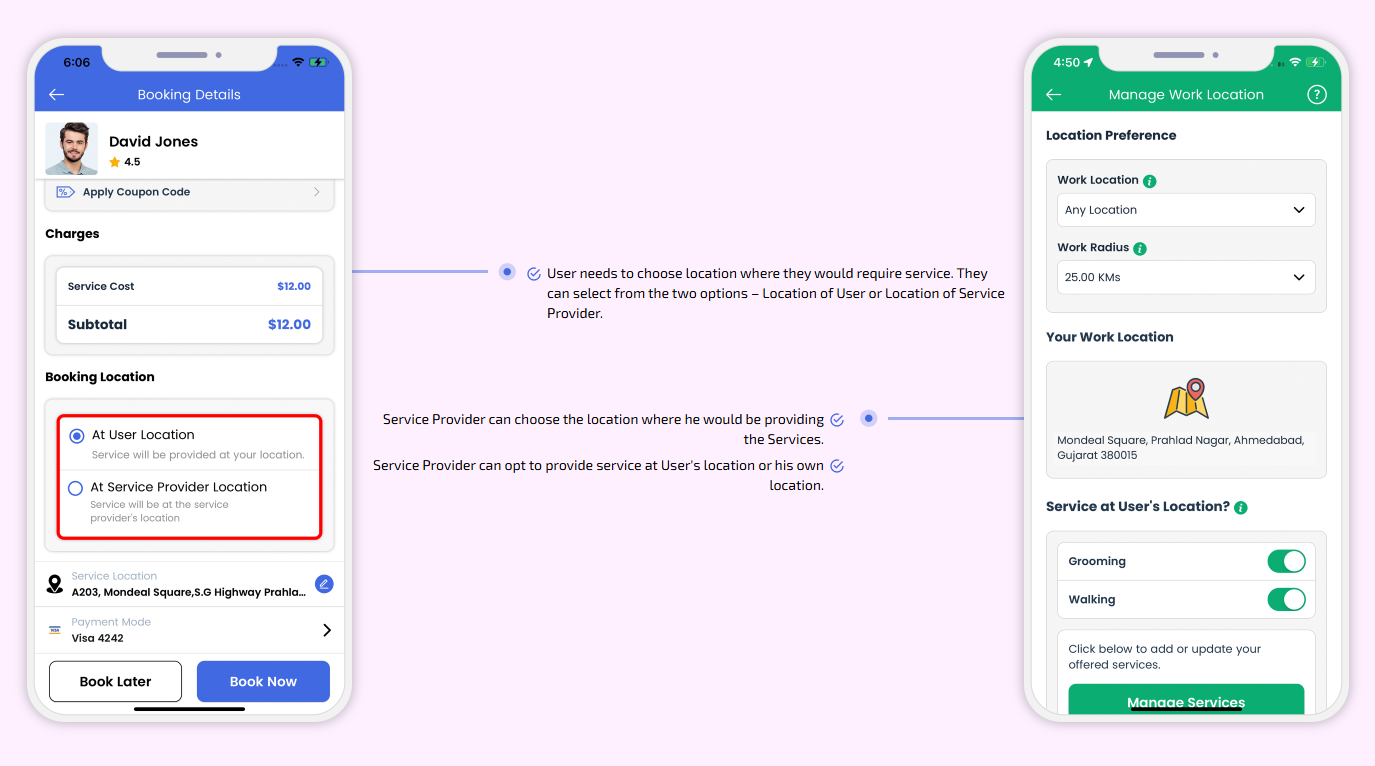
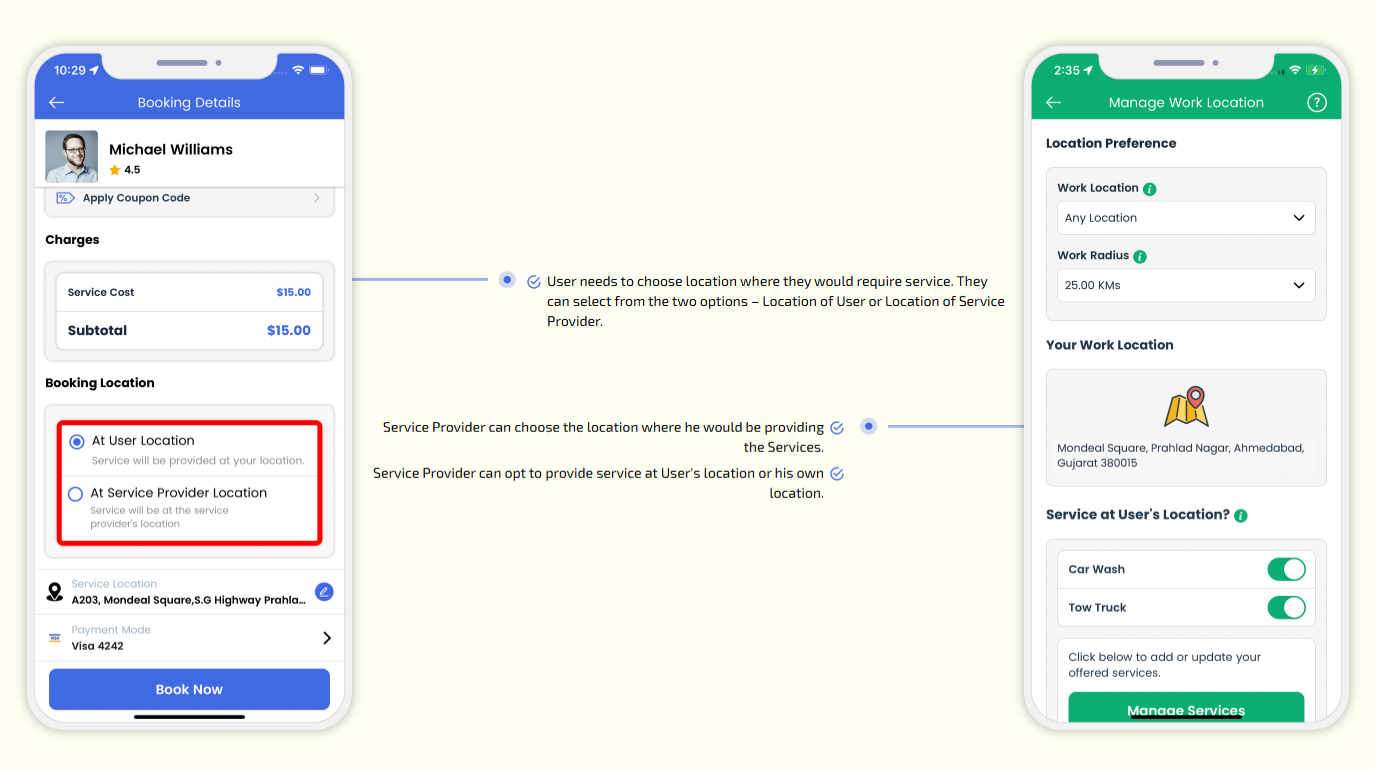
Doctor can choose the location where he would be providing the Services.
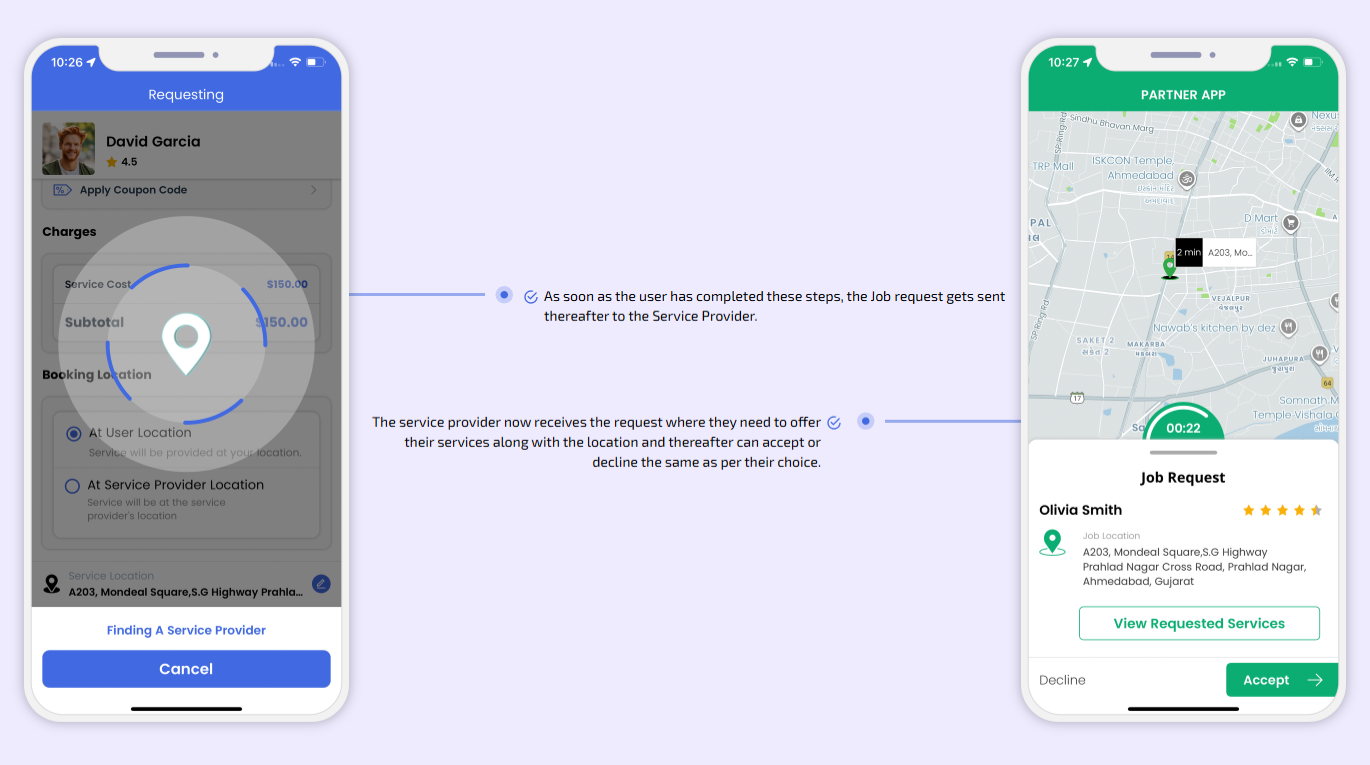
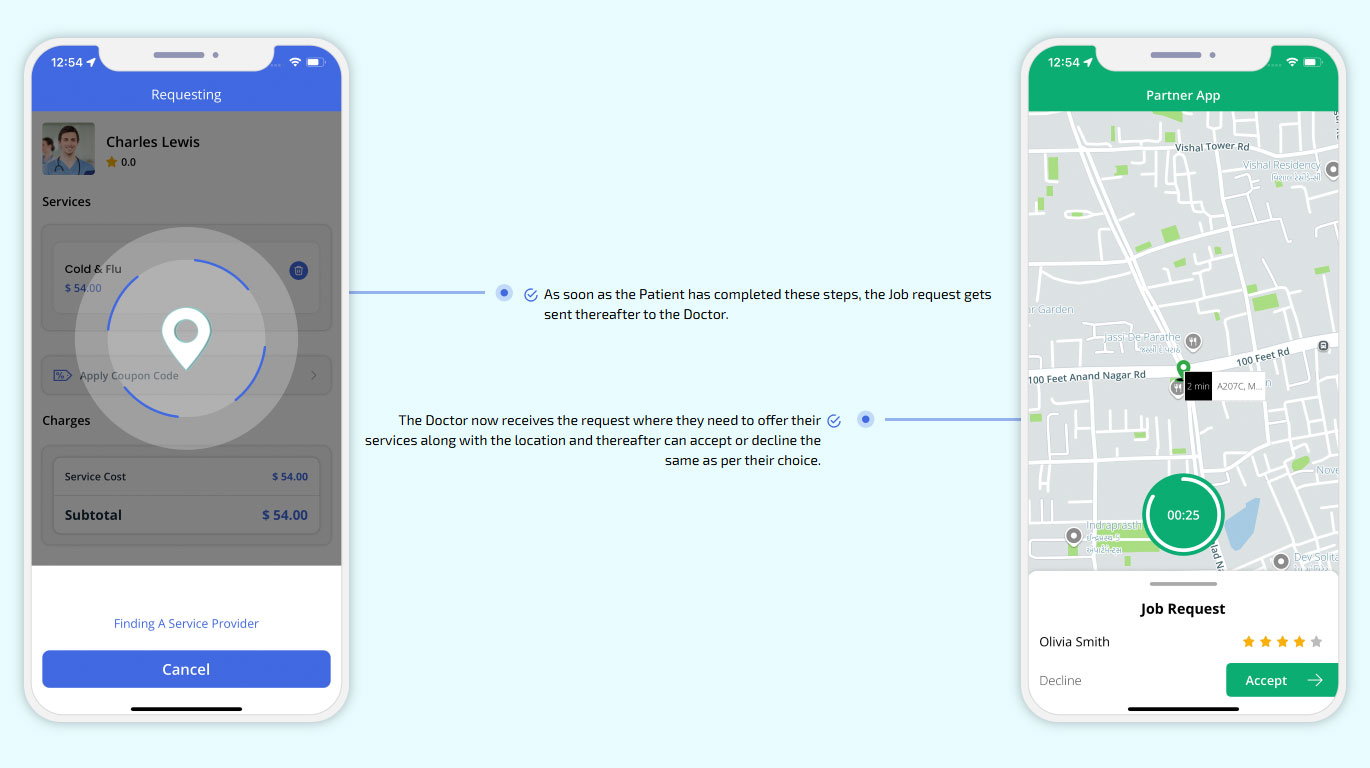
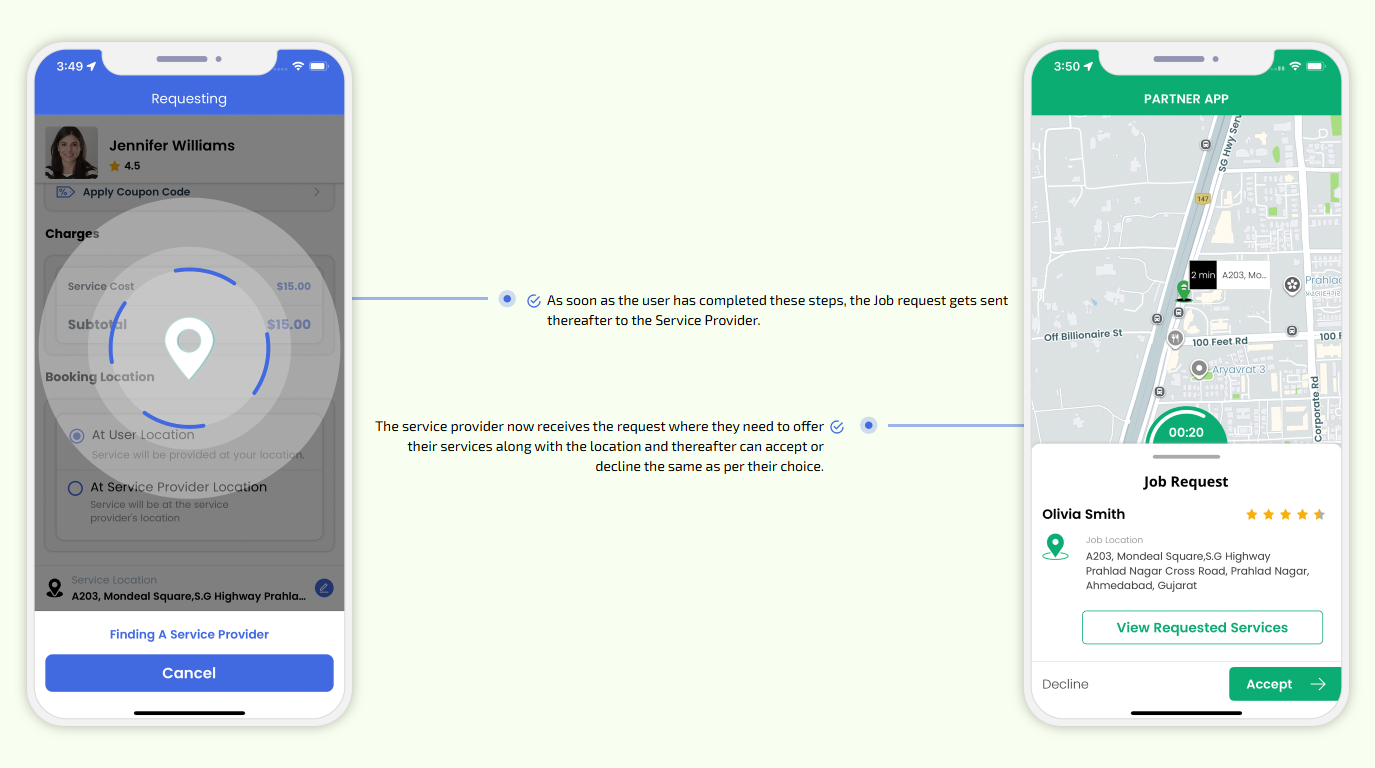
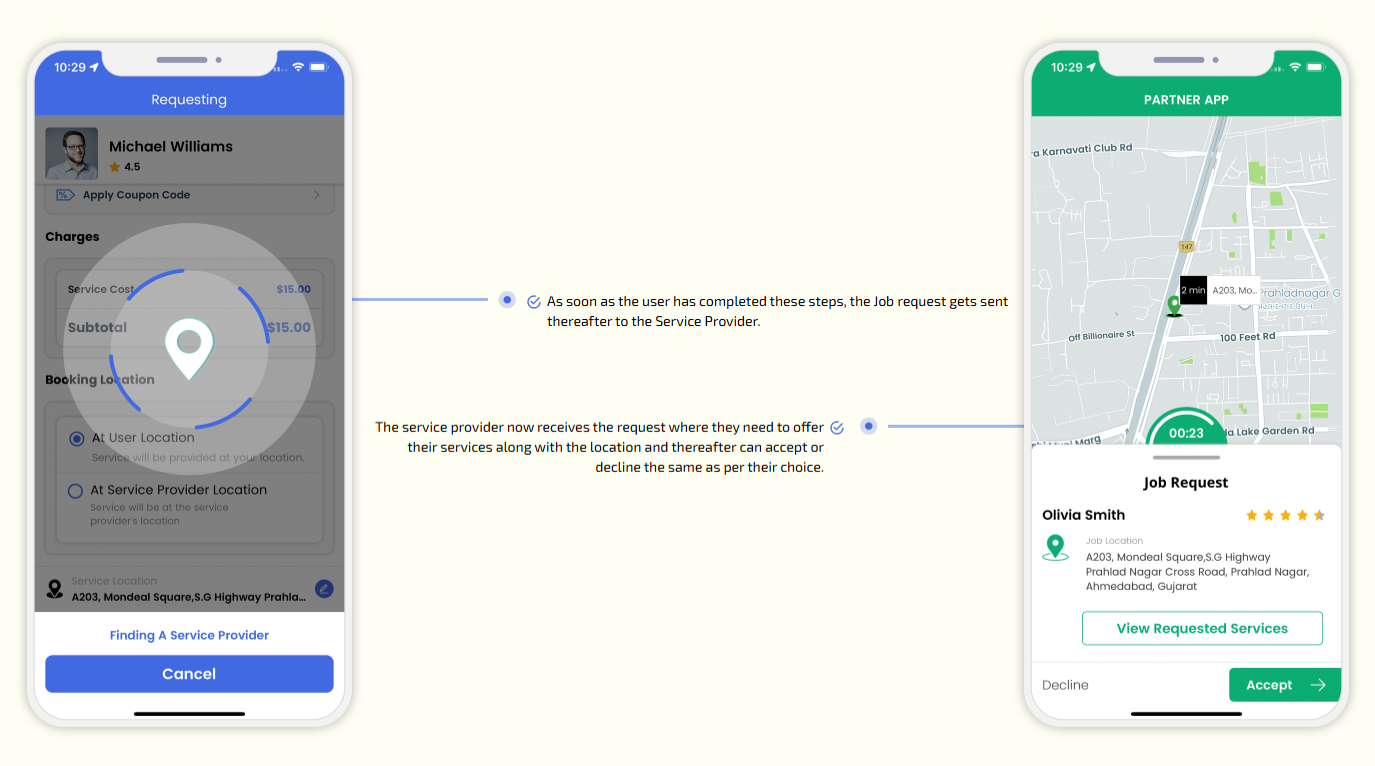
As soon as the Patient has completed these steps, the Job request gets sent thereafter to the Doctor.
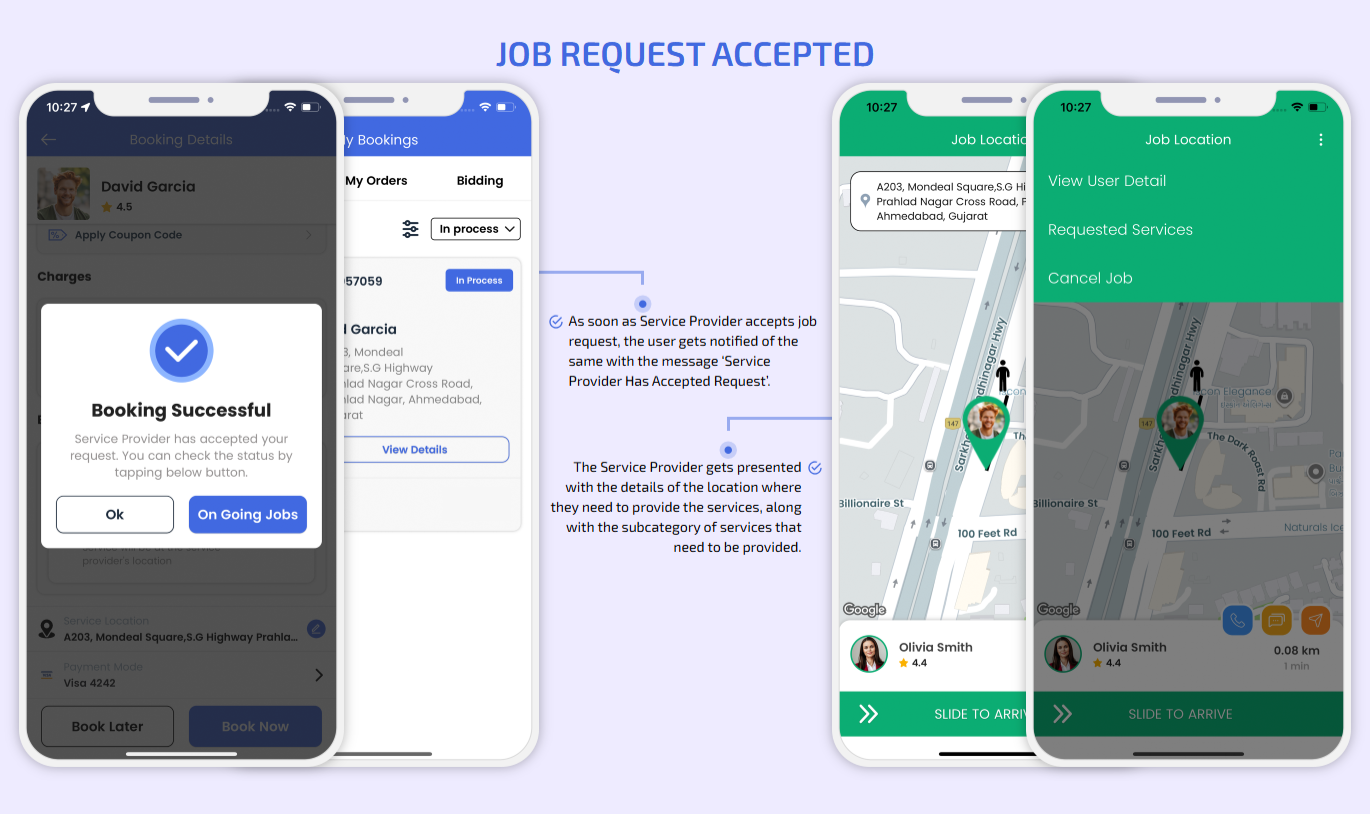
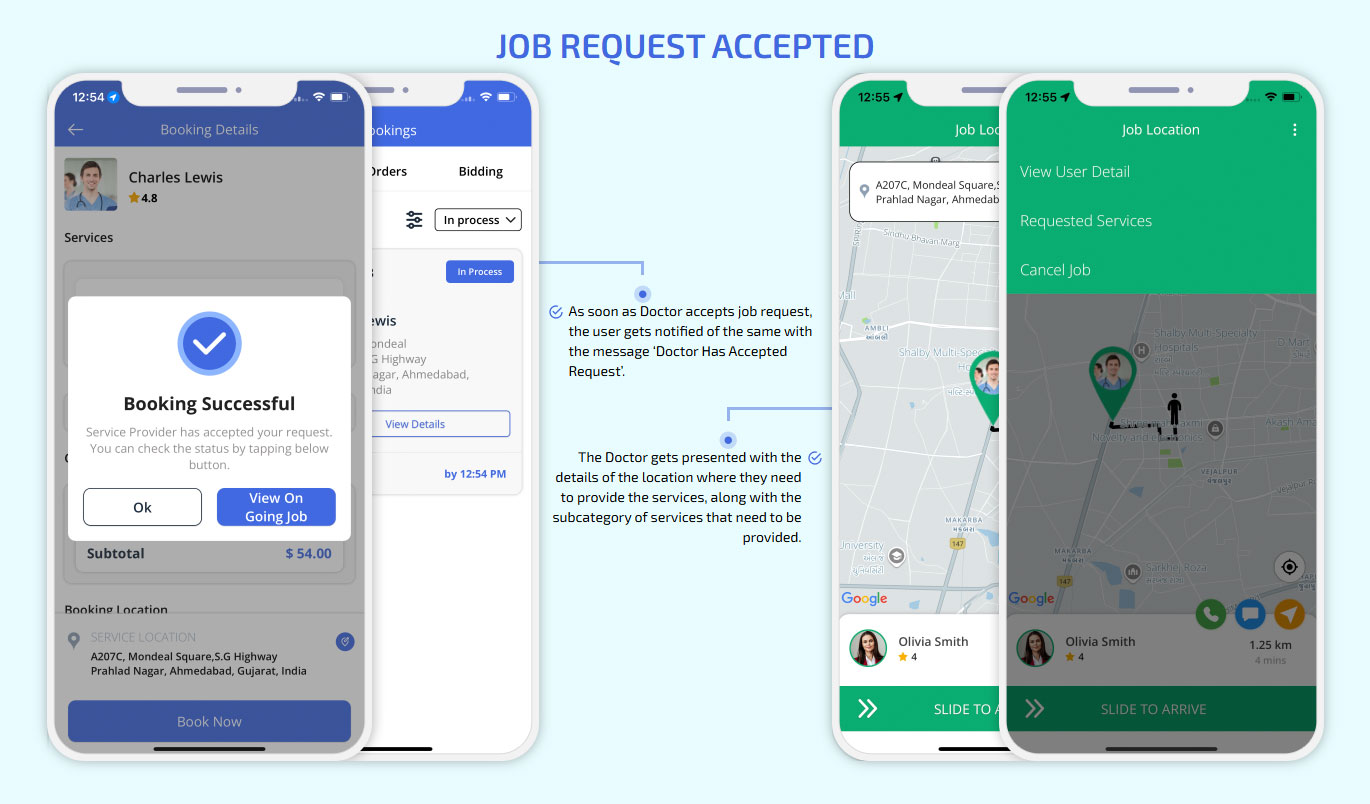
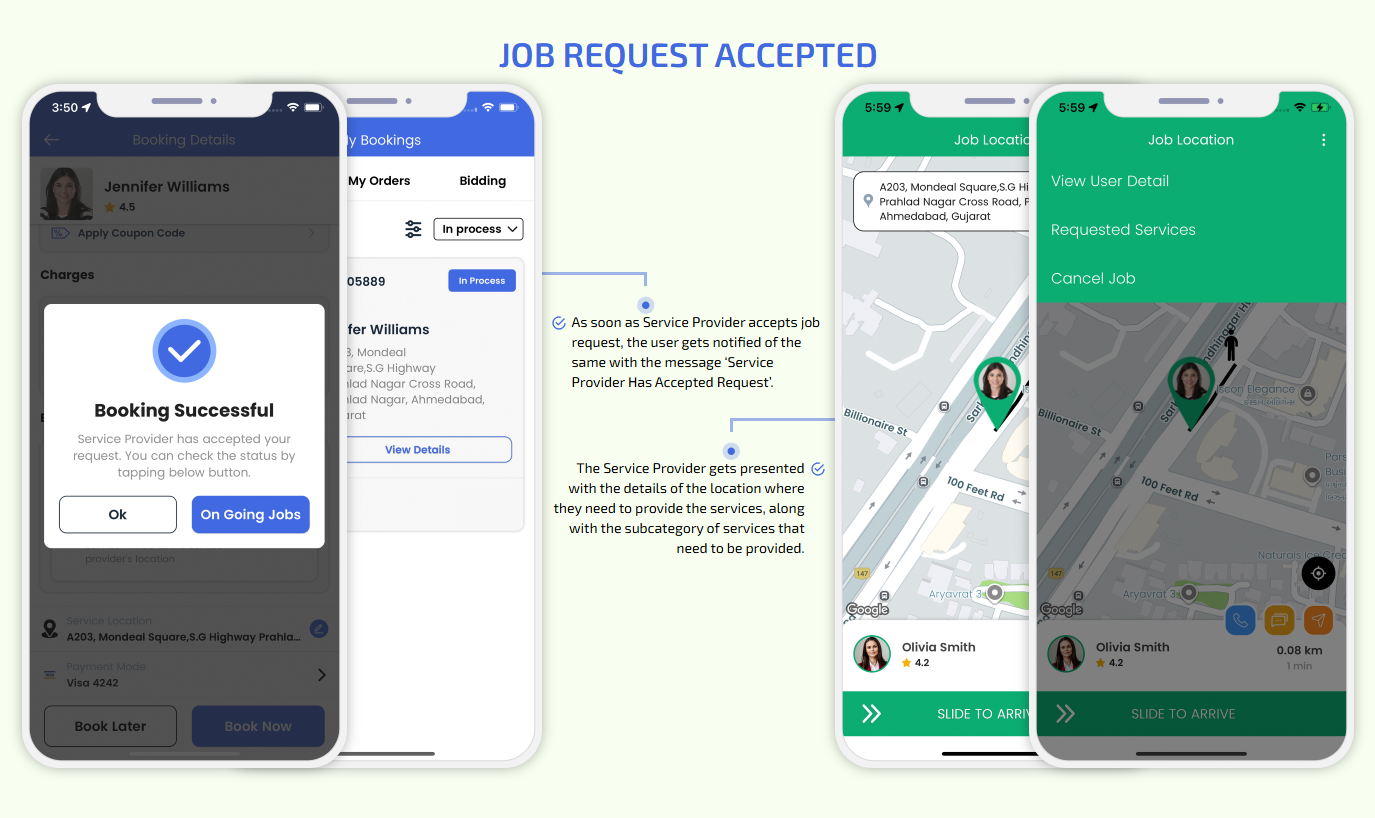
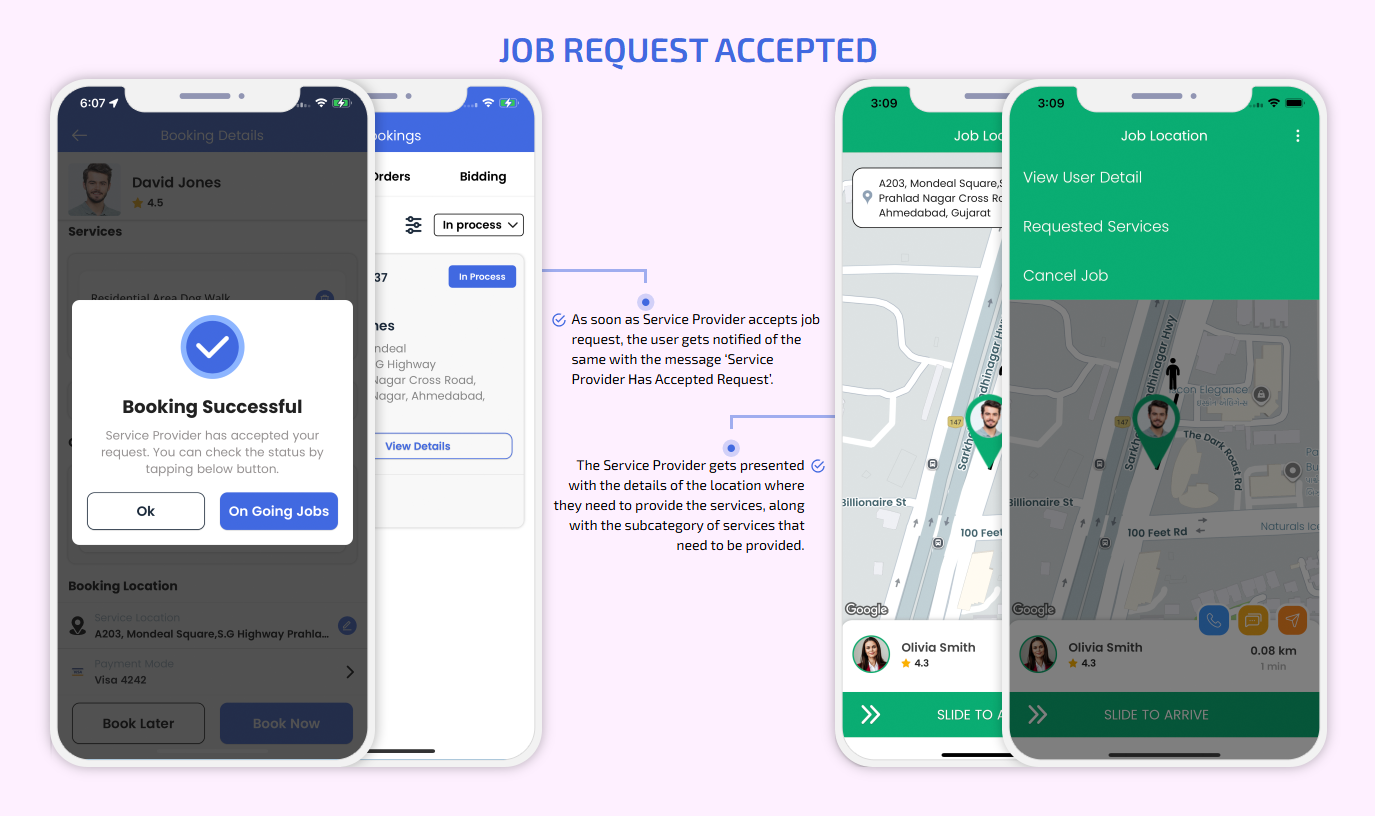
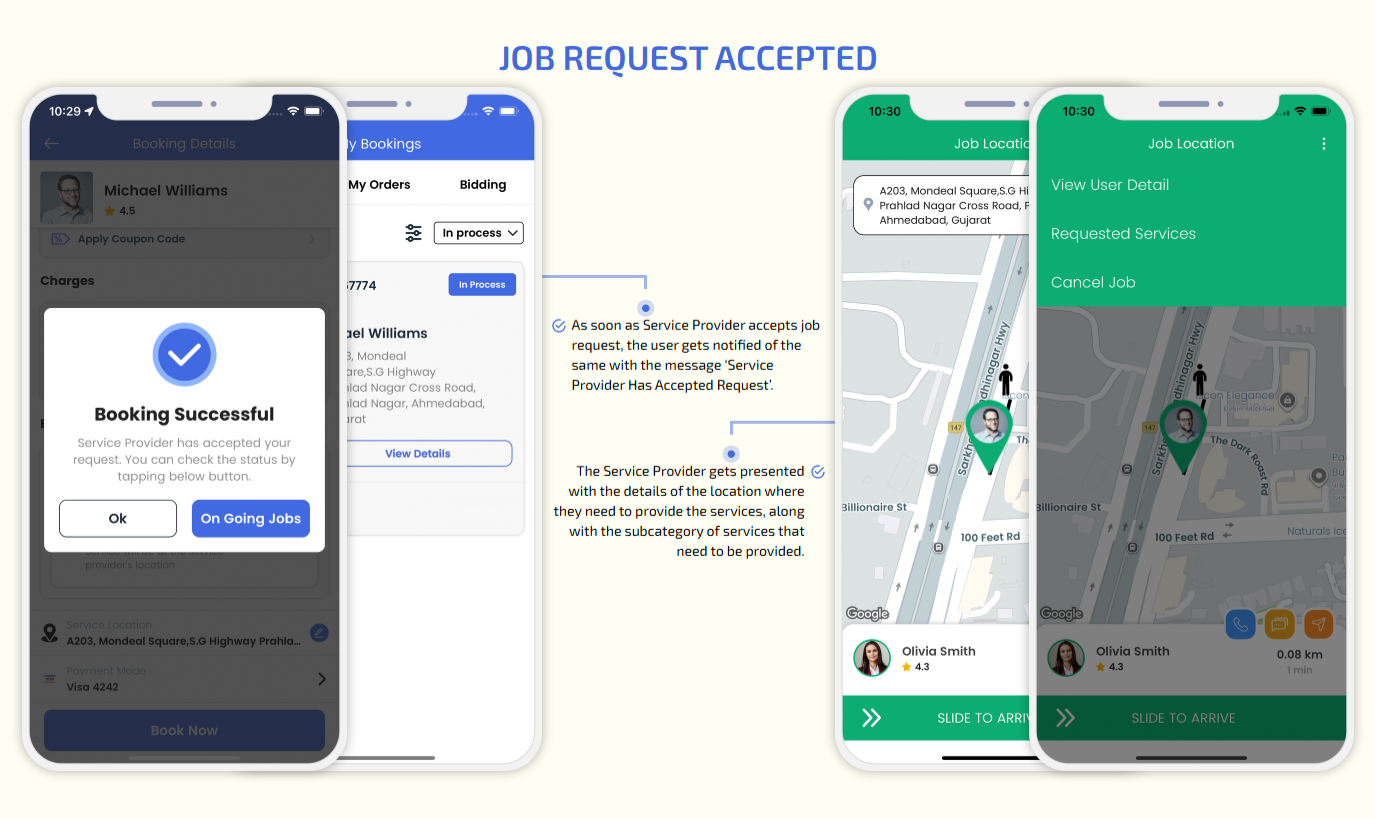
Job Request Accepted
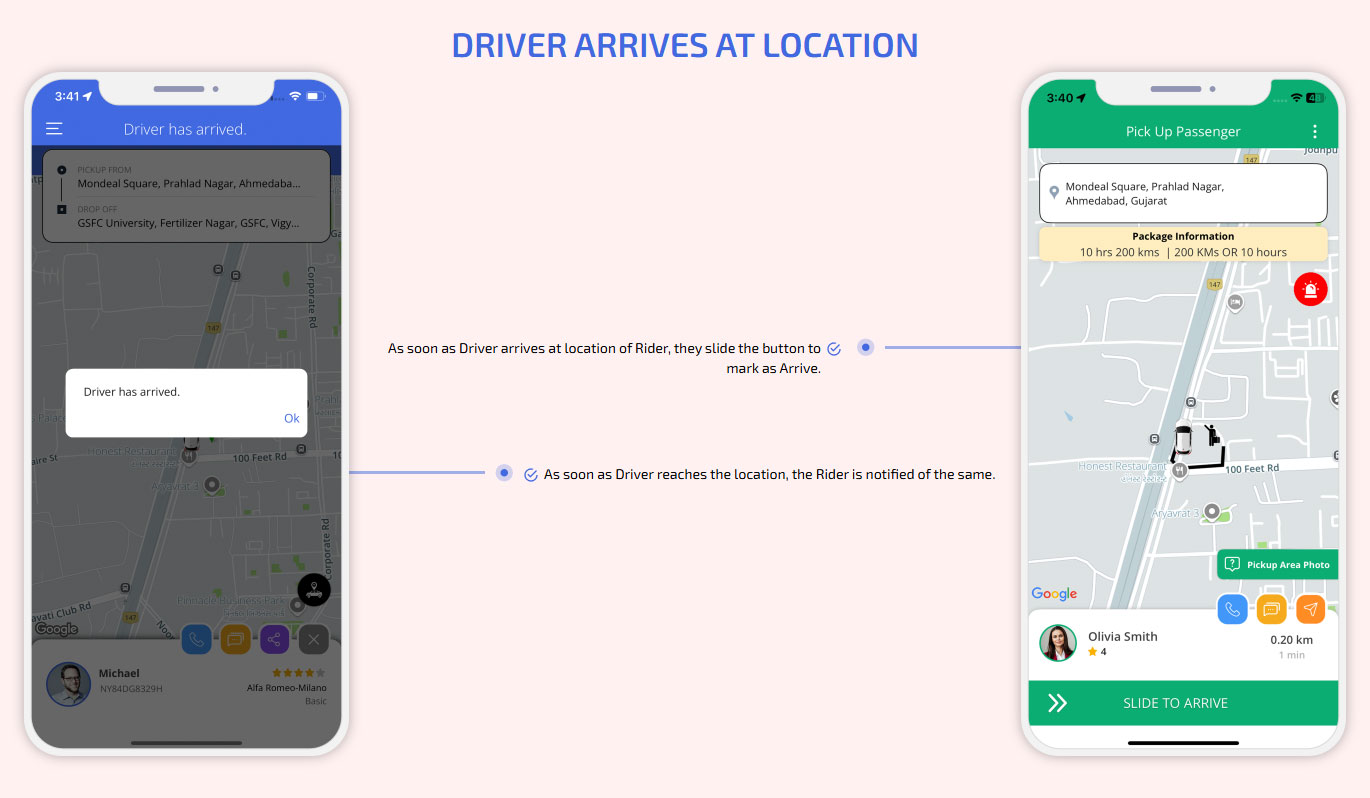
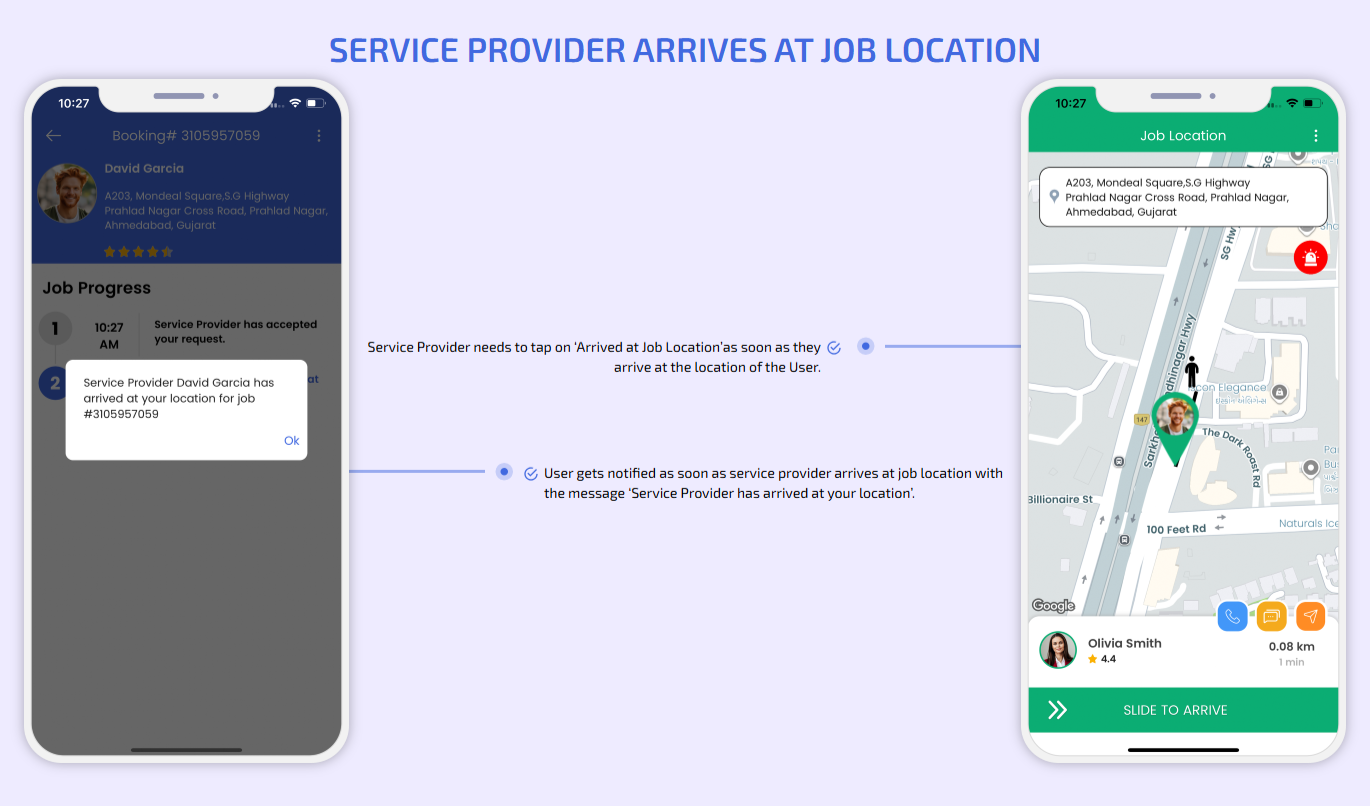
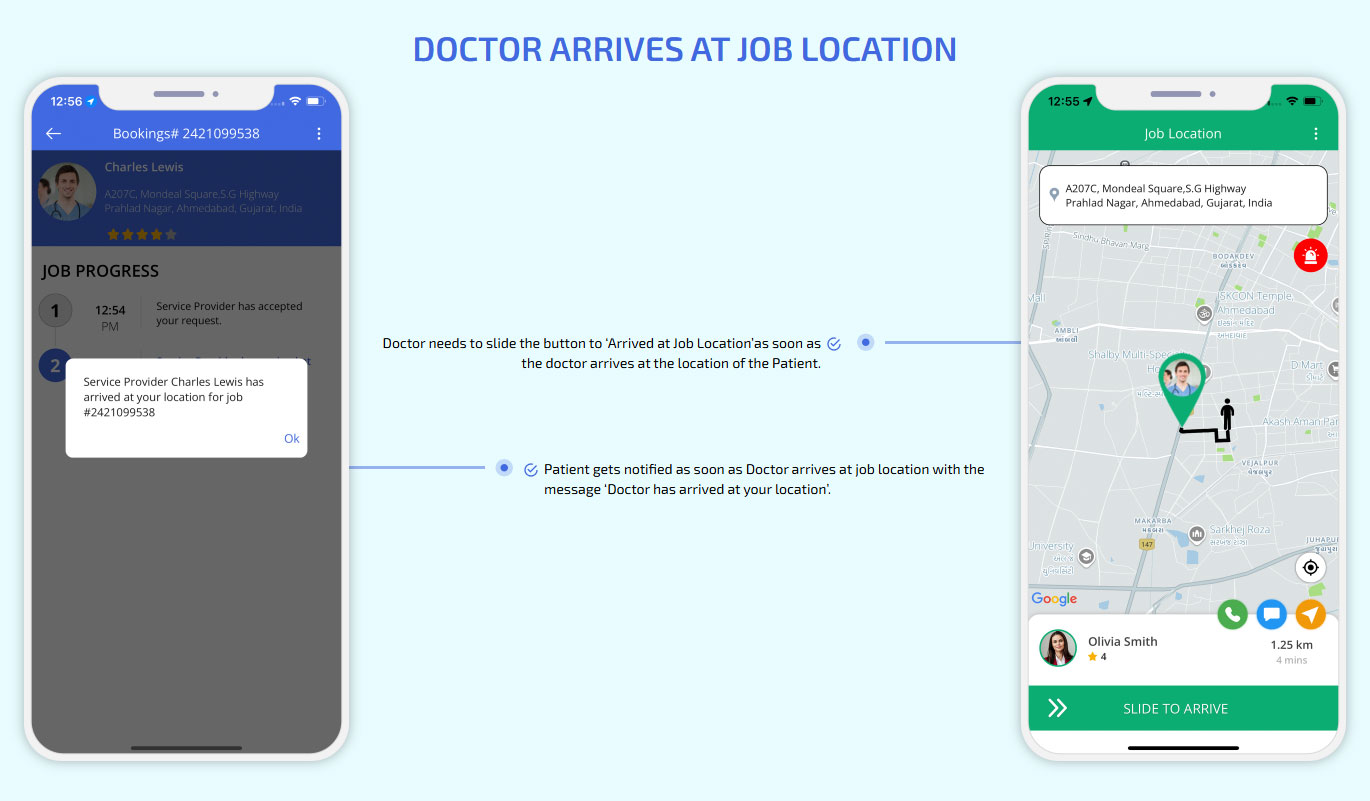
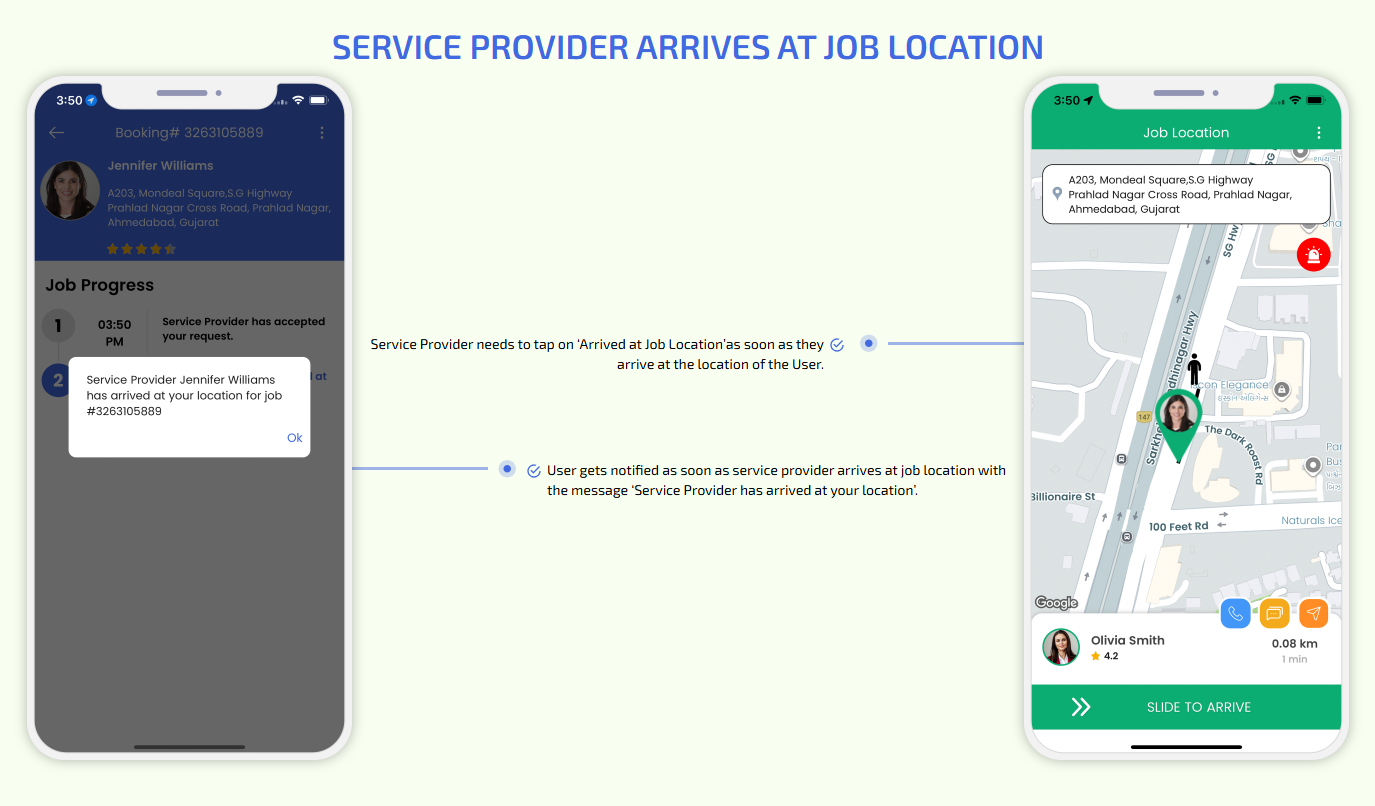
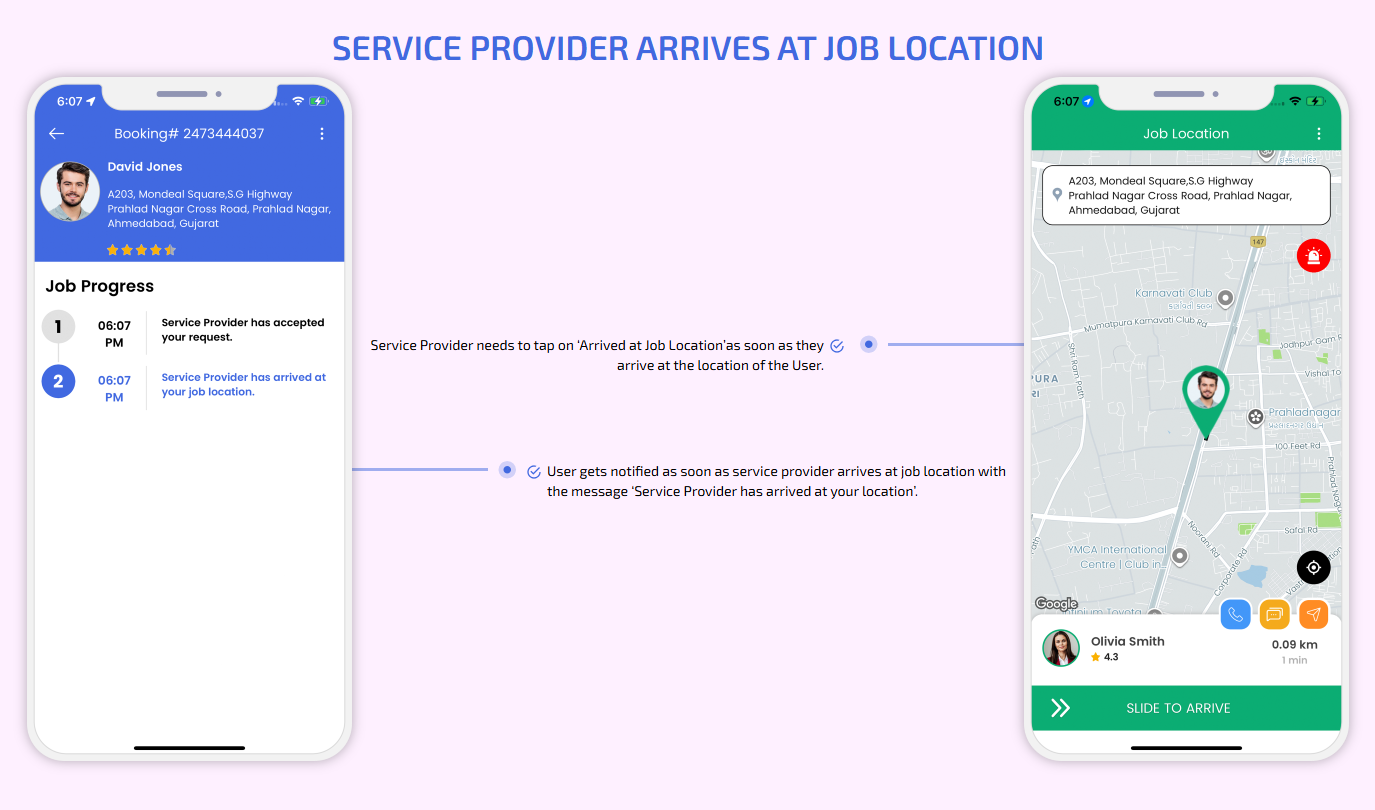
Doctor Arrives at Job Location
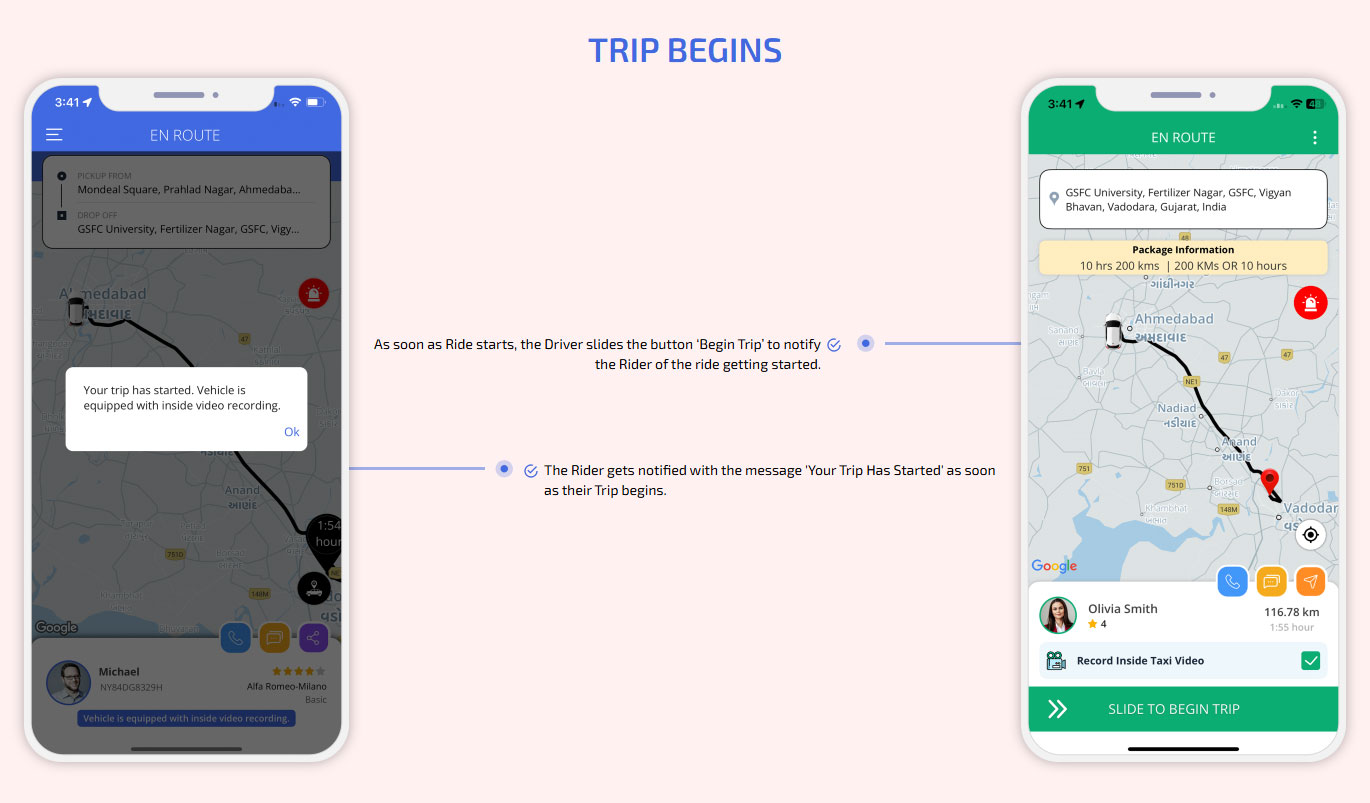
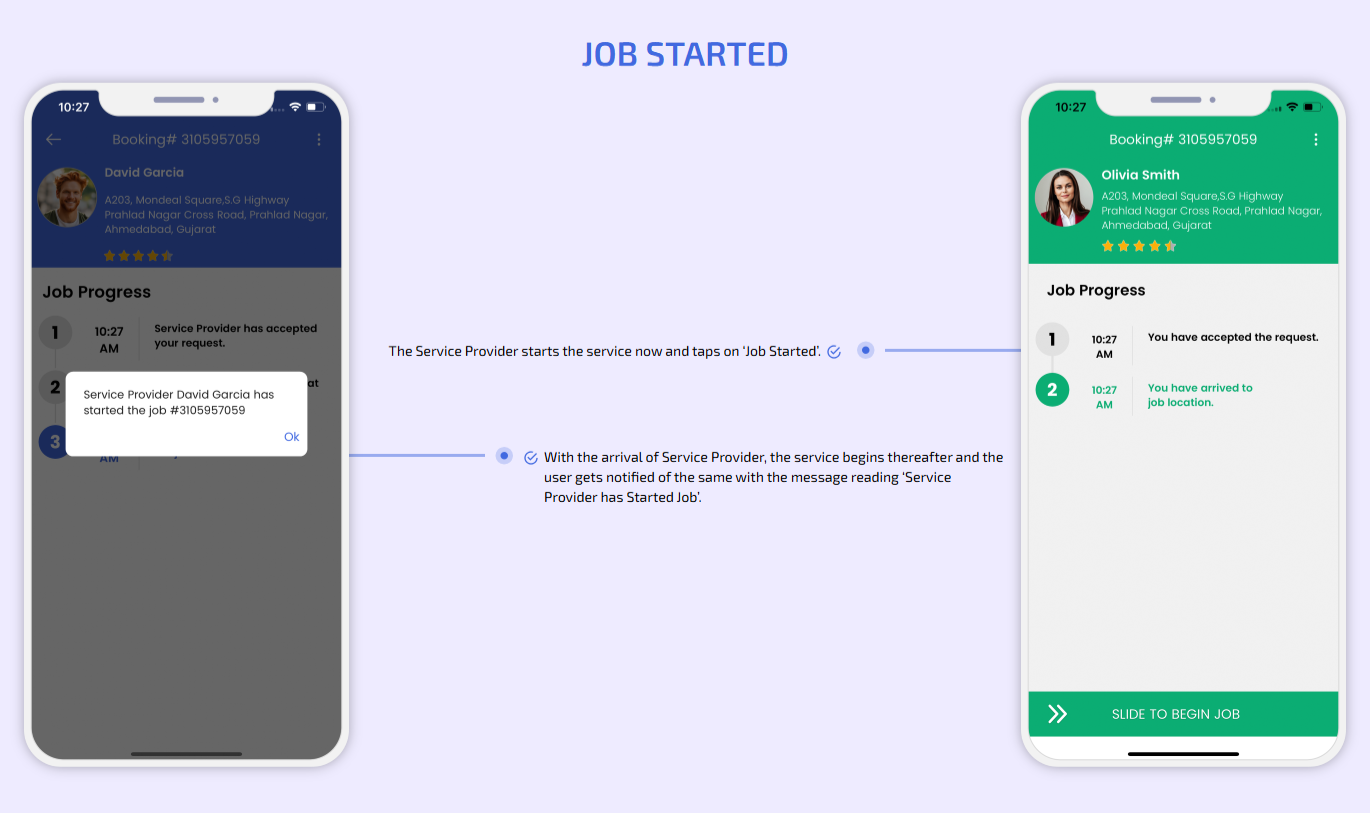
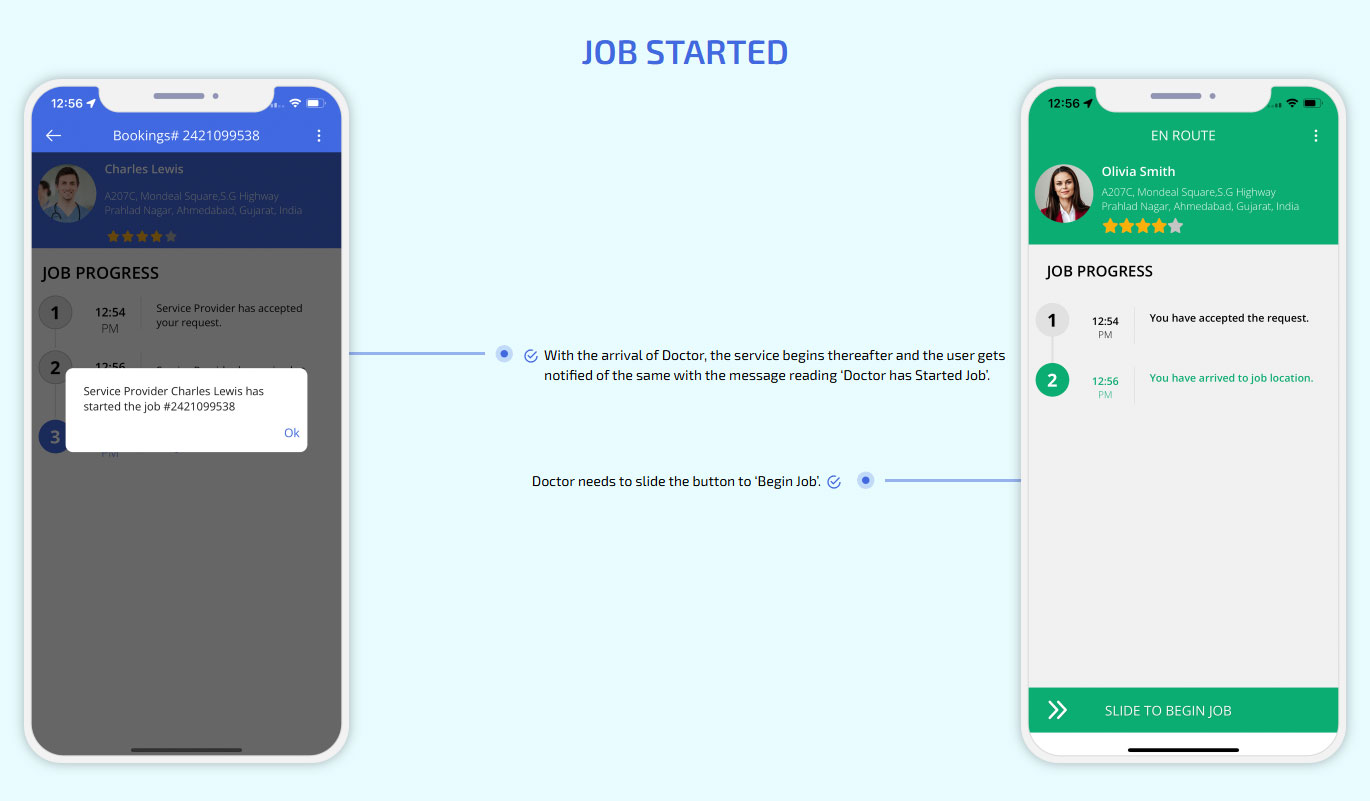
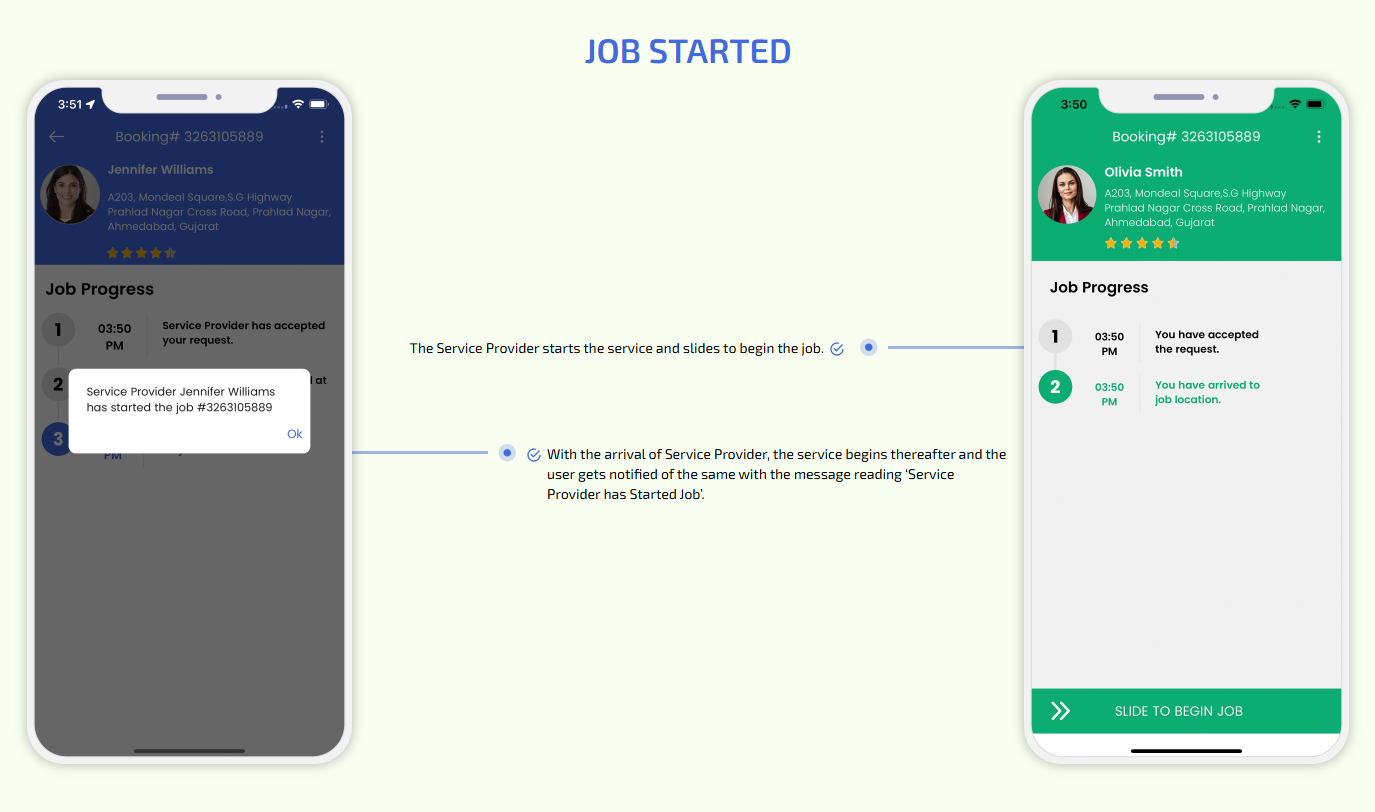
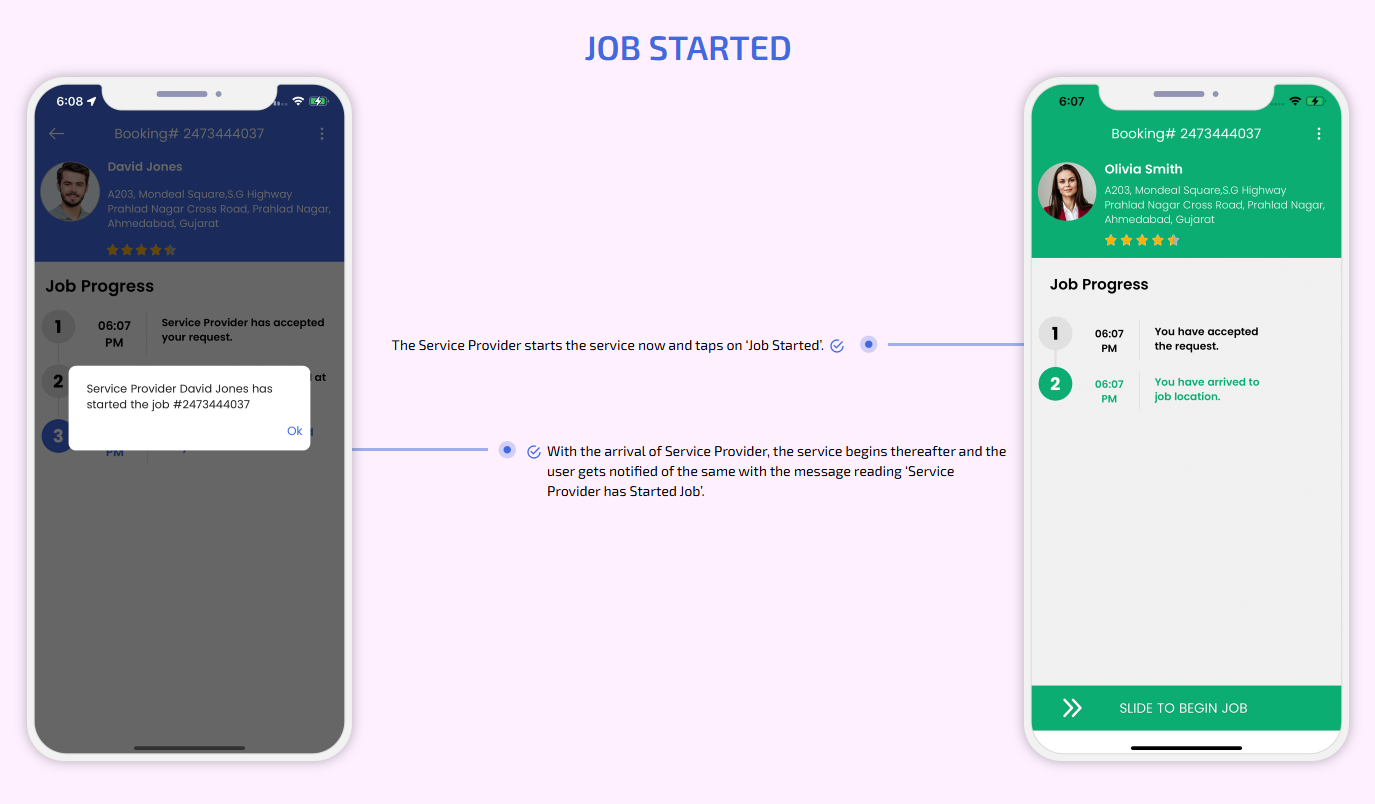
Job started
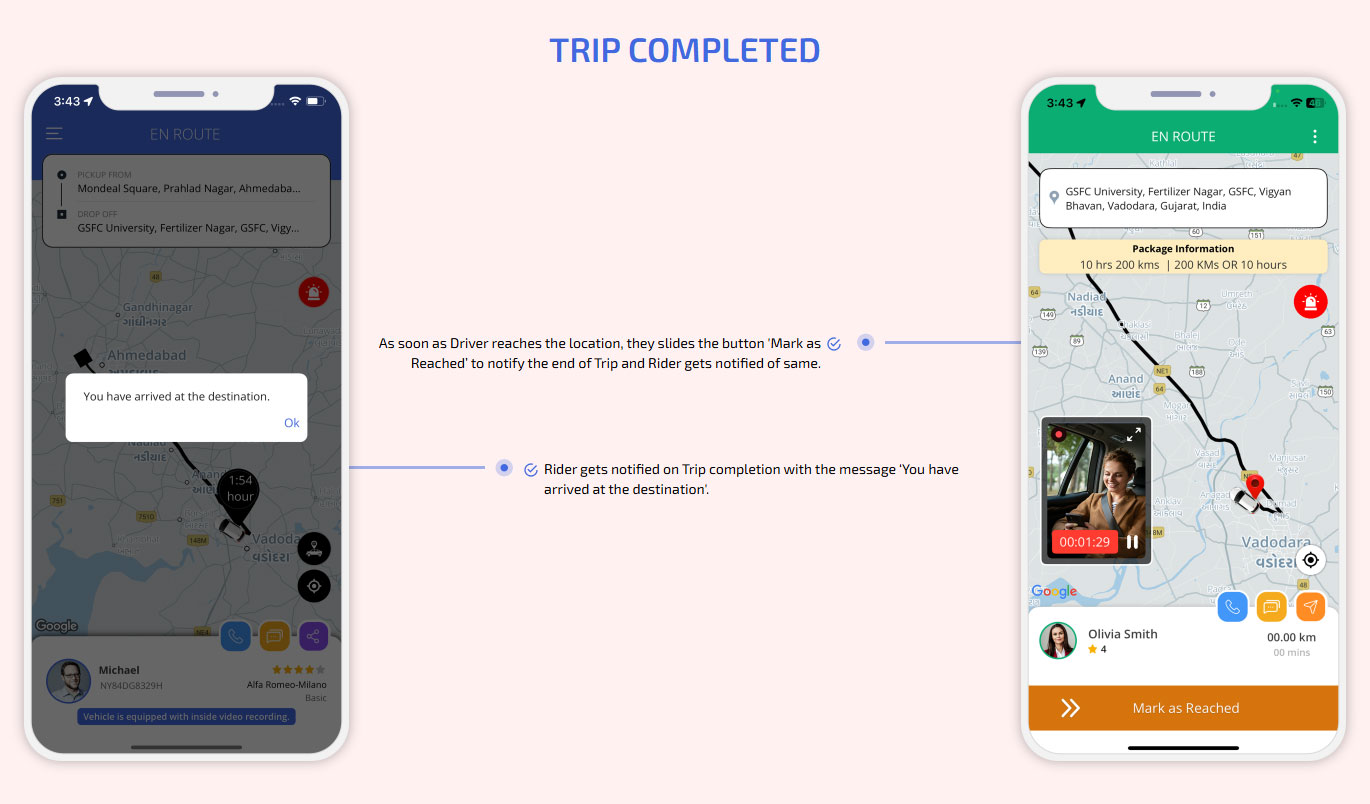
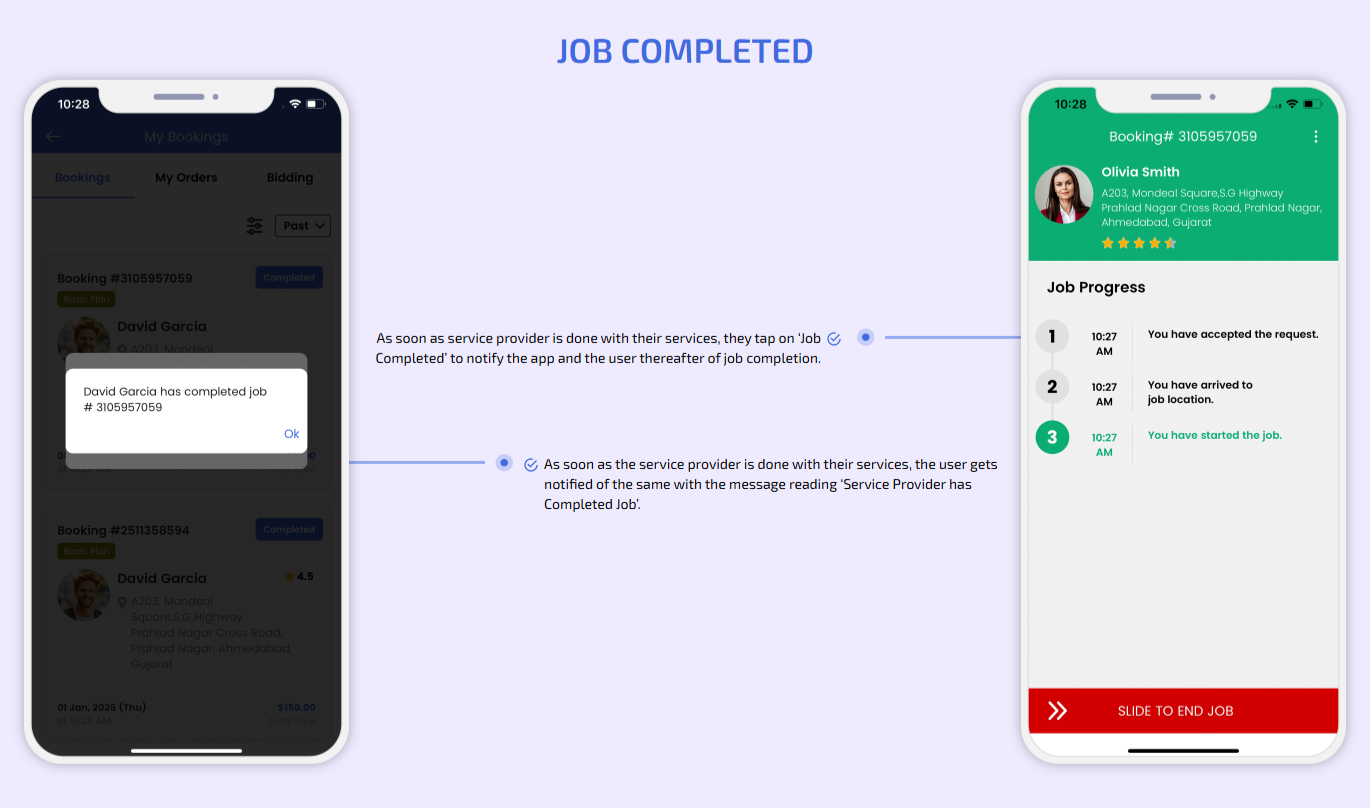
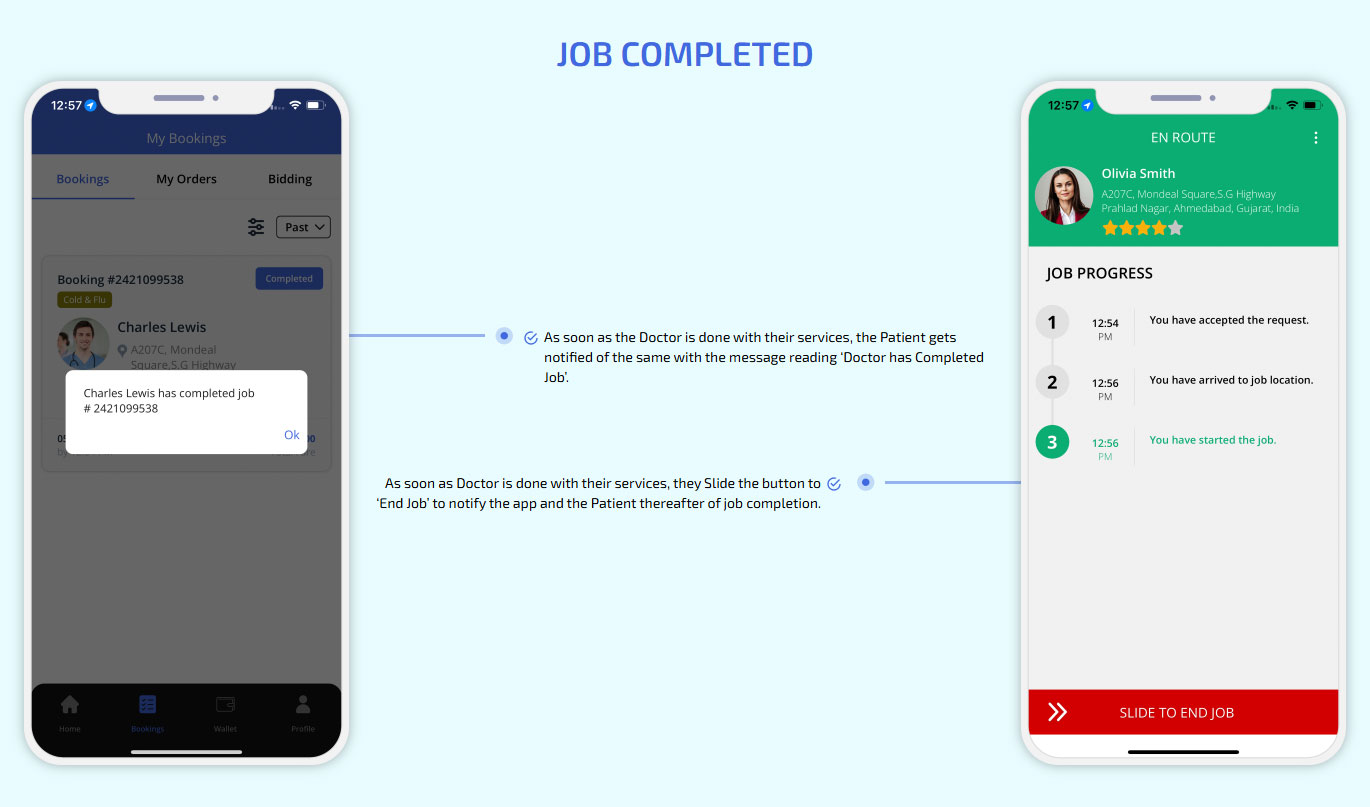
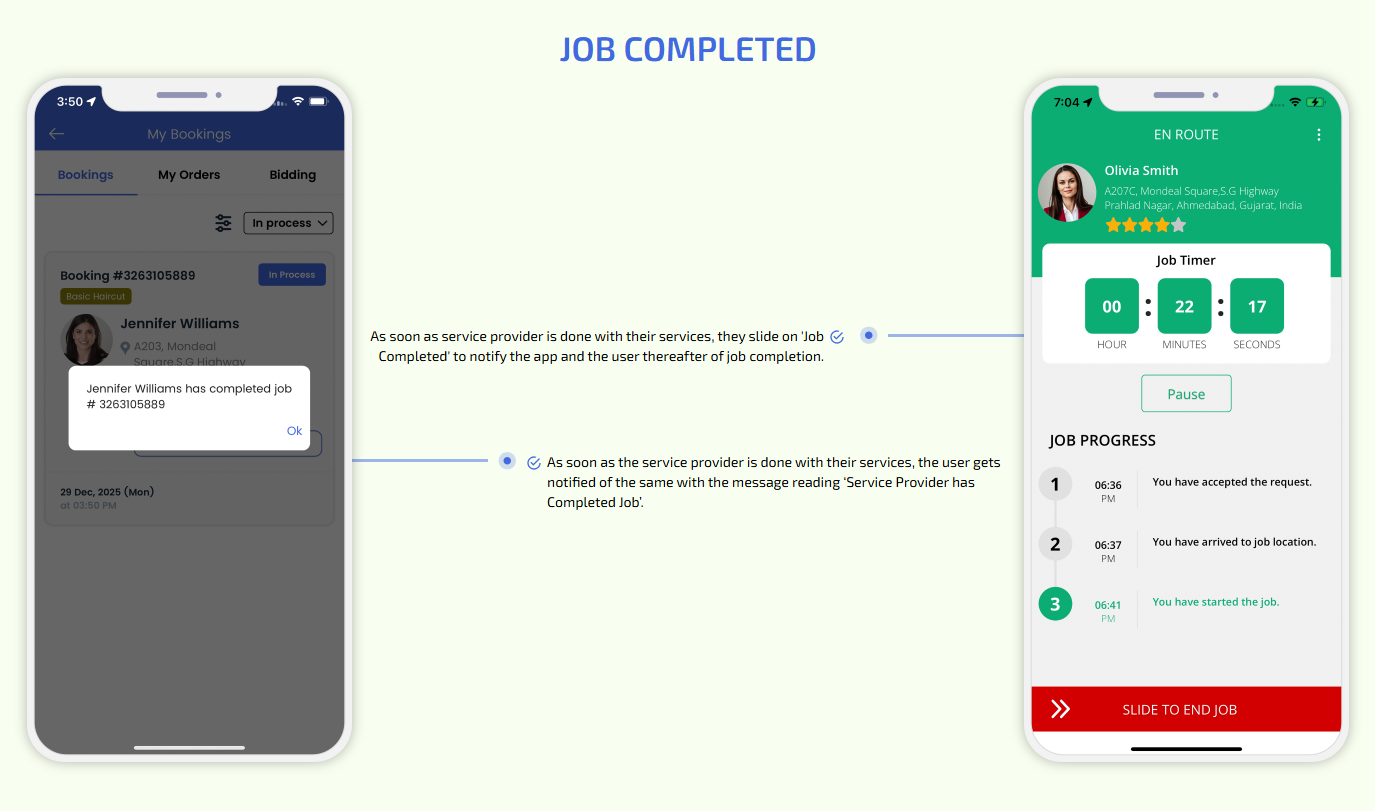
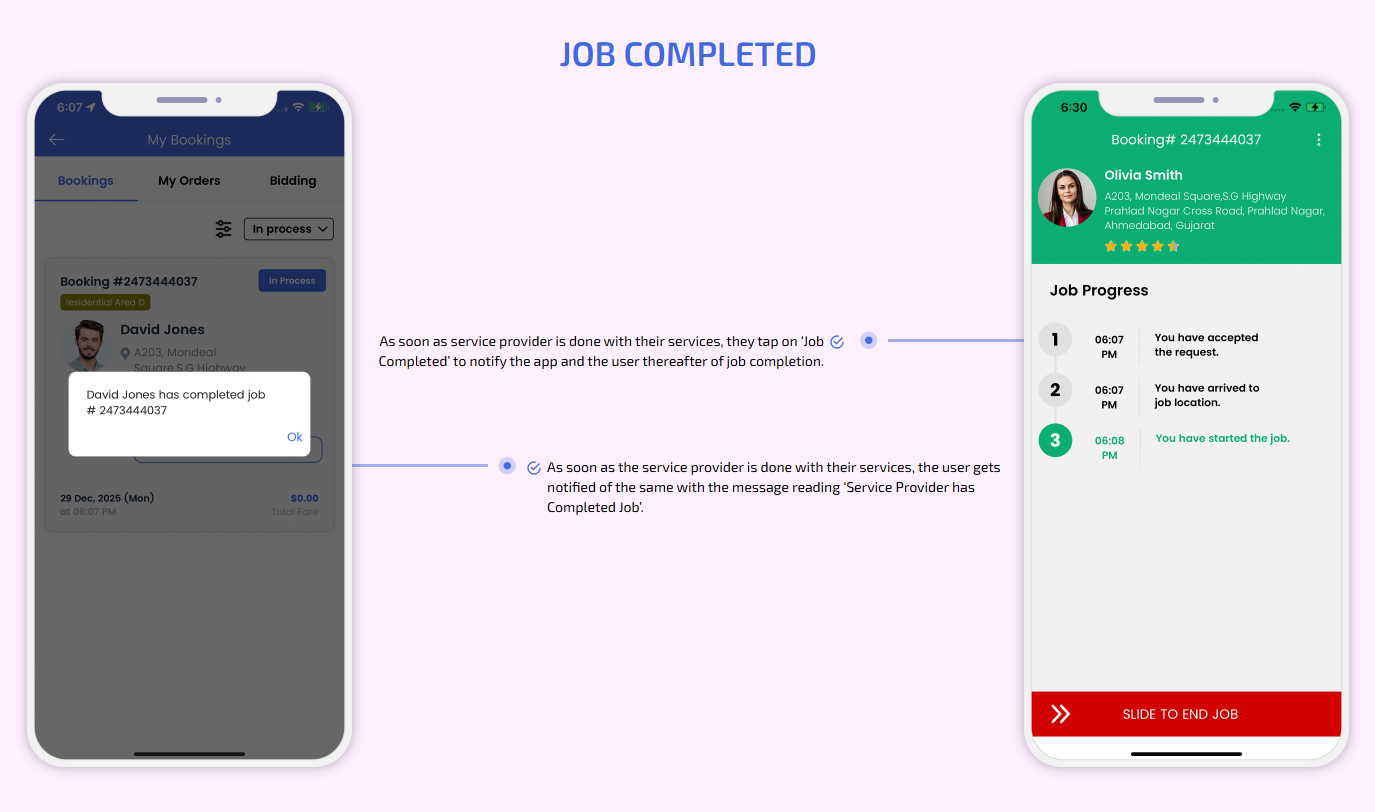
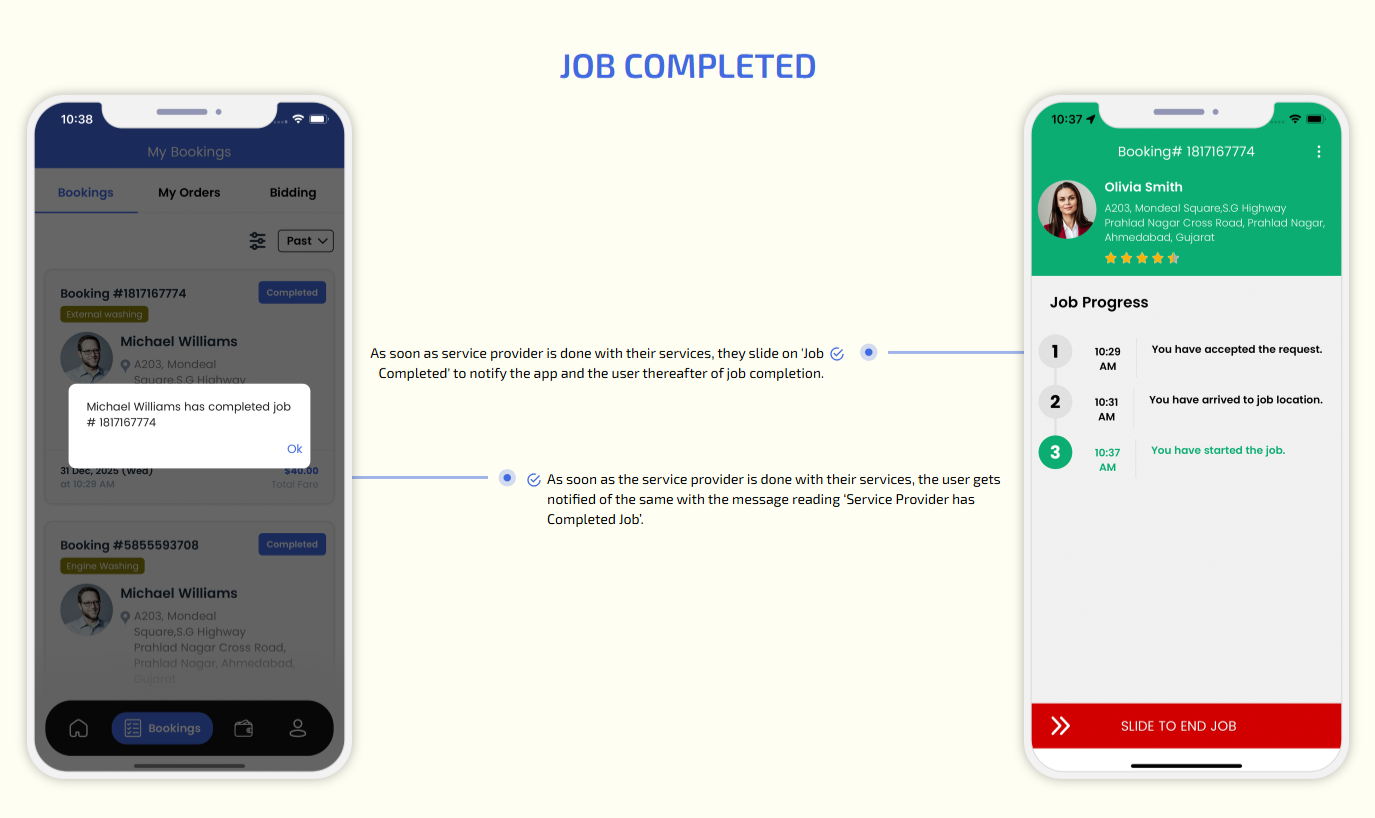
Job completed
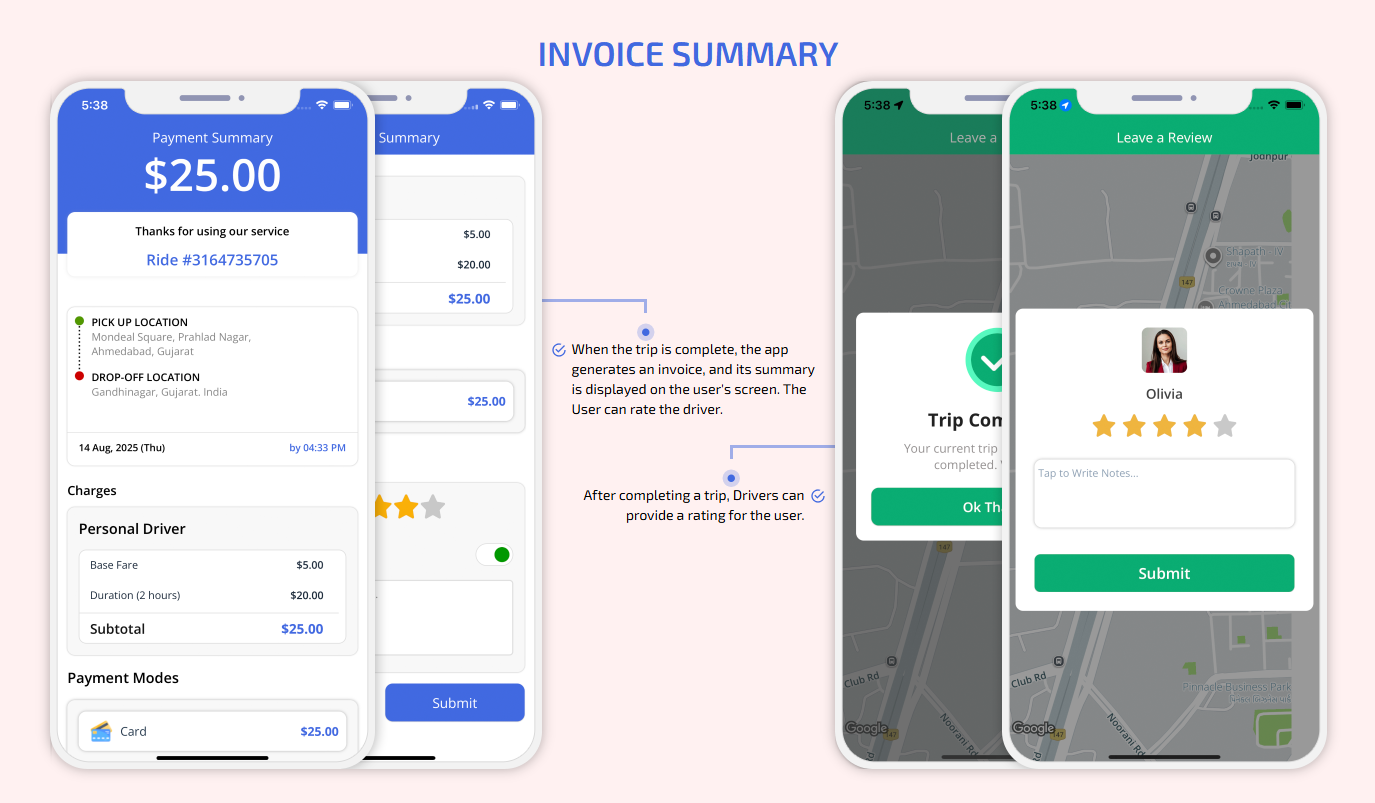
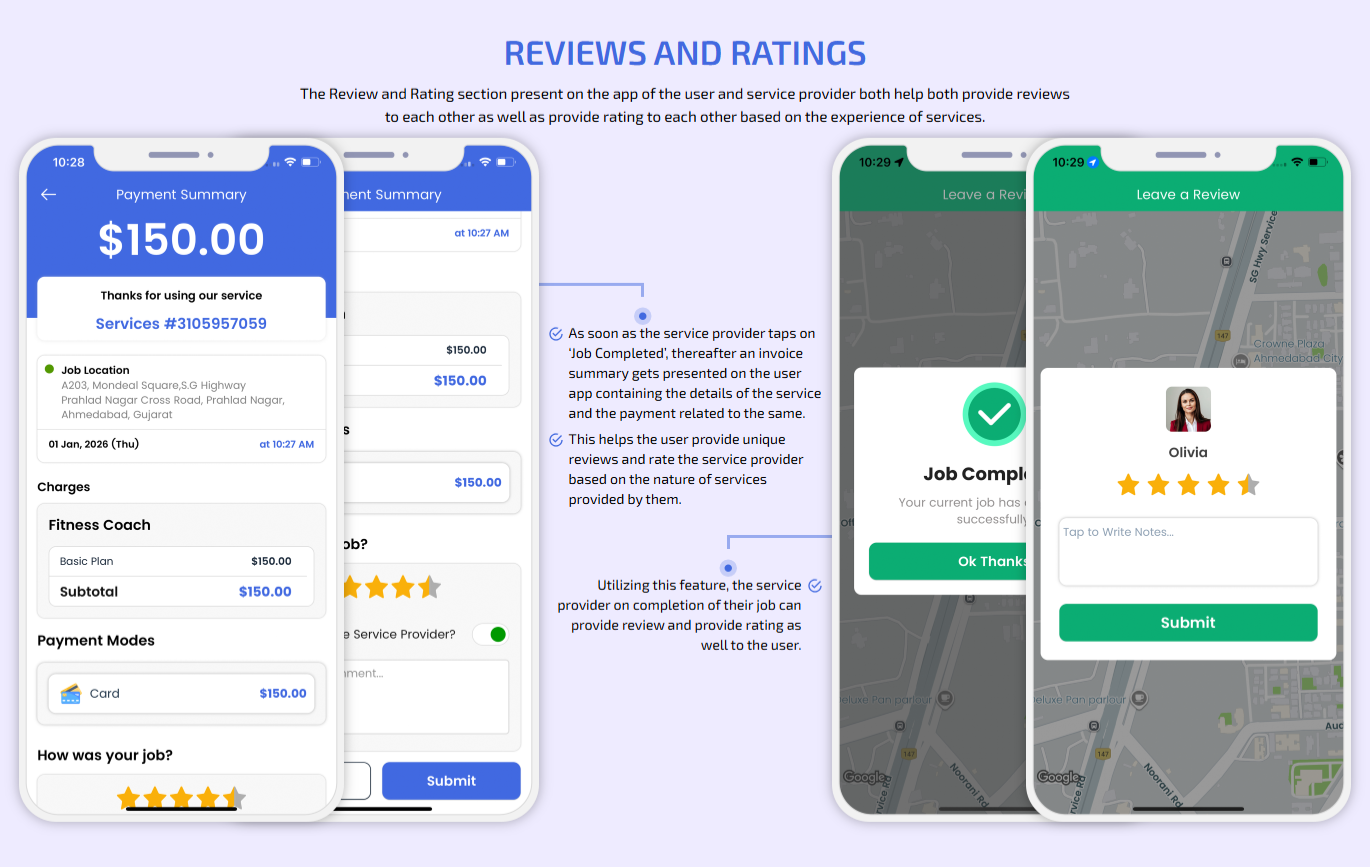
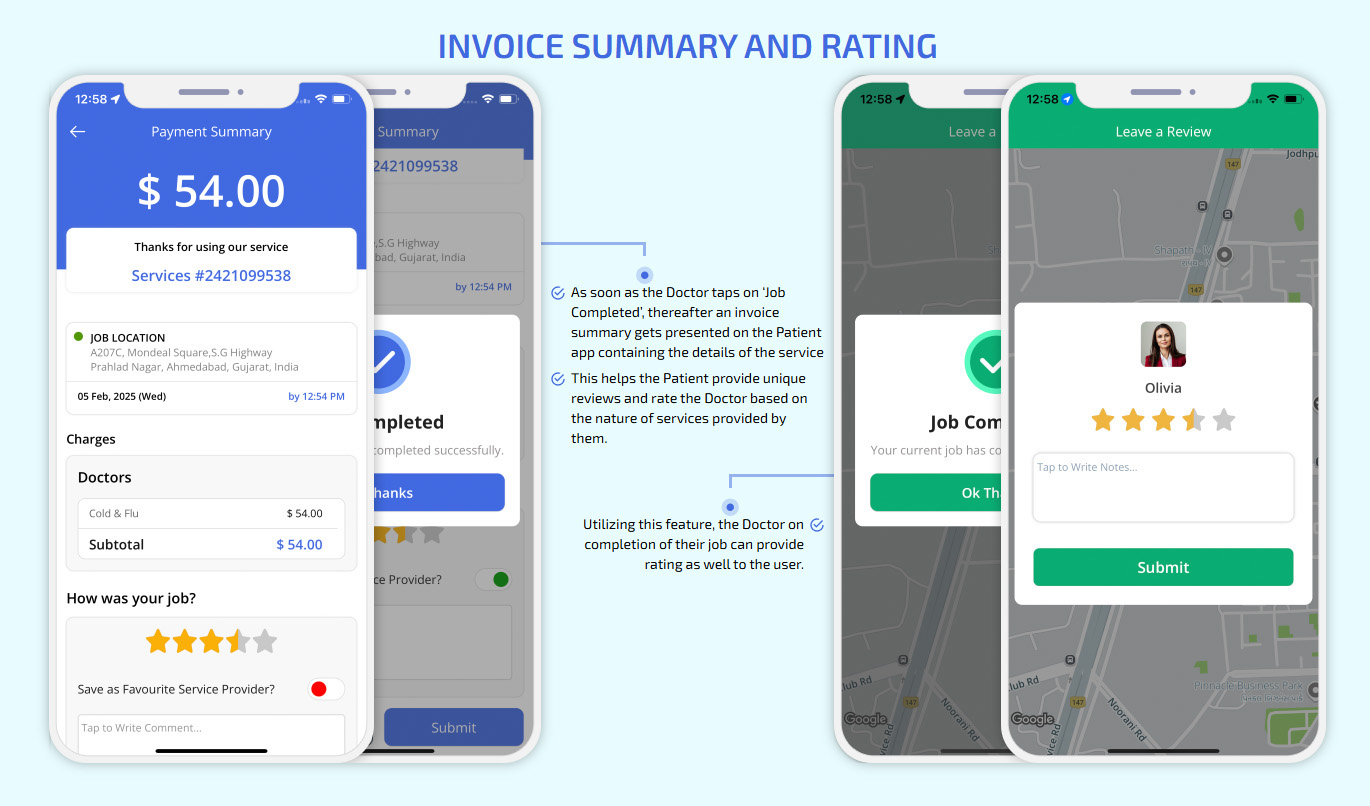
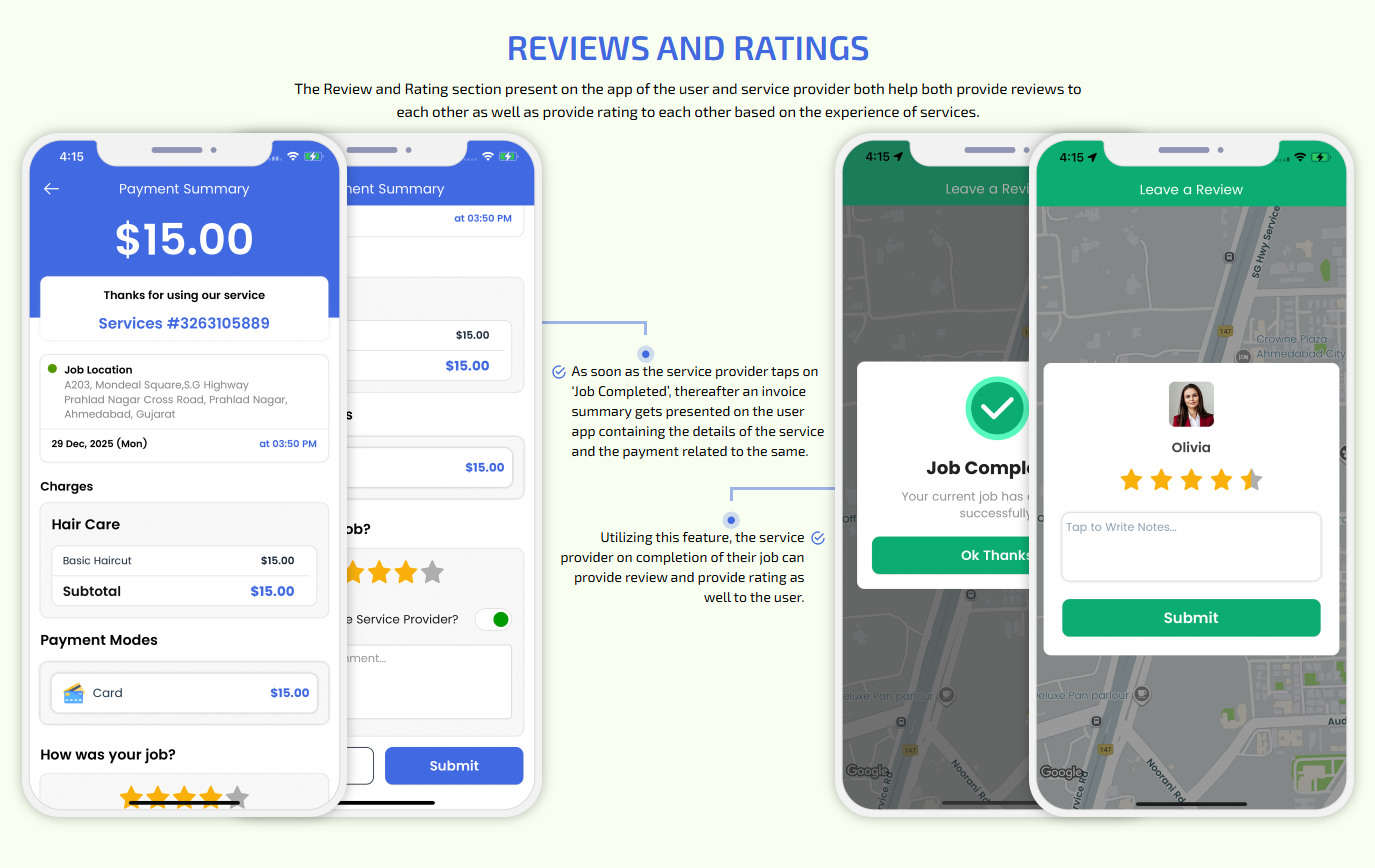
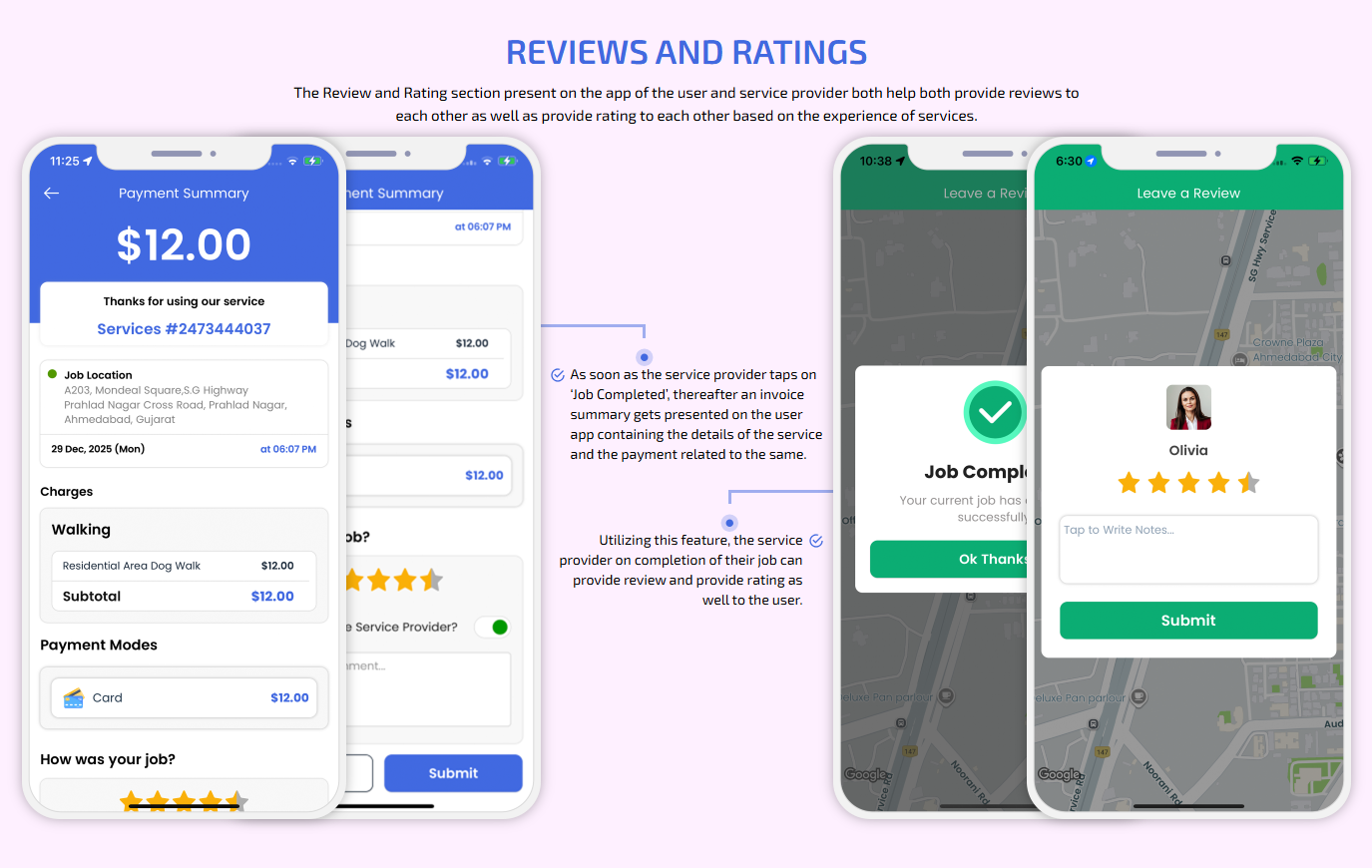
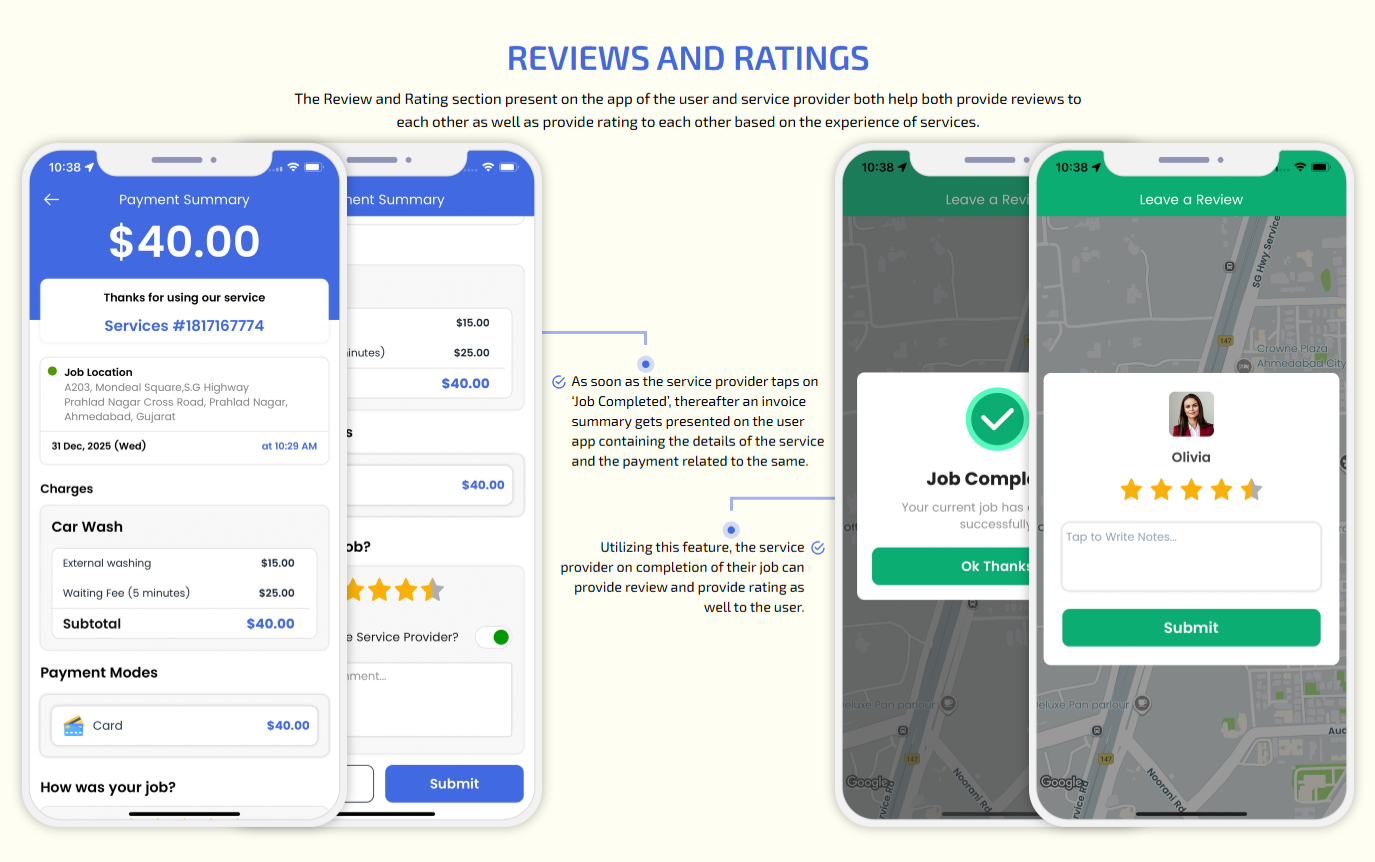
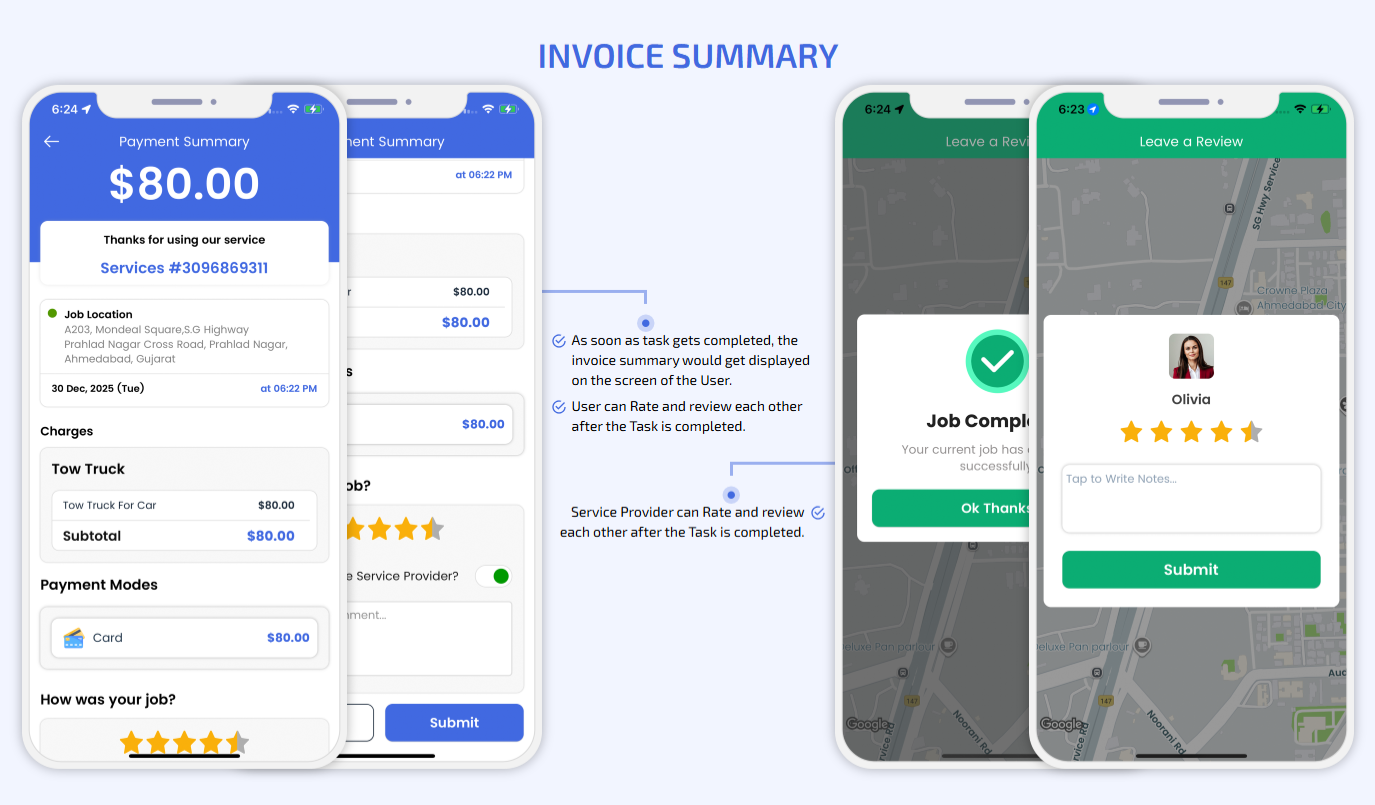
Invoice Summary
Reviews and Ratings
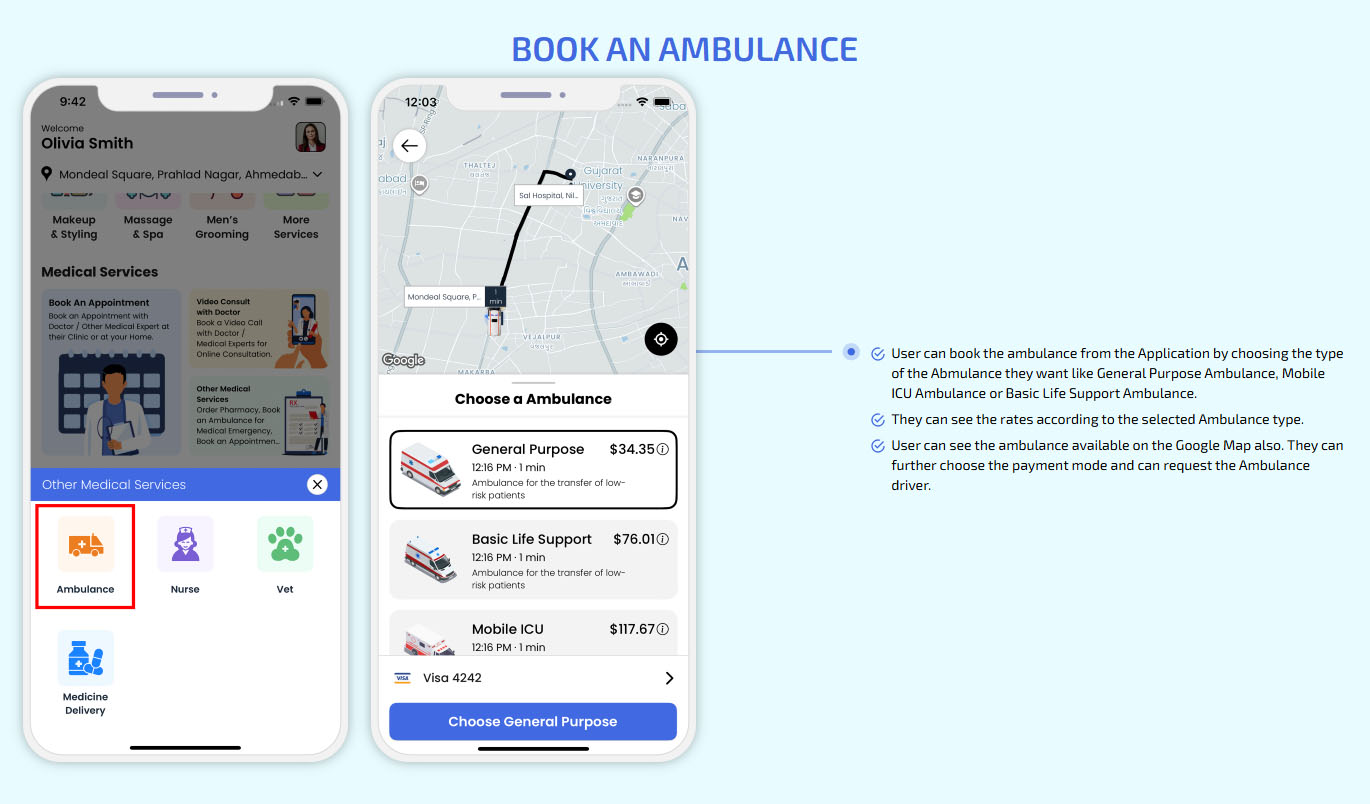
Book An Ambulance
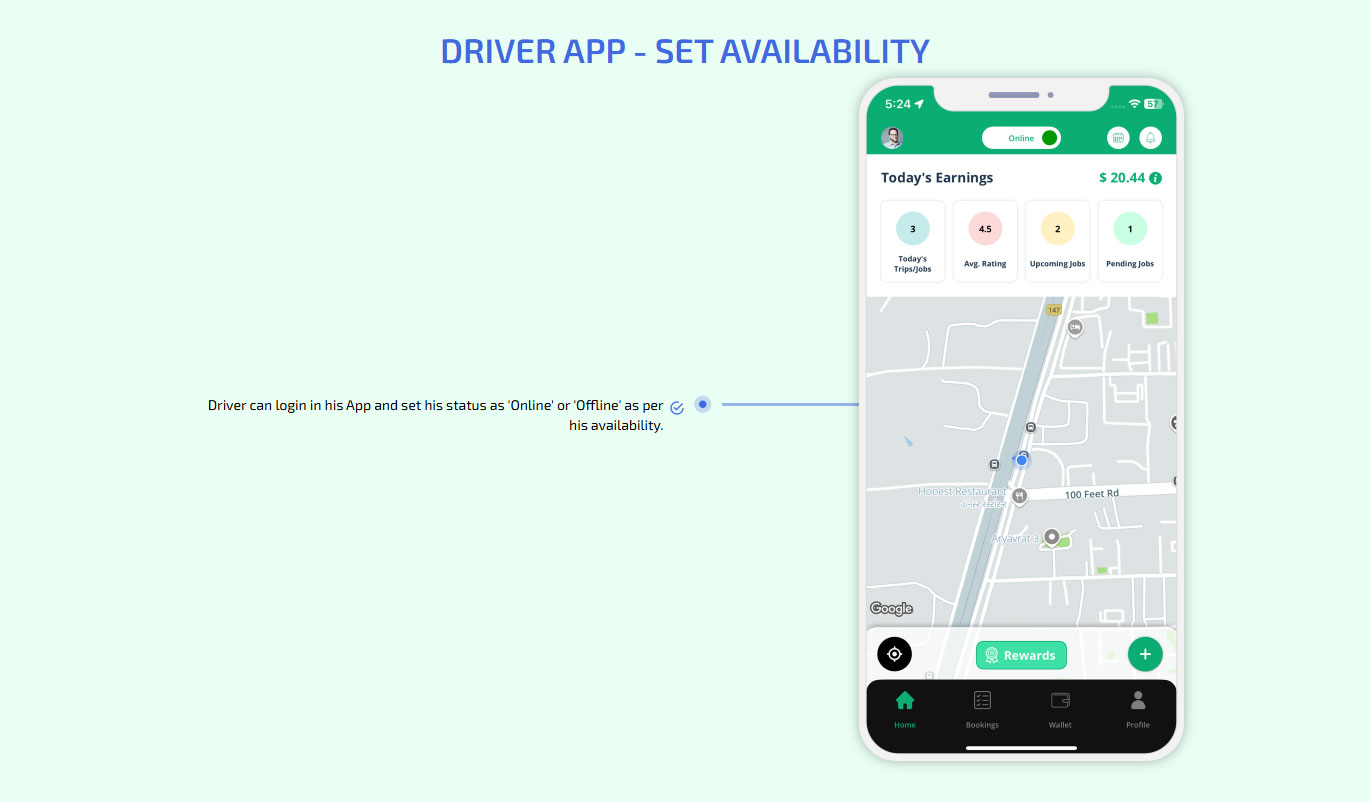
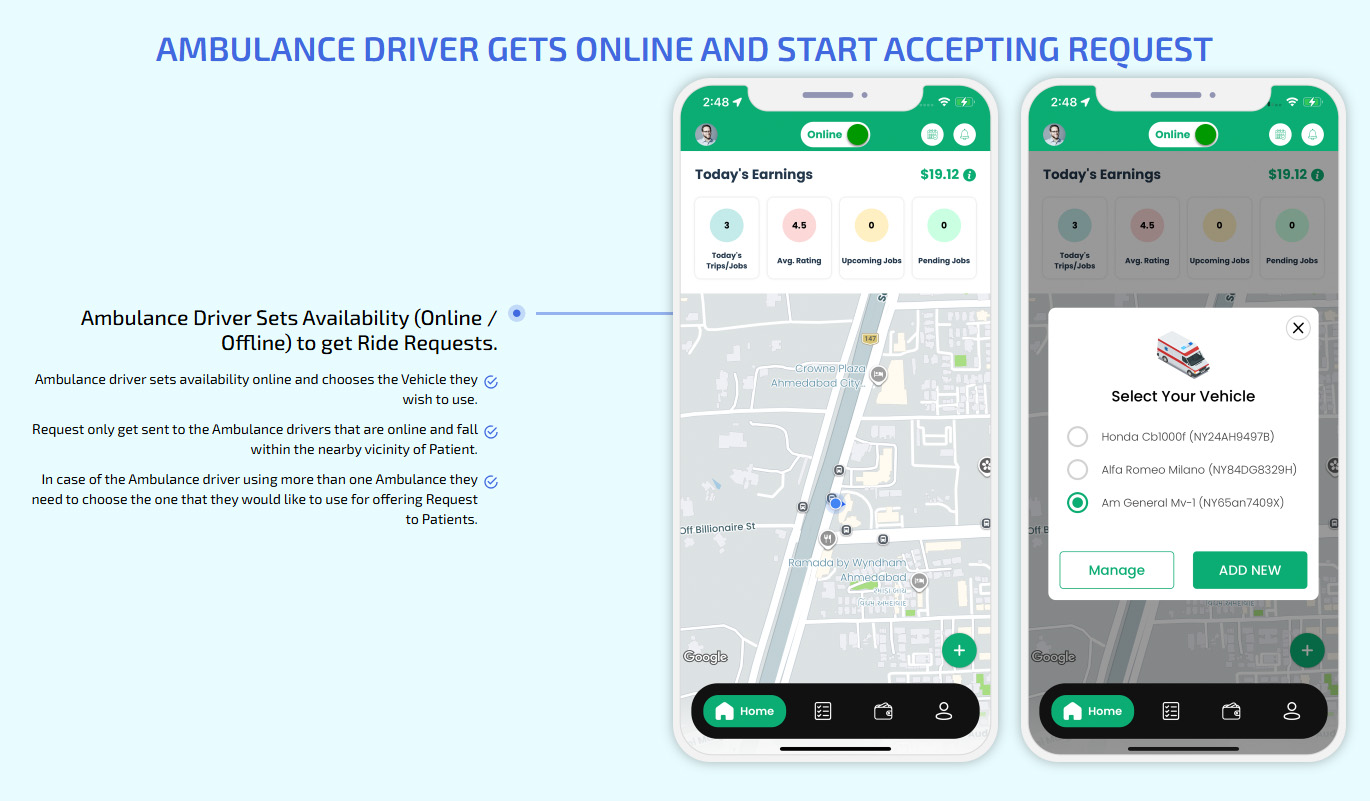
Ambulance Driver Gets Online and Start Accepting Request
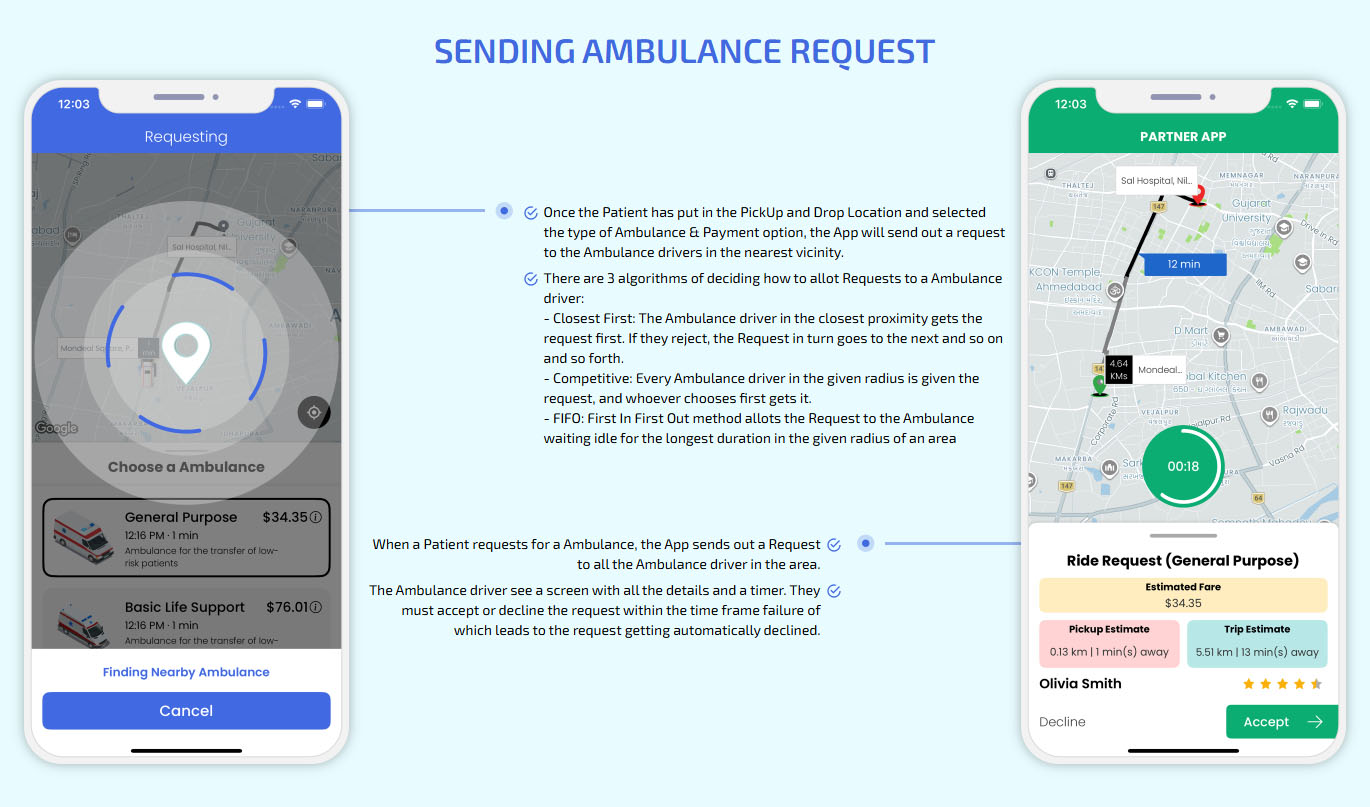
Sending Ambulance Request
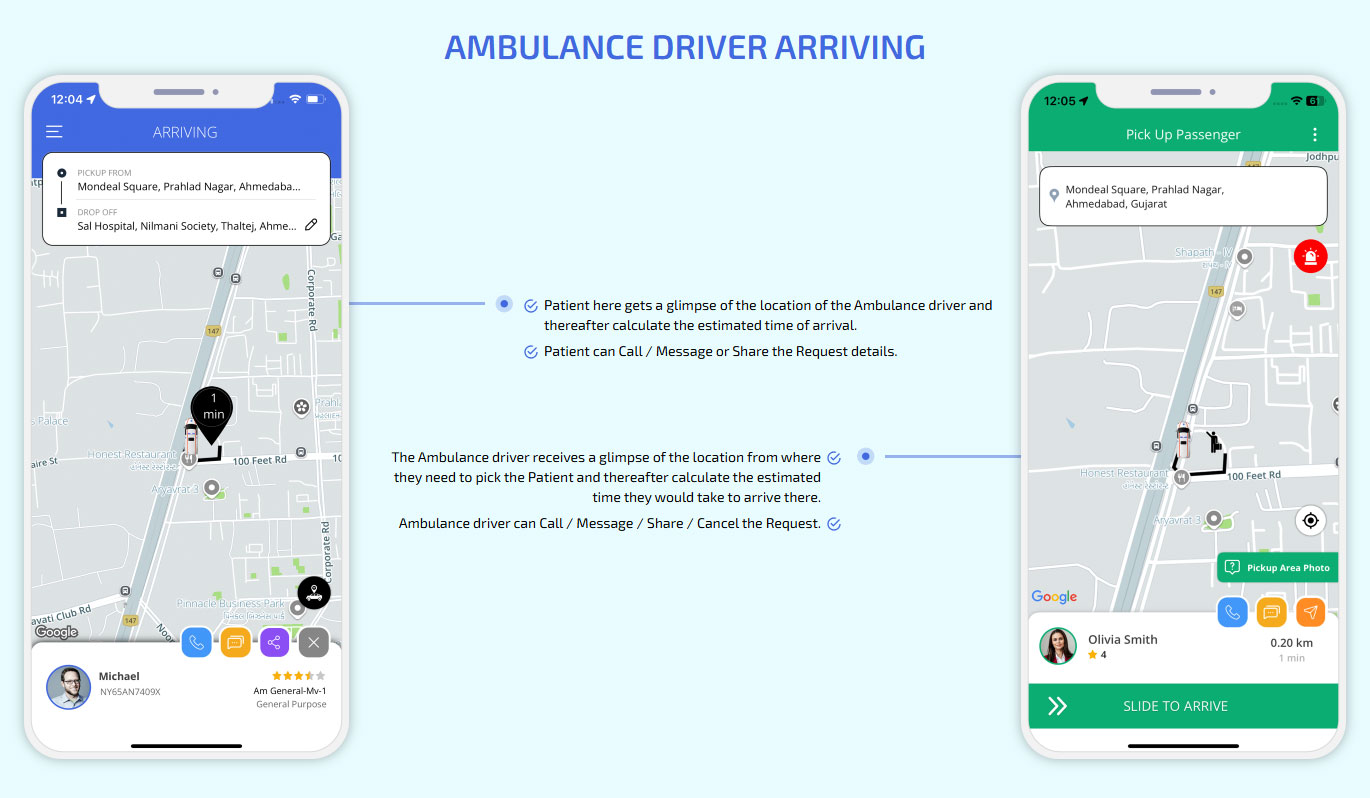
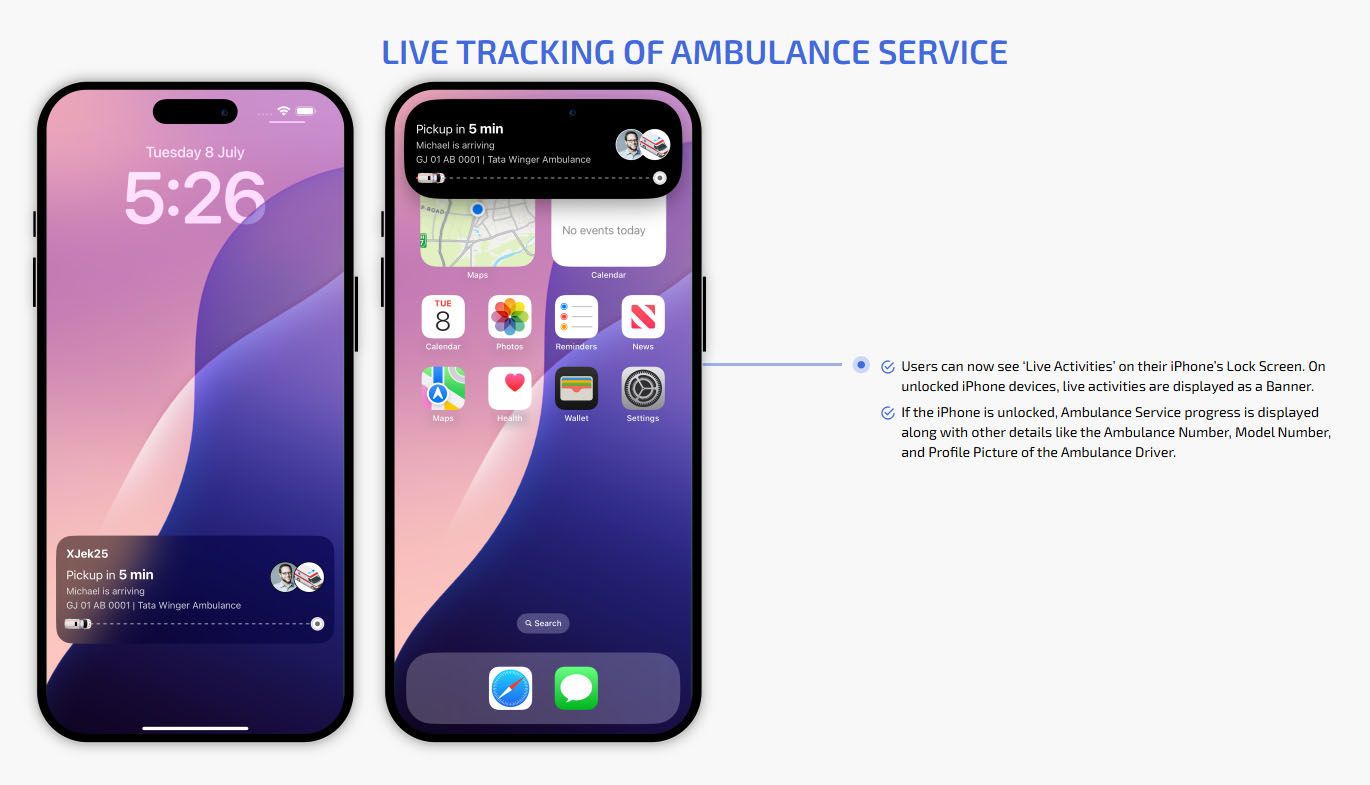
Ambulance Driver Arriving
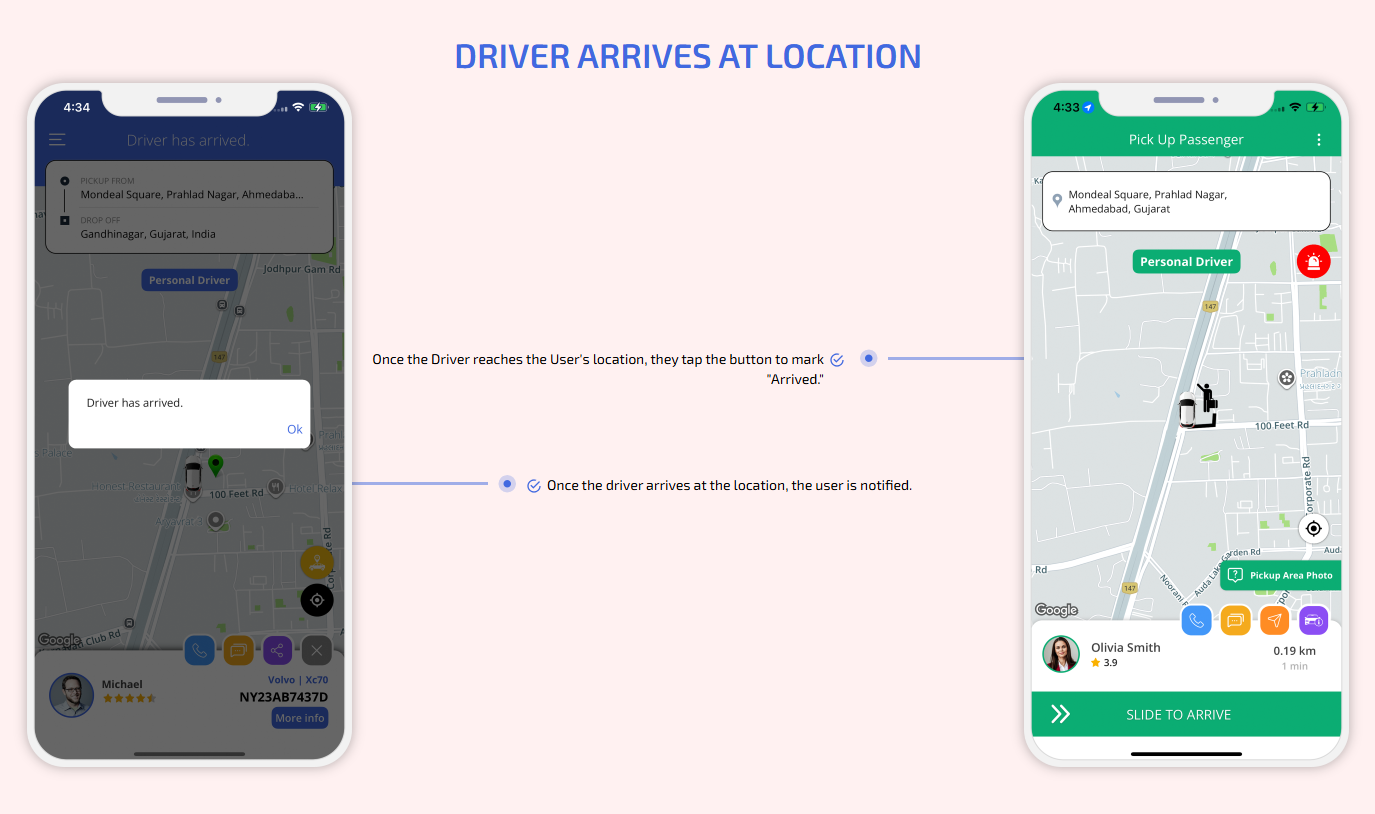
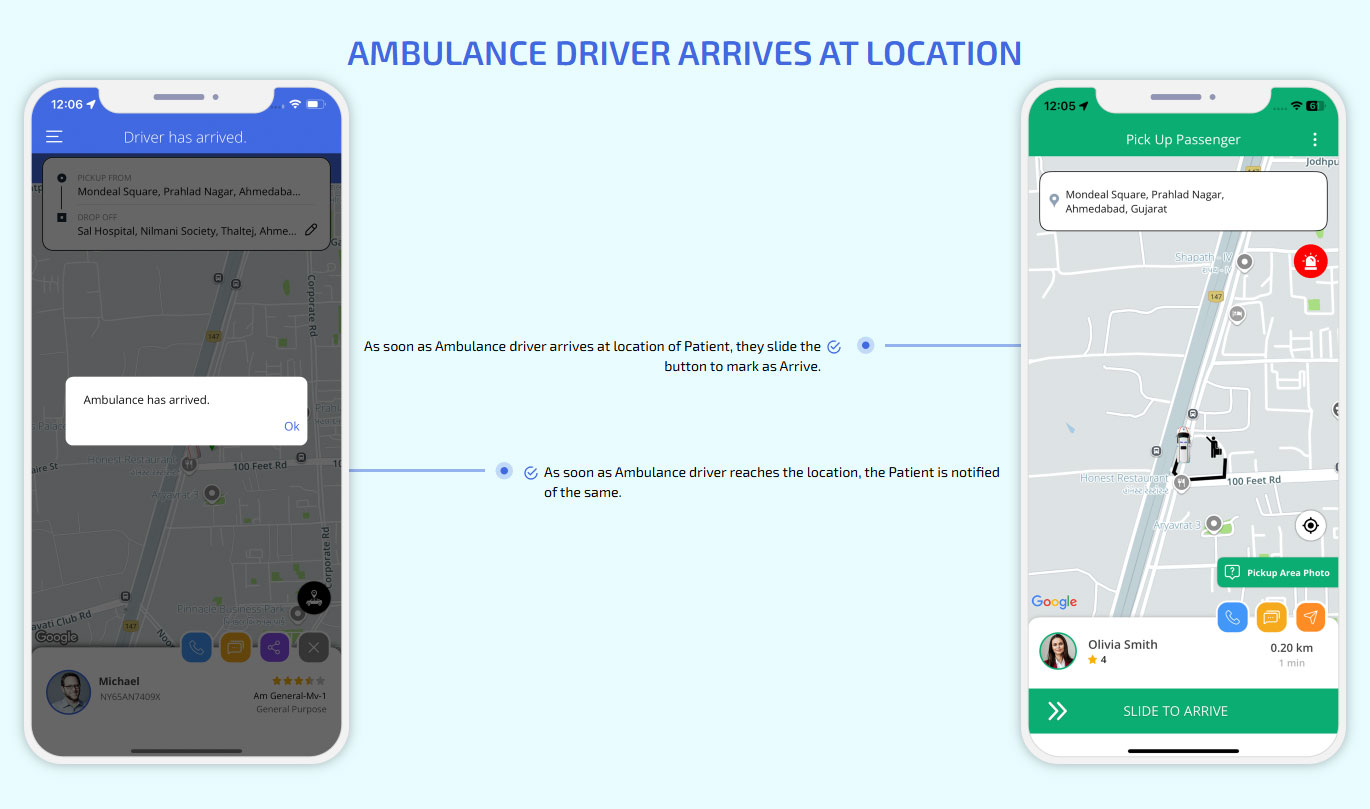
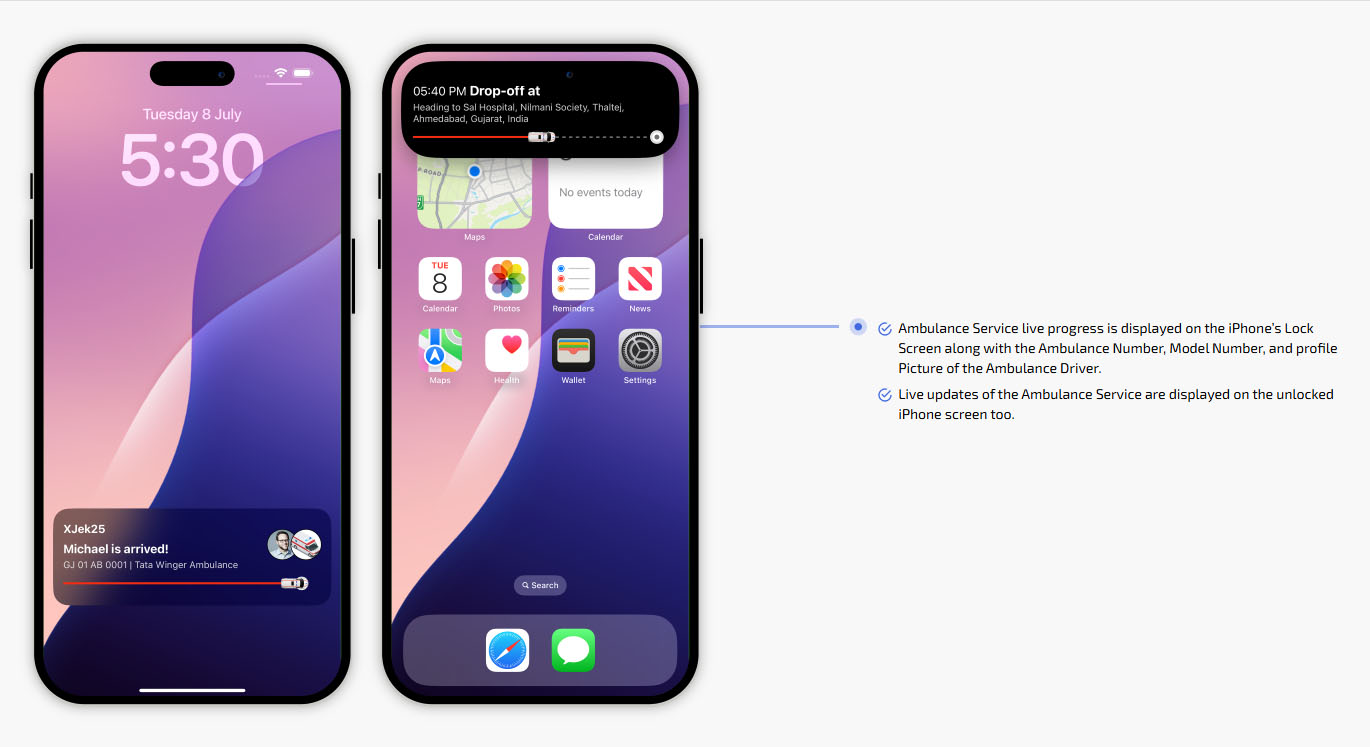
Ambulance driver Arrives at Location
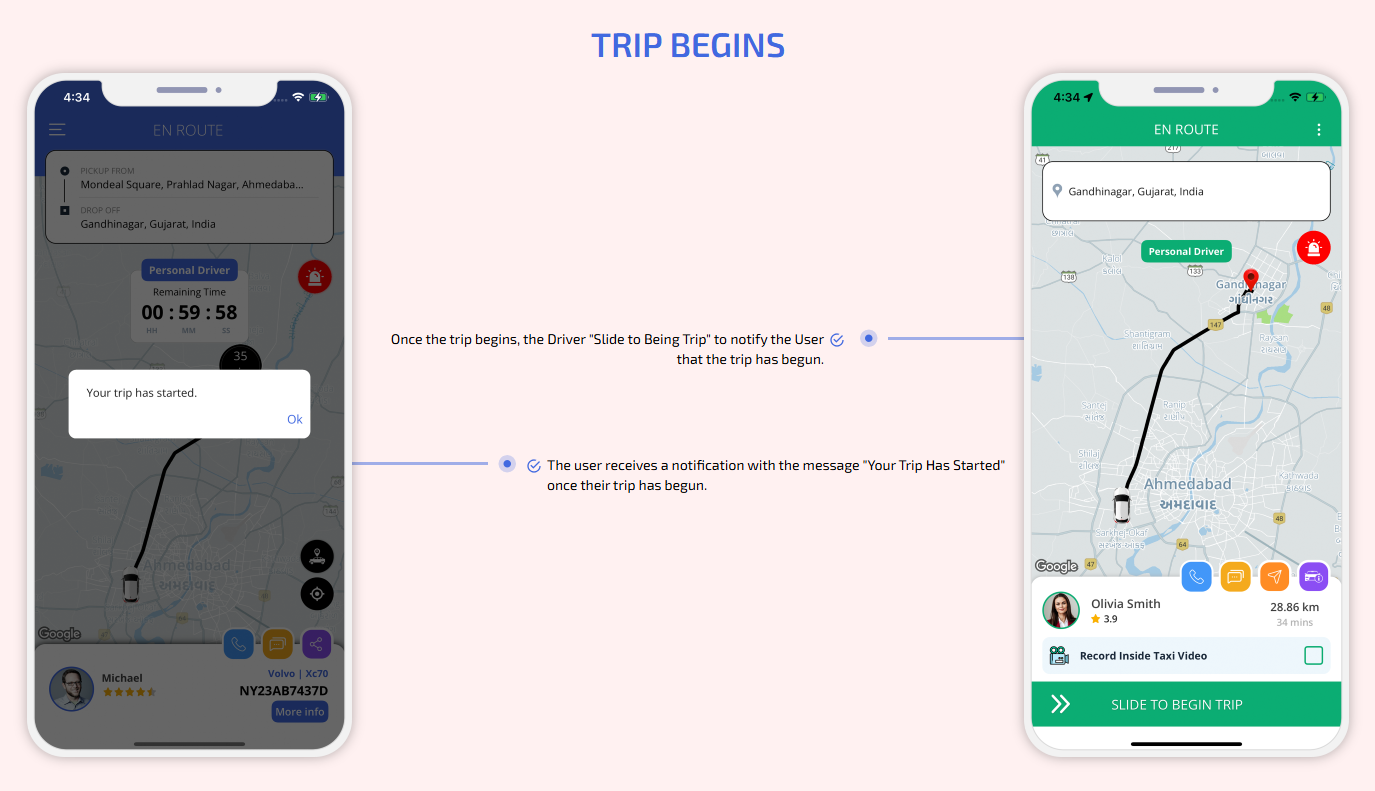
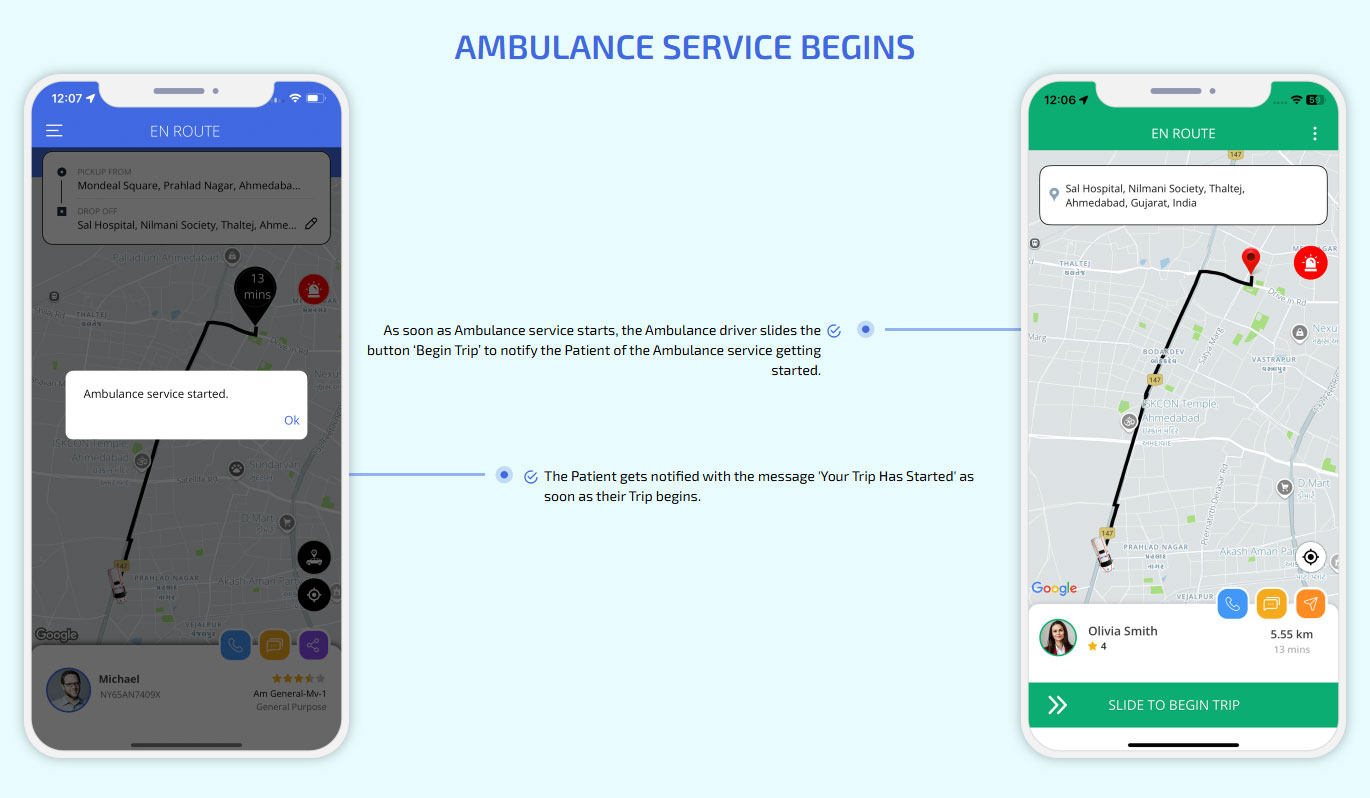
Ambulance service Begins
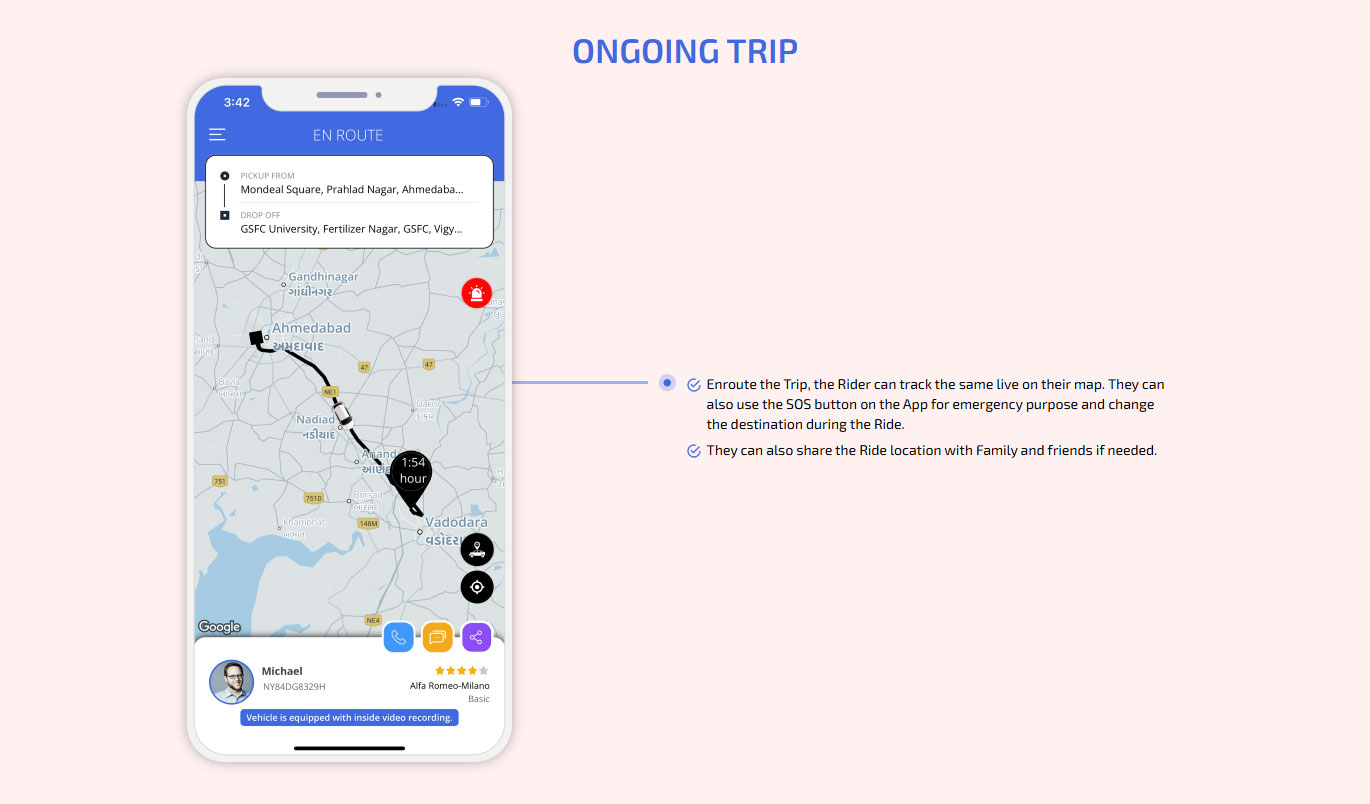
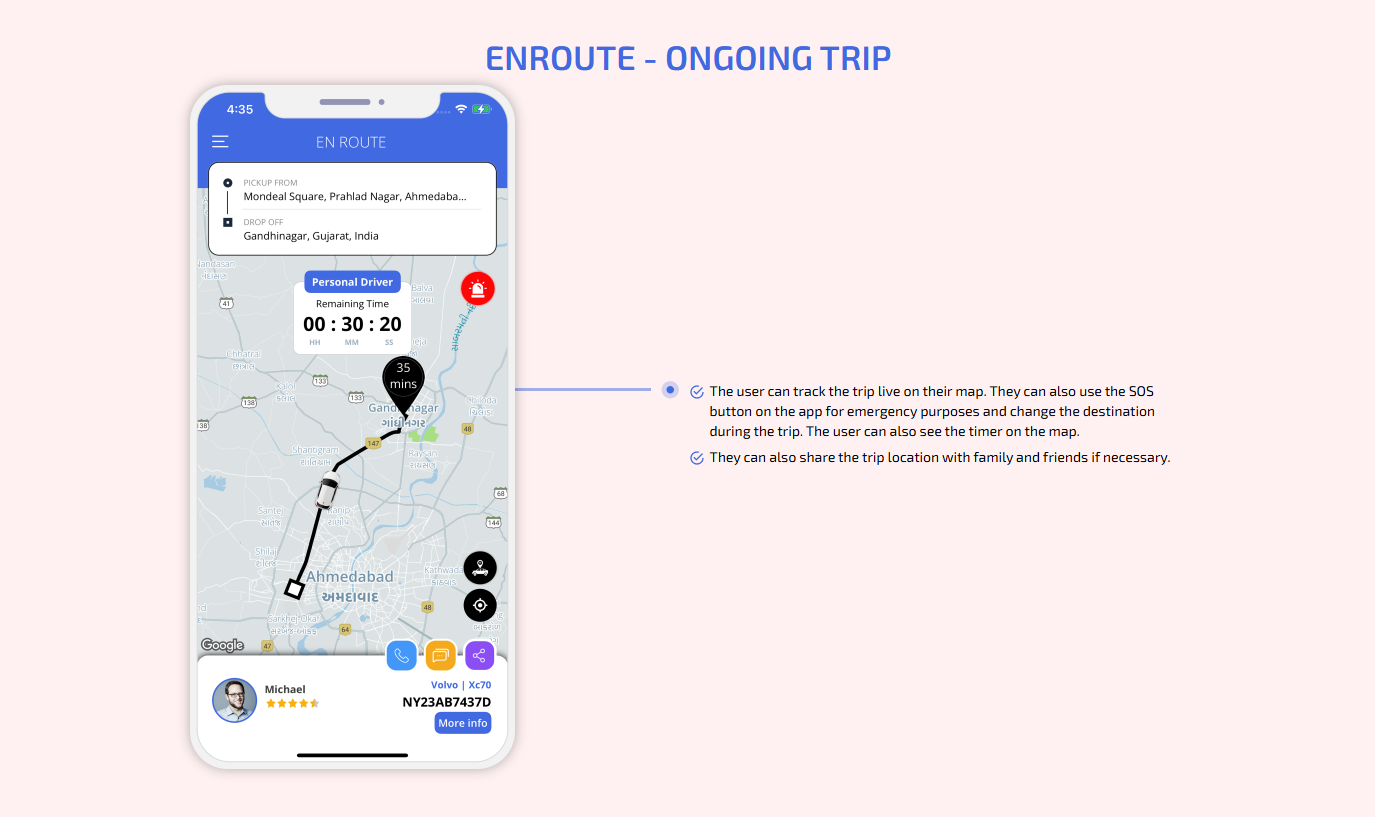
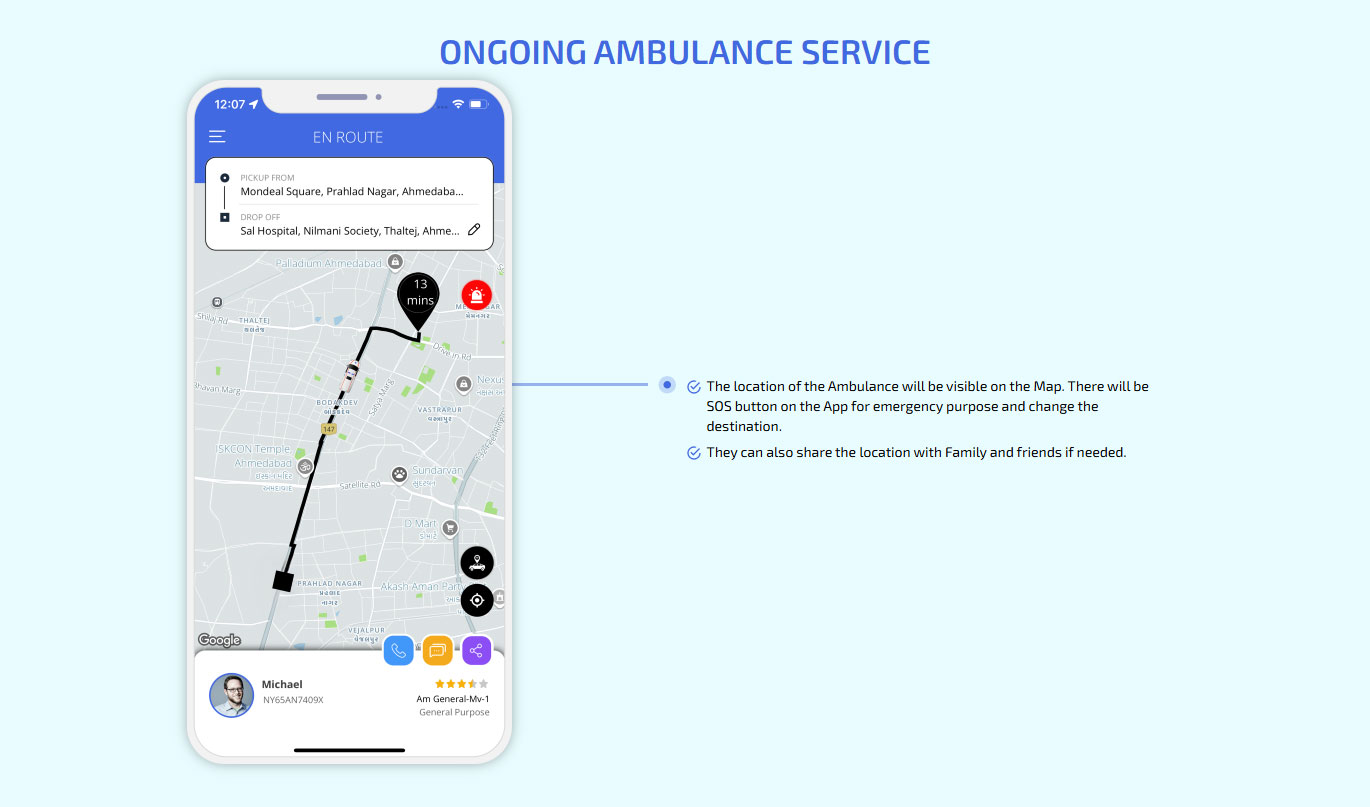
Ongoing Ambulance service
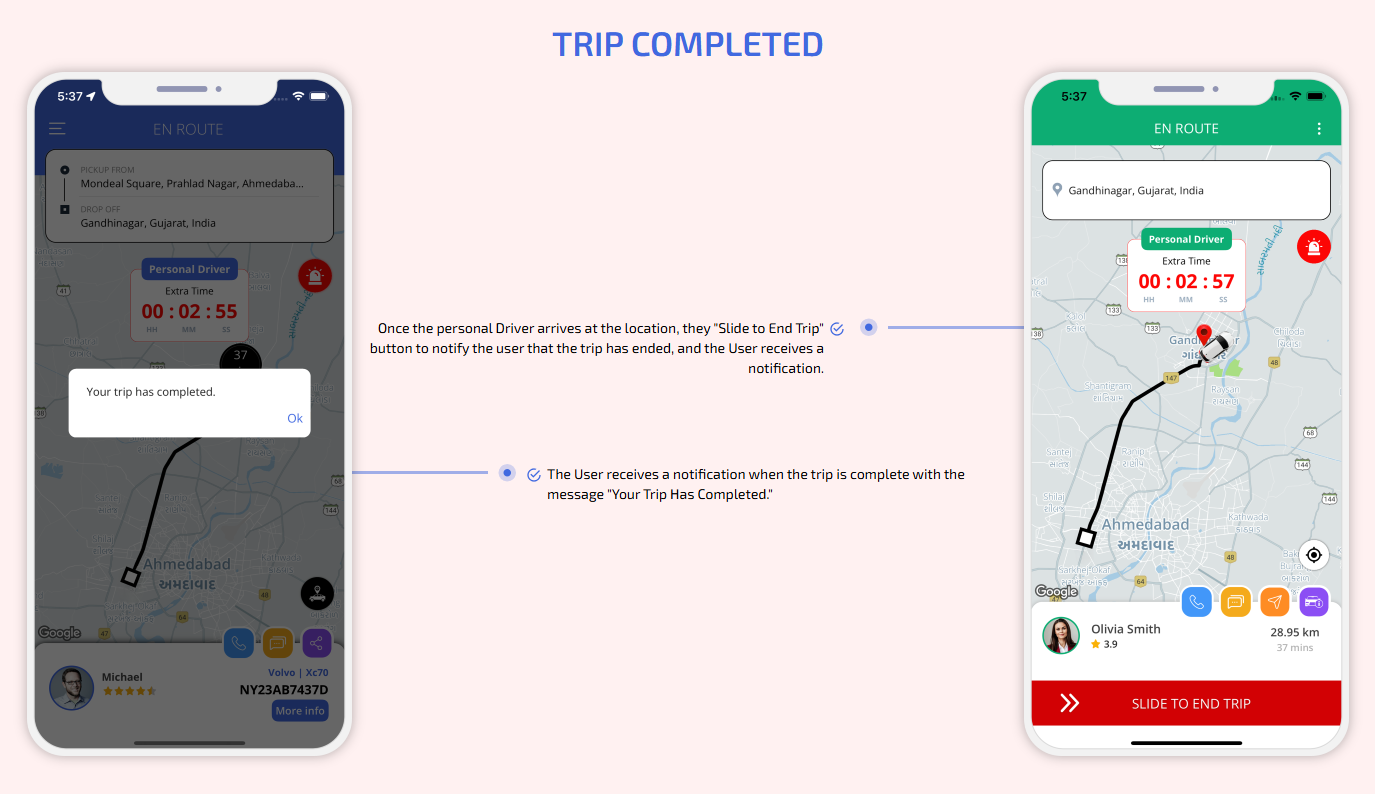
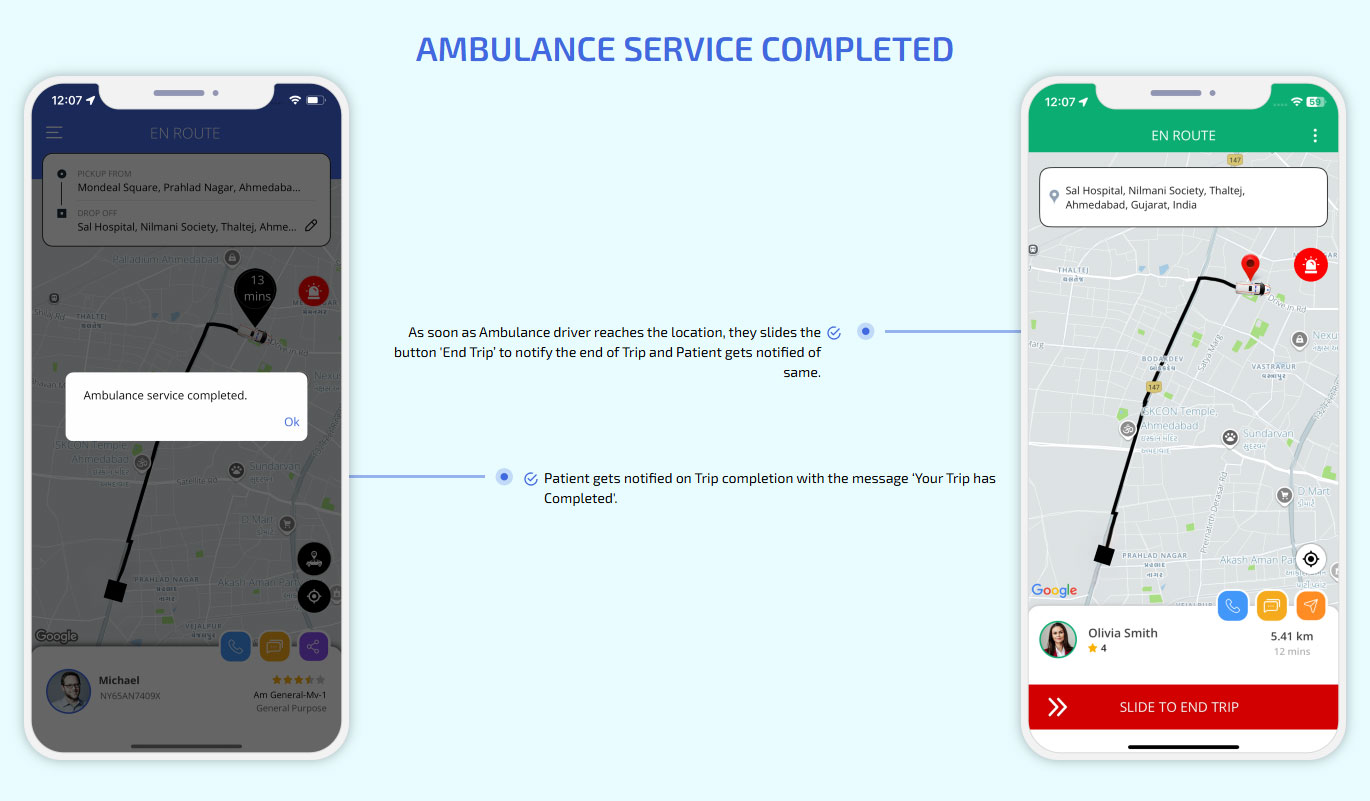
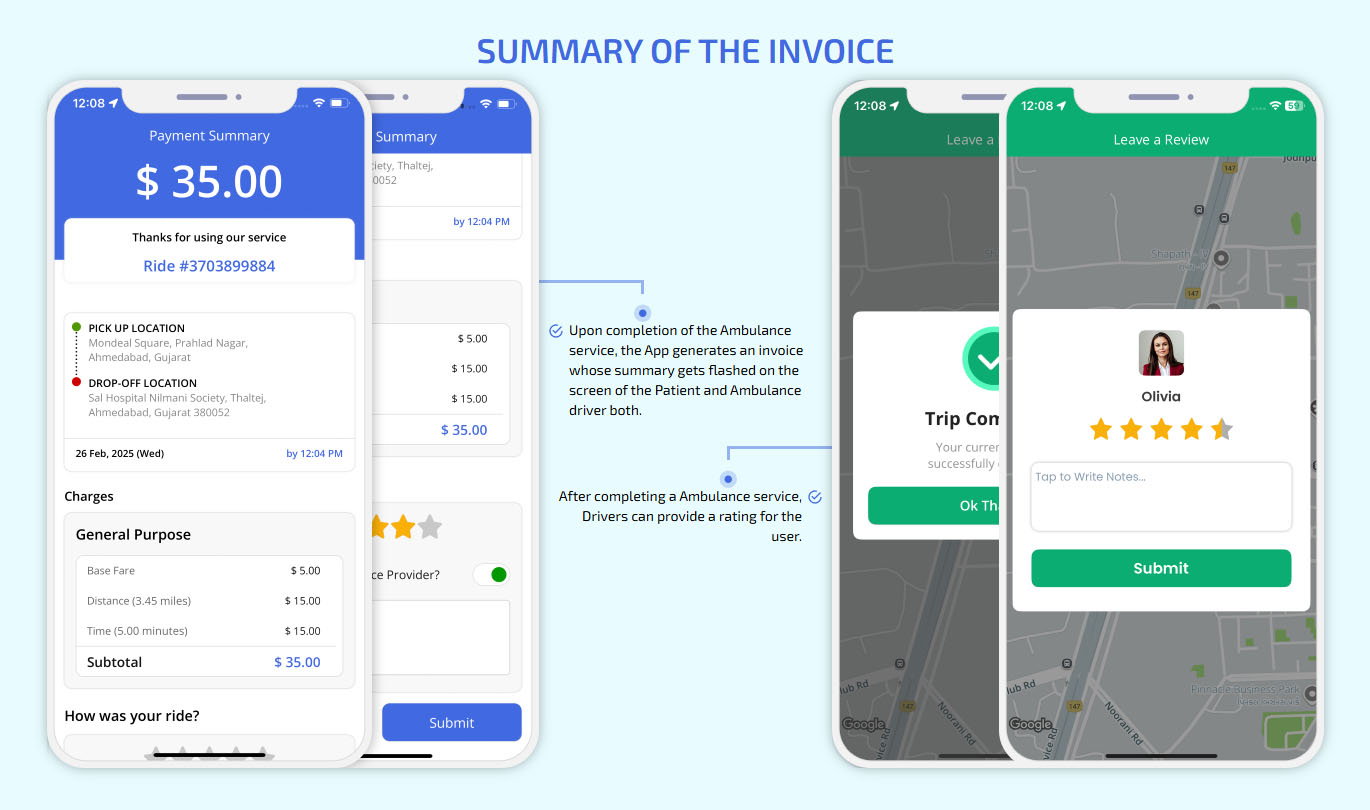
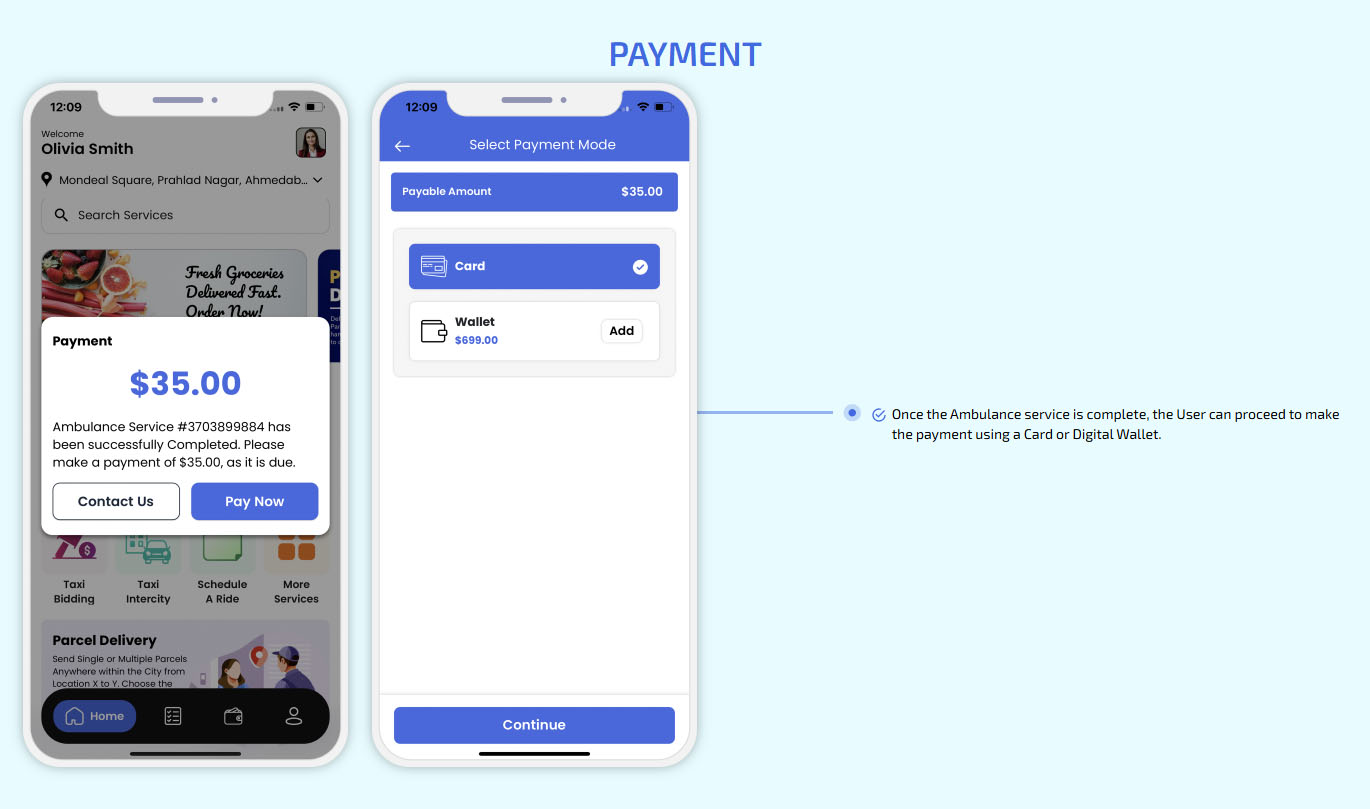
Ambulance service Completed
Summary of the Invoice
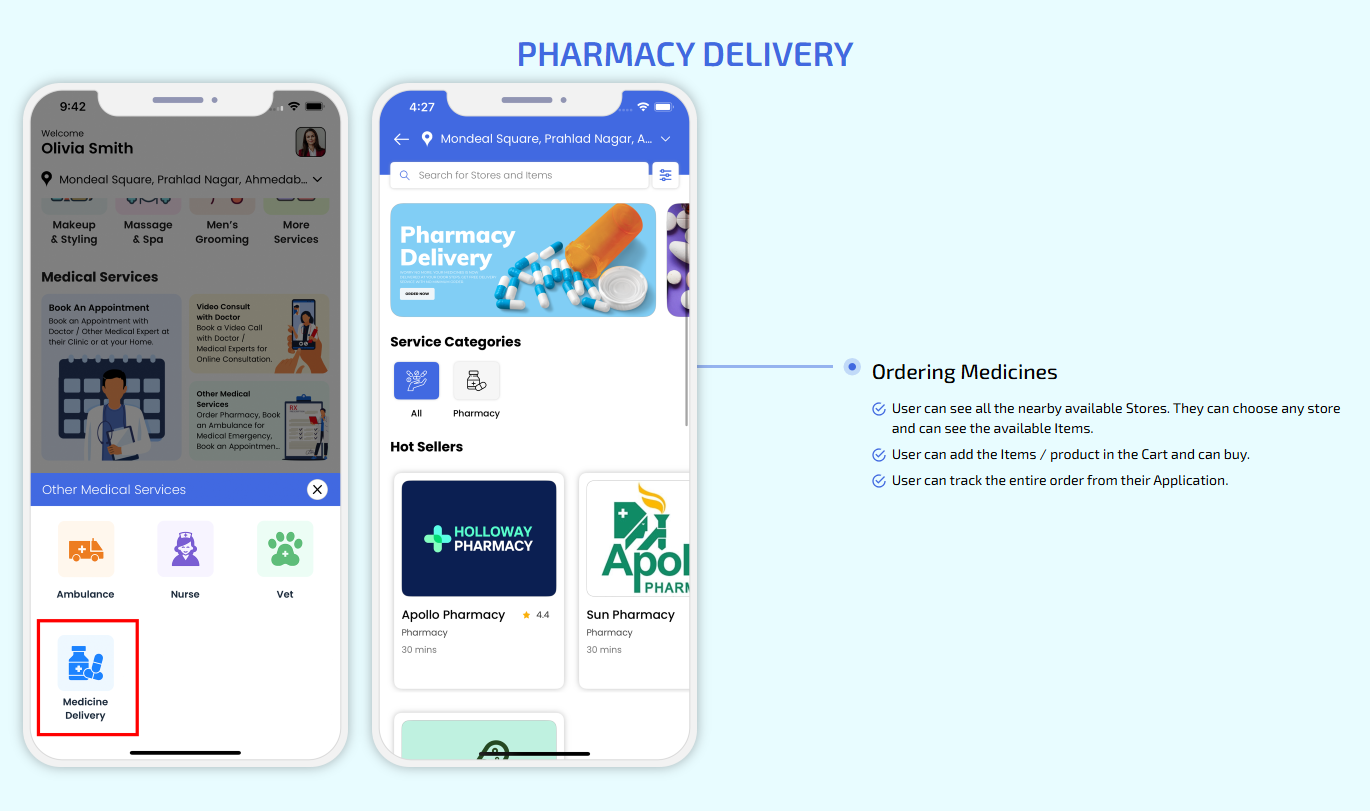
Pharmacy Delivery
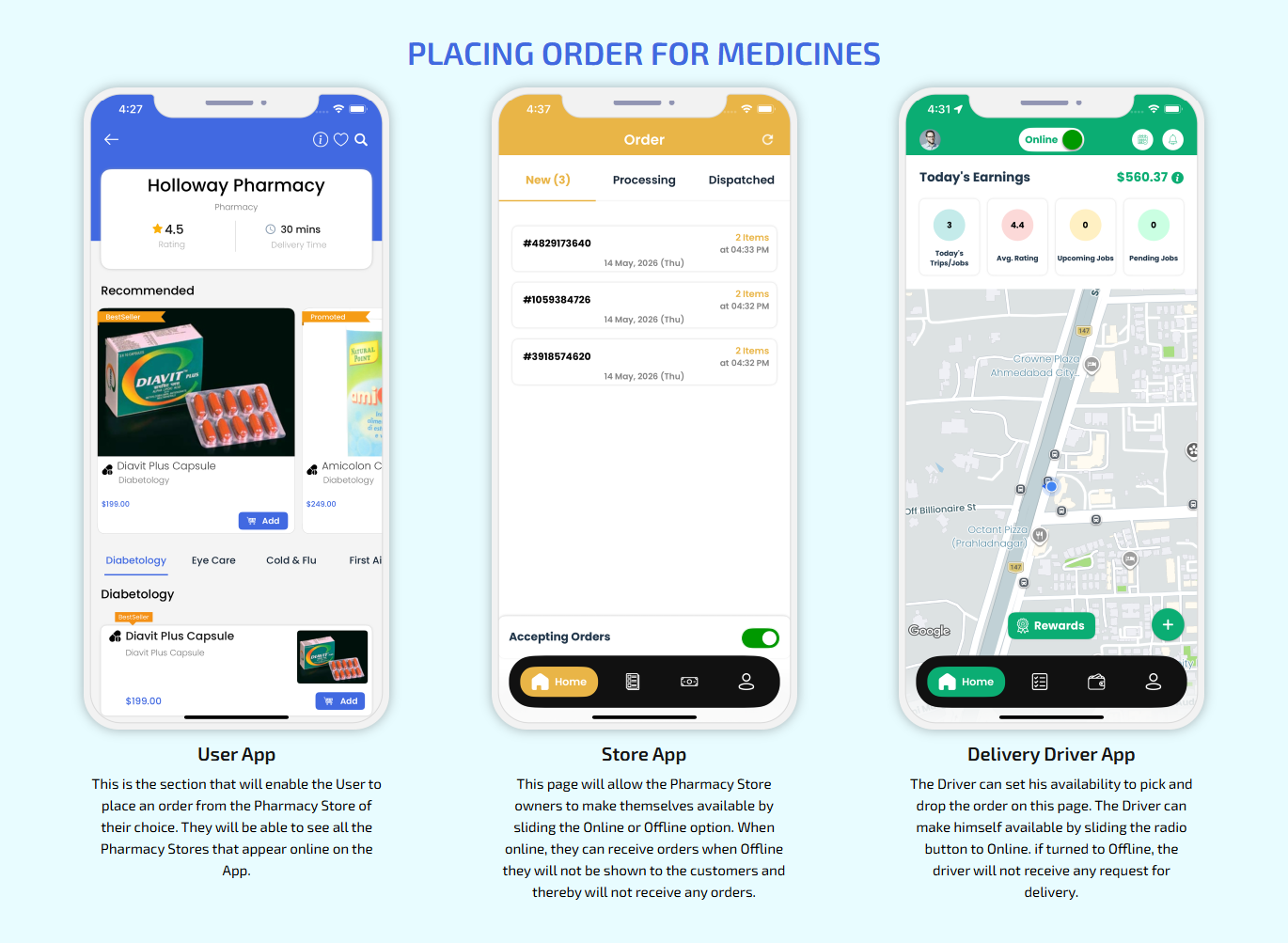
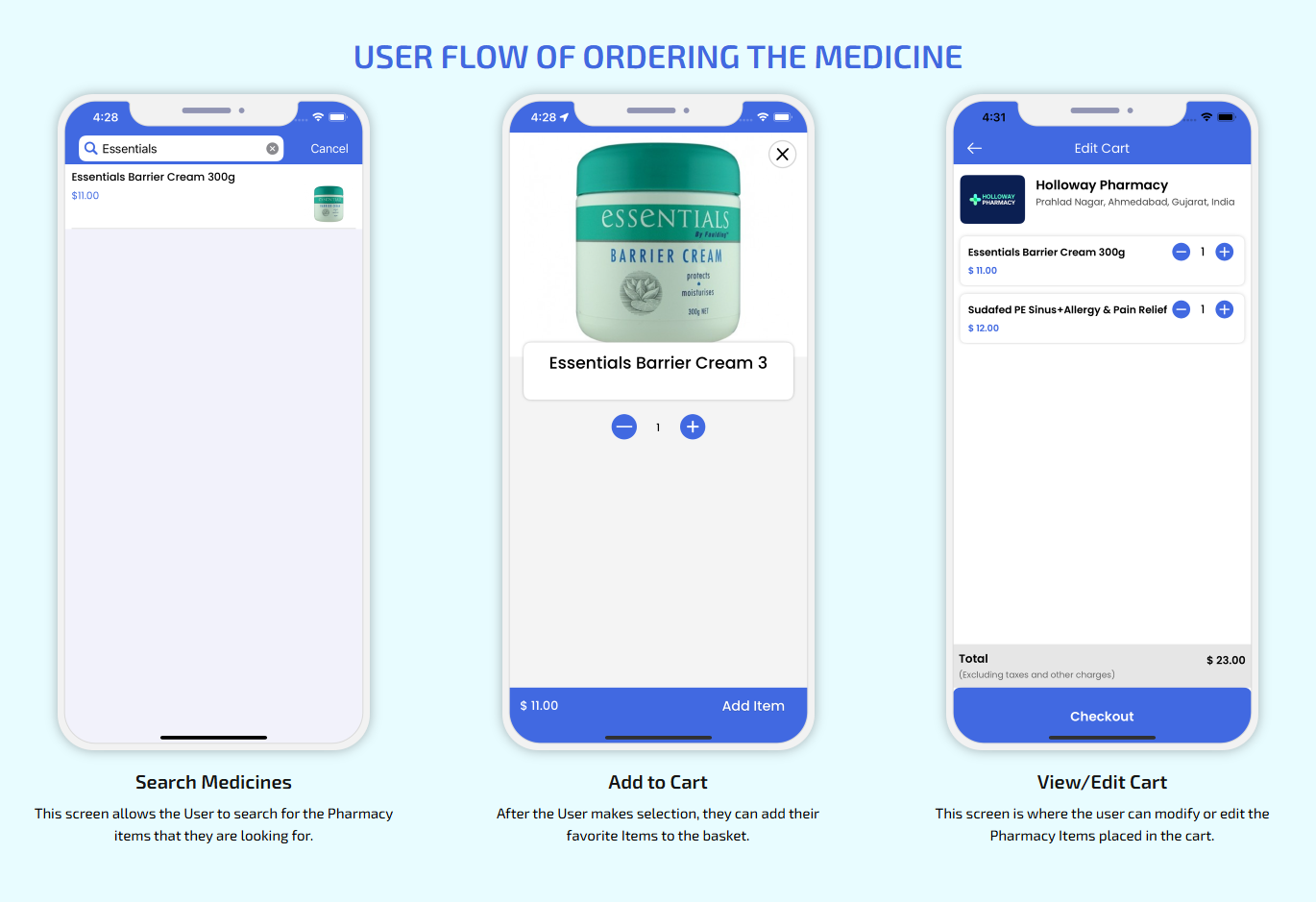
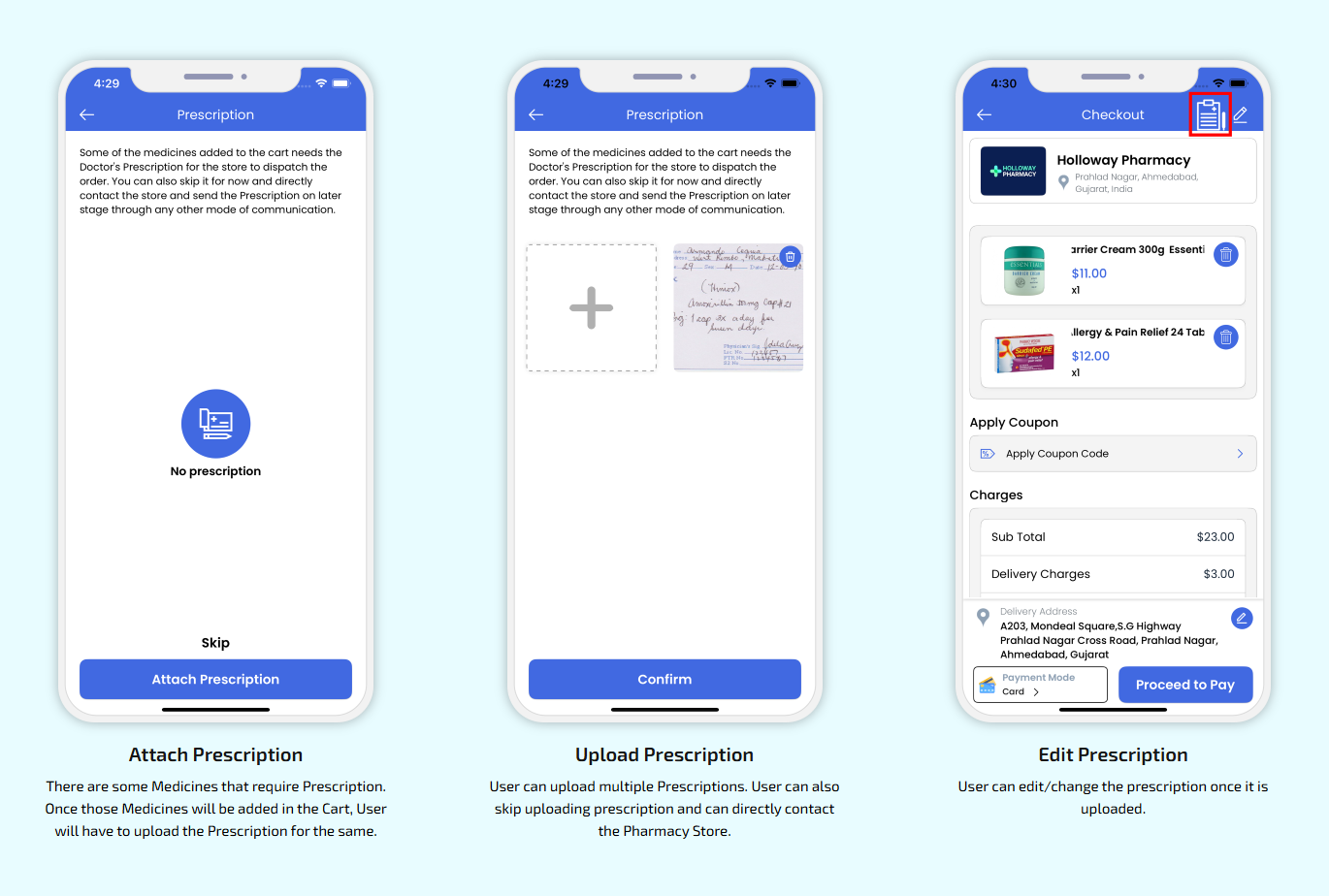
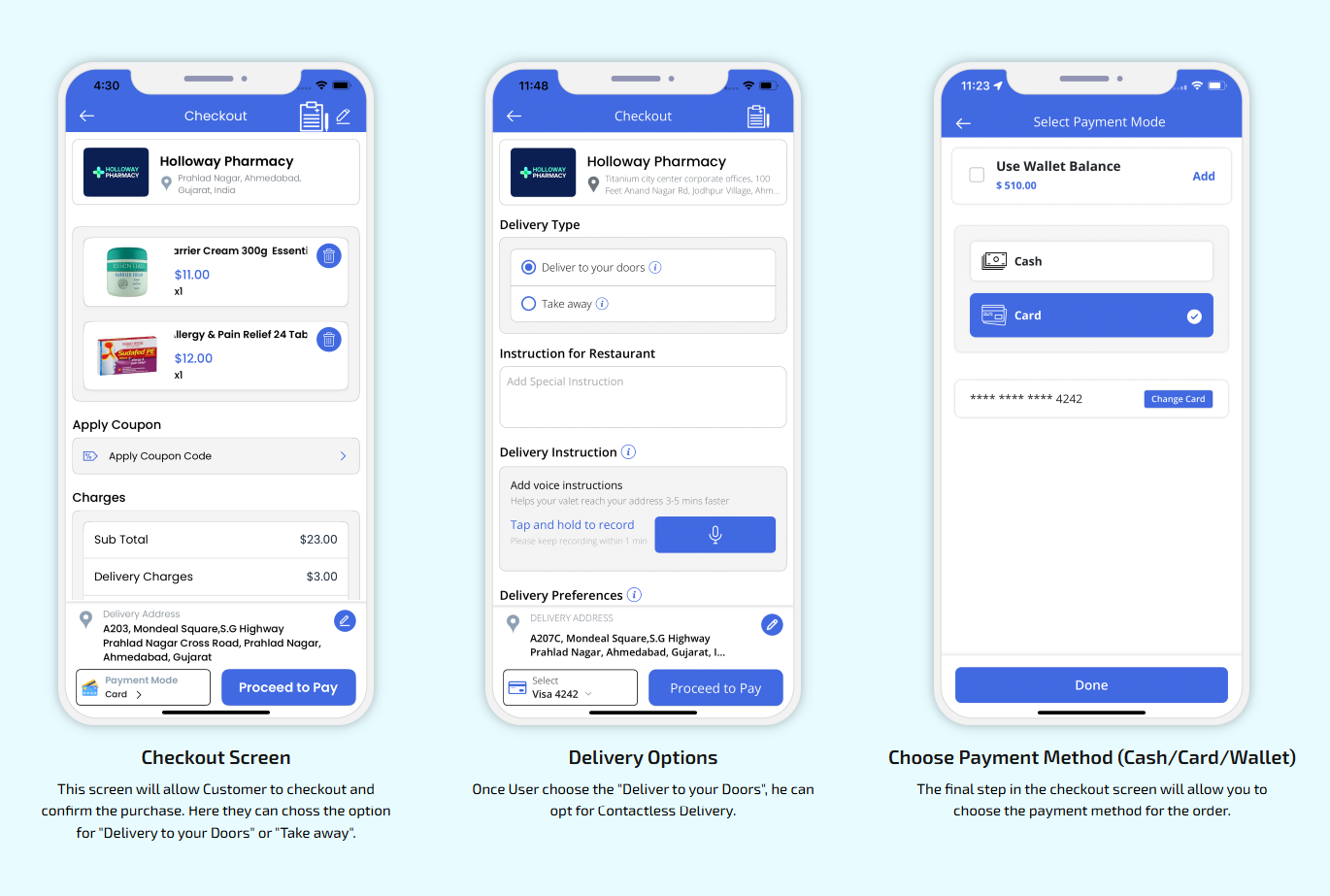
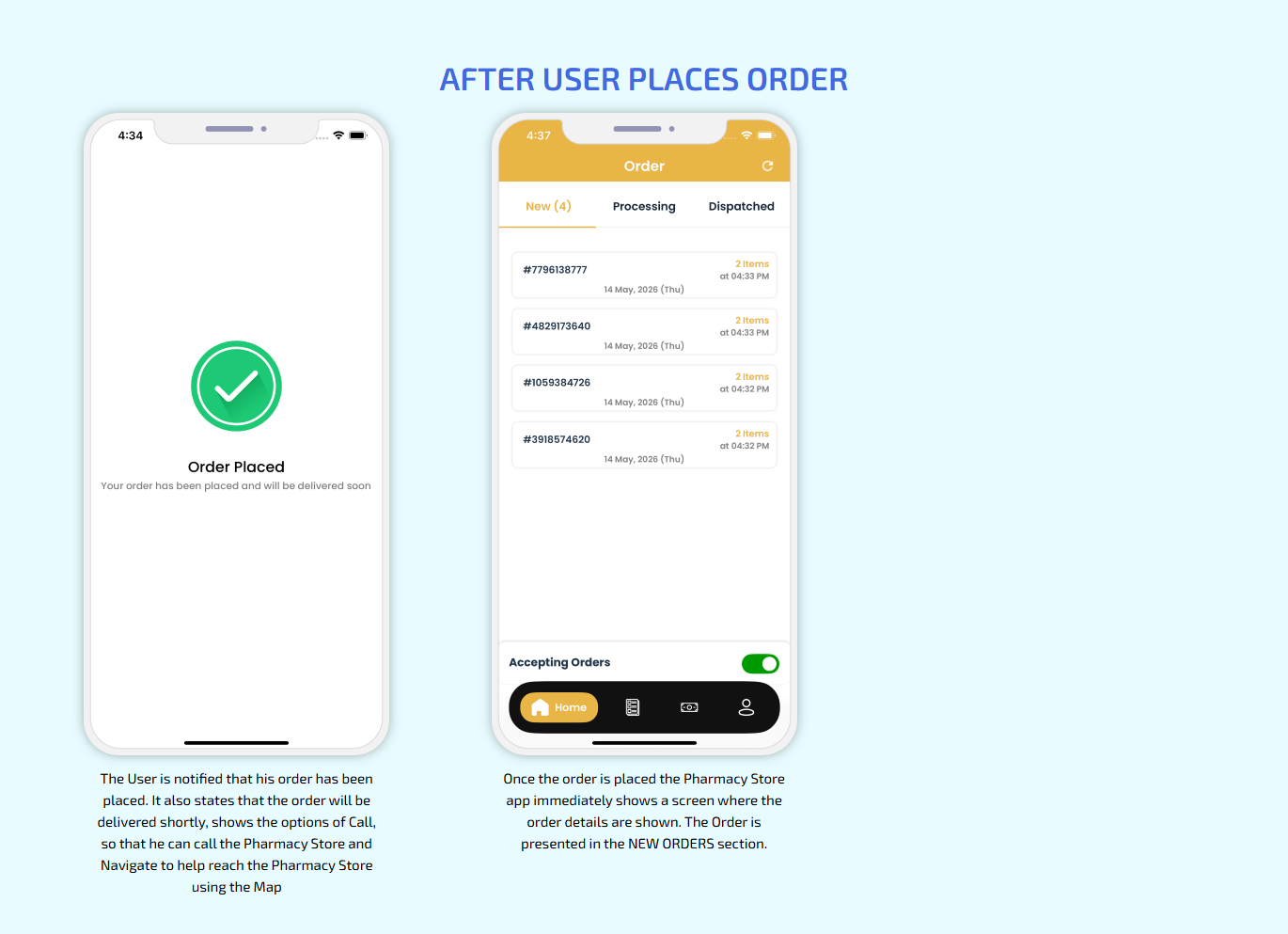
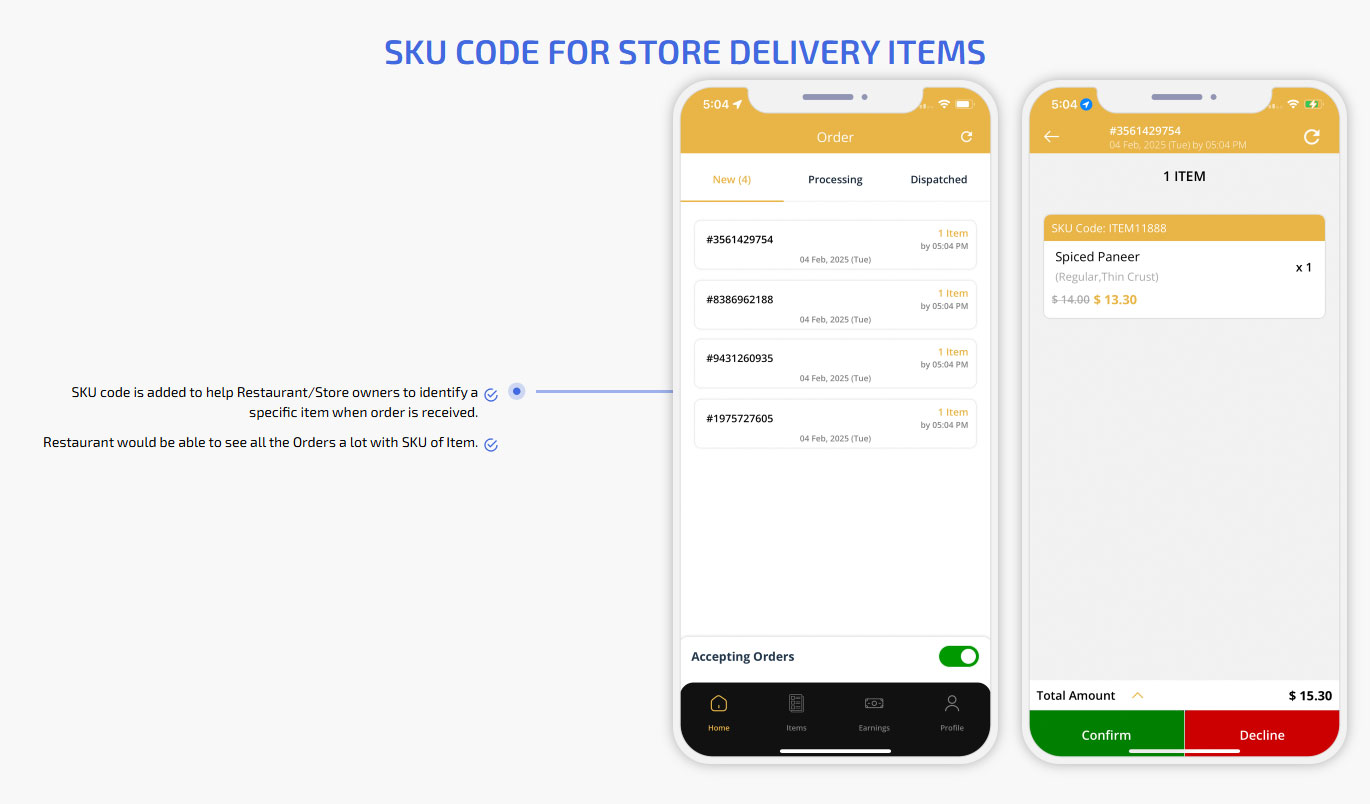
Placing Order for Medicines
User Flow of Ordering the Medicine
Attach,upload and edit Prescription
Checkout Screen
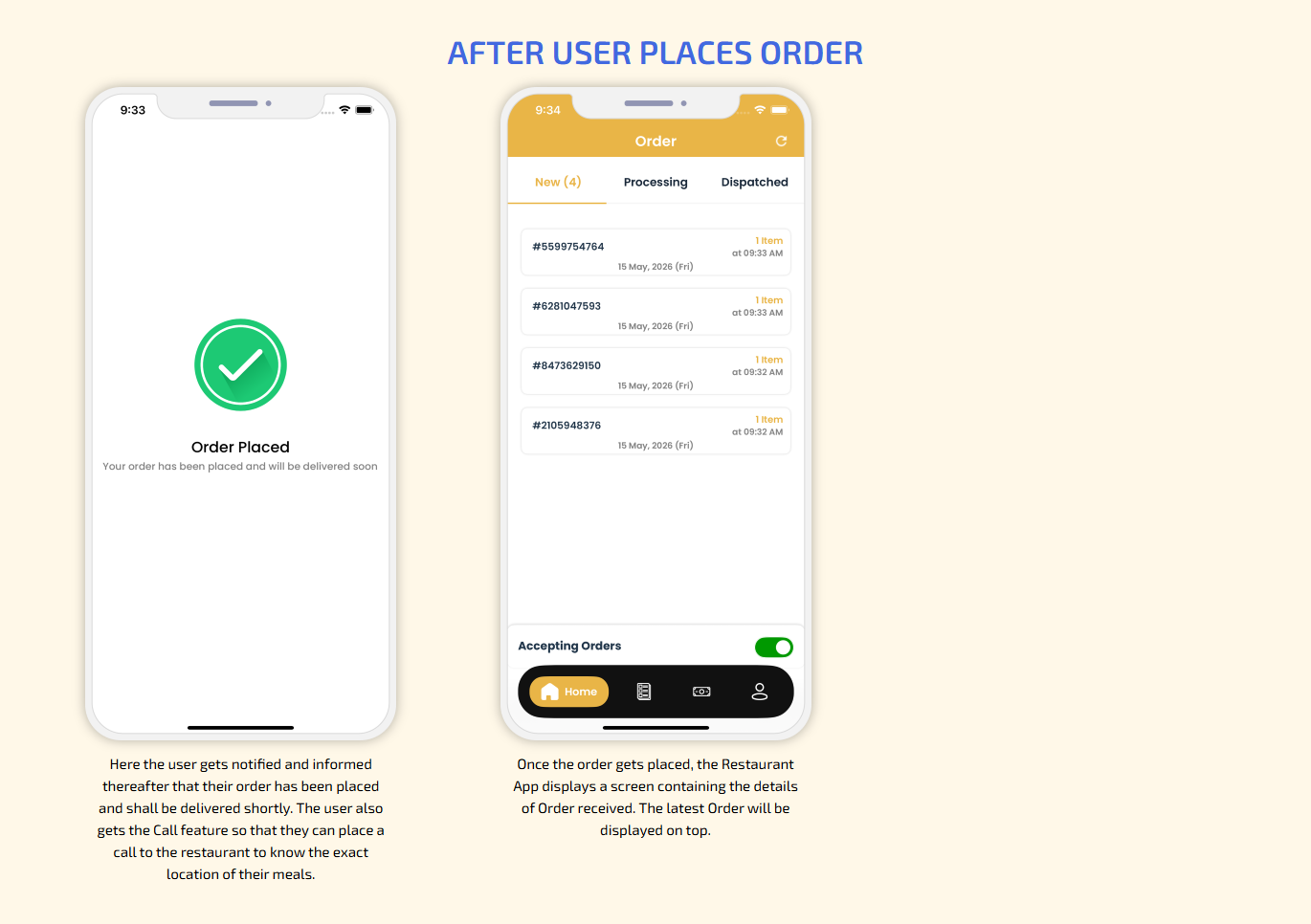
After User Places Order
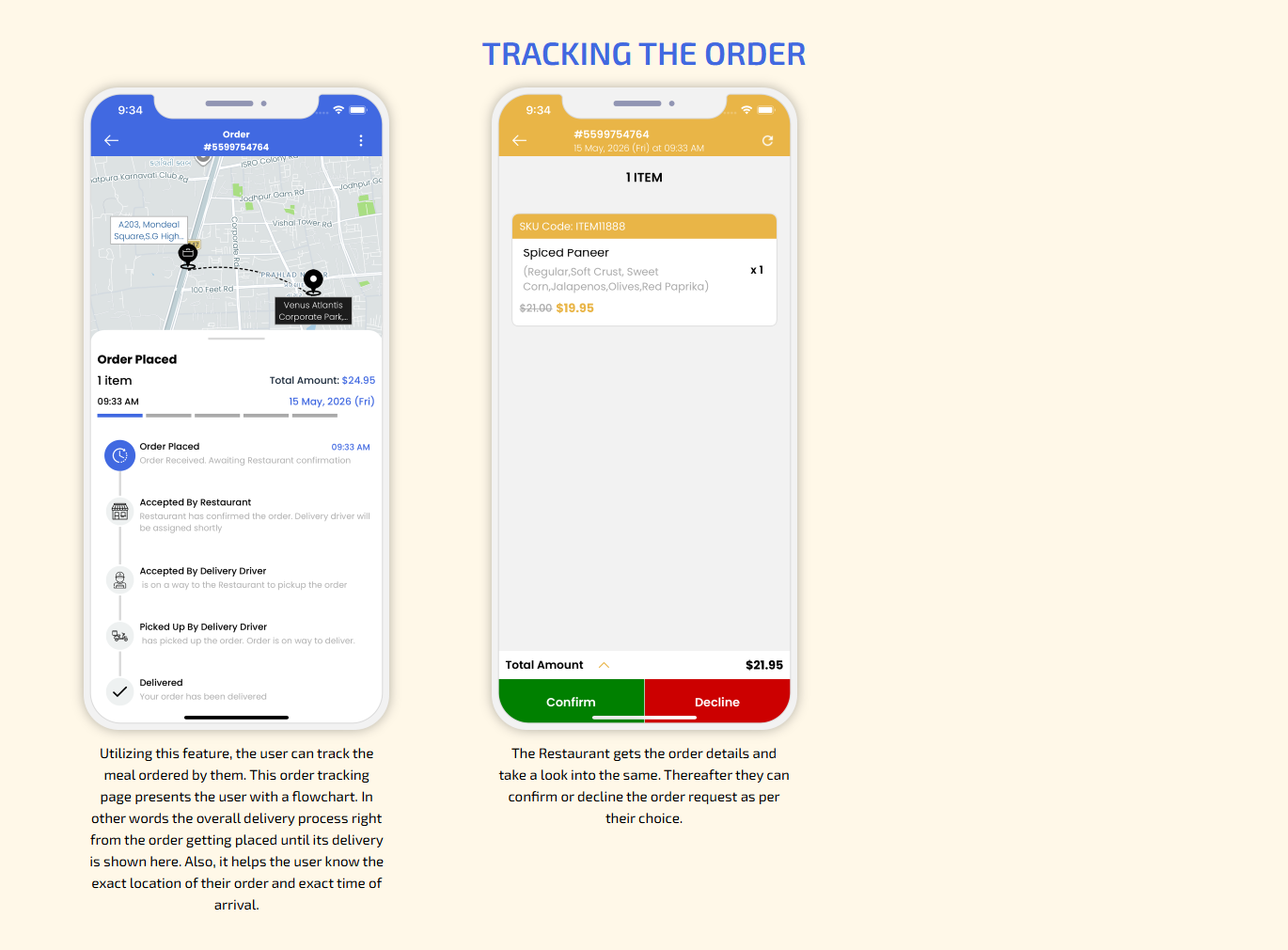
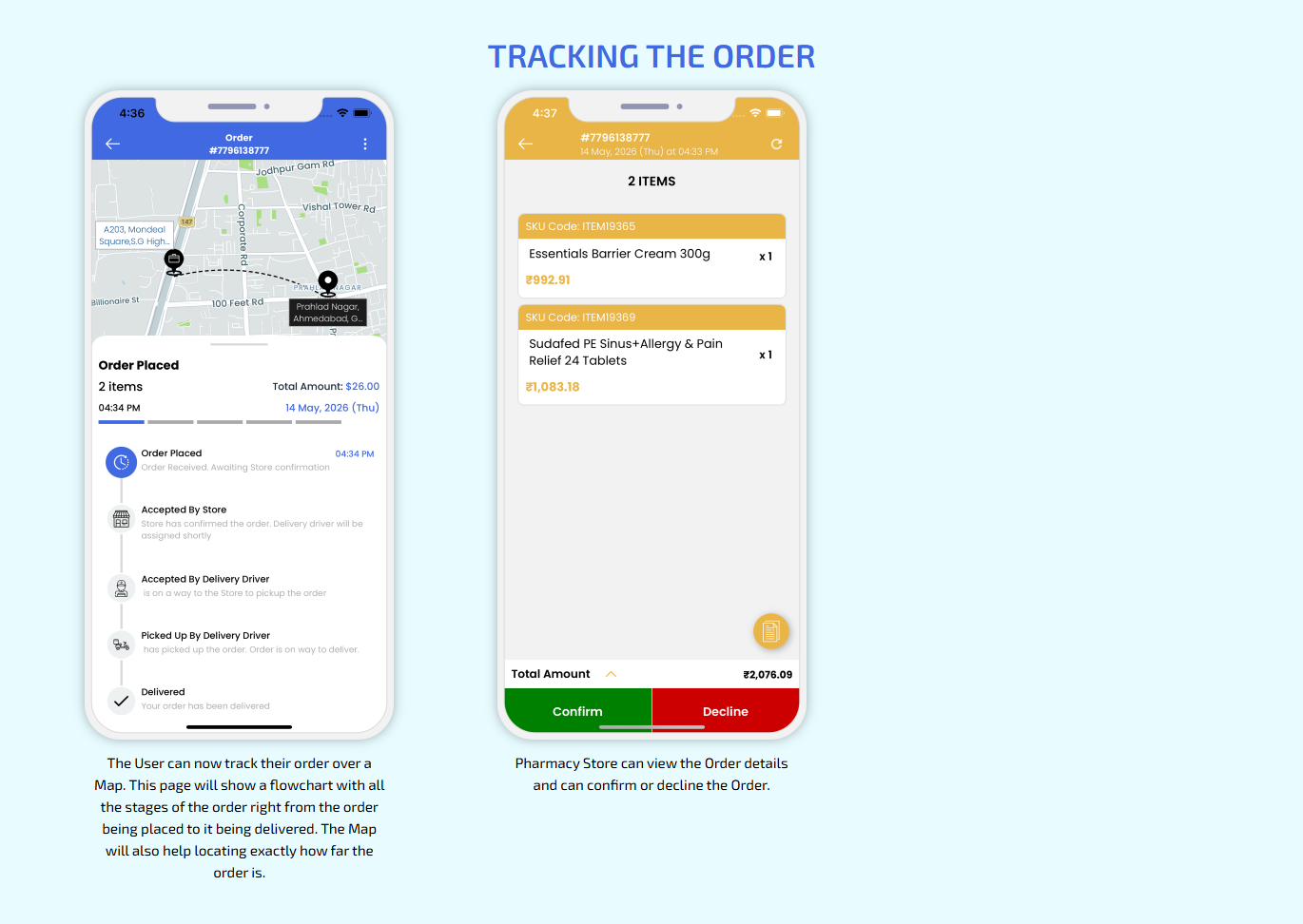
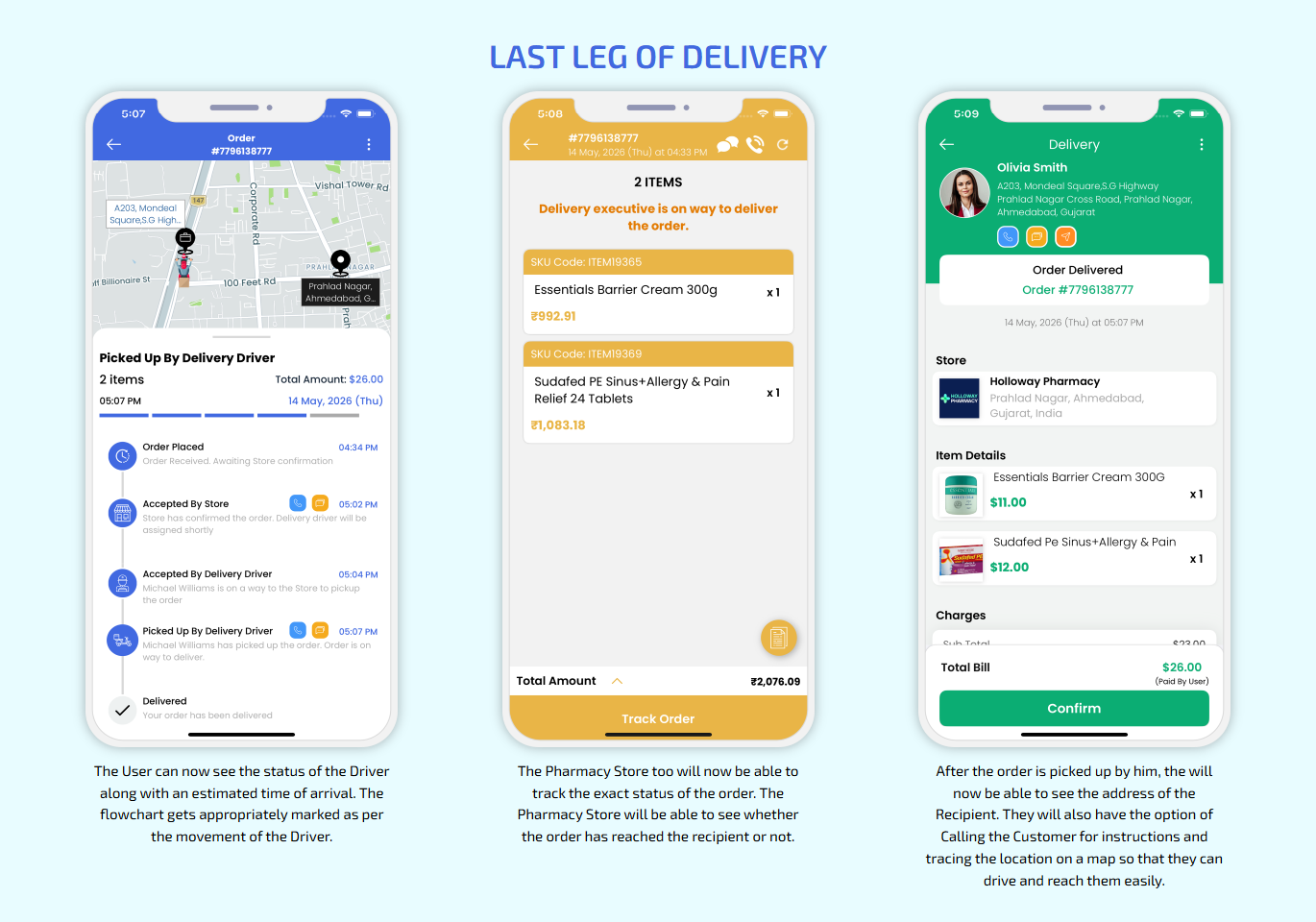
Tracking the Order
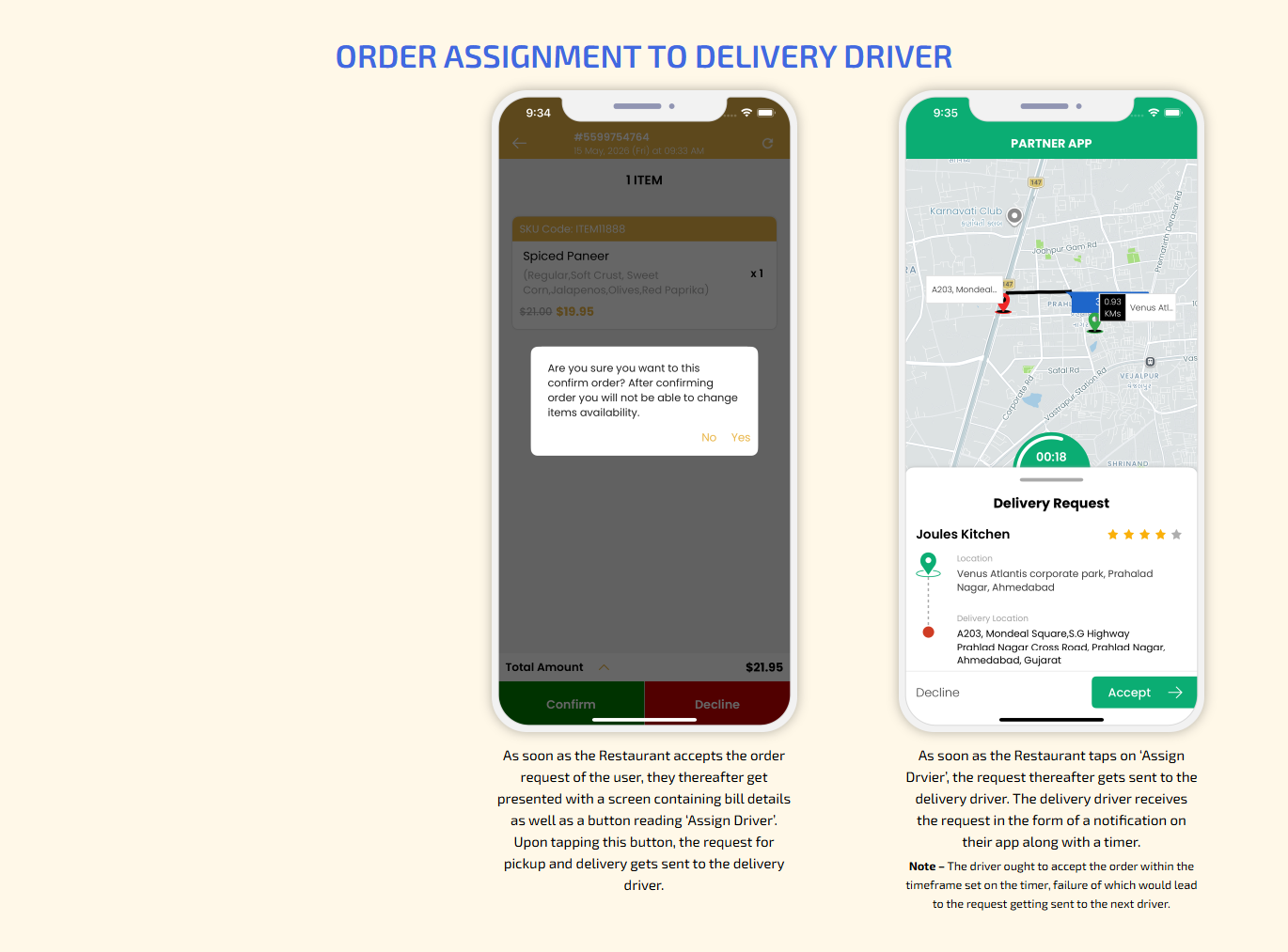
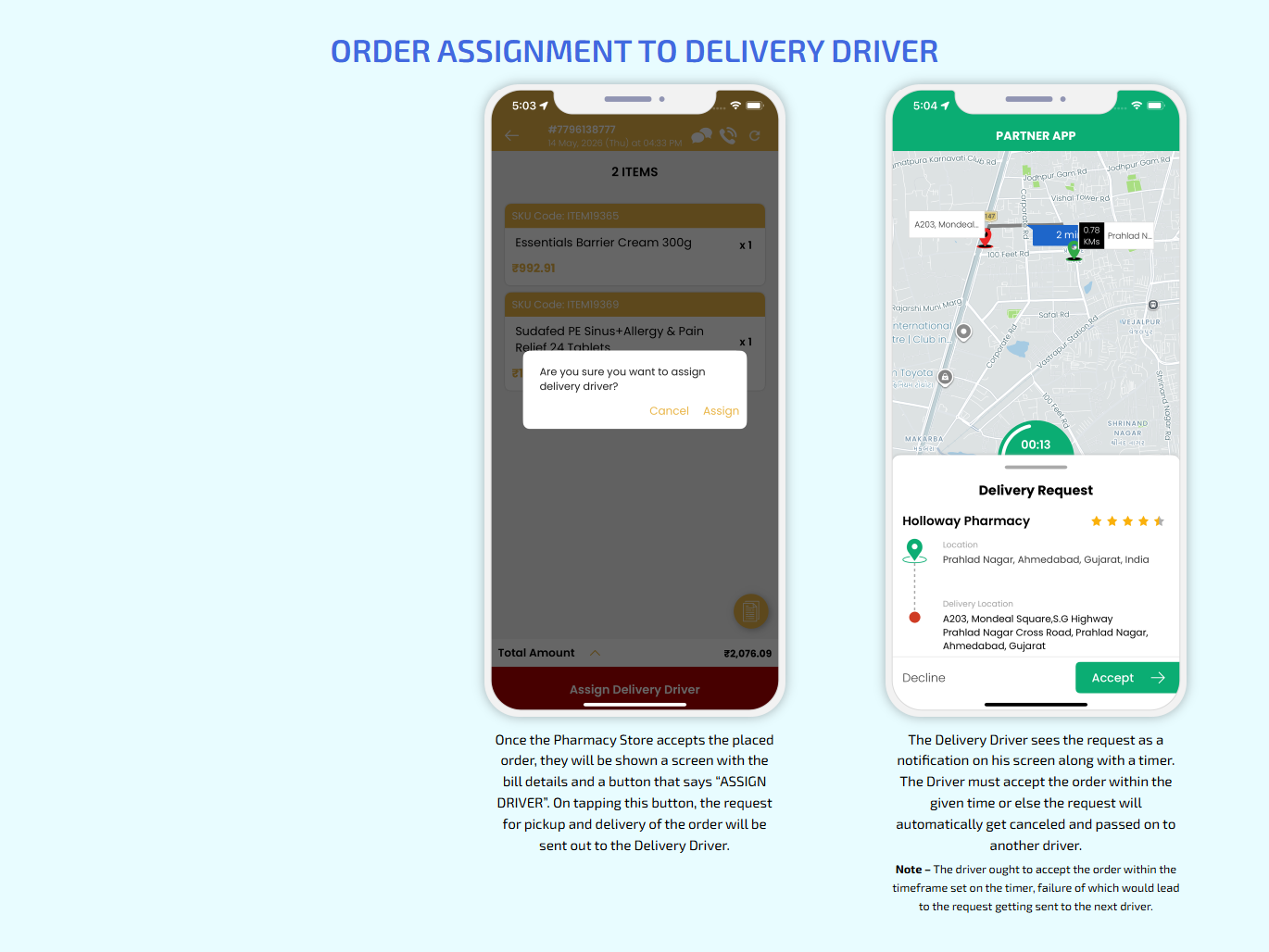
Order Assignment to Delivery Driver
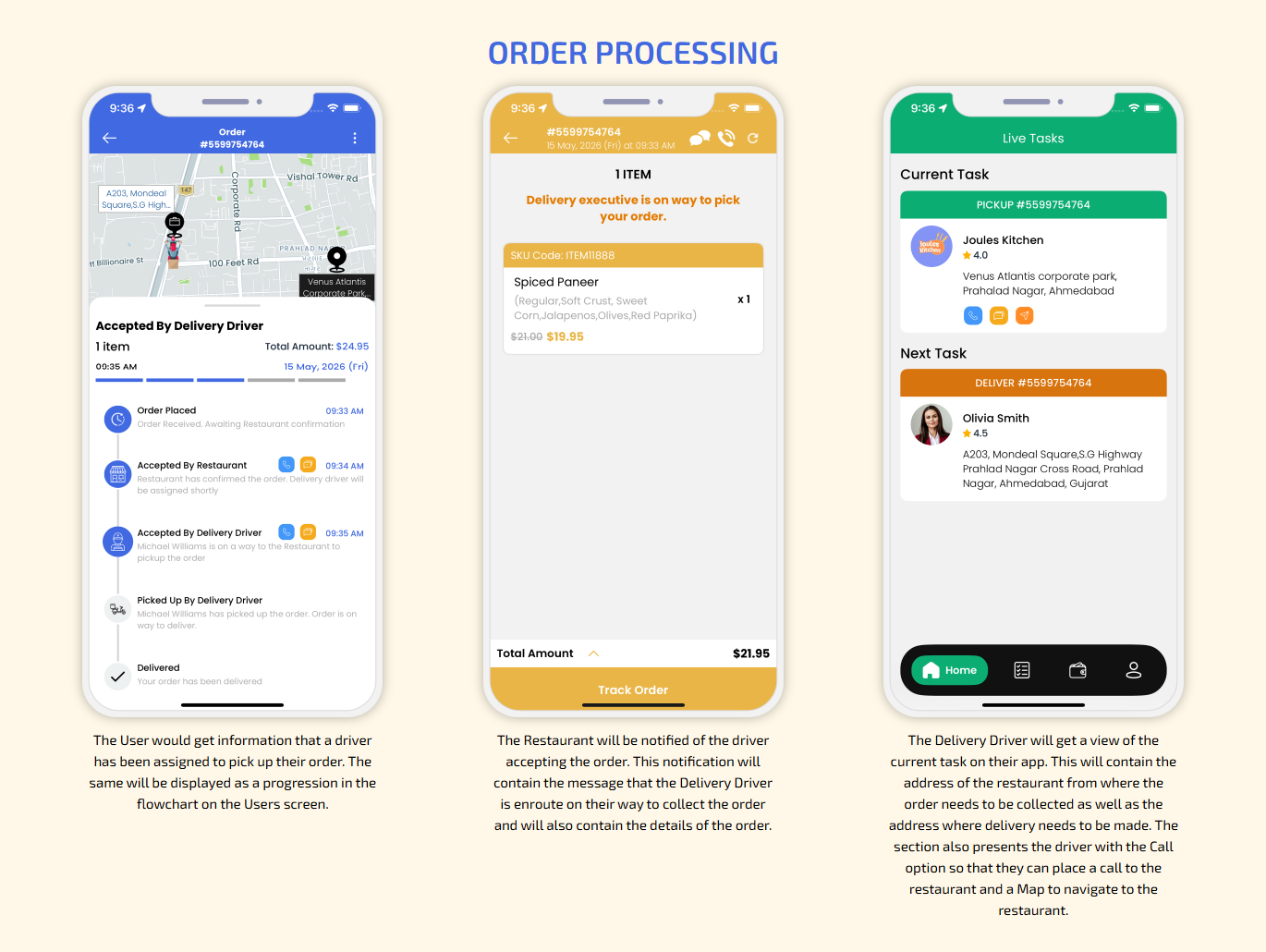
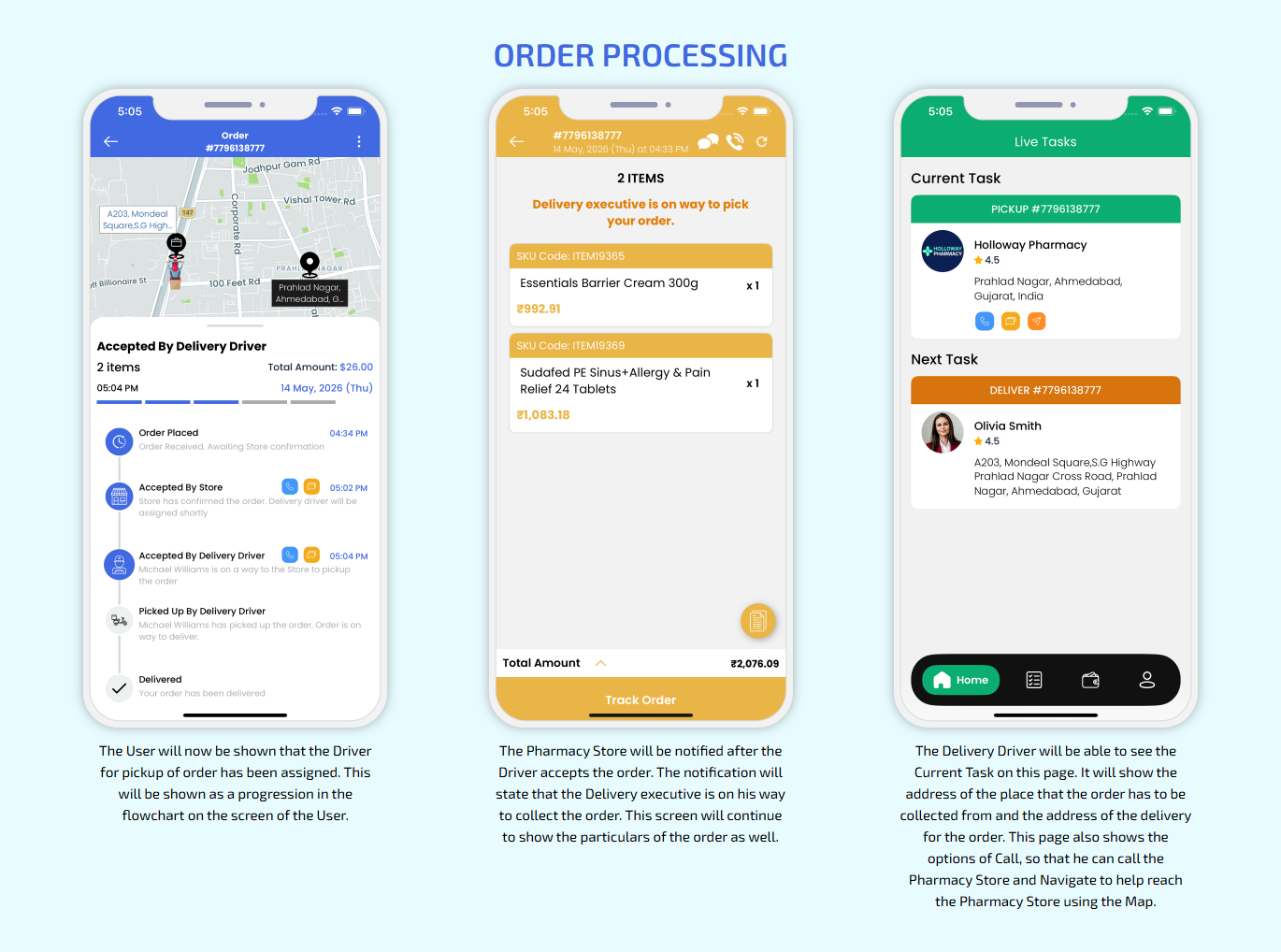
Order Processing
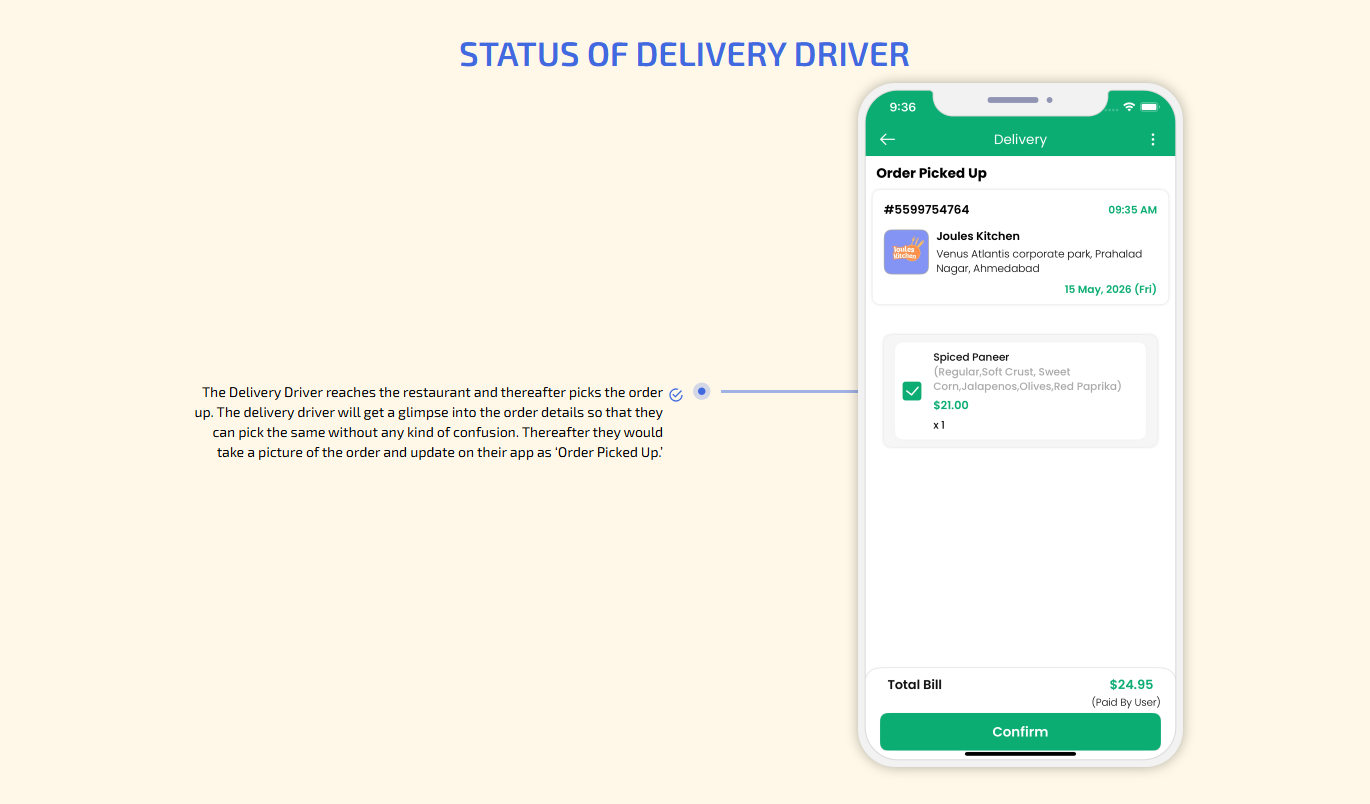
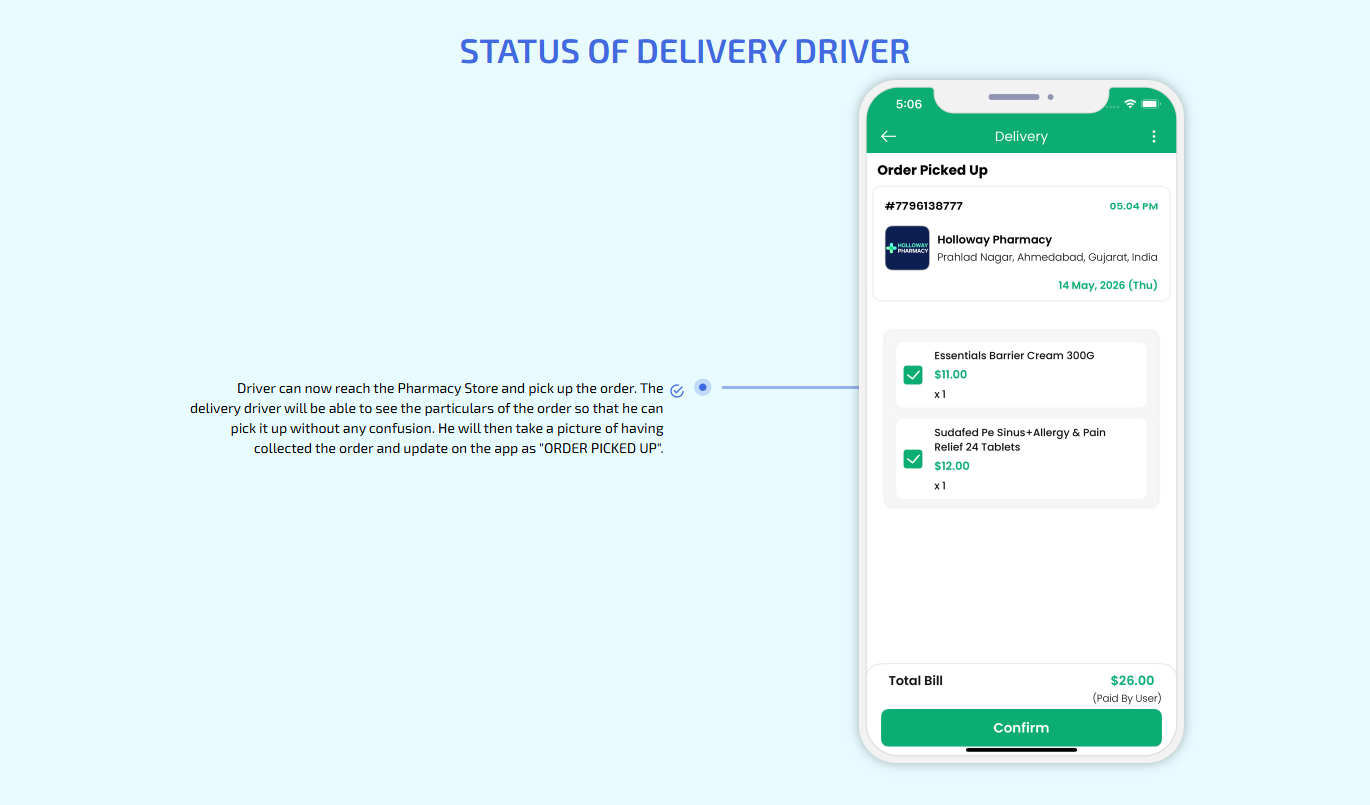
Status of Delivery Driver
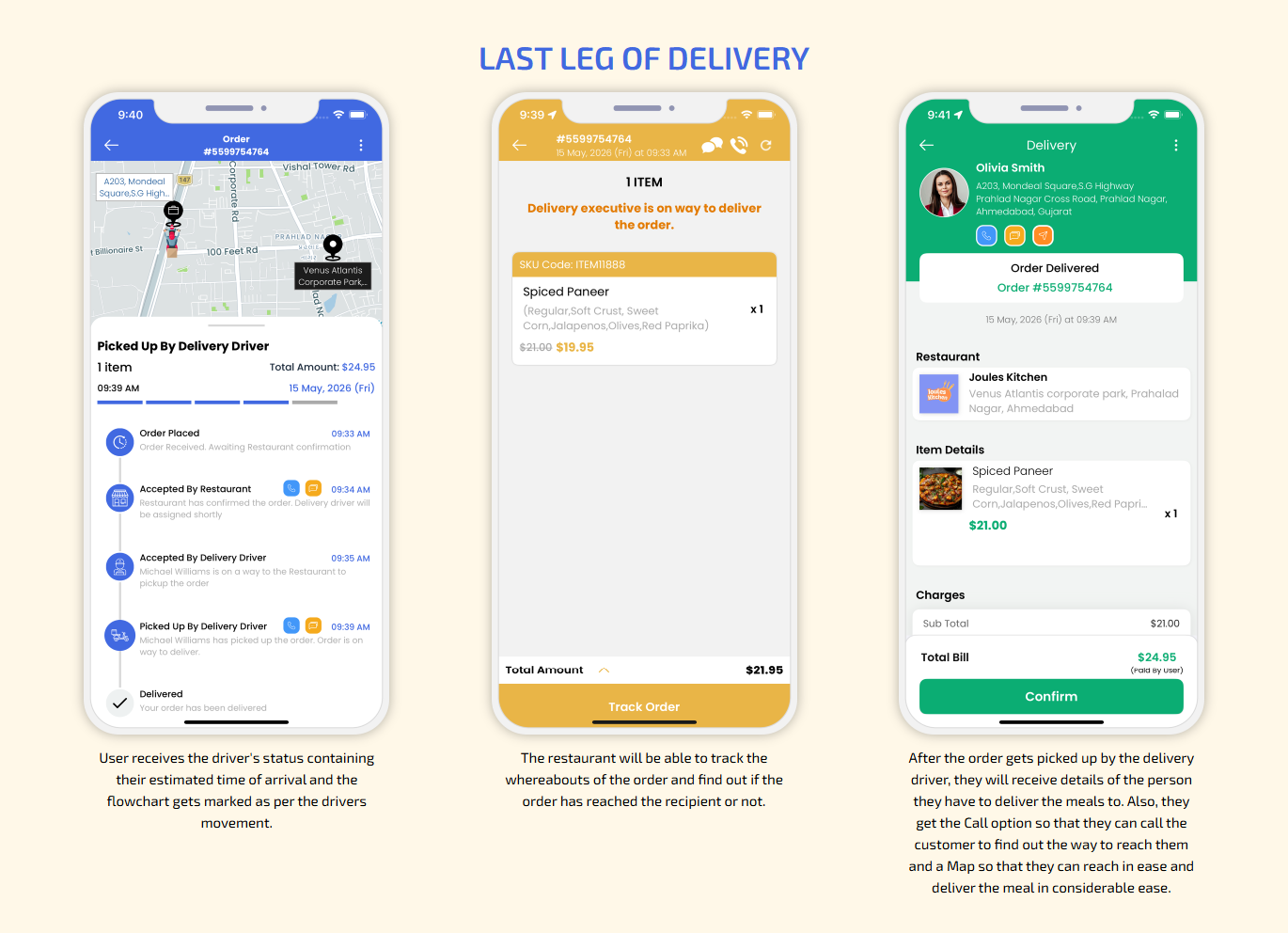
Last Leg of Delivery
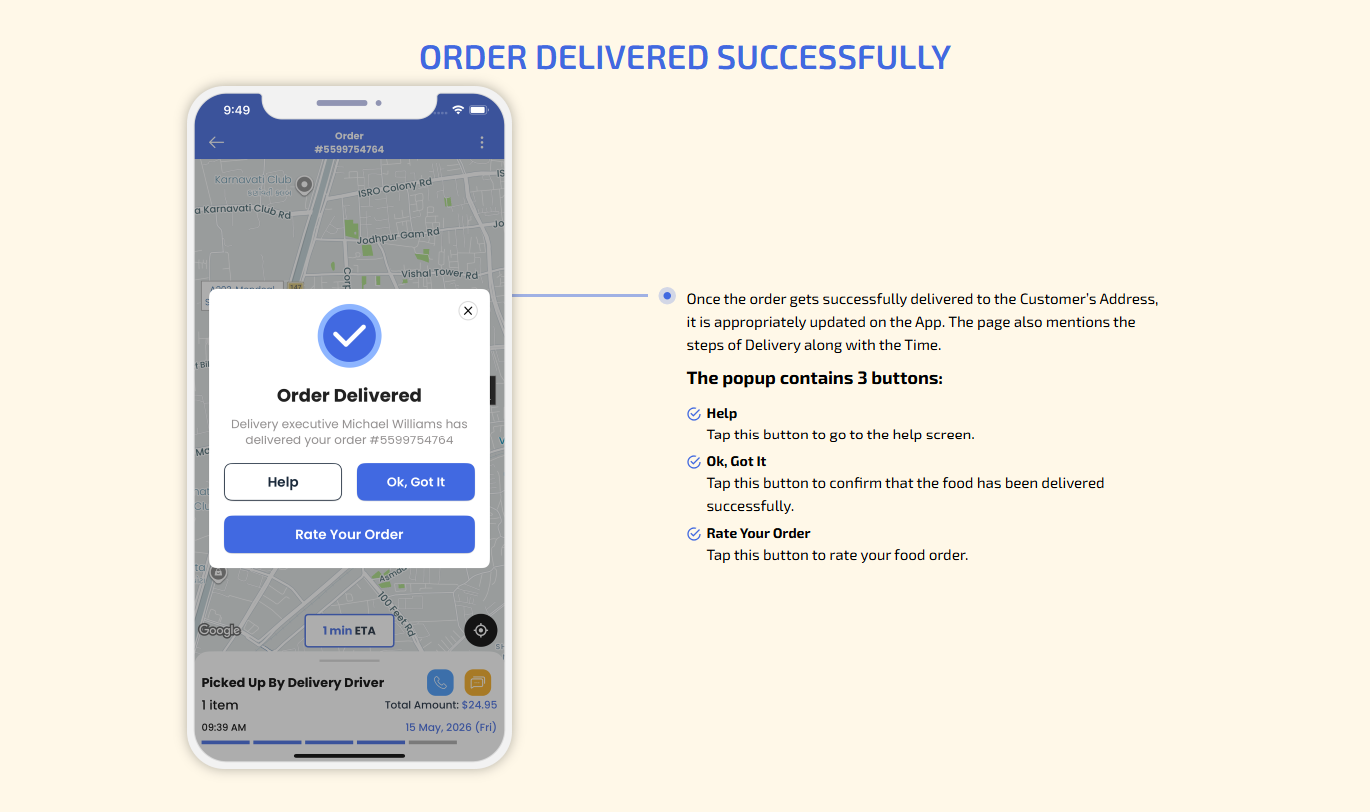
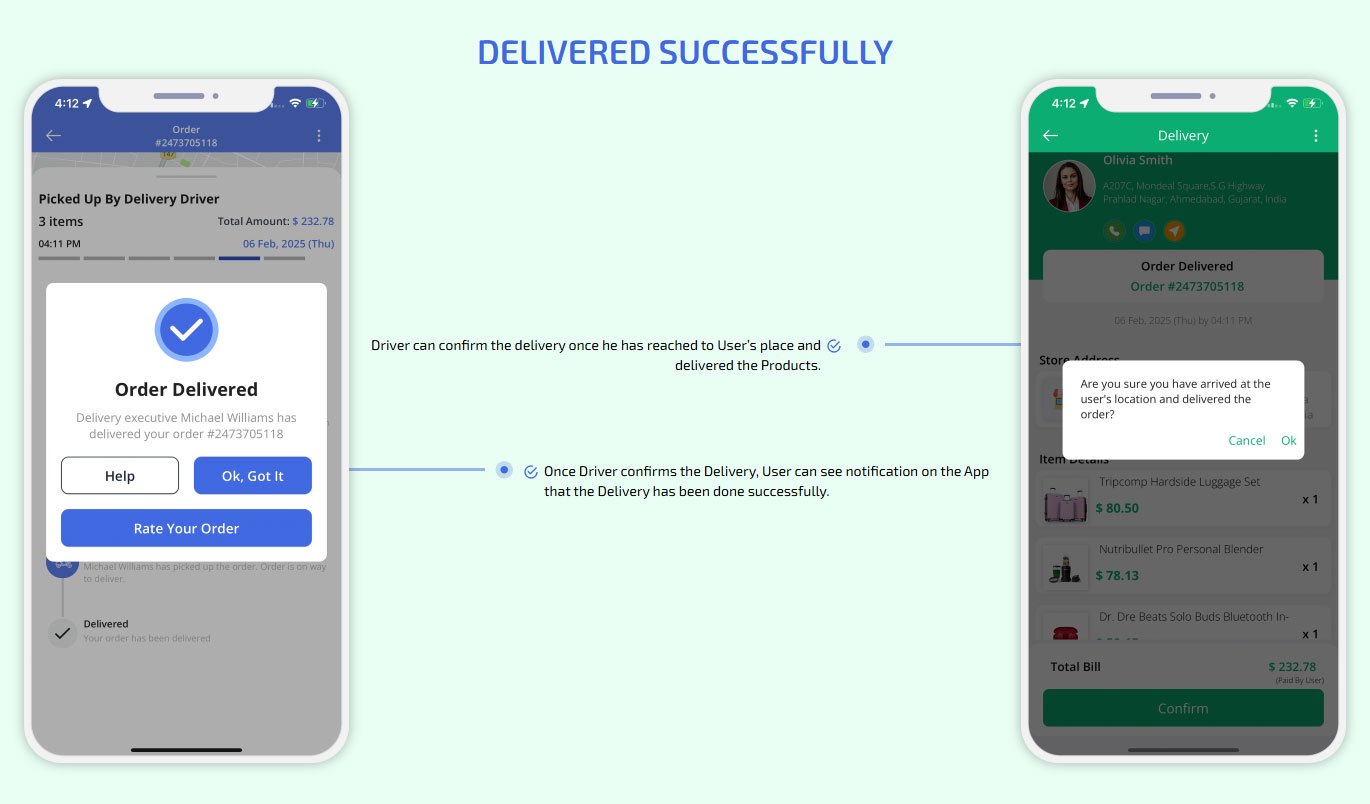
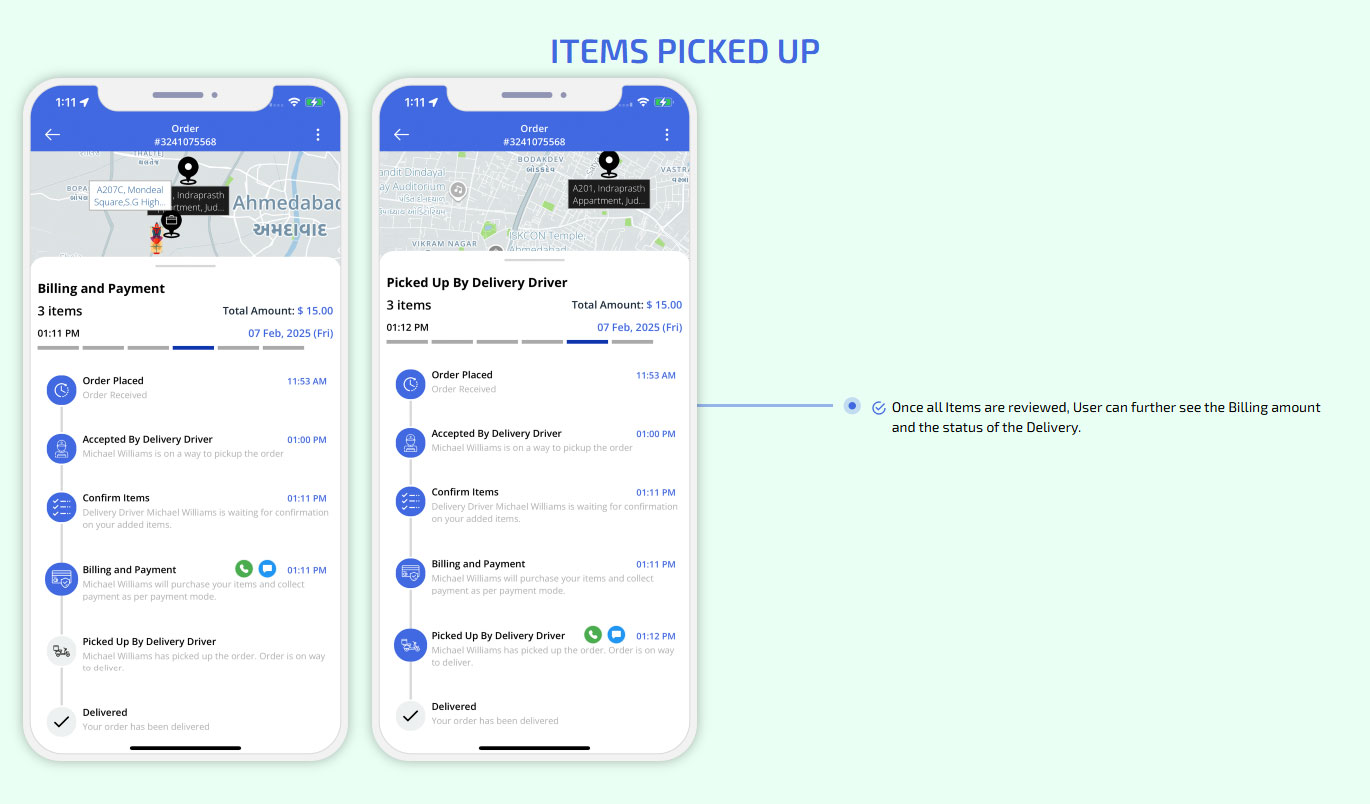
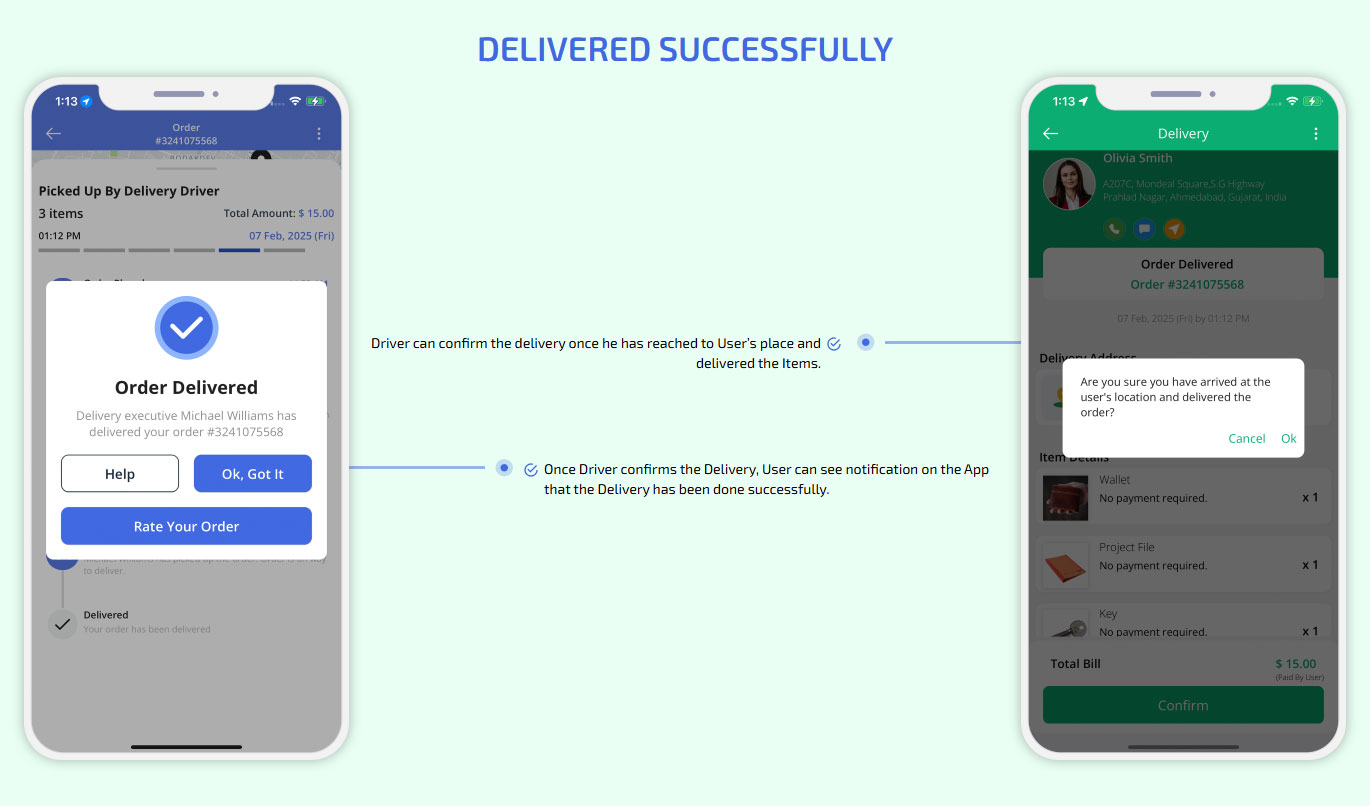
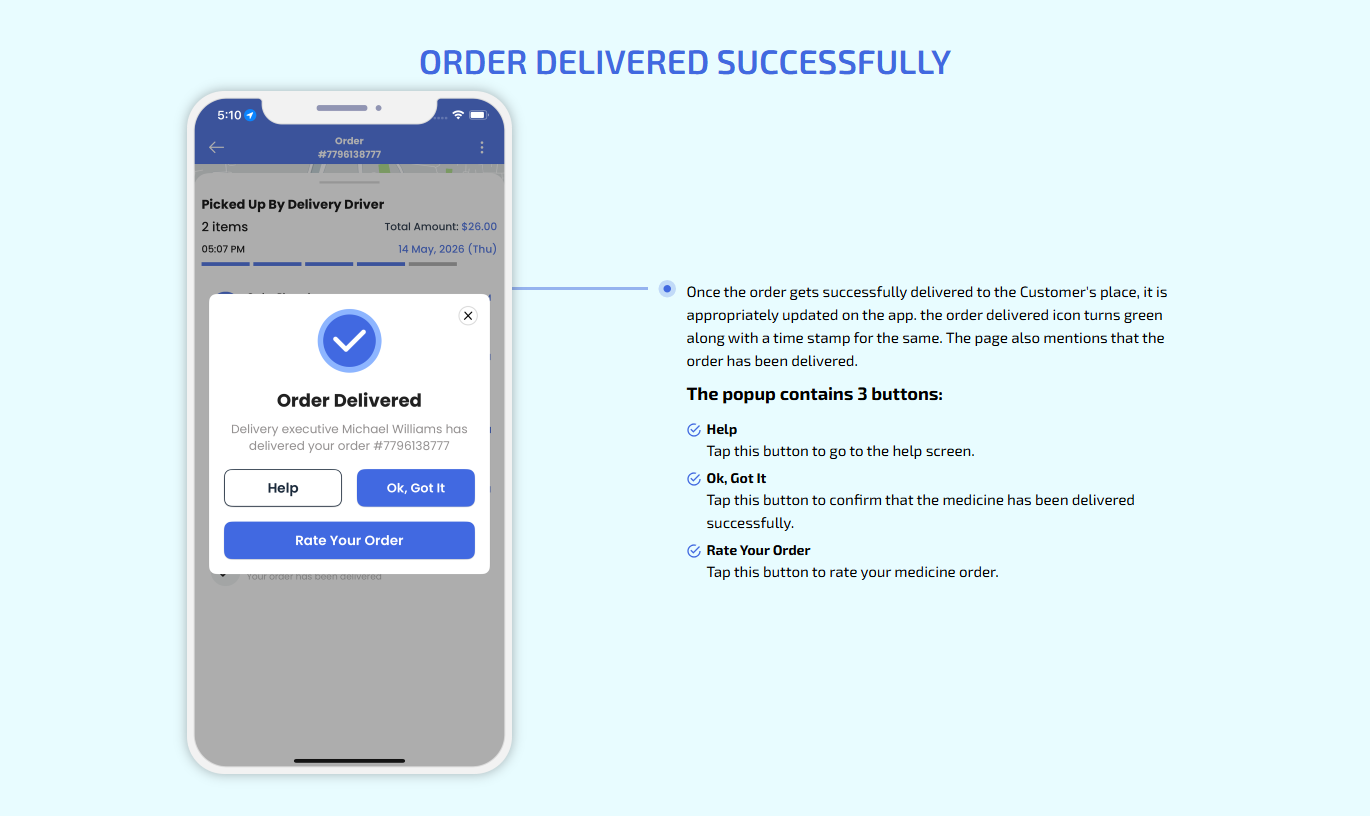
Order Delivered Successfully
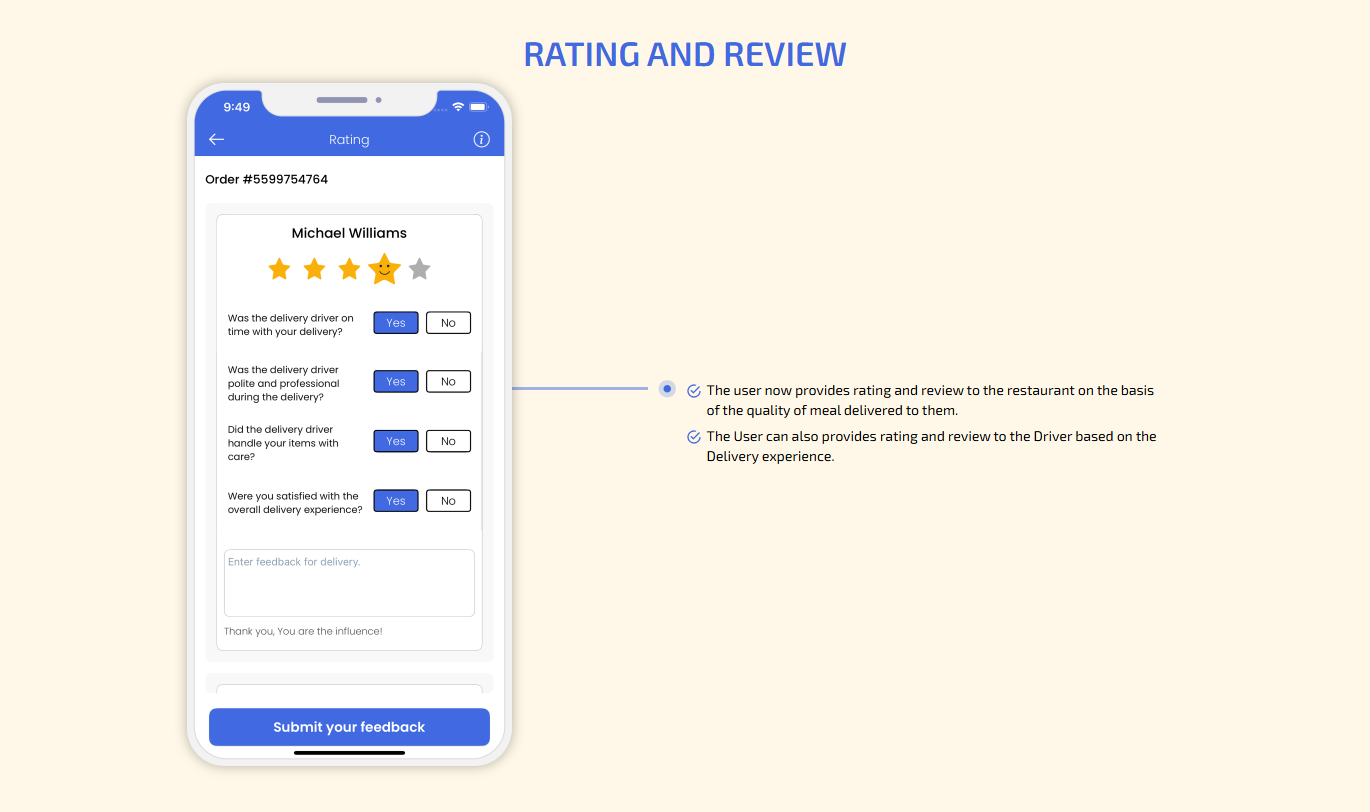
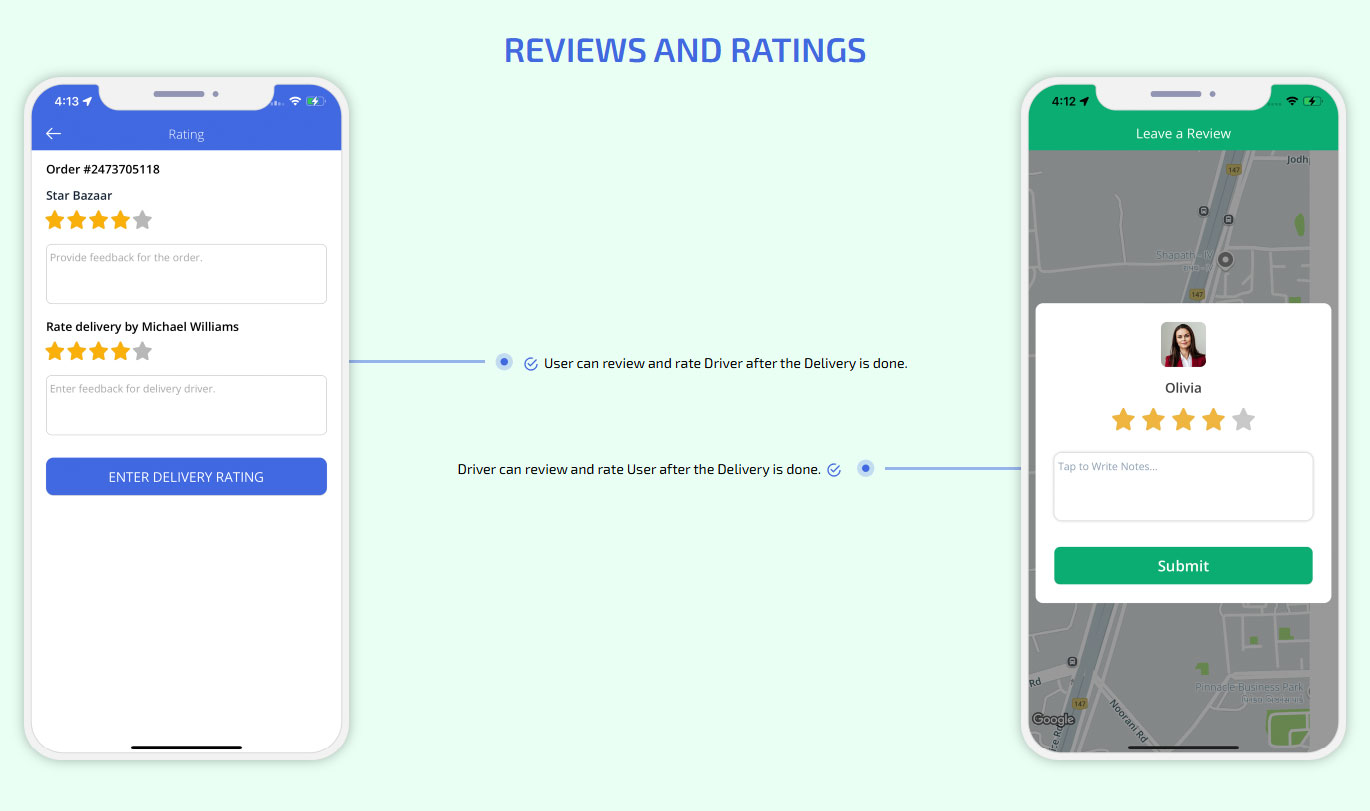
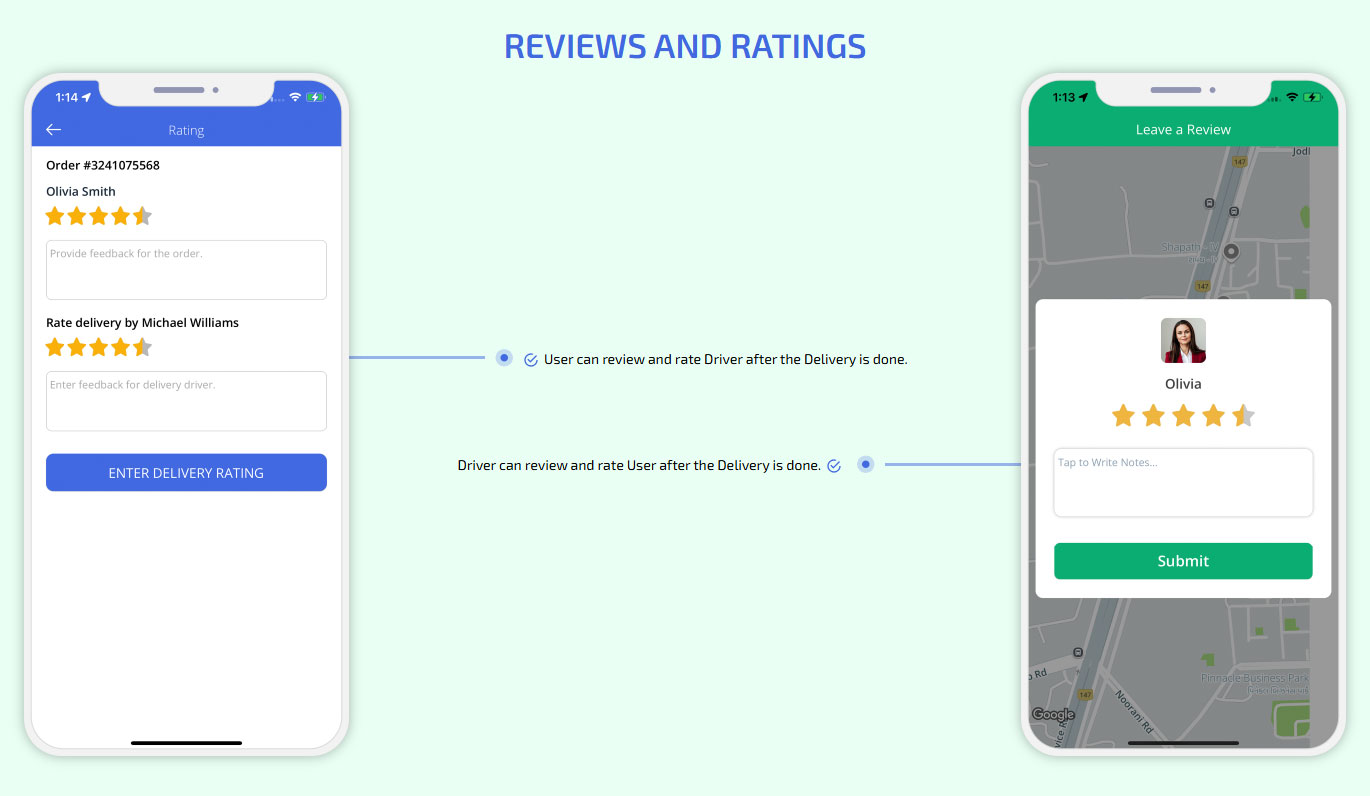
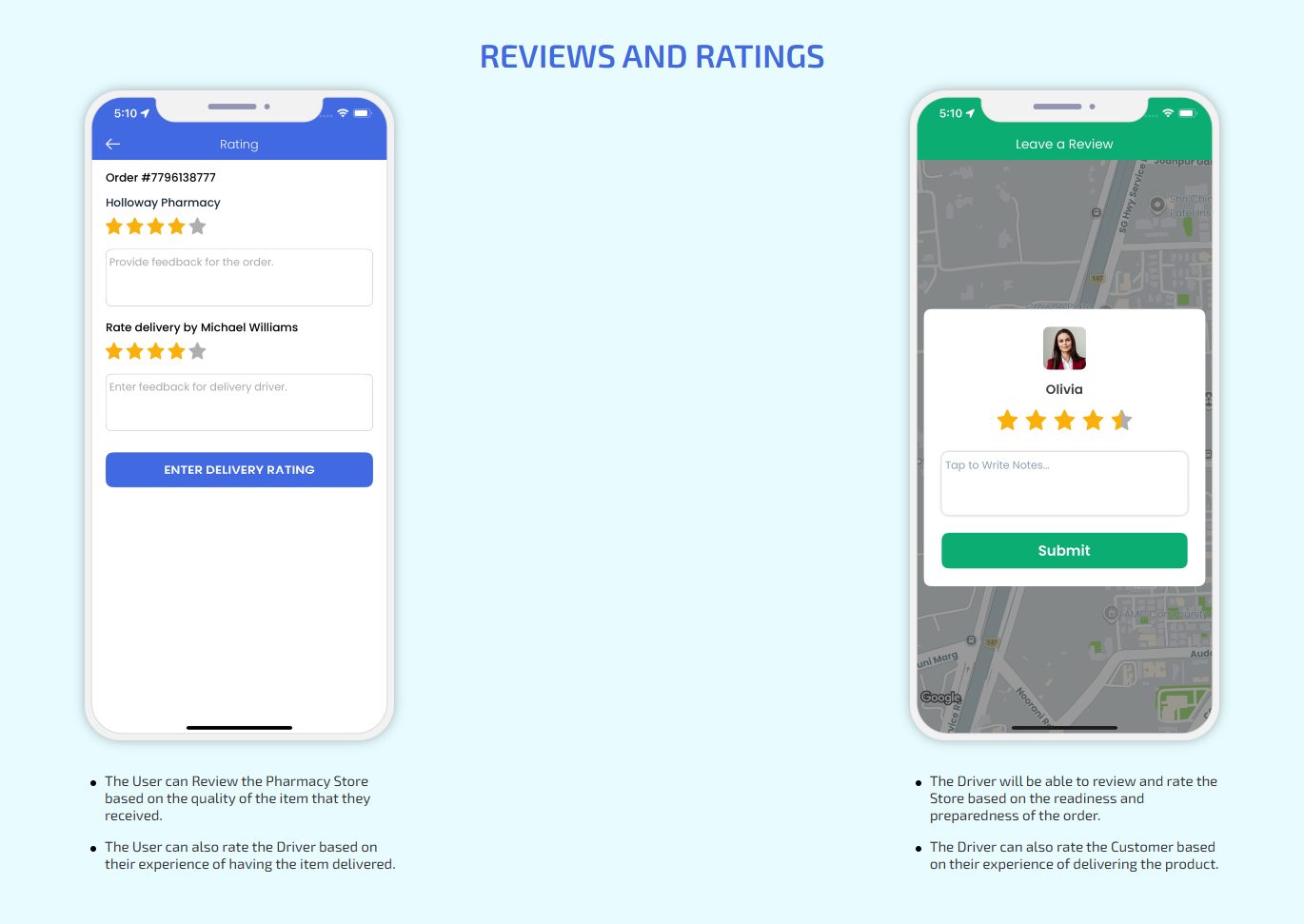
Reviews and Ratings
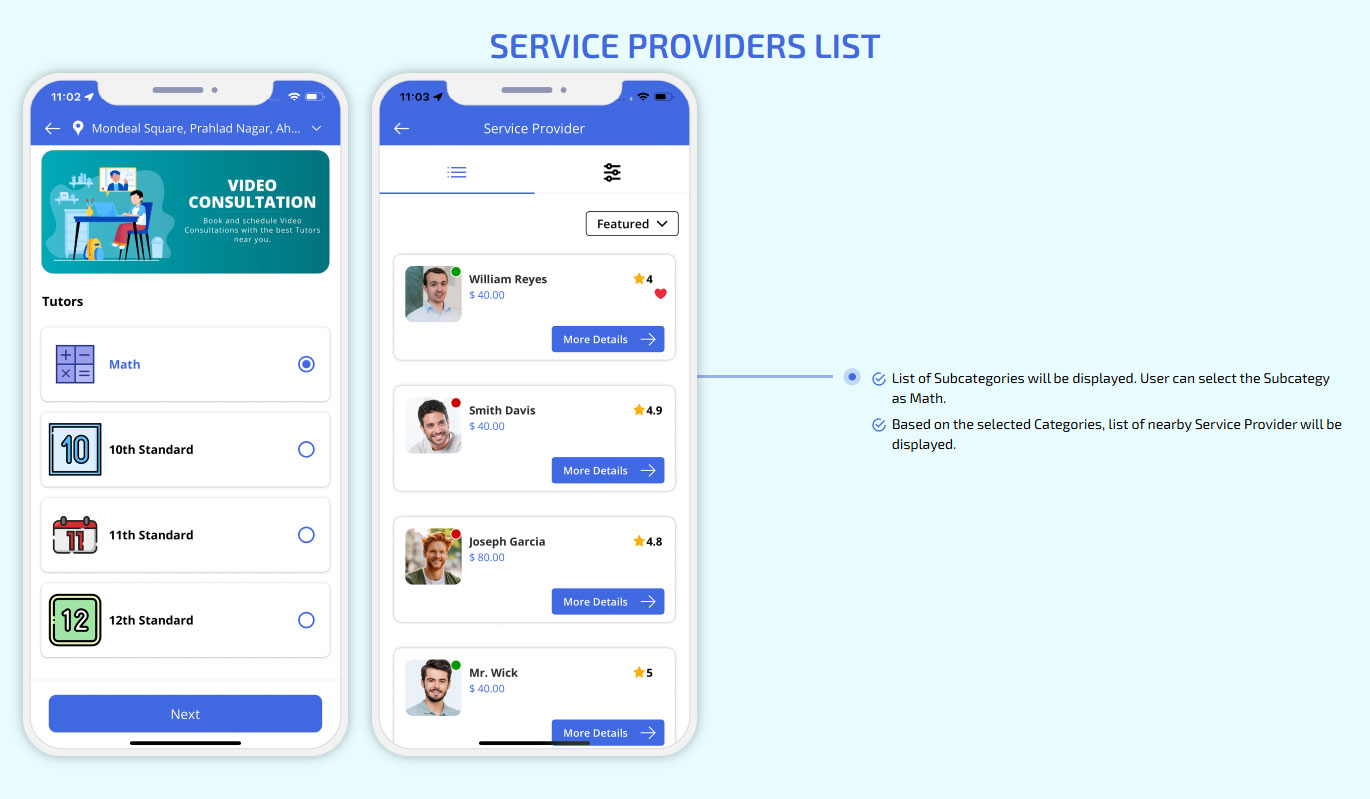
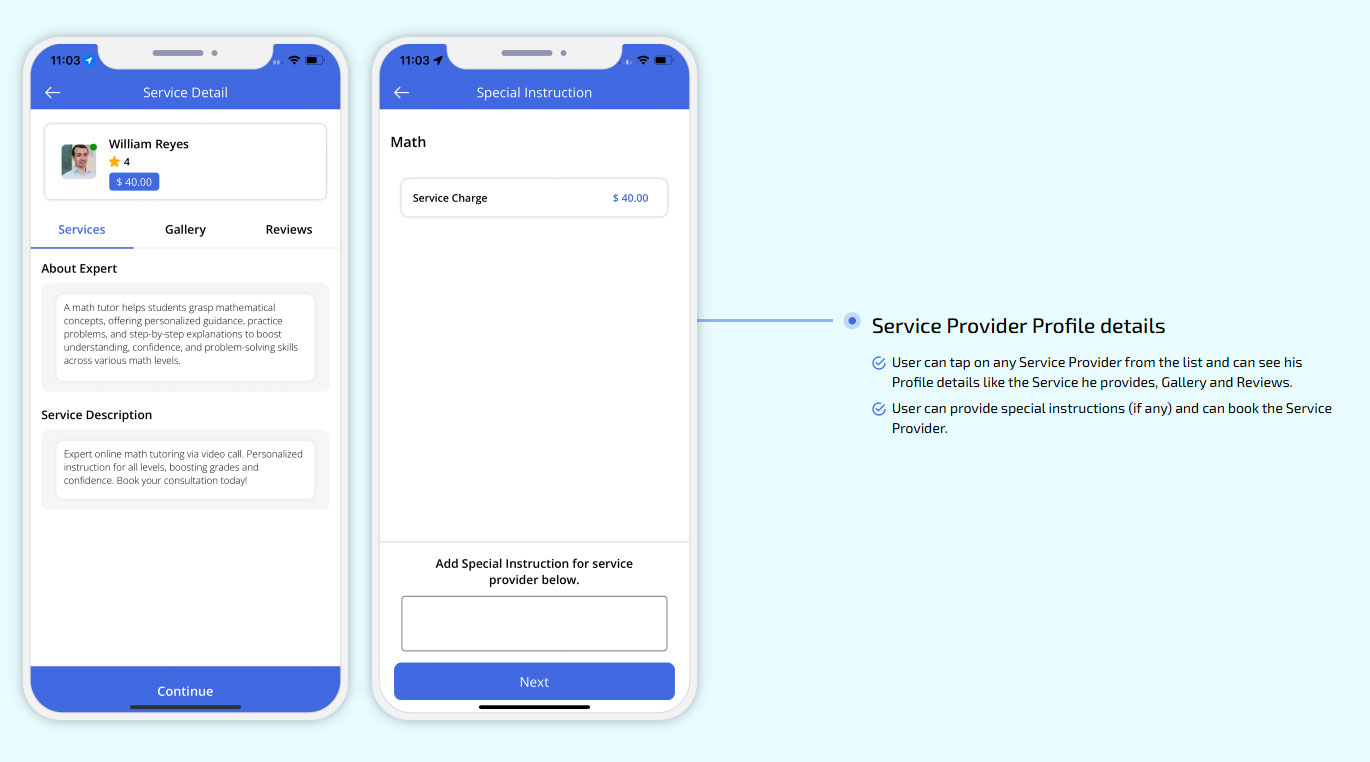
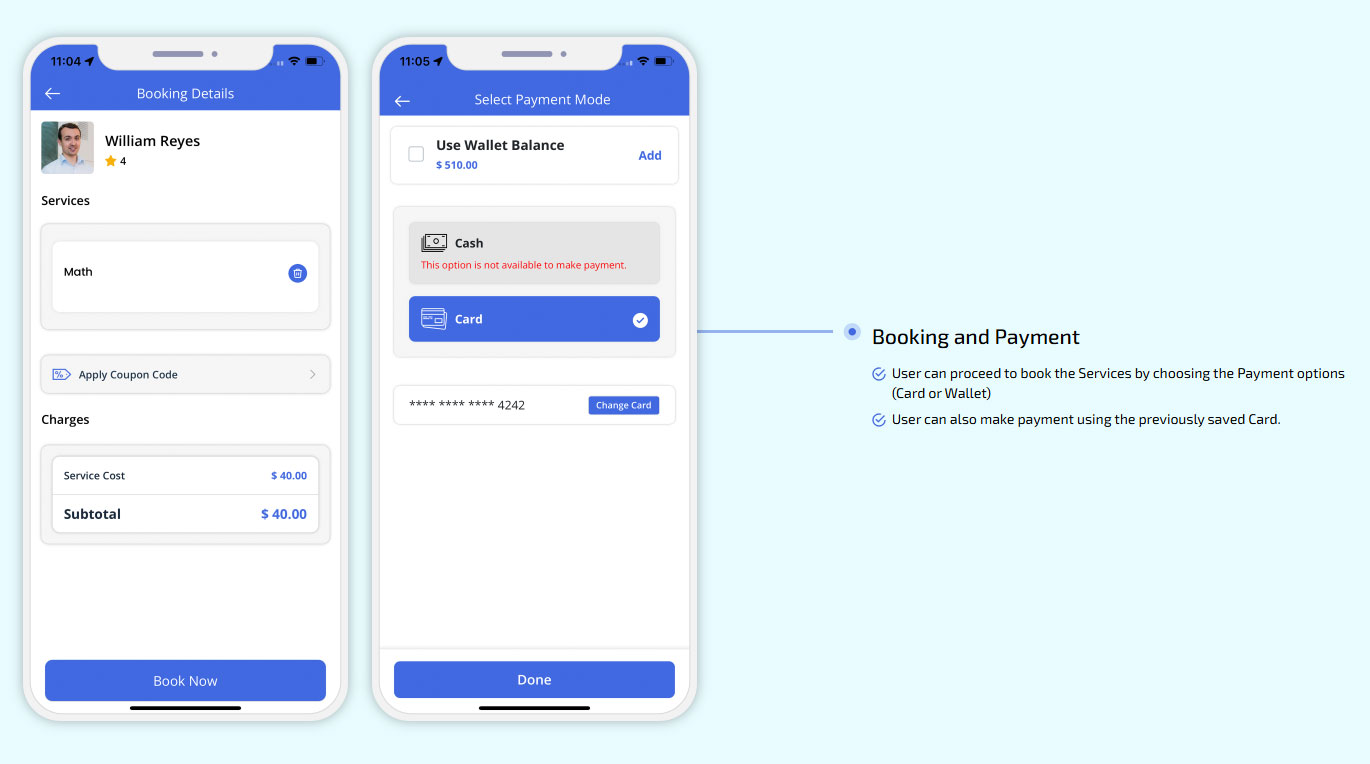
Video Consultation with Doctor
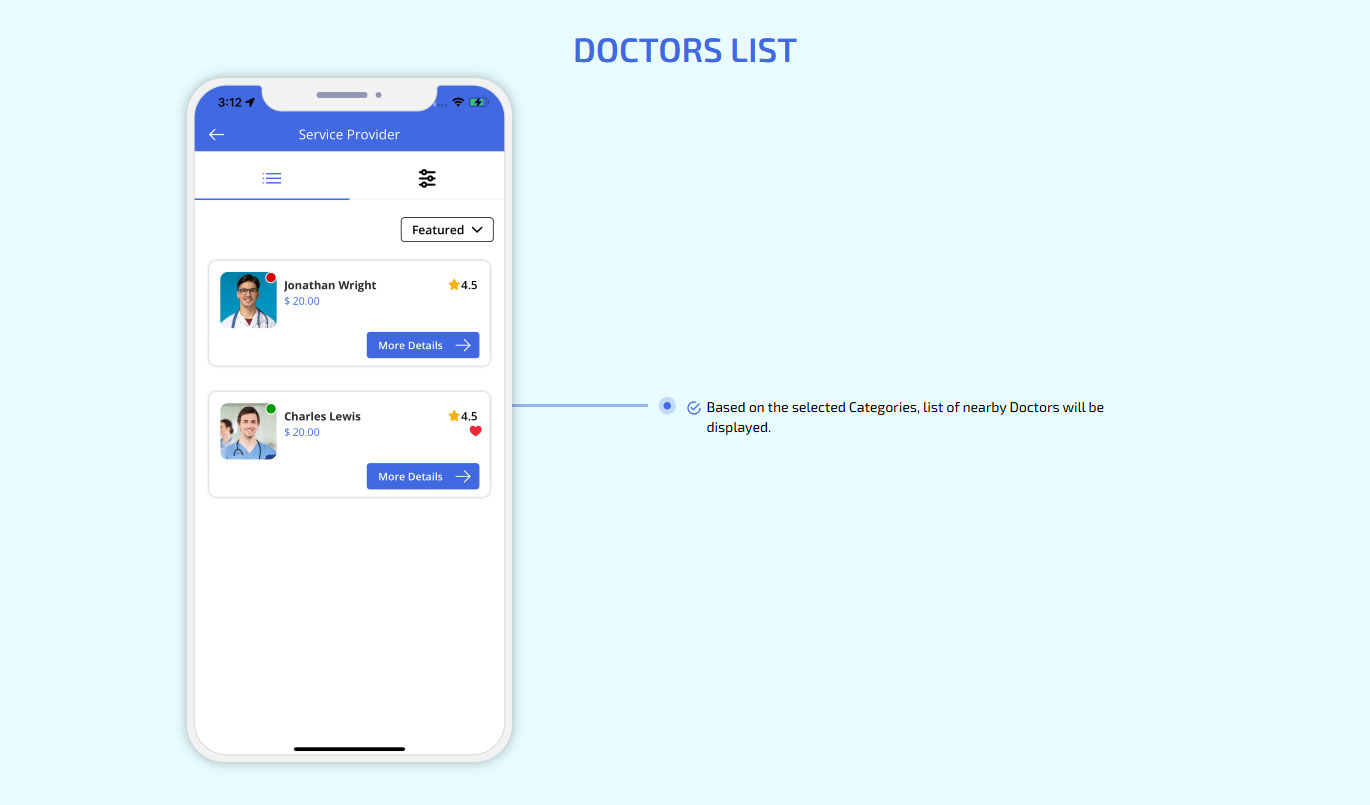
Doctors List
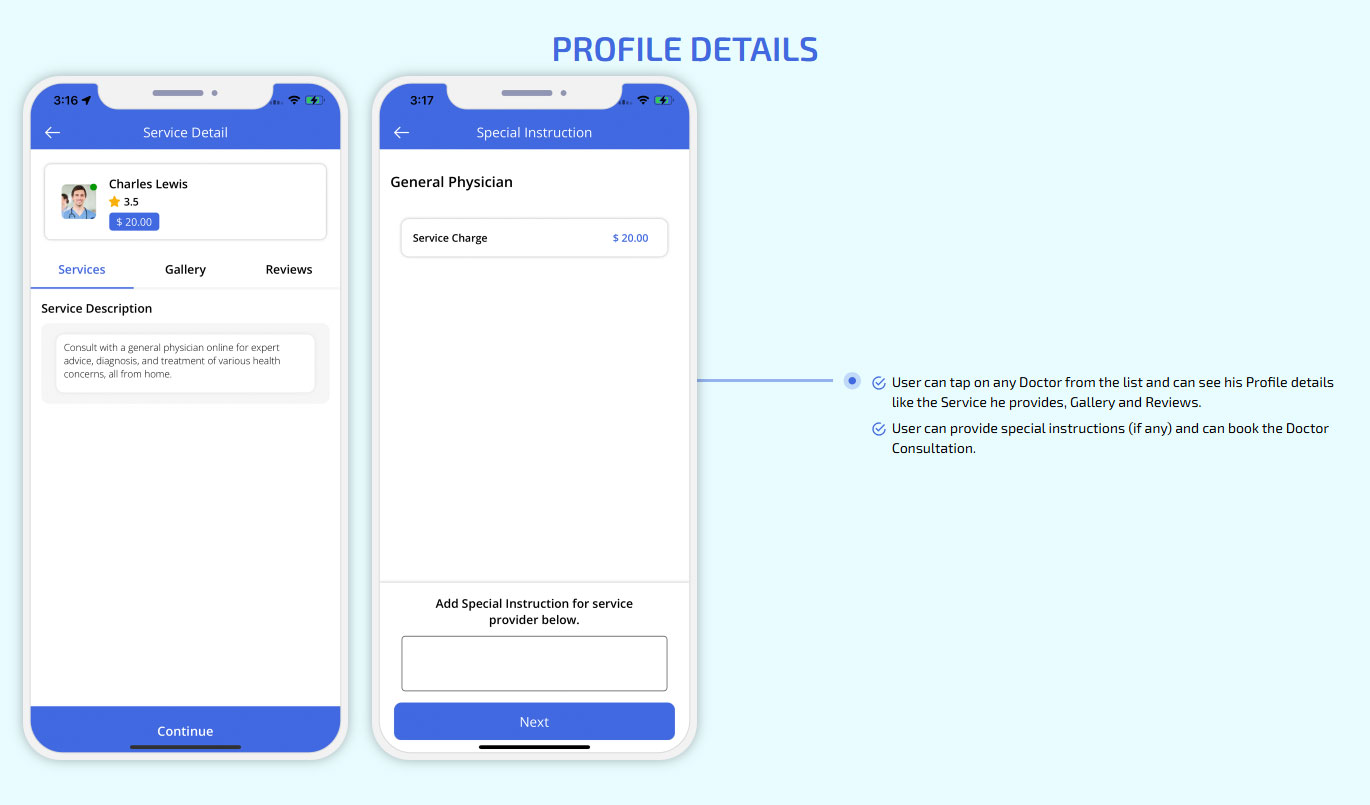
Profile details
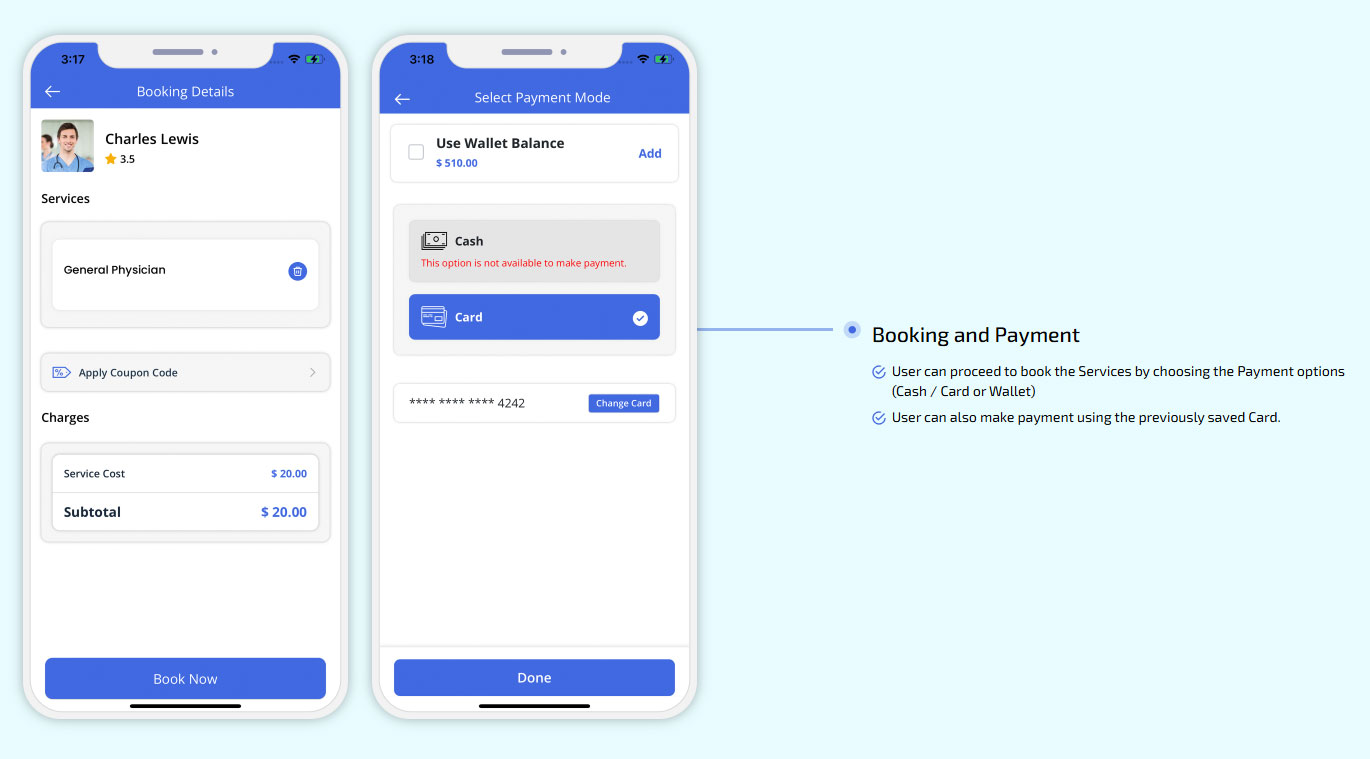
Booking and Payment
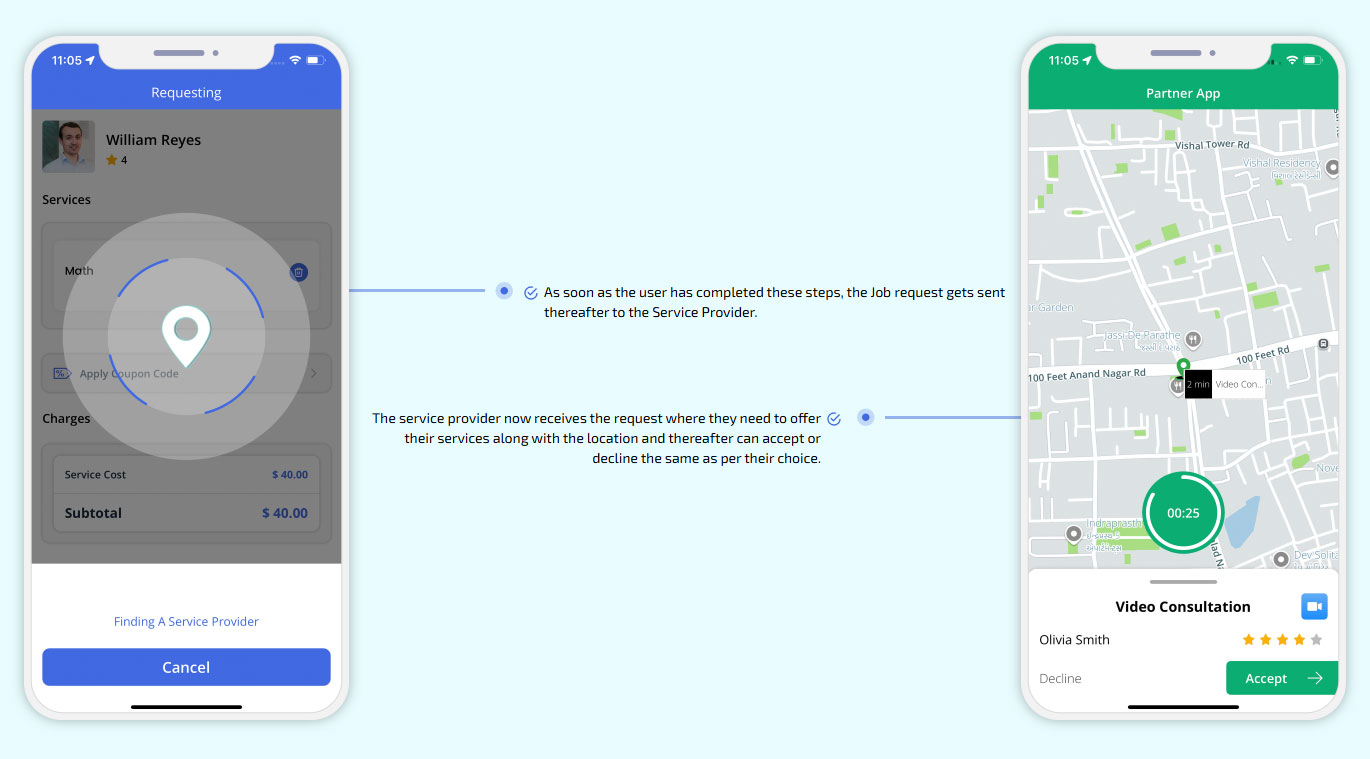
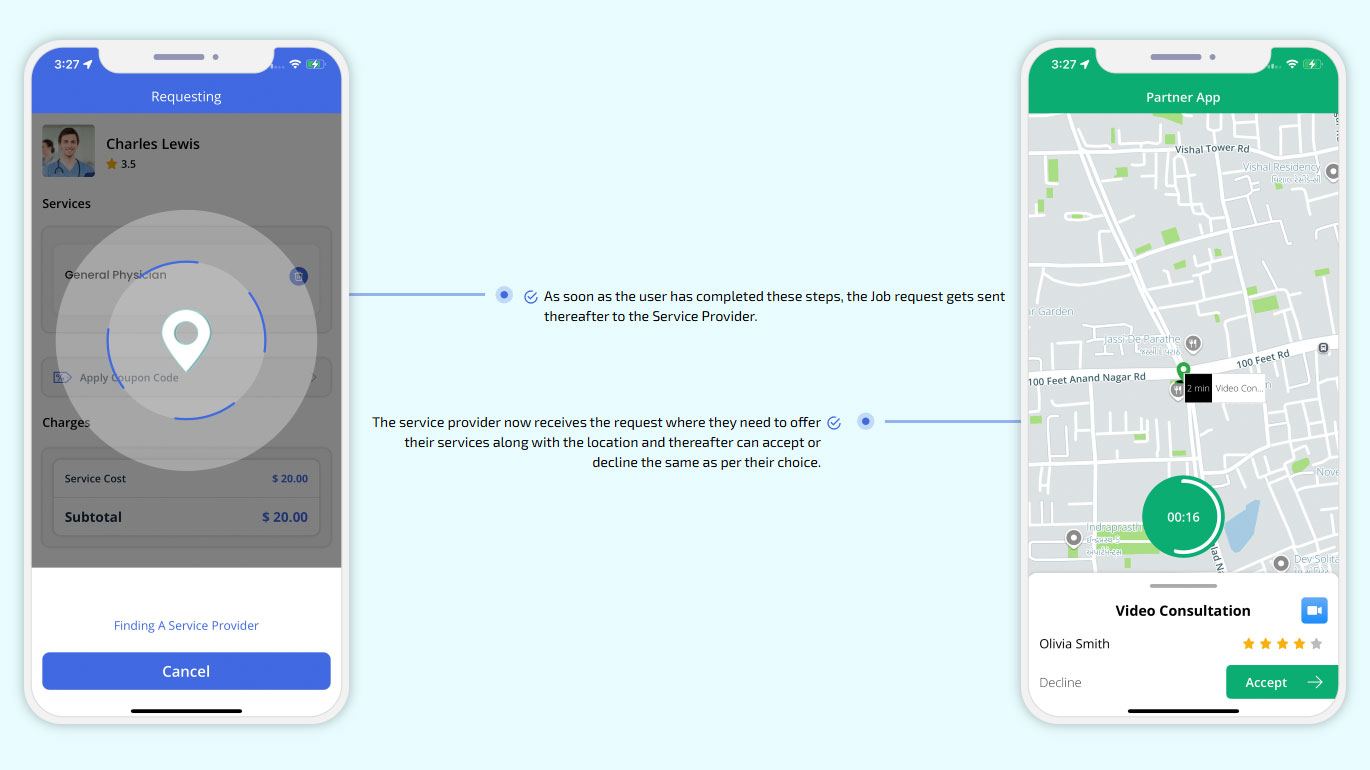
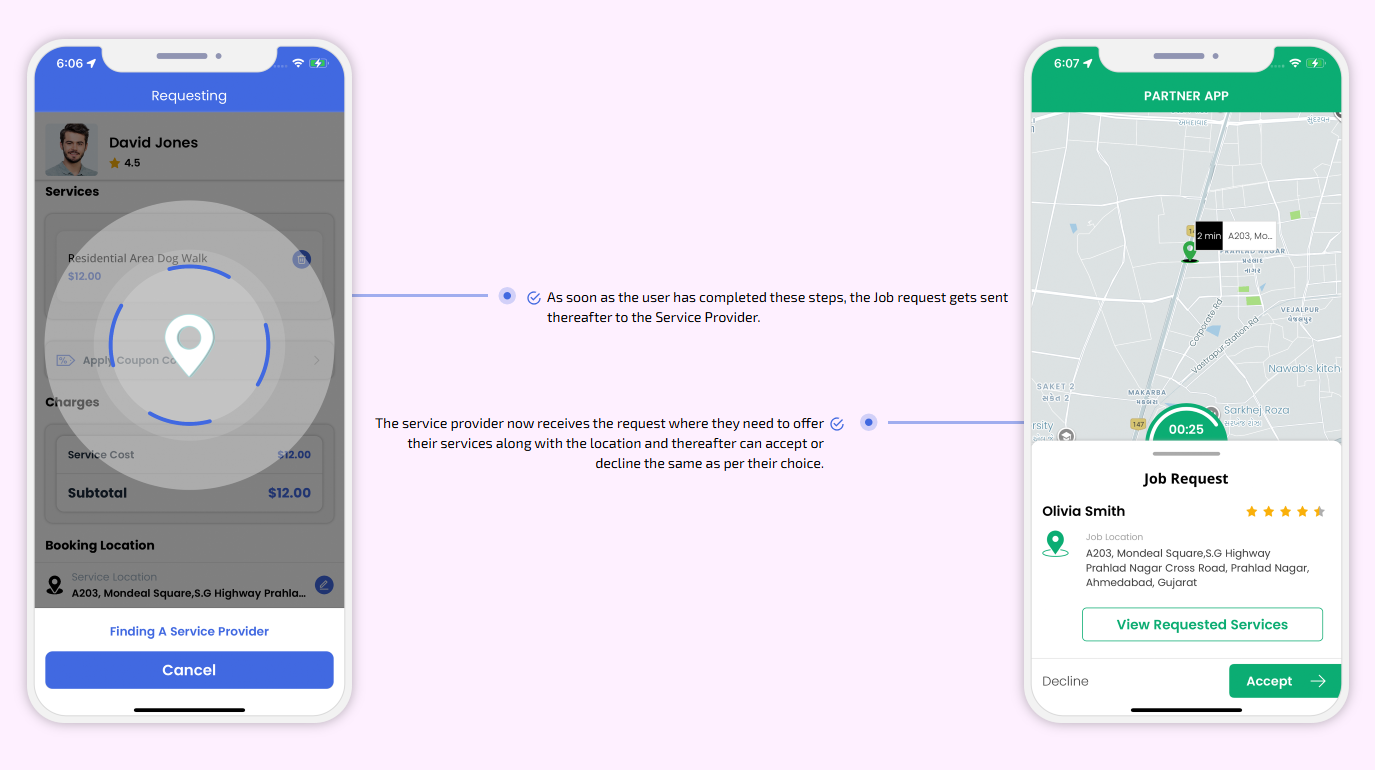
As soon as the user has completed these steps, the Job request gets sent thereafter to the Service Provider.
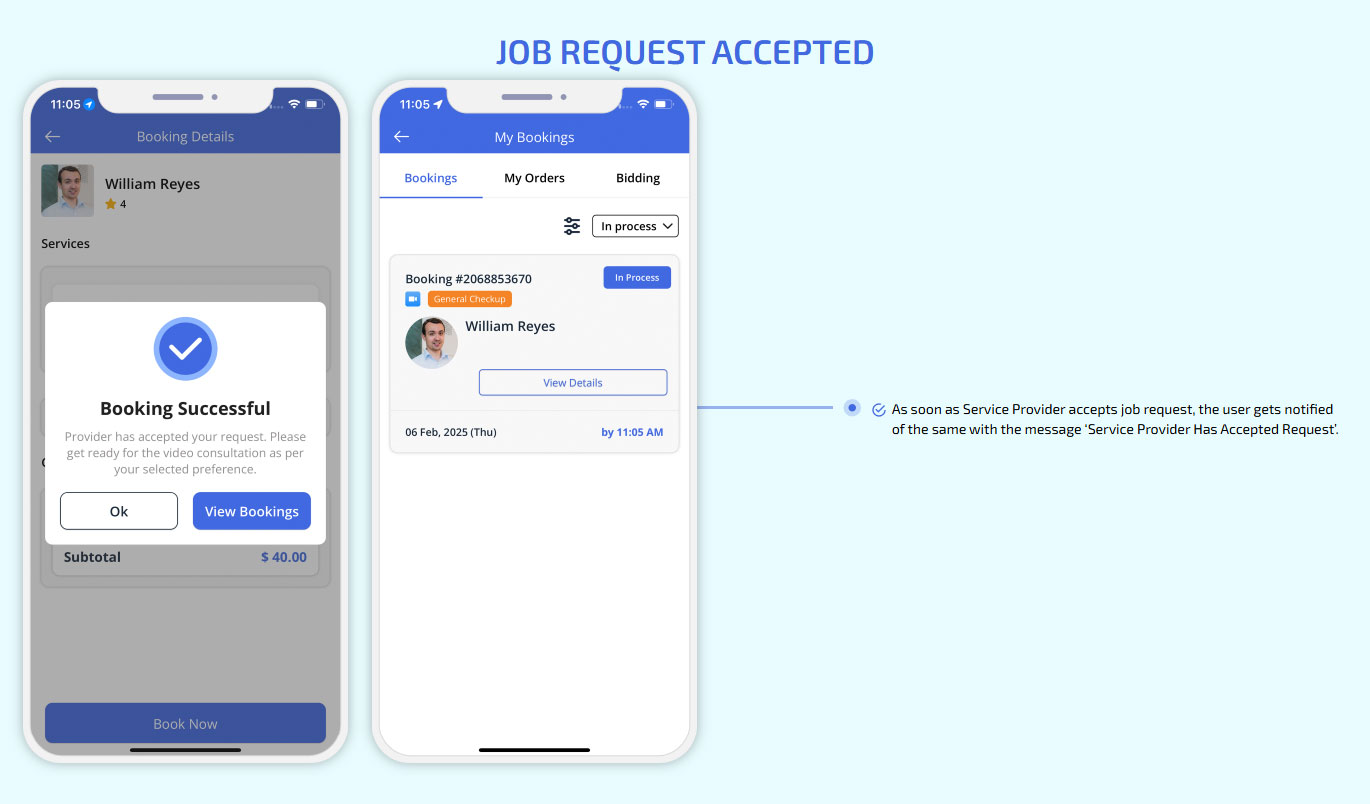
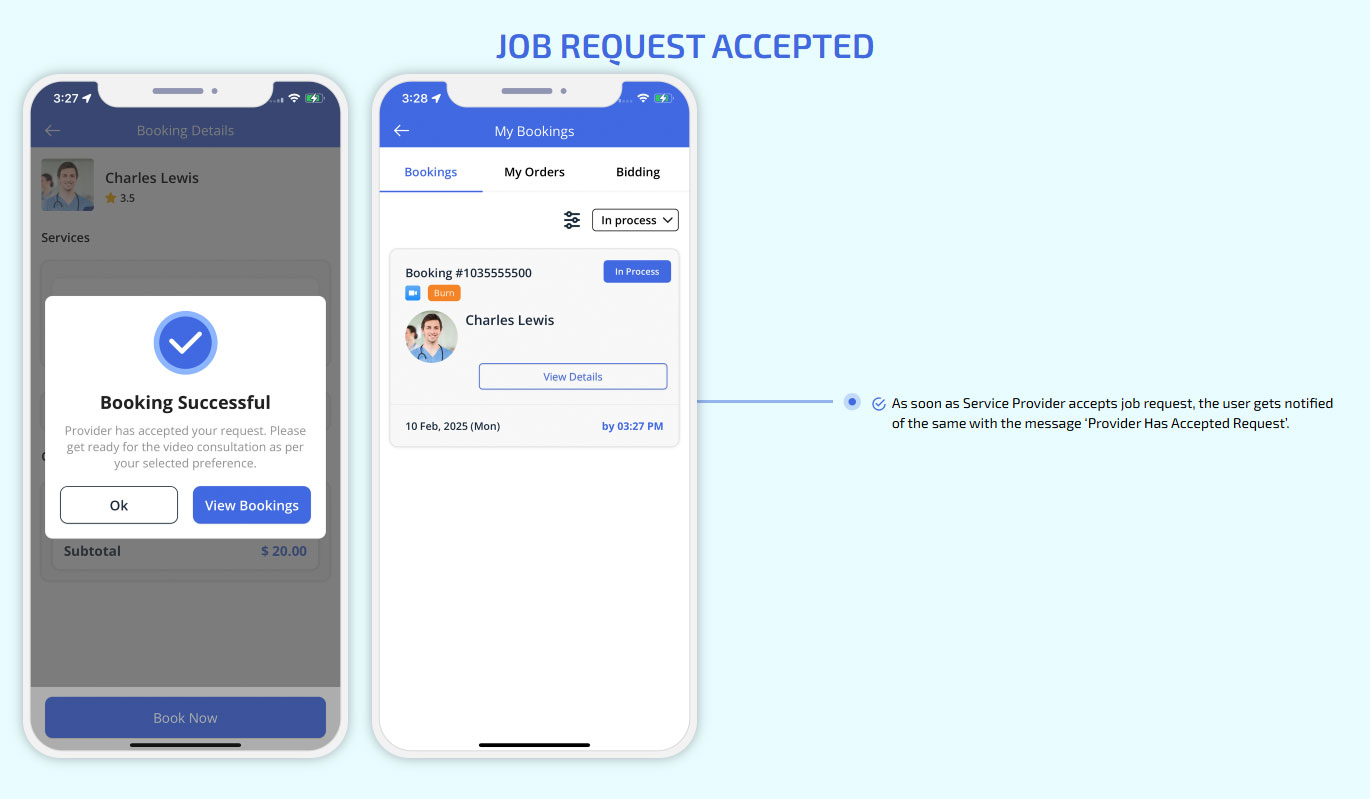
Job Request Accepted
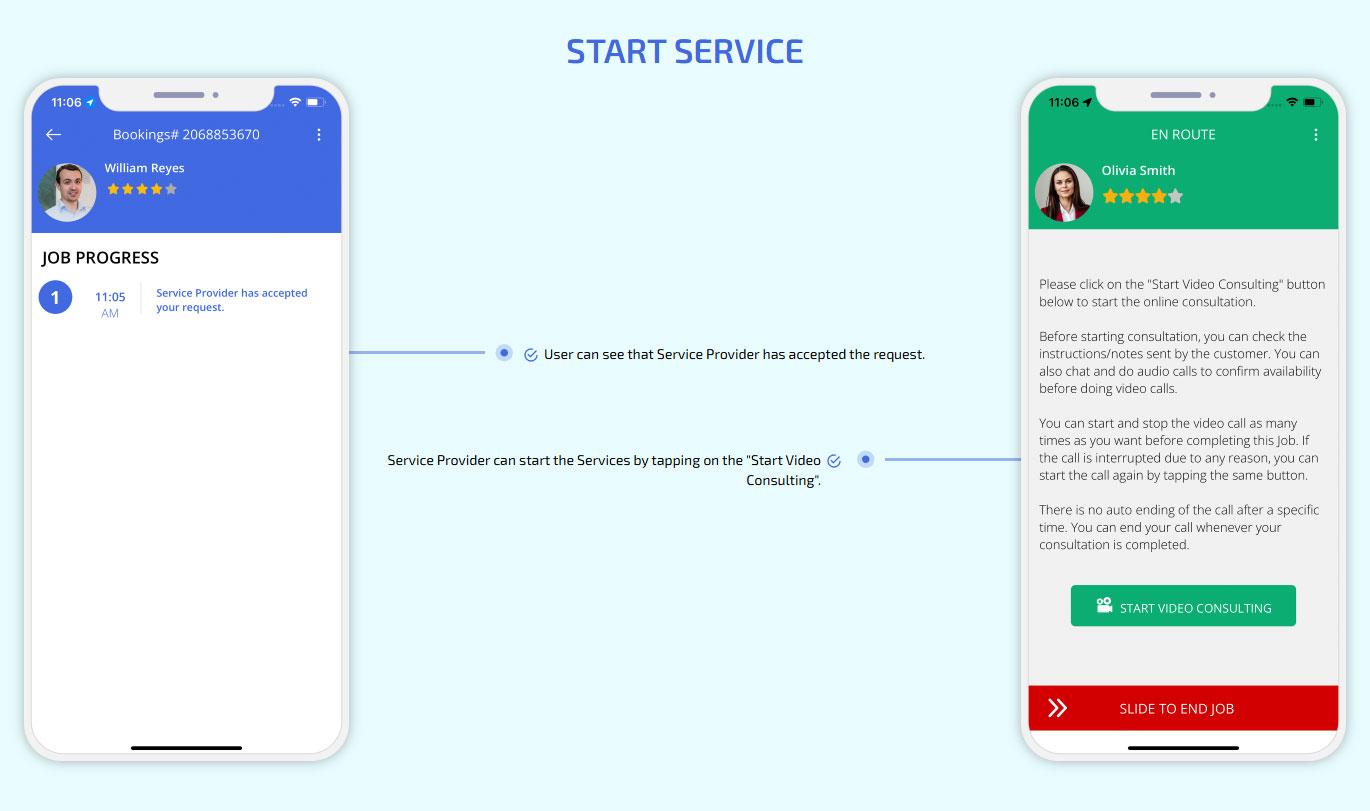
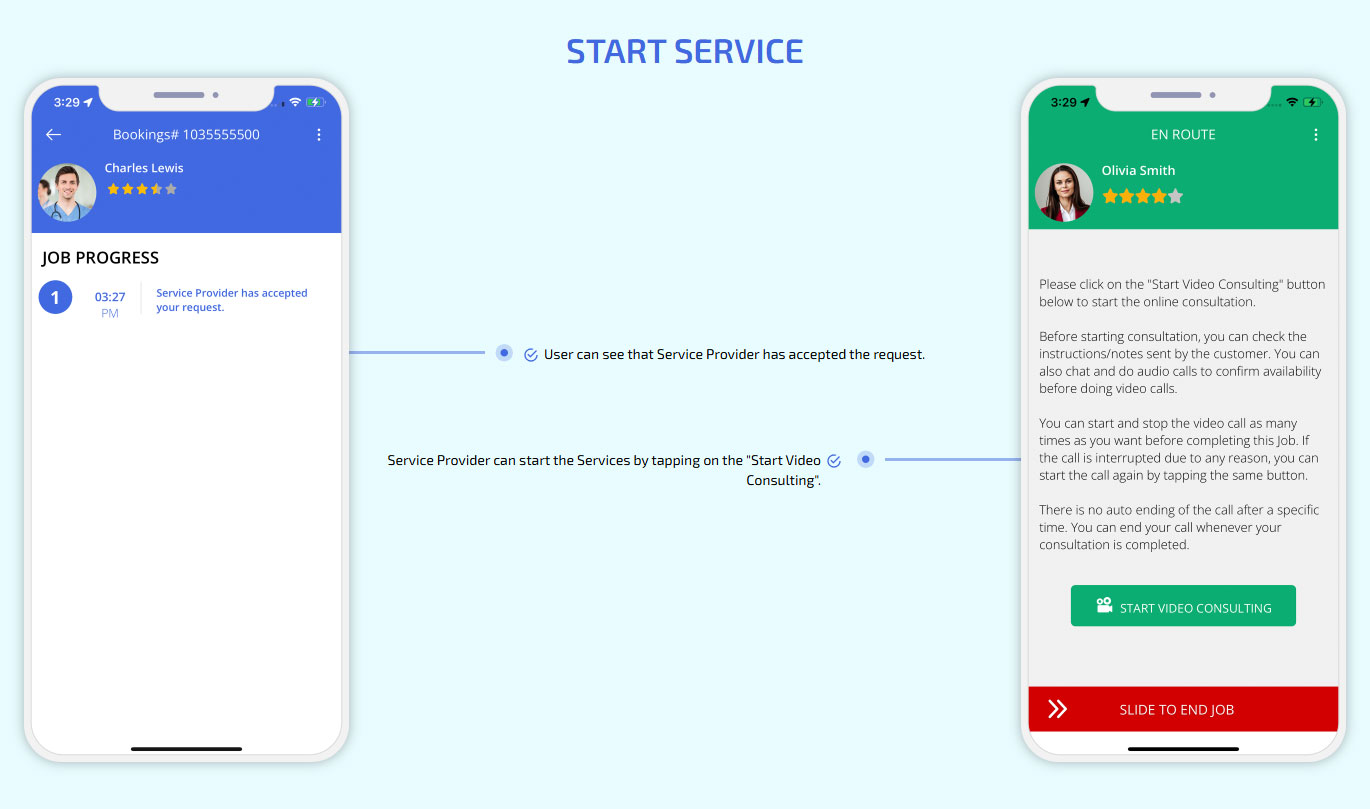
Start Service
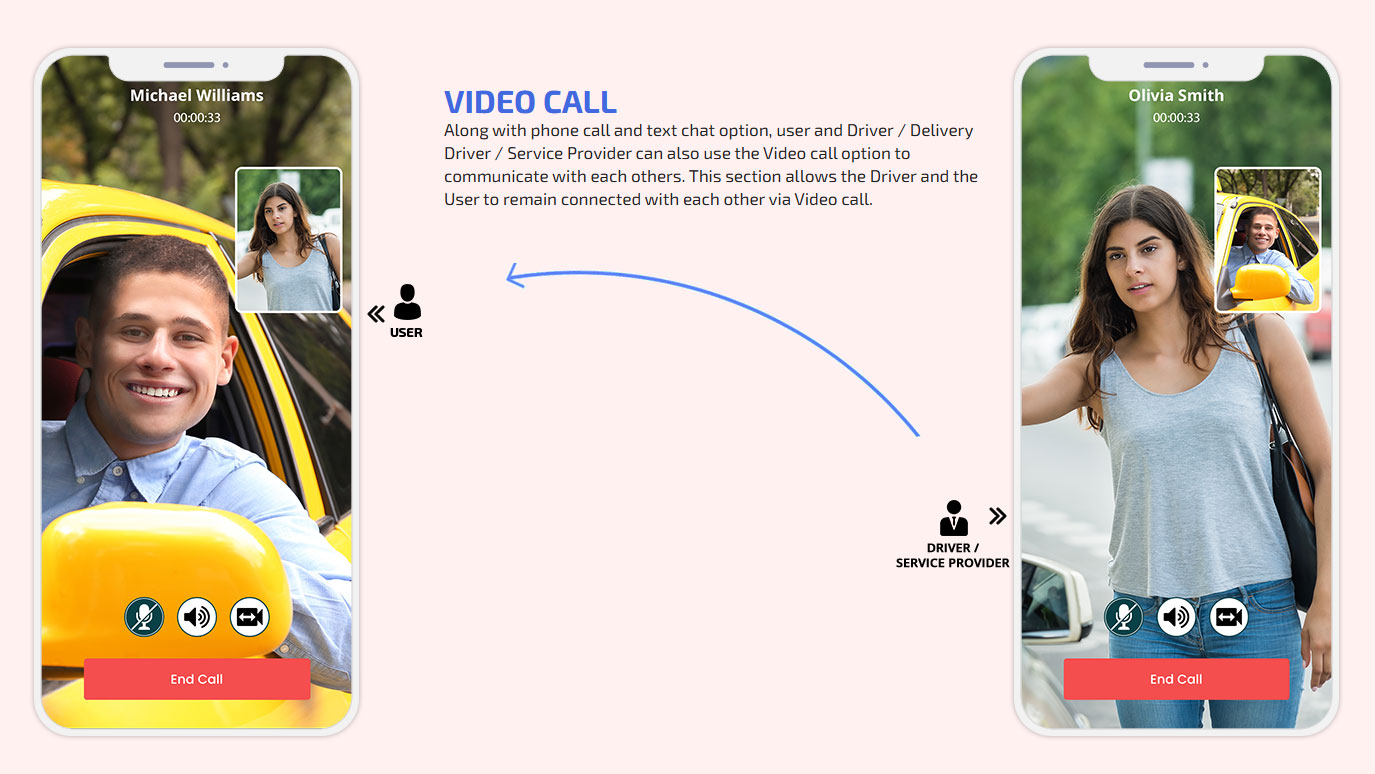
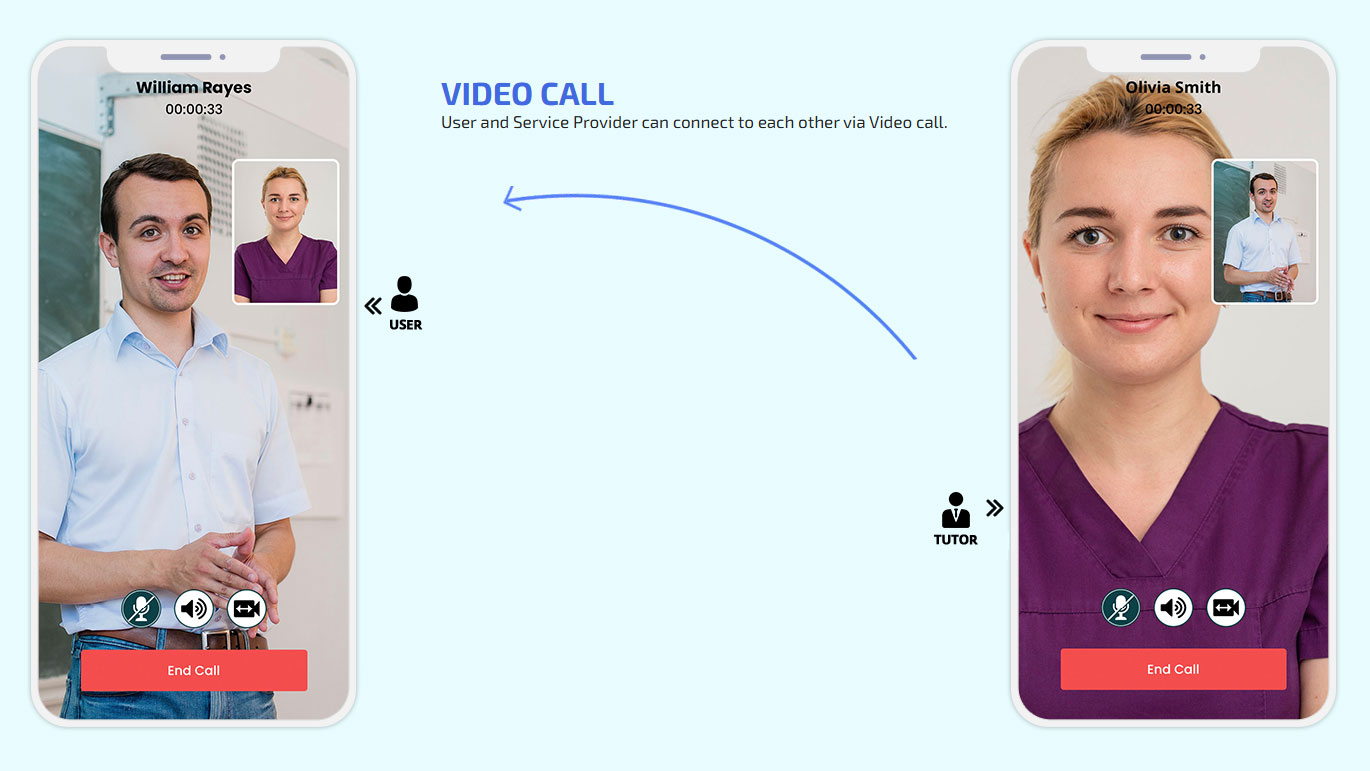
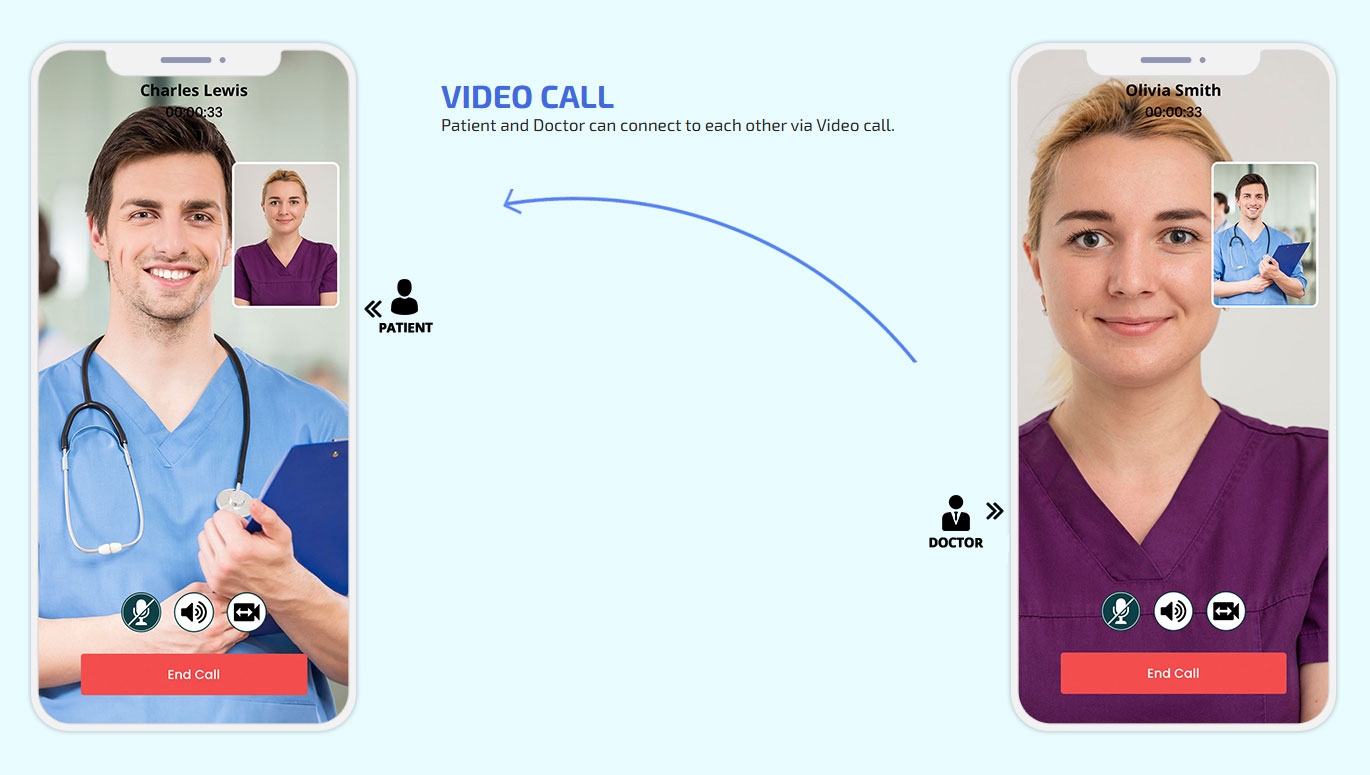
Video Call
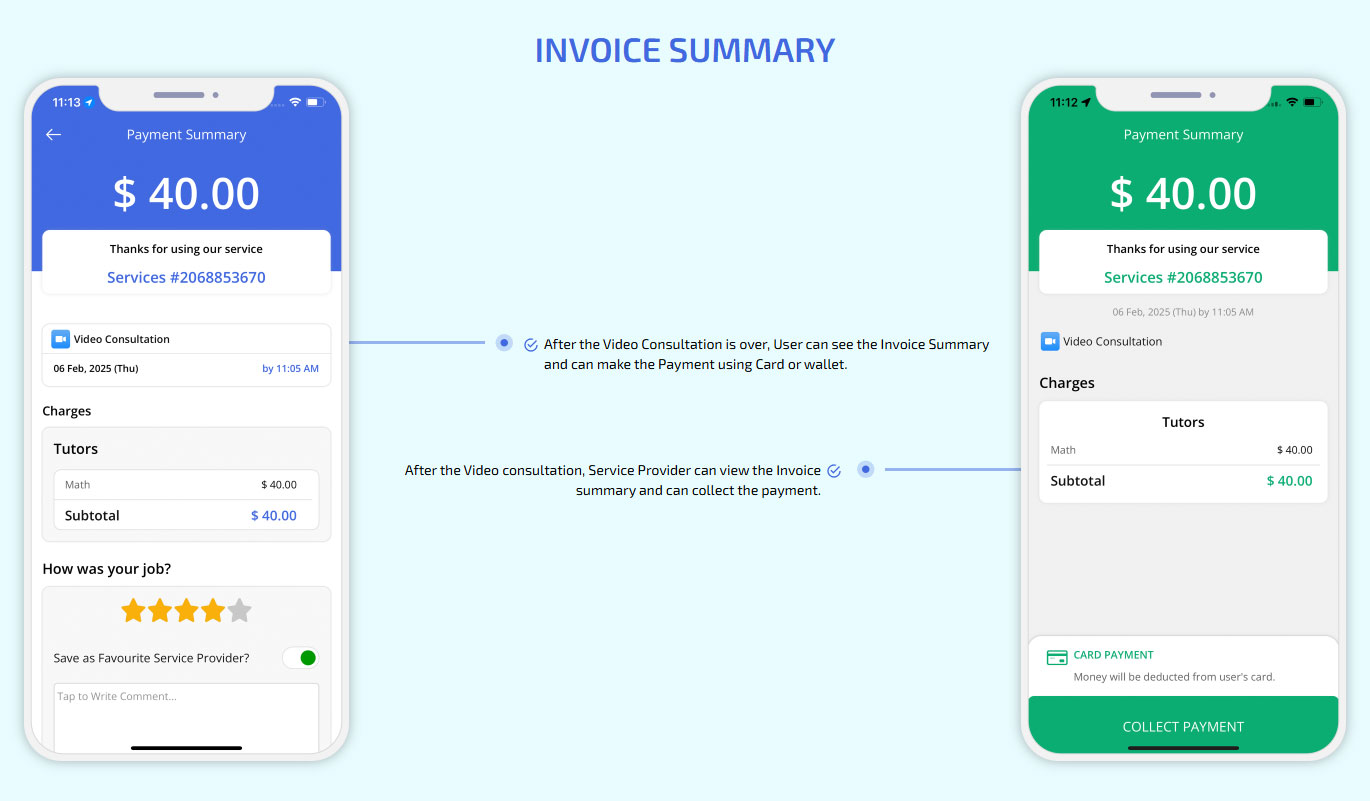
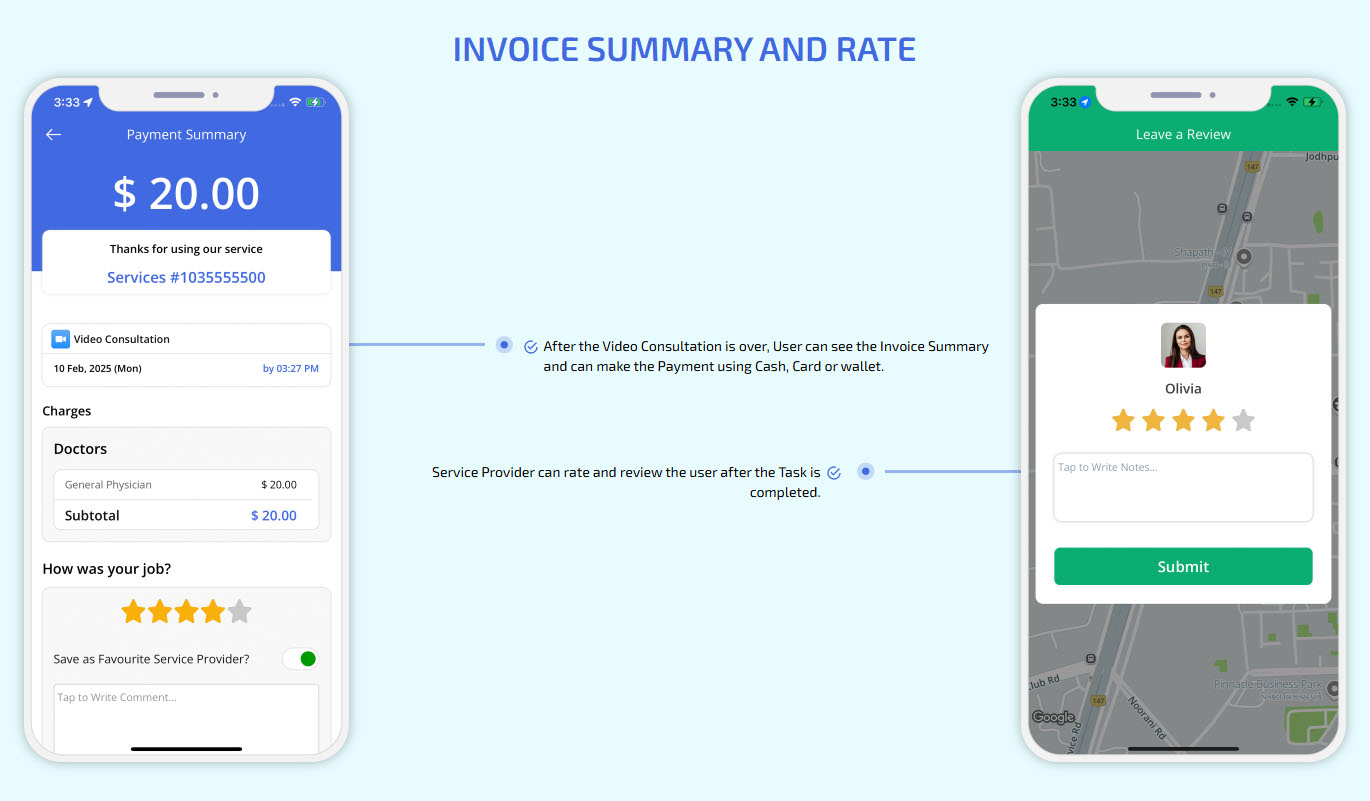
Invoice Summary
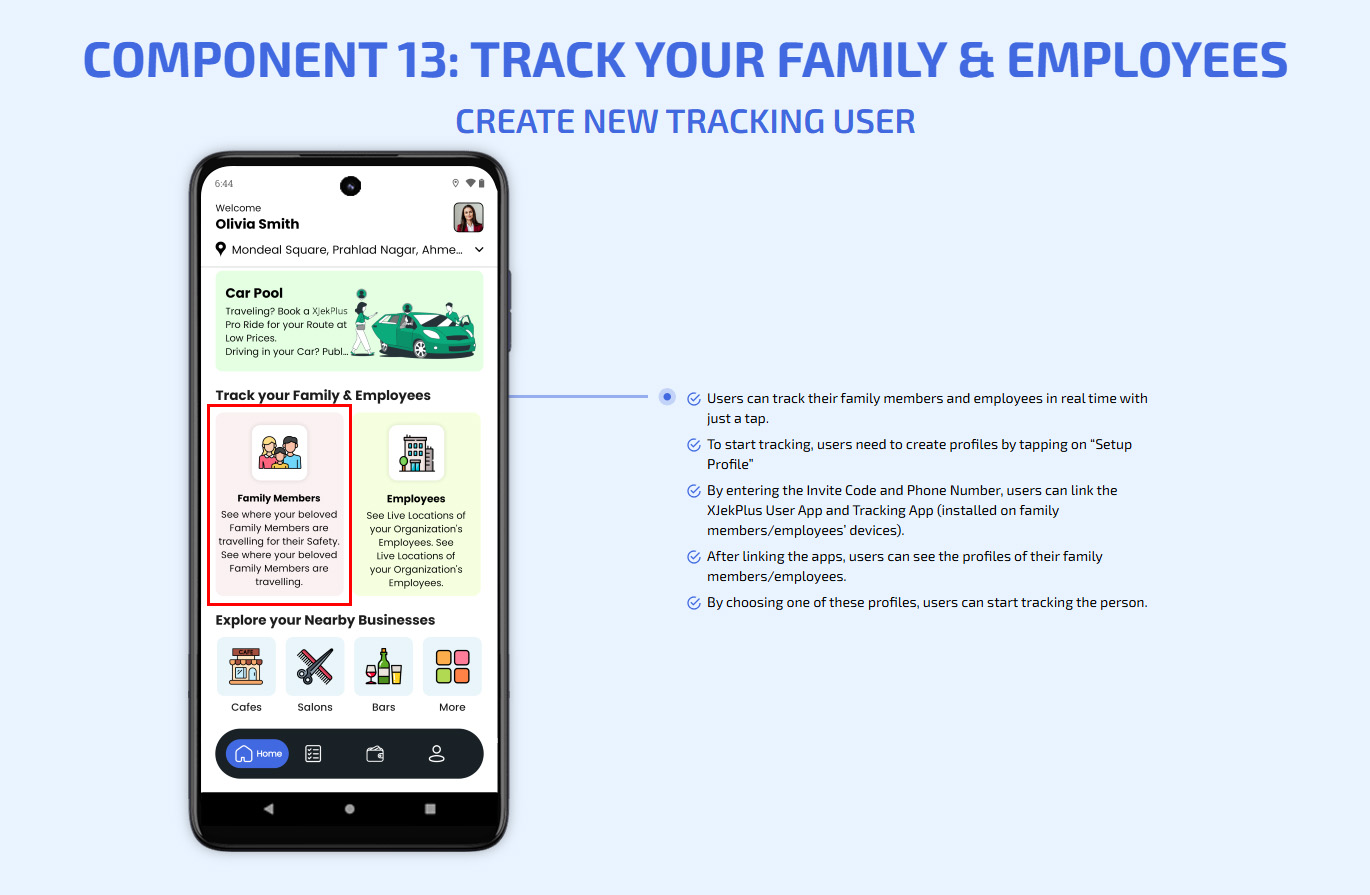
Track your Family & Employees
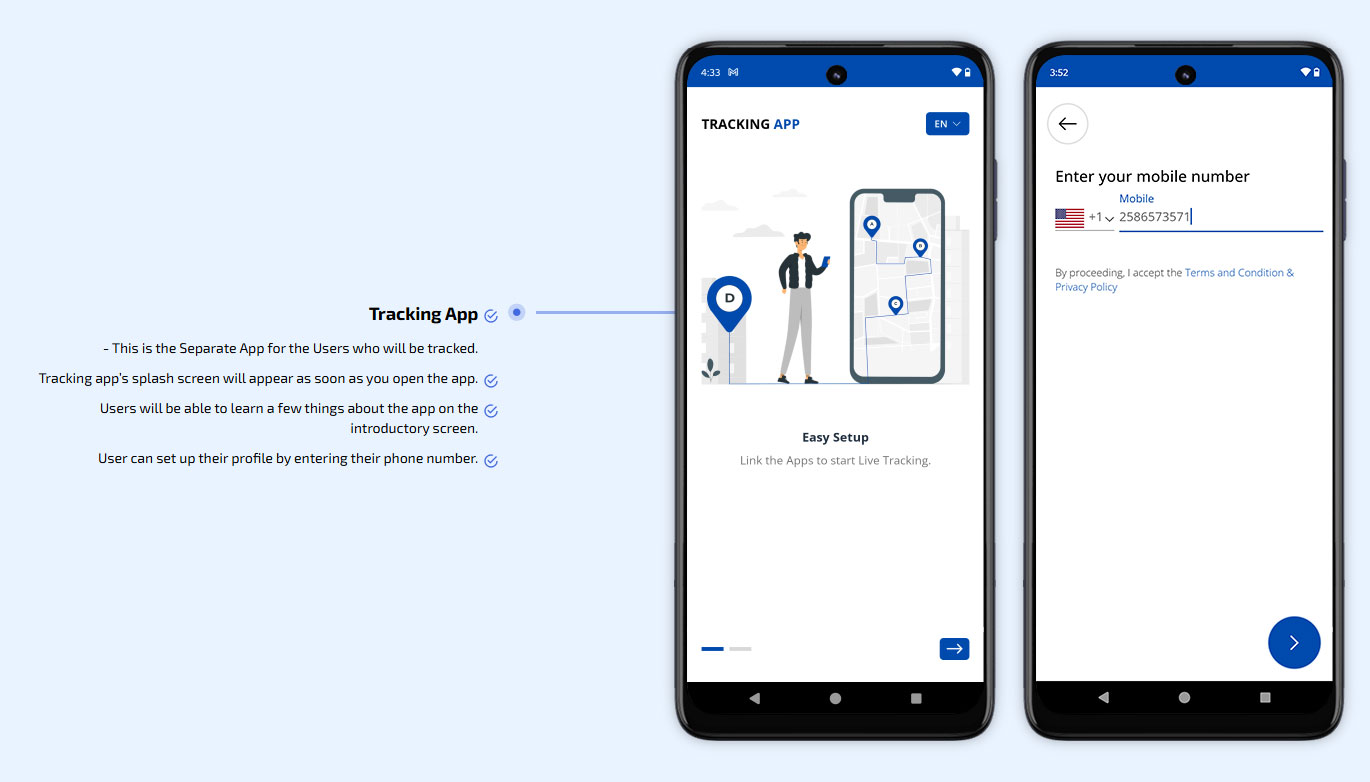
Tracking App
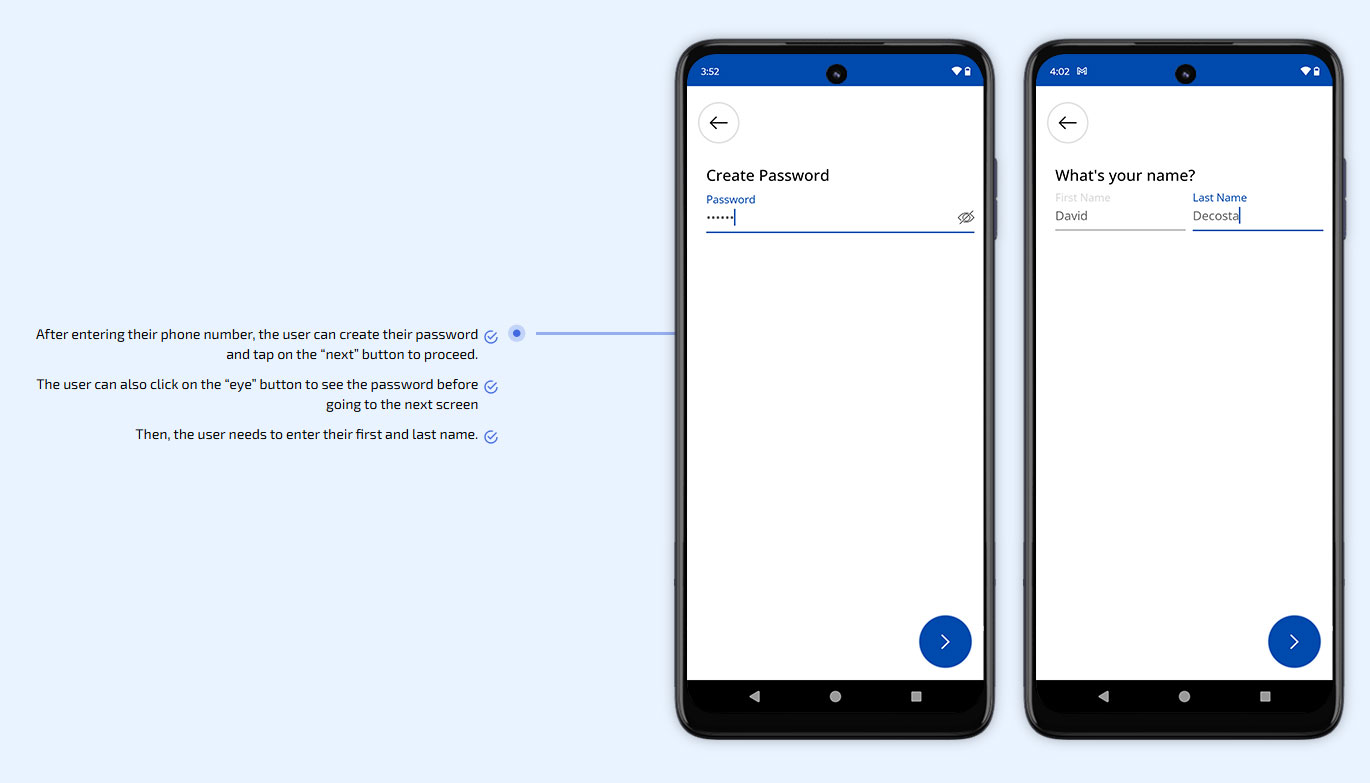
Then, the user needs to enter their first and last name.
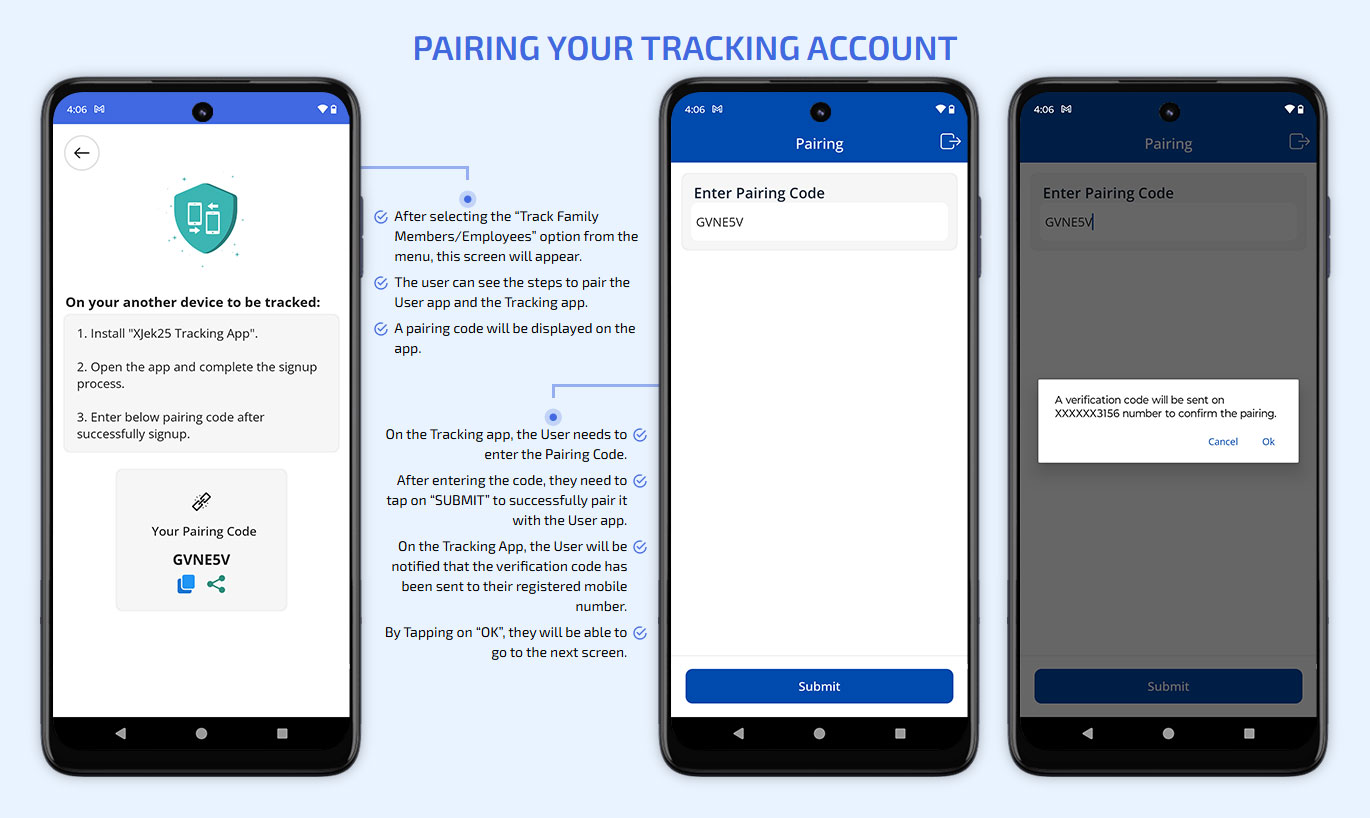
Pairing Your Tracking Account
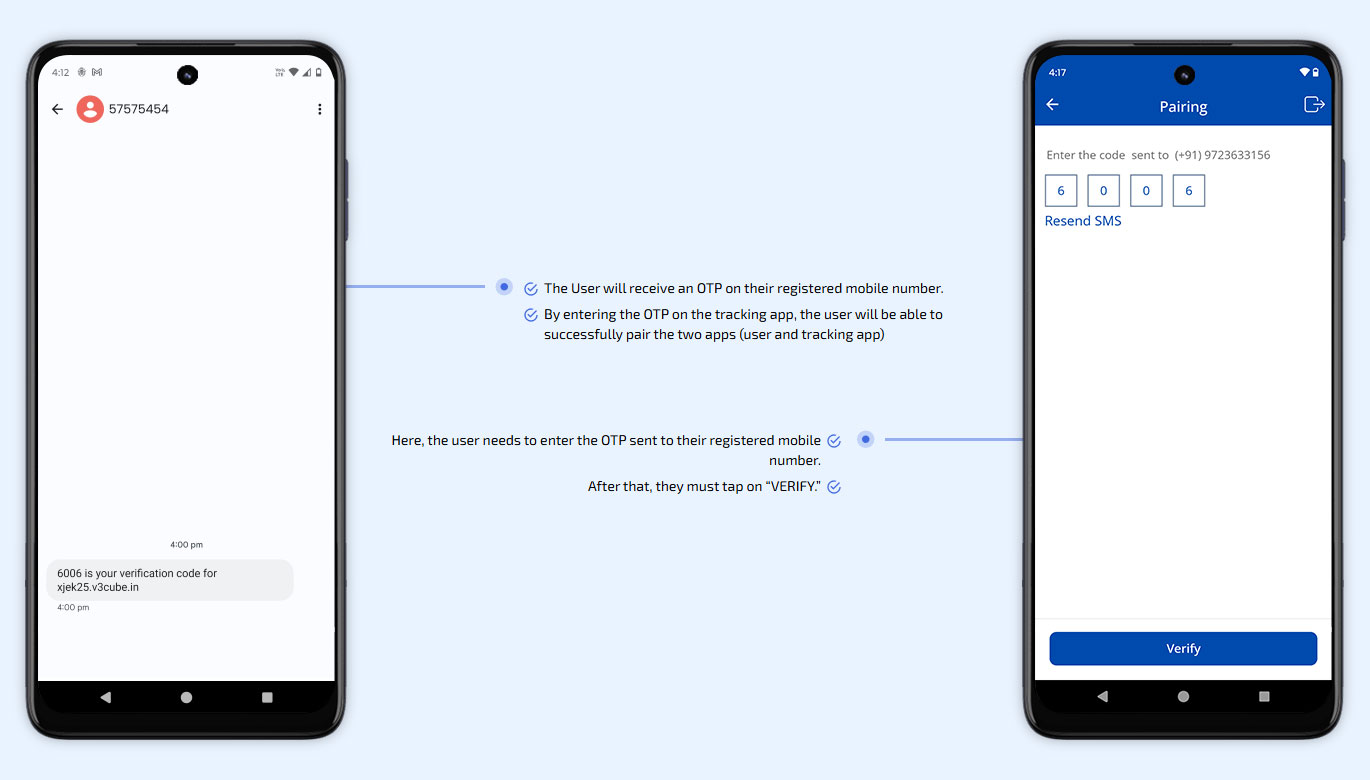
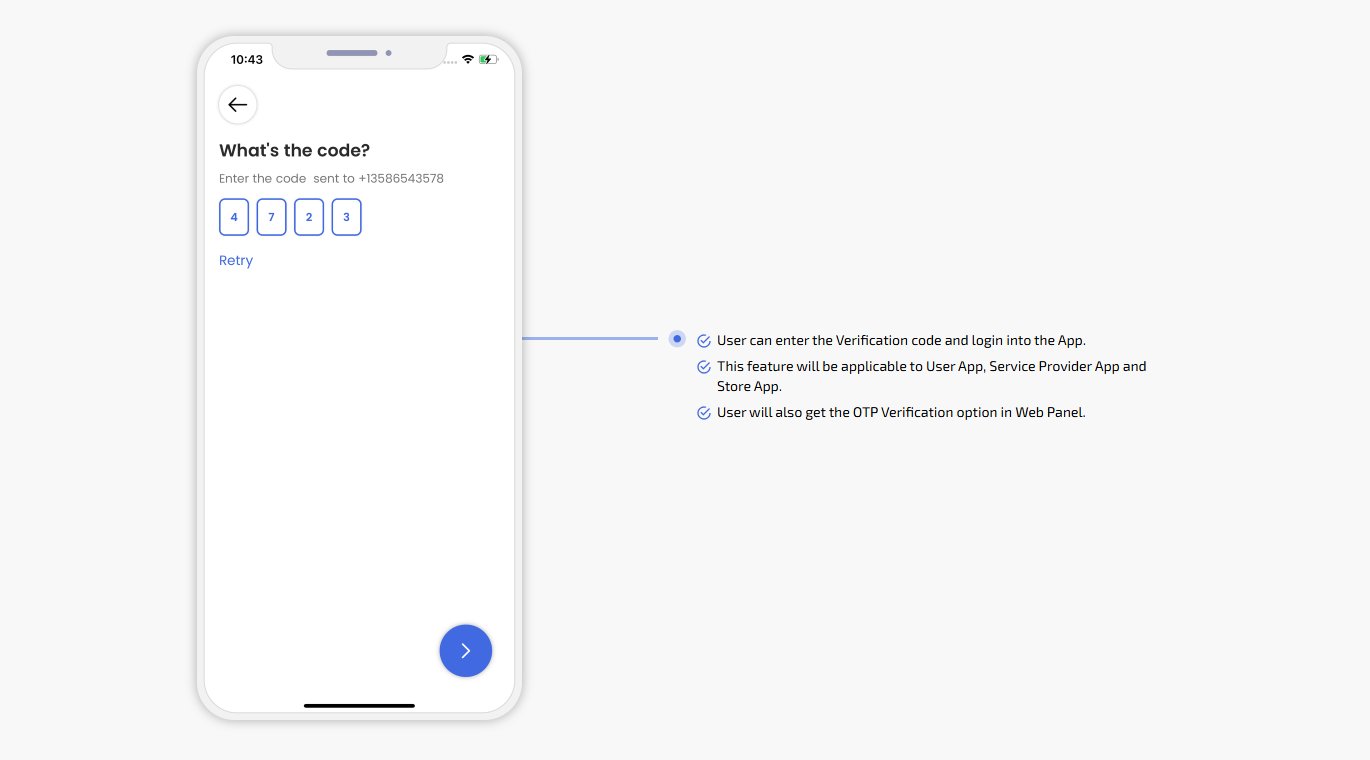
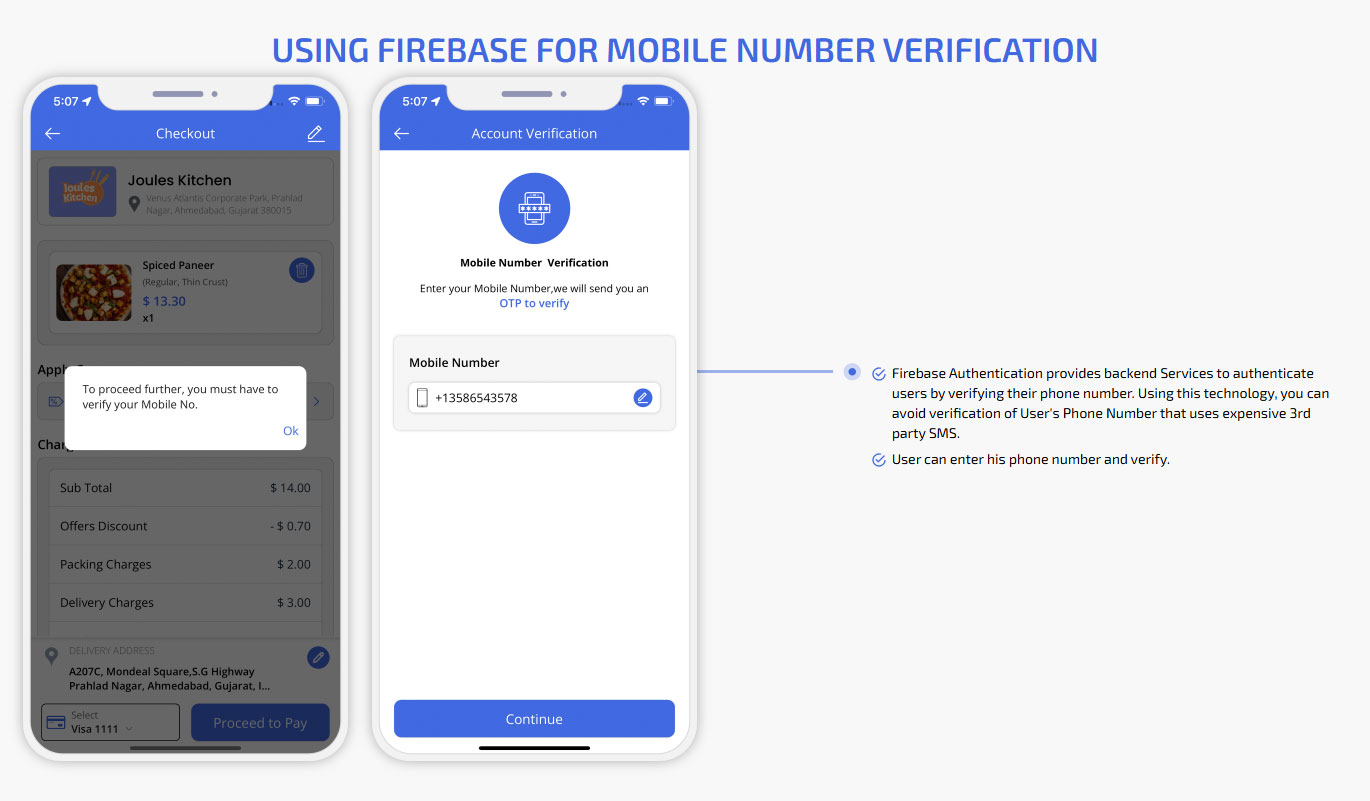
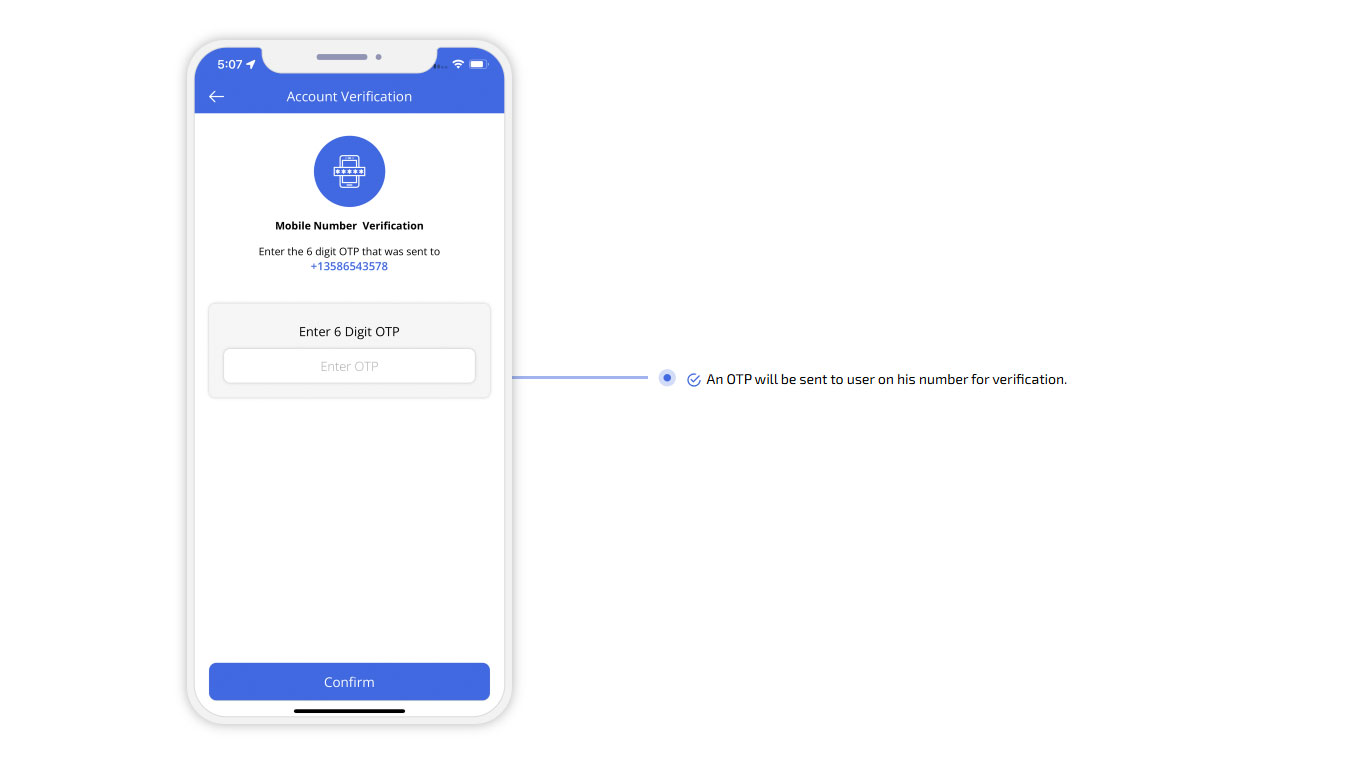
The User will receive an OTP on their registered mobile number.
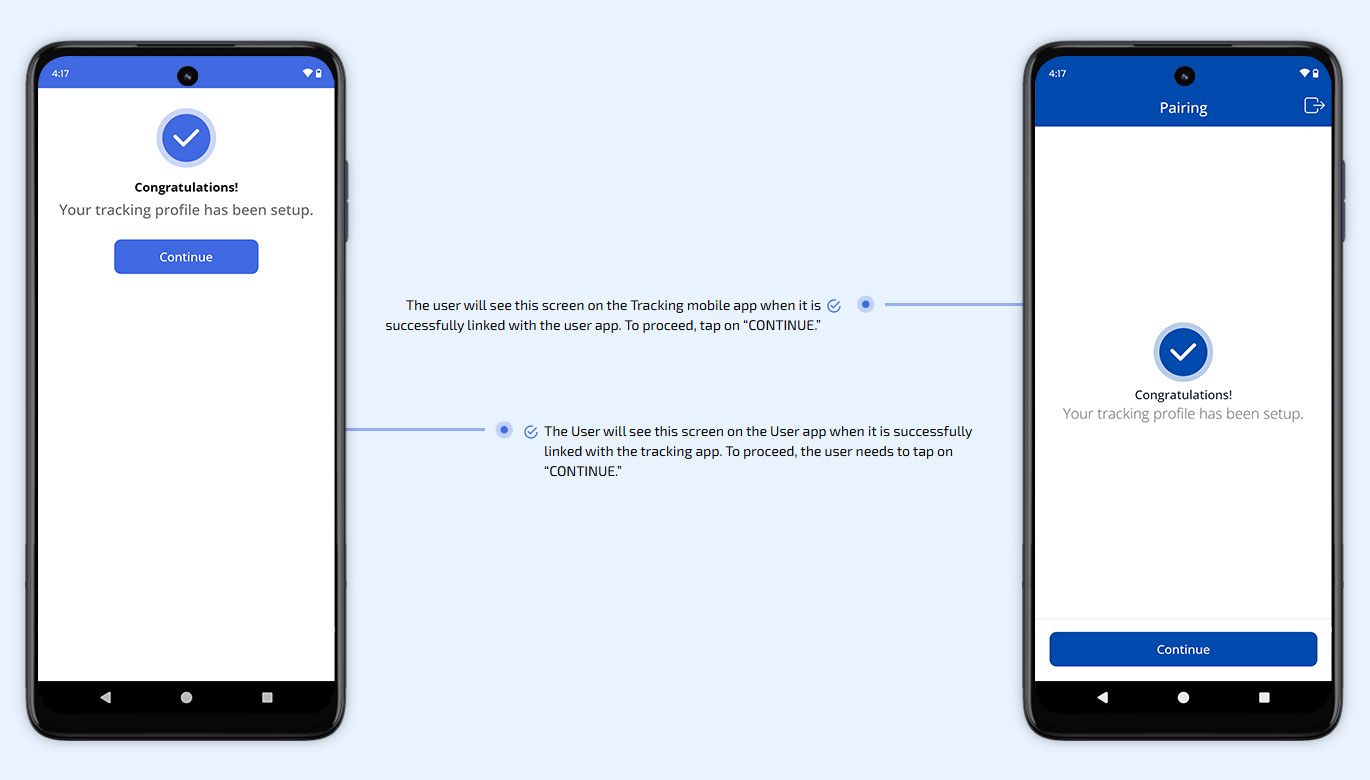
The user will see this screen on the Tracking mobile app when it is successfully linked with the user app.
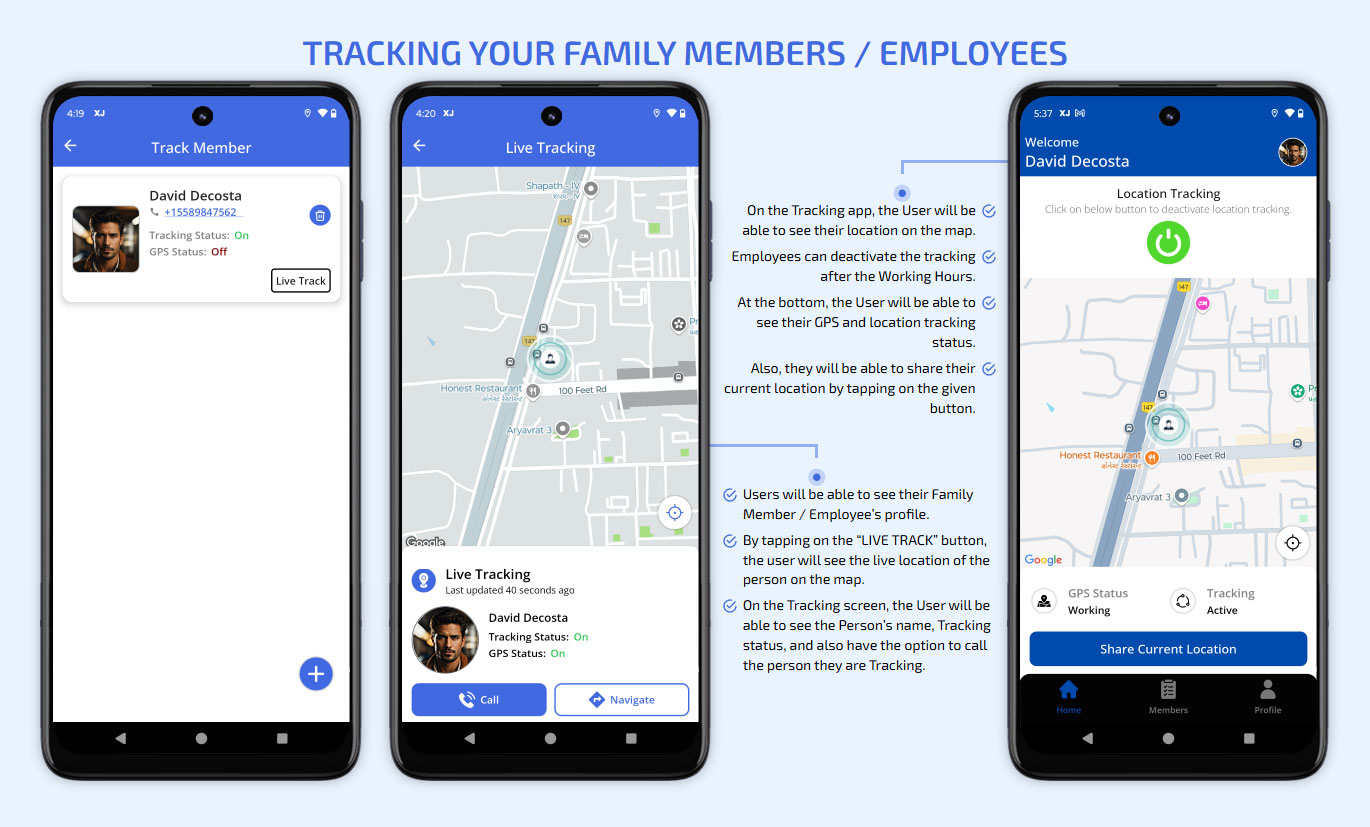
Tracking Your Family Members / Employees
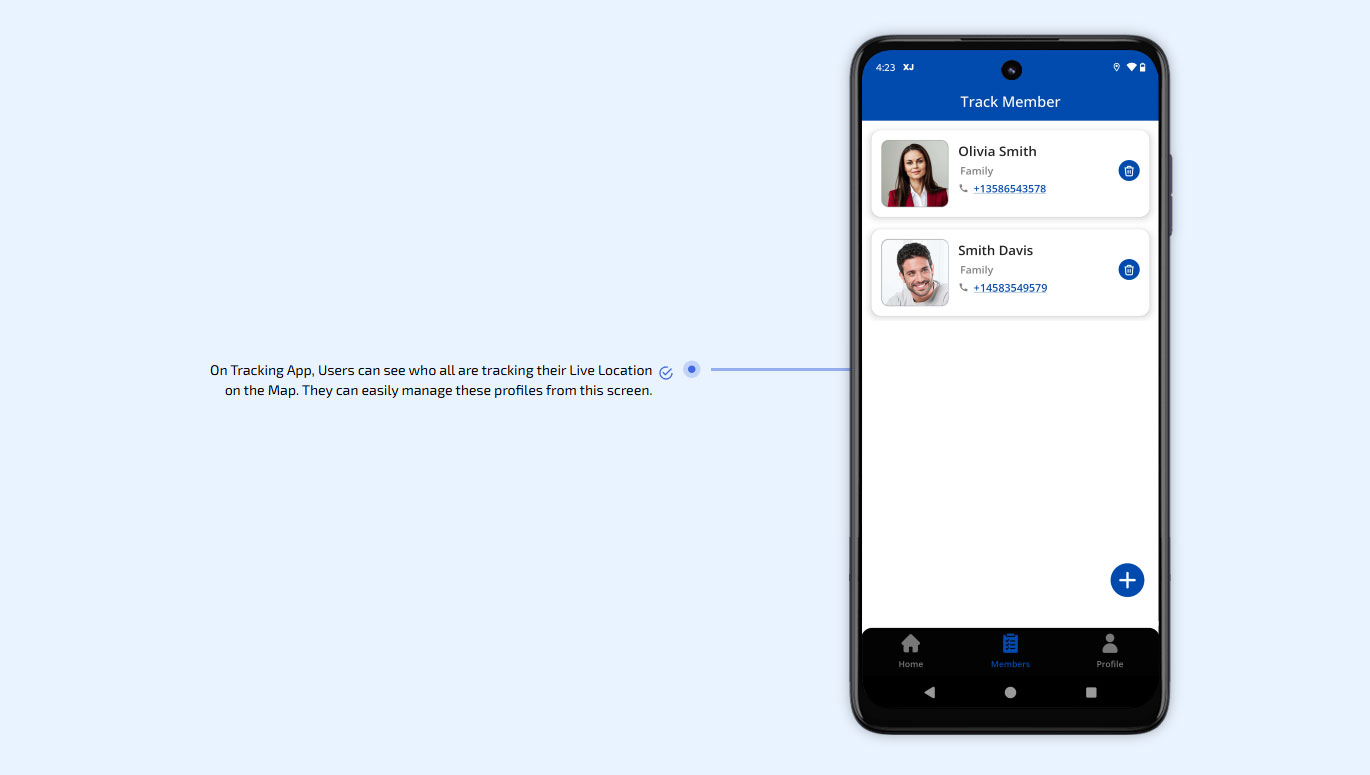
On Tracking App, Users can see who all are tracking their Live Location on the Map.
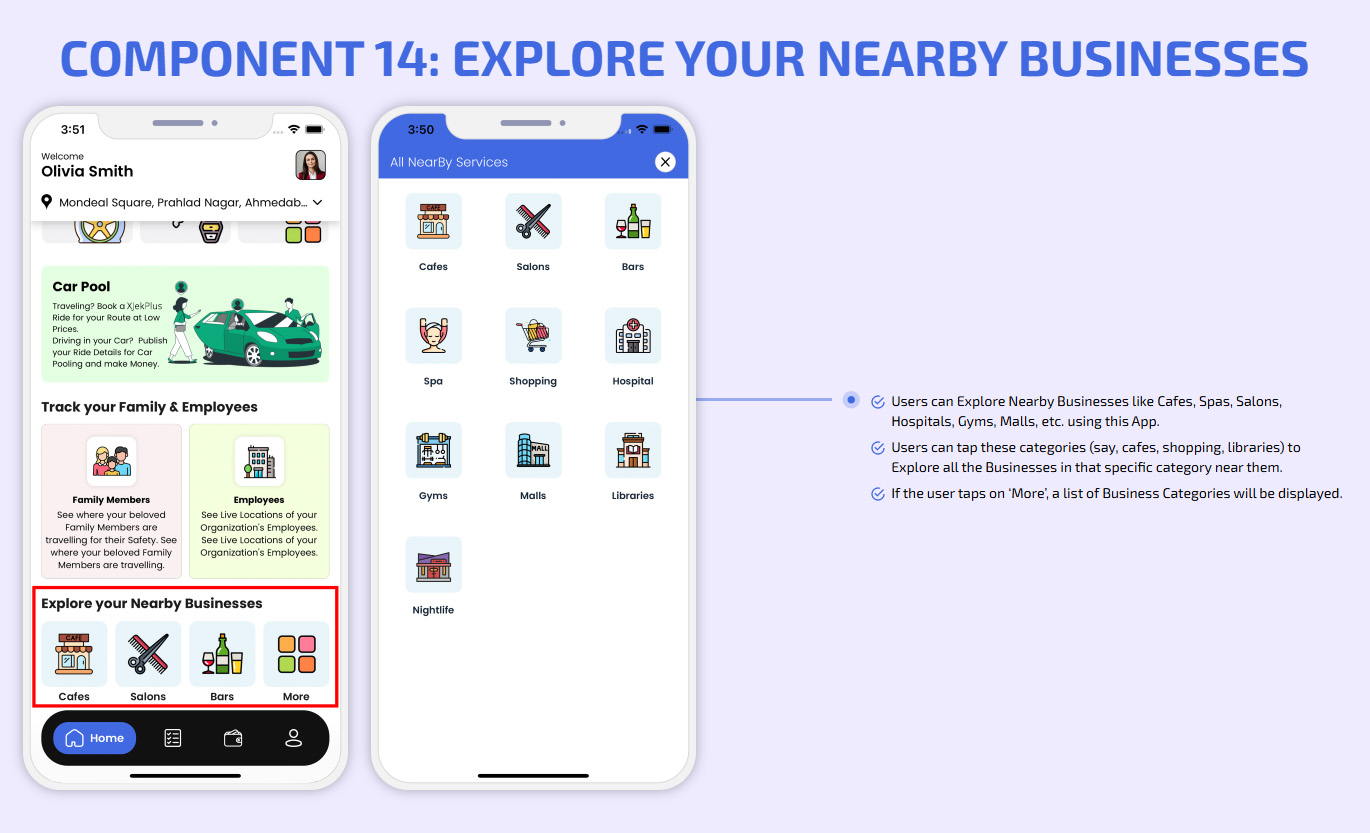
Explore your Nearby Businesses
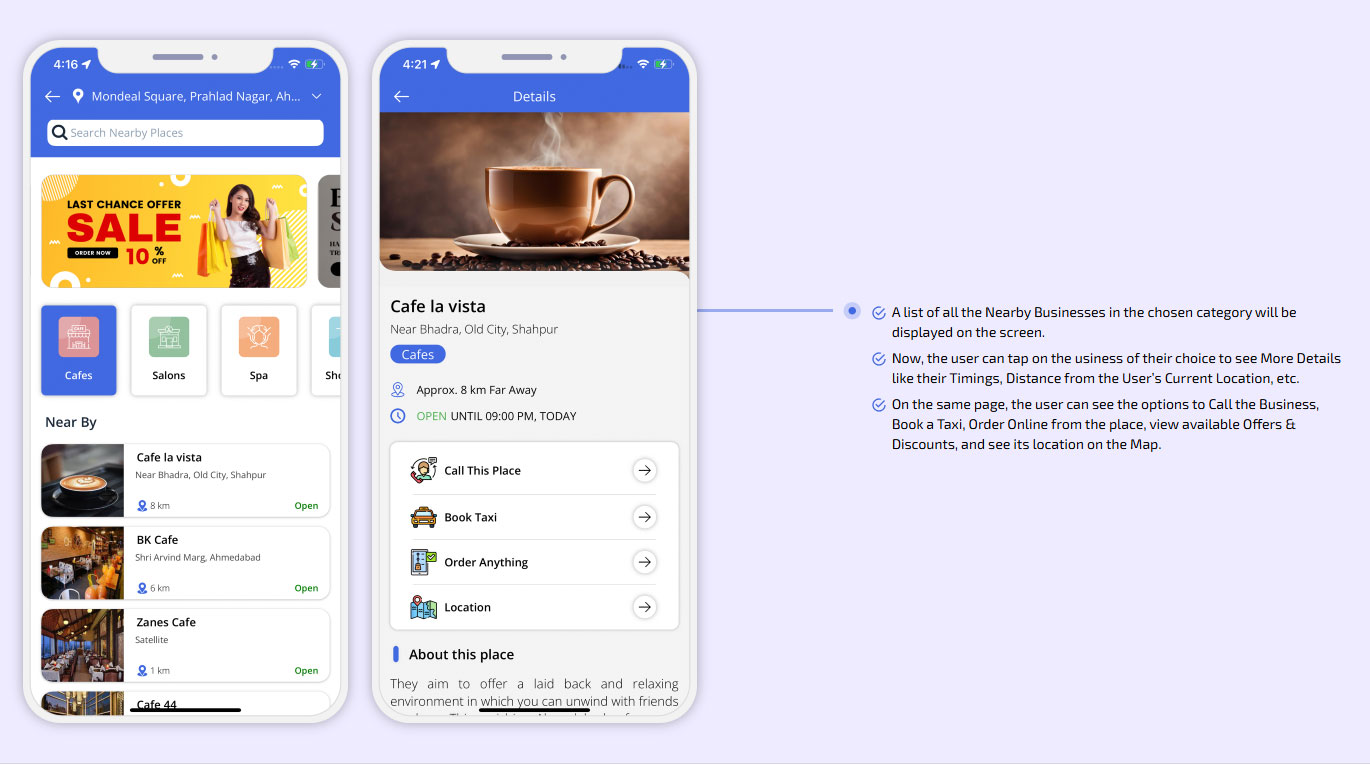
A list of all the Nearby Businesses in the chosen category will be displayed on the screen.
user
call
email
call
message